Dashboards and reports
hayaterp.com ↗The four live dashboards, the report library, scheduled reports by email, approvals, tasks and documents.
The four dashboards
Open Dashboards at the top of the menu. You see the tabs your role allows.
| Tab | Shows | Usually for |
|---|---|---|
| Management | Sales today and for the period, gross profit and margin, transactions, average basket, stock value, receivables and payables, daily sales against last year, branch ranking, top products and categories. | Owners |
| Branch | One branch for one day: sales, target achievement, transactions, returns, items below reorder level, transfers to receive, hourly sales and cashiers. | Store managers |
| Finance | Revenue, gross and net profit, cash and bank, operating cash flow, receivables, payables, VAT payable, profit by month, cash position, ageing. | Accounts |
| Inventory | Stock value, items in stock, out of stock, below reorder, dead stock, expiring batches, stock by branch and category, shortages. | Store and warehouse |
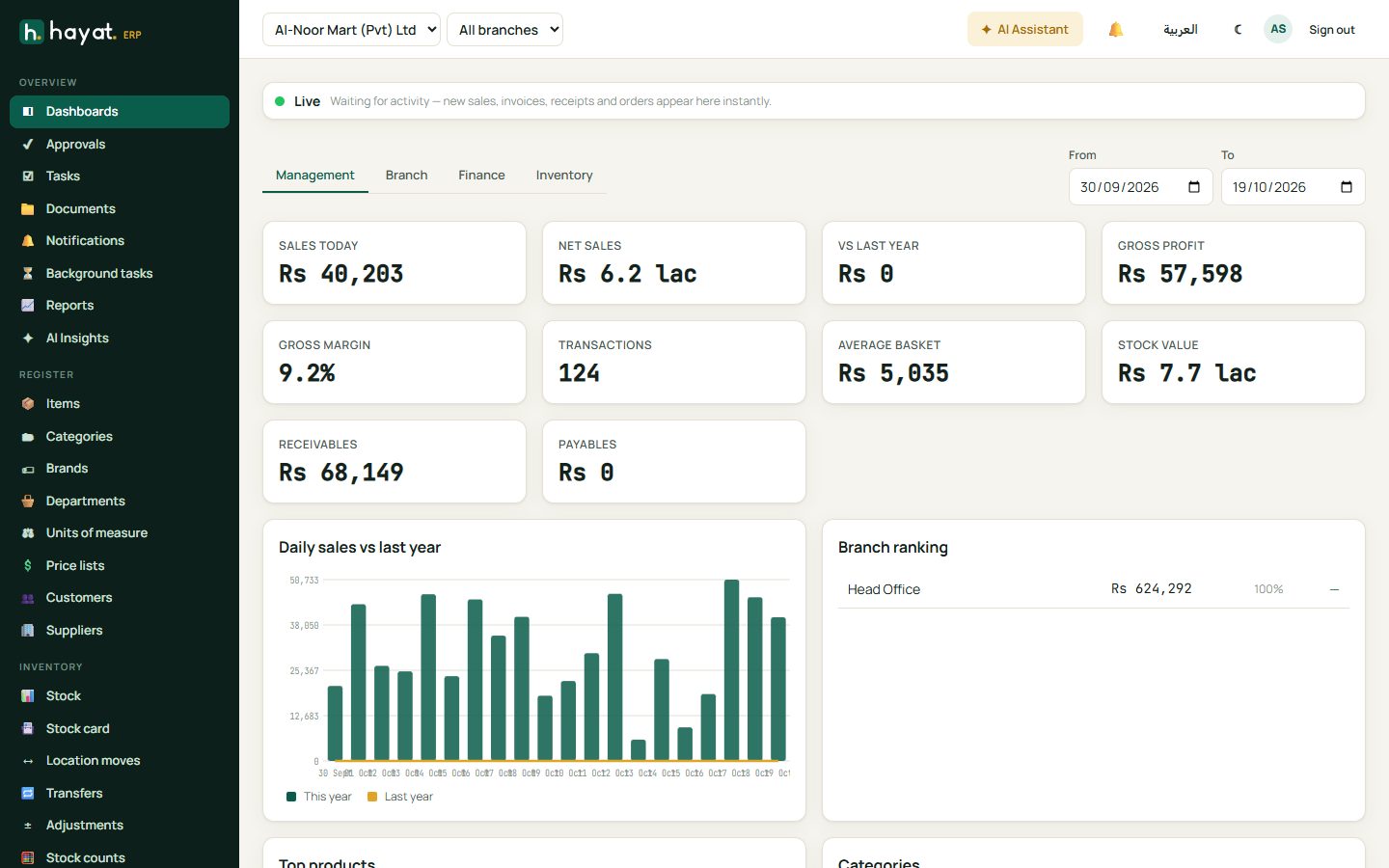
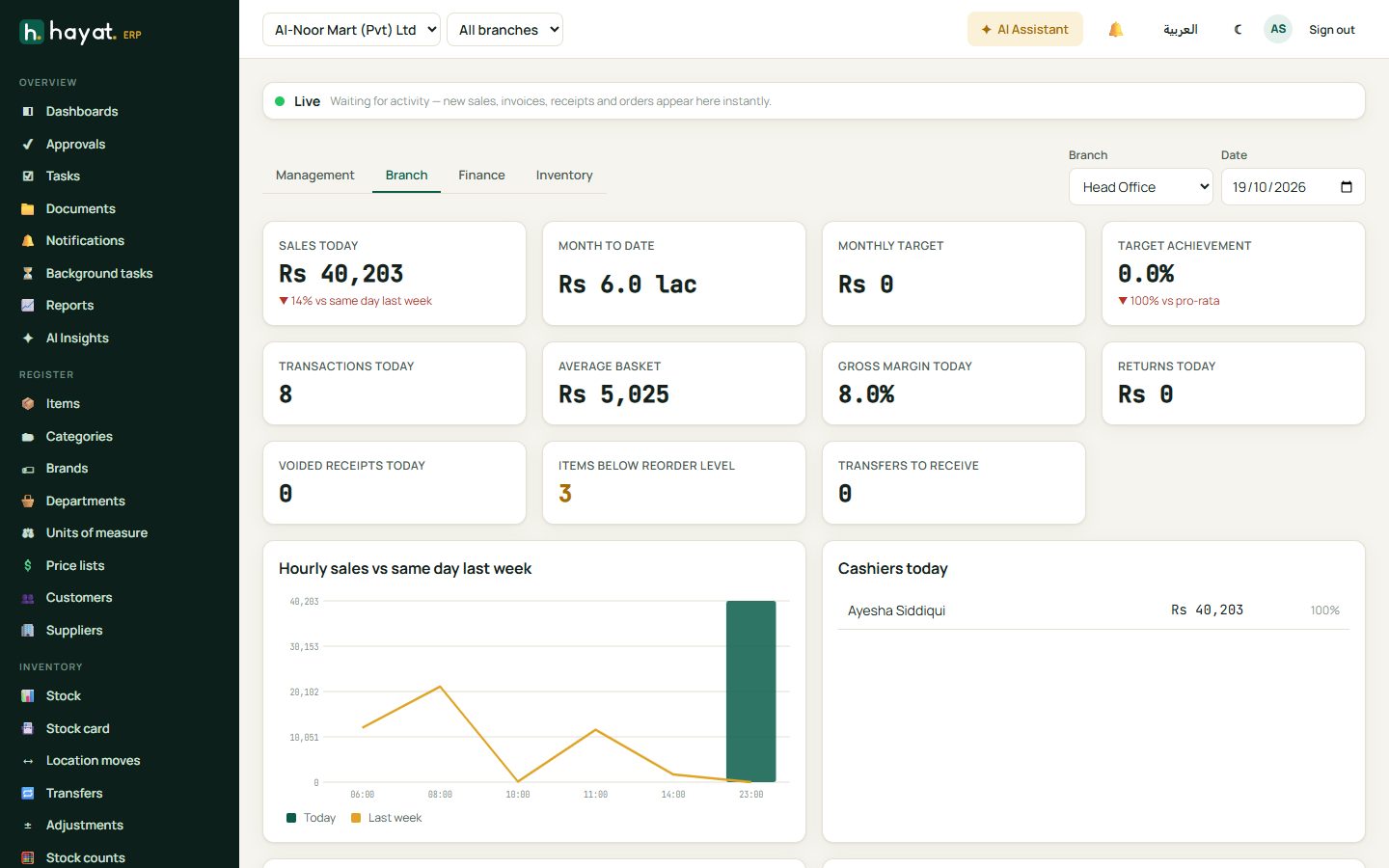
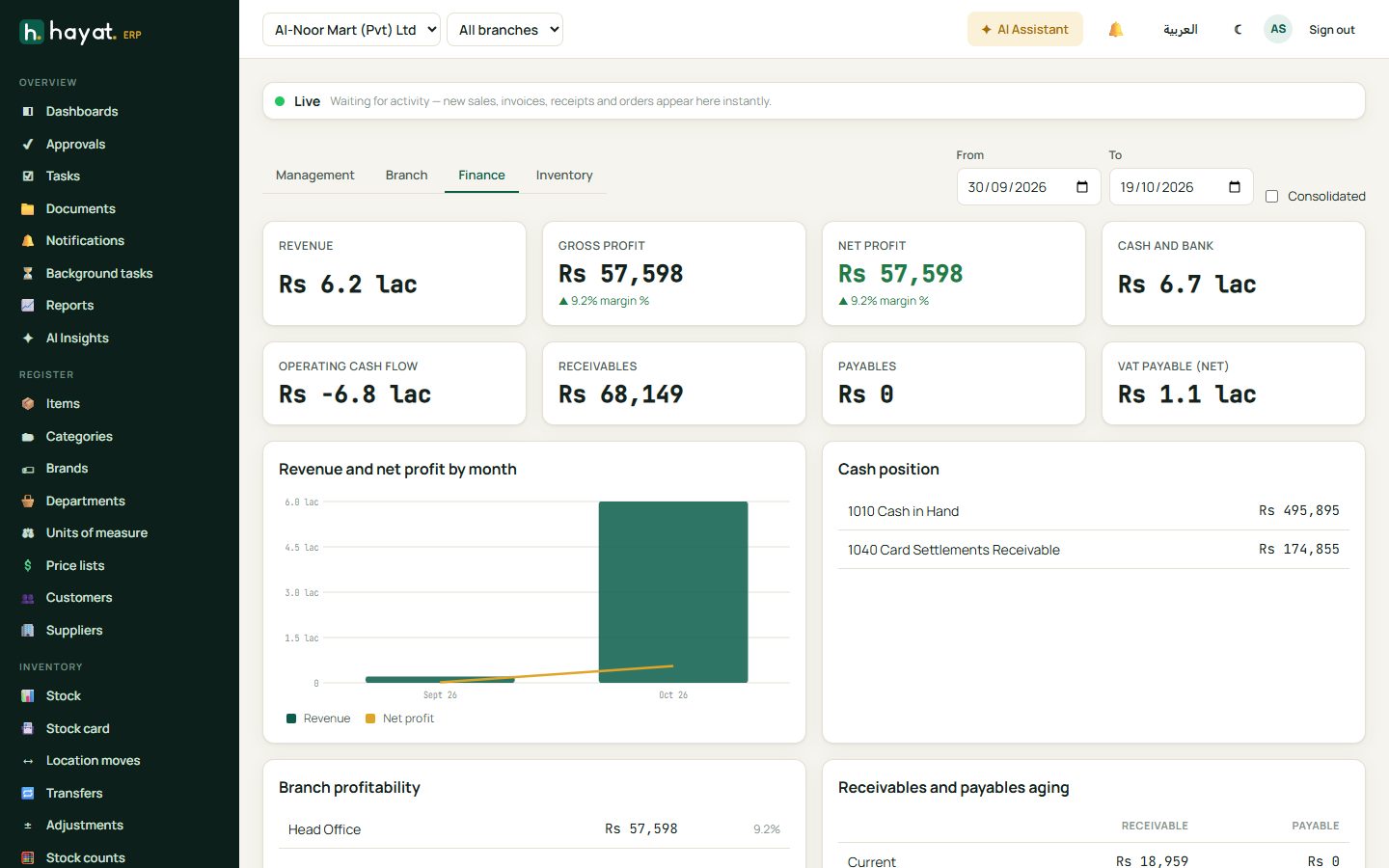
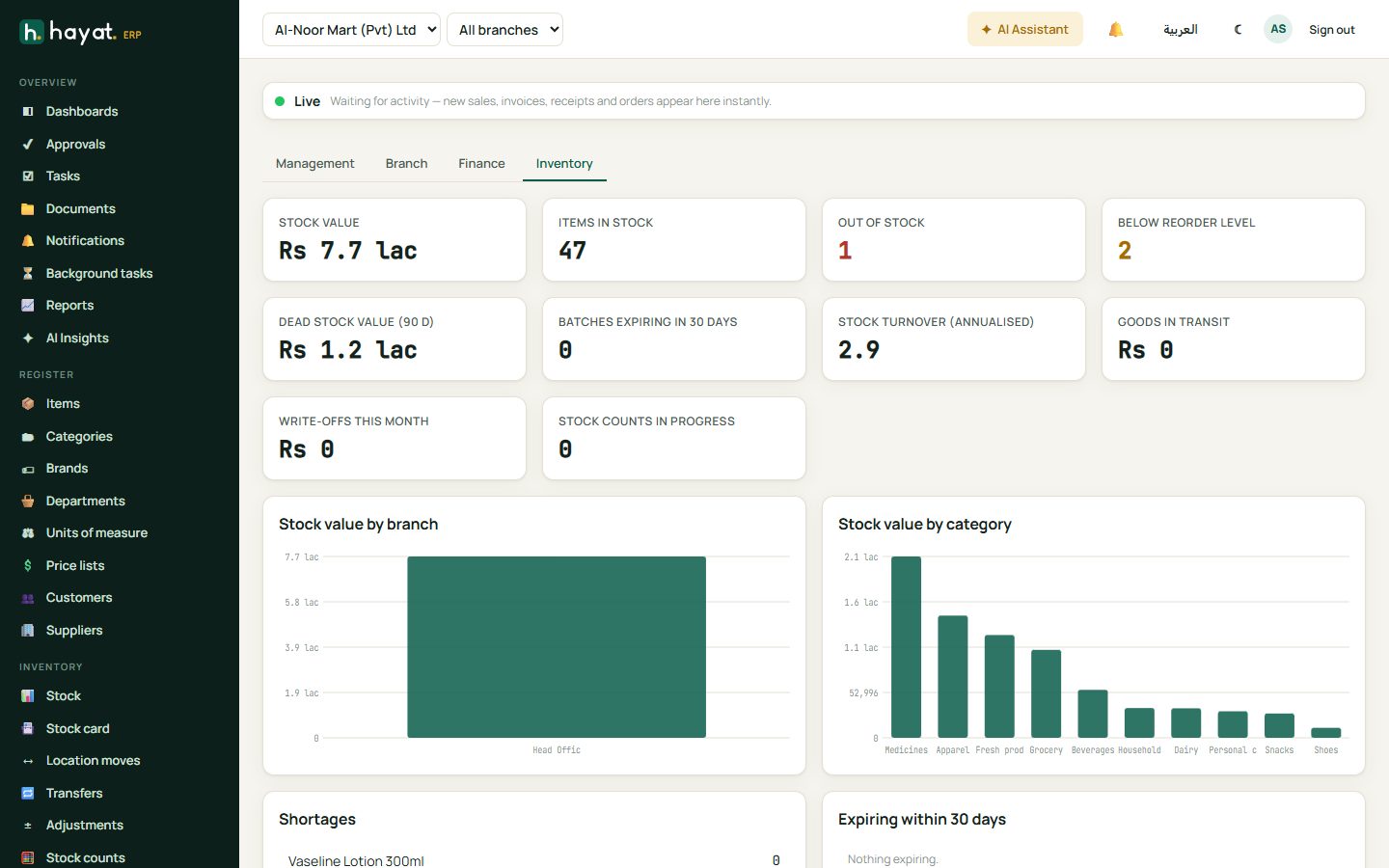
- Change the From / To dates to look at another period. Consolidated on the Finance tab adds up all companies in the group.
- Click any figure card to open the list behind it.
- The dashboard refreshes by itself after every sale, invoice, receipt or online order.
The report library
Reports lists every report, grouped by area: sales (daily, monthly, by branch, department, category, product, cashier, hour and payment method, comparisons and trends), inventory (stock on hand, valuation, movement, ageing, fast/slow/dead stock, shortages), purchasing, finance, tax and HR.
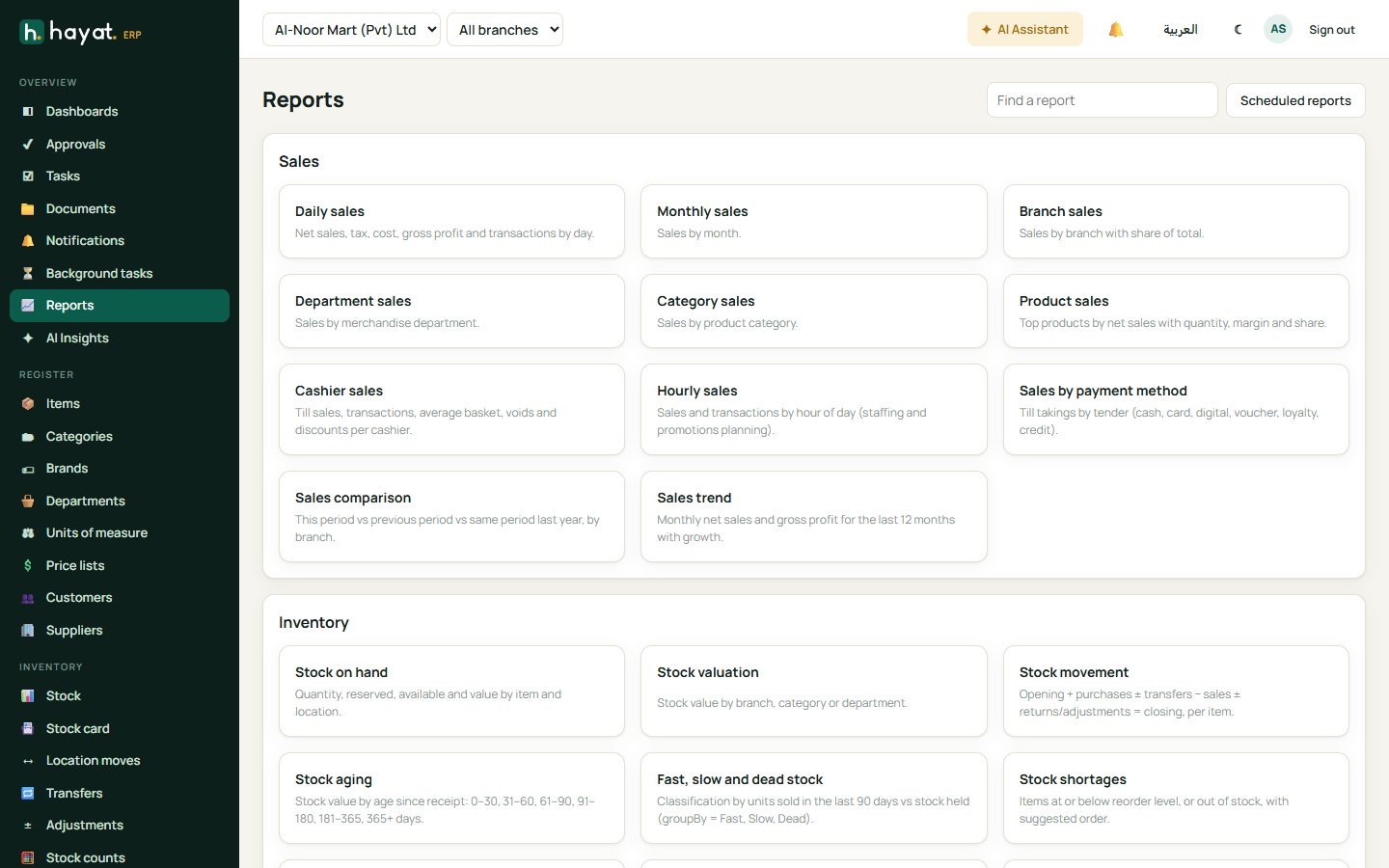
- Click a report.
- Choose the period, branch and other filters.
- Click Run. Use Excel, PDF or Print to keep a copy.
Scheduled reports
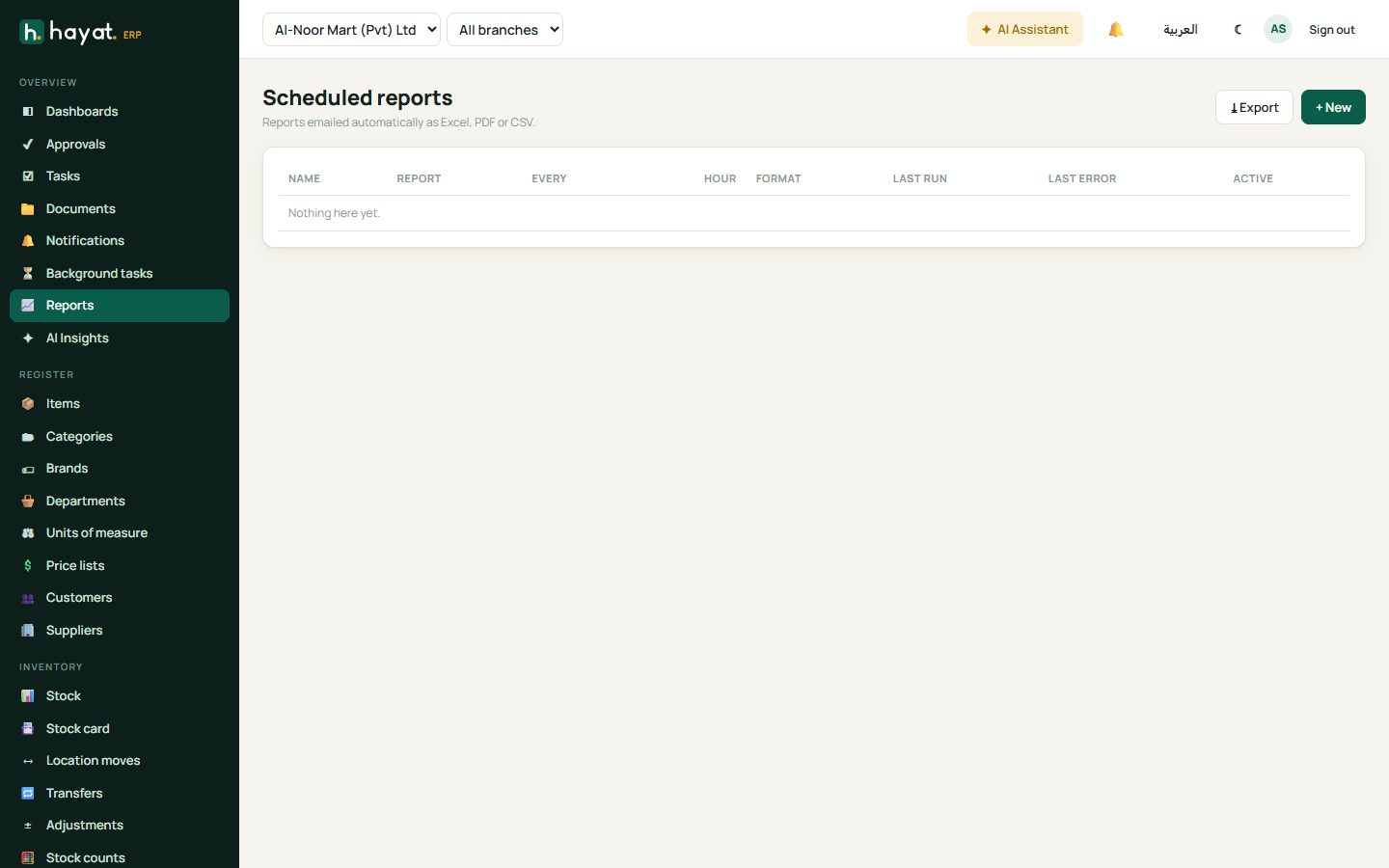
Reports → Scheduled reports emails a report automatically — for example Daily sales every morning at 8 to the owner.
- Click + New.
- Pick the report, the period (yesterday, today, last week, month to date, last month, year to date), how often and at what hour.
- Choose the format (Excel, PDF or CSV) and type the email addresses.
- Save. Last run shows when it was sent and any error.
Approvals, tasks and documents
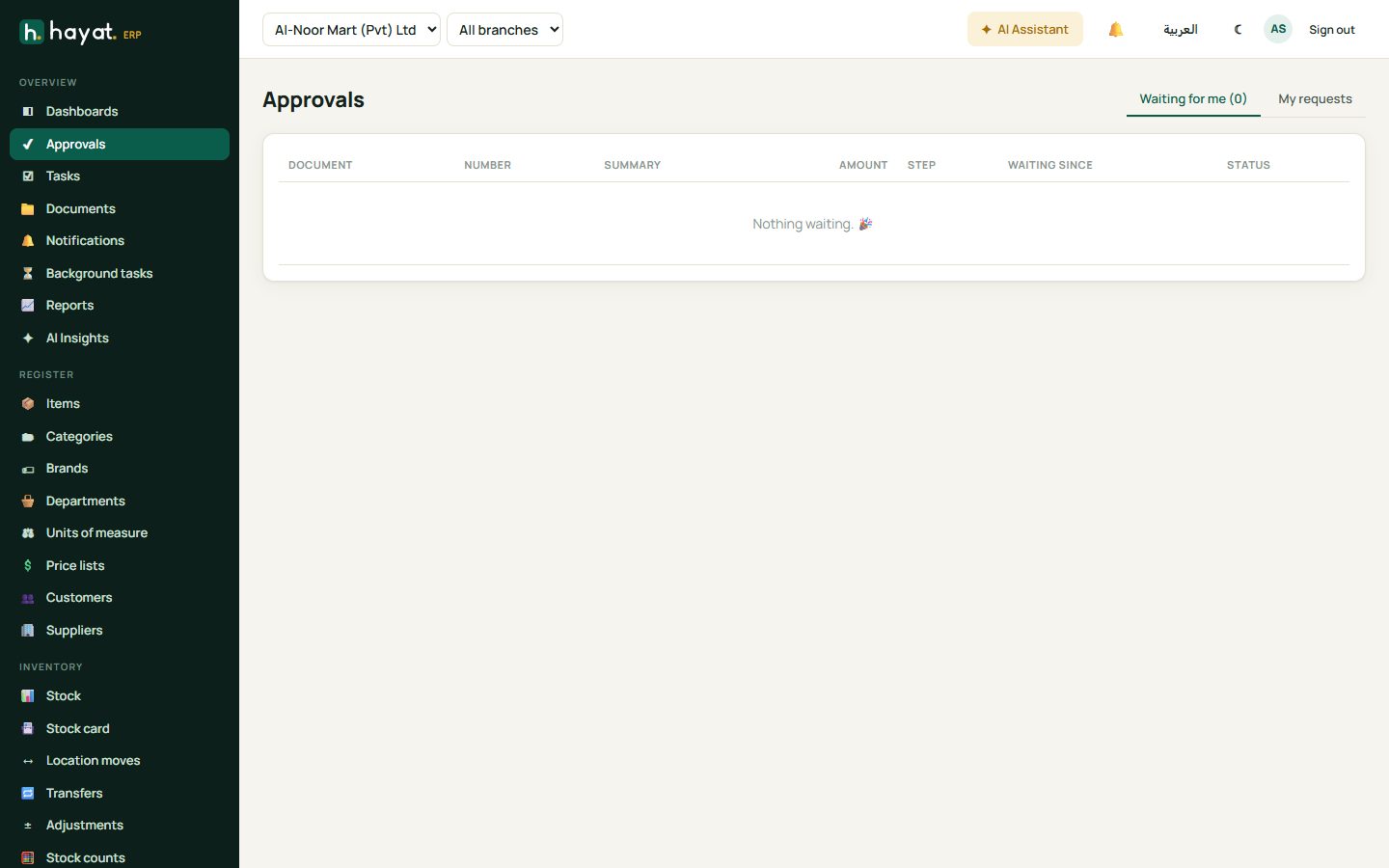
- Approvals — documents waiting for you: purchase orders above a limit, discounts, leave, write-offs. Open one and Approve or Reject with a reason. My requests shows what you sent for approval.
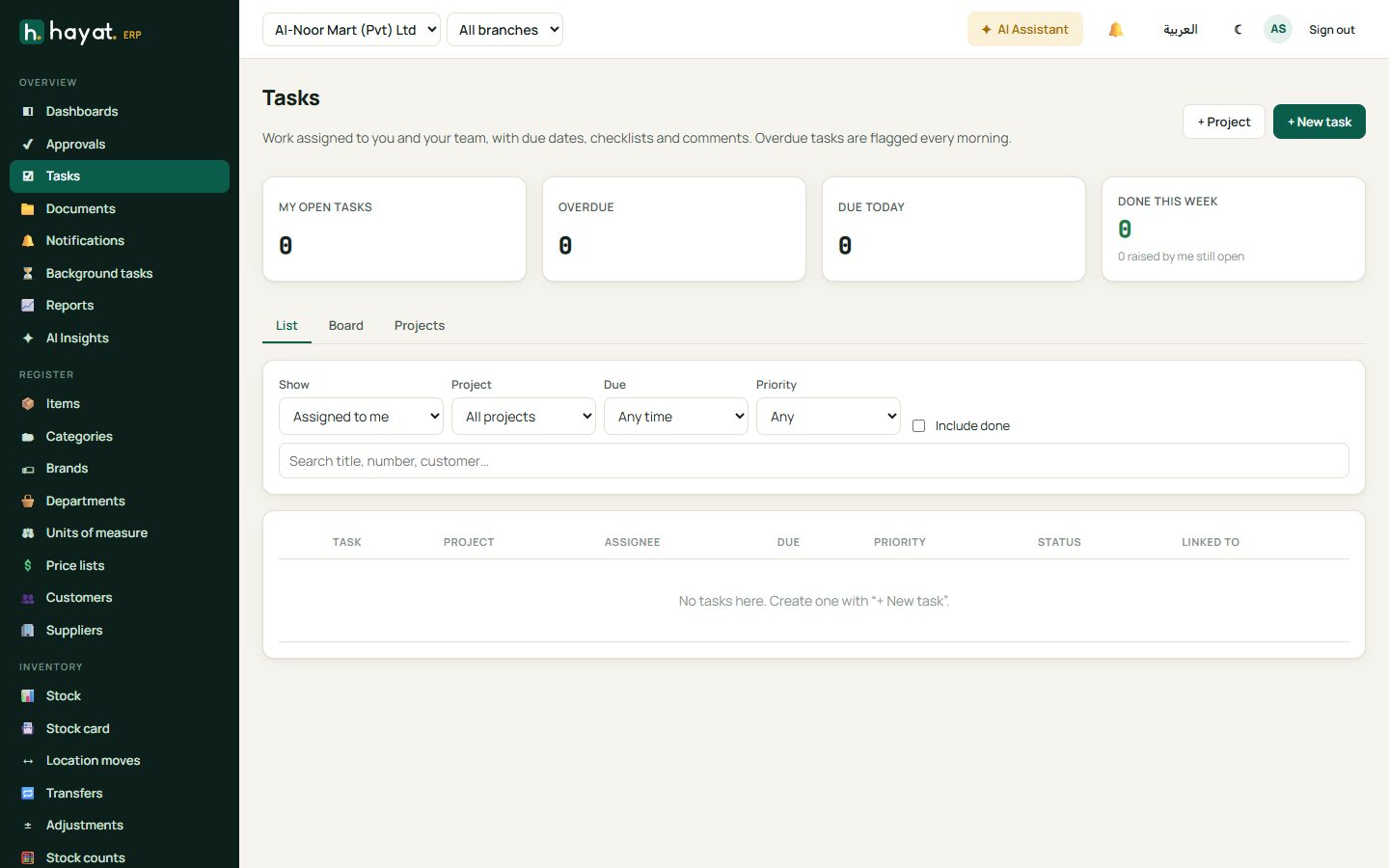
- Tasks — work given to you or your team, with due dates, checklists and comments. Switch between List, Board and Projects.
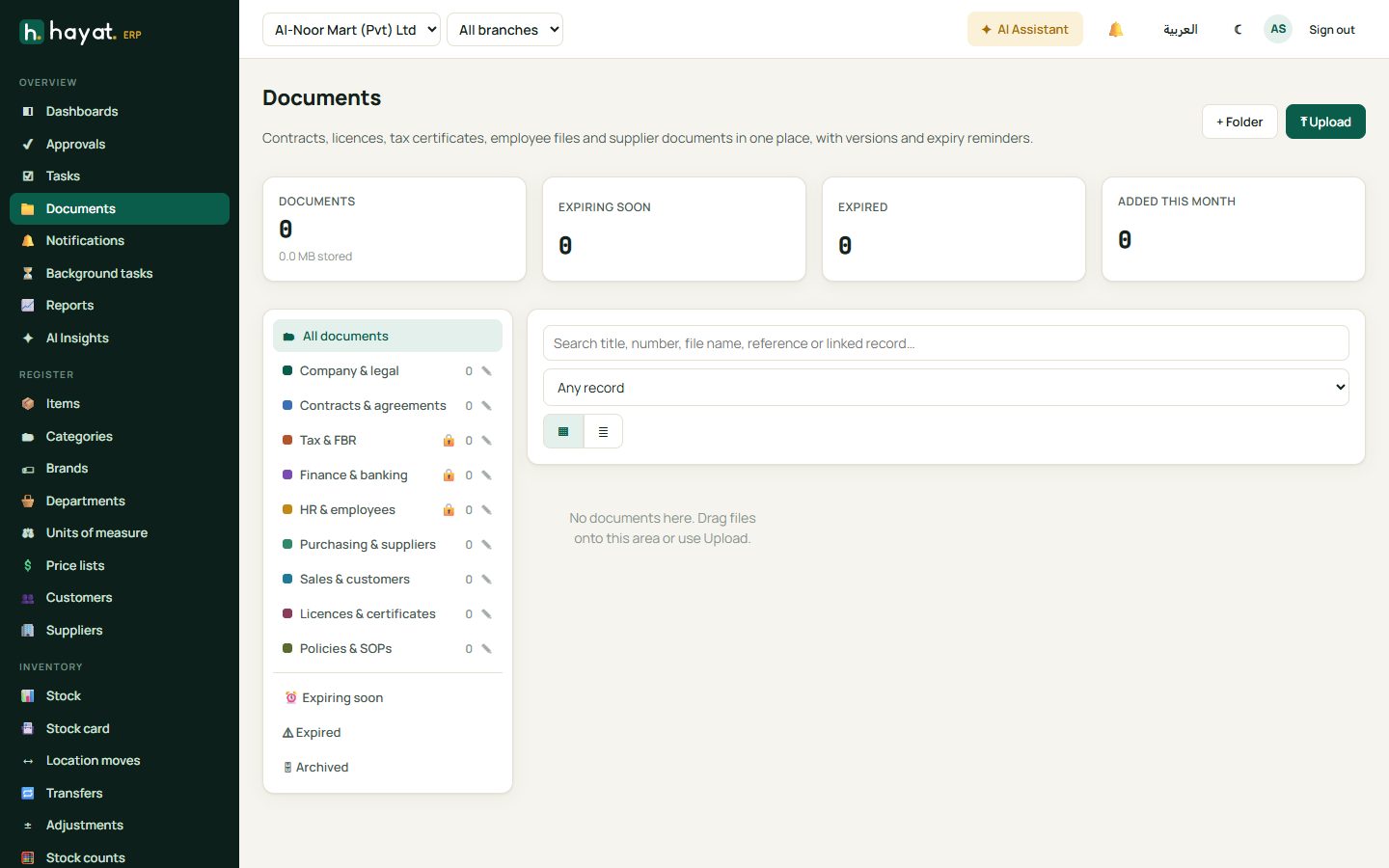
- Documents — contracts, licences, tax certificates and HR files in folders, with expiry reminders. Drag files onto the page to upload.
Notifications and background tasks
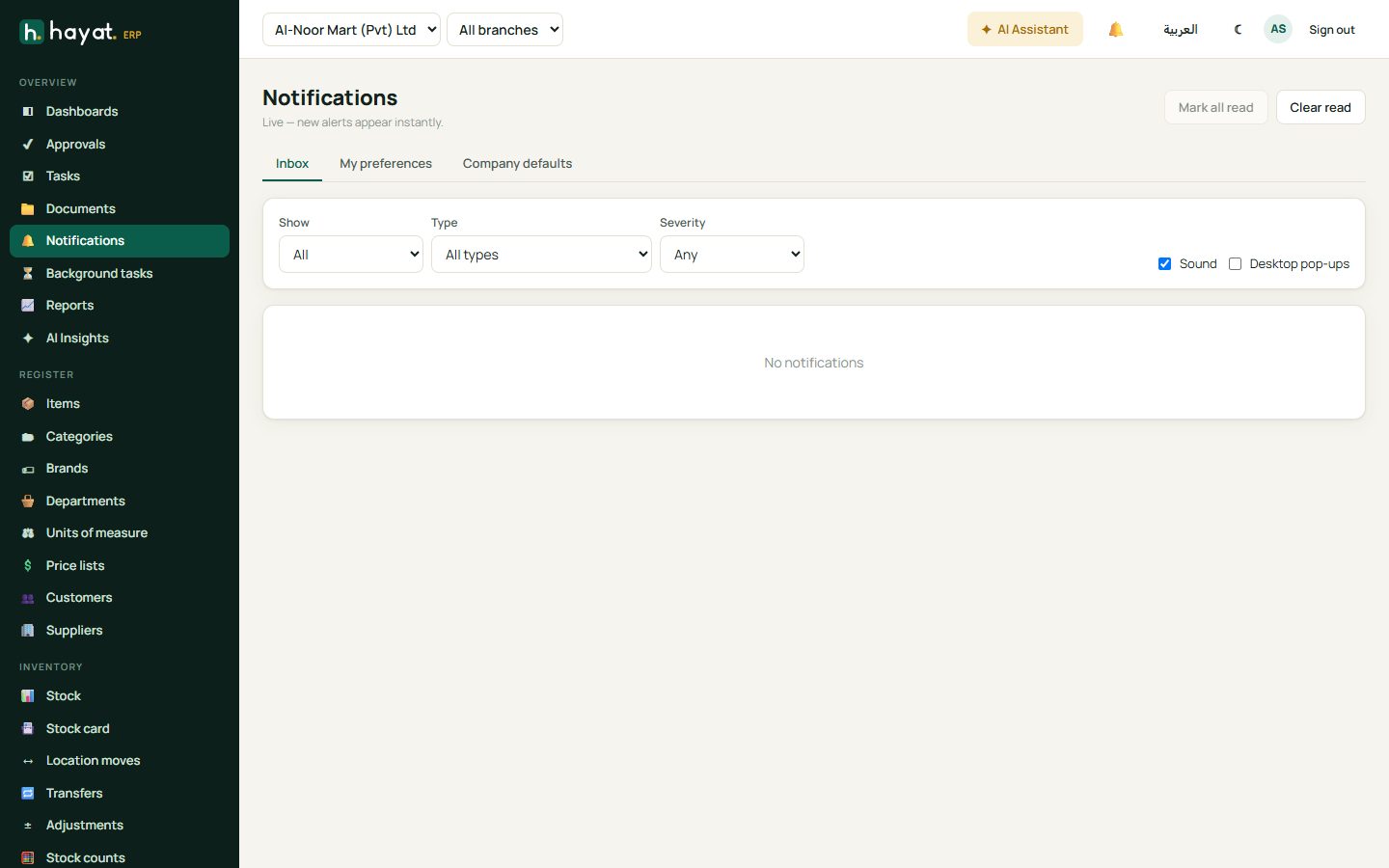
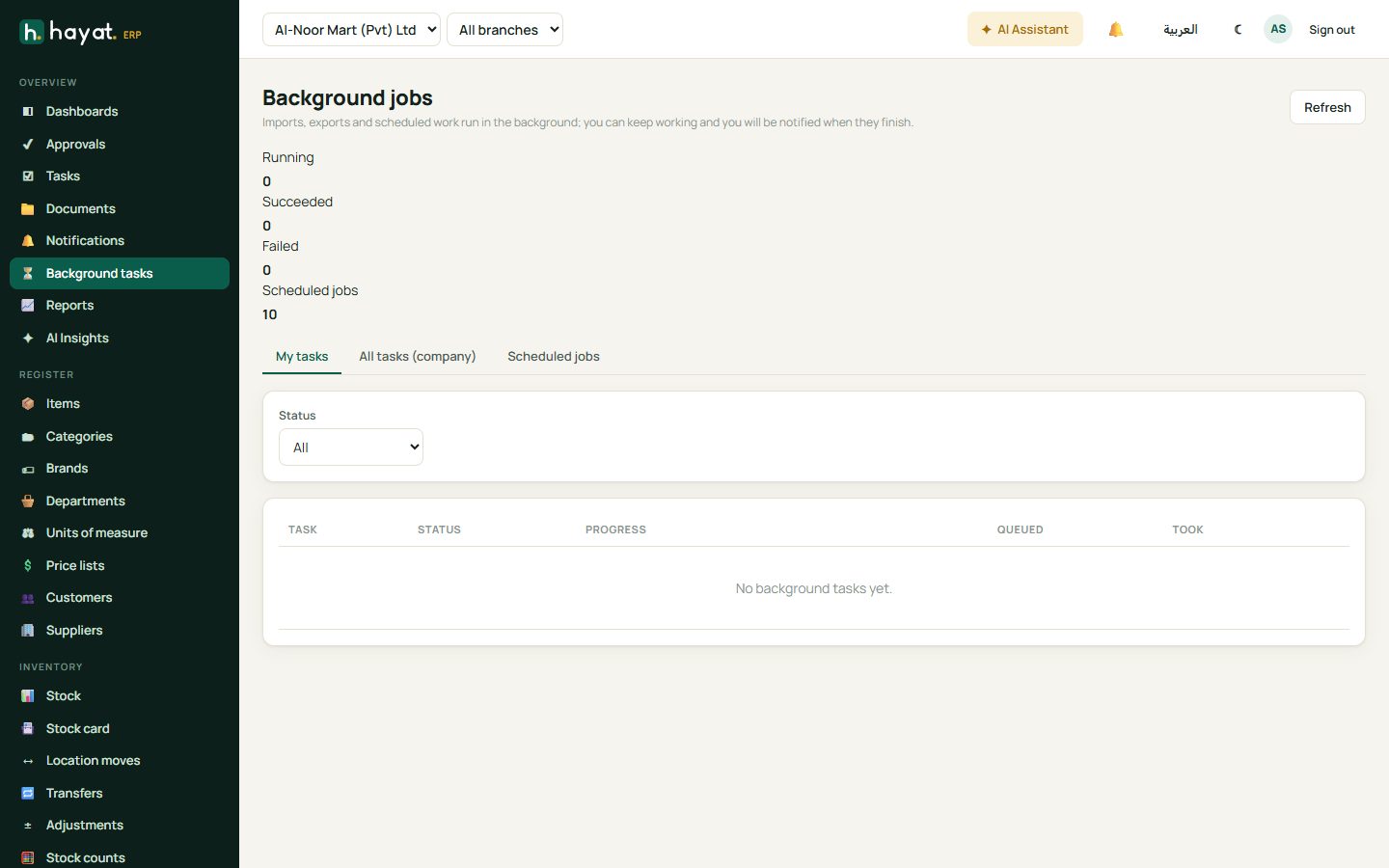
The bell and Notifications screen list alerts. Choose which alerts you want in My preferences. Long jobs — big exports and imports, payroll, report schedules — run in Background tasks; you can keep working and download the result there when it finishes.