Users, roles and settings
hayaterp.com/settings ↗Add staff and give them roles, set company details and parameters, import data and keep backups.
Add a user
- Settings → Users → + New user.
- Enter the name and email, choose the role (see Who uses which portal) and the companies and branches they may use.
- For cashiers, set the maximum discount % and a PIN for supervisor approvals.
- Save. Give the person their email and first password; they can change it after signing in.
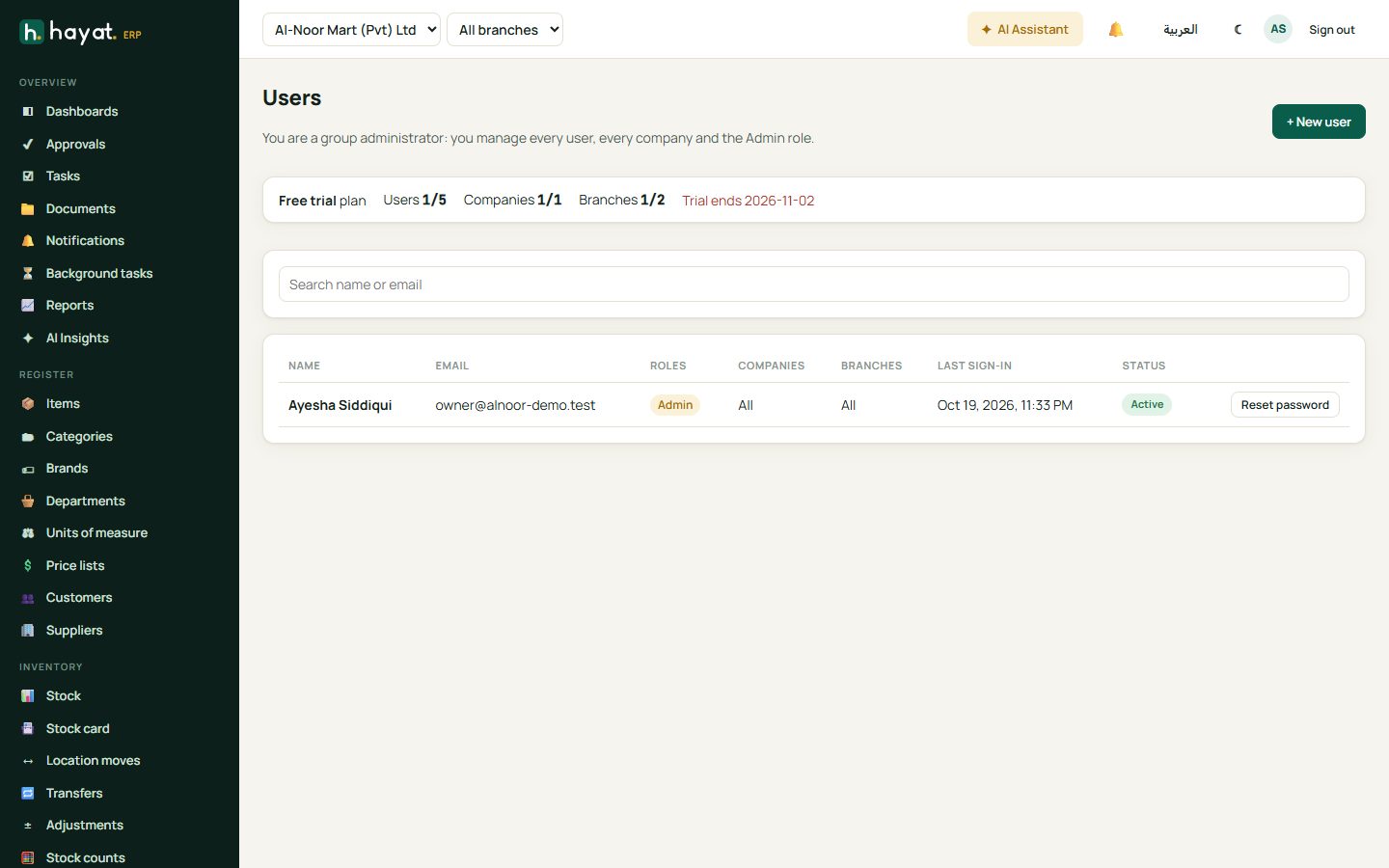
The top of the screen shows your plan and how many users, companies and branches it allows. Reset password sets a new temporary password for someone who forgot theirs. Turn on two-step sign-in for users who handle money.
Company settings
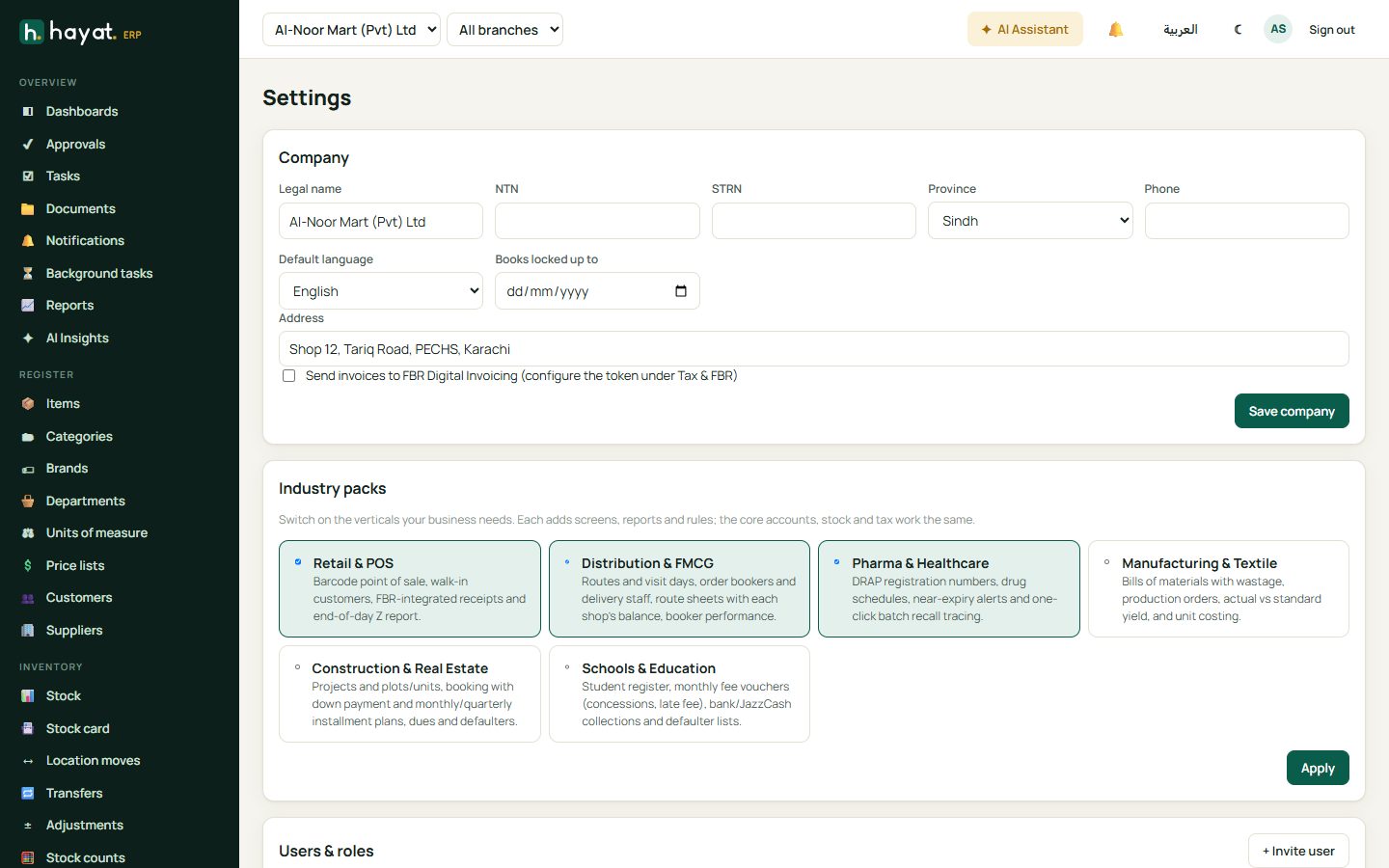
Settings holds the legal name, NTN and STRN, province, phone, address, default language and the date your books are locked to. Industry packs switch on extra features for your kind of business — Retail & POS, Distribution & FMCG, Pharma & Healthcare, Manufacturing & Textile, Construction & Real Estate, Schools & Education.
Parameters
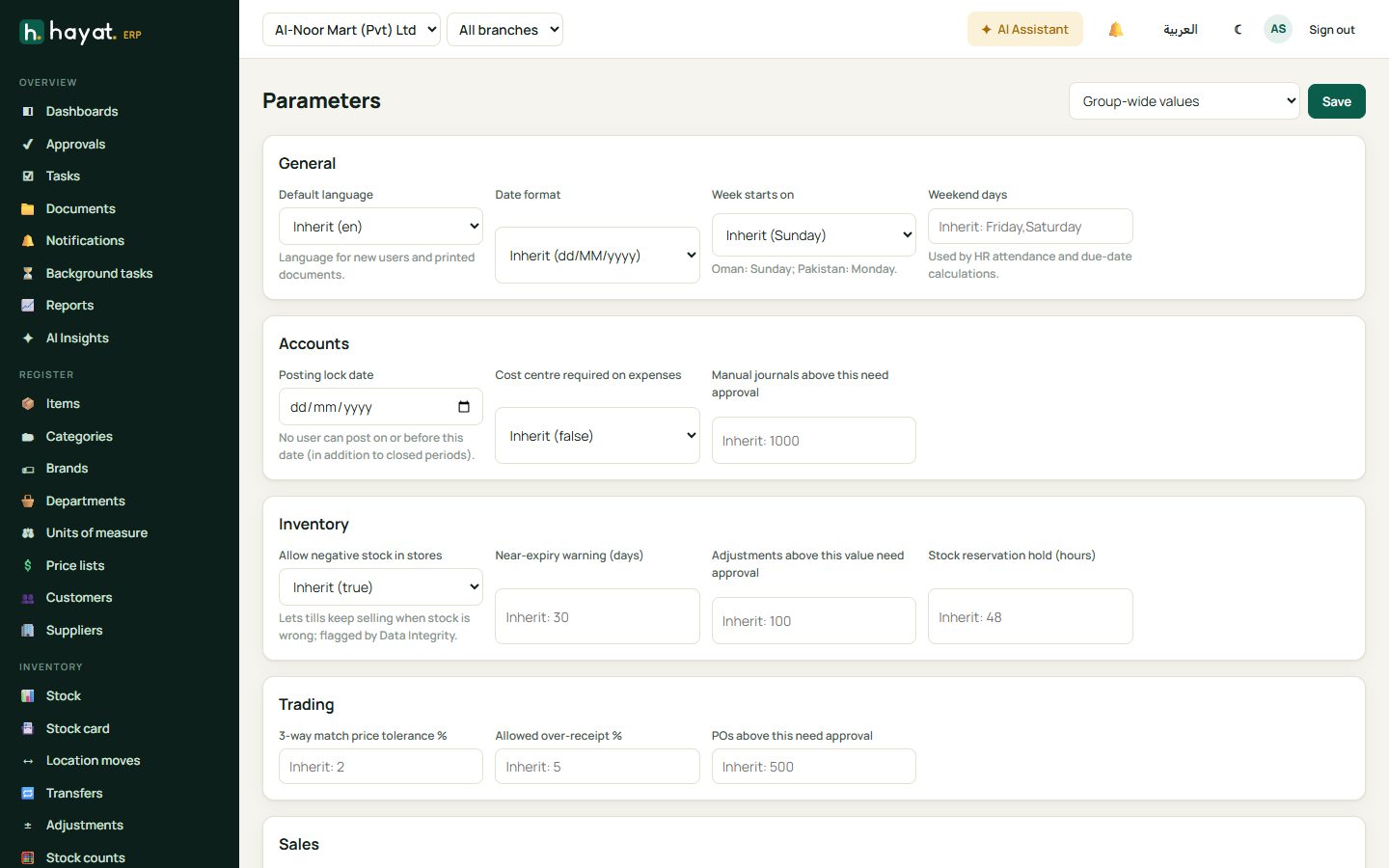
Parameters fine-tunes how Hayat behaves, for the whole group or per company: language and date format, week start and weekend, posting lock date, whether stores may sell into negative stock, expiry warnings, approval limits for adjustments, purchase orders and journals, three-way-match tolerances and more.
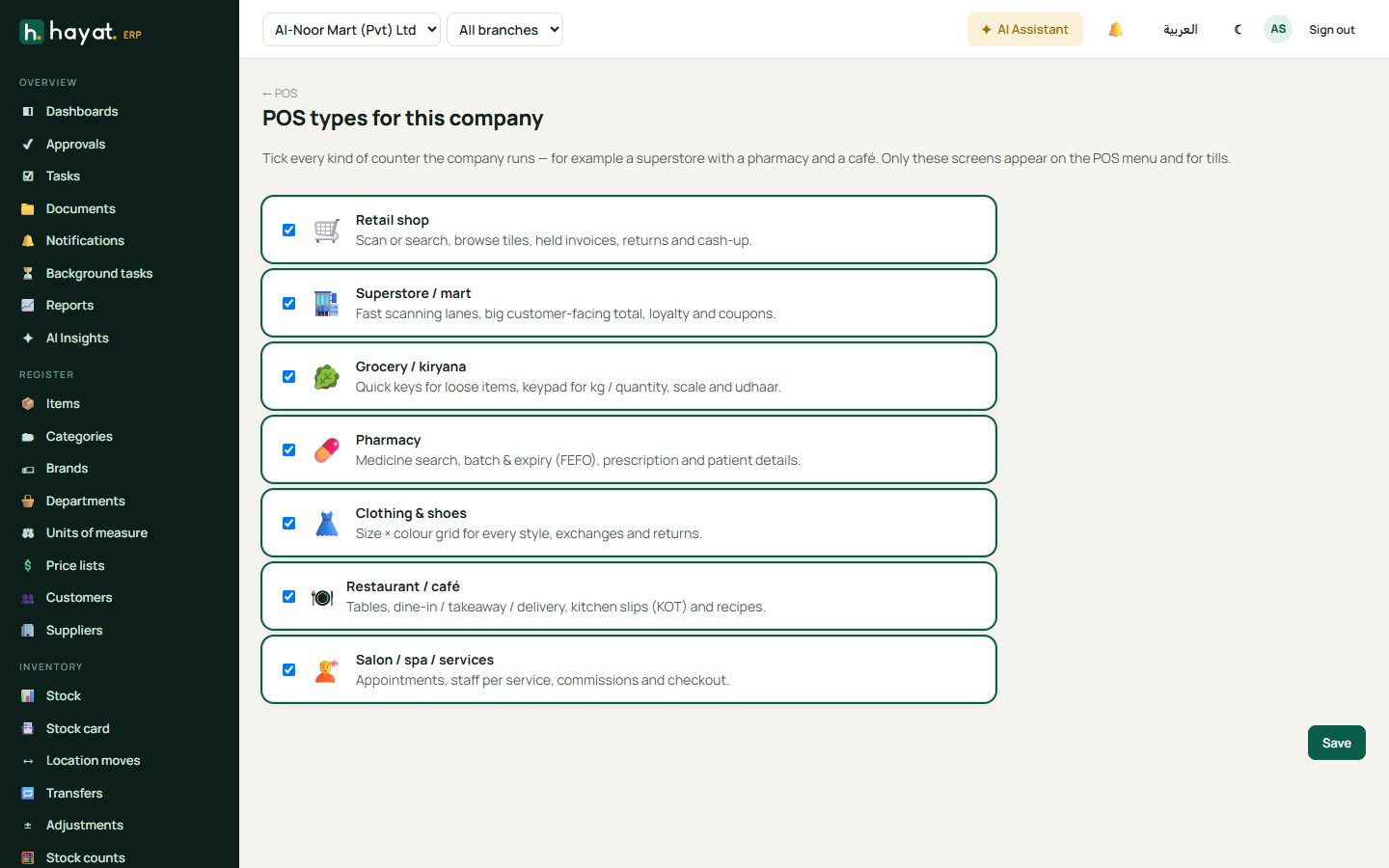
Choose POS screens
POS → Choose POS types ticks the till screens your business uses. Only those appear on the POS menu and launcher.
Import and export
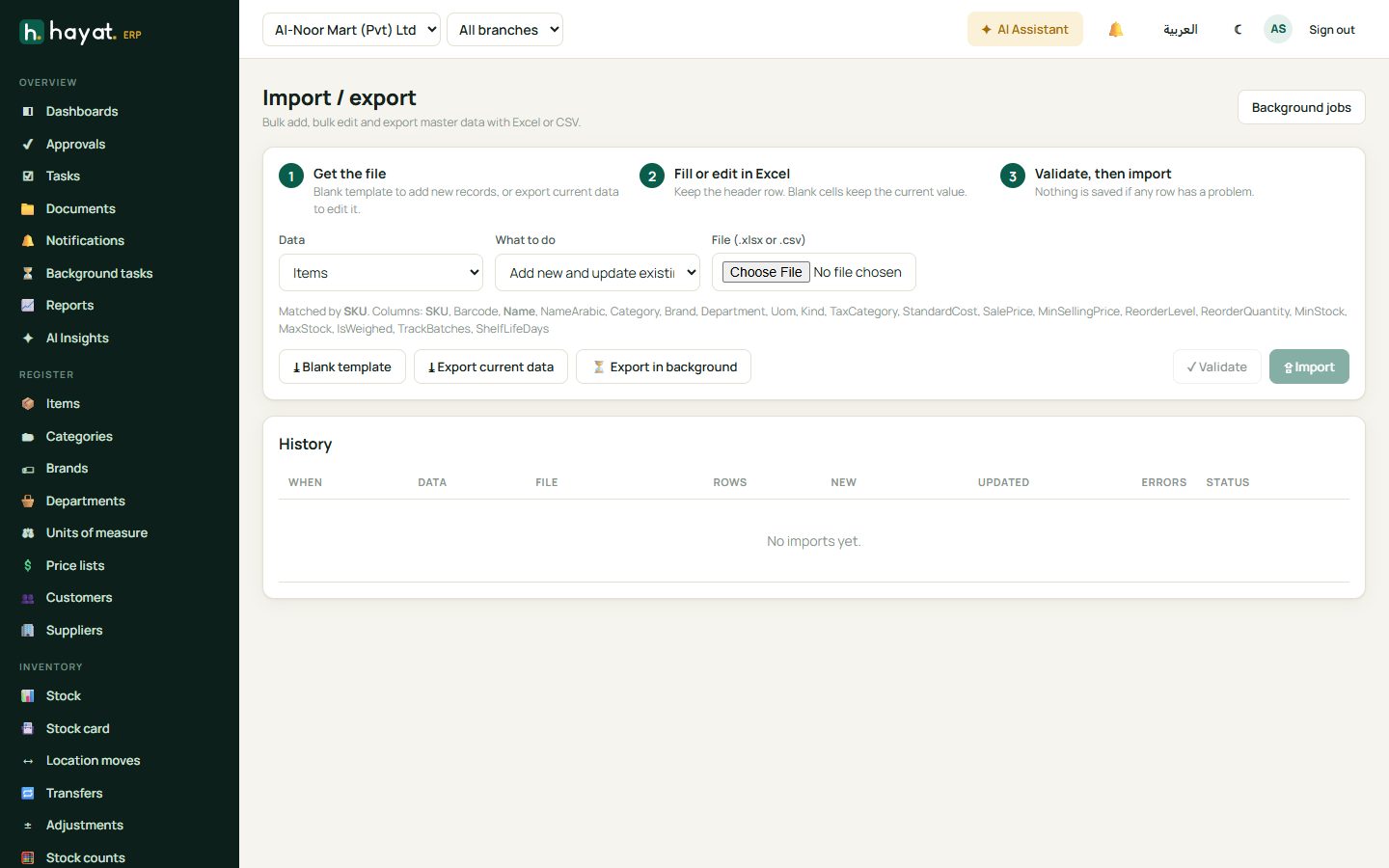
Import / export brings items, customers, suppliers, opening stock, price lists and more in from Excel or CSV.
- Choose what to import and download the blank template (or export current data to edit what you have).
- Fill it in Excel.
- Upload it and click Validate — Hayat lists any rows with problems.
- Click Import. Large files run in the background.
Messaging and integrations
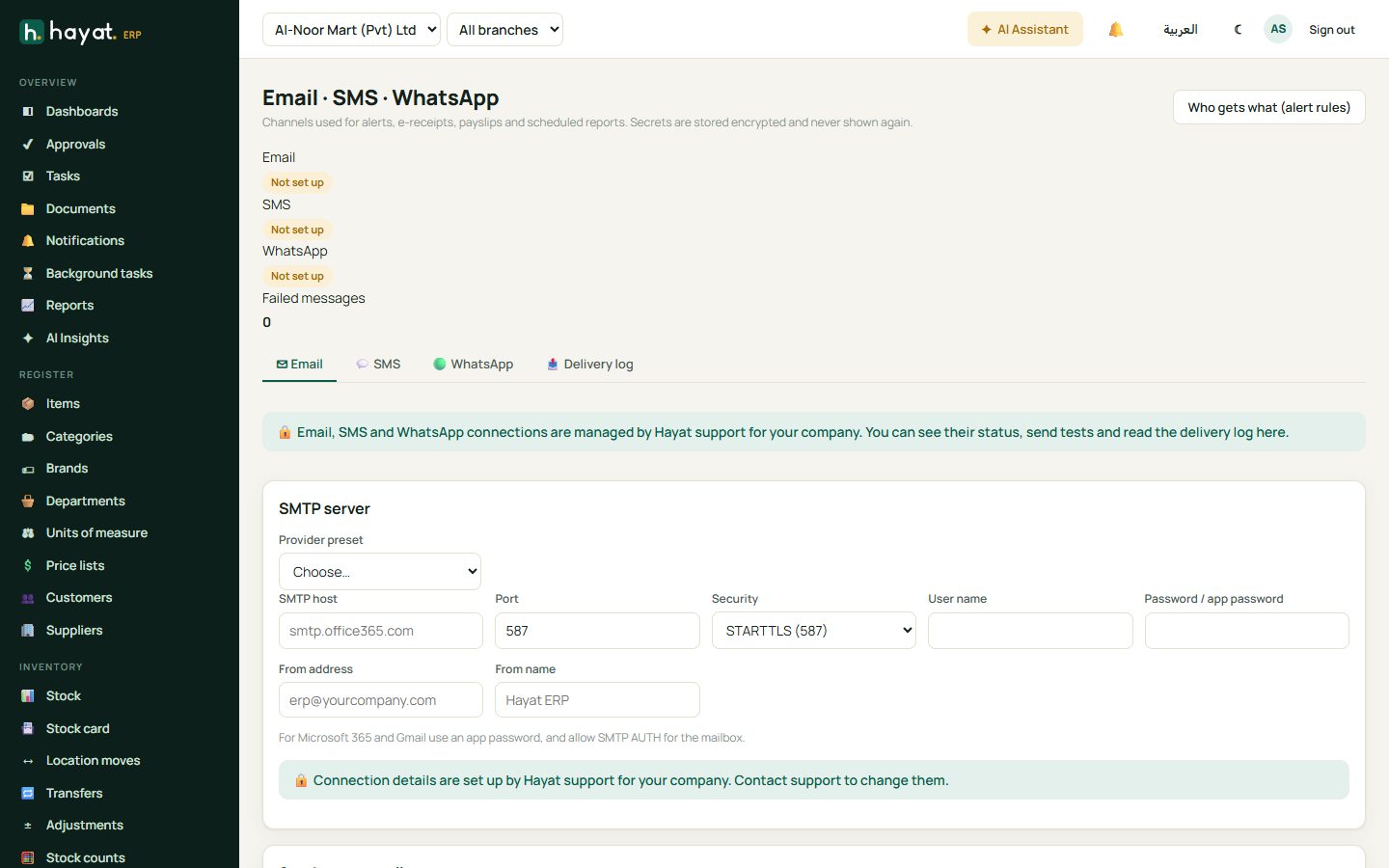
Messaging shows whether email, SMS and WhatsApp are connected, lets you send a test and shows the delivery log. Choose who gets what — which alerts go to which people. The connection details themselves are managed by Hayat support for your company.
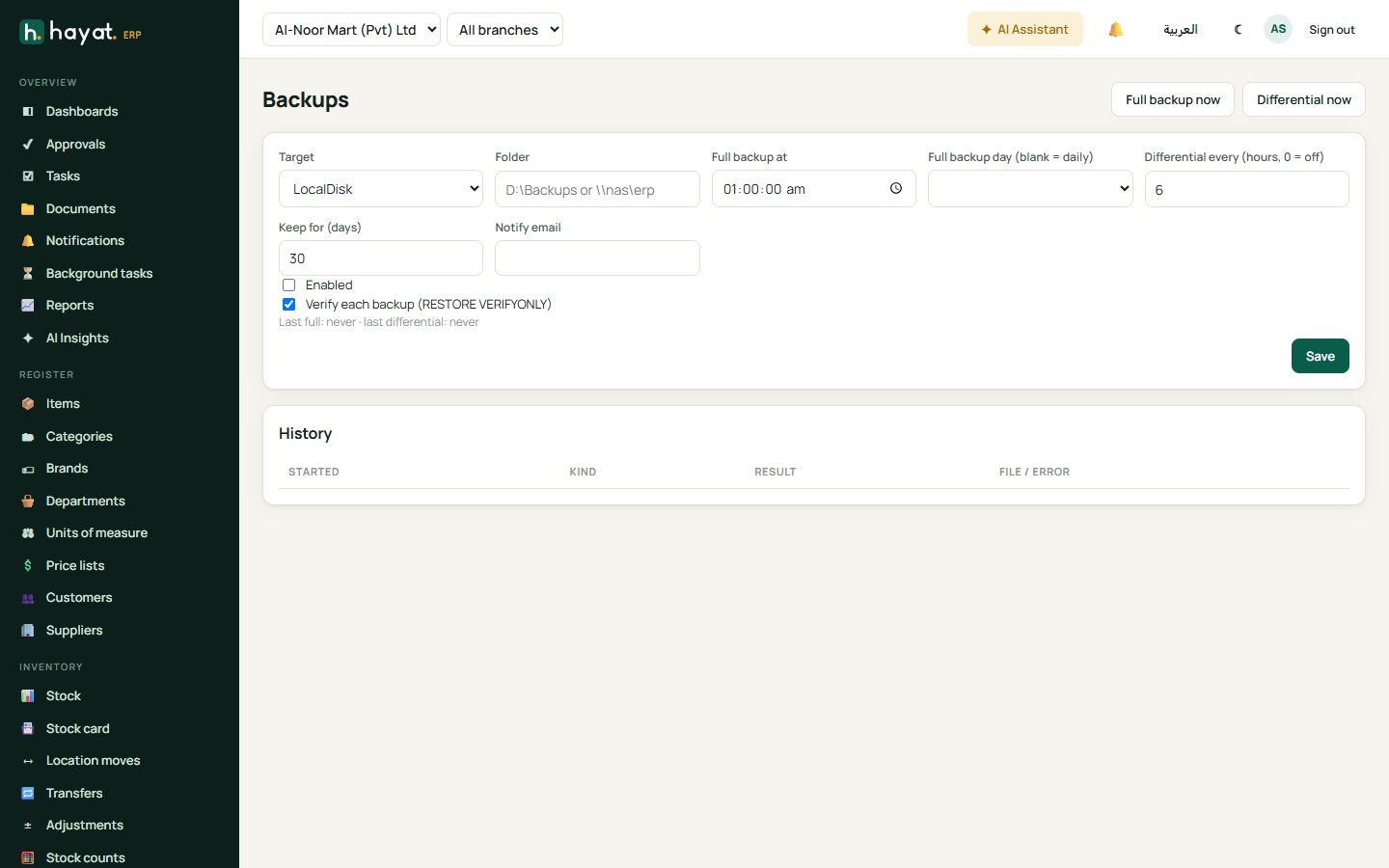
Backups
Backup sets automatic full and differential backups (for your own server installations), how many days to keep, and an email when each one finishes. History lists every backup and whether it was verified.