Point of sale
hayaterp.com/pos ↗Open a shift, sell, take payment, hold bills, give returns and cash up — on any of the seven till screens.
Choose the till screen
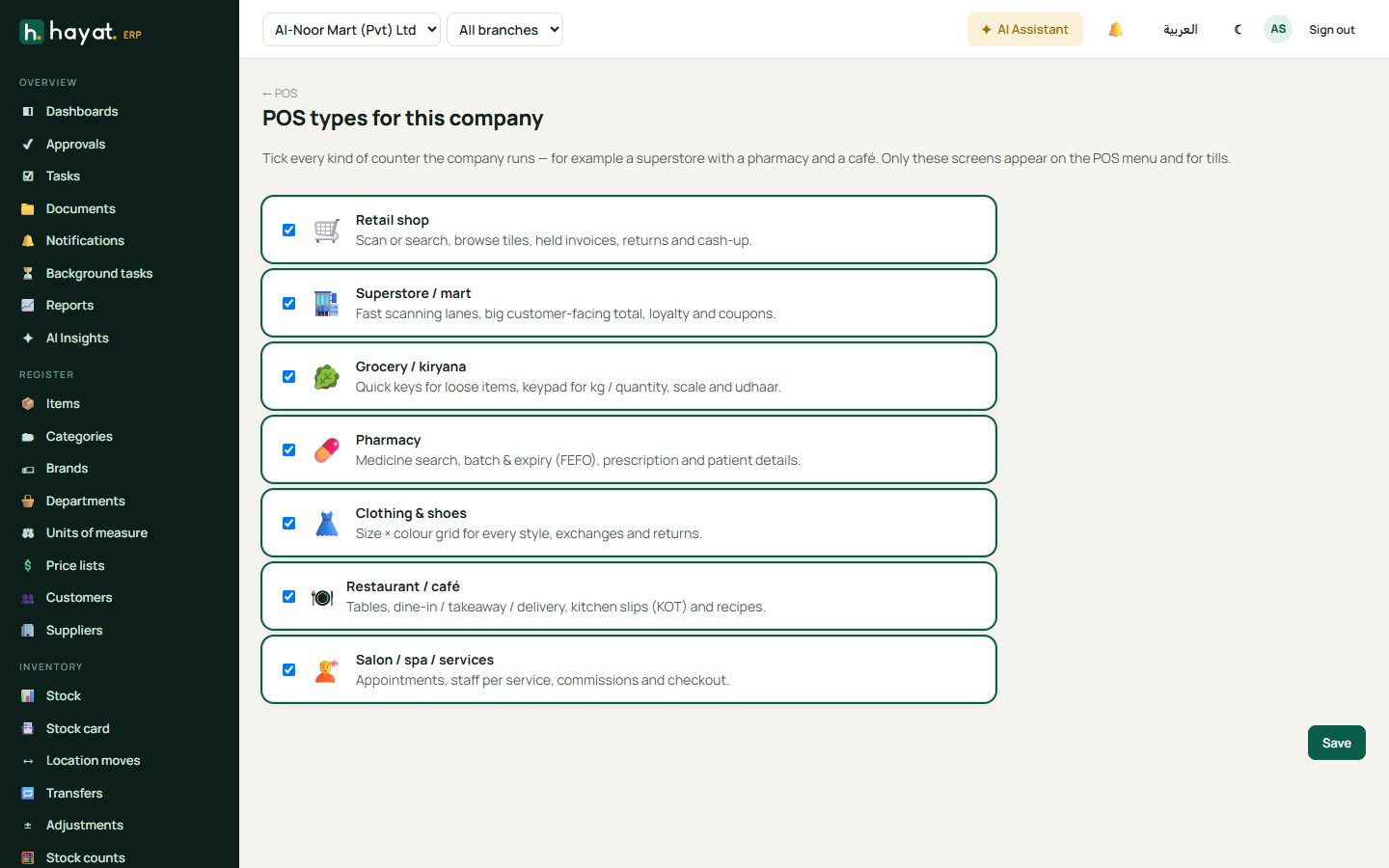
POS opens the launcher. Each business type has its own screen; your administrator picks which ones your company uses in POS → Choose POS types.
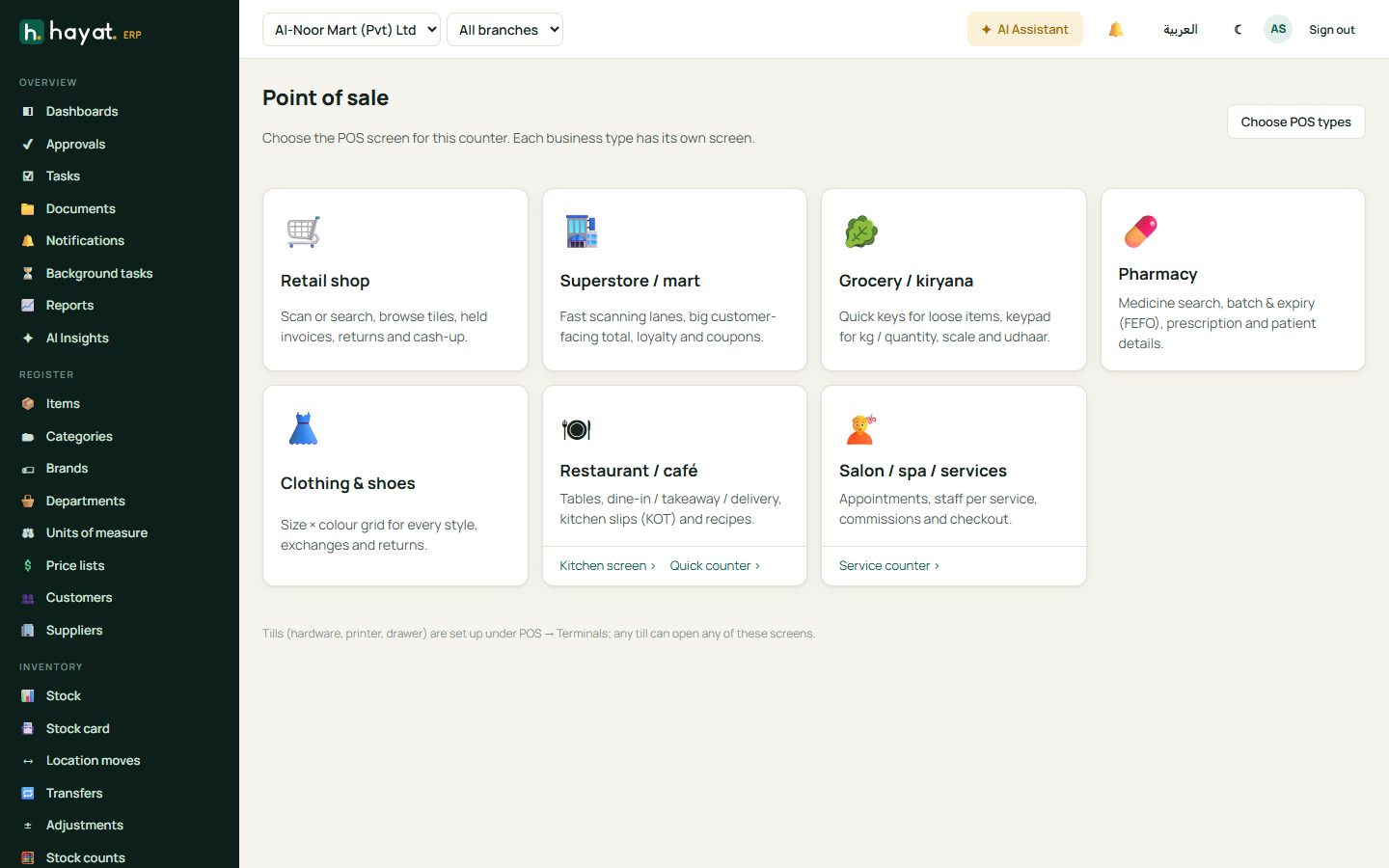
| Screen | Made for |
|---|---|
| Retail shop | Scan or search, browse tiles, held invoices, returns and cash-up. |
| Superstore / mart | Fast scanning lanes with a big customer-facing total, loyalty and coupons. |
| Grocery / kiryana | Quick keys for loose items and a keypad for kg or quantity. |
| Pharmacy | Medicine search, batch and expiry, prescription and patient details. |
| Clothing & shoes | A size × colour grid for every style, exchanges and returns. |
| Restaurant / café | Tables, dine-in, takeaway and delivery, kitchen slips and recipes. See Restaurant, salon and other screens. |
| Salon / spa / services | Appointments, staff per service, commissions. |
Open a shift
The first time you open a till each day:
- Choose the till (counter) you are working on and click Use this till.
- Count the opening float — type how many notes and coins of each kind are in the drawer.
- Click Open shift. The till records who opened it and when.
Make a sale
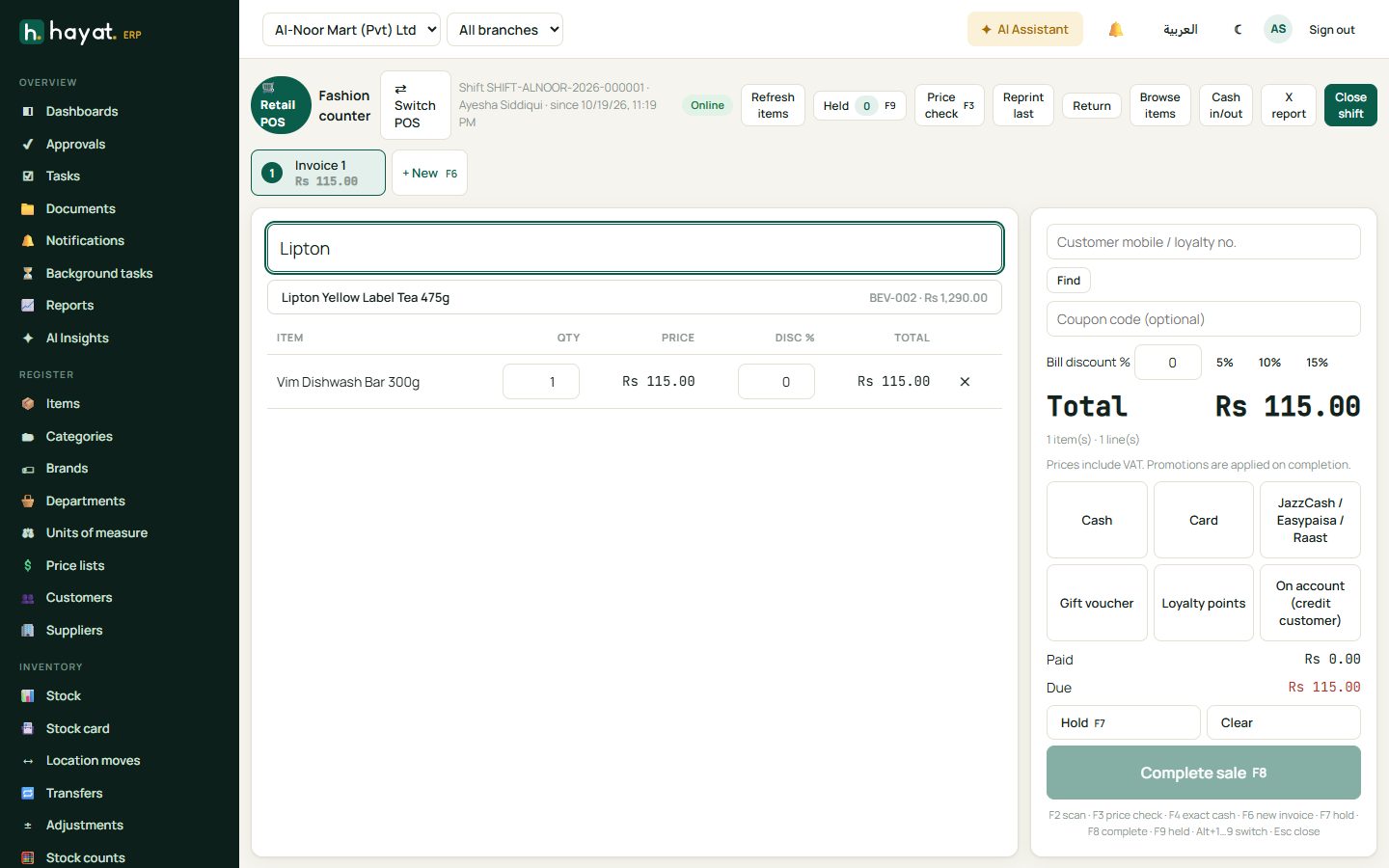
- Scan the barcode, or type part of the name or SKU and press Enter. Pick from the matches if there are several.
- To change a line, edit its quantity, price (if allowed) or discount %. Click ✕ to remove it.
- Optional: type the customer's mobile or loyalty number and press Find, add a coupon, or give a bill discount.
- Click the payment method — Cash, Card, JazzCash / Easypaisa / Raast, Gift voucher, Loyalty points or On account. For cash, type the amount given and Hayat shows the change. You can split a bill across several methods.
- Click Complete sale (F8). The receipt prints. If FBR POS is on, the FBR invoice number and QR code print on it.
Several customers at once
Each tab above the scan box is a separate invoice. + New (F6) starts another, Alt+1…9 switches between them. Hold (F7) parks a bill with a label like "blue shirt man"; Held (F9) brings it back on any till.
Till shortcuts
| Key | Does |
|---|---|
| F2 | Back to the scan box |
| F3 | Price check |
| F4 | Exact cash |
| F6 | New invoice |
| F7 | Hold |
| F8 | Complete sale |
| F9 | Held invoices |
| Esc | Close a pop-up |
Returns and exchanges
Click Return, type or scan the receipt number and press Find. Tick the lines coming back, enter the reason, and refund by the original method. For an exchange, add the new items in the same screen — the customer pays or gets back the difference.
Cash in, cash out and reprints
- Cash in/out: Pay in (change from the safe), Pay out (small expenses), Pickup (cash taken to the safe) or Open drawer (no sale). Each needs a reason.
- Reprint last prints the last receipt again; Price check looks up a price without selling.
- X report shows the shift so far without closing it.
Shifts and cash-up
At the end of the shift click Close shift:
- Count the cash in the drawer by notes and coins.
- Hayat shows the expected cash, what you counted and the over / short.
- Add a note (shortages, handover) and confirm. The Z report prints.
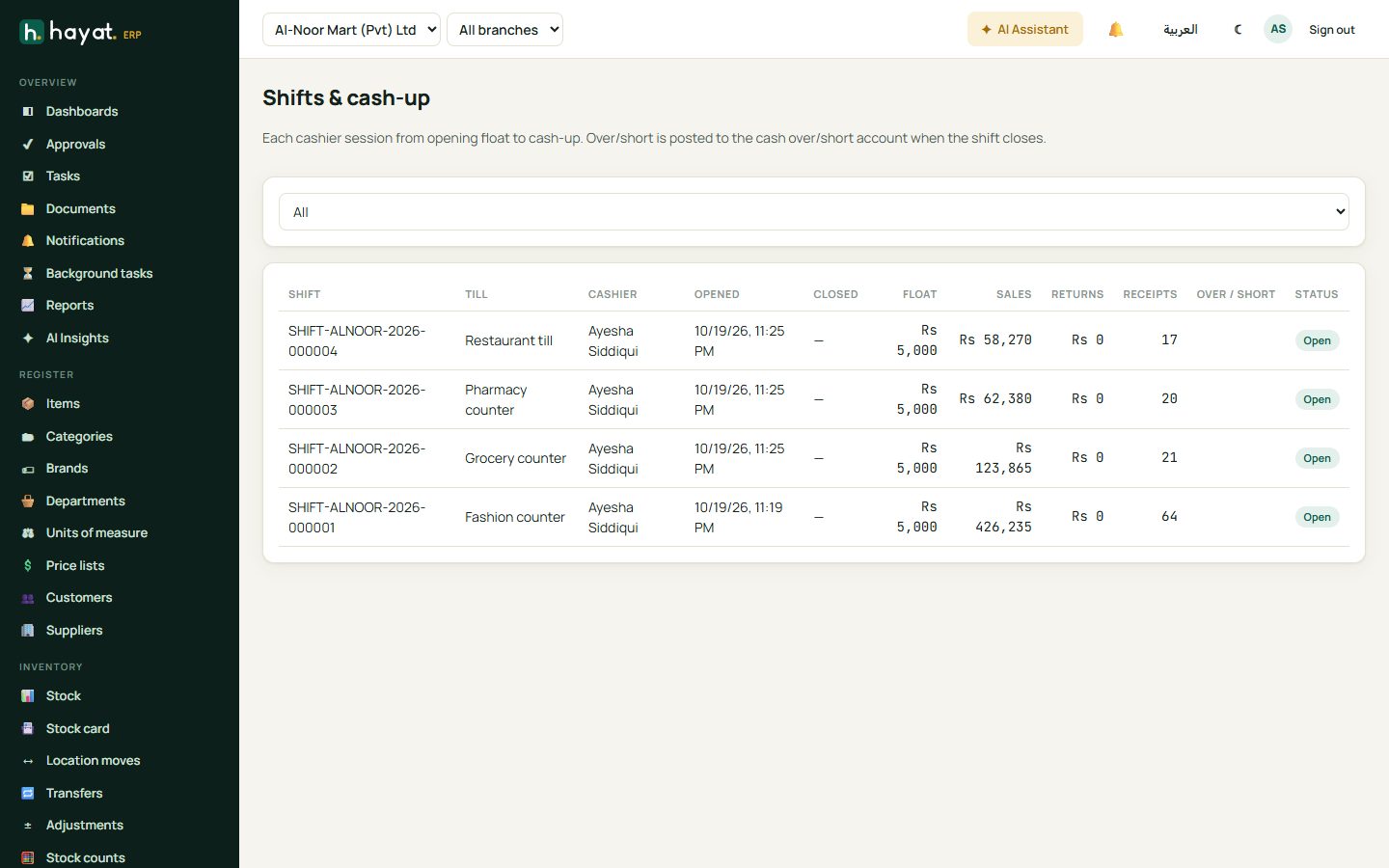
Managers see every shift in POS → Shifts & cash-up and can reconcile them. Over and short amounts post to the cash over/short account.
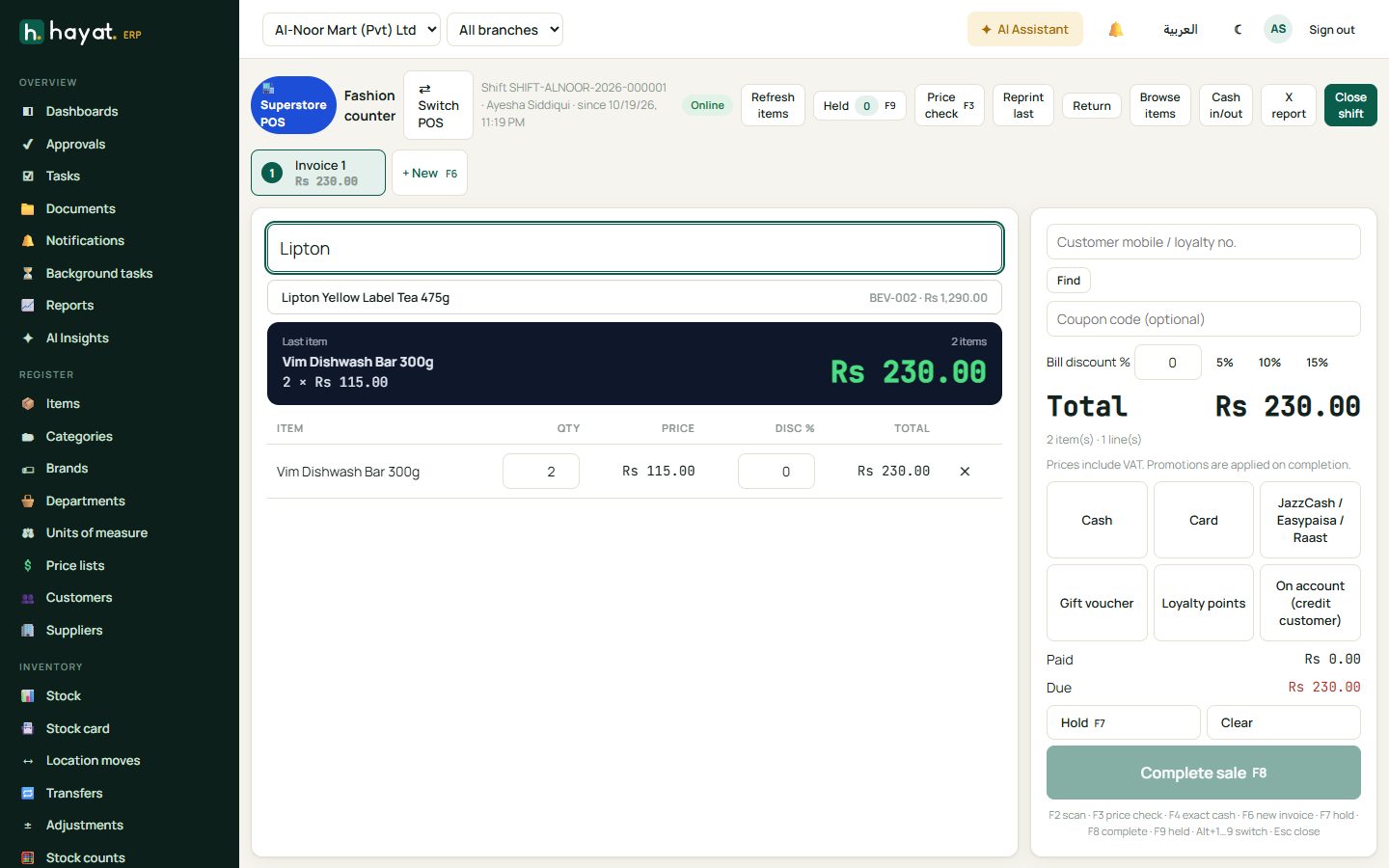
Other till screens
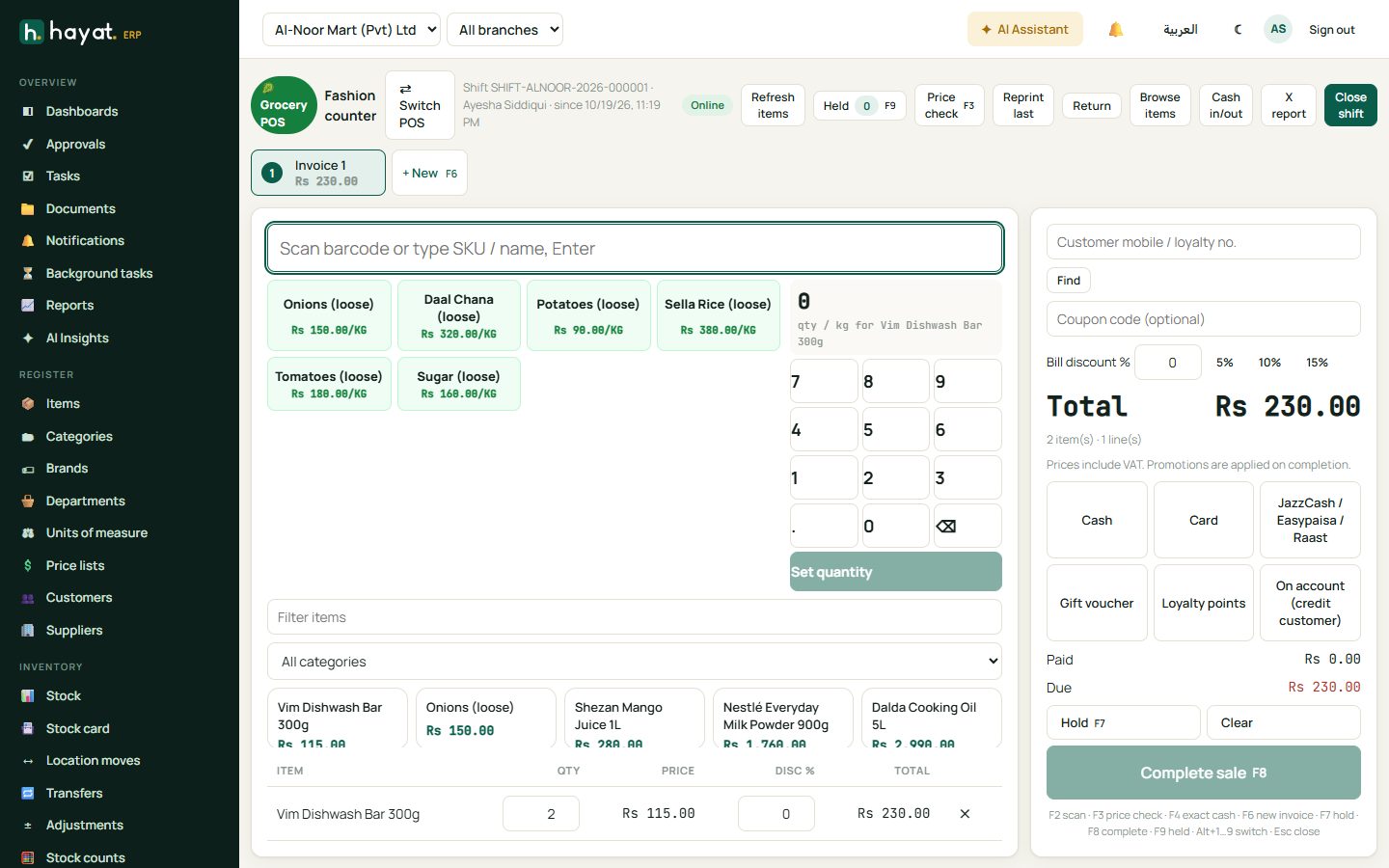
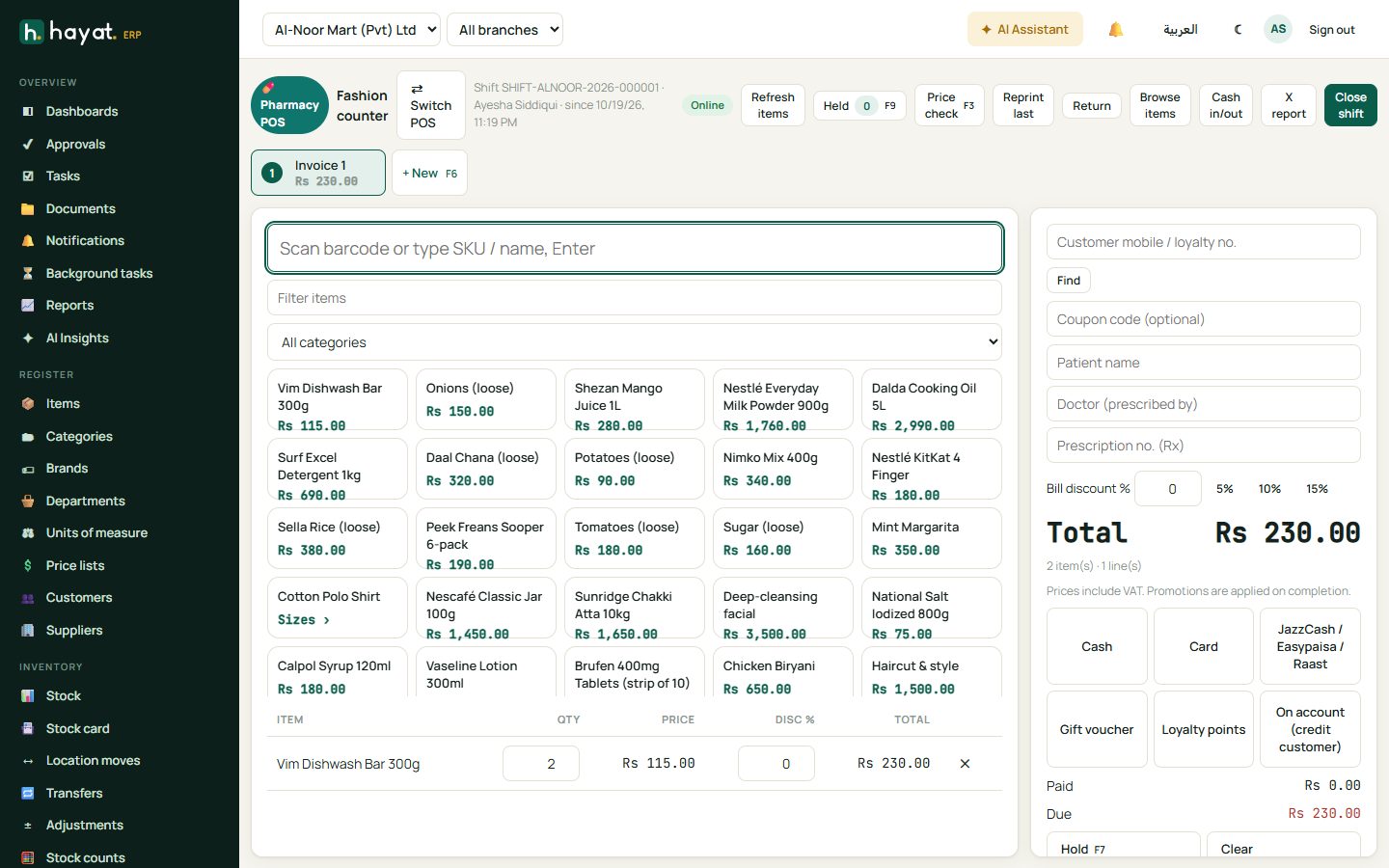
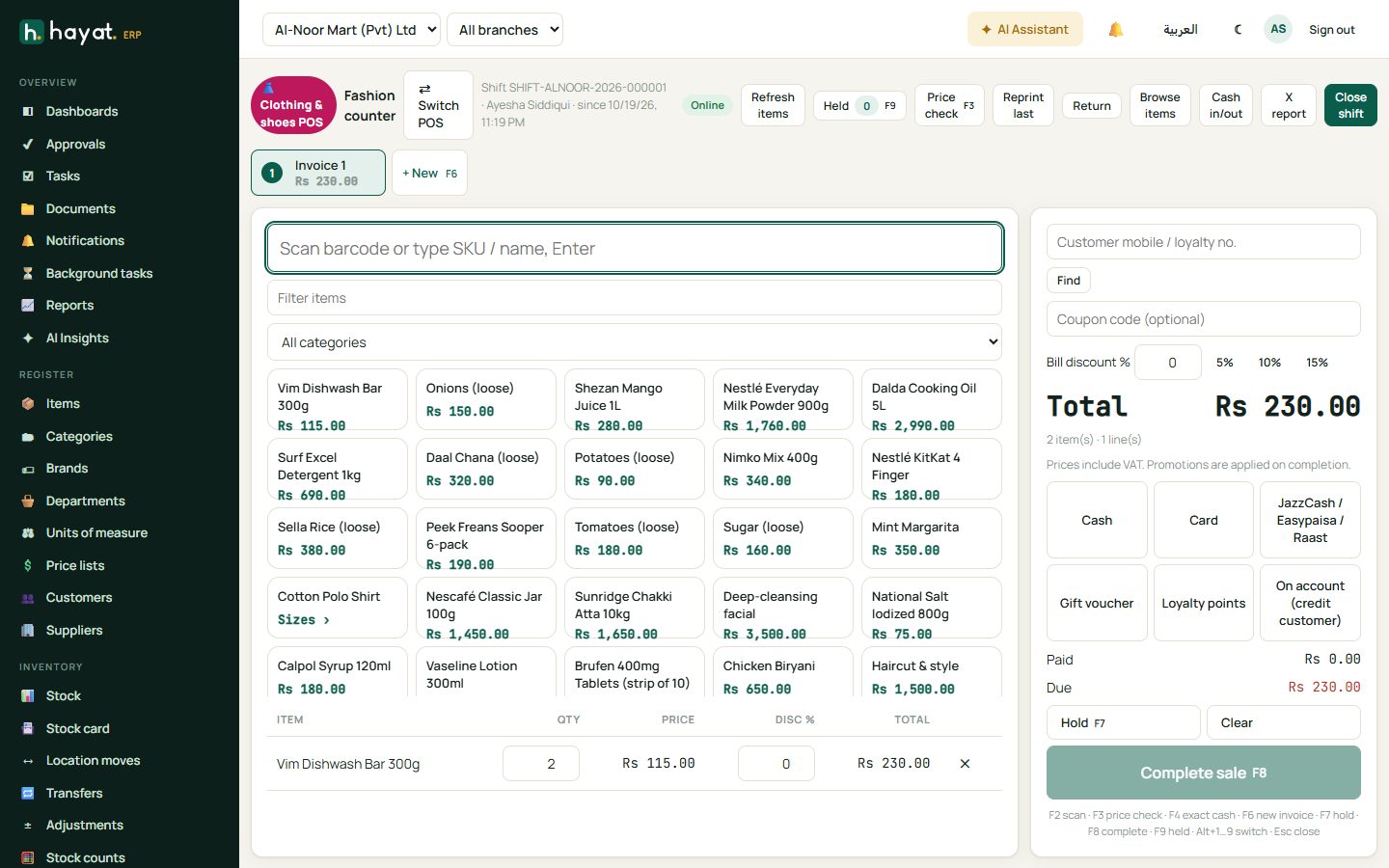
Working offline
If the internet drops, the till keeps selling. Sales are saved on the till and sent automatically when the connection returns; the banner shows how many are waiting. See Install the app and work offline.
Setup for managers
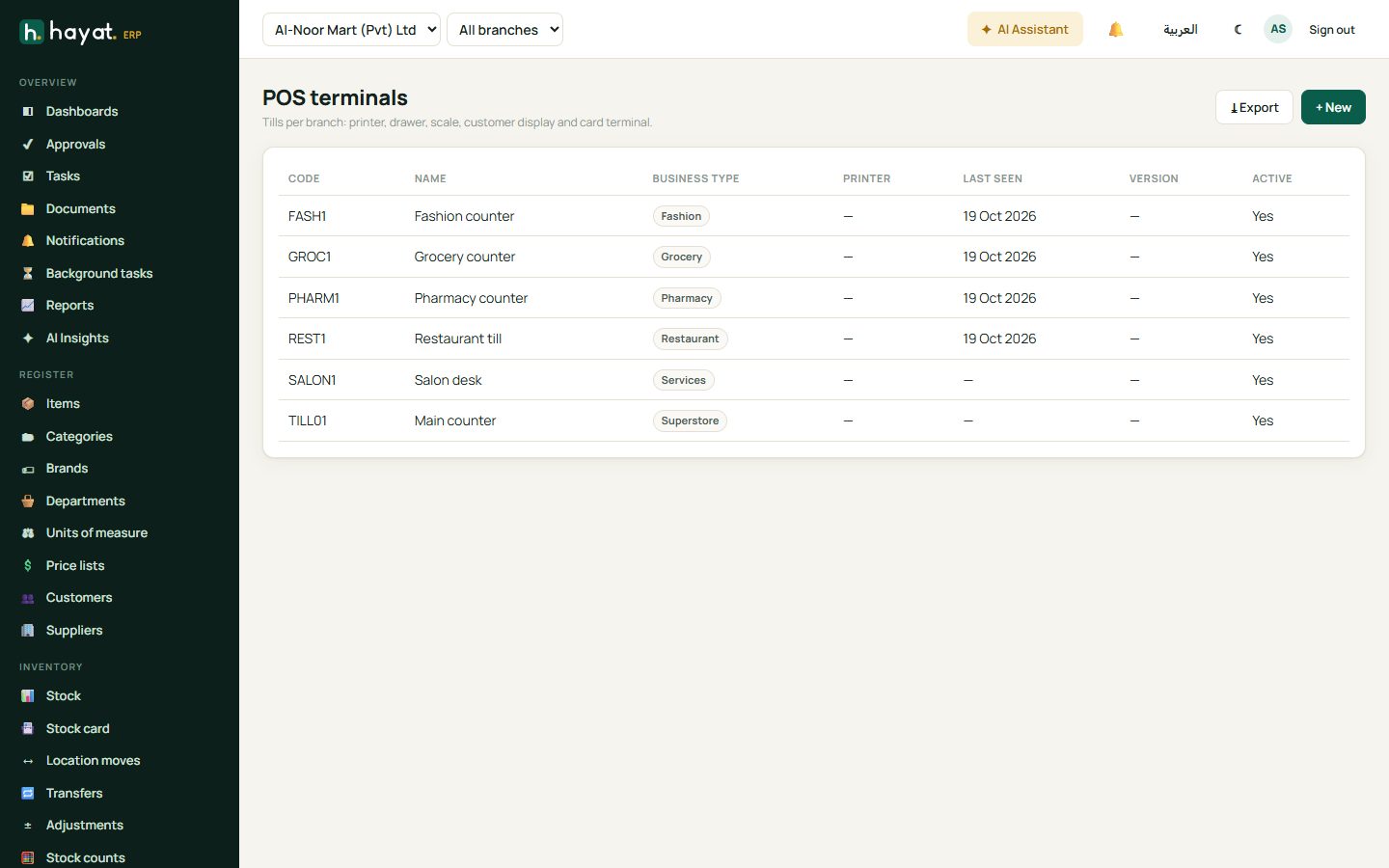
- POS → Tills (terminals) — one per counter, with its branch, business type, printer and customer display. Each till sells from its branch's stock.
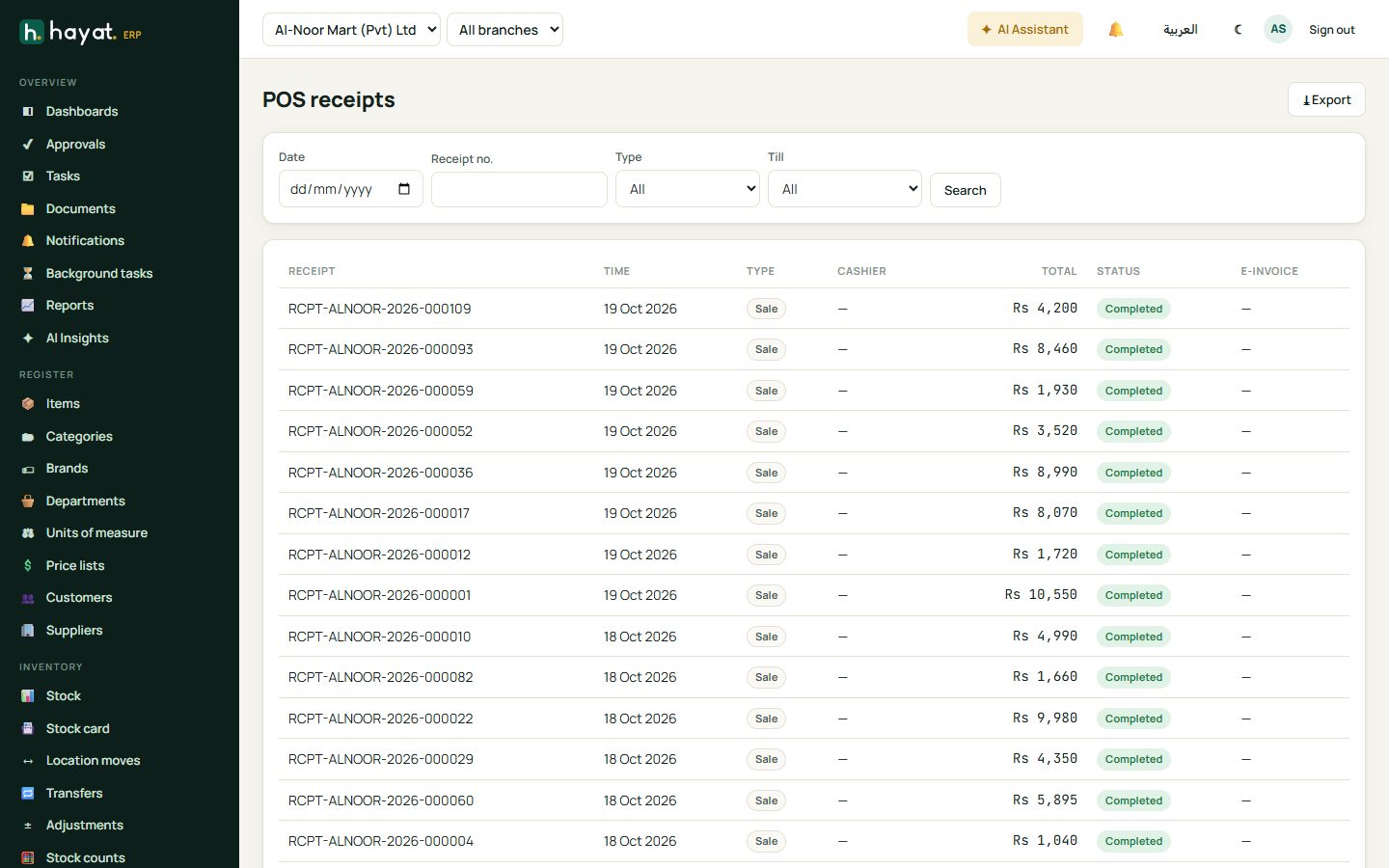
- POS → Receipts — search any receipt by date, number, till or customer, and reprint it.
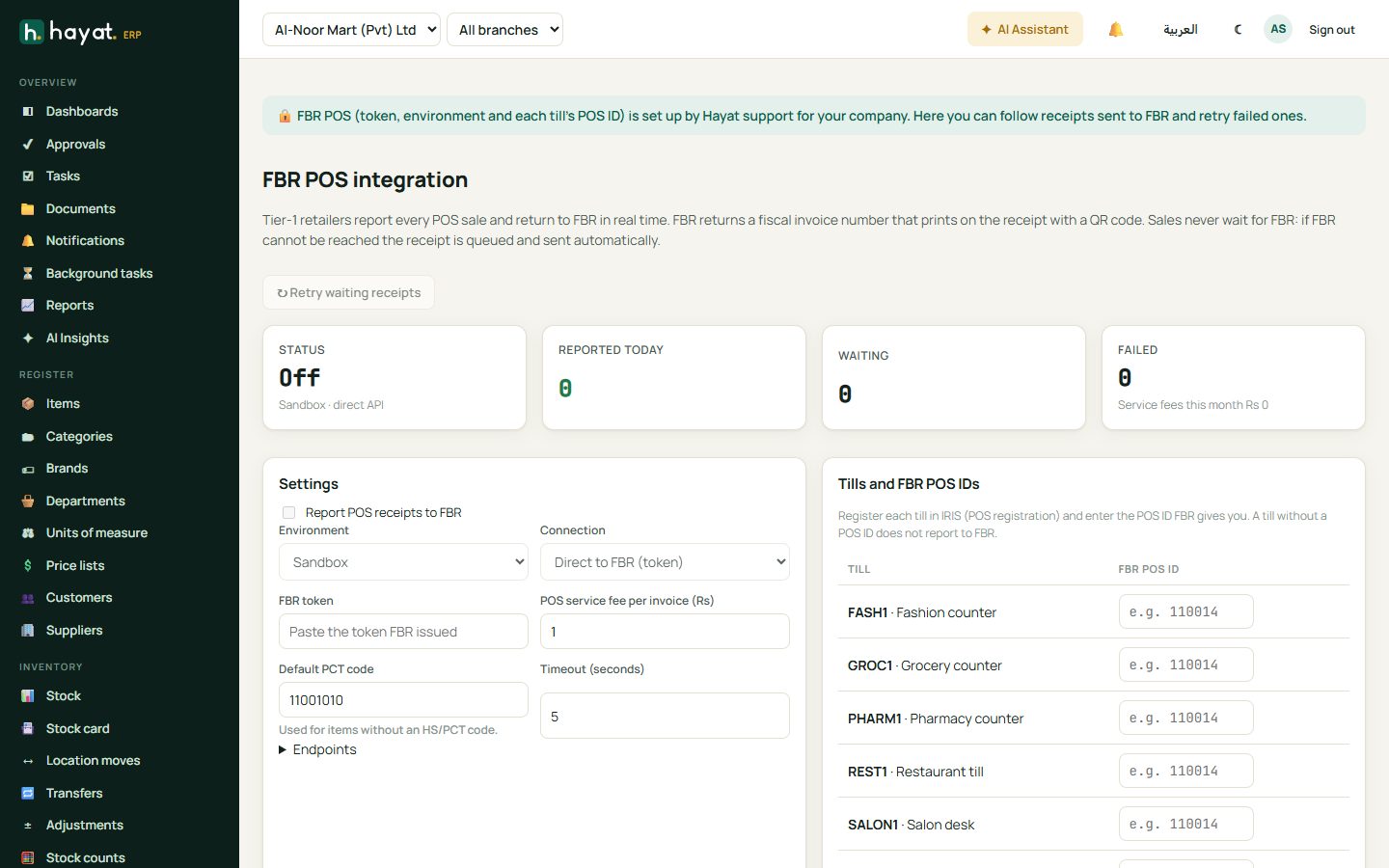
- POS → FBR POS — shows receipts reported to FBR and lets you retry failed ones. The FBR connection itself is set up by Hayat support for your company.