
Help › Getting started
Sign in and find your way around
hayaterp.com ↗How to sign in, read the screen layout, switch company or branch, and use search, notifications and the AI assistant.
▶Sign in and find your way around0:43
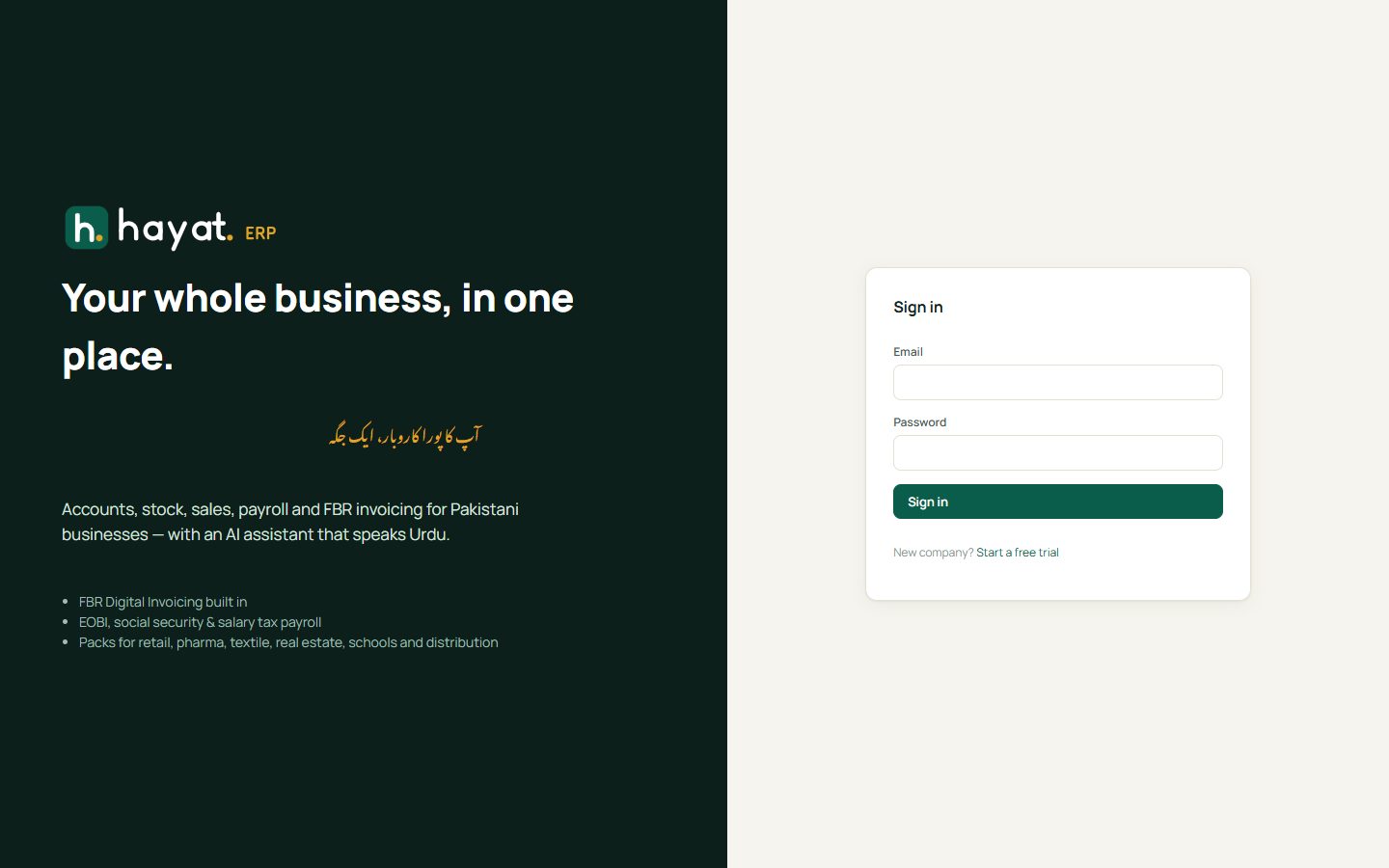
Sign in
Your company administrator creates your user and gives you an email and a first password.
- Open hayaterp.com (hospital staff open hospital.hayaterp.com).
- Type your email and password, then click Sign in.
- The first time, you may be asked to choose a new password of your own.
- If your company turned on two-step sign-in, type the 6-digit code from your authenticator app.
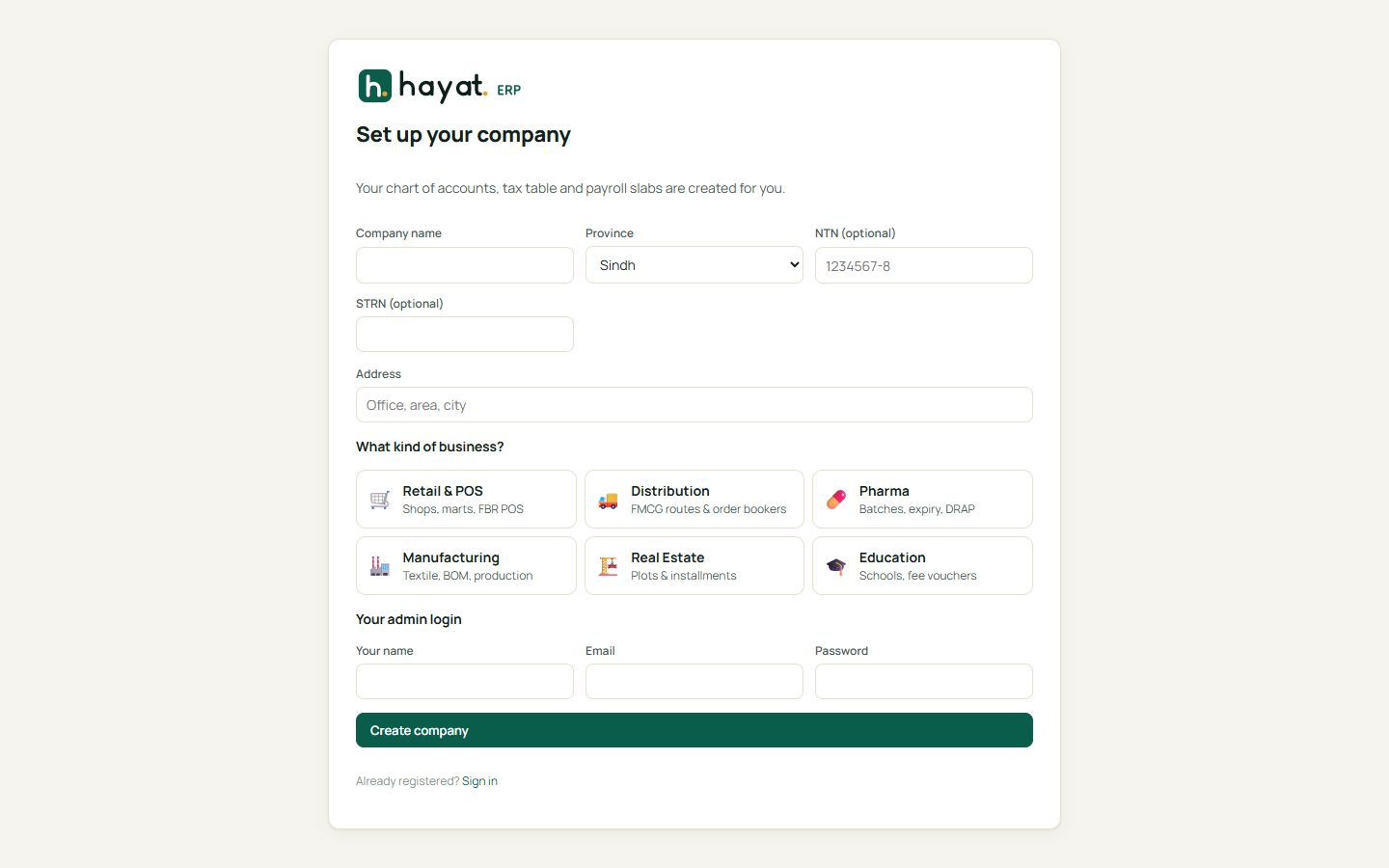
New business? Click Start a free trial on the sign-in page. You enter the company name, province, tax numbers (optional), the kind of business and your own login — the chart of accounts, tax tables and payroll slabs are created for you.
The screen at a glance
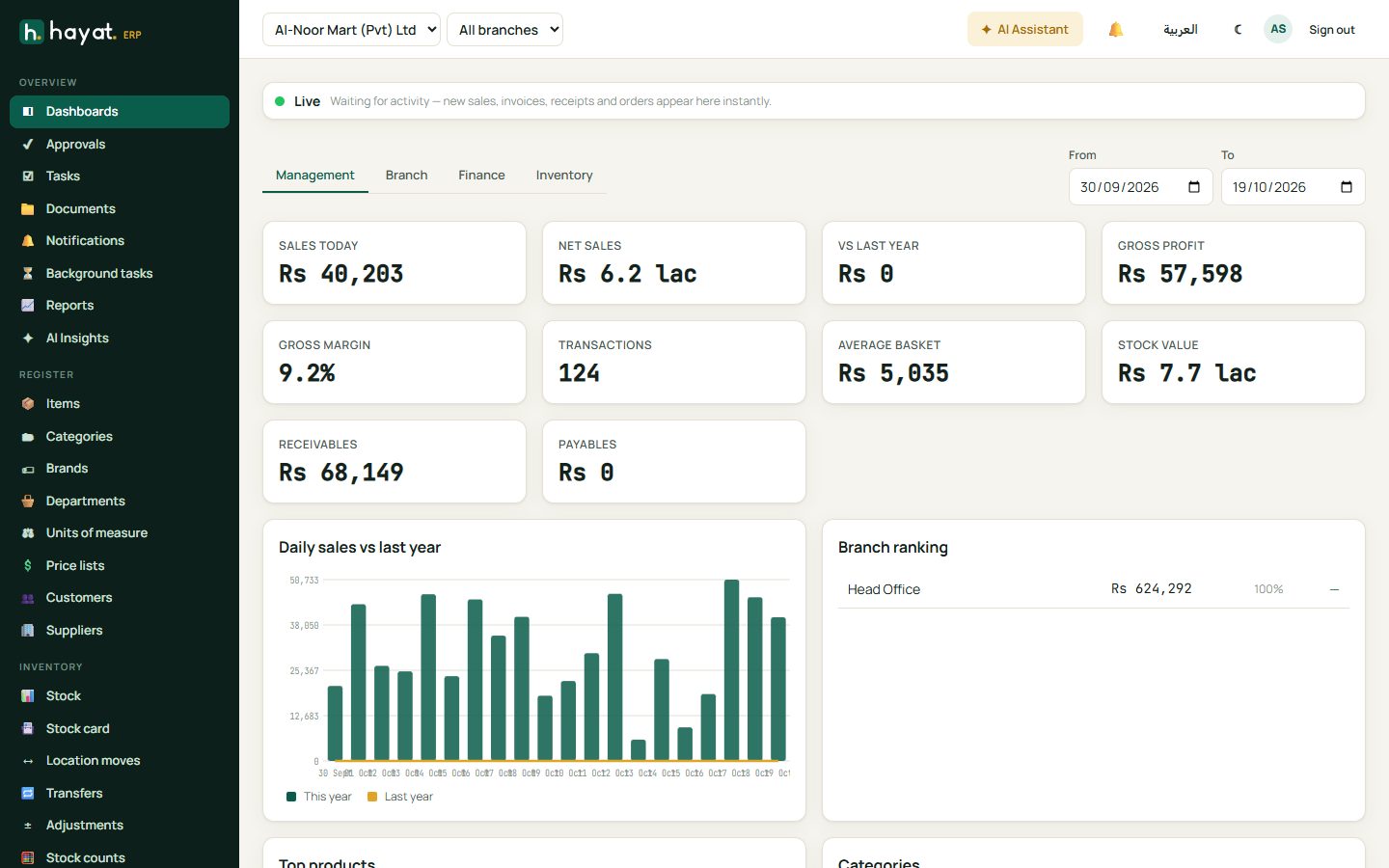
| Area | What it does |
|---|---|
| Left menu | Every screen you are allowed to use, grouped into Overview, Register, Inventory, Trading, Sales, POS, Finance, HR, CRM, Helpdesk and Settings. You only see what your role permits. |
| Company and branch | The two drop-downs at the top. Lists, reports and new documents follow the company and branch you pick. All branches shows the whole company. |
| AI Assistant | Ask questions in English or Urdu, e.g. "How did sales this month compare with last month?" |
| Bell | Notifications — approvals waiting for you, low stock, overdue tickets and more. |
| العربية / English | Switches the language. |
| Moon | Light or dark theme. |
| Your initials | Your profile and Sign out. |
Live updates
The green Live strip on dashboards means the screen is connected. Every sale, invoice, receipt or online order anywhere in the business appears there instantly and the figures refresh by themselves — no need to reload.
Lists, search and export
Most screens are lists with the same controls:
- Search box at the top — type part of a name, code, number or phone.
- Filters (status, date, branch) beside the search.
- + New opens a form; click any row to open and edit it.
- Export downloads the list to Excel. Import / bulk edit brings changes back from Excel.
Keyboard shortcuts
| Keys | Where | Does |
|---|---|---|
| / | This help site | Jump to search |
| F2 | POS till | Focus the scan box |
| F6 / F7 / F8 | POS till | New invoice / hold / complete sale |
| Esc | Anywhere | Close the open form or pop-up |