Selling on credit
hayaterp.com ↗Quotations, sales orders, deliveries, invoices, customer receipts and receivables for business customers.
How selling flows
Quotation → Sales order → Delivery note → Invoice → Receipt
Walk-in sales are made on the POS. Use these screens for business customers, wholesale and credit sales.
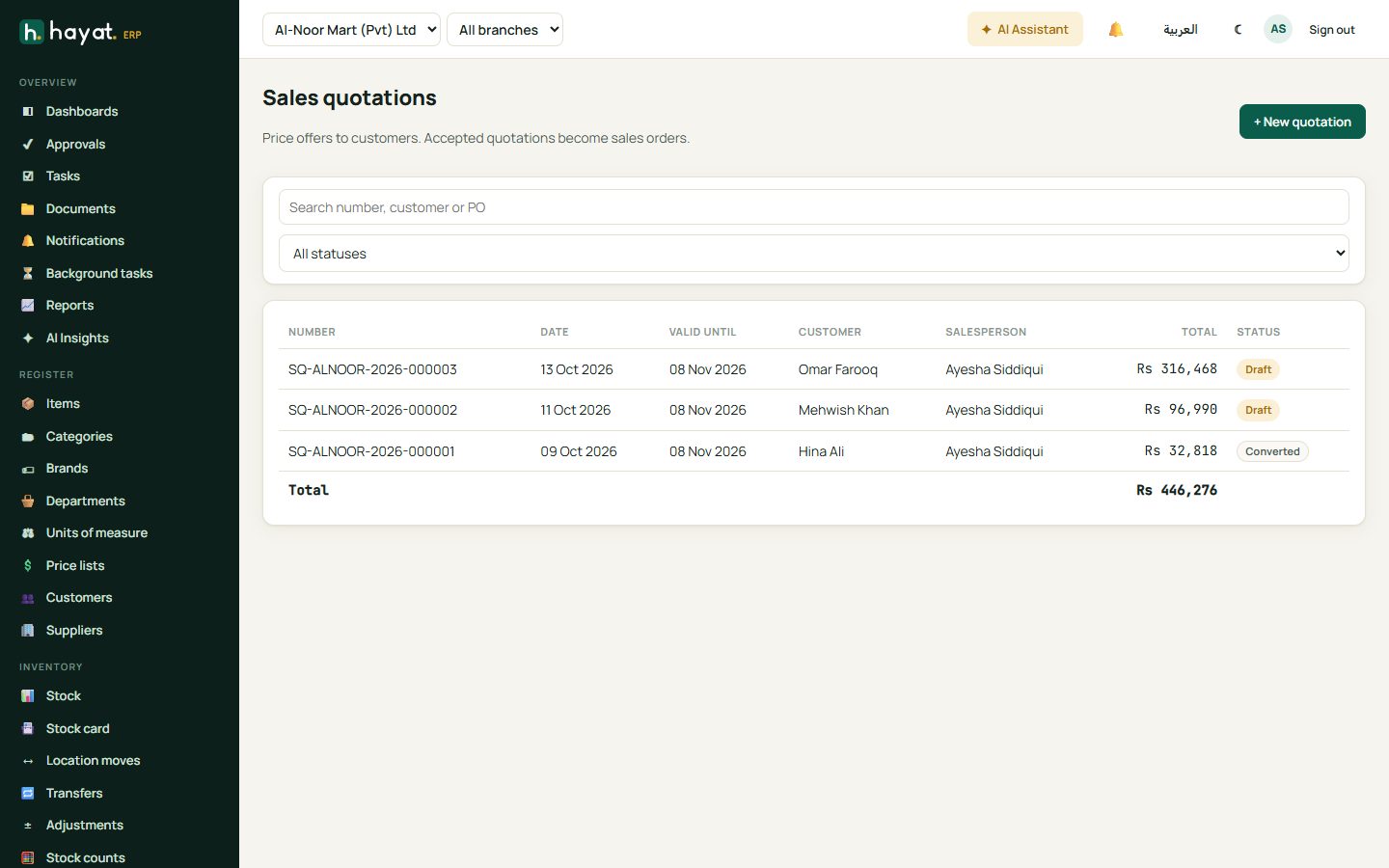
Quotations
- Sales → Quotations → + New quotation.
- Pick the customer, the validity date and your terms (e.g. 50% advance).
- Add items and quantities; prices come from the customer's price list.
- Save and Send — the customer gets a PDF.
- When they accept, click Convert to turn it into a sales order.
Sales orders and deliveries
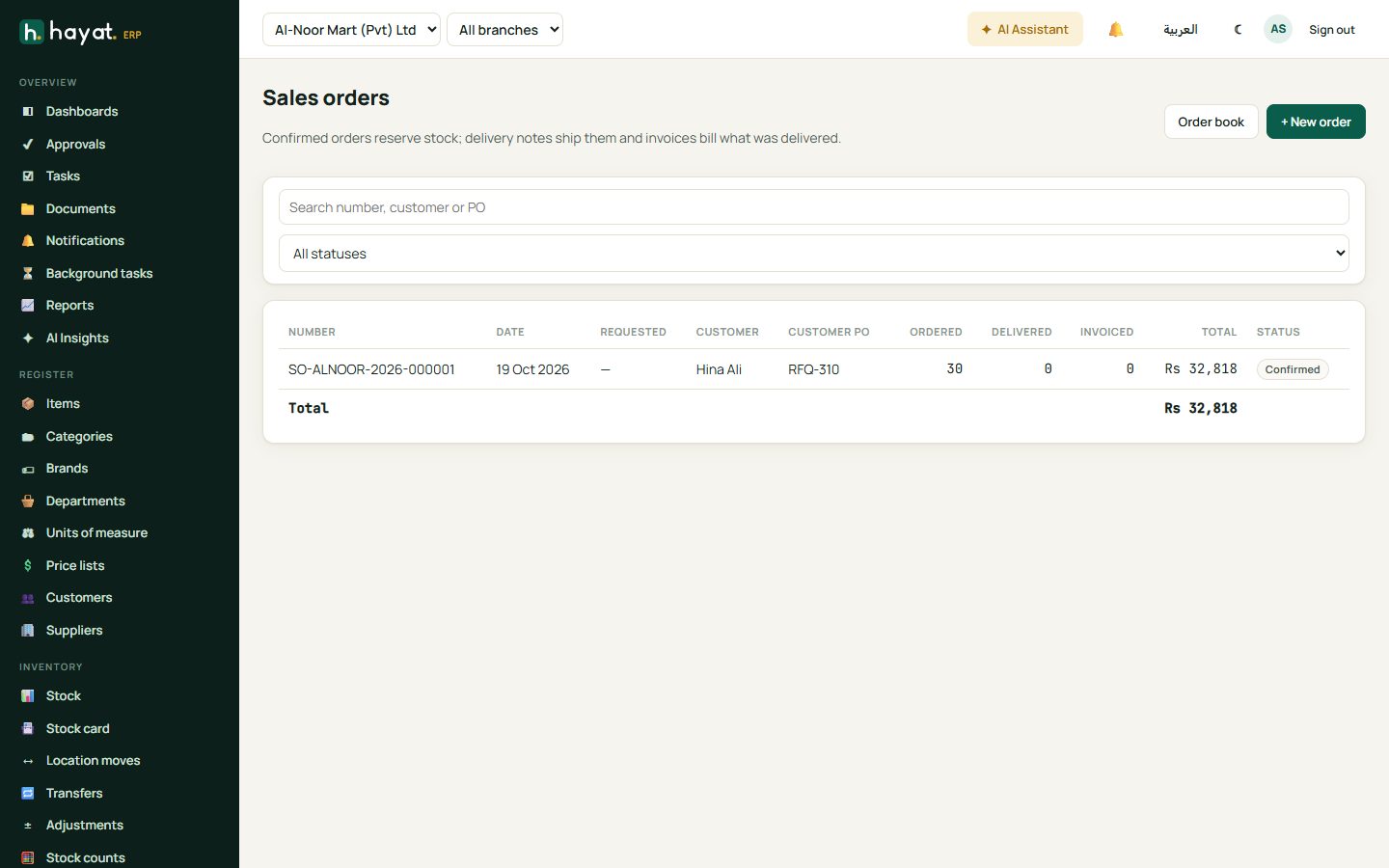
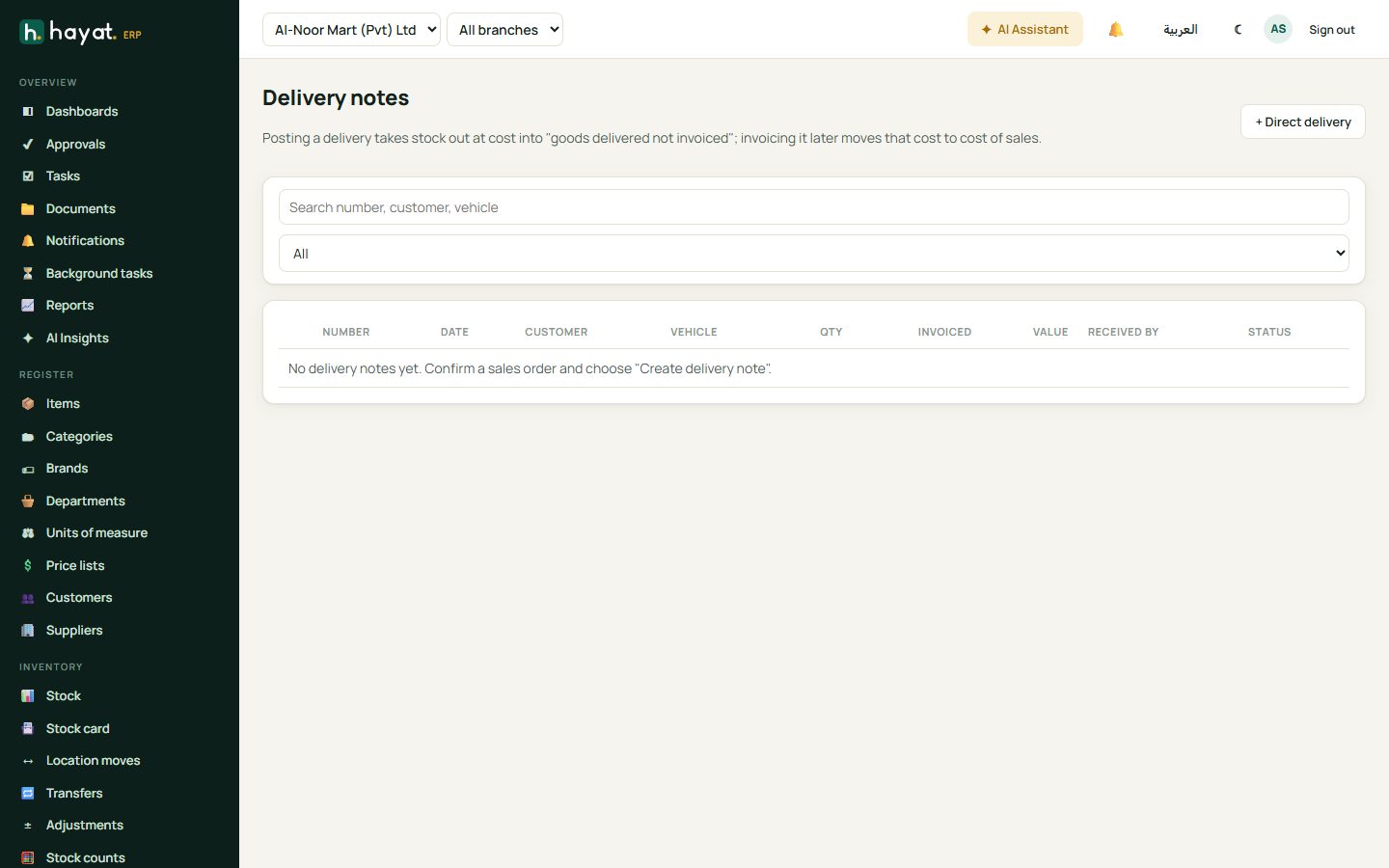
A confirmed sales order can reserve the stock so it is not sold to someone else. When you ship, create a delivery note from the order (partial deliveries are fine). Stock leaves the warehouse at delivery; the Order book shows what is still to deliver.
Raise an invoice
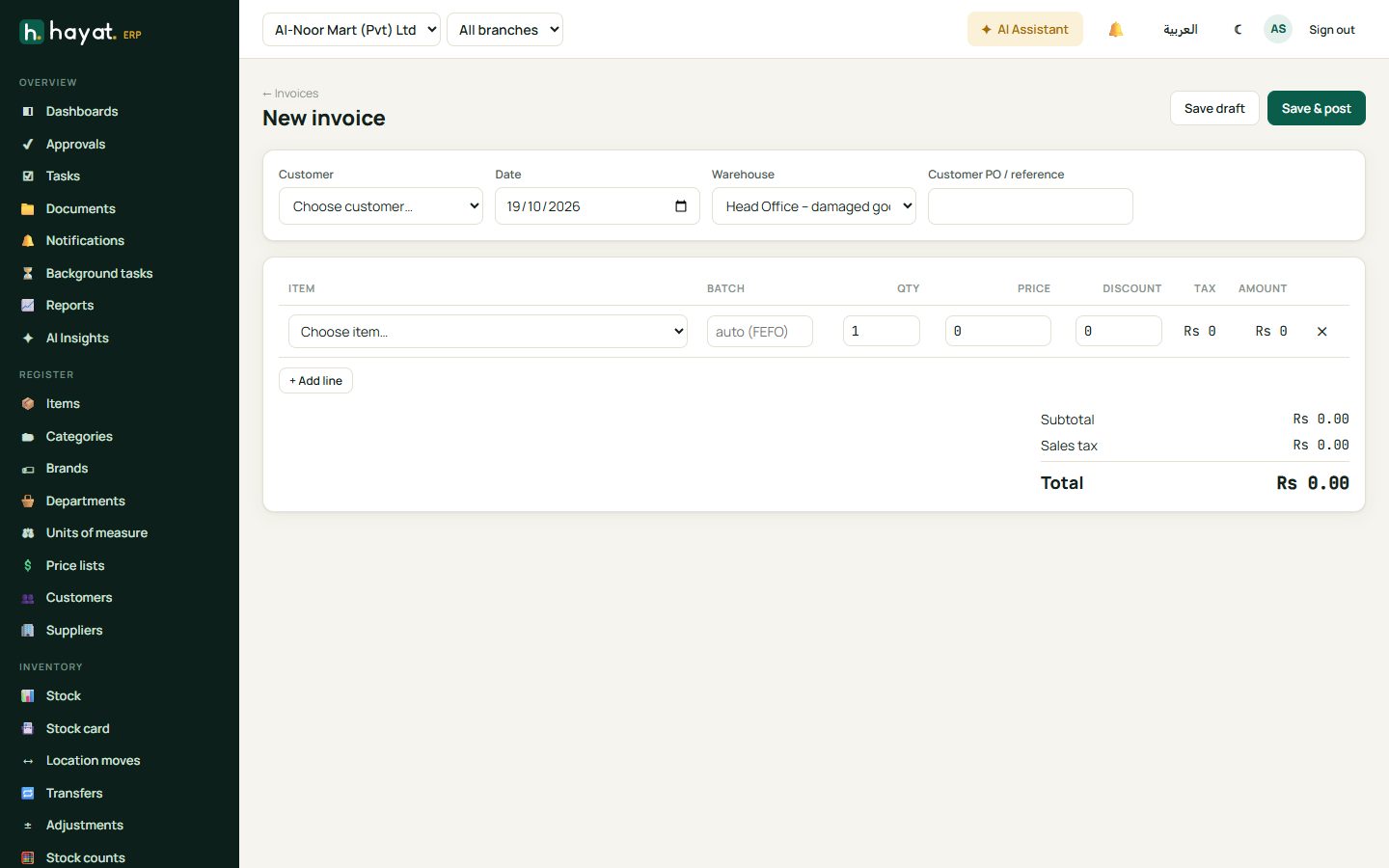
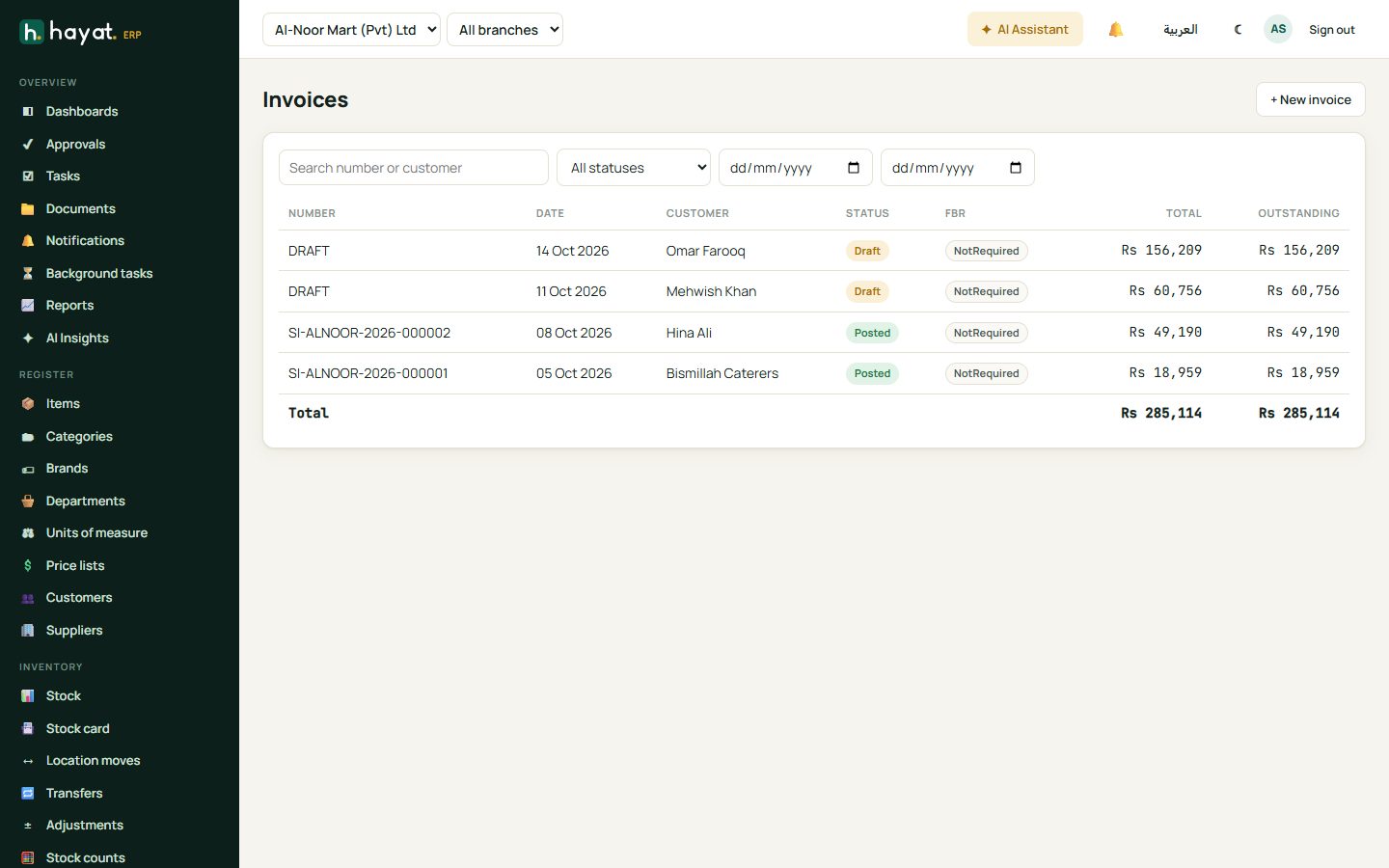
- Sales → Invoices → + New invoice, or click Invoice on a delivery.
- Choose the customer, date and warehouse, then add items. Sales tax and further tax are worked out from the customer's registration.
- Save draft to finish later, or Save & post to post it to the accounts.
- If your company uses FBR digital invoicing, the posted invoice is sent to FBR and the FBR invoice number and QR code print on it.
Receipts and receivables
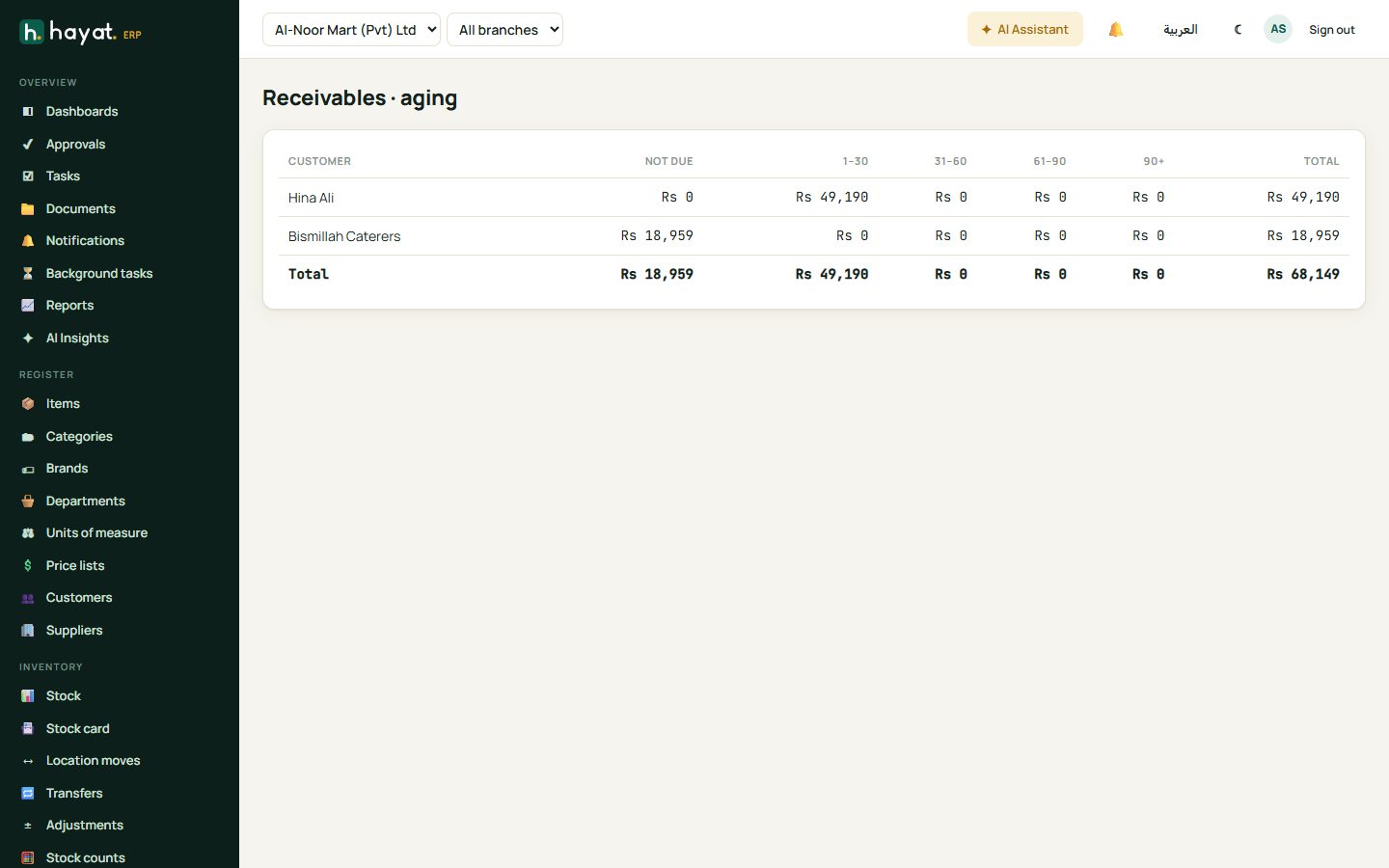
Record money received against one or more invoices from Receivables or the customer's page. Receivables — ageing shows each customer's balance split into not due, 1–30, 31–60, 61–90 and 90+ days.
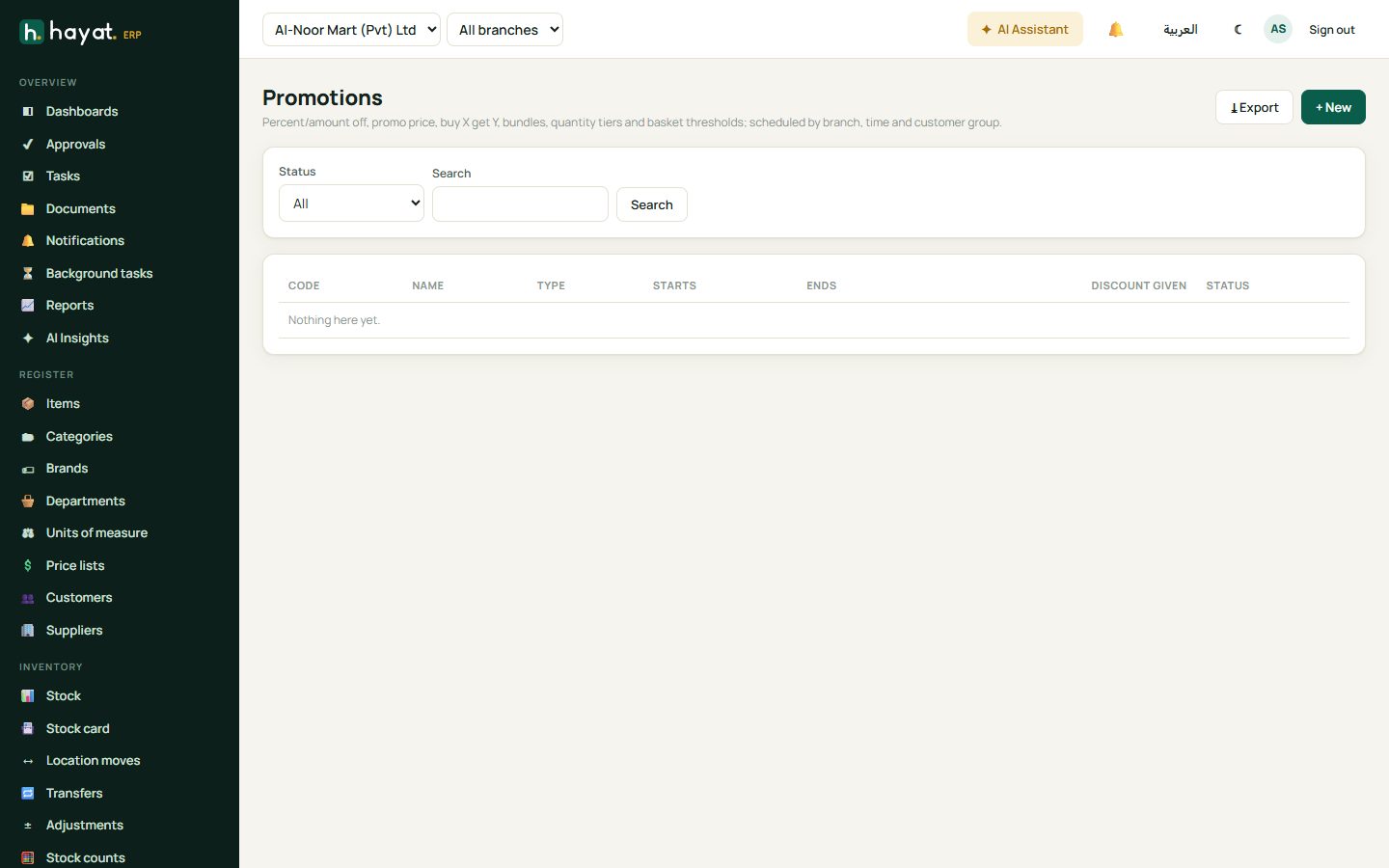
Promotions
Promotions sets discounts that the POS and invoices apply automatically: percentage or amount off, buy X get Y, bundles, quantity breaks and coupons, by branch, customer group, date and time. Supplier claims tracks money suppliers owe you for funded promotions.