
Modules and access
Which parts of Hayat a business has (set by the super admin), which of those each user may use (set by roles), what each person sees, and why most users' Settings show only "change password".
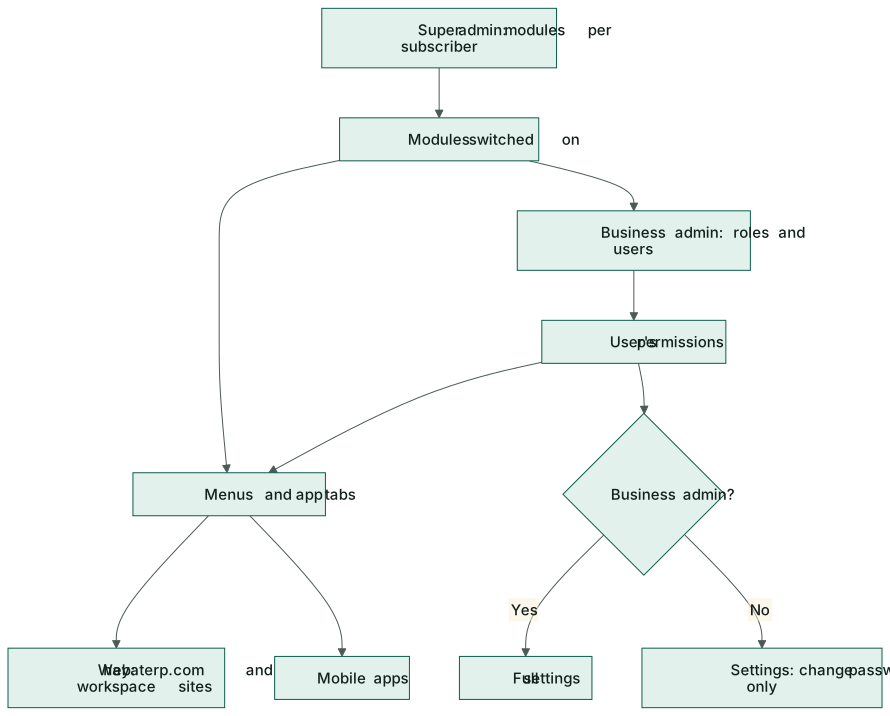
Three things decide what a person sees in Hayat:
- Modules — the parts of Hayat the business subscribes to. The Hayat team (super admin) switches them on or off per subscriber.
- Roles — what each user may do inside those modules. The business's own admin gives users their roles.
- The site — each workspace site (school., hotel., travel., trade., shipping., hospital.hayaterp.com) shows only its own menu.
Who does what
| Who | Where | Decides |
|---|---|---|
| Super admin (Hayat team) | admin.hayaterp.com → Subscribers → subscriber → Modules | Which modules the business has. |
| Business admin (Admin, School / Hotel / Travel / Trade / Shipping Admin) | Settings → Users and Roles | Who works here and with which role; company settings. |
| Company Admin | Settings → Users | Users of their own companies — not group settings, roles or integrations. |
| Everyone else | Settings | Their own password. |
Modules
| Module | What it switches |
|---|---|
| General, Control panel | Always on: signing in, users, roles and your password. |
| Register, Inventory, Trading, Sales, Quality, Gate | Items, stock, buying, selling, quality checks, gate passes. |
| POS | The tills, shifts and FBR POS. |
| Promotions | Promotions, coupons, discount reasons, rules and the discount report. |
| Loyalty & cards | Loyalty members and points, store and gift cards, bank offers, claims and card settlements. |
| Accounts, Reports, Dashboards | Accounts screens and financial statements, the report library, dashboards. |
| HR & Payroll | Employees, attendance, leave, payroll and the employee portal. |
| CRM, Helpdesk | Leads, pipeline and service jobs; support tickets. |
| Online store | Online store admin and the shop. |
| Tasks, Documents, Data integrity | Tasks and projects, the document library, reconciliations. |
| Hospital | The hospital workspace and patient portal. |
| School, Hotel, Travel, Import & export, Shipping | The industry workspaces. New subscribers start without these; the super admin switches on the ones they buy. |
Switch modules on or off (super admin)
- Sign in at admin.hayaterp.com and open Subscribers, then the business.
- In Modules tick what the subscriber pays for. All on and All off set every box; General and Control panel cannot be switched off.
- Click Save modules. The subscriber's users see the change at their next screen load; the history records who changed what.
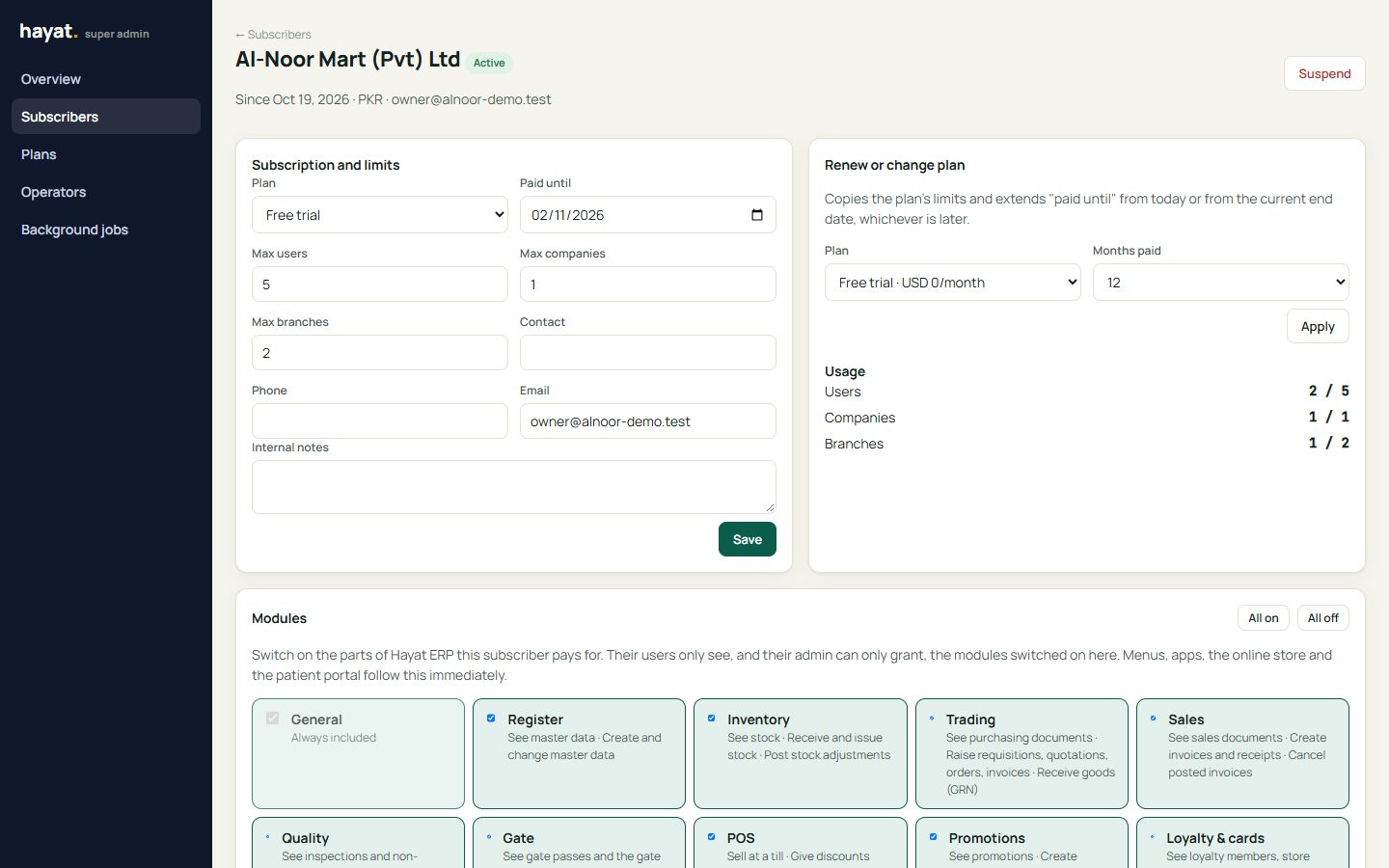
When a module is off:
- its menu items, screens and mobile-app tabs disappear for every user of that business, and the server refuses its actions;
- the business admin cannot give its permissions in a role;
- the accounts keep posting — sales, fees, folios and payments made in other modules still post to the general ledger, so switching Accounts on later shows complete books (see How every module reaches the accounts).
Roles: what each user may do
A role is a set of permissions such as sell at a till, give discounts within limit, collect school fees or run the night audit. Ready-made roles cover every area — Cashier, POS Supervisor, Branch Manager, Accountant, Doctor, Teacher, Fee Clerk, Front Desk, Housekeeping, Travel Agent, Visa Officer, Import Officer, Courier Counter, Rider and more; see Who uses which portal and the Who does what table on each workspace page.
- Settings → Users → + New user (or Users in a workspace site's menu).
- Enter the name and email, choose the roles, and the companies and branches the user may work in.
- For till users set the maximum discount %; supervisors get an approval PIN.
- Save and give the person their email and first password.
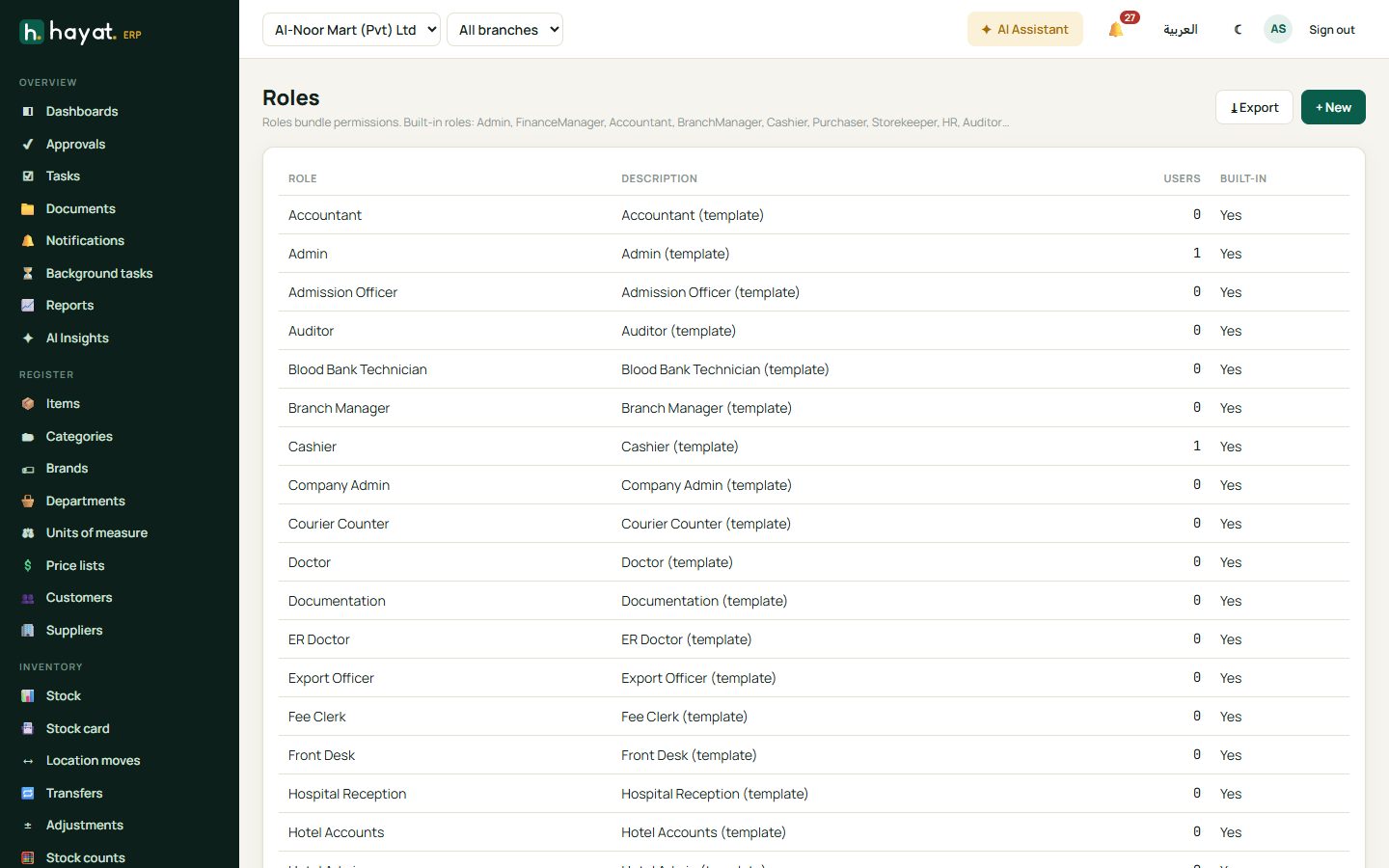
A user sees a menu item only if their role allows it and the business has the module. A permission of a switched-off module is removed from everyone, even the Admin.
What each person sees
- hayaterp.com shows the ERP menu for the user's permissions, plus the industry workspaces the business has (except the hospital, which has its own site).
- school., hotel., travel., trade. and shipping.hayaterp.com show only that workspace, the Helpdesk, and — for business admins — Users, Roles and Settings.
- hospital.hayaterp.com shows only the hospital.
- Mobile apps show only the tabs the user may use. If none, the app says the business or role does not include it. See Mobile apps.
Settings: only business admins
Settings has two parts:
- My account → Change password — everyone.
- Company, Industry packs, Users & roles and AI — only business admins, that is users who may manage users, roles or settings.
So a cashier, teacher or rider opening Settings sees just their name, email and the change-password form. See Users, roles and settings.
Workflow
- The Hayat team switches on the modules in the subscriber's plan.
- The business admin creates users and gives them roles.
- Each user signs in to their site or app and sees only what the two allow.
Where the money goes
Modules and roles never change the books: whatever a desk records still posts to the accounts. A business without the Accounts module simply does not see the Finance screens until it is switched on.