
School workspace
school.hayaterp.com ↗For schools and academies — admissions, attendance, timetable, marks and results, fee vouchers, fee collection and defaulters.
Sign in
School staff sign in at school.hayaterp.com with their Hayat email and password. The menu shows only the school, the helpdesk and (for admins) users, roles and settings. The same screens are also in the ERP at hayaterp.com under School, for owners who run several businesses.
Who does what
| Role | Typical person | Can do |
|---|---|---|
| School Admin | Owner, administrator | Everything in the school, plus users and roles. |
| Principal | Principal, vice principal | Everything in the school: setup, fee structure, concessions, exams and publishing results, reports. |
| Admission Officer | Front office | Admit students, edit records, promote, leaving certificates. |
| Teacher | Class and subject teachers | Mark attendance and enter marks for their own sections and subjects; see their timetable. |
| Fee Clerk | Accounts window | Fee vouchers, collect fees and advances, defaulters and fee reports. |
The school dashboard
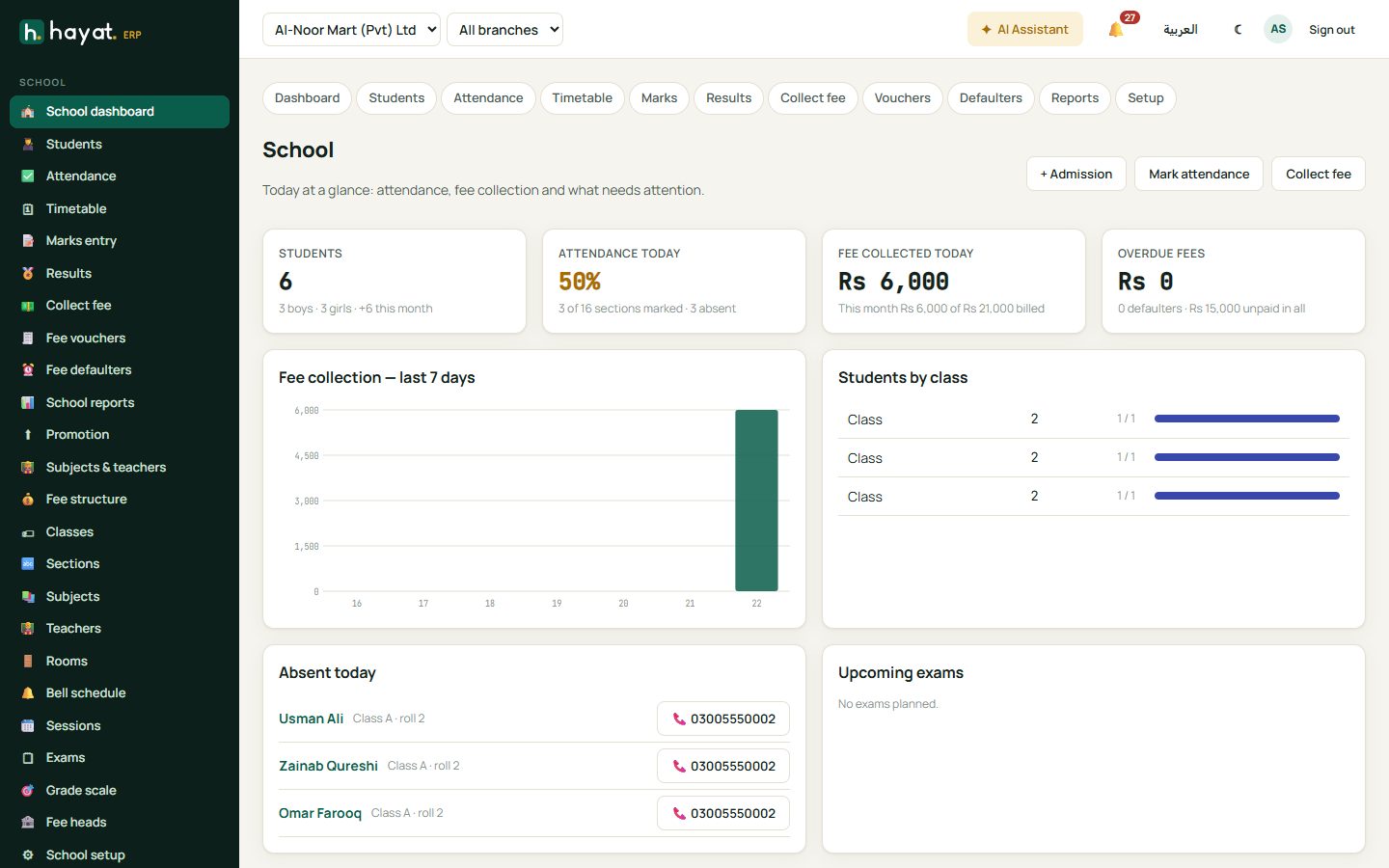
Students (boys, girls, new this month), attendance today, fee collected today and this month, overdue fees and defaulters, upcoming exams, absentees today and fee collection for the last 7 days. The buttons at the top start an admission, mark attendance or collect fee.
First-time setup
Open School setup and click Set up a typical school. It creates whatever is still empty: a session, Playgroup to Class 10 with section A and their subjects, an 8-period bell schedule with a short Friday, fee heads and a grade scale. Then adjust classes, sections, fees and the bell schedule to your school.
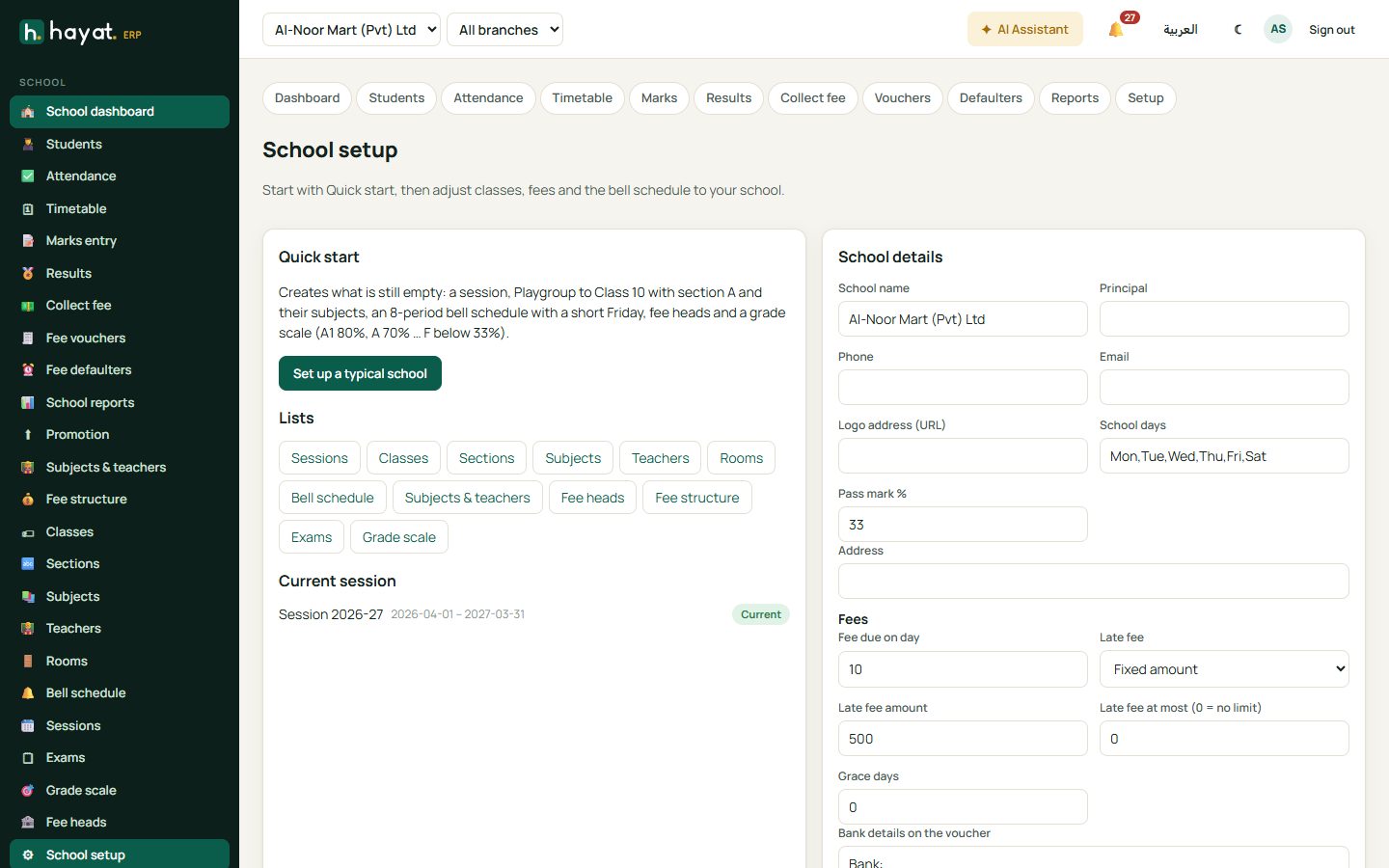
In School details set the fee due day, late fee (none, fixed or per day, with a maximum and grace days), the bank details printed on vouchers and a note such as "Fee once paid is not refundable".
Admissions
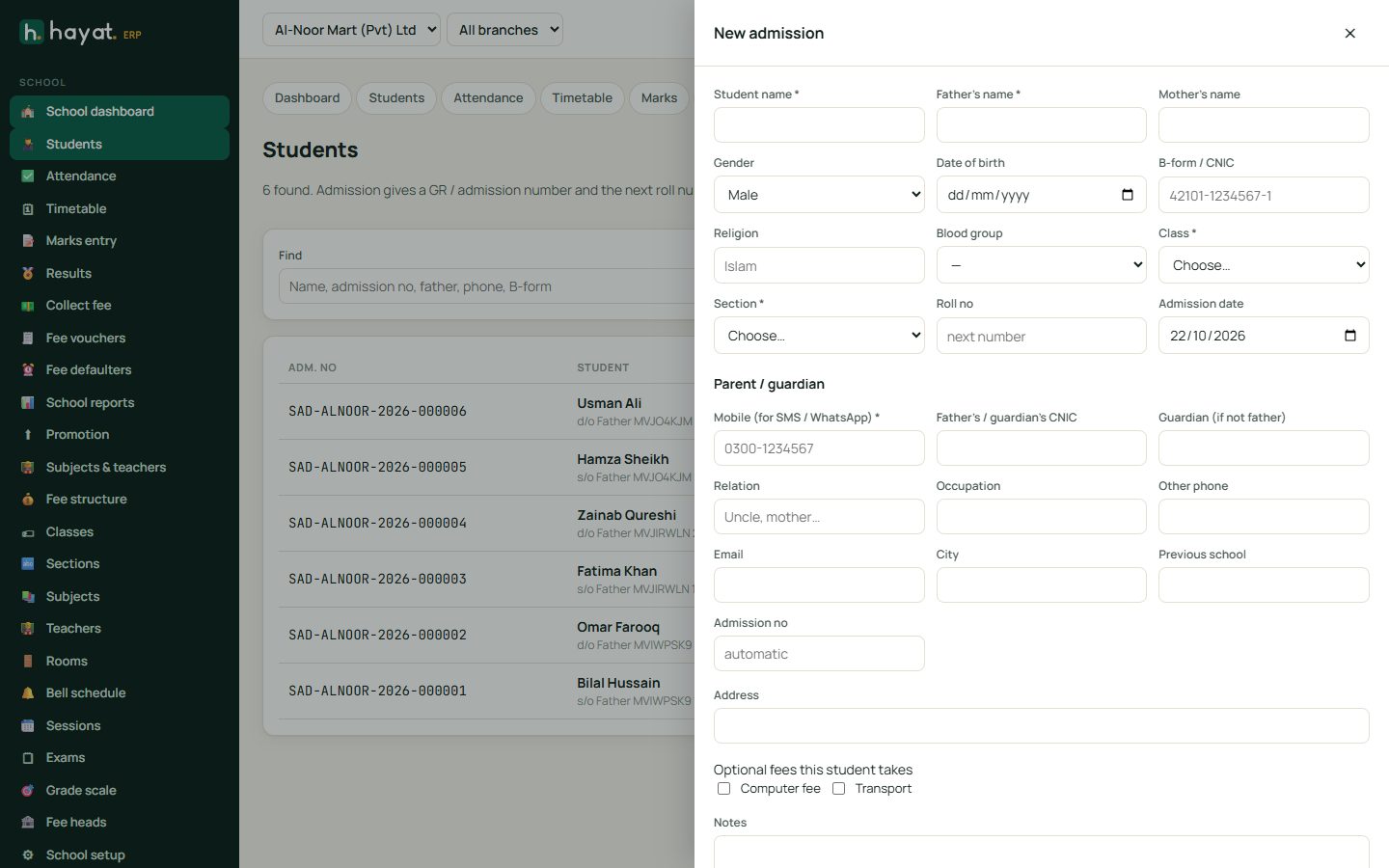
- Students → + Admission (or + Admission on the dashboard).
- Enter the student's name, father's name, gender, date of birth, B-form and class and section. The roll number and admission number fill themselves if you leave them blank.
- Enter the parent's mobile — it is the number Hayat uses for WhatsApp messages to the parent.
- Tick Make this month's fee voucher now (with admission fee) to bill the admission straight away. A promo code box appears for an admission offer.
- Click Admit student. Hayat opens the student's profile with the first voucher ready to print or collect.
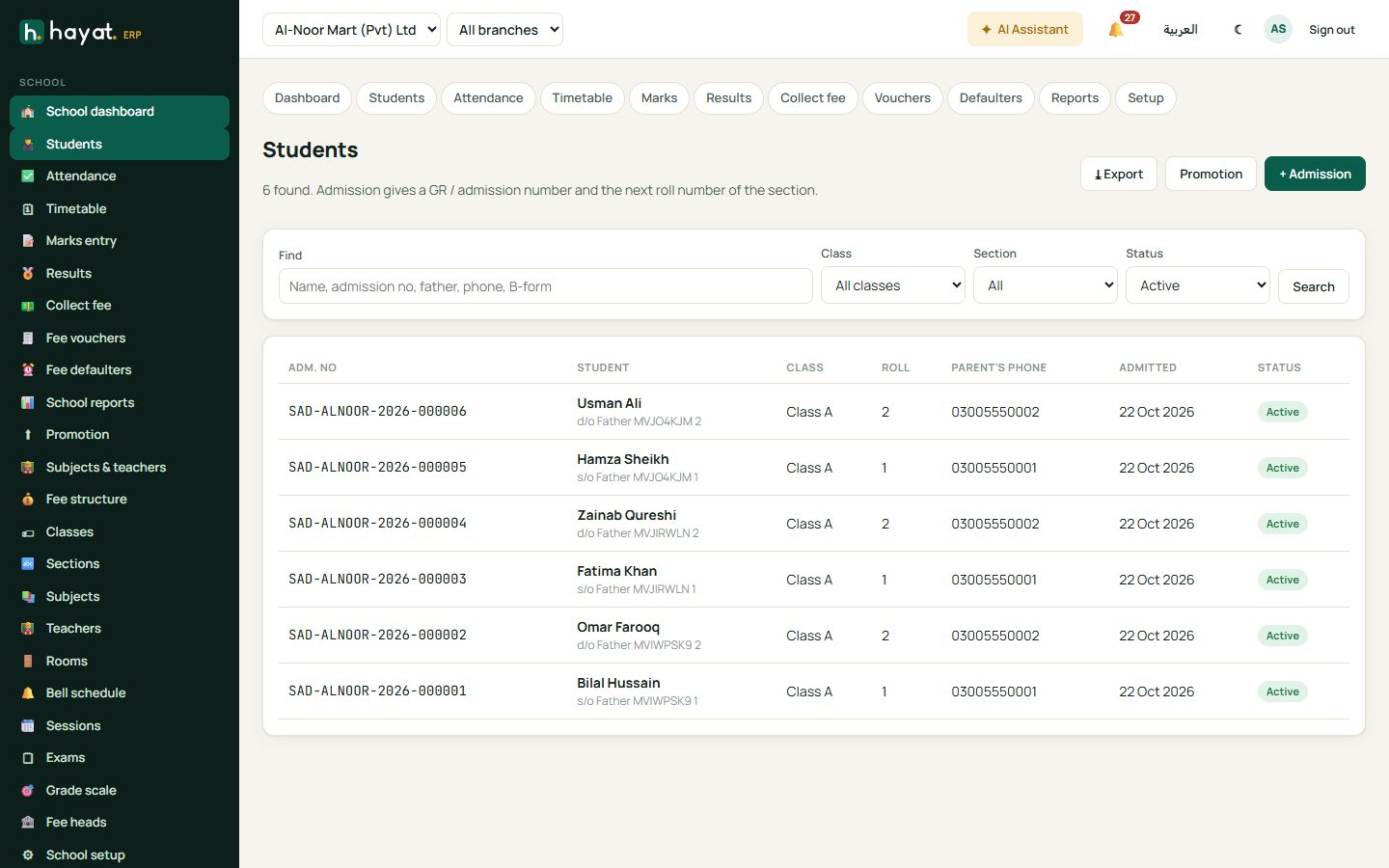
Students lists everyone with filters for class, section and status (active, left, graduated, suspended); search by name, admission number, father, phone or B-form, and ⤓ Export to Excel.
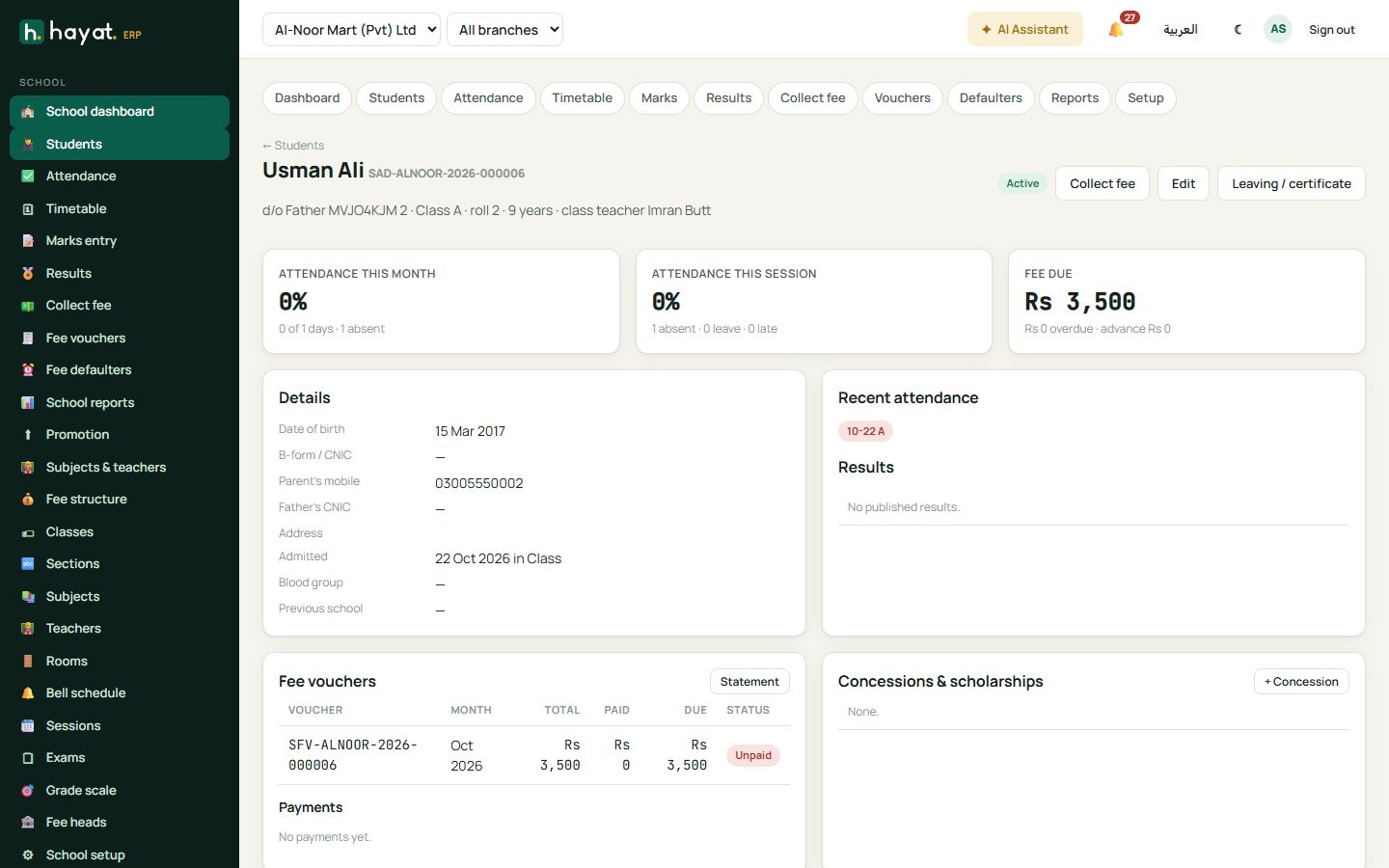
The student profile shows details, recent attendance, results, fee vouchers and payments, concessions and scholarships and the history. From here you can Collect fee, print a Statement, Edit, or record Leaving / certificate.
Concessions and schemes
On the profile click + Concession. Choose the reason (sibling, staff child, merit…), the scheme if your business uses discount reasons, the fee head (or all tuition heads), percent or fixed amount, and the months it applies. Each voucher takes it off automatically.
Promotion at the end of the session
Promotion moves a section to the next class. Untick students who repeat the class, choose the new session and click Promote. Choose Graduate for the final class.
Attendance
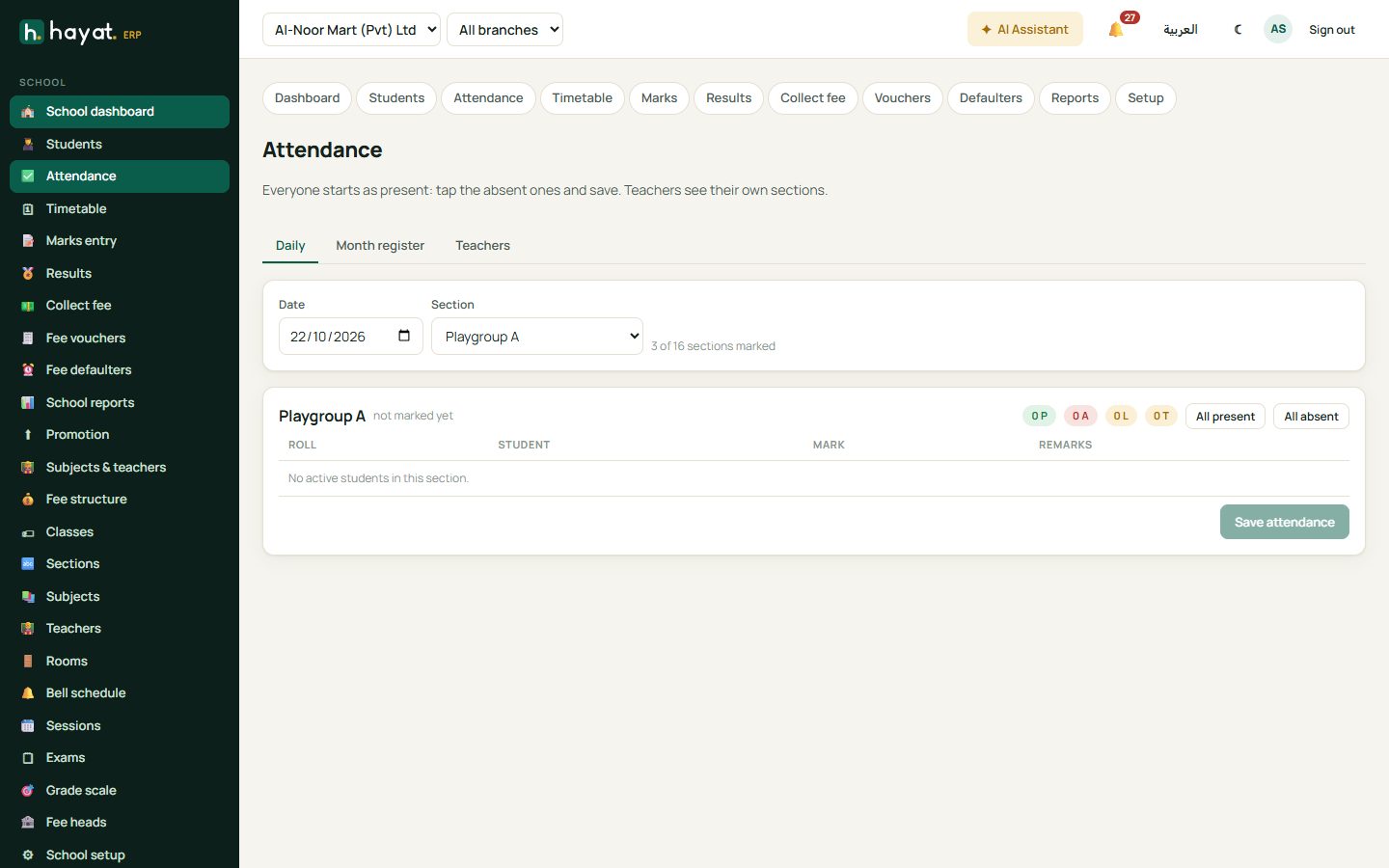
- Attendance, pick the date and the section. Everyone starts as present.
- Tap A (absent), L (leave) or T (late) for the students who are not present; add a remark if needed.
- Click Save attendance.
Month register prints the classic register for a section. Principals also mark teachers' attendance on the Teachers tab. Teachers see only their own sections.
Timetable
- Subjects & teachers: for each class tick its subjects with periods per week, then choose the teacher for each section.
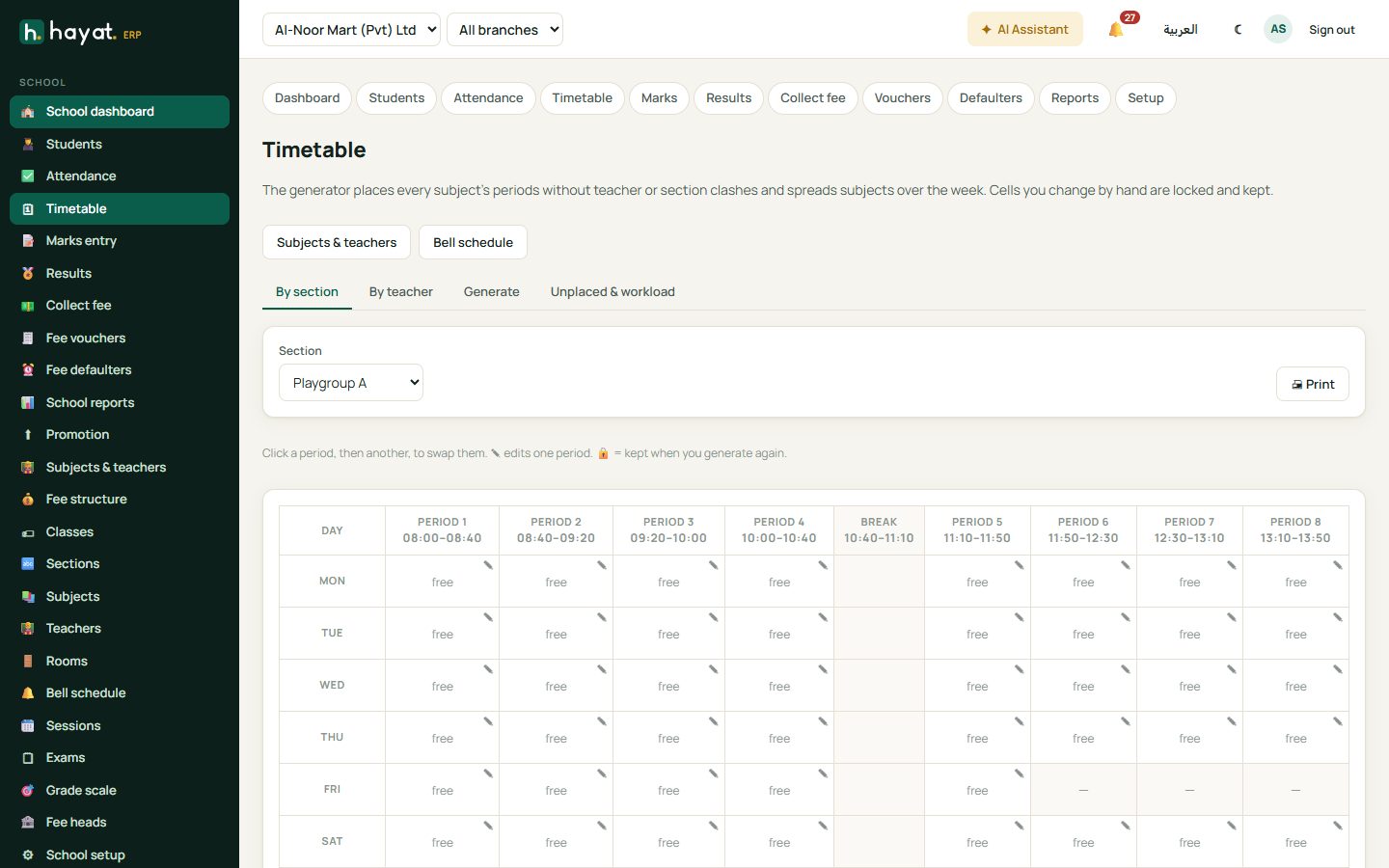
- Timetable → Generate: for the whole school, one campus or chosen sections. The generator places every period without teacher or section clashes and spreads each subject over the week.
- Check Unplaced & workload for periods that did not fit and each teacher's week.
- Change a cell by hand with ✎ — hand-made cells are locked and kept the next time you generate.
Marks and results
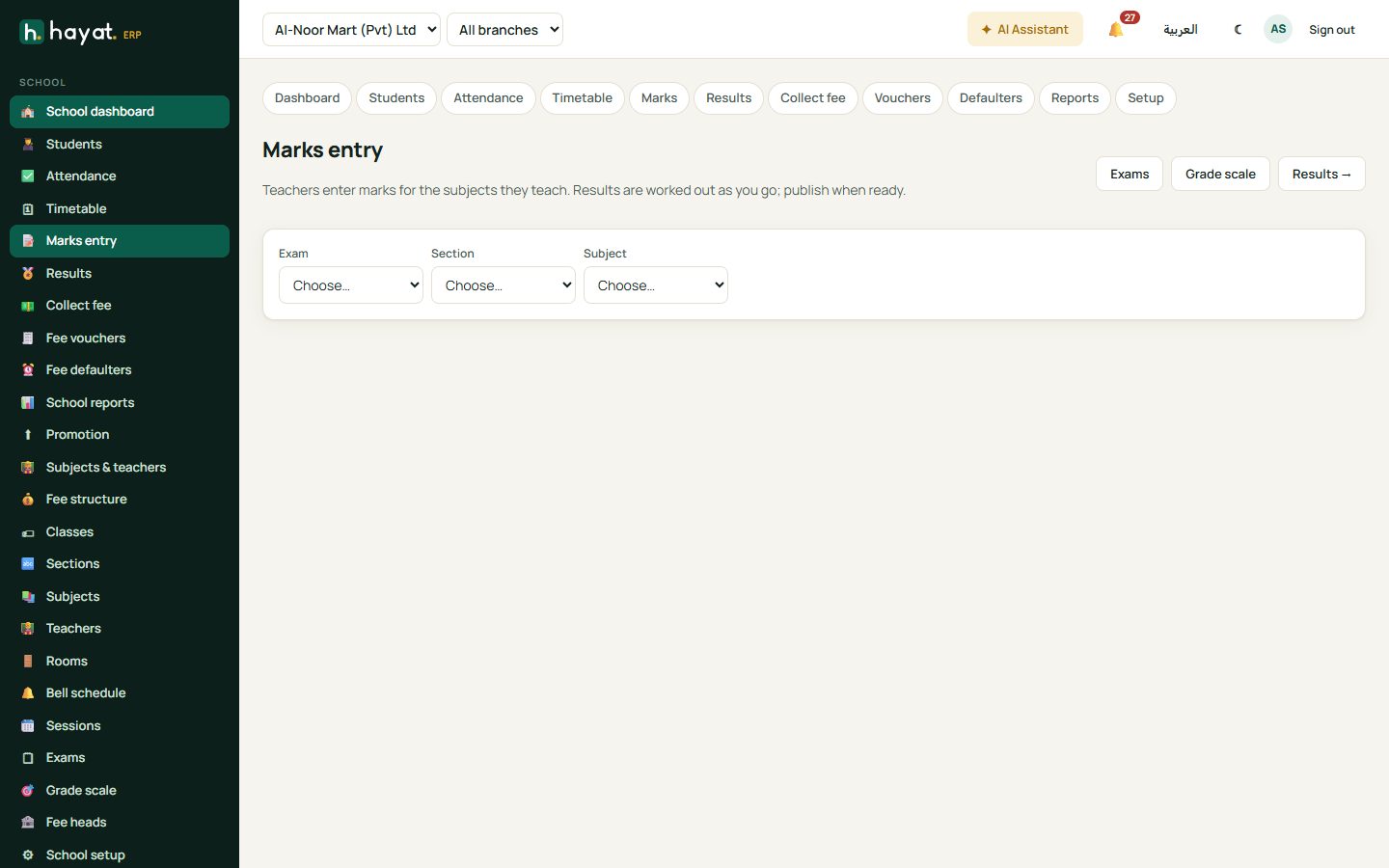
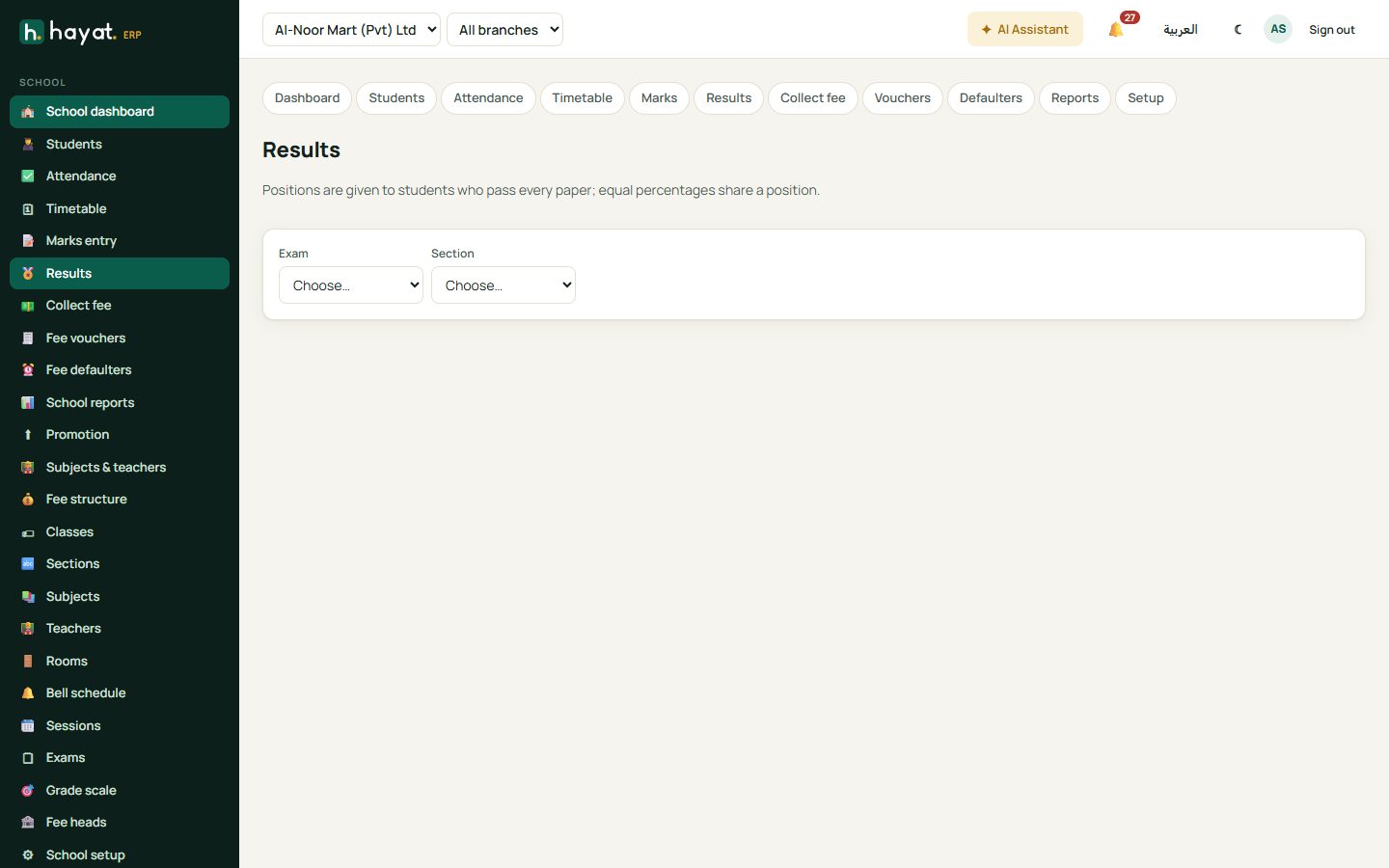
Marks entry: choose the exam, section and subject, type the marks and Save marks. Principals use Paper settings for maximum and pass marks, and Publish results when everything is in. Results shows positions, the tabulation sheet and printable result cards.
Fees
Fee structure
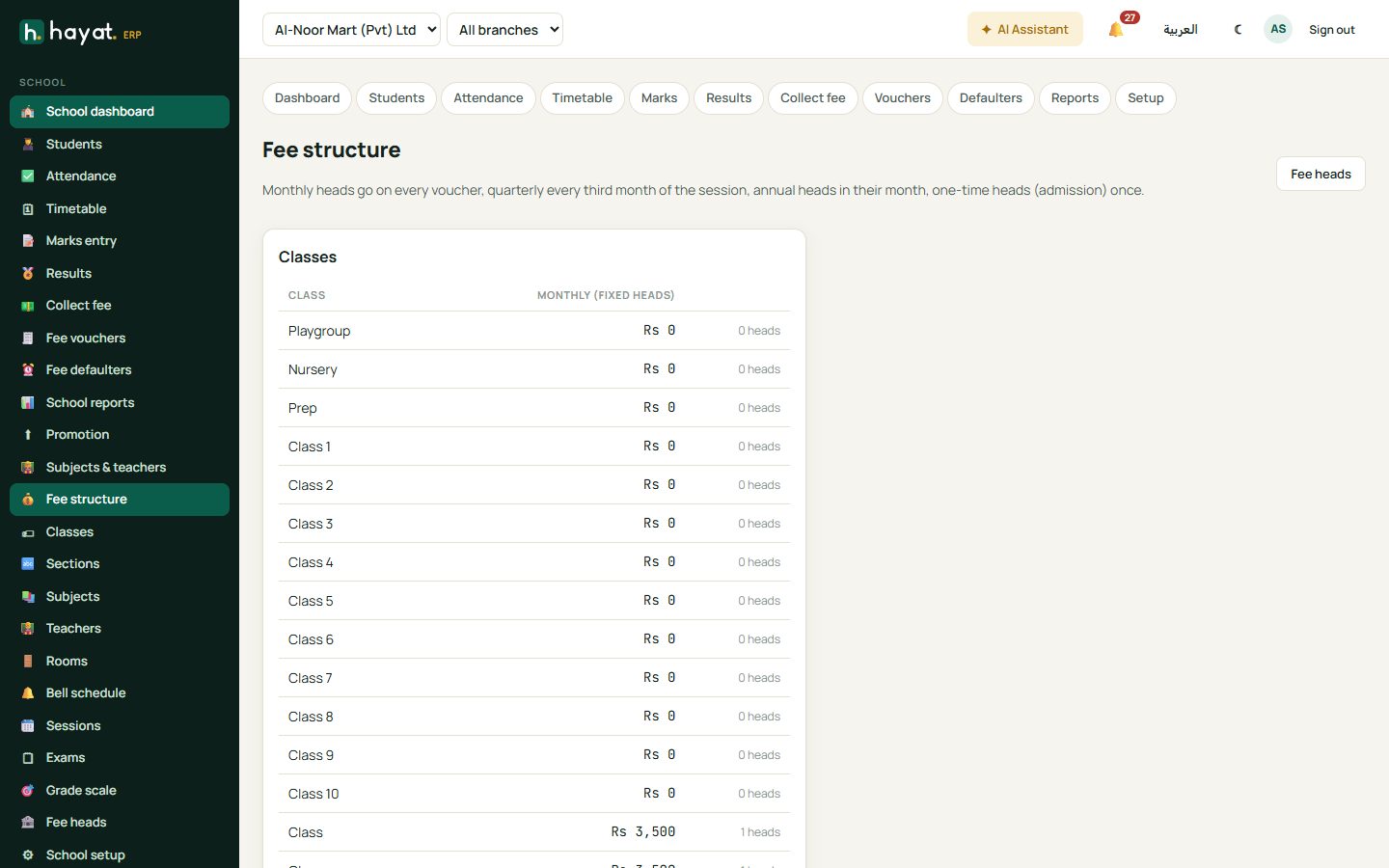
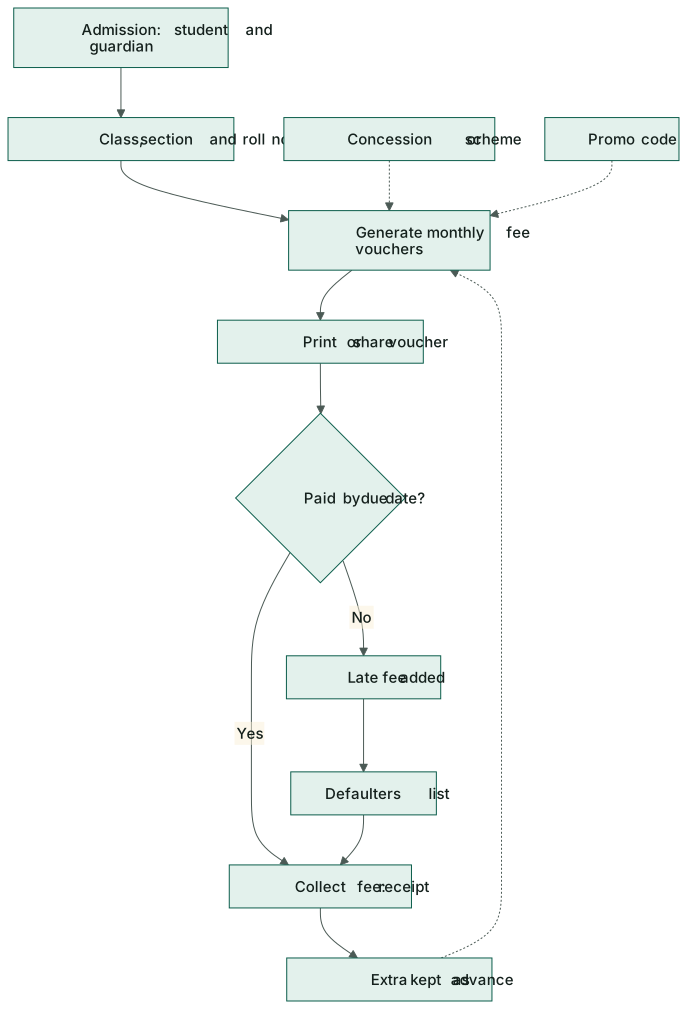
Fee structure sets each class's fee heads. Monthly heads go on every voucher, quarterly heads every third month, annual heads in their month and one-time heads (admission) once. Copy to classes… repeats a structure.
Generate vouchers
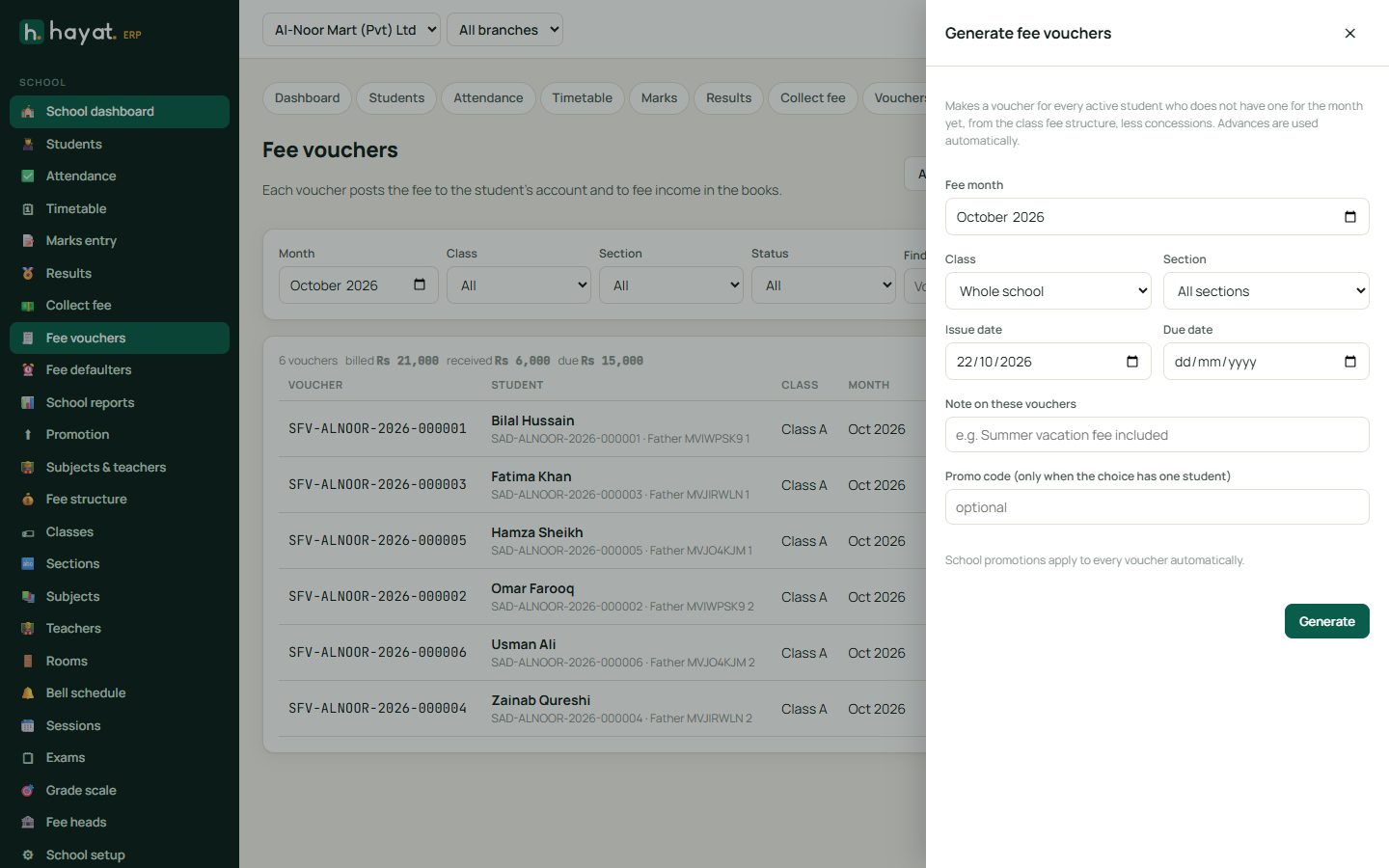
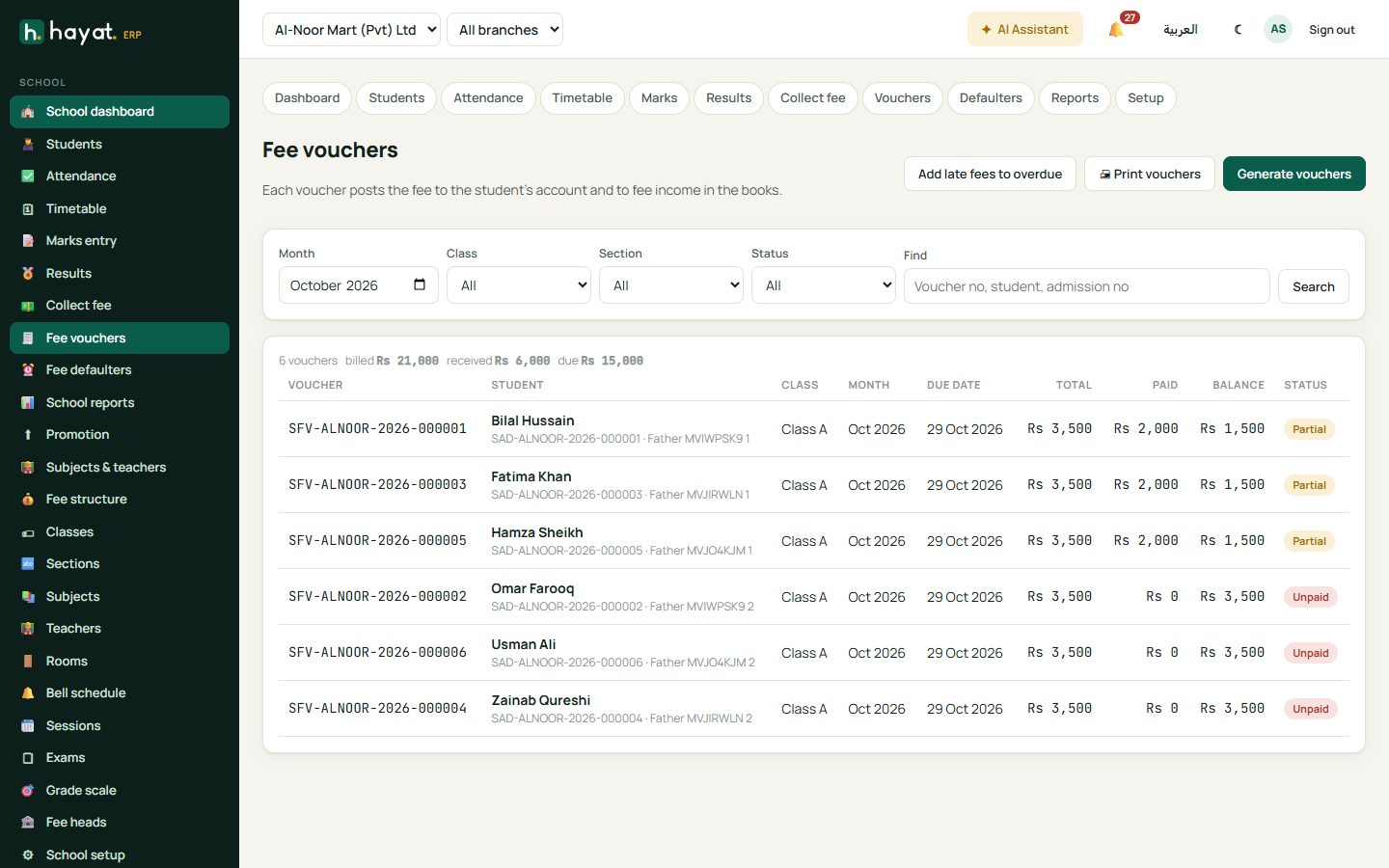
- Fee vouchers → Generate vouchers.
- Choose the month, and optionally one class, section or student, the due date and a note for the voucher.
- A promo code applies only when you generate for one student. Automatic school promotions and each student's concessions are taken off every voucher.
- Click Generate, then 🖨 Print vouchers.
Add late fees to overdue adds the late fee to every unpaid voucher past its due date. Open a voucher to print it, add or waive the late fee, or cancel it (principals).
Collect fee
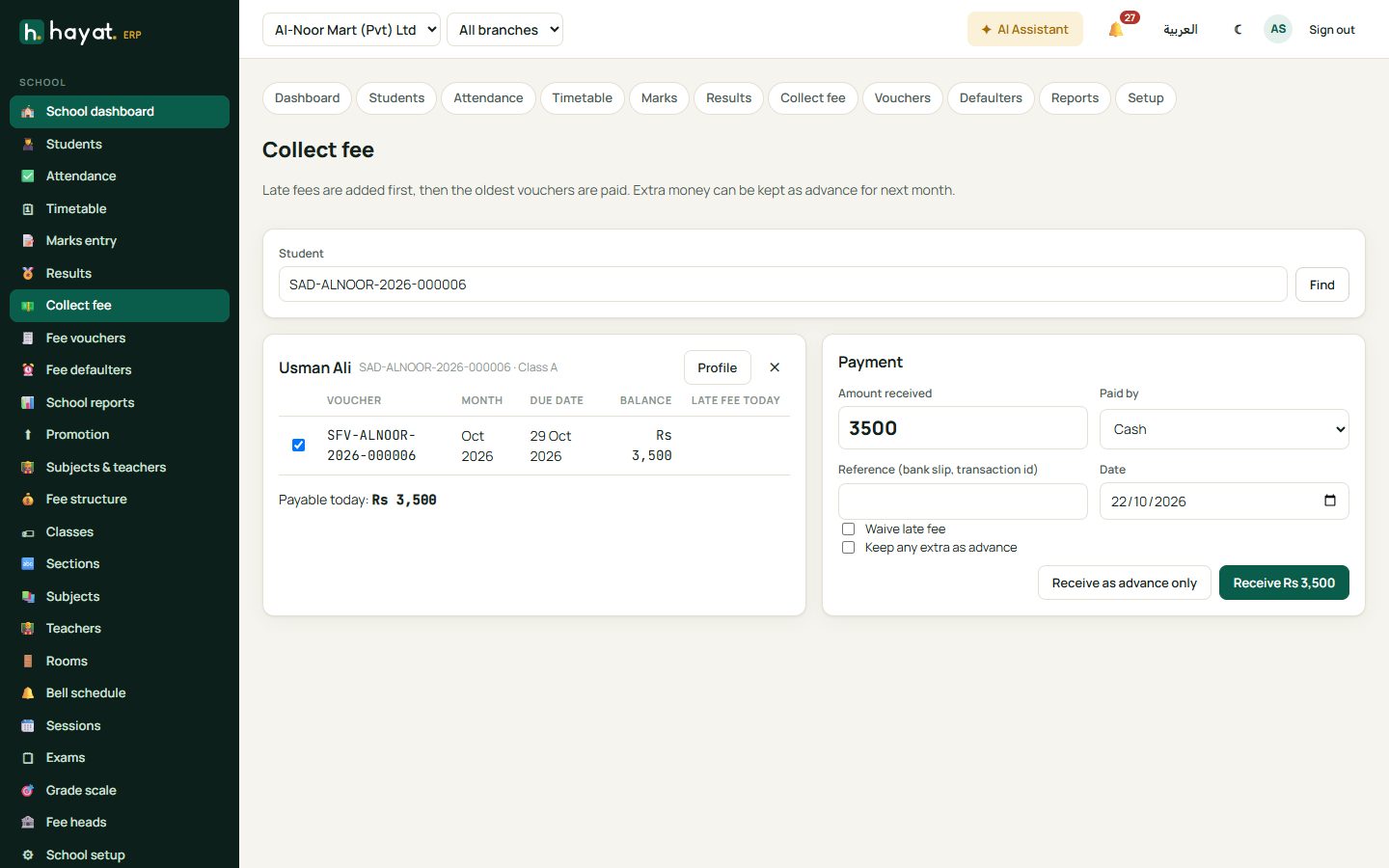
- Collect fee, type the student's name, admission number, father's name, phone or voucher number and press Find.
- Tick the vouchers being paid. Late fees are added first, then the oldest vouchers are paid.
- Type the amount received, choose Paid by — cash, bank, card, or Loyalty points / Store card if your business uses loyalty and cards — and the reference (bank slip, transaction id).
- Tick Keep any extra as advance if the parent pays more; it is used on the next voucher.
- Click Receive. Print the receipt.
Defaulters and reports
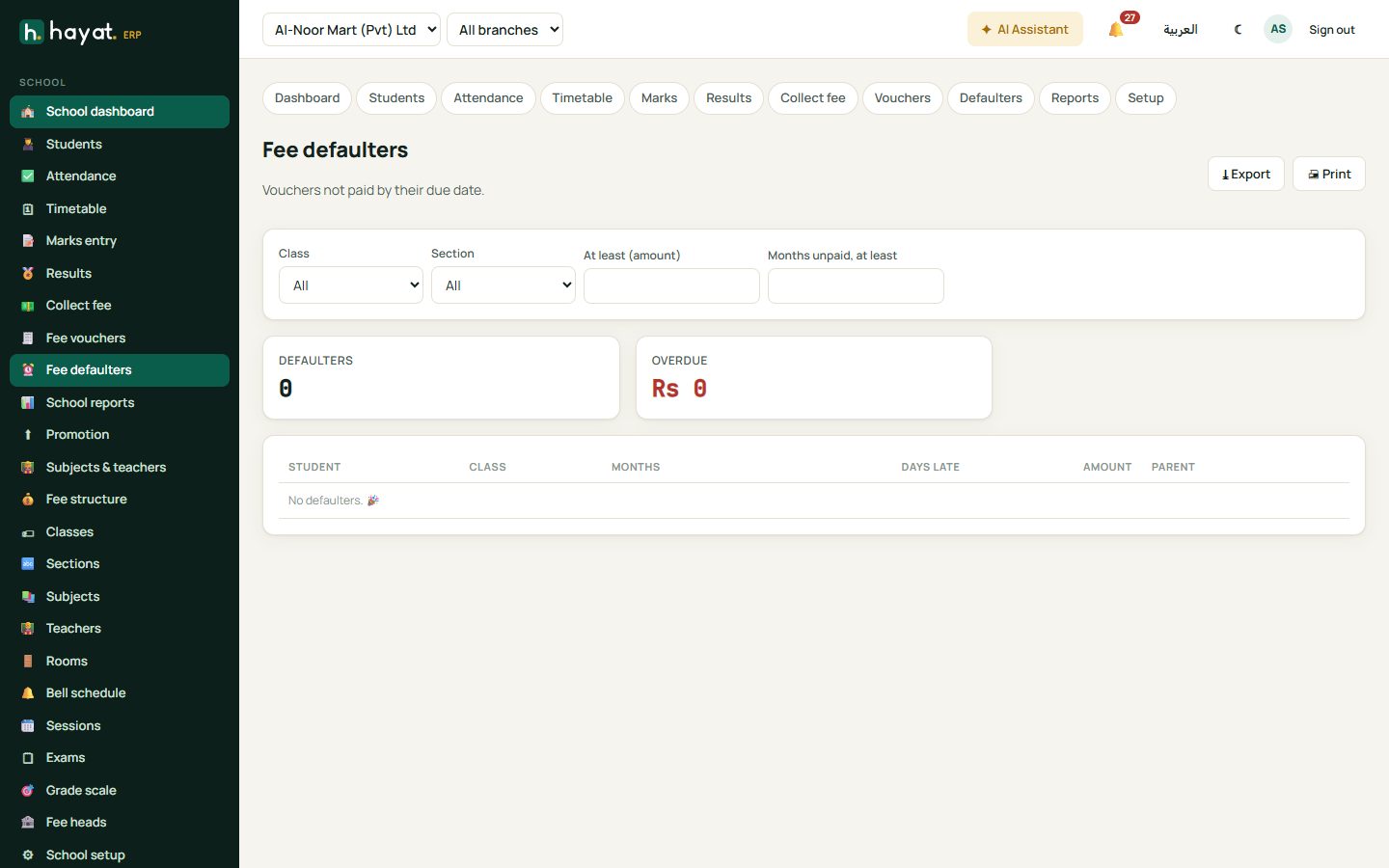
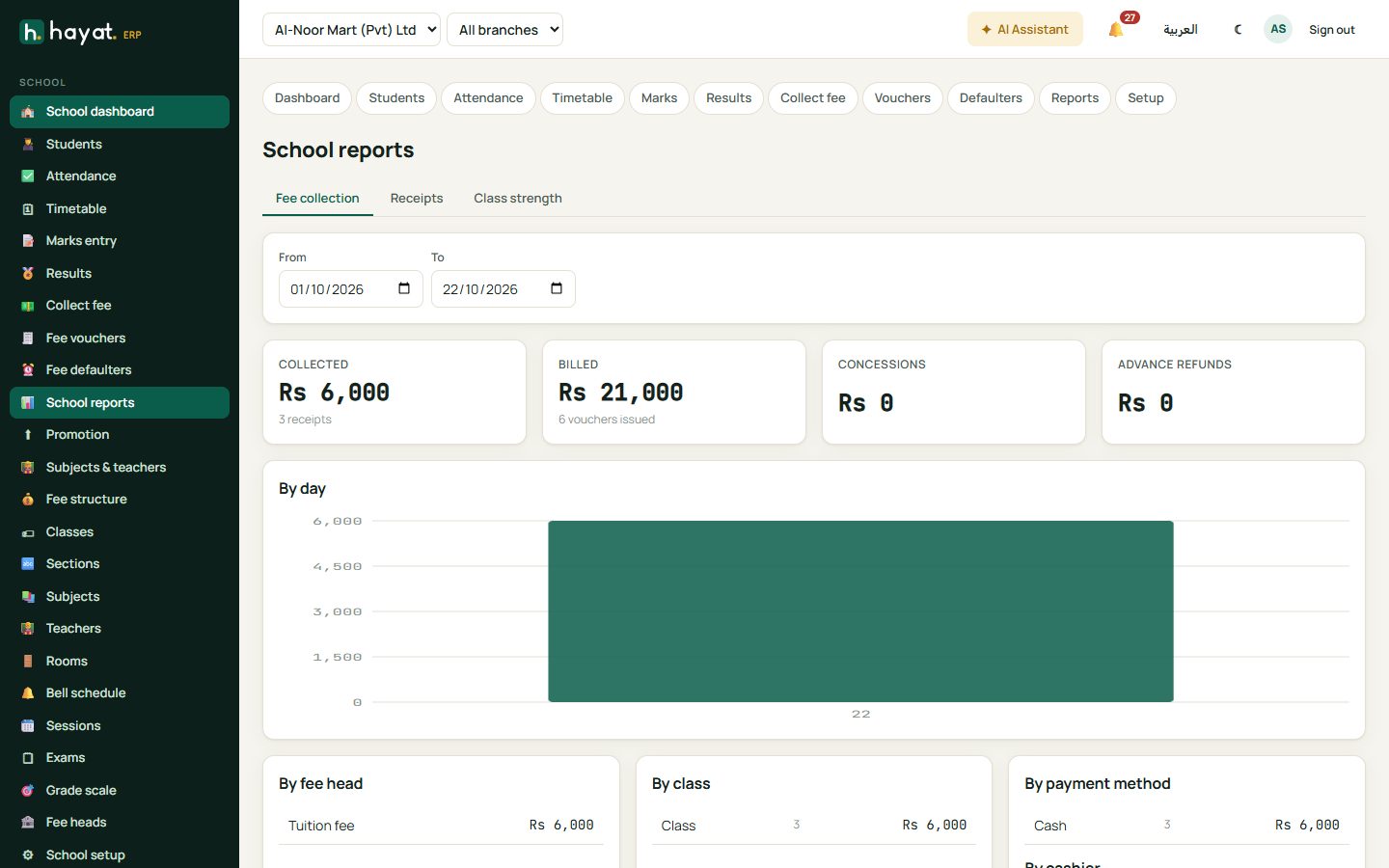
Fee defaulters lists vouchers not paid by their due date — print or export it for follow-up calls. School reports shows collection by day, fee head, class, payment method and cashier, the receipts list (with Cancel for principals) and class strength.
Workflow
Where the money goes
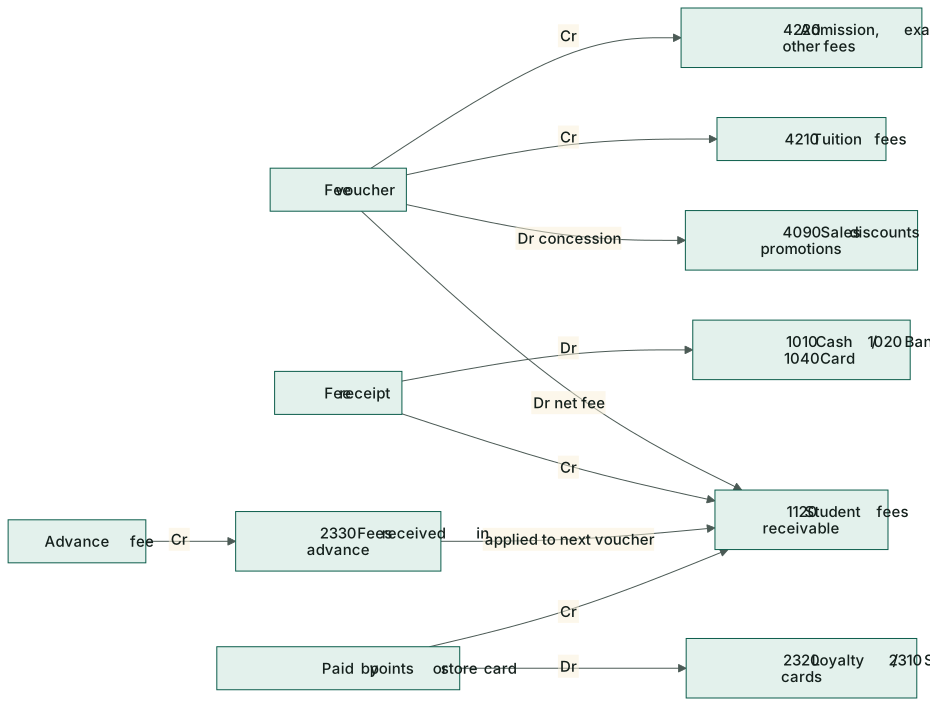
Every voucher and receipt posts to the accounts, even if your business does not use the Accounts screens — so the books are complete the day you switch them on. See How every module reaches the accounts.
| Event | Debit | Credit |
|---|---|---|
| Fee voucher | 1120 Student fees receivable (net); 4090 Sales discounts (concession) | 4210 Tuition fees; 4220 Admission, exam and other fees |
| Late fee added | 1120 Student fees receivable | 4220 Admission, exam and other fees |
| Fee received | 1010 Cash / 1020 Bank / 1040 Card | 1120 Student fees receivable |
| Advance received | 1010 Cash / 1020 Bank | 2330 Fees received in advance |
| Advance used on a voucher | 2330 Fees received in advance | 1120 Student fees receivable |
| Paid by points / store card | 2320 Loyalty liability / 2310 Store cards | 1120 Student fees receivable |
On the phone
The Hayat School app has Today, Attendance, Students, Fees and Timetable tabs — teachers mark attendance from the classroom and fee clerks collect at the gate. See Mobile apps.