
Hayat Bazaar for the Hayat team
admin.hayaterp.com/bazaar ↗Running the Hayat Bazaar marketplace from the super-admin panel — switching it on and billing it, approving and suspending shops, the category tree, banners, flash deals, featured products, moderation, rebuilding the index, stats, and the server settings such as Bazaar:MessagingTenantId for the sign-in and order texts.
Hayat Bazaar lists the online-store products of every subscriber that joins. Hayat curates the marketplace — which shops are on it, the shared category tree, banners, flash deals and featured products — but holds no money: each shop's part of an order is that shop's own store order, paid to that shop.
The panel's menu has Hayat Bazaar with Overview, Vendors, Categories, Banners, Flash deals, Products & moderation and Open Bazaar ↗.
Who does what
| Who | Where | Does |
|---|---|---|
| Platform operator | admin.hayaterp.com → Hayat Bazaar | Approves and suspends shops, flags pharmacies and featured shops, edits categories, banners and deals, moderates products, rebuilds the index. |
| Platform operator | admin.hayaterp.com → Subscribers → Modules, Billing | Switches the Hayat Bazaar module on and bills the add-on. |
| Server administrator | the API's settings | The public address and the messaging business for sign-in codes and order texts (below). |
| The business (bazaar.view / bazaar.manage) | hayaterp.com → Hayat Bazaar | Joins, sets up and runs its own shop. |
Switch it on for a subscriber
Hayat Bazaar is an opt-in module, like the industry workspaces: new subscribers start without it.
- Subscribers → the business → Modules: tick Hayat Bazaar (the business also needs Online store) and Save modules. See Switch modules on or off.
- To charge for it, add the catalogue item WS.HAYATBAZAAR (Hayat Bazaar, an industry-workspace add-on, price on request until you set one) to the subscriber's subscription in Subscriber billing. It is not self-serve: a request from the business waits for you. There is no per-order charge.
- The business's admin gives bazaar.manage to whoever runs the shop and joins from Hayat Bazaar → My Bazaar shop. The shop then appears here as Pending.
Switching the module (or Online store) off takes the shop's listings off Bazaar within a minute; Rebuild the product index makes it immediate.
Overview and stats
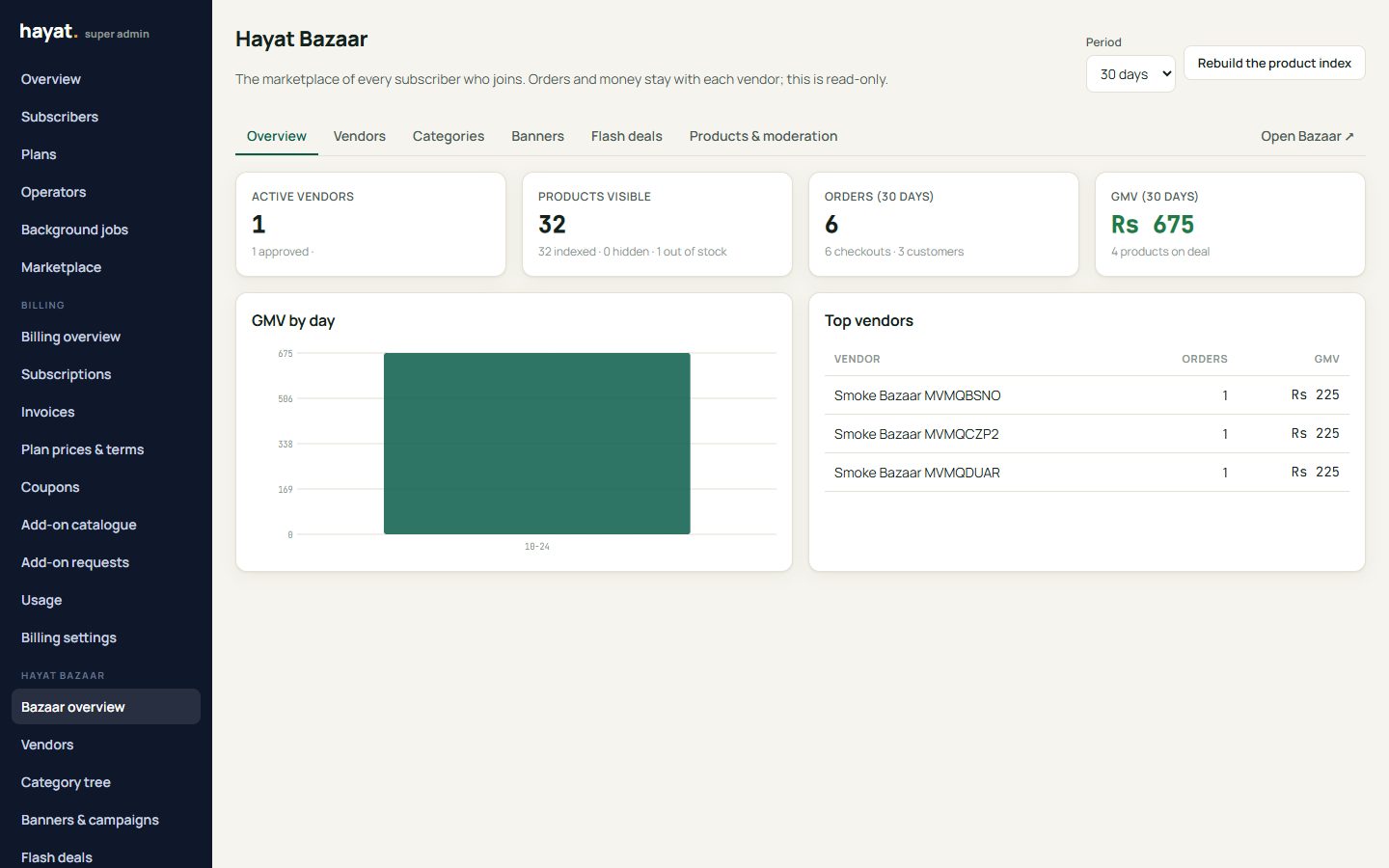
Hayat Bazaar → Overview shows the shops by status, the listings (visible, hidden, out of stock, in deals), orders and checkouts, customers and the order value (GMV: parts not failed or cancelled, at placing) for 7, 30 or 90 days, with a chart by day and the top shops. It is read-only.
Rebuild the product index flags every shop for a refresh, rebuilds 20 at once and leaves the rest to the background job (a few minutes). Use it after changing many categories, or after switching a subscriber's modules.
Vendors: approve and suspend
Vendors lists the shops with tabs Pending (first), Approved, Suspended and their counts; search by shop, address or subscriber. Each row shows the subscriber and its store, the status (or Left), products listed, rating, flags and when it was last indexed (with any index error).
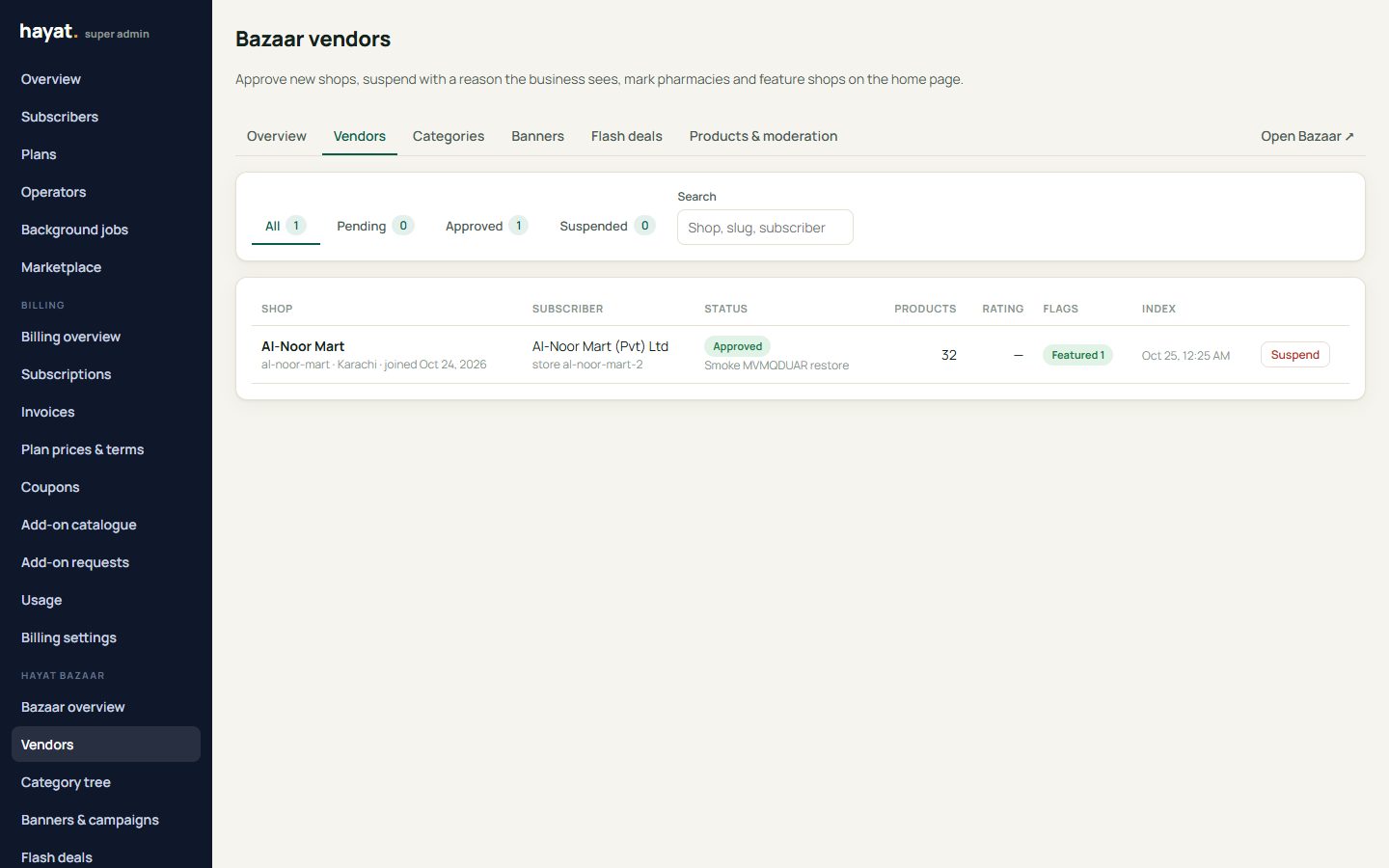
- Approve (an optional note) — the shop is re-indexed and its products appear; the business is notified Your shop is live. The answer says how many products were listed, or why none (for example the store is closed).
- Suspend — a reason is required. Every listing disappears at once; the business is notified and sees the reason. Orders already placed stay with the shop. Approve again to reactivate.
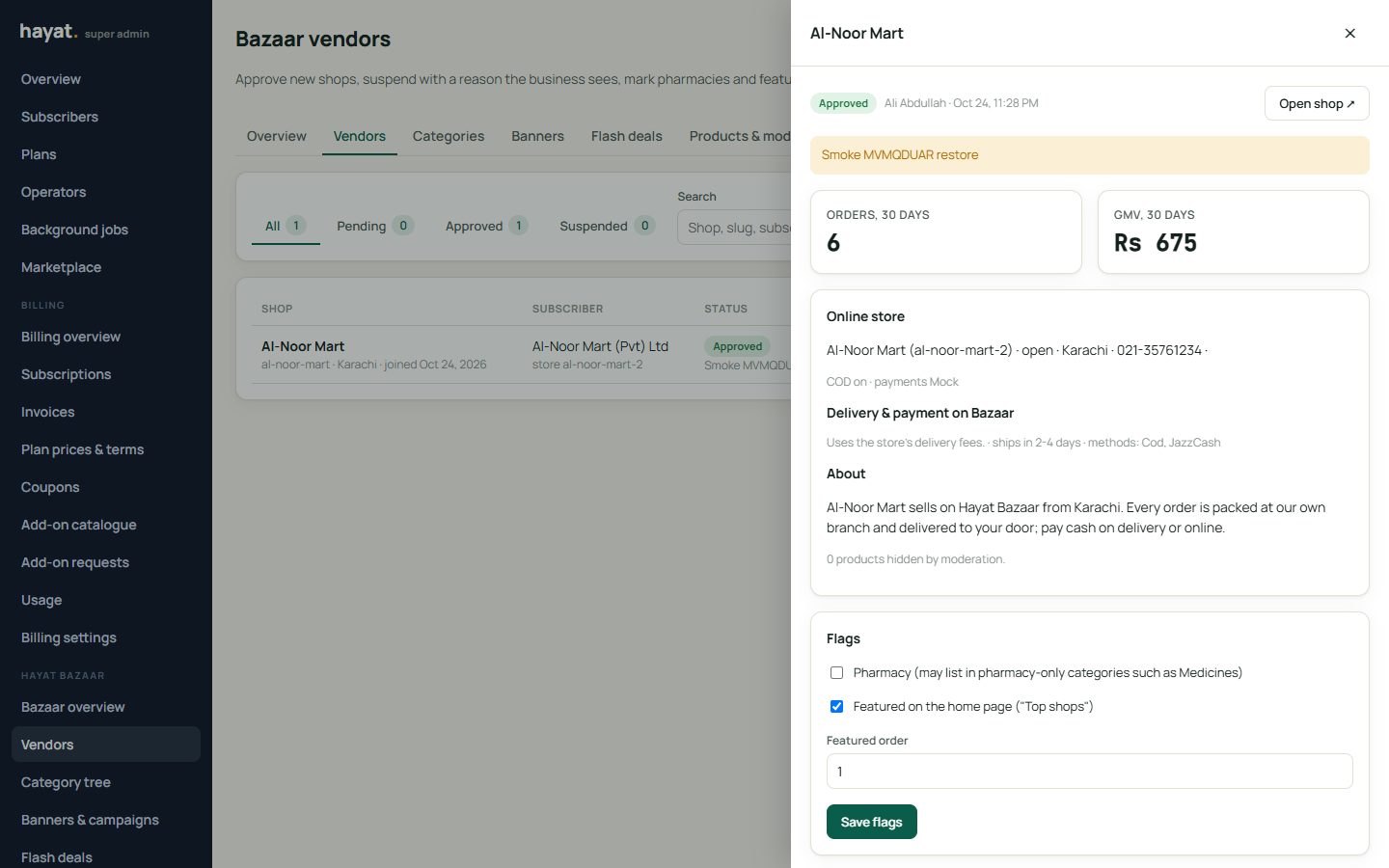
Click a shop to open its drawer: its store (address, open or closed, phone, email, city, cash on delivery, payment mode), its Bazaar delivery and payment methods, about and returns, its orders and GMV in the last 30 days and the products you hid. There:
- Pharmacy — only a pharmacy may list in the Medicines categories (pharmacy-only). Tick it only for a business licensed to sell medicines.
- Featured and its order — featured shops lead Top shops on the home page. Save flags.
- Re-index this shop — read its products now; Open shop ↗ opens its Bazaar page.
Categories
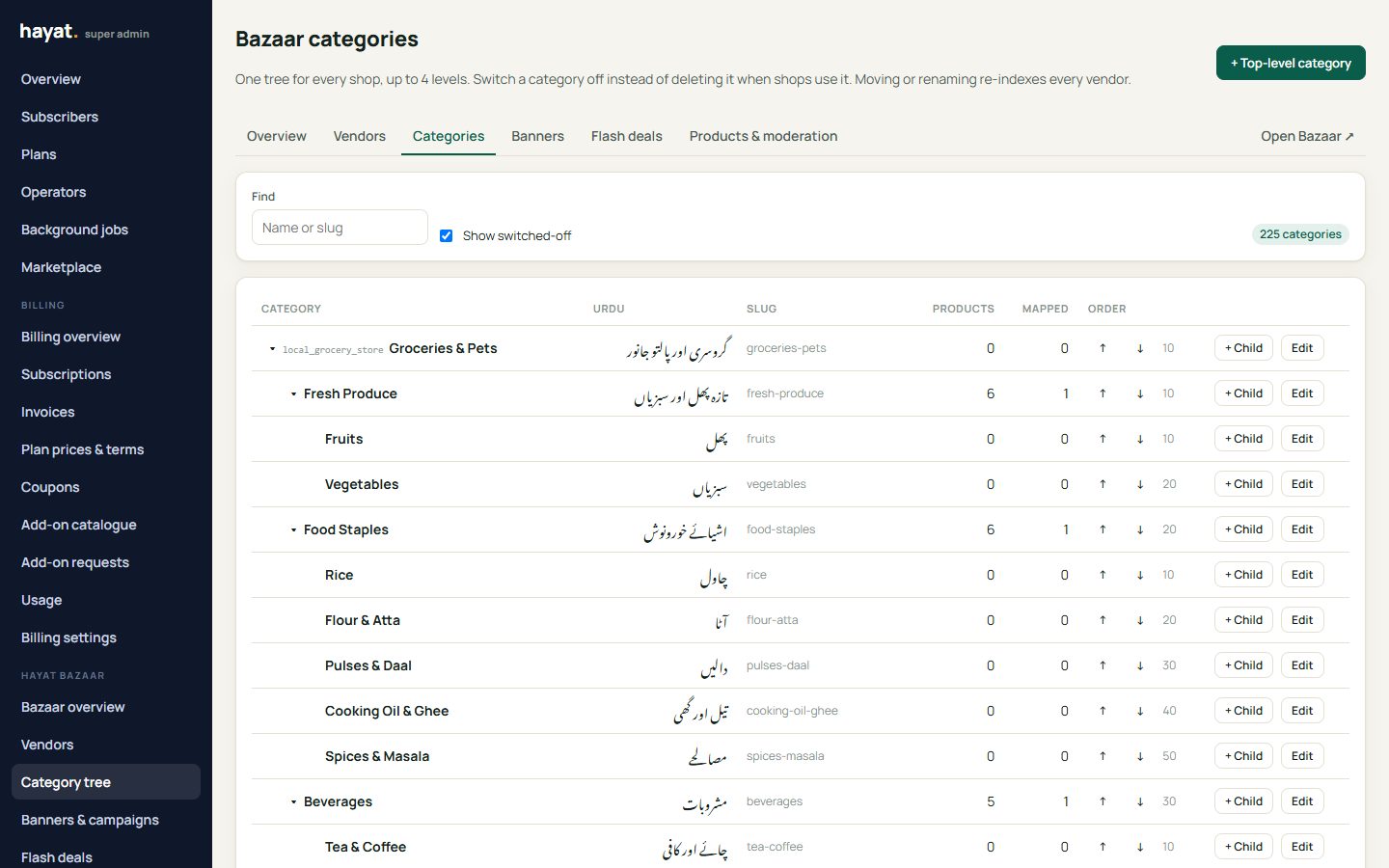
Categories is the one tree every shop maps onto. It starts with 13 top levels like Daraz's (Groceries & Pets, Health & Beauty, Men's Fashion, Women's Fashion, Mother & Baby, Home & Lifestyle, Electronic Devices, Electronic Accessories, TV & Home Appliances, Sports & Outdoor, Watches, Bags & Jewellery, Automotive & Motorbike, Medicines) with their second and third levels and Urdu names.
- Search, collapse and expand; show switched-off categories too.
- Click a category to edit it: name, Urdu name, slug (its address, /c/slug, made from the name; unique), icon (a Material icon name such as local_grocery_store), an image (a URL or an upload: PNG, JPEG, WebP or SVG up to 3 MB), the parent, sort order, active and pharmacy only. + Child adds a sub-category; up to 4 levels.
- ↑ / ↓ move a category among its siblings.
- Delete works only for a category with no children and no shop mappings; otherwise switch it off (untick active): its products leave Bazaar and the shops see The Bazaar category it is mapped to is switched off.
Moving, renaming or switching off a category re-indexes every shop.
Banners
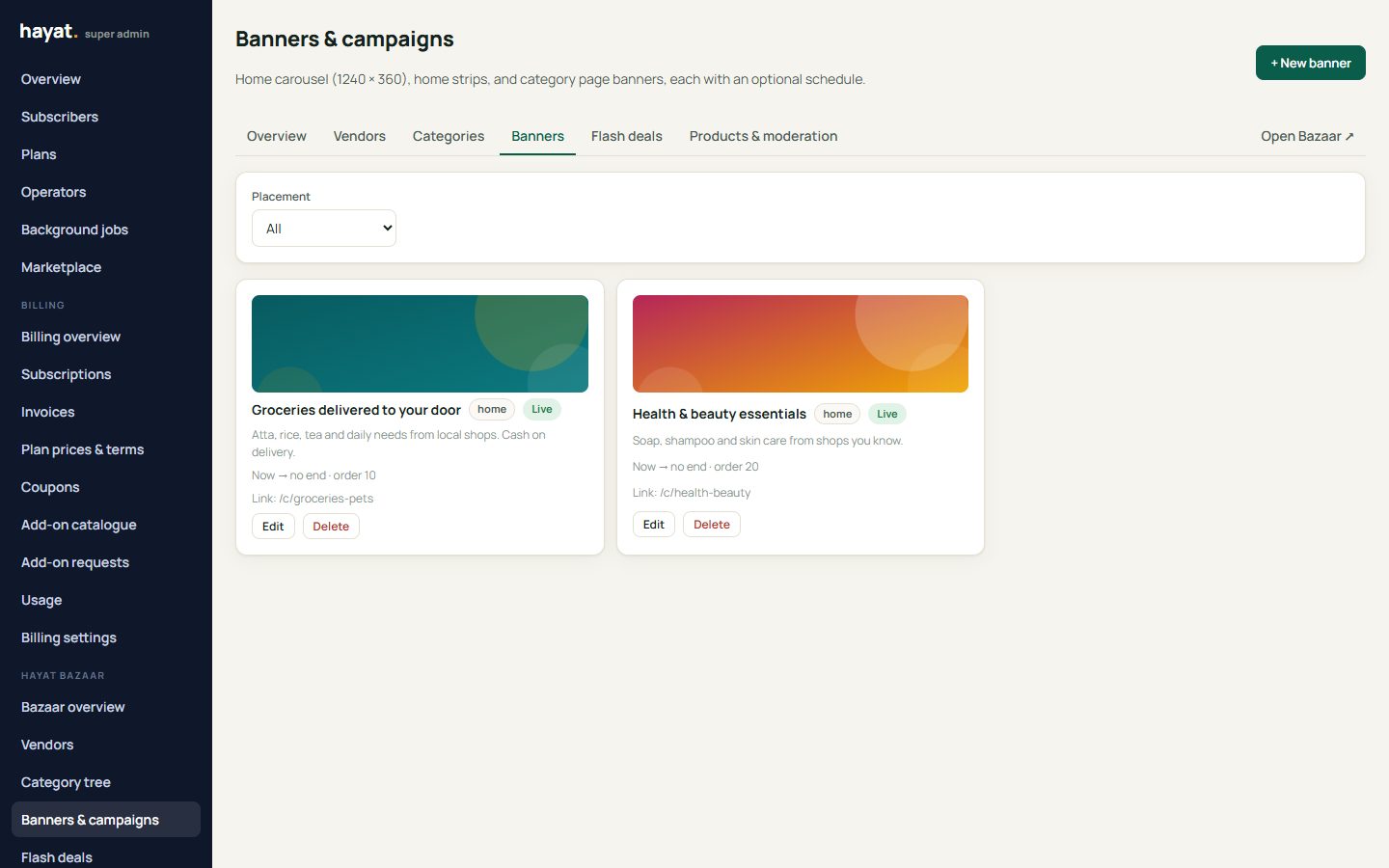
Banners & campaigns has three placements: the home carousel, the thin strip banners under it, and category banners at the top of one category page. A banner needs a title and a picture (desktop, plus an optional phone picture; upload or URL); add a subtitle, a link (a Bazaar address such as /c/groceries-pets, /deals or /shop/al-noor-mart, or a full web address), a schedule (start and end) and the order. The list shows each as Live, Scheduled or Off.
Flash deals
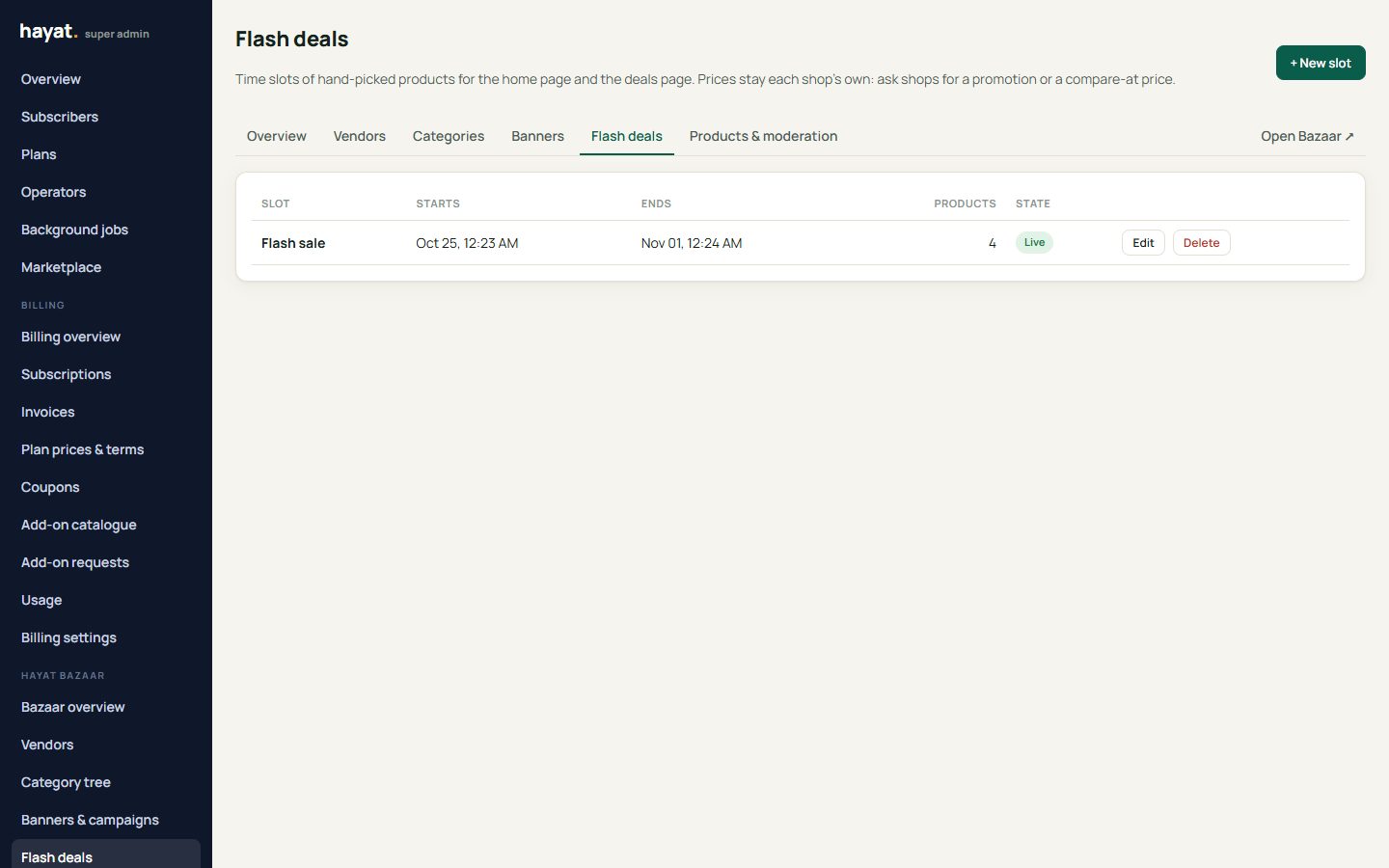
Flash deals are time slots of products shown with a countdown: the home page's Flash deals row shows the live slot (or, without one, the biggest discounts), and Deals shows the live slots and those starting within 7 days.
- Flash deals → new slot: a title (Flash sale), start and end, active.
- Search the listings and Add products — up to 100; reorder or remove them.
- Save slot. It shows as Upcoming, Live or Ended.
Featured products and moderation
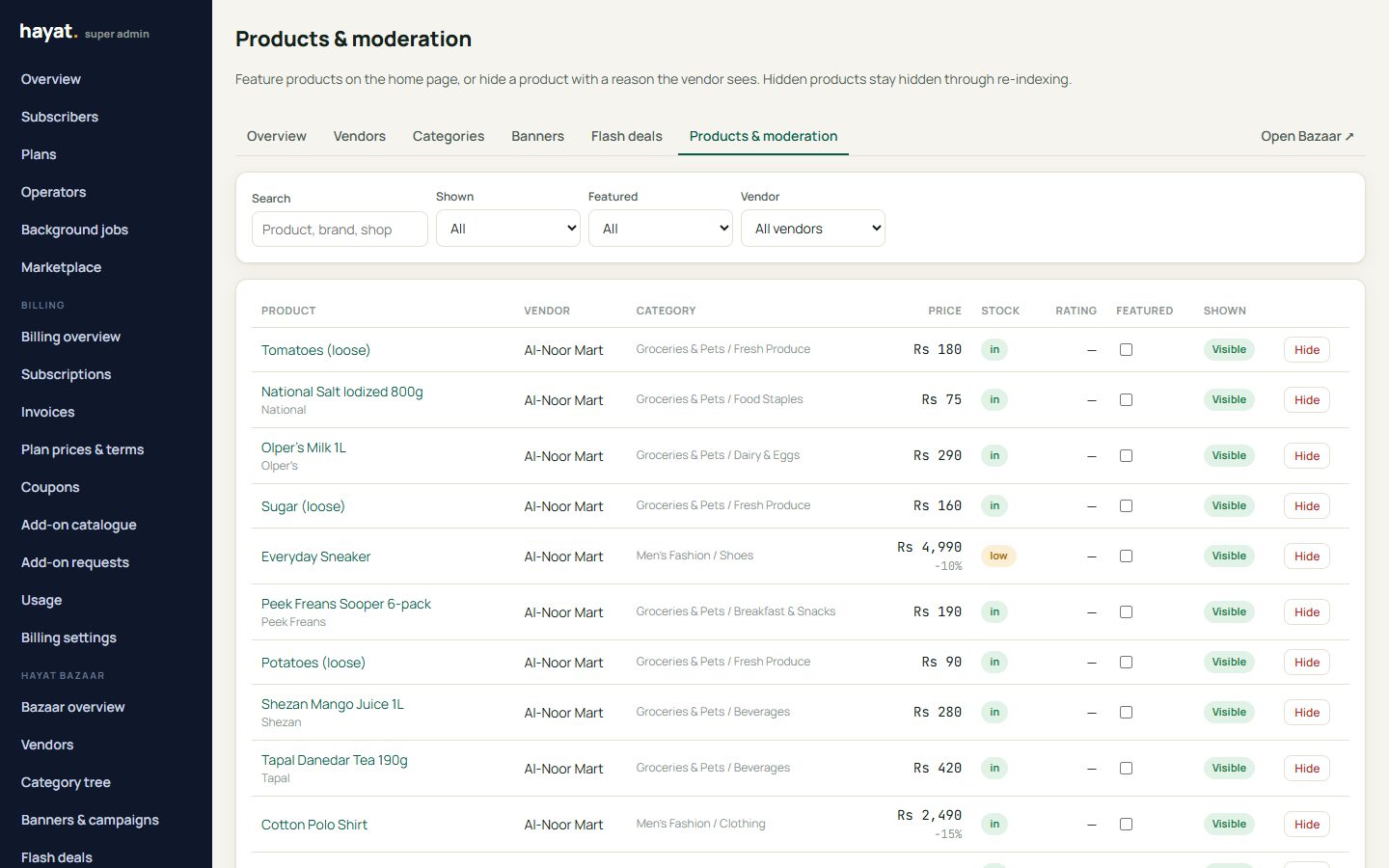
Products & moderation searches every listing (filters: shop, shown or hidden, featured).
- Featured with an order puts a product in the home page's Featured row.
- Hide — with a reason (required): the product leaves Bazaar and stays hidden through every re-index; the shop sees Hidden by Hayat: reason in its Listings. Show brings it back.
Server settings
Set in the API's configuration (appsettings or environment) by whoever runs the server; nothing here is secret.
| Setting | Default | What it does |
|---|---|---|
| Bazaar:MessagingTenantId | — | The subscriber whose SMS / WhatsApp settings send the Bazaar sign-in codes and order texts (Hayat's own business). Without it the billing owner company is used; on a development server any active subscriber. If that business has no messaging set up, sign-in says messaging is not available. |
| Bazaar:PublicBaseUrl | https://bazaar.hayaterp.com | The address used in shop, product and order links, in the order SMS and for the return from a shop's payment page. |
| Bazaar:WhatsAppOrderTexts | false | Also send the order confirmation by WhatsApp (SMS is always tried). |
| Bazaar:TokenDays | 60 | How long a shopper stays signed in (renewed as they use it). |
| Bazaar:RefreshMinutes / FullRefreshMinutes / RefreshBatch | 3 / 30 / 100 | How often the index job runs, the longest a shop goes without a refresh, and shops per round. |
The web site needs the Bazaar address in the API's allowed origins (Cors:Origins), and the headers X-Bazaar-Token and X-Bazaar-Token-Expires exposed, so a shopper's sign-in is renewed. On a development server the sign-in code is also written to the server log.
Workflow
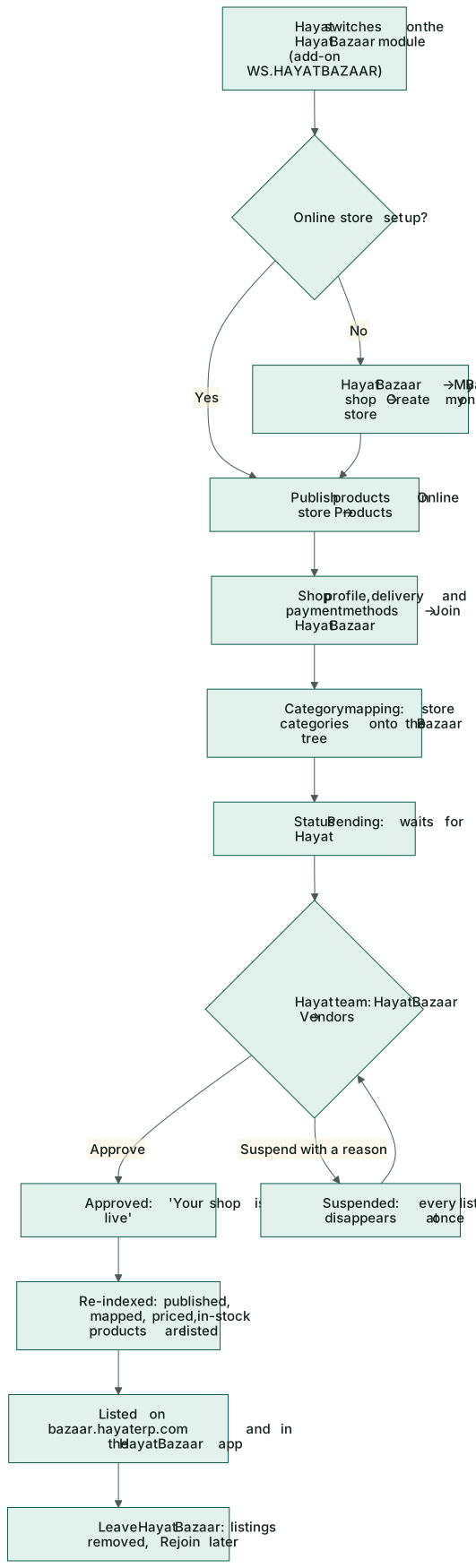
- Switch the module on (and bill the add-on); the business joins and maps its categories.
- Approve the shop in Vendors; flag pharmacies and featured shops.
- Keep the tree, banners, flash deals and featured products current; hide products that break the rules, suspend shops that do.
- Watch Overview; Rebuild the product index after large changes.
Where the money goes
Nothing in these screens posts to anyone's books. Shoppers pay each shop directly; each shop's part posts in its own ledger as an online-store sale (Selling on Hayat Bazaar → Where the money goes). Hayat earns from Bazaar only through the subscription add-on, invoiced in Subscriber billing like any other add-on.