
Hayat My app
my.hayaterp.com ↗The phone app for your customers — type the business code, sign in with a mobile number and a code, then see fees, stays, bookings, bills, reports, parcels, invoices and points, and pay.
Hayat My is the customer portal as a phone app. It is for your customers, not your staff: parents, guests, travellers, patients, courier merchants, account customers and loyalty members. There is no email or password — they sign in with their mobile number and a one-time code, exactly as on my.hayaterp.com.
Who does what
| Who | Does |
|---|---|
| Business admin | Switches on the customer portal and tells customers the business code — the portal name, e.g. city-school. |
| Customer | Installs Hayat My, types the business code, signs in and uses it. |
Install
- Get the app from the link your business or Hayat support shares (the Android install file or store link).
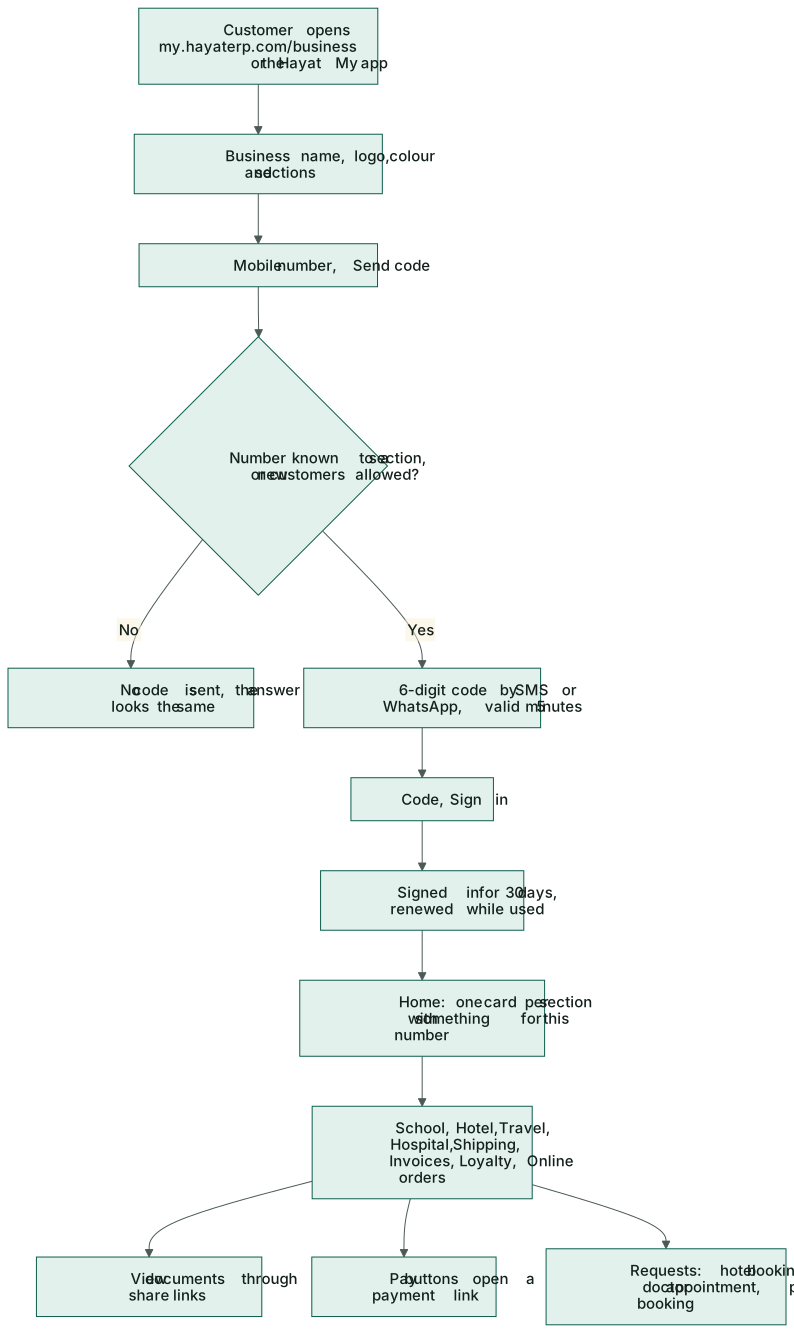
- Open it. Which business? asks for the Business code or link: type the code (e.g. city-school) or paste the link they sent you (my.hayaterp.com/…). Tap Continue.
- The business's name, logo and colour appear.
On Android, a my.hayaterp.com/business link the business sends opens the app by itself once the business's site is set up for it. Links to a pay page, a shared document, a QR menu or a pickup screen open in the browser.
Sign in
- Type your Mobile number — the one you gave the business — and tap Send code.
- Type the 6-digit Code from the SMS or WhatsApp and tap Sign in.
- If the code does not come, use Change number or send a new code. Too many codes in a short time are refused for a while.
The app stays signed in on the phone (stored securely) and renews itself while you use it. Sign out forgets you; Another business also forgets the business so you can type a different code.
Home and sections
The home screen shows the Amount due (or Nothing due. Thank you!) and one tile for each section that has something for your number. Sections without anything yet appear under Also here — so a new guest can still request a hotel booking. The business's Call us and WhatsApp buttons are at the bottom.
| Section | Tabs and actions |
|---|---|
| School | For each child: Fees (vouchers with their lines, Pay, View; receipts), Attendance by month, Results, Timetable. |
| Hotel | Bills to settle (Pay, View), staying now, upcoming and past stays; request a booking: dates, room type, rooms, adults and children, meal plan, name and a note. |
| Travel | Bookings with passengers, services and Pay; Tickets (air tickets and bus seats); Visas; Invoices (View; paid through the booking). |
| Hospital | Appointments (Cancel while booked), Visits with prescription, advice and follow-up, Bills (Pay, View), Lab reports (View when ready); Book a doctor when the hospital takes online bookings. |
| Shipping | Sent parcels with tracking, To me, COD (merchants), Invoices; Book a parcel with See charges for courier-account merchants. |
| Sales | Unpaid or all invoices with their lines (Pay, View) and the statement. |
| Salon | My appointments: upcoming and past, Pay deposit, Change time, Cancel, the confirmation, Deals for you with Show code, and Book. |
| Loyalty & cards | The loyalty card — tier, points, value, recent activity — and store and gift cards with Show QR to pay; Rewards, Add to Google Wallet and the referral card. |
| My giving (charity) | Giving this tax year and by year with each receipt, Pledges (Pay now, Stop), Certificates (View; Request one for a tax year), Qurbani bookings and slips, and Give again: amount, type (General, Sadaqah, Zakat, Fitrana, Fidya), every month, in the name of, keep my name private — paid in the browser. See Charity & NGO. |
| Fuel account (fleet customers) | Statements (Pay, View, every slip), Vehicles with this month's litres against the limit, and Slips by month. See Fuel station. |
| Online store orders | Orders with lines, totals, payment and courier, the order page and View invoice. |
Pay and View open the pay page or the document in the phone's browser. If no browser opens, the app shows the link with Copy link and Copy message.
Salon, hotel and loyalty
Salon. My appointments lists upcoming and past appointments made with the number. While a deposit is due, Pay deposit opens the pay page; Change time picks a day and a free time (Move to this time) and keeps the same stylist when free; Cancel appointment says whether the deposit is refunded. Deals for you shows the business's current offers — Show code reveals a deal's coupon code with Copy code. When the salon takes online bookings, Book chooses the branch, services, Anyone free or a stylist, a day and a time, then Book this time; with a deposit the app offers Pay the deposit. See Salon and spa online booking.
Hotel. When the hotel has a booking website, the hotel section has Book a room: dates, rooms, adults and children, the room types, meals, a promo code, the price with tax and what to pay now, the guest's details and I accept the booking and cancellation policy. After booking the app offers Pay now and Check in online. Bookings made in the app are listed under Booked in this app (kept on the phone) with pay, the confirmation, online check-in and cancel. Online check-in itself opens in the browser; for bookings made elsewhere, use the link in the hotel's message. Without a booking website the old request a booking form stays.
Loyalty. Not a member yet? Join the loyalty programme asks for a name and, optionally, a friend's code. Members see Rewards — Get it swaps points for a voucher or code, and My rewards keeps the codes (Copy code, Show QR for vouchers). Store and gift cards have Show QR to pay for the till. Add to Google Wallet opens the wallet link when the business has set it up (Apple Wallet is not offered in the app). The referral card has the code, Copy invite to paste into WhatsApp or SMS, the counts and I have a friend's code. See Loyalty programme and store cards.
Offline
Pages you have opened are kept on the phone, so you can read them without internet. They are kept per business and number and wiped when you sign out.
Workflow
Where the money goes
The app posts nothing itself. A payment made from it goes through Online payments and is recorded on the bill. See also Mobile apps for the staff apps.