
Selling on Hayat Bazaar
hayaterp.com/bazaar ↗Put your online store's products on Hayat Bazaar, the multi-vendor marketplace at bazaar.hayaterp.com — joining from the ERP, shop settings, delivery and payment methods, category mapping and why a product is not listed, Bazaar orders as online-store orders, reviews, stats, approval and suspension.
Hayat Bazaar is Hayat's marketplace: shoppers see the products of every business that joined, in one category tree, with one cart and one checkout. Your shop on Bazaar is your online store — the same items, prices, photos, stock and reviews — so there is nothing to upload twice. Each order a shopper places with you arrives as an ordinary online-store order (channel Bazaar) and is paid to you with your own payment setup.
The screens are in the menu under Hayat Bazaar: My Bazaar shop, Category mapping, Listings, Bazaar orders and Stats.
Before you start
- The module. Hayat Bazaar is an opt-in module: the Hayat team switches it on for your business (it may be billed as the Hayat Bazaar add-on of your subscription). Ask Hayat support. See Modules and access.
- An online store with the products you want to sell published (Online store → Products), each with a price, and its payment methods set up. See Running your online store. No store yet? My Bazaar shop offers to create one.
- Your item categories: Bazaar places products through your store categories, so give items a category in Items.
Who does what
| Permission | Typical person | Can do |
|---|---|---|
| See the Bazaar shop, listing status, Bazaar orders and stats (bazaar.view) | Store staff, managers | Open every Hayat Bazaar screen, read only. |
| Join Hayat Bazaar, shop profile, shipping, payment choices and category mapping (bazaar.manage) | Store manager, business admin | Join, change the shop, map categories and products, update listings, leave and rejoin. |
| Online-store permissions (store.orders, store.manage) | Dispatch clerk, store manager | Confirm, pack, ship and deliver the Bazaar orders on the store order screen; approve reviews. |
bazaar.manage is in the Management role; without it the fields and buttons are greyed or hidden.
Join from the ERP
- Open Hayat Bazaar → My Bazaar shop. Without an online store it shows First, an online store: type the store name and address and press Create my online store — it opens with cash on delivery on, test (sandbox) online payments, out-of-stock items shown and a 7-day return text, shipping from your active branch. Publish your products in Online store → Products.
- Shop profile: the shop name, its address on Bazaar (bazaar.hayaterp.com/shop/al-noor-mart — small letters, digits and dashes, unique), the city, the usual delivery time (2-4 days), the logo and banner (PNG, JPEG or WebP up to 3 MB), about the shop and the return policy.
- Delivery and Payment methods on Bazaar (below).
- Press Join Hayat Bazaar. The answer shows how many products would be listed and how many not.
- Map your categories in Category mapping (below).
The shop is now Pending: nothing is shown on Bazaar until the Hayat team approves it. You are notified Your shop is live when it is approved.
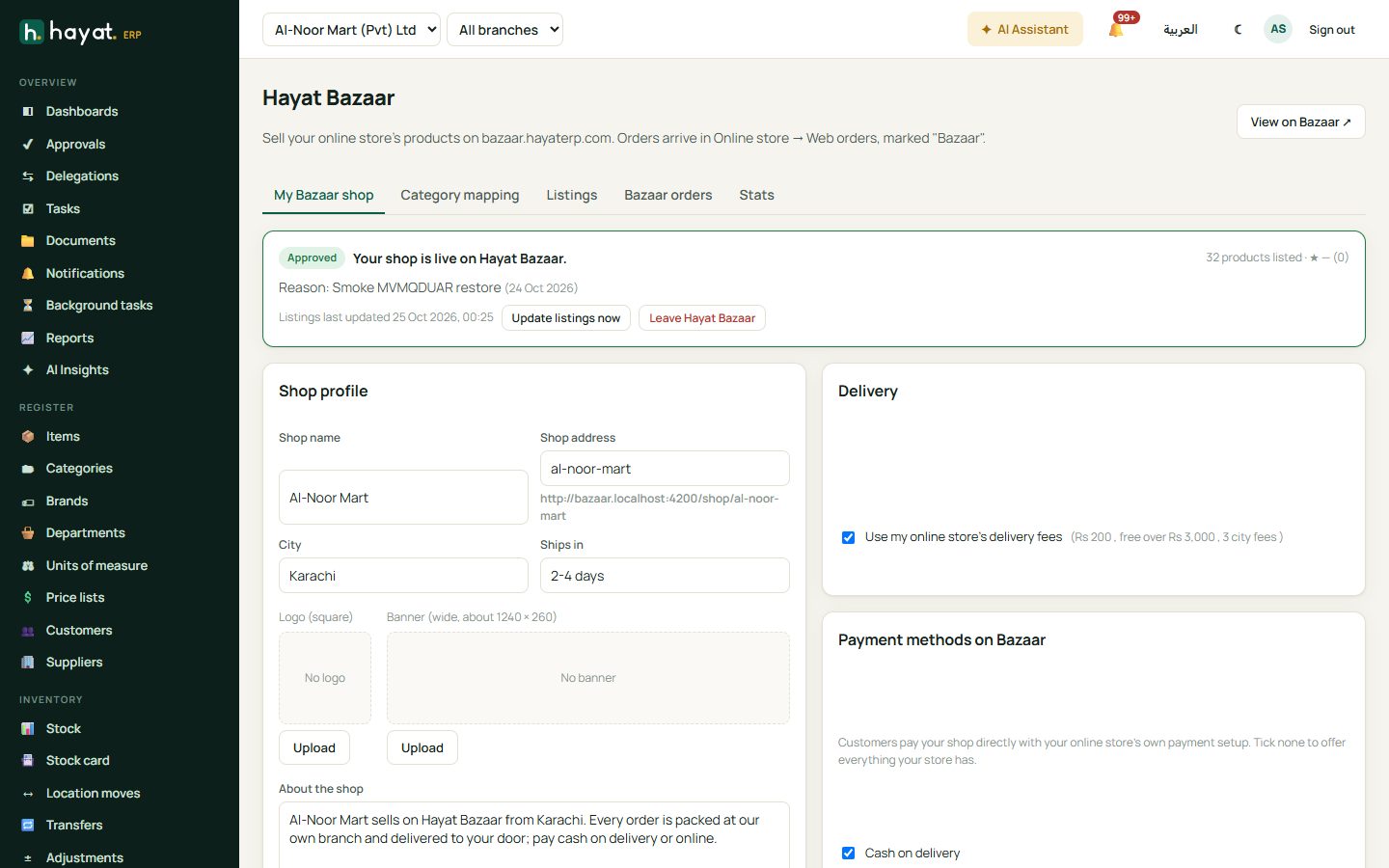
Shop settings
The banner at the top of My Bazaar shop shows the status — Pending, Approved, Suspended (with Hayat's reason) or Left — and, when the shop is not selling right now, why:
| Message | What to do |
|---|---|
| Waiting for Hayat to approve the shop. | Nothing; ask Hayat support if it takes long. |
| The online store is closed. Open it in Online store → Settings. | Tick Open for orders in the store settings. |
| Hayat Bazaar or the online store is switched off for this subscriber. | Ask Hayat support to switch the module on. |
| The shop is suspended … | Read the reason; fix it and contact Hayat. |
| The business has left Hayat Bazaar. | Rejoin. |
Update listings now re-reads your products at once (it also happens by itself, see Why a product is not listed). View on Bazaar ↗ opens your shop page. Every Save shop updates your listings straight away.
Delivery
Choose one:
- Use my online store's delivery fees (ticked) — the store's fee, city fees and free-delivery amount (Online store → Settings → Delivery), shown beside the tick.
- Untick it for own Bazaar delivery: the Fee for other cities, Free delivery over an amount (0 = never free), and a table of cities with their own Fee and Delivery time (Karachi Rs 150, 1-2 days; Lahore Rs 250, 2-4 days); + Add a city, ✕ to remove. Tick Deliver only to these cities to refuse orders for other cities — shoppers then see that you do not deliver there.
The shopper sees your fee and days for their city on the product page and in the cart, with a bar to your free-delivery amount.
Payment methods
Payment methods on Bazaar ticks which of your store's methods Bazaar shoppers may use — cash on delivery, bank transfer, JazzCash, Easypaisa, card. None ticked = every method your store has. A method must be switched on (and, for online methods, set up with your gateway account) in Online store → Settings → Payments first; a method the store does not have is refused.
The money always goes to you: online payments go through your own gateway account, bank transfers to your own account (the shopper uploads the slip, you check it), cash on delivery to your rider or courier. Your store's COD limit applies.
Category mapping
Bazaar has one category tree for every shop (Groceries & Pets, Health & Beauty, Men's Fashion, Women's Fashion, Mother & Baby, Home & Lifestyle, electronics, Medicines and more). Category mapping tells it where your store categories belong.
- Open Hayat Bazaar → Category mapping. Your store categories are listed, parents first then their sub-categories, with how many products each has.
- For each, pick the Bazaar category from the tree, or press the ↤ suggestion Hayat offers from the name. Use all suggestions takes every suggestion at once; Only not mapped hides the rows already done, Find searches by name.
- Changed rows are highlighted. Press Save n changes — the listings are updated straight away.
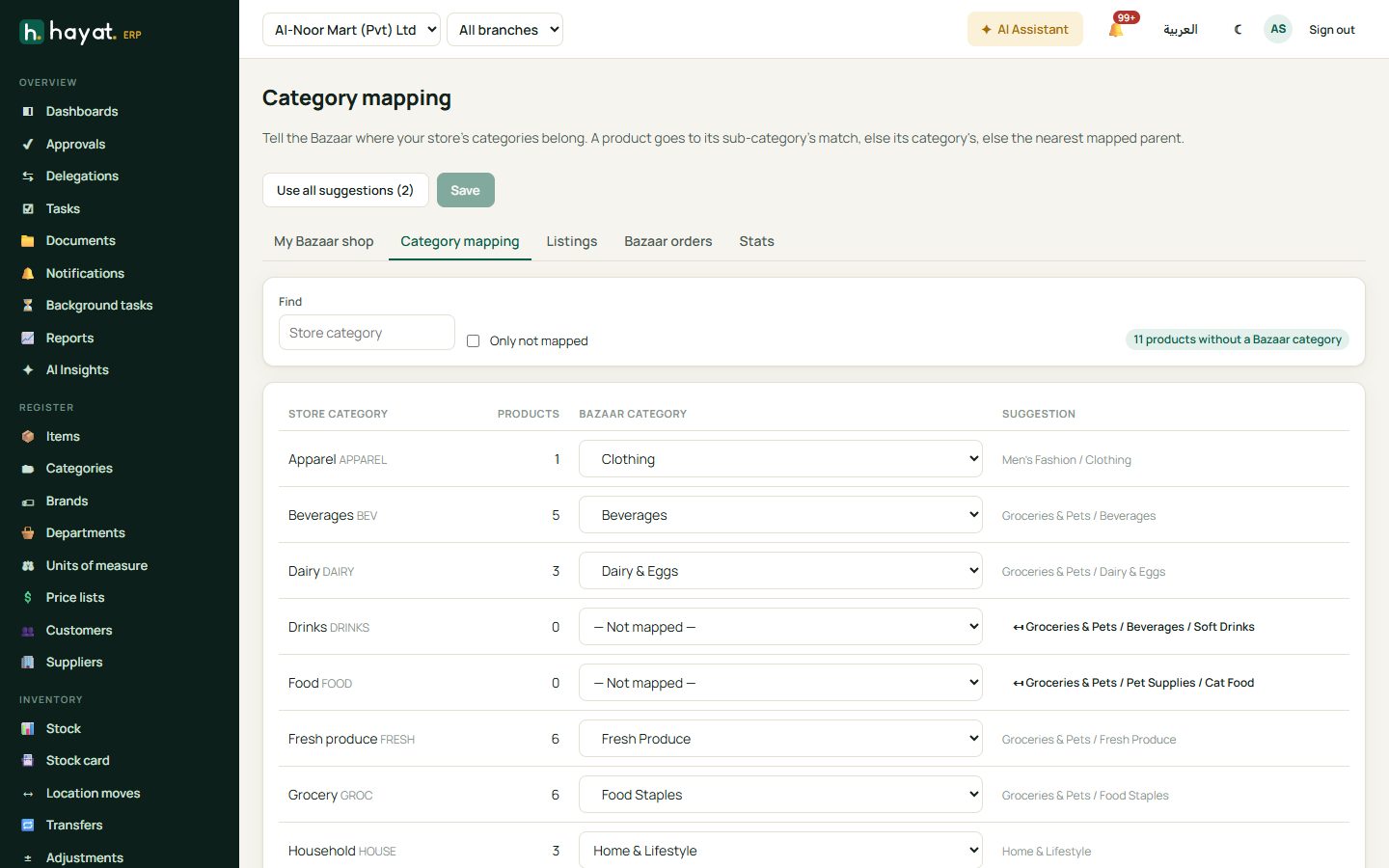
- A sub-category you leave unmapped uses its parent's mapping. Map at the deepest level that fits (Dairy → Groceries & Pets › Dairy & Eggs): shoppers filter by it.
- Categories marked pharmacy only (everything under Medicines) are greyed unless Hayat has marked your shop as a pharmacy.
- Restaurant dishes, services and anything you do not want on Bazaar: leave the category unmapped.
One product somewhere else. In Listings, Change on a product gives it its own Bazaar category (a lawn suit in the Apparel category → Women's Fashion), or Keep off Bazaar; Back to category map removes the override. Tick several products to do it in bulk with Set category, Keep off Bazaar or Back to category map.
Why a product is not listed
Hayat Bazaar → Listings shows every published product of your store with Listed, or the reason it is not, and its Bazaar category path. Filter Listed / Not listed, search, and Preview ↗ a listed product on Bazaar.
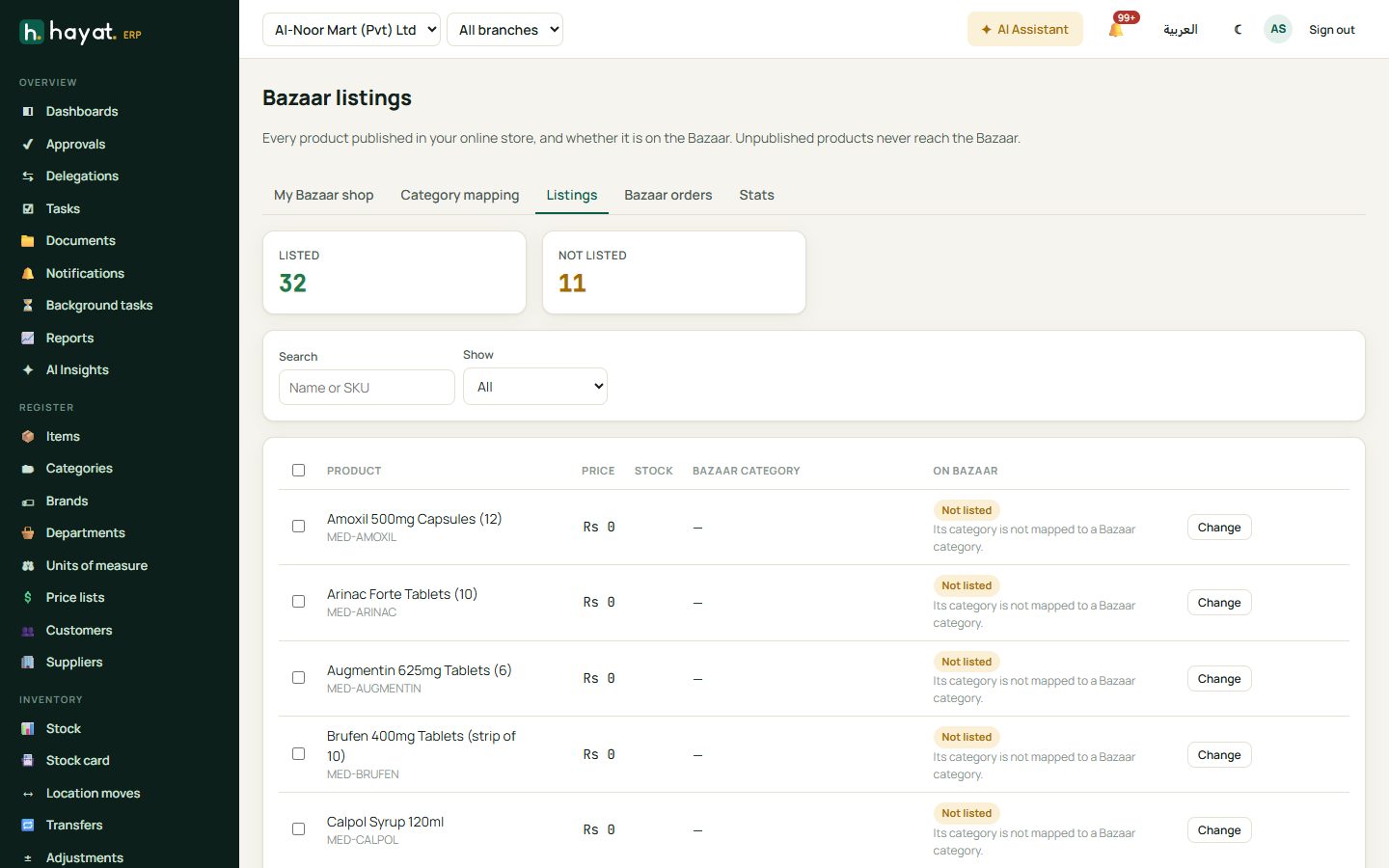
| Reason shown | Fix |
|---|---|
| No category: give the item a category and map it to a Bazaar category. | Give the item a category in Items, then map the category — or Change the product. |
| Its category is not mapped to a Bazaar category. | Map it in Category mapping. |
| The Bazaar category it is mapped to is switched off. | Map it to another category (Hayat switched that one off). |
| Only pharmacies approved by Hayat can list medicines. | Ask Hayat to mark your shop as a pharmacy, or leave medicines off. |
| It has no active sizes / colours to sell. | Activate at least one size / colour of the style. |
| It has no price. | Give the item a price (or a web price in Online store → Products). |
| Out of stock at the store's branch. | Receive stock at the branch the store ships from, or let the store show out-of-stock items (then it is listed as out of stock). |
| Kept off Bazaar by you. | Change → Back to category map if you want it back. |
| Hidden by Hayat: … | Hayat's moderation reason; fix the product and contact Hayat. |
Products that are not published in your online store never reach Bazaar, and are not in this list.
How fresh is Bazaar? Saving the shop, a mapping, joining, leaving or a Hayat decision updates your listings at once. Price, item, photo, stock (POS sales too), order and review changes are picked up within about 3 minutes, and every shop is refreshed at least every 30 minutes. The product page, the cart and checkout always read your live price and stock, so a shopper cannot buy what you no longer have.
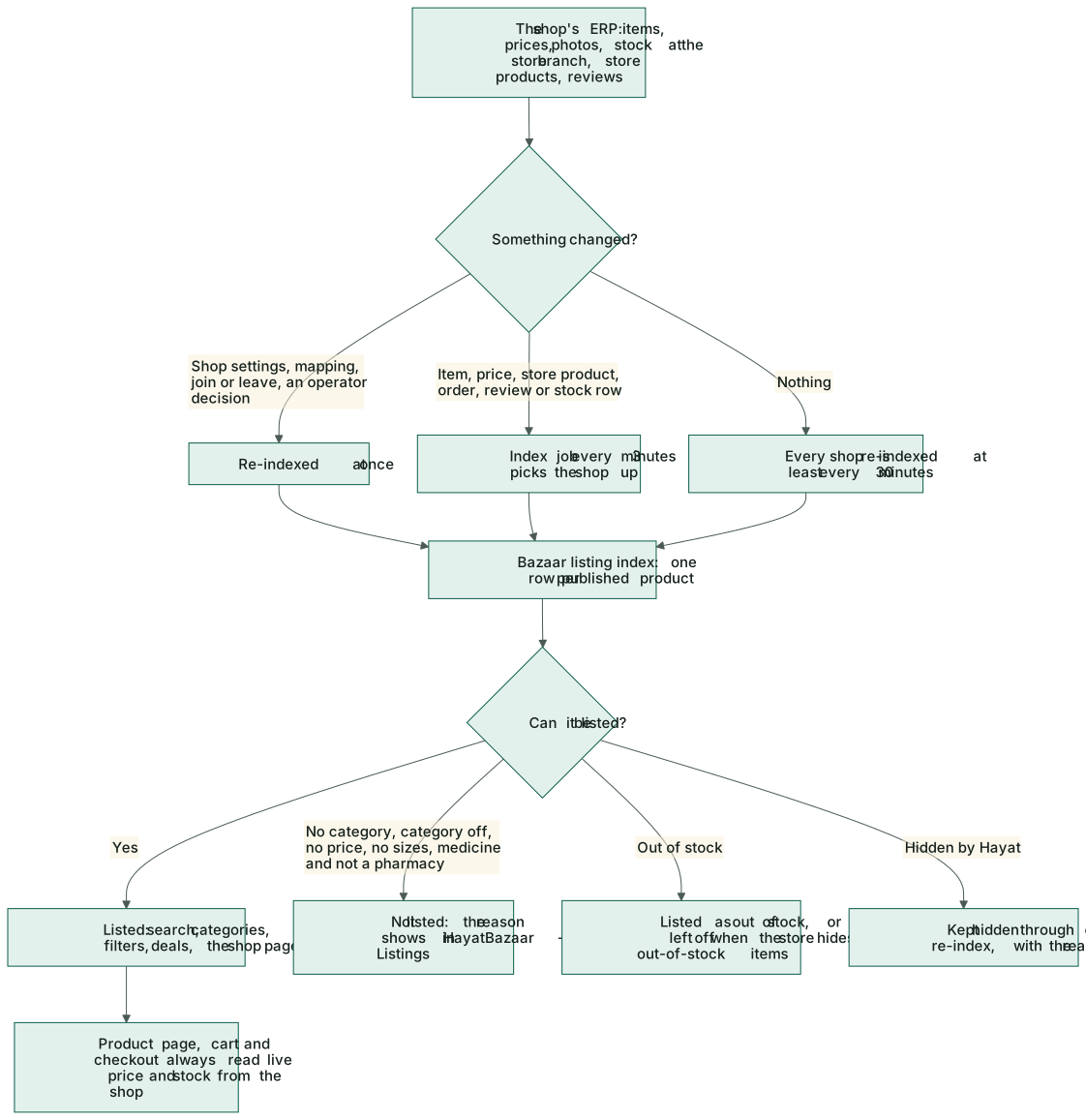
Prices and discounts. The Bazaar price is your online store's price (the web price, else the item price). Your online promotions and coupons apply as in your own shop; a compare-at (was) price on the store product shows the old price struck through and the discount, and makes the product eligible for Hayat's flash deals. Shoppers type your coupon in your shop's box in the cart.
Bazaar orders
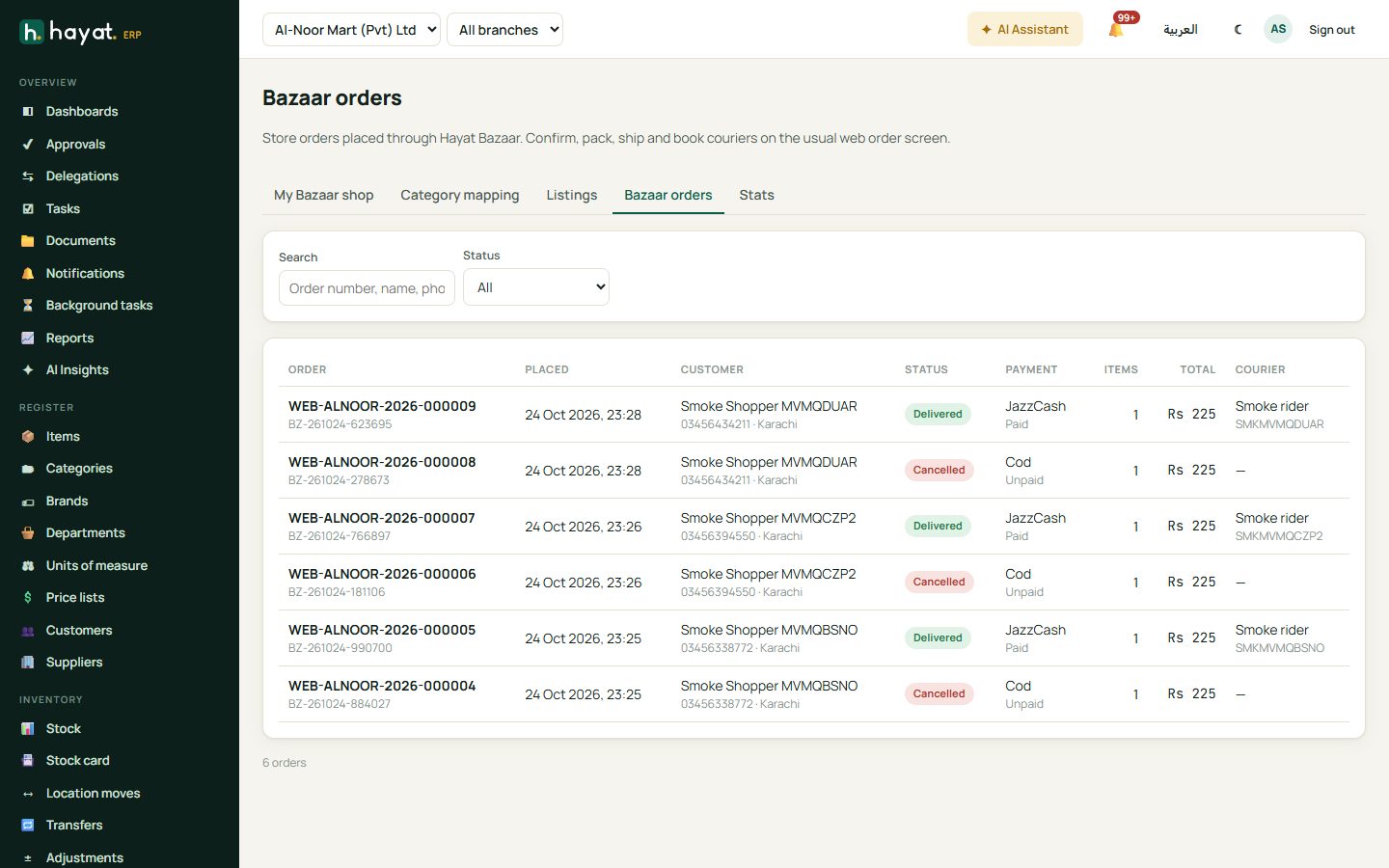
When a shopper checks out, the part of the basket that is yours becomes an order in your online store, with channel Bazaar and the note Hayat Bazaar order BZ-… (which also appears on the sales order). You get the store's usual new-order notification. The shopper is matched to your ERP customer by mobile number, or a new customer is made.
Hayat Bazaar → Bazaar orders lists only these orders (status filter, search by number, name or phone). A row opens the normal store order screen, where you fulfil it exactly like any online order:
- Confirm order — it becomes a sales order and reserves the stock. A bank-transfer order: check the uploaded slip first.
- Mark it Packed, then Ship & invoice — or 🚚 Book courier (see Couriers).
- Delivered (for cash on delivery you collected yourself, Delivered & cash collected; a courier's COD is delivered by the courier's status).
The shopper follows each step on the Bazaar order page and in the app. A shopper can cancel while you have not confirmed the order; you are notified Bazaar order … cancelled and the store's own cancel runs (reservation, coupon and promotion use put back). After confirming, cancellations and returns are yours to handle as for any store order. See Handle online orders.
Reviews
After delivery the shopper can review each product. The review is saved as your store's review, marked verified purchase, and you are notified New ★ review to approve. Approve, reject or reply in Online store → Ratings & reviews as usual (Reviews); approved reviews and the new rating show on Bazaar after the next refresh.
Stats
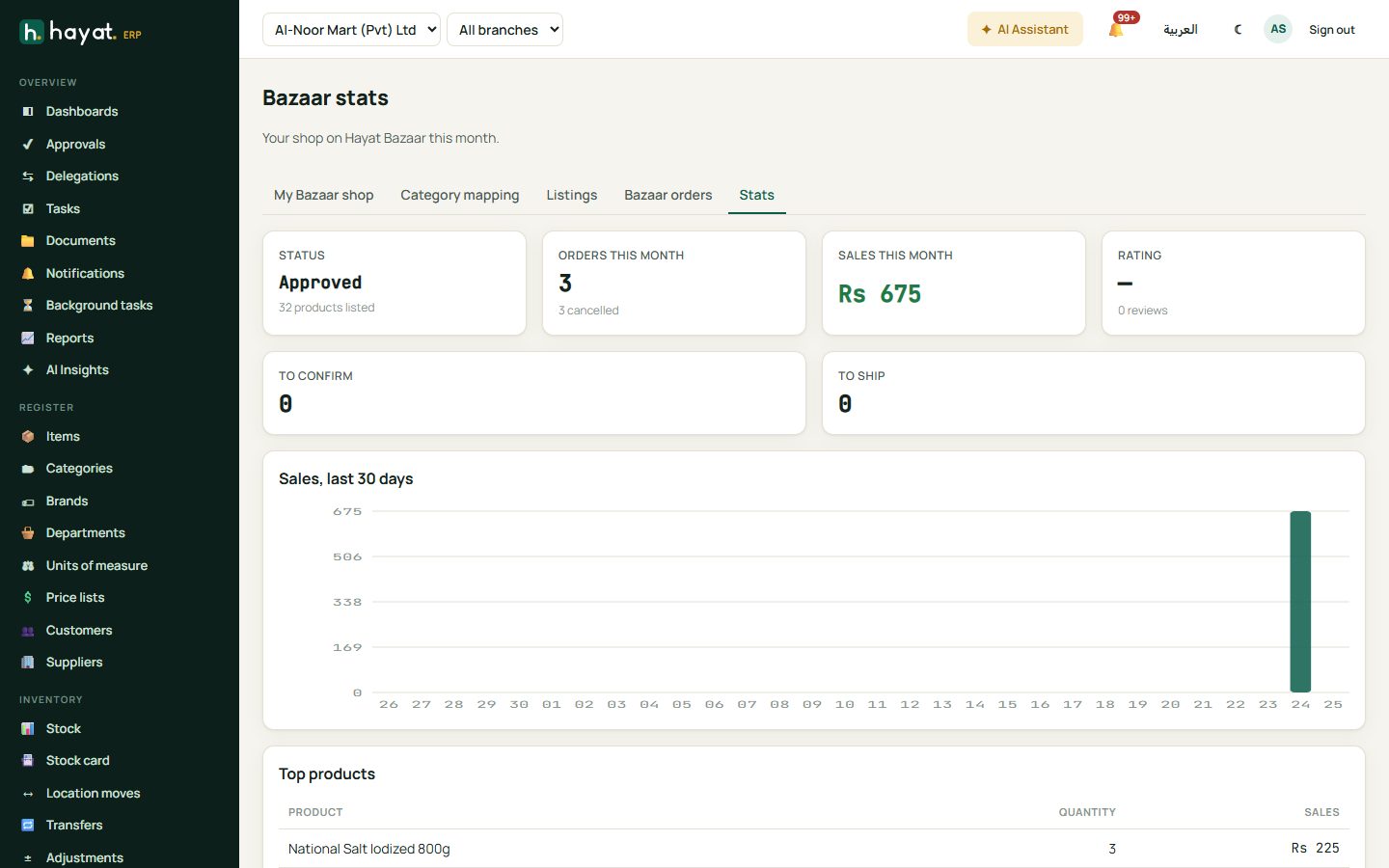
Hayat Bazaar → Stats shows your status, products listed, orders, sales and cancellations this month, your rating and reviews, orders to confirm and to ship, sales by day for the last 30 days and your top products.
Approval, suspension and leaving
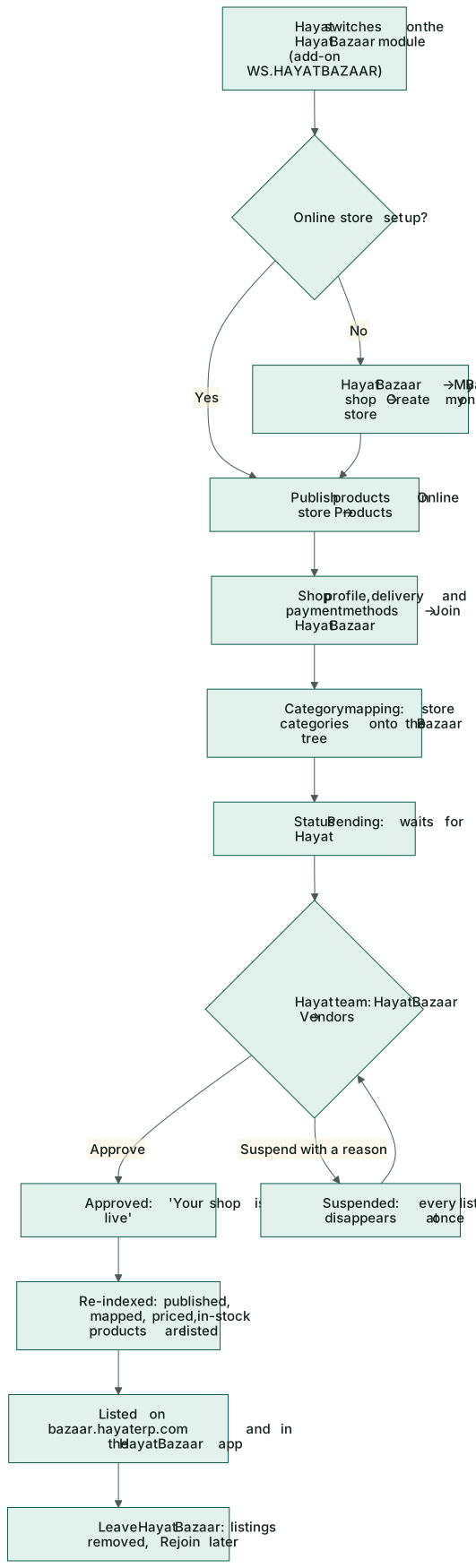
- Approval: a new shop is Pending until the Hayat team approves it. Your listings appear as soon as it does.
- Suspension: Hayat may suspend a shop with a reason (for example wrong prices or complaints). Every listing disappears at once; you are notified Your shop is suspended and the reason shows on My Bazaar shop. Orders already placed stay in your online store to finish. Hayat can also hide one product with a reason, shown in Listings.
- Leaving: Leave Hayat Bazaar on My Bazaar shop takes all your products off Bazaar at once; open orders stay in Online store → Orders. Rejoin brings the shop back with its settings.
- Switching the online store off, closing it, or Hayat switching the module off also takes the shop off until it is back.
Workflow
- Hayat switches the module on; you publish products in your online store.
- My Bazaar shop: profile, delivery and payment methods, Join Hayat Bazaar.
- Category mapping; fix what Listings says is not listed.
- Hayat approves the shop; your products are listed.
- Orders arrive as online-store orders with channel Bazaar; confirm, pack, ship and deliver them as usual.
Where the money goes
A Bazaar order posts exactly like an online-store order, in your books only: the sales order on confirming, the delivery note and invoice on shipping (Dr 1100 Accounts receivable, Cr 4010 Sales and 2100 Output tax; stock out at cost), and the receipt into your cash, bank or gateway clearing account when it is paid or collected — see How every module reaches the accounts and Couriers for courier COD. Hayat takes no commission per order and holds no money; being on Bazaar is billed, if at all, through your subscription.