
Restaurant: bookings, QR ordering and delivery
hayaterp.com/pos/reservations ↗Table bookings and the online booking page, QR menus in English, Urdu and Arabic, the Hayat Waiter app, split and merge bills, takeaway tokens with a pickup screen, and Foodpanda / Careem delivery partners with their payouts.
These screens add to the restaurant tables and kitchen display. They are under POS in the menu: Table bookings, Takeaway tokens, Guest requests, Delivery orders, Delivery partners, Table QR codes and Online restaurant. The tabs at the top of each one move between them.
Who does what
| Permission | Typical person | Can do |
|---|---|---|
| Sell at the POS (pos.sell) | Cashier, waiter | See bookings, take orders on the floor and in Hayat Waiter, guest requests, takeaway tokens, delivery orders, split and merge bills. |
| Table bookings, QR ordering and delivery partners (pos.reservations) | Restaurant manager, host | Make and change bookings, seat guests, take deposits, mark no-shows; add delivery partners, map item codes and post payouts. |
| POS setup (pos.setup) | Owner, restaurant manager | Online restaurant settings and table QR codes. |
| Refunds (pos.refund) | Supervisor | Refund a booking deposit. |
The ready-made Branch Manager role includes table bookings; waiters normally get the Cashier role.
Online restaurant settings
POS → Online restaurant (pos.setup) is done once.
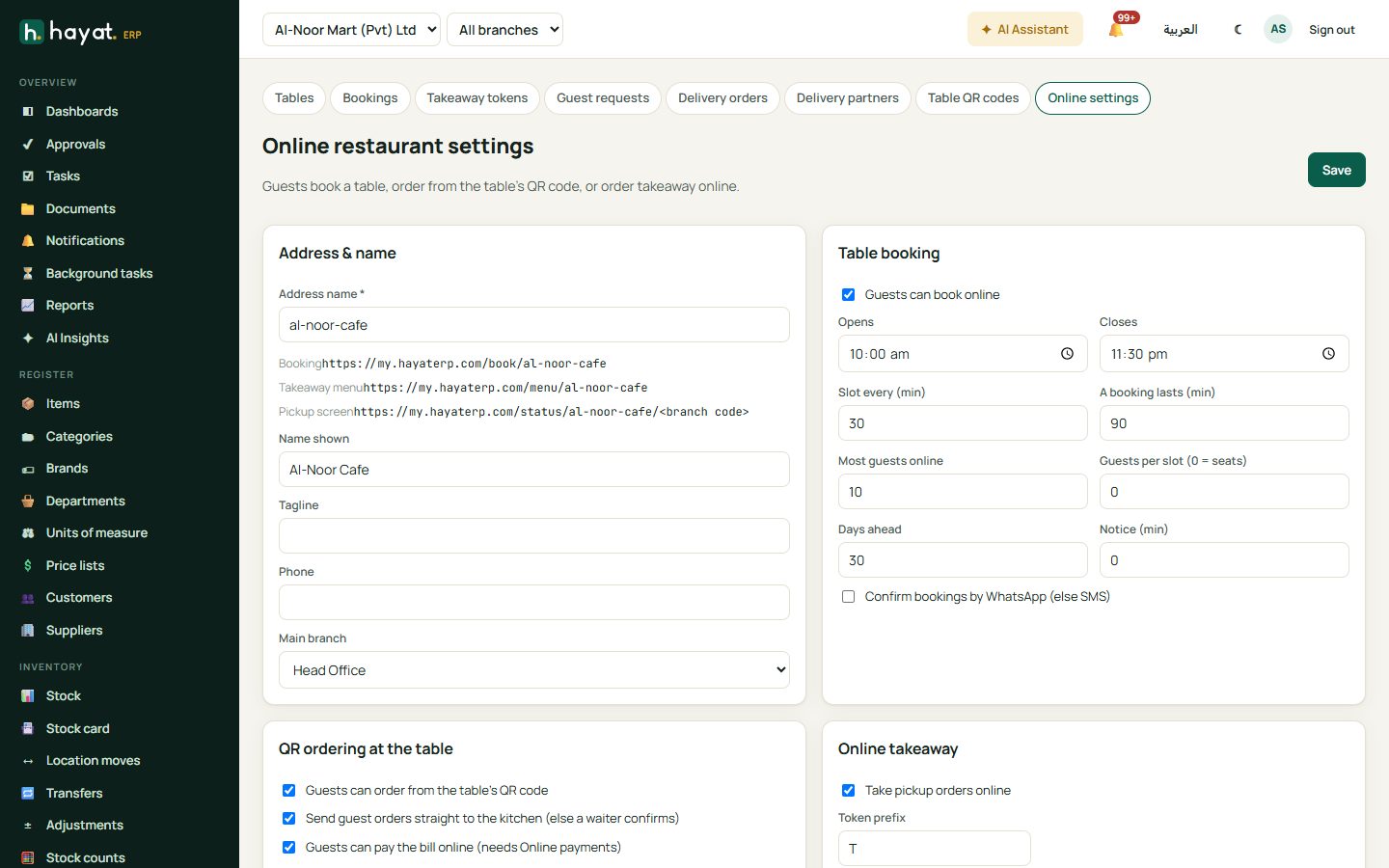
- Type the Address name, e.g. karachi-grill. The page shows your three public addresses: Booking (my.hayaterp.com/book/karachi-grill), Takeaway menu (…/menu/karachi-grill) and Pickup screen (…/status/karachi-grill/branch code).
- Add the Name shown, Tagline, Phone and Main branch.
- Table booking: tick Guests can book online, set Opens and Closes, a Slot every so many minutes, how long A booking lasts, the Most guests online, Guests per slot (0 = by seats), Days ahead and the Notice needed. Confirm bookings by WhatsApp (else SMS).
- QR ordering at the table: Guests can order from the table's QR code, Send guest orders straight to the kitchen (else a waiter confirms), Guests can pay the bill online (needs Online payments).
- Online takeaway: Take pickup orders online and a Token prefix (e.g. T). Under Menu tick the categories to show — nothing ticked uses the categories your kitchen stations list.
- Save.
The online menu shows active items at each branch's own prices.
Table bookings
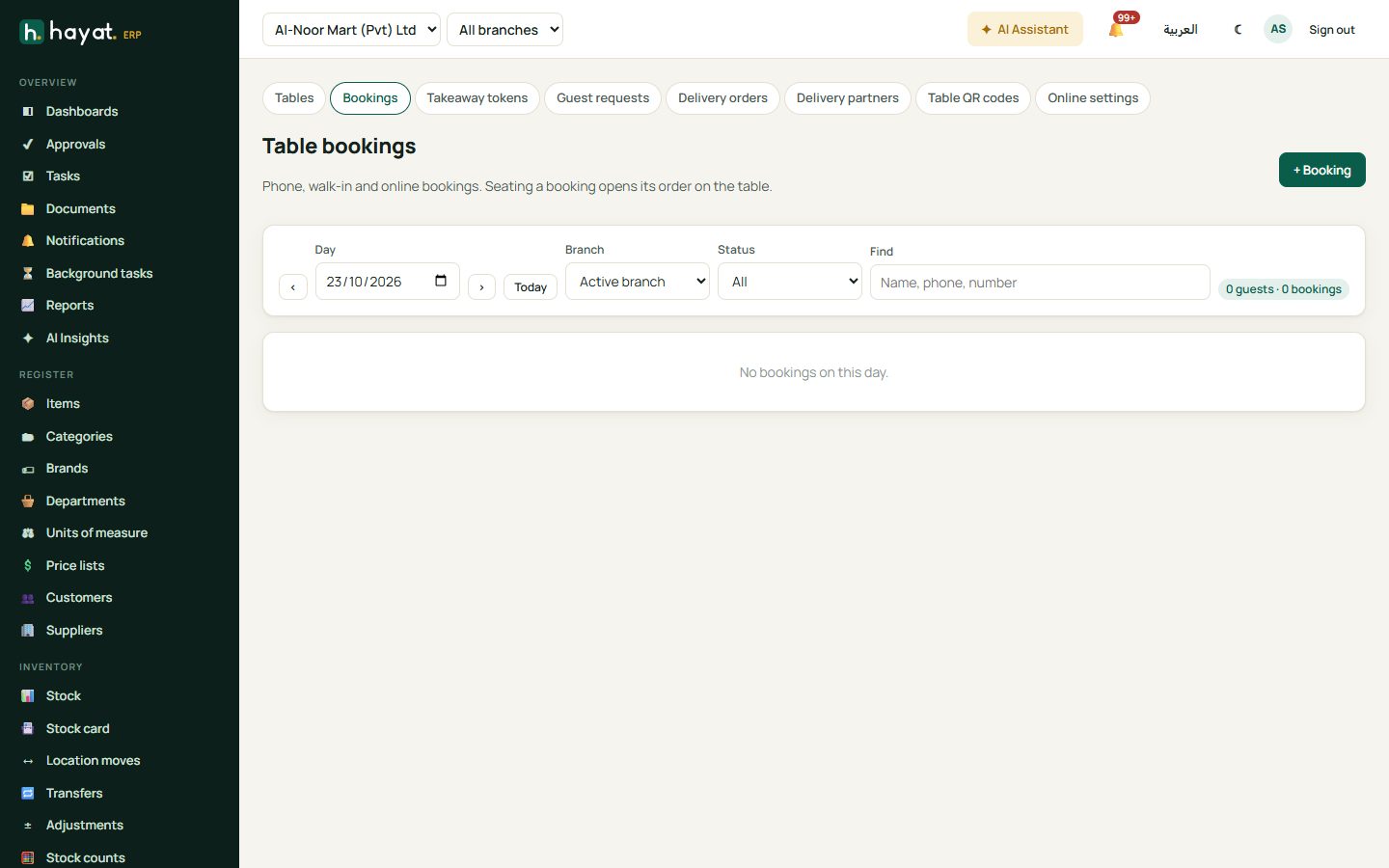
POS → Table bookings shows one day, grouped by time slot with the number of guests per slot. Use ‹ › and Today to change the day; filter by branch and status (Booked, Seated, Completed, NoShow, Cancelled) or search a name or phone.
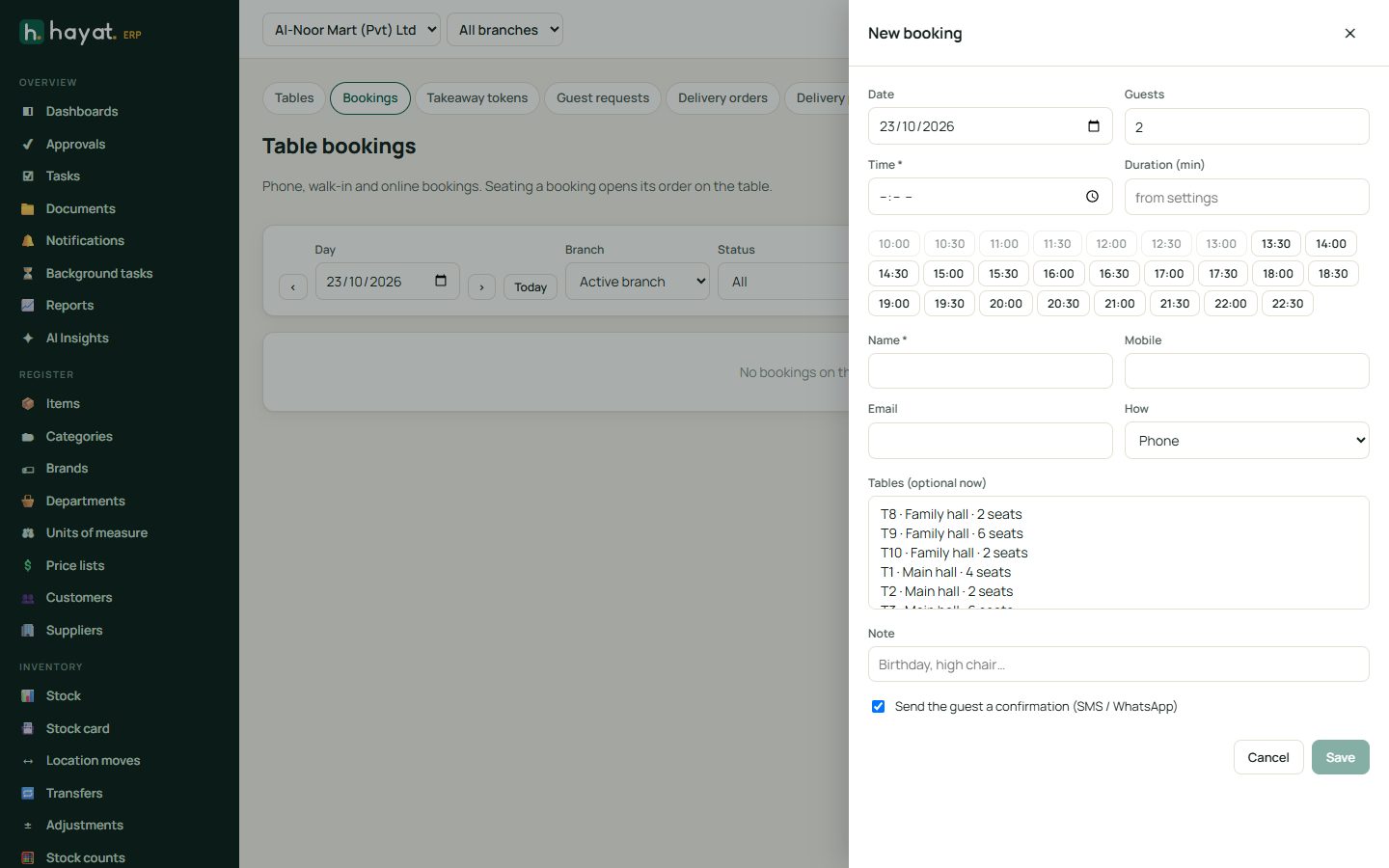
- Click + Booking. Choose the Date and Guests — the free time slots appear as buttons; greyed ones are full.
- Pick a slot (or type the Time), the Duration, the guest's Name, Mobile and Email, and How they booked: Phone, Walk-in, Online or Portal.
- Optionally choose Tables now and add a Note (birthday, high chair…).
- Keep Send the guest a confirmation (SMS / WhatsApp) ticked and Save. Walk-ins get no message.
Click a booking to work with it:
- Seat — choose a free table (or the booked one). This opens the dine-in order on that table and takes you to it.
- Change, No-show, Cancel booking (with a reason), and Guests left (complete) once they are done.
- Deposit — type the amount, method and reference and click Take deposit. It is held on a gift voucher DEP…; when the bill is settled, tender it as VOUCHER with that code. Refund deposit (pos.refund) pays it back; Keep (no-show) keeps it as other income.
The online booking page
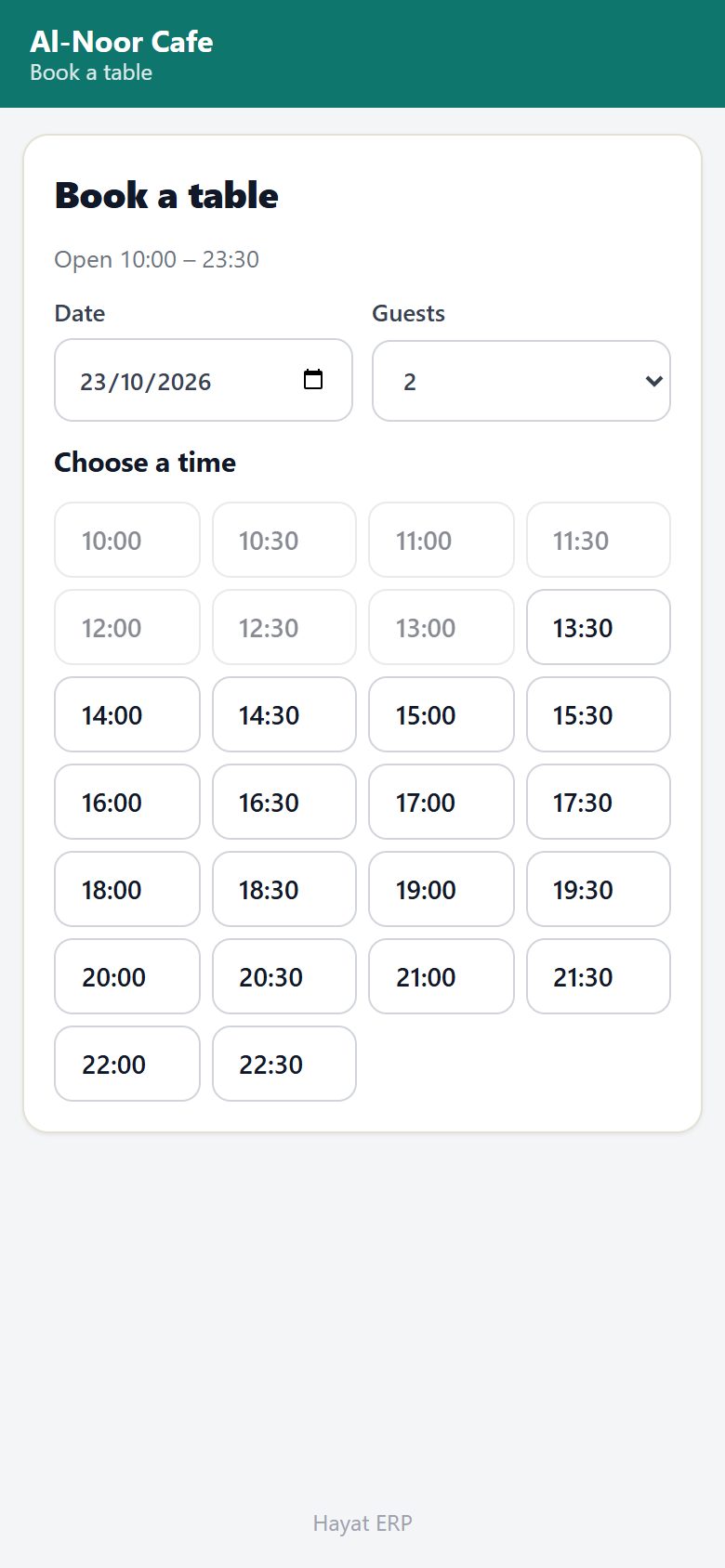
Guests open my.hayaterp.com/book/your-name, choose the date, the number of guests and the branch, pick a free time, then type their Name, Mobile, Email (optional) and Anything we should know? and tap Book (day) at (time). They get Table booked with the number, an SMS or WhatsApp confirmation, and can Cancel booking later from the same page. One booking per phone per day; the staff who take bookings get a notification.
QR menus and ordering
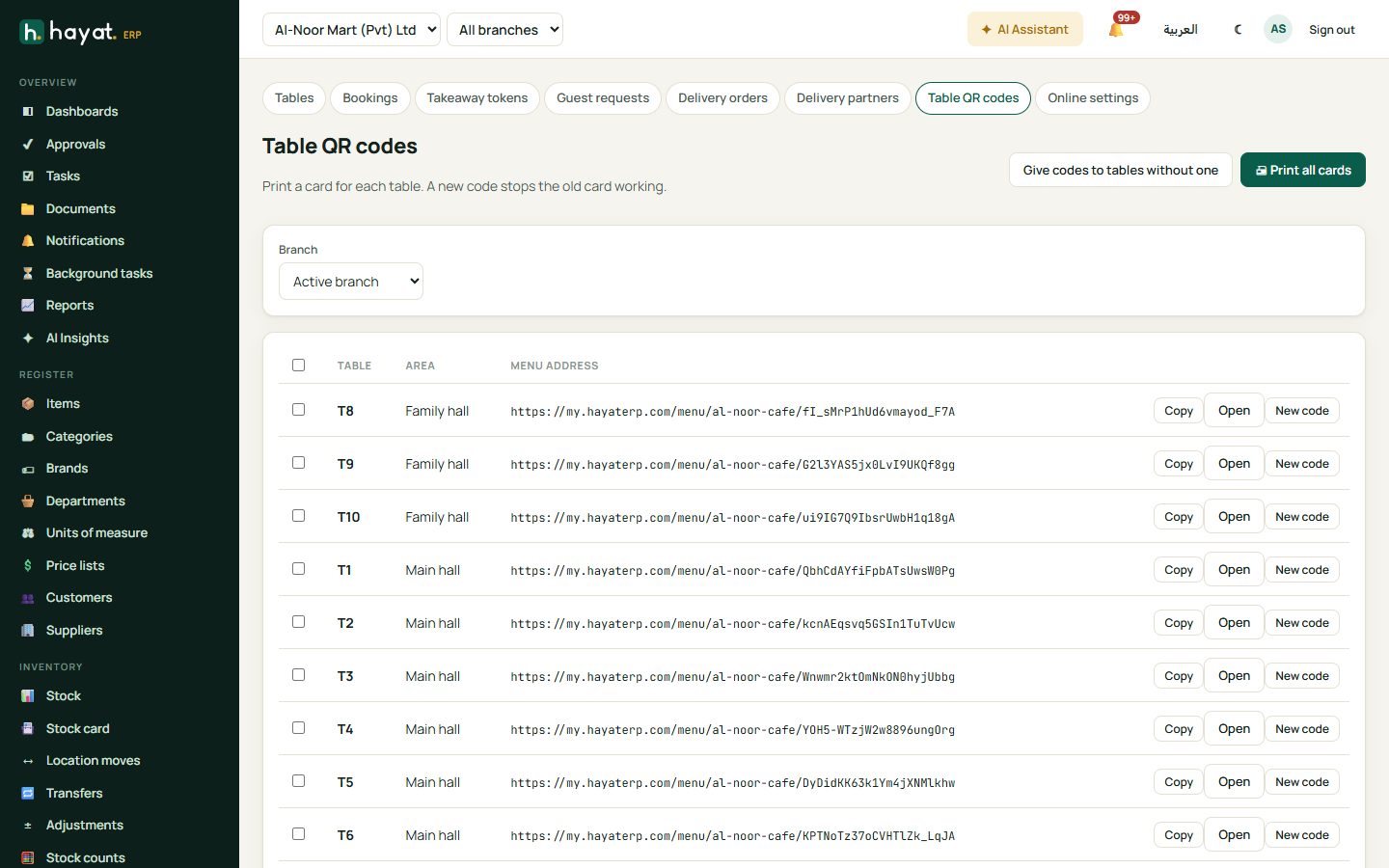
- POS → Table QR codes. Click Give codes to tables without one.
- Tick tables (or none for all) and click 🖨 Print: two cards per A4 row, each with the QR code and English and Urdu text.
- Put the cards on the tables. New code on a table makes a new code — the old card stops working.
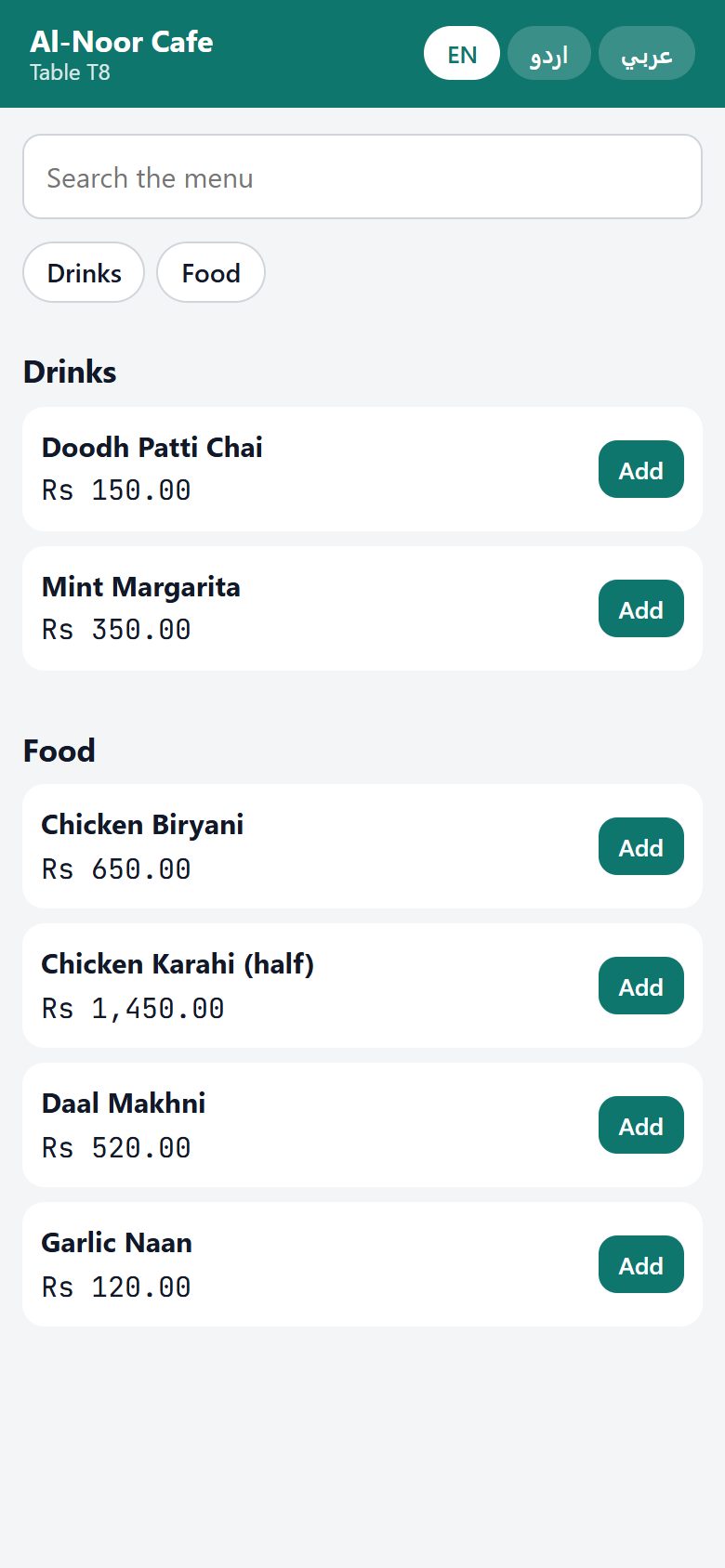
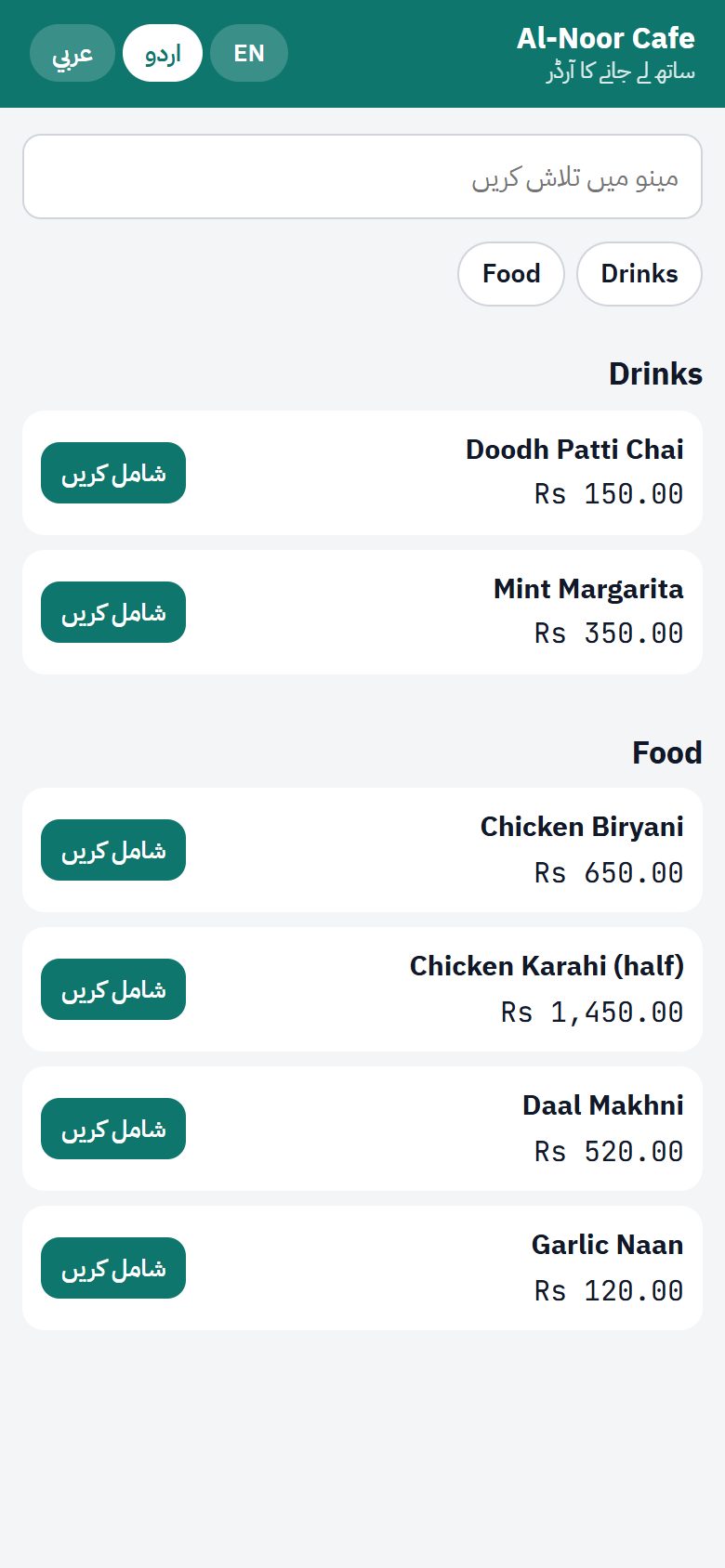
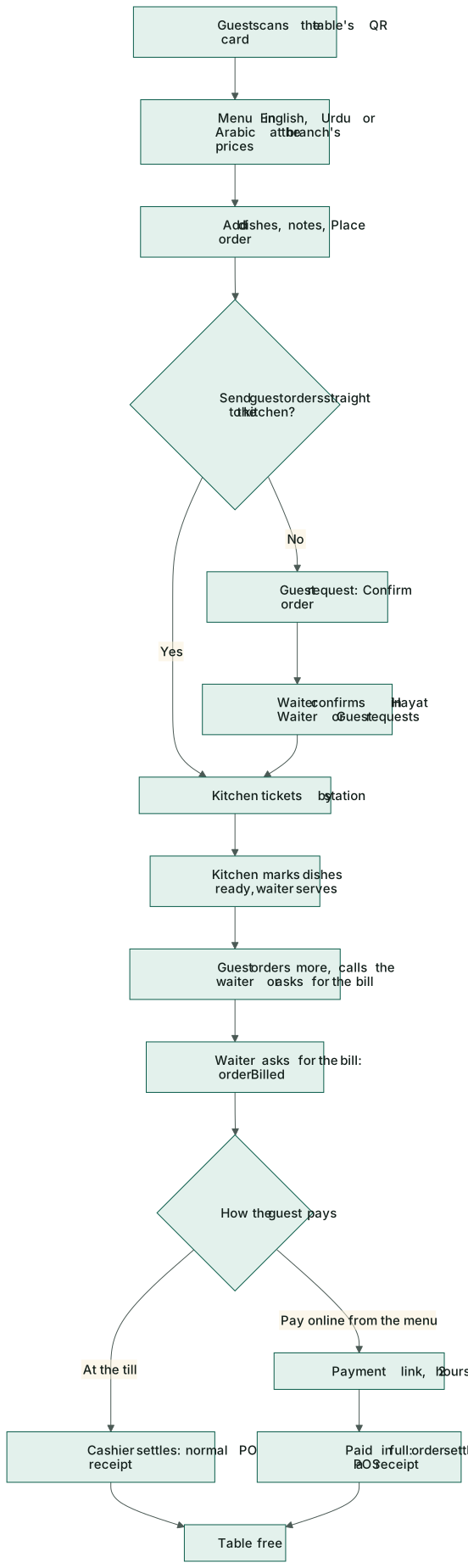
The guest scans the card and the menu opens on their phone — no app:
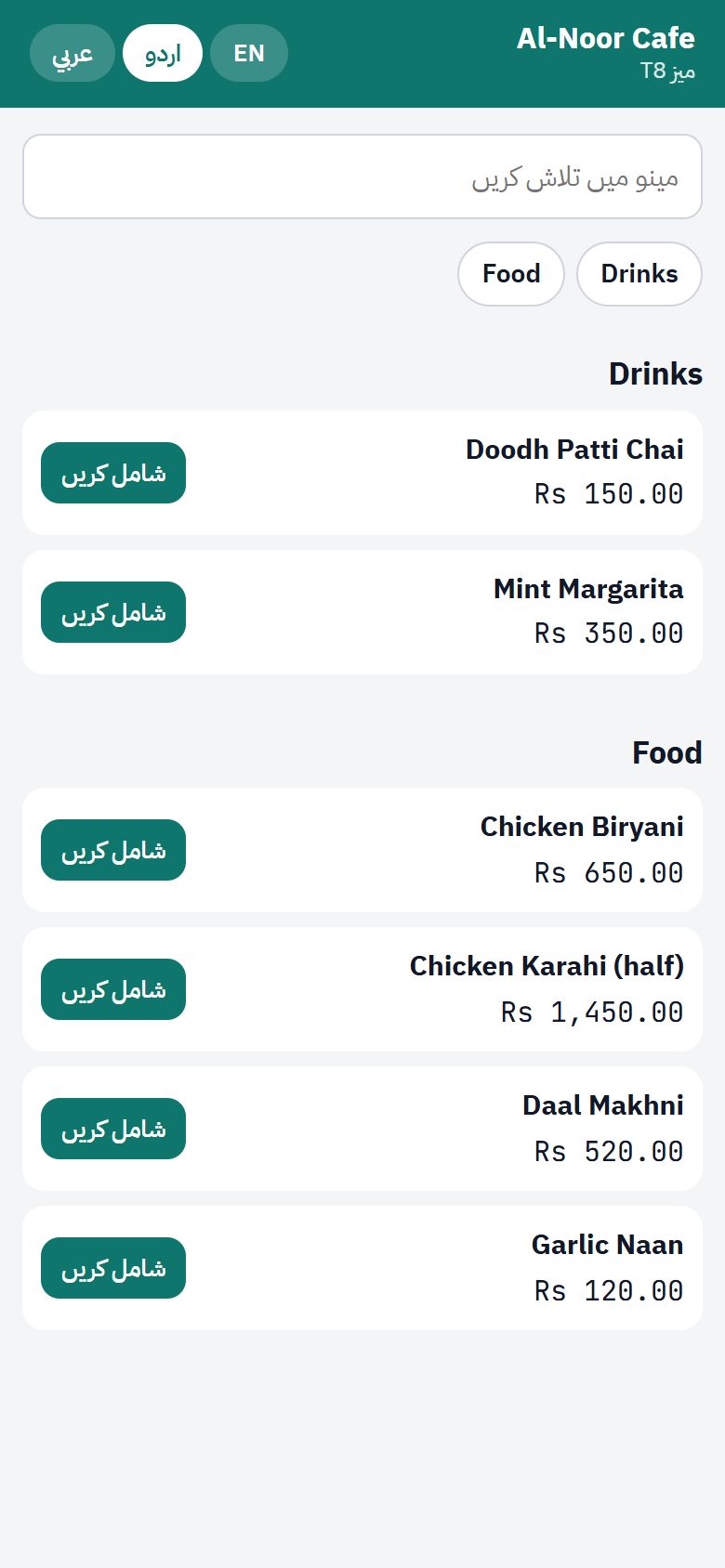
- EN / اردو / عربي switches the language. Urdu and Arabic read right to left; dish names use the Urdu and Arabic names of the items, falling back to English.
- Search the menu, jump between categories, Add dishes, then View order: change quantities and add a Note for the kitchen, then Place order.
- Your order shows each dish — Received, Sent to kitchen, Preparing, Ready, Served — and refreshes by itself. The guest can Order more, Call waiter, Ask for the bill or — when online payment is on — Pay online on the pay page.
If Send guest orders straight to the kitchen is on, only the new dishes go to the kitchen, one ticket per station, as when a waiter sends them. Otherwise a Confirm order request appears for the waiter.
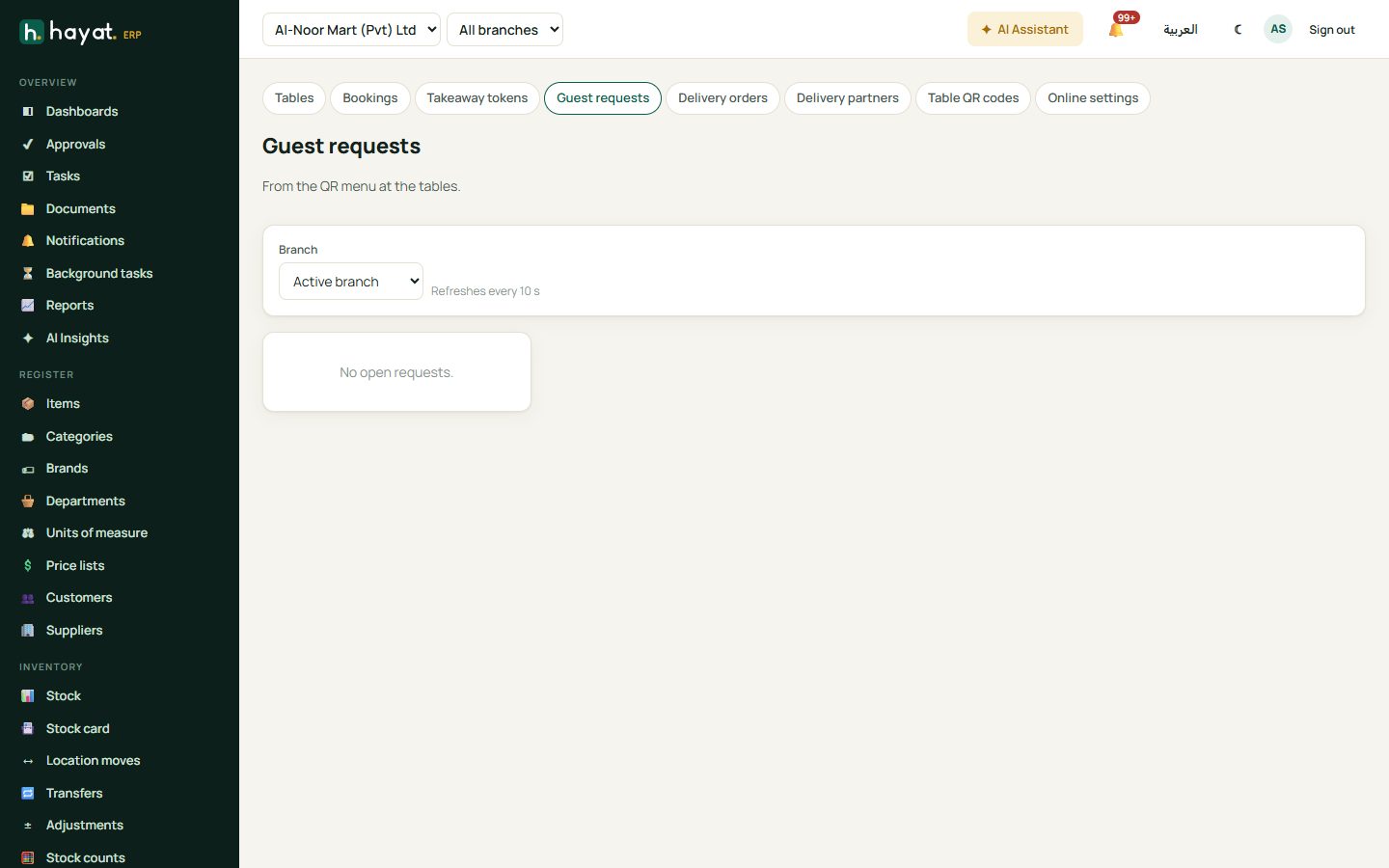
POS → Guest requests shows Call waiter, Bill please and Confirm order by table, with how many minutes ago, Open order and Done. It refreshes every 10 seconds.
Hayat Waiter app
Hayat Waiter is the waiter's phone app. Waiters sign in with their Hayat email and password (they need the Sell at the POS permission and a branch). It has four tabs:
| Tab | What it does |
|---|---|
| Tables | Every table by area, coloured Free, Occupied, Billed or Reserved, with guest requests, the total, minutes open, the waiter, dishes ready and dishes not sent, and the booking. My tables shows only yours. Tap a free table, enter the guests and Open table. |
| Requests | Call waiter and bill requests (Done), and guest orders from the QR menu to Confirm. |
| Bookings | Today's bookings. Seat puts the guests on a table and opens the order (needs Table bookings permission). |
| Kitchen | Ready to serve first, then Cooking; mark a dish Served. |
On an order: tap a dish on the menu to add one, or press and hold it for the quantity, quick notes (no onion, less spicy), a kitchen note and priced extras. Then Send to kitchen or Hold. Send (n) sends held dishes, Bill asks for the bill (all dishes must be sent first). The menu has Kitchen tickets, Split bill, split equally, Merge another bill and Move to another table. Press and hold a dish on the order to remove it (needs the void permission).
See also Mobile apps.
Split and merge bills
On the restaurant order (POS → Restaurant) and in Hayat Waiter:
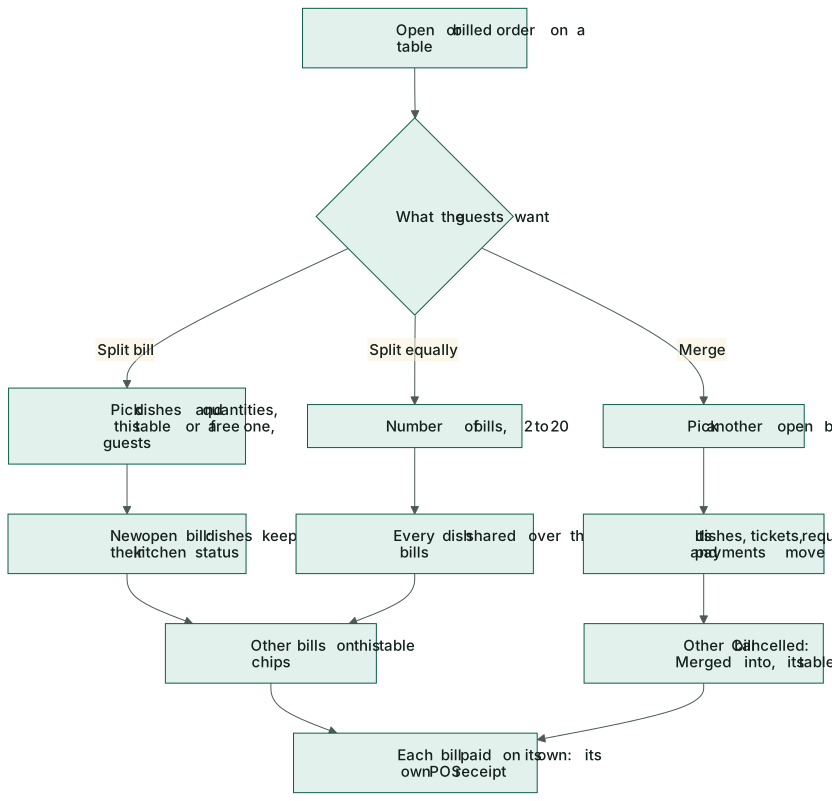
- ✂ Split bill — choose how many of each dish move to a new bill (All moves the whole line), put the new bill on This table or a free table, set the guests, then Split n item(s).
- ÷ Split equally — type the number of bills (2–20). Every dish is shared over them and the guests are shared too.
- ⇄ Merge — Bring in the dishes of another open bill. Its dishes, kitchen tickets, requests, online payments, booking and token move over; the other bill is cancelled as Merged into … and its table is freed.
Other bills on this table chips switch between the parts. Each bill is paid on its own and gets its own receipt. Dishes keep their kitchen status when they move. A bill cannot be split once part of it was paid online, and delivery-partner orders cannot be split or merged.
Takeaway tokens and the pickup screen
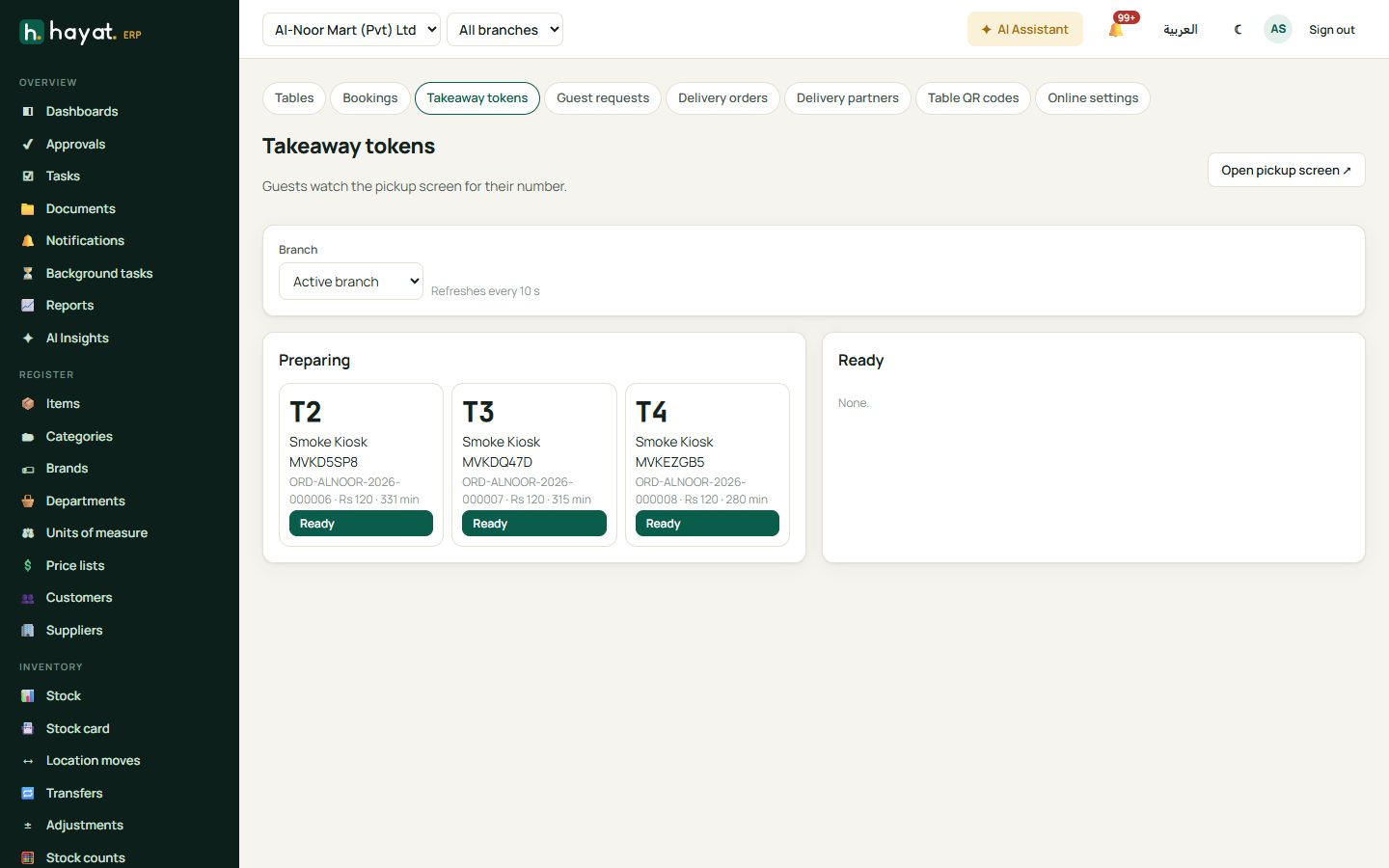
A takeaway gets a token number (prefix + a number that restarts every day per branch, e.g. T14). Online takeaway orders from my.hayaterp.com/menu/your-name get one automatically; the guest types their name and mobile, sees their token and its status, and can open the pickup screen.
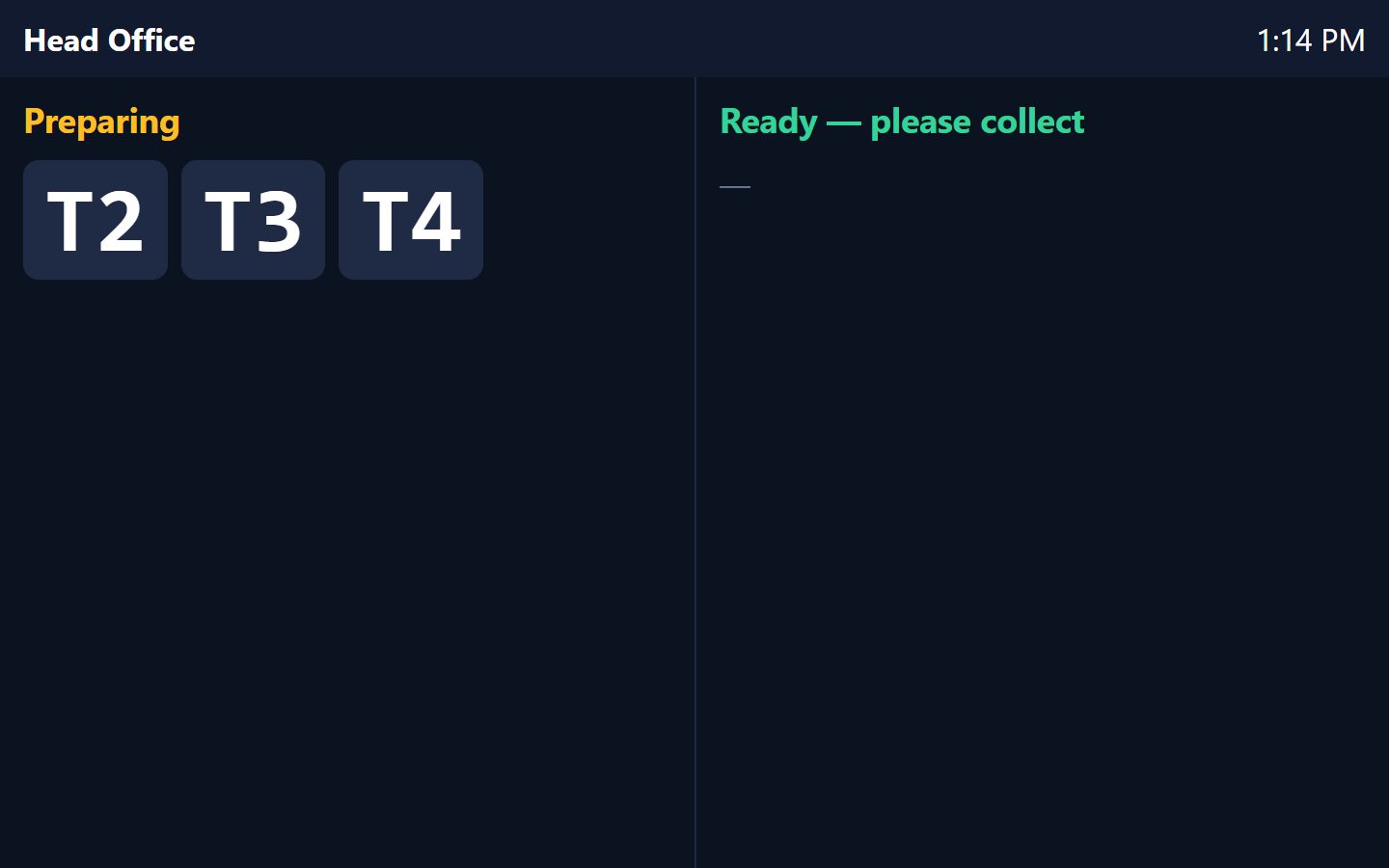
POS → Takeaway tokens shows Preparing and Ready. Click Ready when the food is packed (a token also counts as ready when every dish is ready in the kitchen) and Collected when the guest takes it. Open pickup screen ↗ opens the public screen for a TV at the counter: Preparing and Ready — please collect token numbers only, no names, refreshed every 10 seconds.
Delivery partners
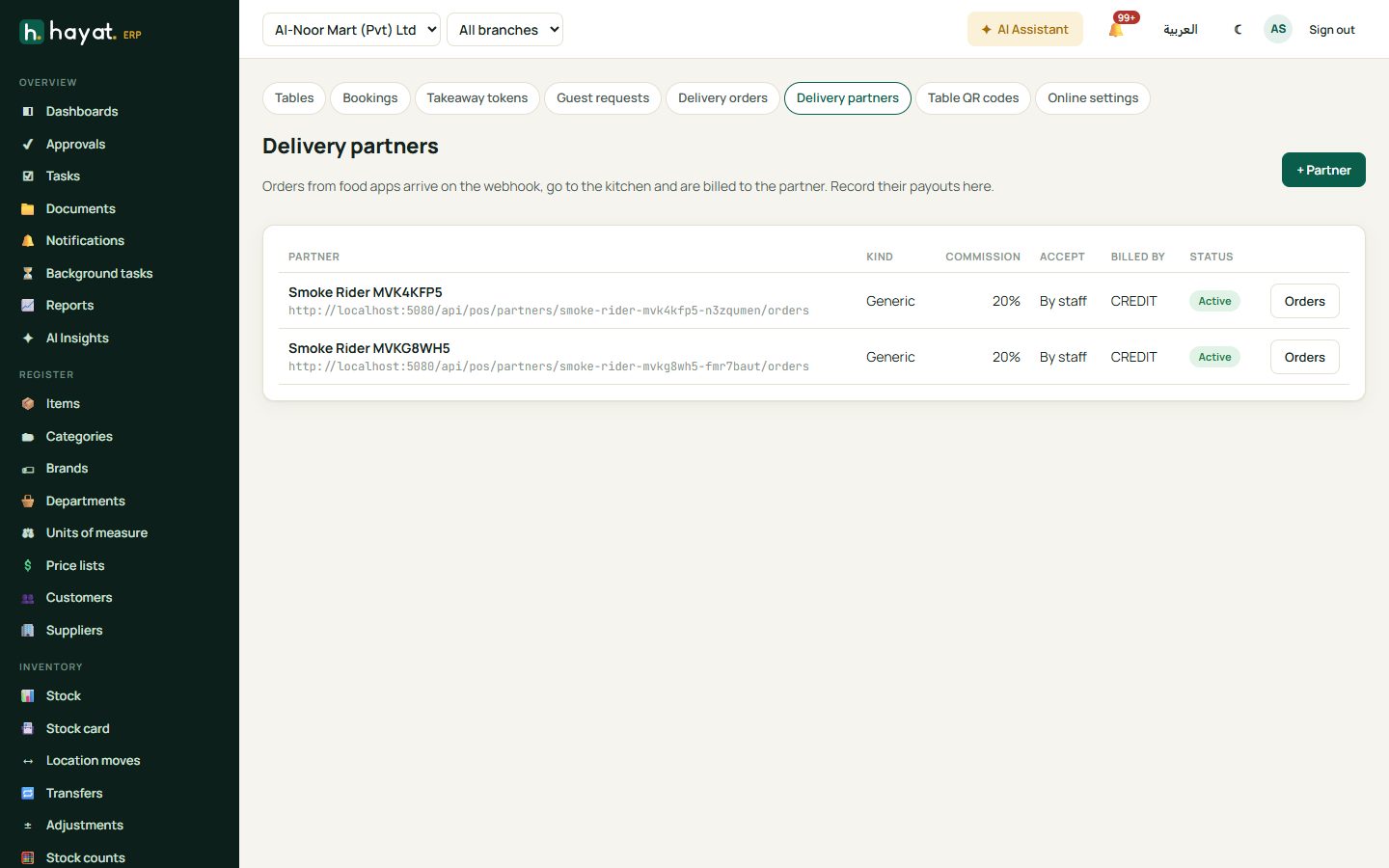
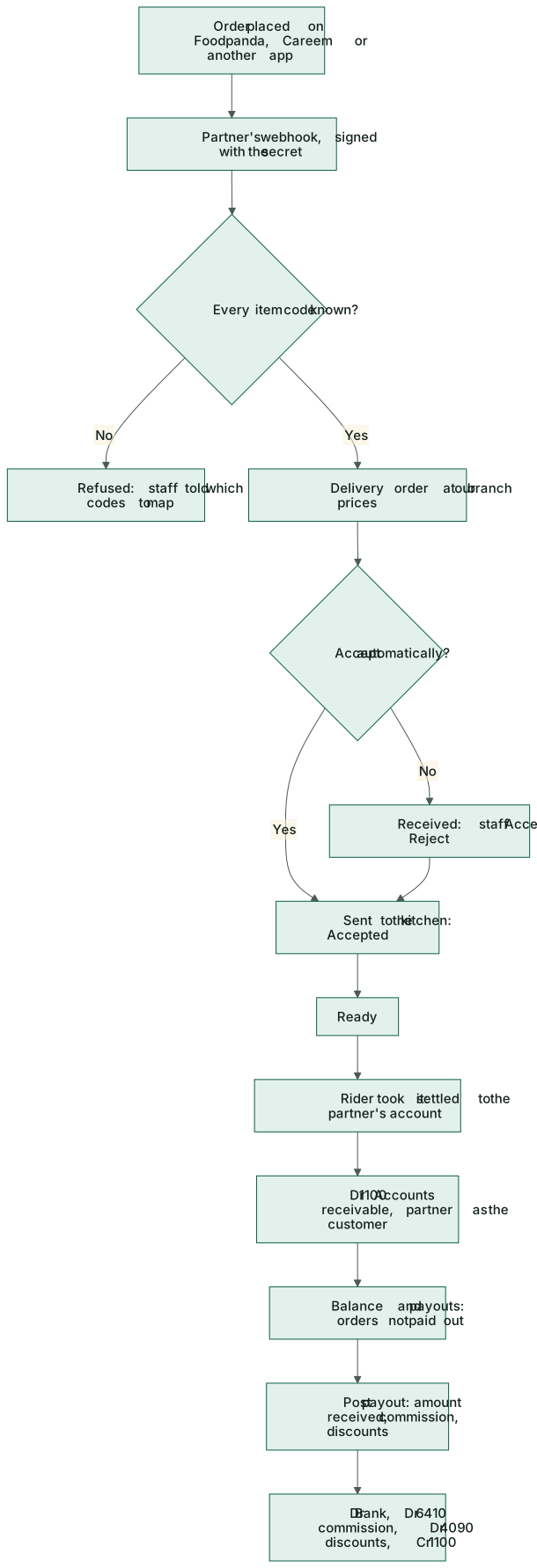
Orders from Foodpanda, Careem or another food app arrive in Hayat by themselves, go to the kitchen and are billed to the partner.
- POS → Delivery partners → + Partner. Type the Name, choose the Kind (Foodpanda, Careem, Other), the Branch and the Till for the orders.
- Set the Commission %, the Price markup %, Billed by (method) (CREDIT by default), the Partner's customer record, Payout into (GL) and Commission to (GL).
- Tick Accept orders automatically if orders should go straight to the kitchen, and Active. Save.
- Copy the webhook secret shown once and give it to the partner with the webhook address. New webhook secret replaces it.
- Open the partner → Item codes: match each of the partner's item codes to your item, then Save item codes.
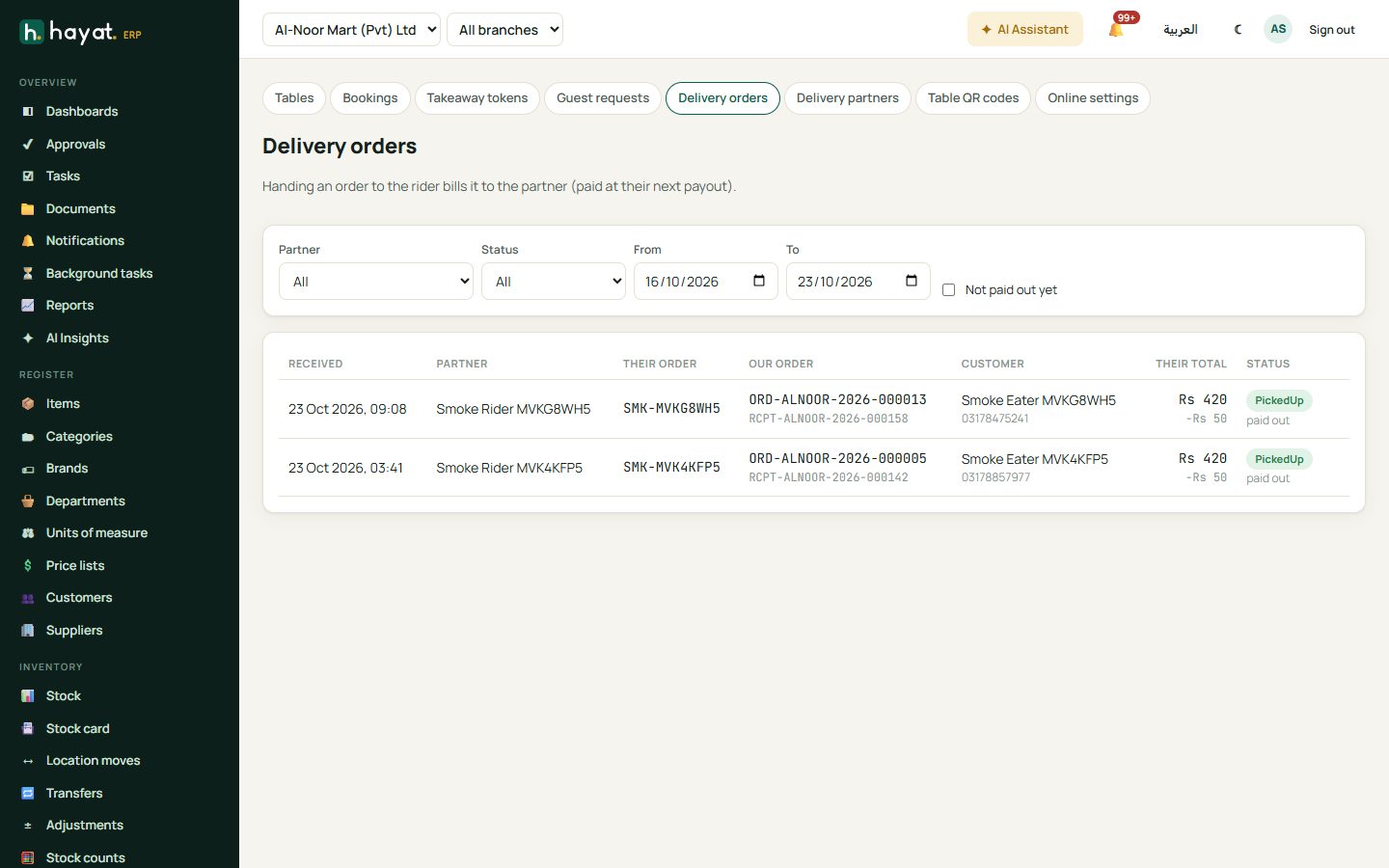
POS → Delivery orders lists the partner orders, filtered by partner, status and dates, or Not paid out yet. Accept sends a received order to the kitchen (Reject with a reason), Ready when it is packed, and Rider took it when the rider collects it — that settles the order on the partner's account. The list refreshes every 20 seconds.
When the partner pays you, open the partner → Balance & payouts: the orders not paid out, the expected commission and payout. Type the Amount received, the Date, the orders from / to, the Commission and Discounts we fund (filled from the rate and the orders), the Reference and Into account, then Post payout.
Workflow
Where the money goes
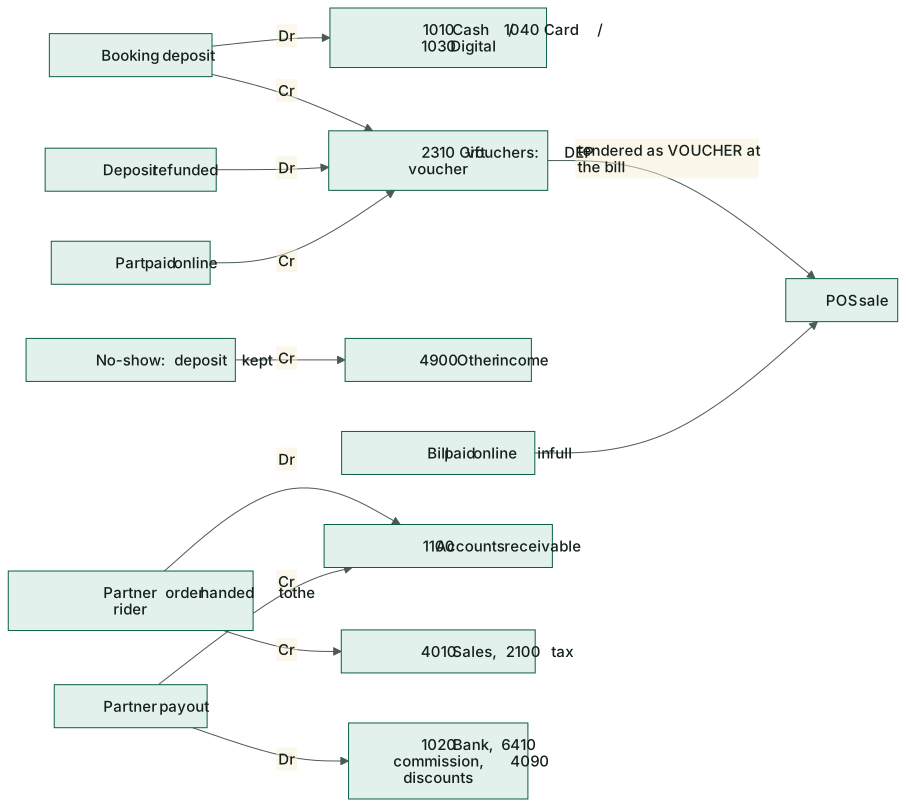
Every bill is settled as a normal POS sale — stock and recipes, tax, FBR and the sale journal, as in How every module reaches the accounts. The new events are:
| Event | Debit | Credit |
|---|---|---|
| Booking deposit taken | 1010 Cash / 1040 Card / 1030 Digital (by method) | 2310 Gift vouchers & store cards (DEP voucher) |
| Deposit used on the bill | 2310 (tendered as VOUCHER) | (part of the sale) |
| Deposit refunded | 2310 | the method's account |
| Deposit kept (no-show) | 2310 | 4900 Other income |
| Bill paid online in full | the online method's account as the sale's tender | 4010 Sales, 2100 Output tax |
| Part paid online, or paid after the bill was closed | 1030 / 1040 / 1045 by method | 2310 (held on an OPAY voucher for the bill) |
| Partner order handed to the rider | 1100 Accounts receivable (the partner) | 4010 Sales, 2100 Output tax |
| Partner payout | 1020 Bank (received), 6410 commission, 4090 discounts we fund, 6900 other deductions | 1100 Accounts receivable (the orders' amounts) |