
Salon and spa online booking
hayaterp.com/pos/salon/settings ↗Your own booking page where clients choose services, a stylist and a free time; deposits paid online and used at checkout; services and staff from your items and HR roster; appointments and deals in the customer portal.
Clients book on my.hayaterp.com/salon/your-name, or from the customer portal and the Hayat My app. An online booking is a normal POS appointment (APT-…), so it shows in POS → Appointments next to the bookings staff make by phone, and it is checked out at the till as before. The staff screens are under POS in the menu: Salon online booking and Salon bookings & deposits. The links at the top of each one move between Online booking, Services & staff, Online bookings and the Appointment book.
Who does what
| Permission | Typical person | Can do |
|---|---|---|
| Sell at a till (pos.sell) | Receptionist, cashier | See the settings and online bookings, make a deposit pay link, check out appointments. |
| Choose POS screens (business types), tables and kitchen (pos.setup) | Owner, salon manager | Save the booking page settings, pictures, services and staff. |
| Table bookings, QR ordering and delivery partners (pos.reservations) | Salon manager, senior receptionist | Cancel and move online bookings, keep a deposit after a cancellation or no-show. |
| Refunds and exchanges (pos.refund) | Supervisor | Refund a deposit. |
Set up the booking page
POS → Salon online booking (saving needs pos.setup).
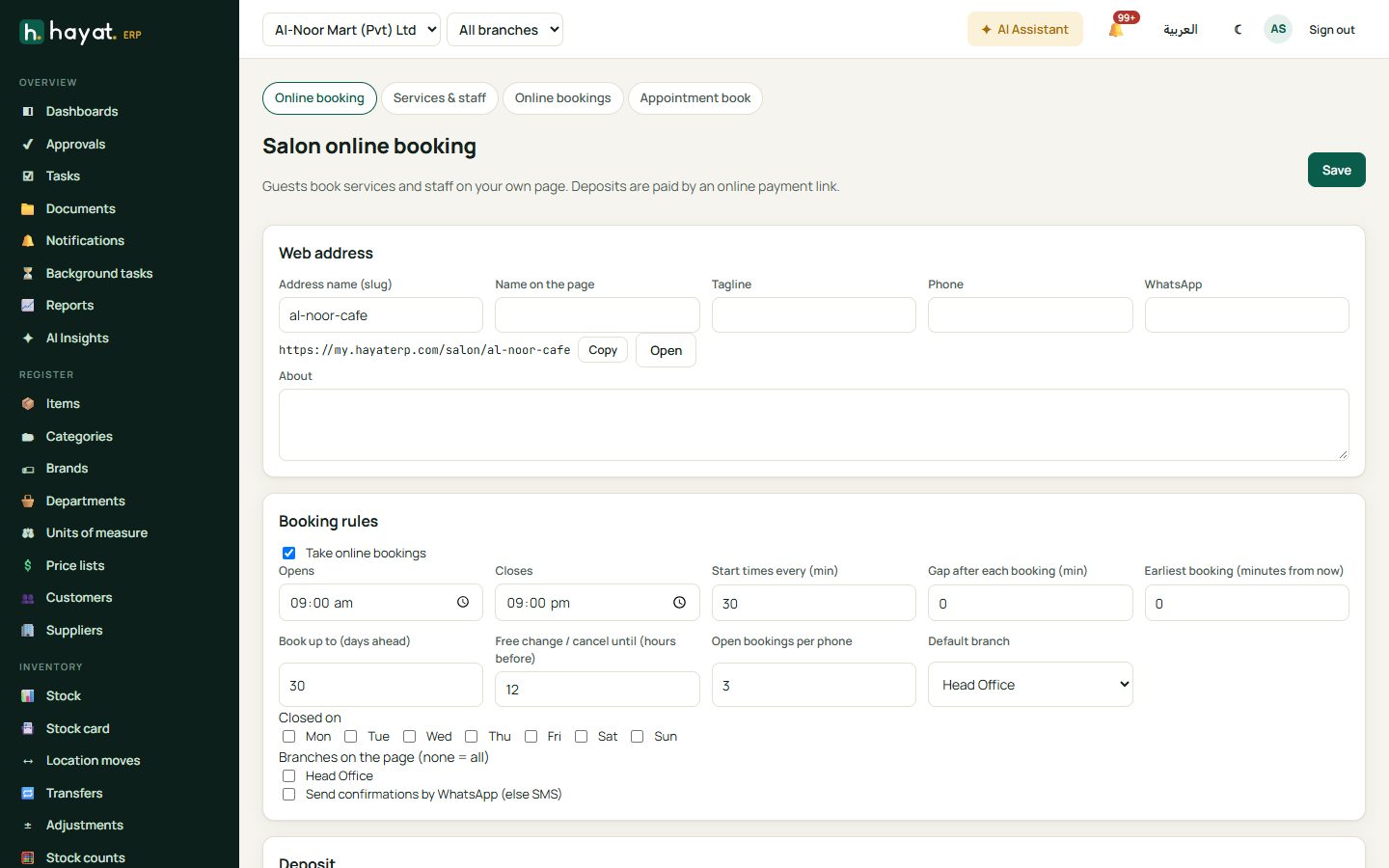
- Web address: type the Address name (slug), e.g. glow-salon. If your restaurant already has a public address, Use the restaurant address offers it. Add the Name on the page, Tagline, Phone, WhatsApp and About. Once saved, the address shows with Copy and Open.
- Booking rules: tick Take online bookings, set Opens and Closes, Start times every (min), Gap after each booking (min), Earliest booking (minutes from now), Book up to (days ahead), Free change / cancel until (hours before) and Open bookings per phone. Choose the Default branch, the days it is Closed on and the Branches on the page (none = all). Tick Send confirmations by WhatsApp (else SMS) if you have WhatsApp set up.
- Deposit: Ask for Nothing (pay at the salon), A deposit (Deposit % and At least) or The full price. Set Hold unpaid bookings (min), and tick Refund the deposit when the guest cancels in time, Keep the deposit on a late cancellation and Keep the deposit on a no-show. Write the Policy shown to guests.
- Save. Then add up to 12 Pictures (PNG, JPEG or WebP, 3 MB each) with + Add picture.
Services and staff
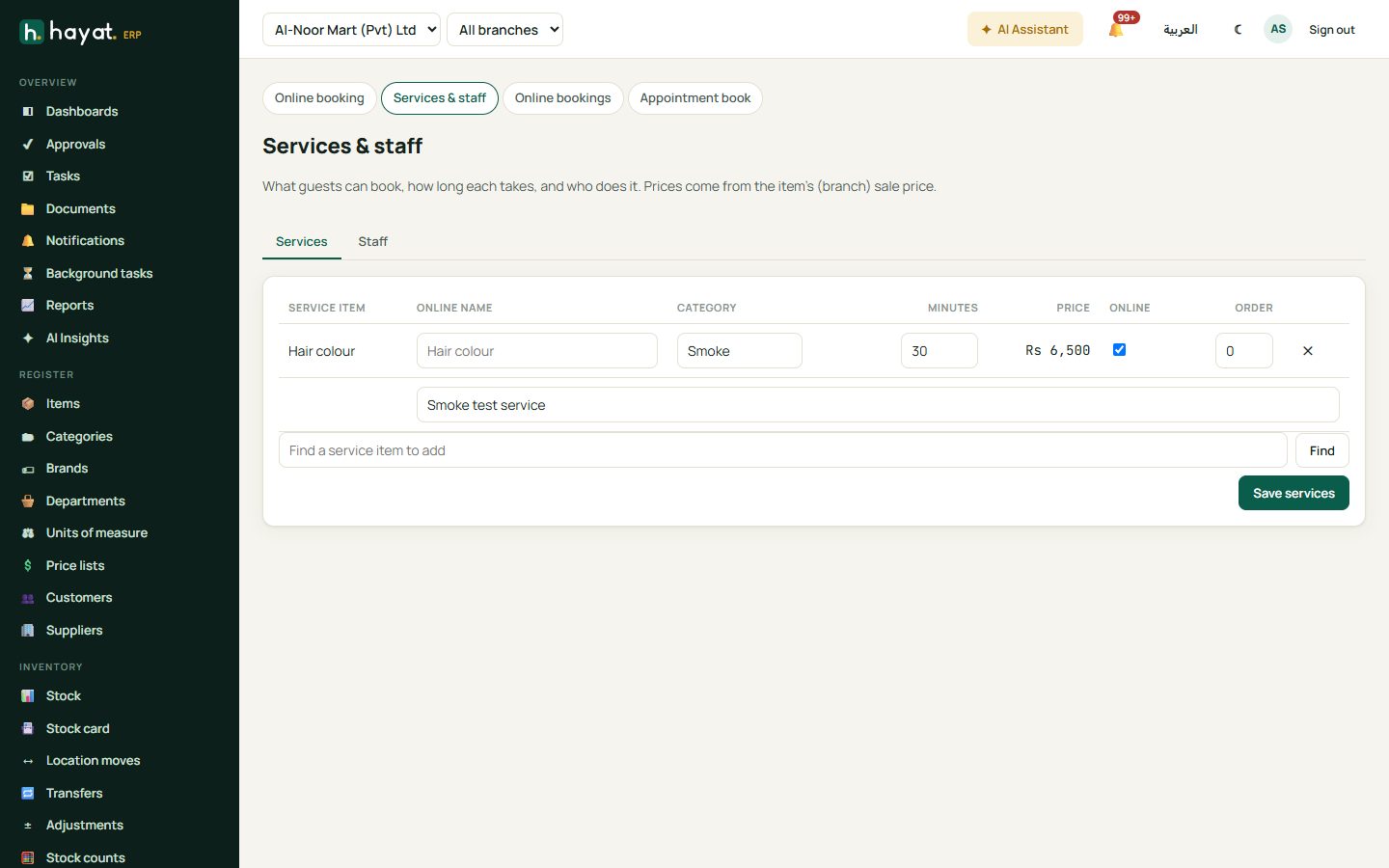
Services & staff decides what clients can book, how long it takes and who does it. Prices come from the item's sale price (the branch price when there is one).
- Services tab: Find a service item to add and click Add on each. Give it an Online name, a Category (the page groups services by it), the Minutes, Online yes or no, the Order and a short description. Save services. While nothing is set here, every active Service item is offered at 30 minutes.
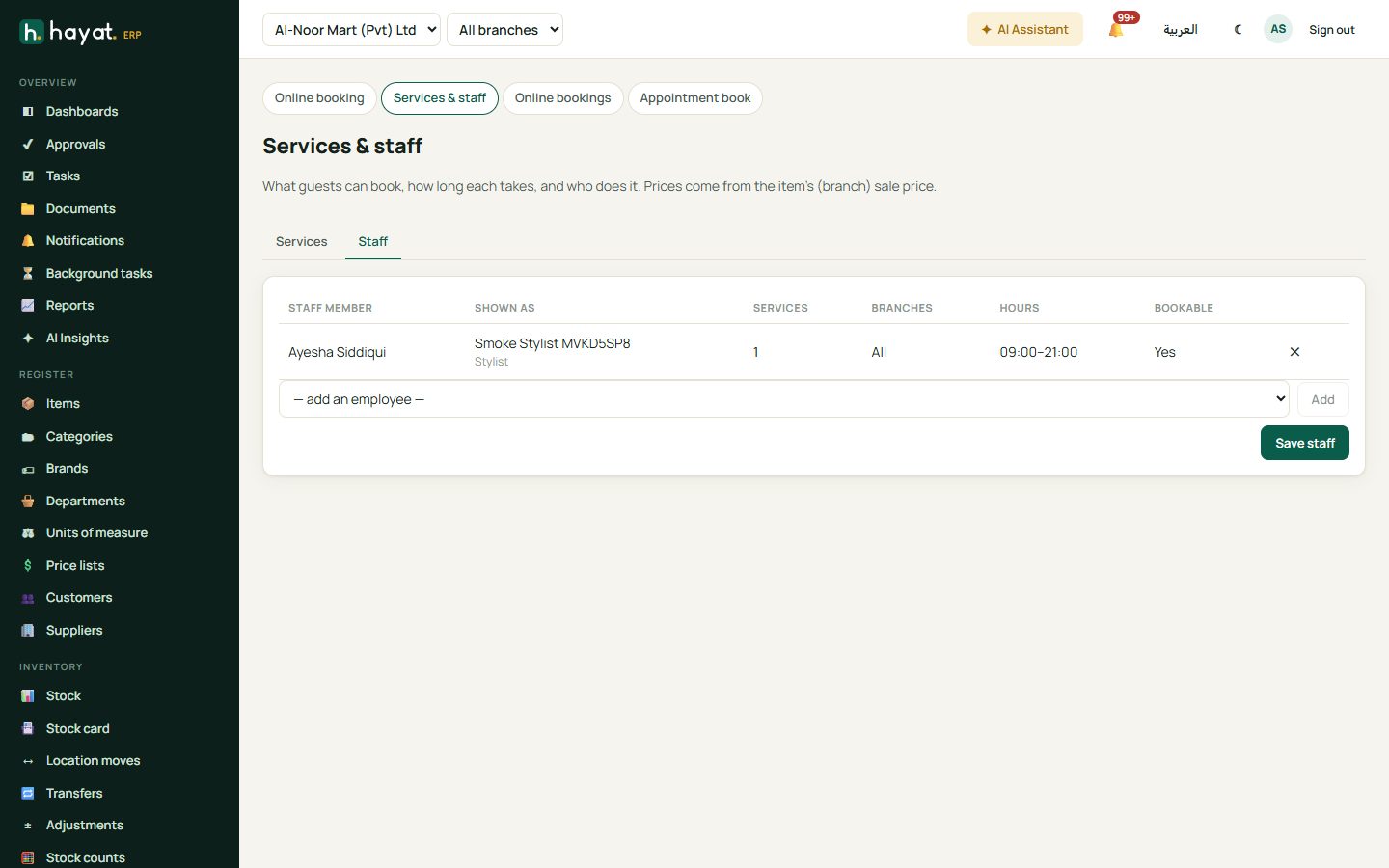
- Staff tab: choose — add an employee — from your HR employees and Add. Open the person to set Shown as, Title, Short bio, the Branches and the Services they do. Tick Bookable online. Save staff, then add a 📷 Photo.
- Working hours come from HR: the published roster wins, then the employee's shift and weekly off days; approved leave blocks the day. Fill Works from (blank = HR roster), Until and Days off (when not from HR) only for people HR does not schedule.
A start time is offered when the stylist does every chosen service, works then, and has no other appointment overlapping it (plus the gap). With Anyone, the least busy free stylist that day is given. If nobody does all the chosen services together, the client books them separately.
The booking page
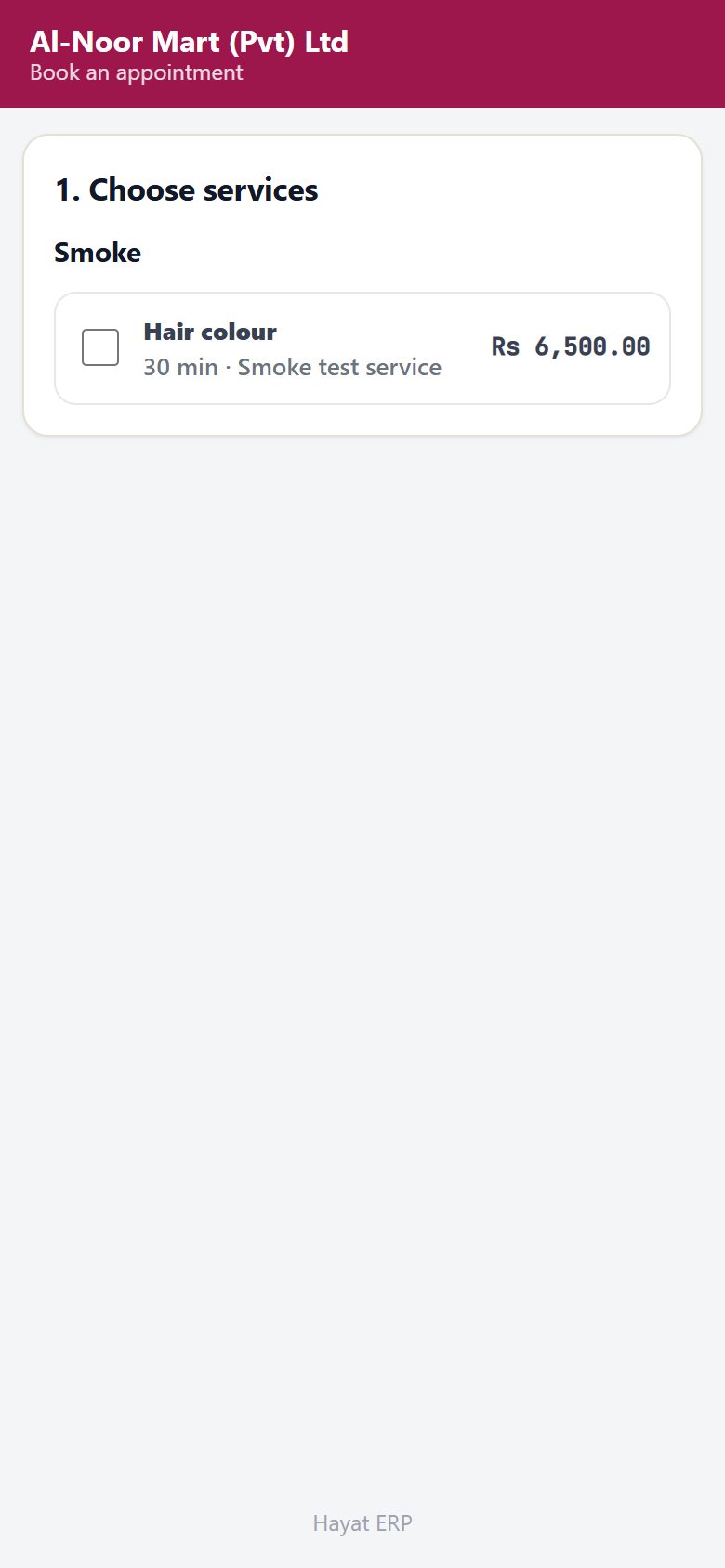
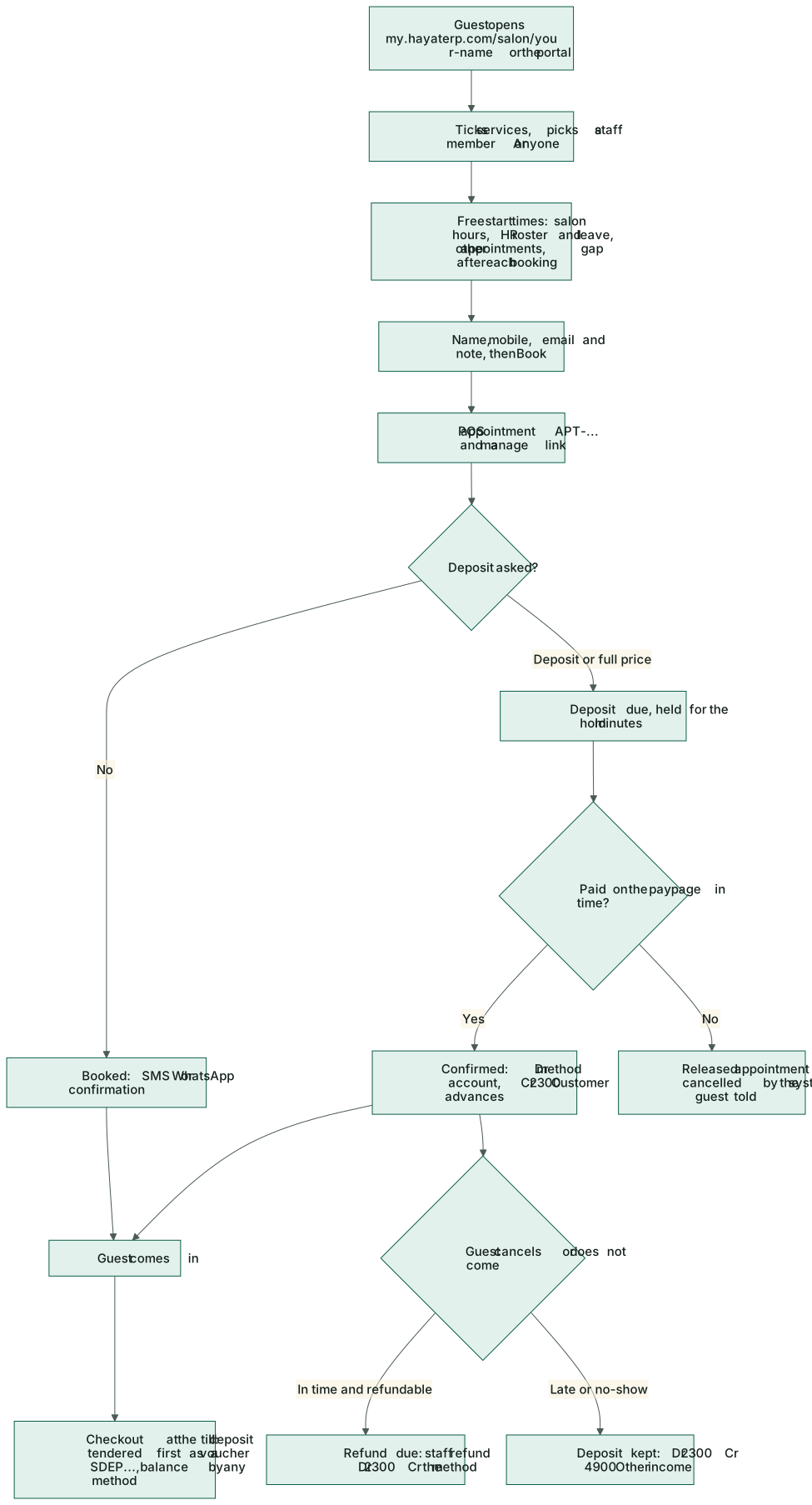
The client opens my.hayaterp.com/salon/your-name on any phone:
- Under 1. Choose services, tick one or more; each shows its minutes and price.
- Under 2. Who would you like?, tap Anyone or a named stylist.
- Under 3. Day and time, pick the Day; the free times appear with the total minutes, the price and the deposit to confirm. Tap a time.
- Under 4. Your details, type the Name, Mobile, Email (optional) and a Note, then tap Book (day) at (time).
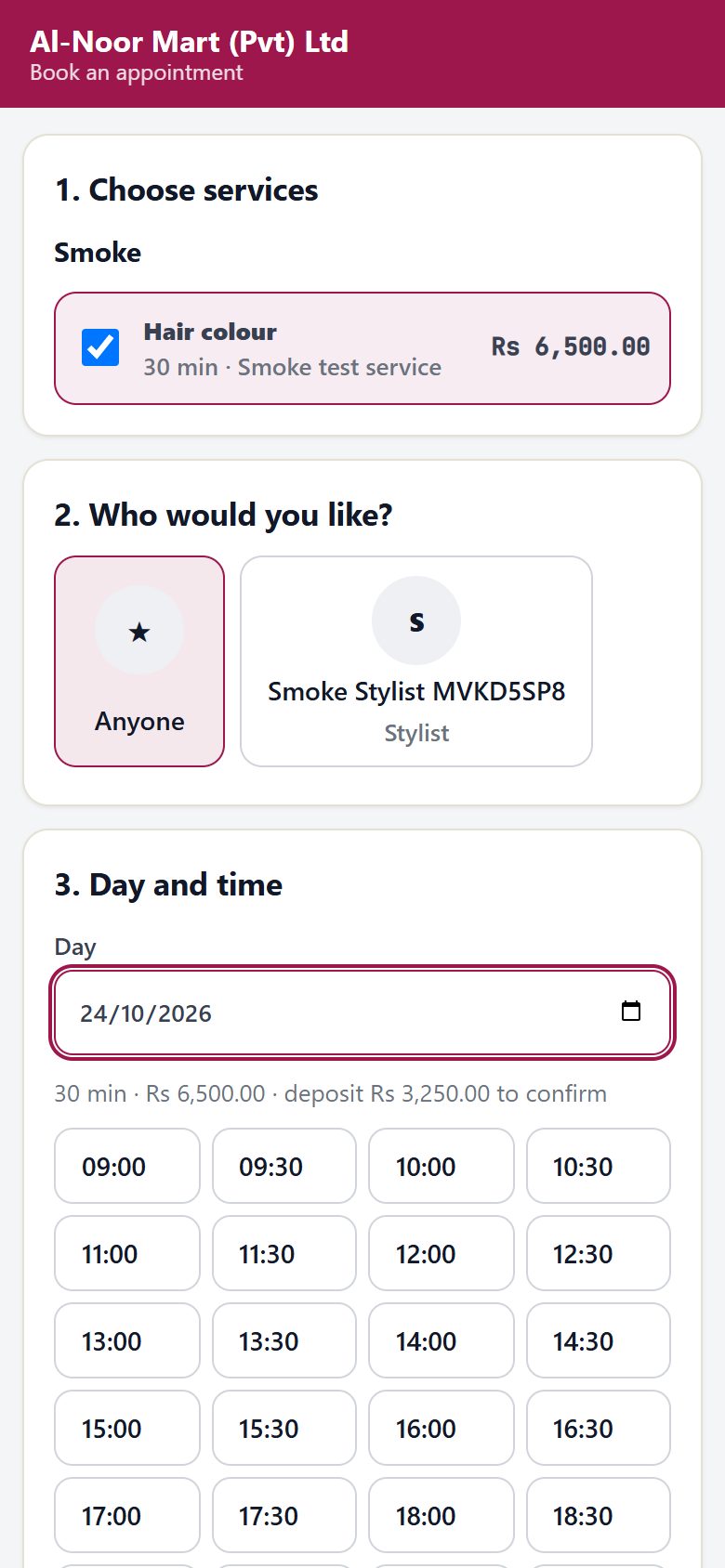
Without a deposit the booking is made at once and confirmed by SMS or WhatsApp. With a deposit the client goes straight to the pay page; the time is held for the Hold unpaid bookings minutes and released if it is not paid. Staff with Sell at a till get a notification for every new online booking.
The confirmation has a private link to the client's booking. There they see the status, 📅 Add to my calendar, Pay deposit, Change the time (up to the free-change hours, at most three times, not while a deposit is still due) and Cancel appointment, which says whether the deposit is refunded or kept. Each phone can hold only the Open bookings per phone you set.
Reminder the day before
Switch on Salon appointment tomorrow in Marketing → Reminders. It goes to booked and confirmed appointments of tomorrow (unpaid-deposit bookings are skipped), with the client's link to change or cancel.
Online bookings and deposits
POS → Salon bookings & deposits lists bookings made on the page or in the portal. Filter by From / To, Source (Online, Portal), Deposit (To pay, Held, Refund due, Used and the others) and Branch. A held deposit is used by itself when the appointment is checked out.
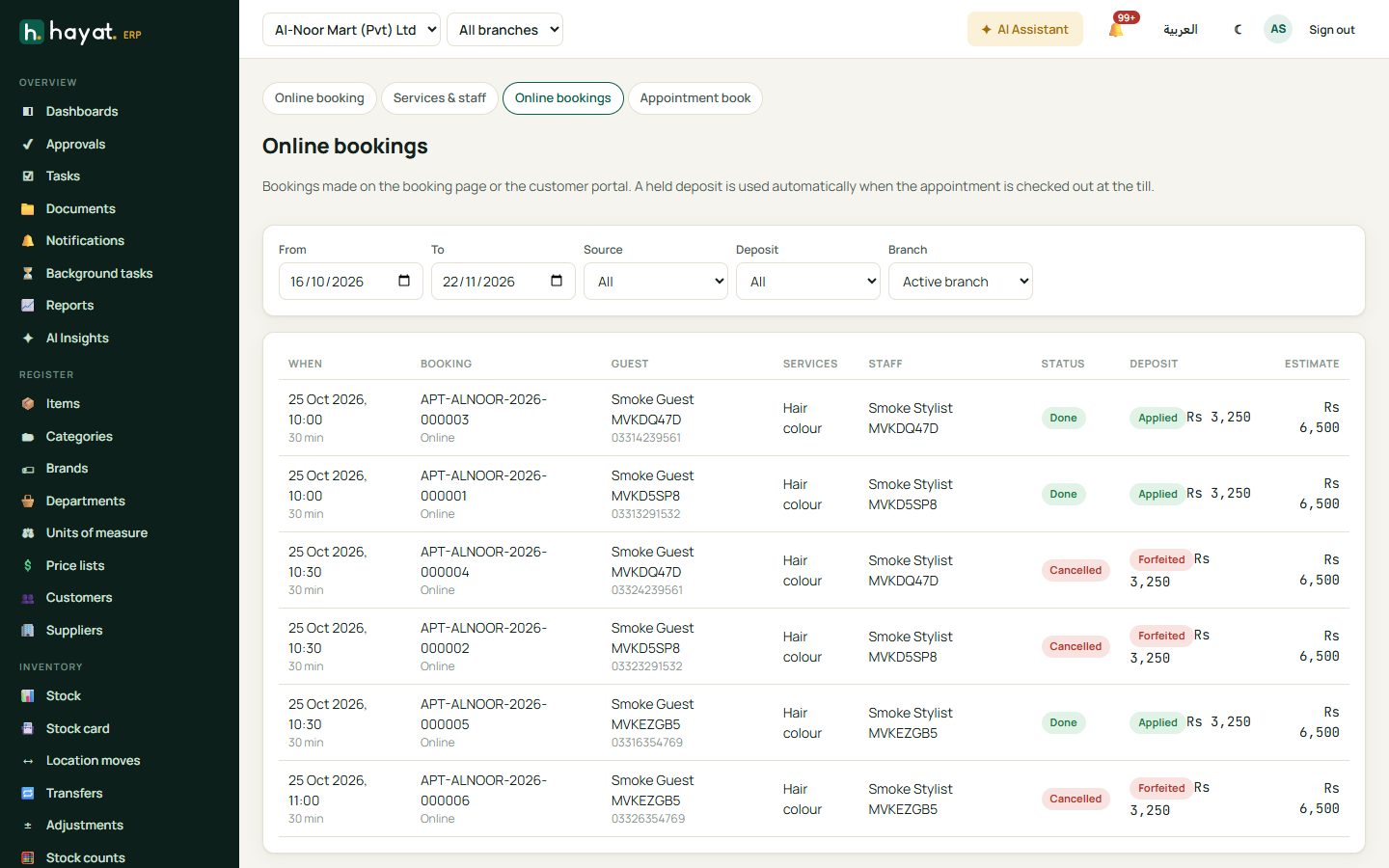
Open a booking to:
- see the Deposit figures; while it is To pay, 🔗 Pay link makes a link to send again;
- Refund a held deposit (pos.refund) — choose the method (default: the one it was paid by) and the amount;
- Keep the deposit of a cancelled or no-show booking, with a reason (only when the settings keep deposits on a no-show);
- Move it to another date and time, or Cancel booking with a reason — tick Keep the deposit to keep it instead of refunding.
Open the appointment book → goes to POS → Appointments, where you mark a no-show and check the client out.
Checkout at the till
In POS → Appointments open the appointment, then 💳 Checkout and Complete payment. The held deposit is tendered first, by itself, as a one-off gift voucher SDEP…; take only the balance in cash, card or another method. If the deposit is more than the bill, the rest stays held for a refund.
Cancellations and refunds
| What happens | The deposit |
|---|---|
| Client cancels before the free-change hours, deposit refundable | Refund due — staff with Refunds and exchanges are told to pay it back. |
| Client cancels before the free-change hours, not refundable | Kept. |
| Client cancels late | Kept when Keep the deposit on a late cancellation is ticked; otherwise as an in-time cancellation. |
| Staff cancel | Refund due, or kept when Keep the deposit is ticked. |
| No-show | Staff use Keep the deposit (only when Keep the deposit on a no-show is ticked). |
| Not paid in time | The booking is released by itself (every 10 minutes), staff are told and the client gets an SMS. |
| Paid after the booking was released or cancelled | Still recorded and held, then Refund due. |
In the customer portal and Hayat My
Add Salon and spa bookings and deals to the portal's sections. A signed-in client then has My appointments on the home page, with:
- Upcoming and Past appointments made with their number (also the ones staff booked), with Pay deposit, Change time, Cancel and the Confirmation;
- Book, using the same services, stylists and times as the booking page — the mobile is the signed-in one;
- Deals for you: approved promotions running now for the POS (or all channels), not tied to named customers; members-only deals show only to loyalty members. Show code reveals the shared coupon code of a deal that needs one — single-use batch codes are never shown;
- their loyalty card, tier and points.
See Hayat My app.
Workflow
Where the money goes
The service sale itself is a normal POS receipt (see How every module reaches the accounts). The deposit is held as a customer advance until the checkout.
| Event | Debit | Credit |
|---|---|---|
| Deposit paid online | 1030 Digital payments (JazzCash, Easypaisa, Raast) / 1040 Card / 1045 BNPL | 2300 Customer advances |
| Deposit used at checkout | 2300 Customer advances | 2310 Gift vouchers & store cards (SDEP voucher, tendered as VOUCHER on the receipt) |
| Deposit refunded | 2300 Customer advances | the method's account |
| Deposit kept (late cancellation, no-show) | 2300 Customer advances | 4900 Other income |