
Barcode and price labels
hayaterp.com ↗Print barcode, price and shelf labels for shops, supermarkets, pharmacies and garment stores — from the item list, goods receipts, bills, transfers and counts — on any printer as exact-size PDF pages or A4 sheets, or on Zebra, TSC, Xprinter and Gprinter label printers through Hayat POS on Windows.
Barcode labels puts a price and a scannable barcode on every product and shelf. A supermarket labels what it receives, a pharmacy prints the batch and expiry on each pack, a garment store tags each size and colour, and a shop prints shelf-edge labels with the old price struck through when prices change. Items that have no barcode yet get one made for the label, and it can be saved to the item so the till scans it.
Labels print in two ways:
- PDF / browser, on any printer: pages at the exact label size for a label printer's Windows driver, or A4 sheets of labels for an office laser or inkjet printer. Urdu and Arabic names print only this way.
- Printer commands — ZPL (Zebra), TSPL (TSC, Xprinter, Gprinter) or EPL2 (older Zebra and Eltron) — sent straight to a thermal label printer by Hayat POS on Windows, or downloaded as a .prn file.

Who does what
| Task | Needs | In ready-made roles |
|---|---|---|
| Inventory → Print labels, every 🏷 Print labels button, and labels in Hayat POS | See stock (inventory.view) | Admin, Company Admin, Management, Branch Manager, POS Supervisor, Accountant, Sales, Purchase, Inventory, Viewer, Quality Inspector, Pharmacist |
| Inventory → Label templates, the New barcodes settings, and Save new barcodes to items that have none | Receive and issue stock (inventory.edit) | Admin, Company Admin, Branch Manager, Purchase, Inventory |
Labels from a goods receipt or a bill also need access to that document's company and branch. The Cashier template has no See stock, so a cashier cannot print labels — not on the web and not in Hayat POS; give the till's labelling person a role with it.
Print labels
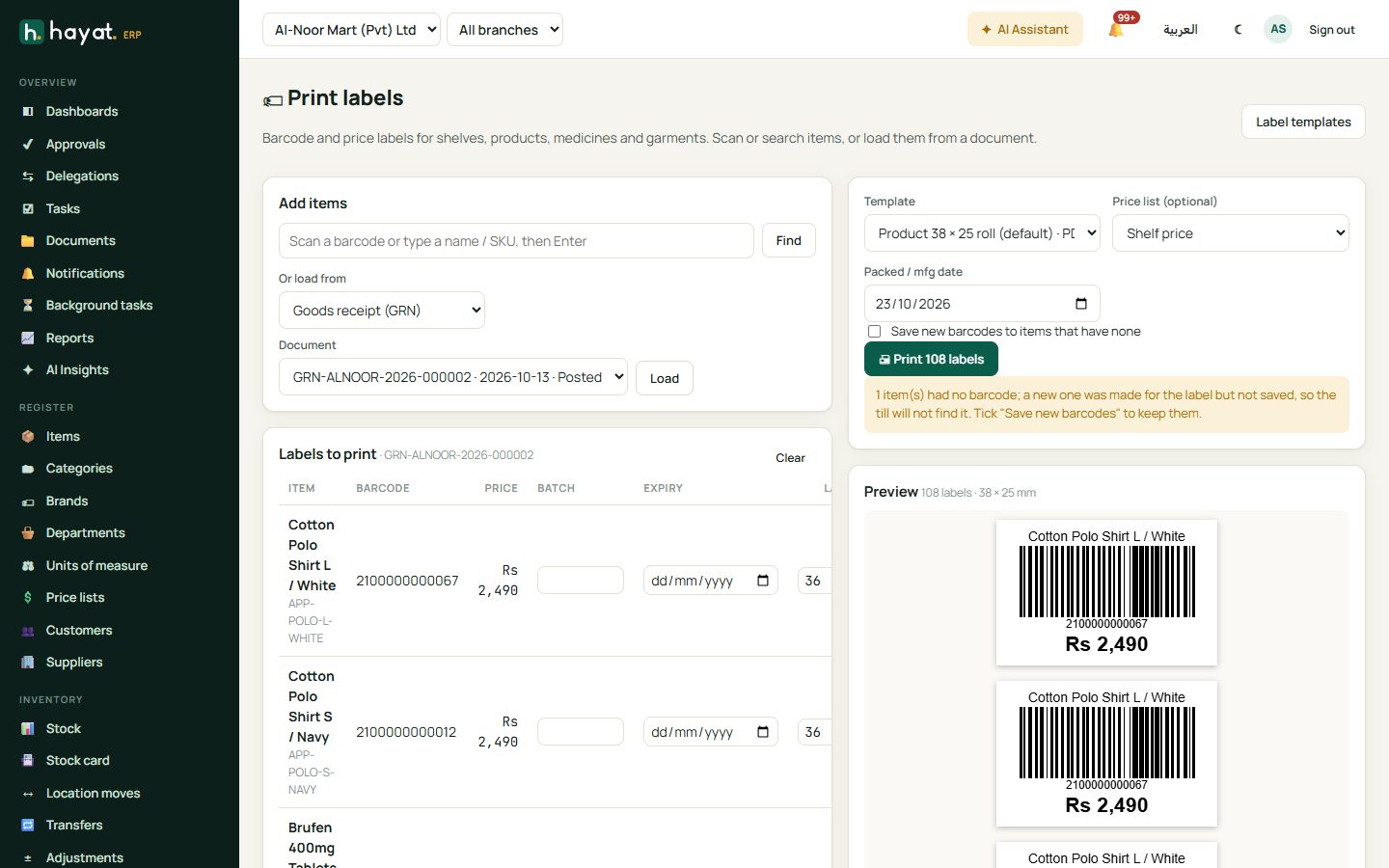
- Open Inventory → Print labels.
- Under Add items, scan a barcode or type a name or SKU and press Enter (or Find). A scanned code that matches one item adds it at once; otherwise pick from the list. Scanning the same item again adds one more label.
- Or choose Or load from — Goods receipt (GRN), Purchase bill, Stock transfer, Stock count, Price changes since a date or A batch of one item — pick the Document and click Load. See Labels from documents.
- In Labels to print, change the Batch, Expiry and the number of Labels of any line; ✕ removes it.
- Choose the Template, and if you need them a Price list (optional) (Shelf price by default) and the Packed / mfg date (today by default). For an A4 sheet that is partly used, set Start at label no. to the first empty label.
- Tick Save new barcodes to items that have none if items without a barcode should keep the one made for the label (needs inventory.edit).
- Check the Preview (the first 60 labels at their real size) and the warnings under it, then click 🖨 Print n labels.
What Print does depends on the template:
- PDF templates open the browser's print dialog with pages of the exact size — see Print on any printer (PDF).
- ZPL / TSPL / EPL templates go to the label printer through the Hayat POS label bridge when it is switched on in this browser; otherwise a .prn printer file downloads. Download .prn is always offered for these templates.
At most 1,000 items and 10,000 labels go in one print.
Labels from documents
Every screen that brings goods in or moves them has a 🏷 Print labels button that opens Print labels with the lines already filled in.
| Where | How | Labels per line |
|---|---|---|
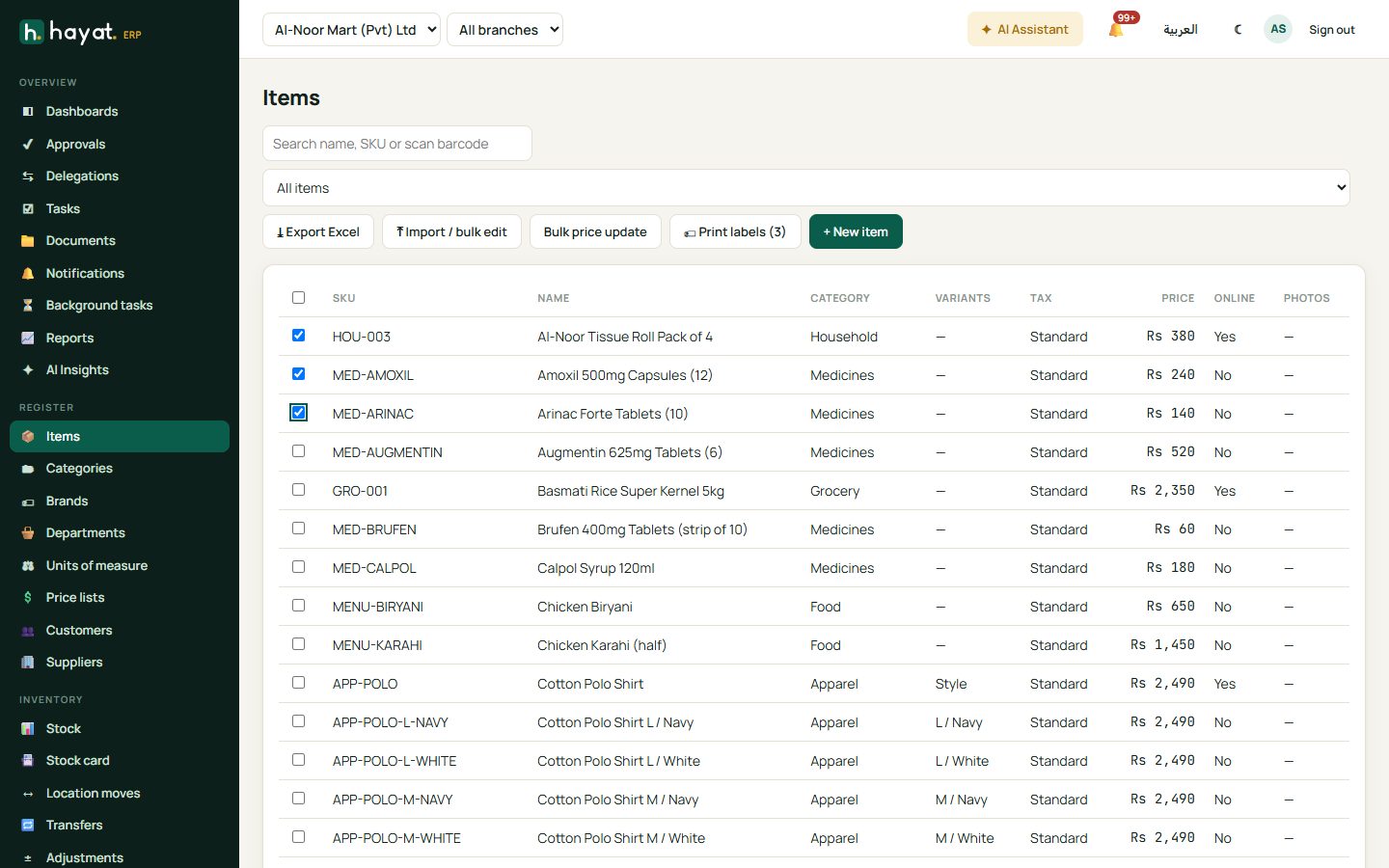
| Register → Items | Tick items in the list, then 🏷 Print labels (n); or 🏷 Print labels in an item's form | One each |
| Trading → Goods receipts | Open a receipt, 🏷 Print labels | The quantity received, with the batch and expiry |
| Trading → Bills | Click a posted bill: "Print price and barcode labels for bill …?" → OK | The billed quantity, with the batch and expiry; service lines are left out |
| Inventory → Transfers | Open the transfer, 🏷 Print labels | The quantity received (else dispatched, else requested), with the batch and expiry |
| Inventory → Stock counts | Open the count, 🏷 Print labels | The final counted quantity |
| Print labels → Price changes since a date | Choose Since | One per item whose price changed (new items are left out); tick One label per unit in stock for the stock quantity |
| Print labels → A batch of one item | Add the item first, type its Batch no. | One, or tick One label per unit in the batch; with the batch's expiry |
The Document list shows the 40 most recent documents of the branches you may see; a transfer is shown to both the sending and the receiving branch.
Label templates
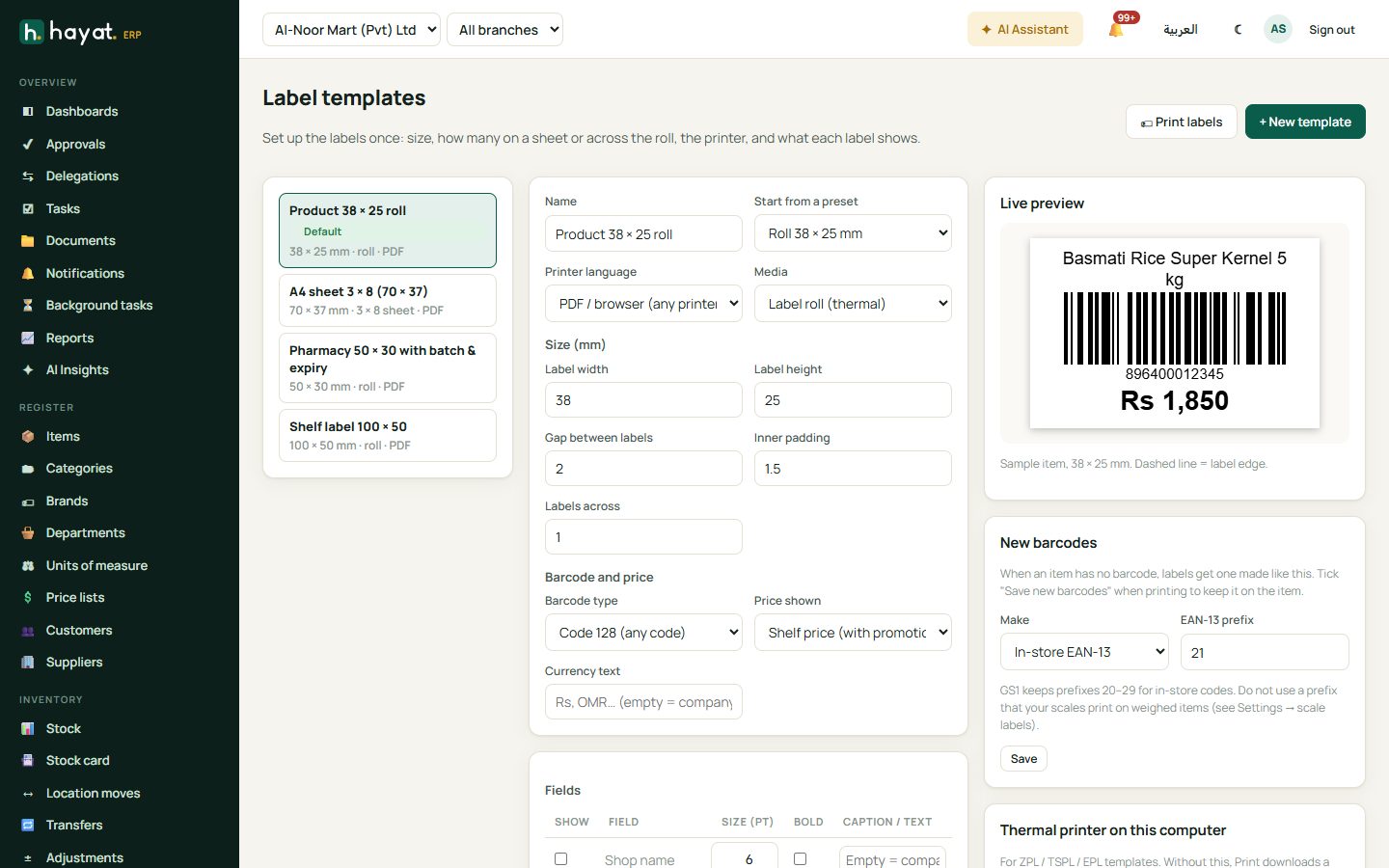
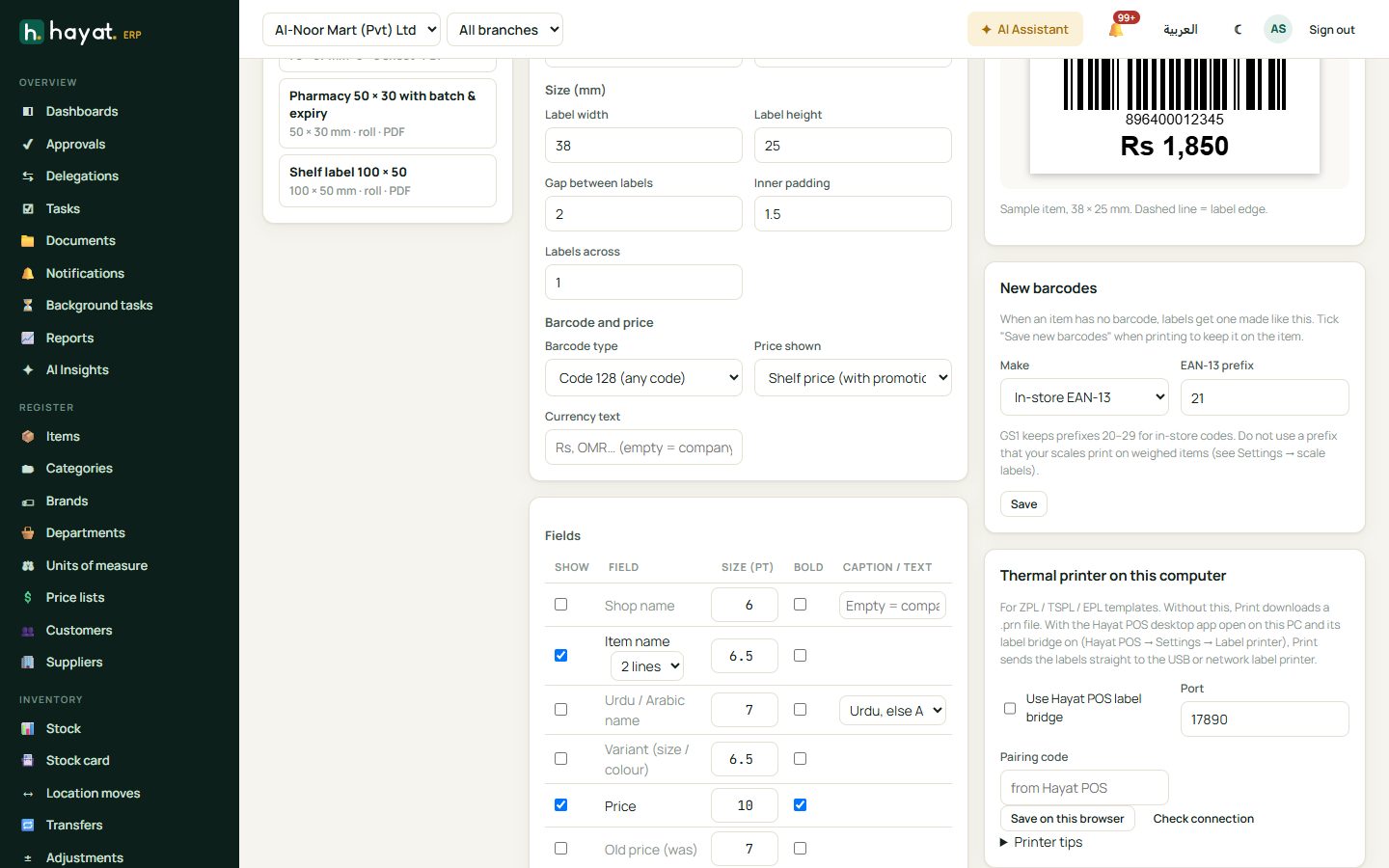
Inventory → Label templates (inventory.edit) sets up each kind of label once. A company starts with four PDF templates:
| Template | For |
|---|---|
| Product 38 × 25 roll (the default) | Name on two lines, price and barcode — supermarket and garment tags |
| Pharmacy 50 × 30 with batch & expiry | Shop name, name in bold, price, barcode, batch and expiry |
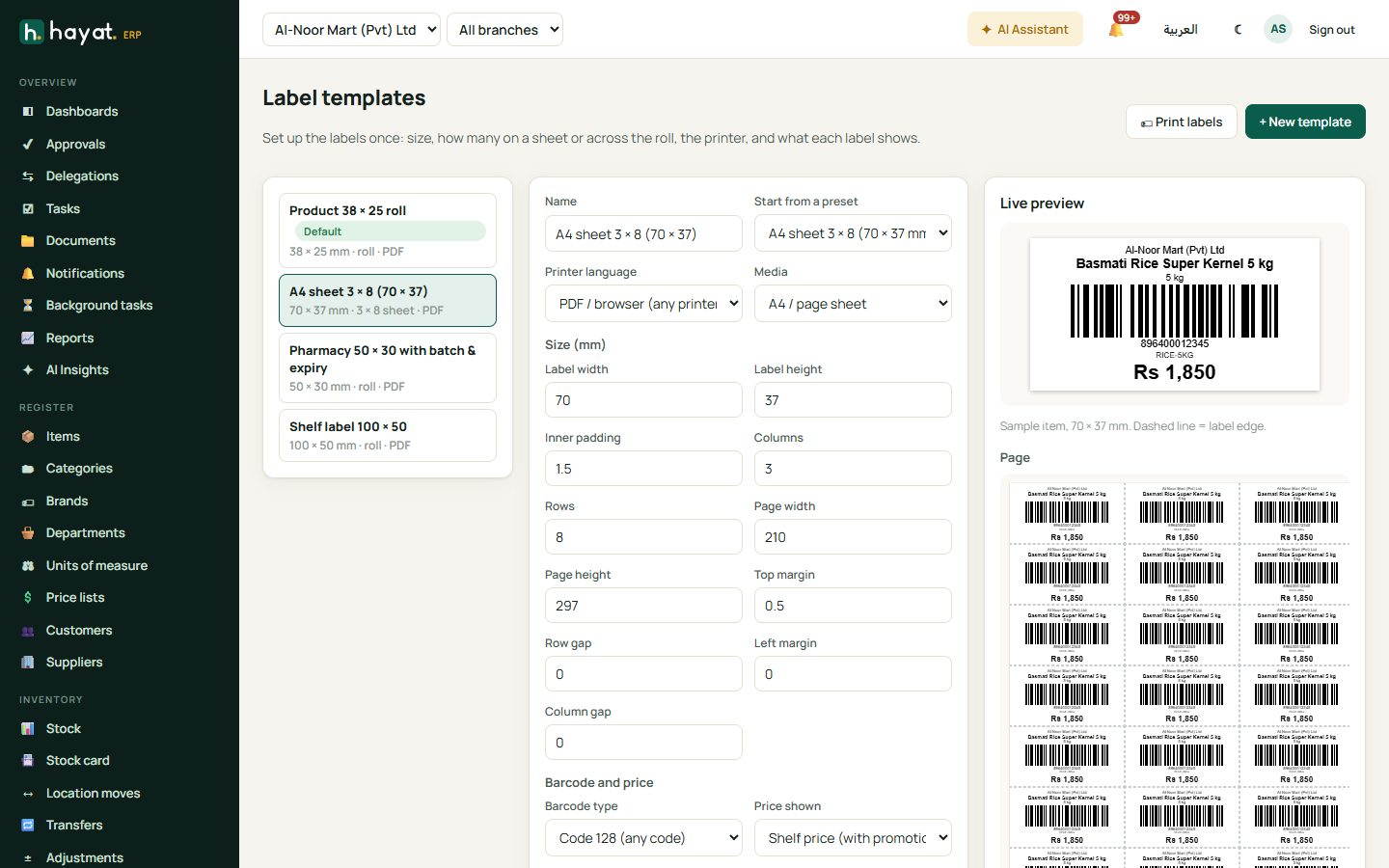
| A4 sheet 3 × 8 (70 × 37) | 24 labels on an A4 sheet: shop, name, variant, price, barcode and SKU |
| Shelf label 100 × 50 | Big price with the old price, the Urdu / Arabic name, barcode and SKU |
- Click + New template, or choose a template on the left to change it.
- Type the Name and pick Start from a preset (below) or Custom size.
- Choose the Printer language — PDF / browser (any printer), ZPL · Zebra, TSPL · TSC, Xprinter, Gprinter or EPL2 · older Zebra / Eltron — and the Media: Label roll (thermal) or A4 / page sheet. A sheet always prints as PDF.
- Under Size (mm) set the Label width and Label height, the Gap between labels (rolls), the Inner padding, and Labels across (rolls with 2 or more labels side by side) or the Columns and Rows of a sheet with its Page width, Page height, Top margin, Left margin, Row gap and Column gap.
- For a printer language, set the Printer: Resolution (203, 300 or 600 dpi), Darkness and Speed (inch/s).
- Under Barcode and price choose the Barcode type, the Price shown and the Currency text.
- In Fields, tick what the label shows and set each one's size, Bold and caption (below).
- Tick Default template for the one Print labels opens with, and Active. Click Test print, then Save.
The Live preview shows a sample item (basmati rice 5 kg with an Urdu name, an old price, batch and expiry) at the template's size — the dashed line is the label edge — and for a sheet the whole A4 page. The warnings and, for a printer language, the printer commands are under it.
Limits: labels 10–250 mm wide and 6–300 mm high, 1–12 across, 1–40 rows, fonts 0–72 pt, the name on 1–3 lines. A sheet must fit on its page ("The labels do not fit on the page. Check the size, margins and gaps.").
Presets: roll sizes and A4 sheets
| Preset | Kind | Good for |
|---|---|---|
| Roll 38 × 25 mm | Roll | Supermarket and garment price tags |
| Roll 38 × 25 mm, 2 across | Roll, 2 across | 2-up rolls on 80 mm printers |
| Roll 50 × 25 mm | Roll | Grocery, hardware, electronics |
| Roll 50 × 30 mm | Roll | Pharmacy (batch and expiry), cosmetics |
| Shelf label 100 × 50 mm | Roll | Shelf-edge price with old price |
| Jewellery tag 30 × 15 mm | Roll | Jewellery, watches, small accessories |
| A4 sheet 3 × 8 (70 × 37 mm, 24 labels) | Sheet | Products, files, shelf edges on a laser printer |
| A4 sheet 4 × 10 (48.5 × 25.4 mm, 40 labels) | Sheet | Products on a laser printer |
| A4 sheet 5 × 13 (38 × 21 mm, 65 labels) | Sheet | Small products, pharmacy, cosmetics |
Roll presets have a 2 mm gap (3 mm for the shelf label). Measure your own roll or sheet and change the sizes if they differ.
Fields
| Field | Caption / text |
|---|---|
| Shop name | Empty = the company name, or your own text |
| Item name | 1, 2 or 3 lines |
| Urdu / Arabic name | Urdu, else Arabic, Urdu or Arabic — PDF only |
| Variant (size / colour) | — |
| Price, Old price (was) | — |
| SKU | A caption, e.g. Code |
| Barcode | Its size is the digits under the bars (0 = no digits) |
| Batch, Expiry, Packed / Mfg date, Weight | Captions B:, Exp:, Pkd:, Net wt: (change them, e.g. Mfg:) |
| Custom text | The text, e.g. Prices include GST |
The name, shop name, Urdu name and variant sit at the top; the price row at the bottom (the old price on the left, struck through); one or two detail lines (SKU, batch, expiry as MM/yyyy, packed date, weight, custom text) above it; and the barcode fills the middle — at most 60 mm wide and 25 mm high, a QR code at most 30 mm. The web preview, the PDF, Hayat POS and the printer commands all use the same layout.
- Expiry comes from the line, else the batch, else the packed date plus the item's shelf life.
- Weight is the line's weight, else the item's net weight and unit.
Price and old price
| Price shown | Prints |
|---|---|
| Shelf price (with promotions) | The branch's price with running promotions, as the till would charge |
| Printed retail price (MRP) | The item's retail price |
| A price list | That list's price (the line's or the screen's Price list first) |
The Old price is the first of these that is higher than the price: the regular price when a promotion is lower, the MRP, or the price before a change in the last 90 days. Whole rupee amounts print without decimals (Rs 1,250); OMR prints three decimals. Currency text replaces Rs or the currency code.
Barcodes
| Barcode type | Use |
|---|---|
| Code 128 (any code) | Letters and digits: SKUs, in-store codes |
| Auto (EAN when valid) | EAN-13 / EAN-8 when the code is a valid one, else Code 128 |
| EAN-13, EAN-8, UPC-A | Manufacturer barcodes (a UPC-A also takes a 13-digit EAN starting with 0) |
| QR code | Square code; needs room on small labels |
A code one digit short of an EAN gets its check digit added. A wrong check digit, the wrong length or letters print as Code 128 with a warning ("barcode … has a wrong check digit (should end in …), printed as Code 128."). Code 128 leaves out characters it cannot encode.
In-store barcodes
An item without a barcode (and without an extra or pack barcode) gets one made for the label. The New barcodes card on Label templates sets how:
- In-store EAN-13: the EAN-13 prefix (1–5 digits, 21 by default) plus a number not used by any item, with its check digit.
- Code 128 from the SKU: the SKU itself as the barcode.
A made-up barcode is only on the label until it is saved: tick Save new barcodes to items that have none when printing (inventory.edit), and Hayat writes it to the item's Barcode — the till then finds it. Without it the warning says "… had no barcode; a new one was made for the label but not saved, so the till will not find it."
Print on any printer (PDF)
PDF templates print from the browser's print dialog at the exact size.
A4 sheets on a laser or inkjet printer:
- Load the sheet of labels in the tray the right way up.
- In the print dialog choose the printer and A4 paper, Margins: None, Scale: 100% (or Actual size) — never Fit to page.
- Print one page on plain paper first and hold it against a label sheet to check the line-up.
- For a part-used sheet, set Start at label no. on Print labels to the first empty label.
Rolls on a label printer through its Windows driver (any make):
- Install the printer's Windows driver.
- In Windows → Printers → the printer → Printing preferences, set the paper (stock) size to the label size — for example 38 × 25 mm or 50 × 30 mm — and calibrate the media there or on the printer.
- In the browser's print dialog choose that printer and the same paper size, Margins: None, Scale: 100%.
Each page is one row of labels: one label, or the whole row of a 2-across roll.
Thermal label printers
| Printer | Language | Notes |
|---|---|---|
| Zebra GK420d/t, ZD220 / ZD230, ZD421, ZT230 | ZPL | Install the ZDesigner driver. A network Zebra listens on port 9100. |
| Older Zebra LP 2844 / TLP 2844, Eltron | EPL2 | QR codes need newer firmware; ASCII text only. |
| TSC TE200, TE210, TTP-244 Pro, DA210 | TSPL | Install the TSC driver; network models also use port 9100. |
| Xprinter XP-360B, XP-365B, XP-420B, XP-470B; Gprinter GP-1324D, GP-3120TU | TSPL | Many are receipt and label printers in one: put them in label mode (Xprinter: hold Feed while switching on, or use the Xprinter tool). Install the maker's driver; Generic / Text Only also works. |
Resolution: most shop label printers are 203 dpi (8 dots per mm); some are 300 dpi (12 dots per mm). Set the template to the printer's resolution or the labels print at the wrong size.
Darkness and speed: start at darkness 10 (ZPL, 0–30) or 8 (TSPL, 0–15; EPL is also 0–15) and speed 3–4. Raise the darkness for faint barcodes; lower the speed for small barcodes at 203 dpi.
Installing the Windows driver: install the maker's driver (ZDesigner, TSC, Xprinter or Gprinter) and check the printer's name in Windows Settings → Printers. Hayat POS sends the commands through that driver unchanged ("raw").
Calibrate the gap sensor
Calibrate whenever you load a roll of another size; otherwise labels drift or every other label comes out blank.
- Zebra: hold Feed until the light flashes twice.
- TSC: use the Feed button calibration or the TSC Diagnostic Tool.
- Xprinter / Gprinter: switch to label mode and calibrate with the maker's tool or the Feed button.
Hayat's printer commands are for labels with a gap between them (die-cut labels): the template's Gap between labels is sent to the printer. For a roll with a black mark on the back, use a PDF template and choose black-mark media in the printer's own driver settings.
Print through Hayat POS on Windows
Hayat POS prints labels on the till PC's label printer — from its own Labels screen, or for the web app through its local bridge.
Label printer settings
Hayat POS → Settings → Label printer (kept on this PC):
- Choose the printer type: Windows printer, raw ZPL / TSPL / EPL (USB), Network label printer (IP, port 9100) (type the Printer IP address and Port) or Any printer, PDF labels.
- For a Windows printer type the Printer name as Windows shows it, or tap it in the list under the box. For PDF labels an empty name means Windows asks every time — set the printer's paper size to the label size.
- Save label printer, then Test label. In raw mode the test sends a small ZPL label and a small TSPL label; the printer prints the one in its own language and ignores the other.
The Labels screen
In the till's menu, Print barcode labels (or Print barcode labels in the menu of the screen shown when no shift is open):
- Scan a barcode, or type a name or SKU and press Enter.
- Or choose Or load from — Goods receipt (GRN), Stock transfer, Purchase bill, Stock count or Price changes (last 7 days) — pick the document and Load.
- Set each line's number of labels with − and +; Clear empties the list.
- Choose the Template; for a sheet, set Start at label no.
- Click Print n labels.
Templates with printer commands go raw to the label printer — they need a Windows (raw) or network label printer in Settings. PDF templates go to the printer named in Settings, or through the Windows print dialog. Urdu and Arabic names in PDF labels use a font Hayat POS downloads once; without the internet that line is left off.
Templates, prices, price lists and new barcodes are managed on the web: the Labels screen prints each template with its own Price shown and has no price list or packed-date choice.
Print from the web through the bridge
The bridge lets Inventory → Print labels on the web send ZPL / TSPL / EPL labels to the label printer of the PC it runs on, through Hayat POS. It works with raw printers (Windows or network), only on Windows, and only while Hayat POS is open.
- In Hayat POS → Settings → Label printer, choose a raw label printer (above).
- Switch on Let the web app print labels on this printer. Keep the Port (17890) unless another program uses it. Note the Pairing code (New code makes another).
- Check Web addresses that may print — https://hayaterp.com by default; add your own server's address, separated by commas.
- Save label printer. It says Bridge running on 127.0.0.1:17890. Hayat POS starts the bridge again by itself each time it opens.
- On the same PC, in the browser, open Inventory → Label templates and, in Thermal printer on this computer, tick Use Hayat POS label bridge, type the Port and the Pairing code, and click Save on this browser.
- Click Check connection: Connected · printer: …. From now on Print on Print labels sends ZPL / TSPL / EPL templates to the printer.
- Newer Chrome and Edge may ask whether hayaterp.com may access devices on your local network — answer Allow. If the browser blocks it, use Download .prn or print from the Hayat POS Labels screen.
- The bridge answers only on this PC (127.0.0.1), only the allowed web addresses, and only with the pairing code; it only prints. The bridge setting is kept in that browser only, so do steps 5–6 in each browser that prints.
Troubleshooting
| Problem | What to check |
|---|---|
| Blank labels, or every other label blank | Calibrate the gap sensor; check the template's Label height and Gap between labels match the roll. Raise the Darkness. |
| Nothing prints from a thermal printer | The template's Printer language must be the printer's (ZPL for Zebra, TSPL for TSC / Xprinter / Gprinter) — a printer ignores commands in another language. An Xprinter or Gprinter must be in label mode. |
| Print is shifted, too small or split over two labels (PDF) | In the print dialog: the label's paper size, Margins: None, Scale: 100%. For a roll, the same paper size in the driver's printing preferences. |
| Print is shifted on a thermal printer | Calibrate; check Label width, Resolution (203 or 300 dpi) and, on 2-across rolls, Left margin and Column gap. |
| A4 labels do not line up | Print on plain paper and compare with the sheet; adjust Top margin, Left margin, Row gap and Column gap. |
| Barcodes do not scan | A long Code 128 on a narrow label is too dense at 203 dpi ("Barcode … may be too long for this label width"): use EAN-13, a shorter SKU or a wider label. Raise the darkness, lower the speed, and never print PDFs scaled to fit. |
| The till does not find a label's barcode | It was made for the label but not saved. Print again with Save new barcodes to items that have none, or type the barcode on the item. |
| "no room for the barcode; turn some fields off or use a bigger label" | Turn fields off, use smaller fonts or a bigger label. |
| Urdu names are missing | Urdu and Arabic print only with PDF templates ("Urdu / Arabic names print only in PDF / browser mode"). |
| QR does not print on an older Zebra | QR in EPL needs newer firmware; use ZPL or PDF. |
| "Hayat POS is not reachable on this computer…" | Open Hayat POS on this PC and switch the bridge on; check the port. |
| "Wrong pairing code…" | Type the code shown in Hayat POS → Settings → Label printer again. |
| "This web address may not print here…" | Add the address you use in Web addresses that may print. |
| "Hayat POS has no raw label printer…" | Choose a Windows (raw) or network label printer in Hayat POS. |
| "Port … is busy or blocked" | Another program uses the port: choose another one in Hayat POS and on the web. |
| "The printer "…" did not print." | Check the printer name in Windows Settings → Printers and that the printer is on and loaded. |
Workflow
- The manager sets up the label templates once and prints a Test print of each.
- Goods arrive: after posting the goods receipt, 🏷 Print labels prints one label per piece received, with batch and expiry.
- Prices change: load Price changes since a date and print new shelf labels.
- New items without a barcode: print with Save new barcodes so the till scans them.
Where the money goes
Nowhere — labels post no journal and do not change stock. Saving a new barcode changes only the item's Barcode field.