
Hayat Reports: dashboards
reports.hayaterp.com/dashboards ↗Dashboards in Hayat Reports — the 16 starter templates, the dashboard designer (add tiles, move and resize, KPI, text and image tiles, global filters), cross-filtering, drill-down, TV mode and auto refresh, print / PDF, export, sharing, email schedules and public read-only links.
A dashboard puts several reports, KPI cards, notes and pictures on one page with filters for all of them — a period, a branch, a till. Click a bar and every other tile follows. Dashboards live in Hayat Reports at reports.hayaterp.com; open them from Dashboards in the left rail or from the home page.
Who does what
| Who | Can |
|---|---|
| Everyone with bi.view | Open dashboards shared with them, change the filters, cross-filter, drill down (with bi.create), TV mode, print, export, favourites. |
| bi.create | Make dashboards, use templates, edit their own (and those shared with viewers may edit), duplicate. |
| bi.share | Share, Schedule email…, Public link…; the Schedules and Shared links pages. |
| bi.manage | Every dashboard of the company; Offer as company template; switch public links on. |
Each tile still needs the permission of its own data: a tile you may not read shows 🔒 and the reason instead of figures. See Hayat Reports: access, settings and limits.
Templates
Templates in the rail (and Start from a template on the home page) lists starter dashboards for the modules you use. A template is shown only when you may read all the data it uses. Use template makes your own private copy — change it as you like; the template stays as it was. The category chips filter the gallery.
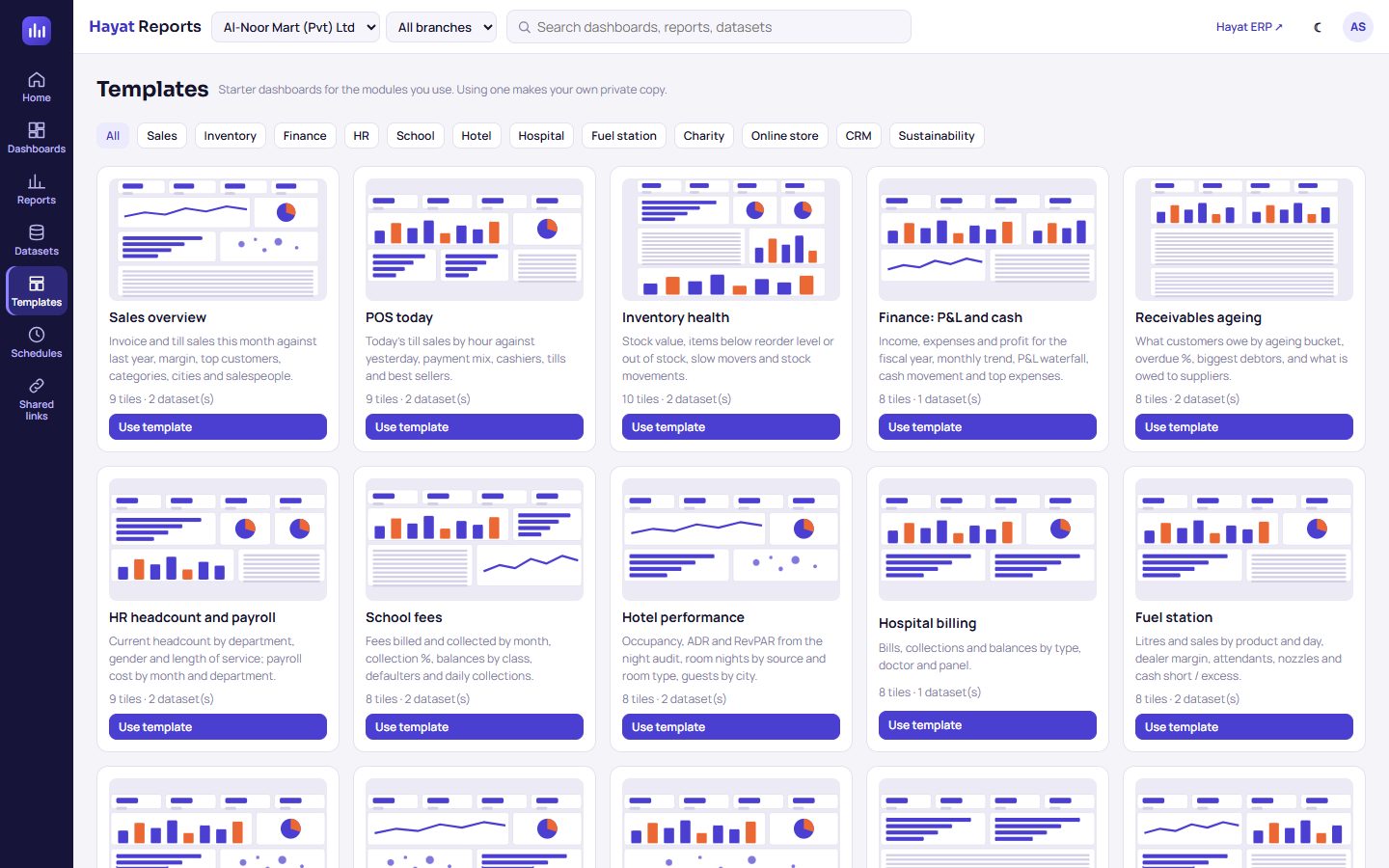
| Template | Category | What it shows | Filters |
|---|---|---|---|
| Sales overview | Sales | Invoice and till sales this month against last year, margin, top customers, categories, cities and salespeople. | Period (This month), Branch |
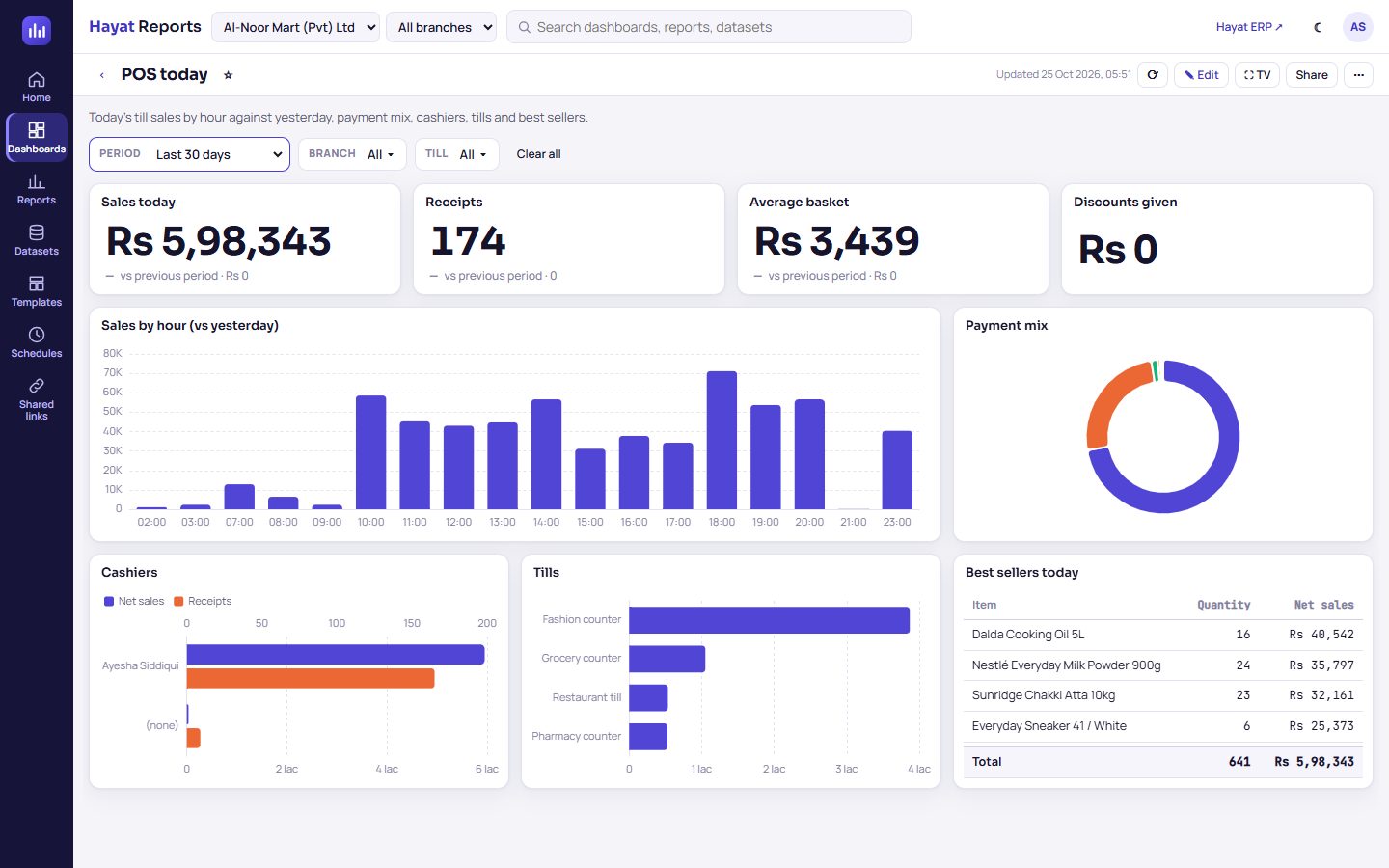
| POS today | Sales | Today's till sales by hour against yesterday, payment mix, cashiers, tills and best sellers. | Period (Today), Branch, Till |
| Inventory health | Inventory | Stock value, items below reorder level or out of stock, slow movers and stock movements. | Warehouse, Branch, Category |
| Finance: P&L and cash | Finance | Income, expenses and profit for the fiscal year, monthly trend, P&L waterfall, cash movement and top expenses. | Period (Fiscal year to date), Company, Branch |
| Receivables ageing | Finance | What customers owe by ageing bucket, overdue %, biggest debtors, and what is owed to suppliers. | Branch, Ageing bucket |
| HR headcount and payroll | HR | Current headcount by department, gender and length of service; payroll cost by month and department. | Branch, Department |
| School fees | School | Fees billed and collected by month, collection %, balances by class, defaulters and daily collections. | Campus, Class |
| Hotel performance | Hotel | Occupancy, ADR and RevPAR from the night audit, room nights by source and room type, guests by city. | Period (Month to date), Branch |
| Hospital billing | Hospital | Bills, collections and balances by type, doctor and panel. | Period (This month), Branch |
| Fuel station | Fuel station | Litres and sales by product and day, dealer margin, attendants, nozzles and cash short / excess. | Period (This month), Station |
| Donations | Charity | Donations by type (Zakat, Sadaqah…), campaign, method and month, with donors and average gift. | Period (Year to date), Fund |
| Online store | Online store | Orders and revenue by day, order status, payment methods and customer cities. | Period (This month), Channel |
| Hayat Bazaar sales | Online store | This shop's Hayat Bazaar orders by day, status, payment method and buyer city. | Period (This month) |
| Sales pipeline (CRM) | CRM | Open pipeline and weighted value, the stage funnel, win rate, owners and lead sources. | Owner |
| Helpdesk and SLA | CRM | Tickets by status, category and priority, SLA results and response / resolution times. | Period (This month), Category |
| Carbon footprint | Sustainability | Tonnes CO2e by scope, category and month for the year. | Period (Year to date), Branch |
A dashboard that a BI manager marks Offer as company template (in its ⋯ menu) appears in the gallery with a Company badge for everyone in the company.
Open a dashboard
The bar at the top: the name, ☆ favourite, Updated time, ⟳ refresh now (fresh figures, no cache), ✎ Edit (when you may change it), ⛶ TV, Share, and ⋯:
| ⋯ menu | Does |
|---|---|
| Print / PDF | Prints the whole dashboard on one A4 landscape page with the same layout, a line with its name, the filters in force and the time. Choose Save as PDF in the print box for a PDF. |
| Export to Excel, Export to CSV | The whole dashboard: Excel with one sheet per tile, CSV with one block per tile. |
| Auto refresh | Off, Every minute, Every 5 min, Every 15 min, Every 30 min, Every hour. |
| Light view / Dark view | Flips the dashboard's look for you only. |
| Schedule email…, Public link… | See Email schedules and Public links. |
| Duplicate, Version history | A copy of your own; the last 20 saves with Restore. |
| Offer as company template | BI managers. |
| Delete… | Deletes it for everyone, with its schedules and public links. |
Each tile has its own ⋯: Show data (the figures, with Download CSV), Export to Excel (with the dashboard's current filters), Export to CSV, Full screen, and Drill down on dates on a tile whose first field is a date.
Filters
The filter bar under the title holds the dashboard's global filters:
- Period (date): one of the relative periods, Custom range…, or As each tile (every tile keeps its own dates). It replaces the date range of every tile whose data has a date.
- List filters such as Branch, Till or Category: click, search, tick values, Done (Clear removes them). All means not filtered.
- Text contains and Number at least filters.
A filter applies to every tile whose dataset has that field; tiles without it are not filtered. Clear all removes every filter and cross-filter.
Cross-filtering
Click a bar, slice, point, table row, matrix cell or city in one tile and every other tile is filtered on that value — click Saddar in a Sales by branch bar and the KPI cards, the trend and the top-items table show Saddar only. A chip ⇄ Branch: Saddar appears in the filter bar; the tile you clicked keeps all its data and shows ✕ filter. Click the same value again, × on the chip or ✕ filter to clear it. A clicked month or week filters that whole month or week.
Others and weekday or hour parts cannot filter (That value cannot filter the other tiles.).
Drill-down
On a tile whose first field is a date: ⋯ → Drill down on dates, then click a bar or point — year → quarter → month → day. A breadcrumb shows where you are; ↑ goes back up; Stop drilling in the menu ends it. Drill-down needs bi.create.
TV mode and auto refresh
⛶ TV shows the dashboard full screen with no menus — for the shop-floor or office TV. It refreshes itself every 5 minutes unless you chose another Auto refresh (1 to 60 minutes; the choice is saved with the dashboard). Exit full screen (or Esc) returns.
The dashboard designer
+ New dashboard, ⋯ → Edit on a card, or ✎ Edit on an open dashboard opens the designer. It has the same canvas with handles, plus + Add, the Theme picker, Cancel and Save.
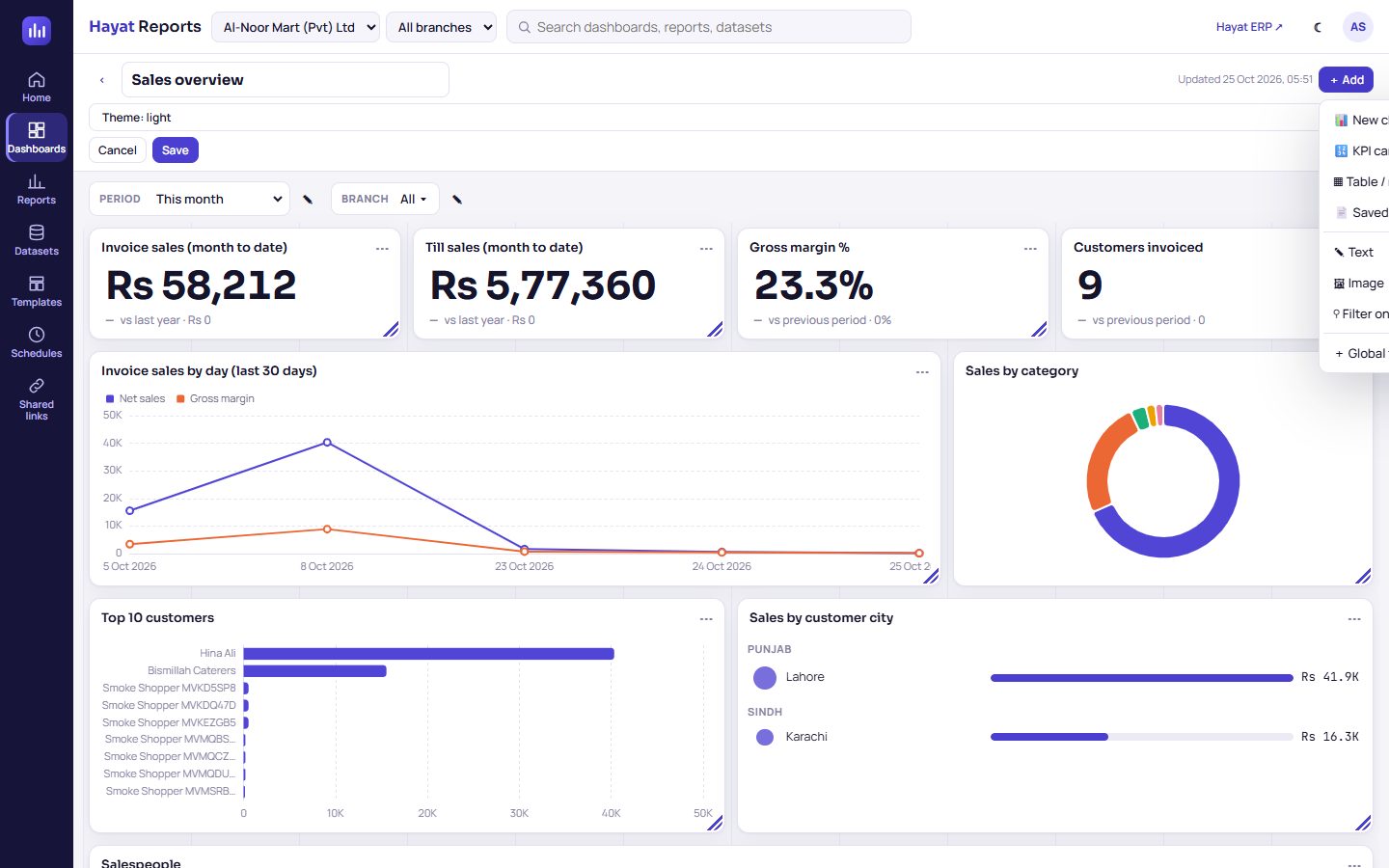
- Type the name at the top.
- + Add a tile: 📊 New chart, 🔢 KPI card, ▦ Table / matrix (the report builder opens full screen; Done puts the result on the dashboard), 📄 Saved report (pick one of your reports), ✎ Text, 🖼 Image, ⚲ Filter on the grid, or + Global filter.
- Move a tile by dragging its header; resize it from the bottom-right corner. Tiles snap to a 12-column grid, tiles in the way move down and everything floats up; Esc cancels a drag. New tiles go to the first free place.
- ⋯ on a tile: Edit, Duplicate, Remove tile.
- Choose the Theme: follow viewer, light or dark.
- Save. The first save asks for the name, folder and description.
| Tile | Set up |
|---|---|
| New chart / KPI card / Table | Built in the report builder and kept inside the dashboard. A KPI card starts with no row fields, Month to date and Compare with: Same period last year. |
| Saved report | Shows a saved report; Edit can change the Title and the Visual (As the report or another one); Open the report to change its fields ↗. When the report changes, the tile follows. |
| Text | Text with # headings, **bold**, *italic*, - lists, [links](https://…) and ---; a preview shows under the box. |
| Image | Image address (https://…), Fit: Whole image or Fill the tile. Only https addresses. |
| Filter on the grid | Places one of the global filters as a tile instead of in the bar (add the global filter first). |
+ Global filter opens Add a global filter: Kind — Date range, Pick values (list), Text contains or Number at least; for a date the Default period (or As each tile); otherwise the Field — every field of every dataset on the dashboard, with (n datasets) when several have it — and the Label. A dashboard has one date filter. In the designer ✎ next to a filter changes or Removes it.
Up to 40 tiles per dashboard. In the designer the tiles run as you edit, so unsaved tiles show live figures. A dashboard tile pointing to a report the viewer may not open shows 🔒; you cannot save a dashboard with a report you may not open.
Share
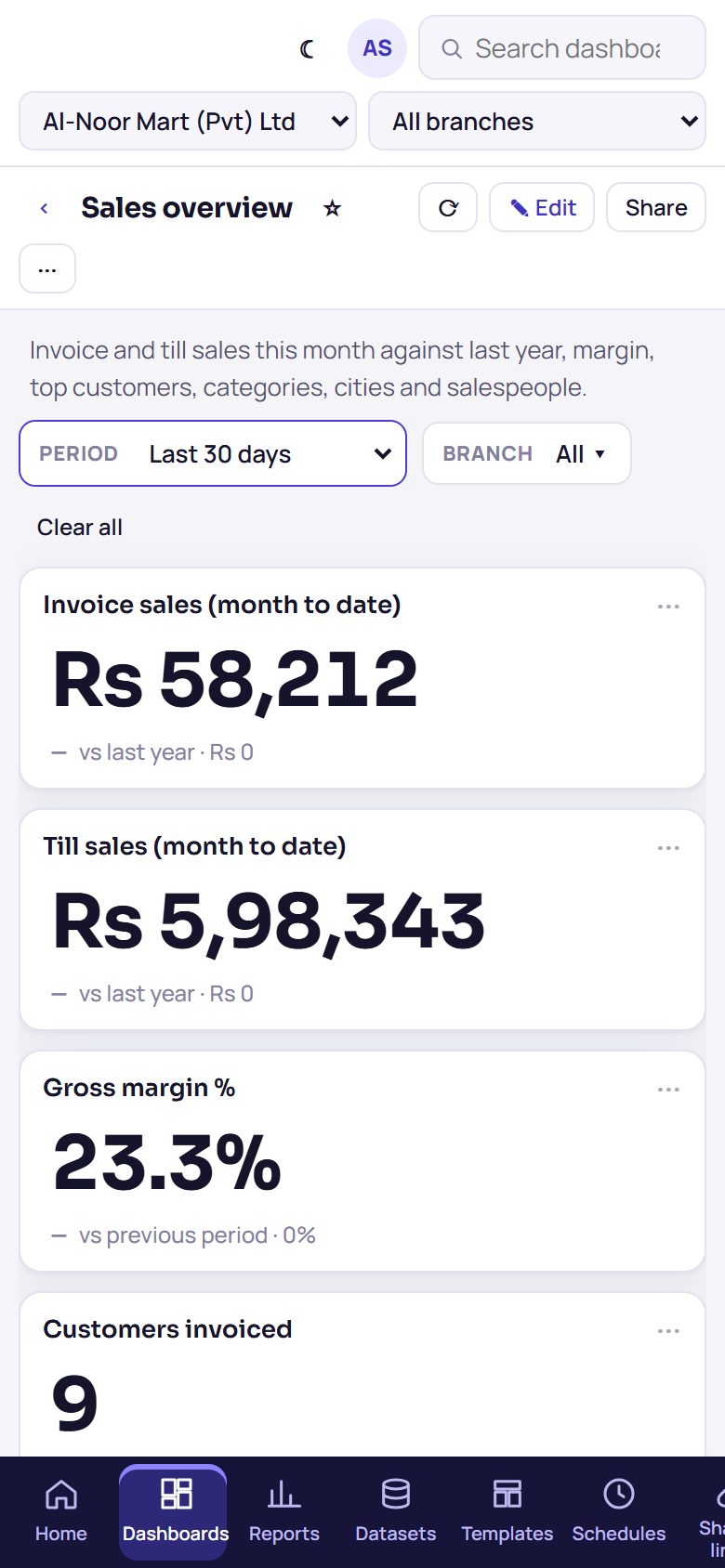
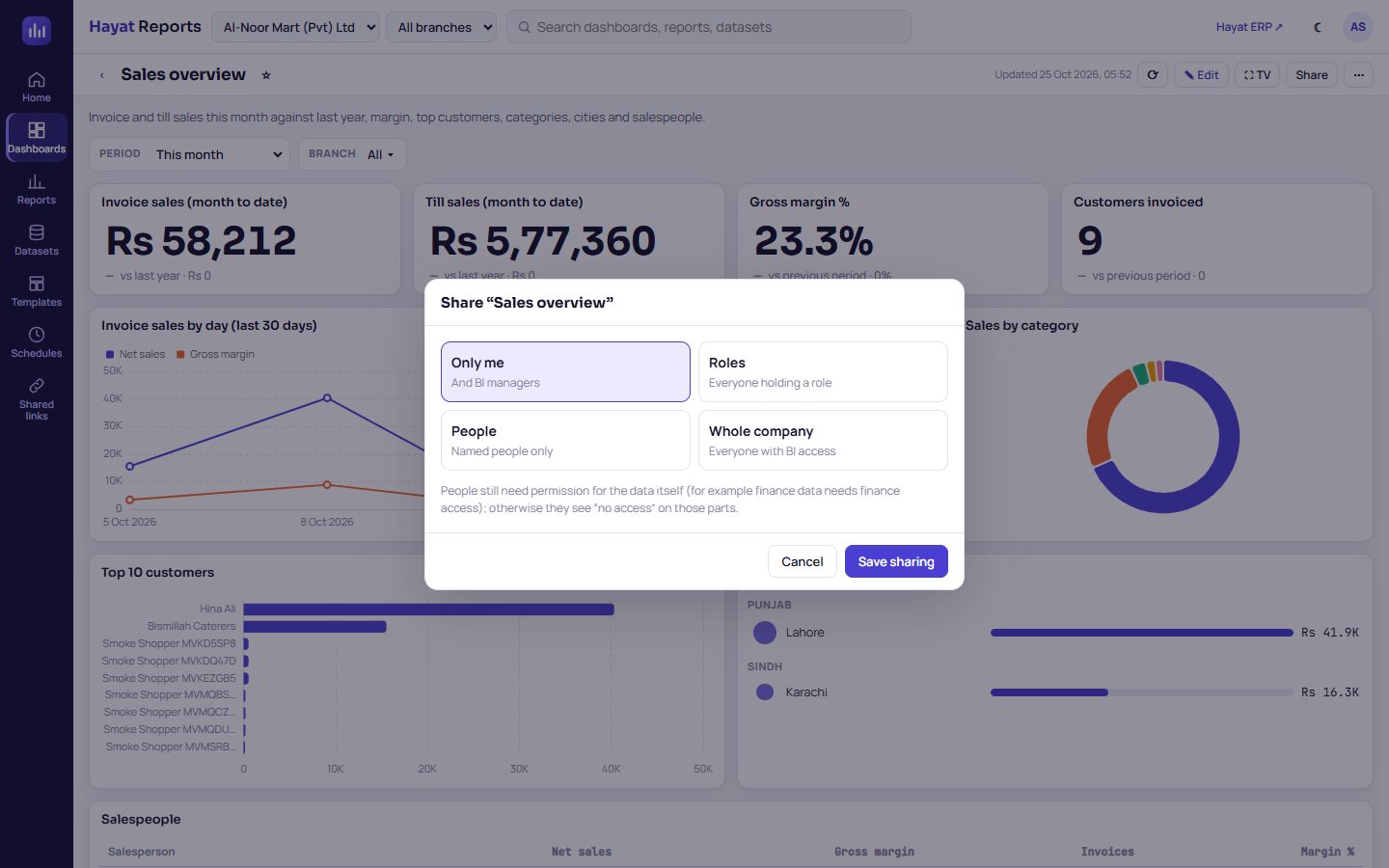
Share (on a dashboard) or ⋯ → Share… (on a report) opens Share "name":
| Choice | Who sees it |
|---|---|
| Only me | You and the BI managers. |
| Roles | Everyone holding one of the ticked roles, plus the people you tick. |
| People | Only the named people (those who hold the BI view permission). |
| Whole company | Everyone with BI access in this company. |
Tick Viewers who can build reports may also edit it to let them save changes (they still cannot delete it or change sharing). Save sharing. Viewers find it under Shared with me; to make their own version they Duplicate it. People still need permission for the data itself — otherwise they see no access on those tiles.
Email schedules
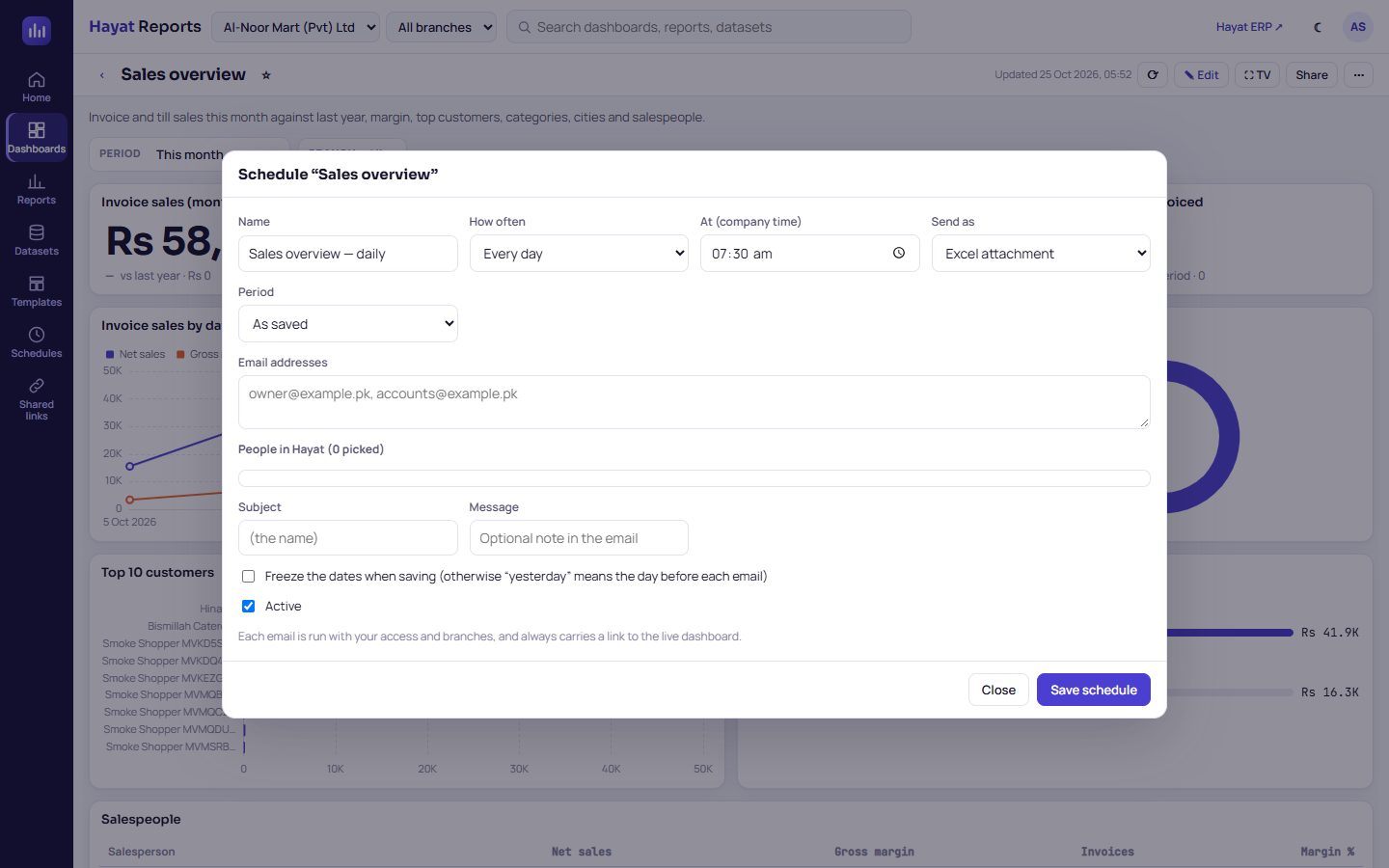
⋯ → Schedule email… on a report or dashboard sends it by email on a timetable. The box lists the existing schedules of that report or dashboard (Edit, Send now, Delete, their recent runs) and + New schedule:
- Name.
- How often: Every day, Every week (On a weekday) or Every month (Day of the month 1–28), At (company time).
- Send as: Excel attachment, CSV attachment, PDF attachment (reports only) or Link only (no attachment).
- Period: As saved, or a period for the email (e.g. Yesterday).
- Email addresses (comma-separated) and/or People in Hayat (their current email is used) — 1 to 50 recipients.
- Optional Subject and Message.
- Freeze the dates when saving — leave it off so that Yesterday means the day before each email; tick it to send the same fixed dates every time.
- Keep Active ticked and Save schedule.
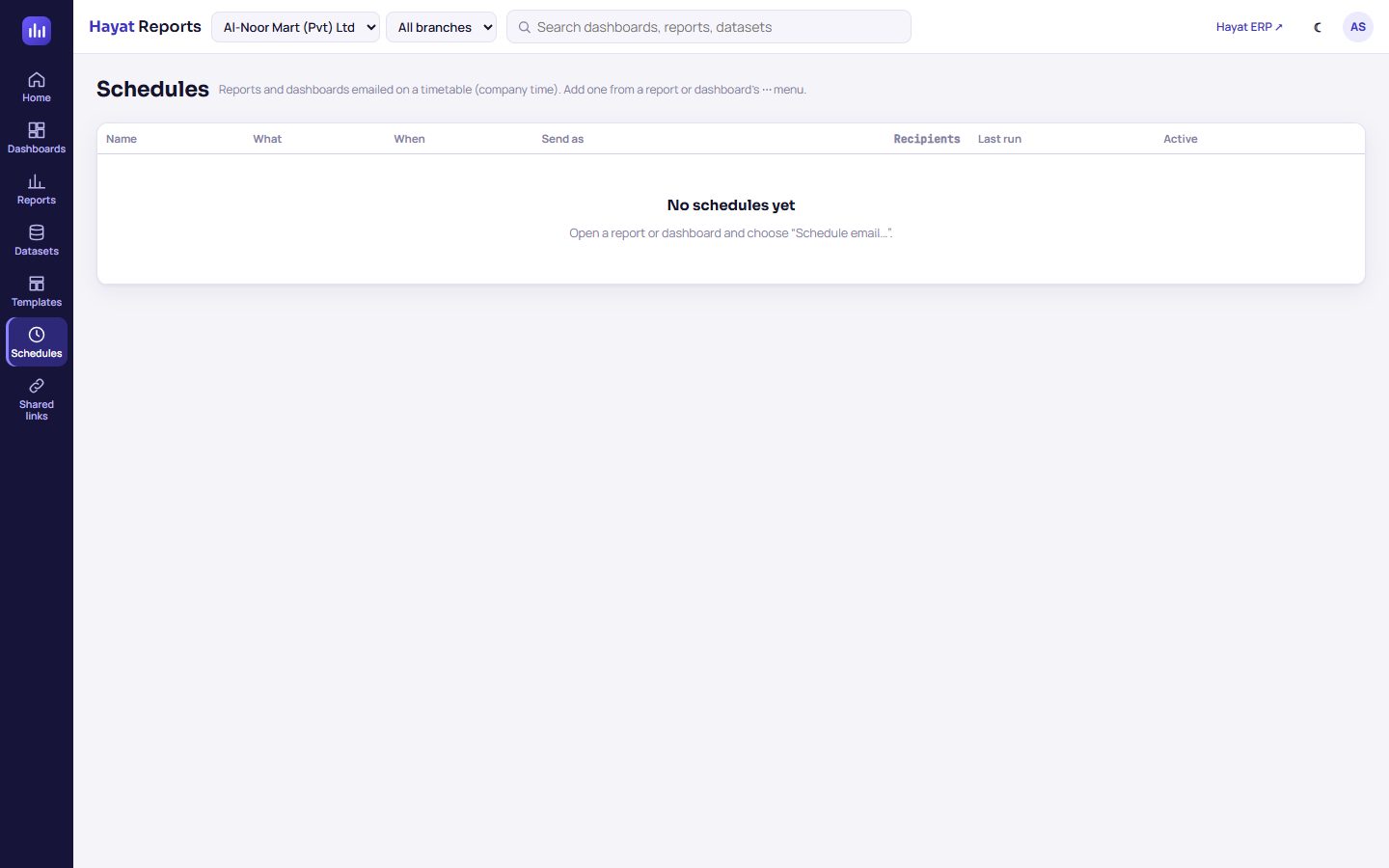
Hayat looks every 15 minutes and sends each schedule once on its day after its time — a 07:00 schedule arrives between 07:00 and about 07:15. Each email is run with the owner's access and branches and always carries a link to the live report or dashboard (recipients sign in to open it). The Schedules page in the rail lists every schedule (yours; the company's for BI managers) with What, When, Send as, Recipients, Last run and an Active switch; Edit / history, Send now, Delete.
Public links
A public link lets someone see one dashboard without signing in — for a board member, a partner or the TV in the shop.
Public links are off for every business until a BI manager switches them on (see Public links switch). Then, on a dashboard you own (or as a BI manager): ⋯ → Public link…, type a Label (e.g. Board members, TV in shop), choose the expiry (Expires in 7 / 30 / 90 / 180 / 365 days, or Never expires when the business allows it), Create link — it is copied. The list shows every link with its views, last view and expiry; Copy, Open, Revoke (then Yes, revoke). A revoked or expired link stops at once. At most 20 active links per dashboard.
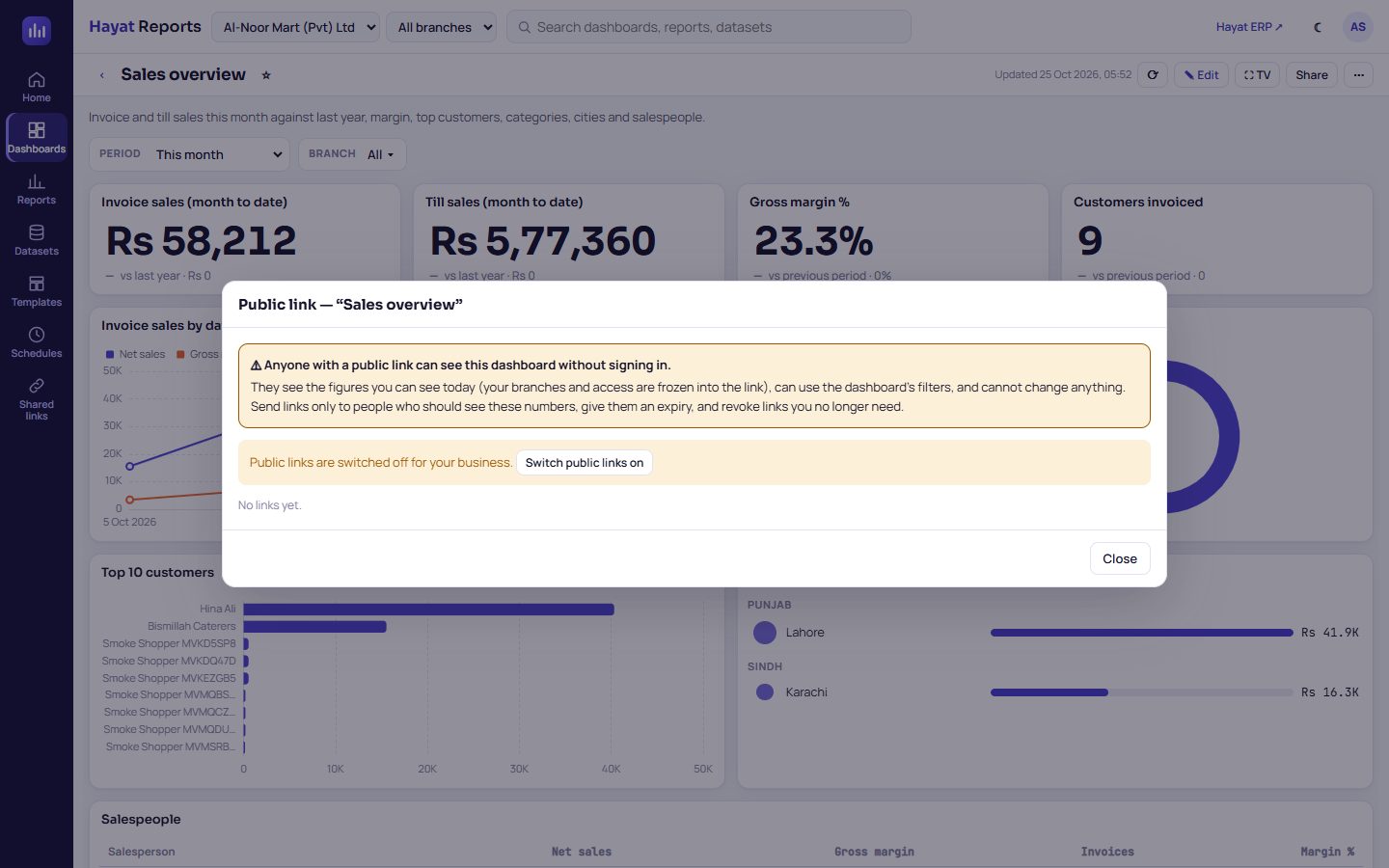
The page behind the link shows the dashboard Read-only with its filters, cross-filtering, full-screen tiles, Show data and CSV, ⛶ TV, Print and light / dark. Link not found means the link is wrong, revoked or public links were switched off; This link has expired asks for a new one. Shared links in the rail lists all public links of your dashboards (Active links only to hide old ones).
Workflow

Where the money goes
Nowhere: dashboards, schedules, exports and public links only read the figures — nothing is posted or changed.