
Reports, exports and scheduled reports
hayaterp.com/reports ↗The report library (sales, inventory, purchasing, financial and HR reports), filters, sorting, search and drill-down, Excel / PDF / CSV export and print, reports emailed on a schedule, where the other report screens are, and when to use Hayat Reports (self-service BI) instead.
Overview → Reports is the report library of the ERP. Every report has the same screen: pick the filters, Run, sort and search the result, click a row to open the record behind it, and keep a copy in Excel, PDF or CSV. Any report can also be emailed on a schedule — for example yesterday's branch sales to the owner every morning.
Who does what
| Permission | Can do |
|---|---|
| Operational reports (reports.view) | Open Reports. Each report also needs the permission of its area: See sales documents for sales reports, See stock for inventory, See purchasing documents for purchasing, See employees for HR (Calculate payroll for the payroll summary). |
| Financial statements (reports.financial) | The financial reports below and the financial statements screen. |
| Schedule reports by email (reports.schedule) | Scheduled reports: create, change, send now and delete schedules. |
The library shows only the reports your role may run. The Accountant role has the financial reports; Schedule reports by email is in the Management and Admin roles.
The report library
Reports lists the reports in groups, each with a one-line description. Type in Find a report to filter them by name or description.
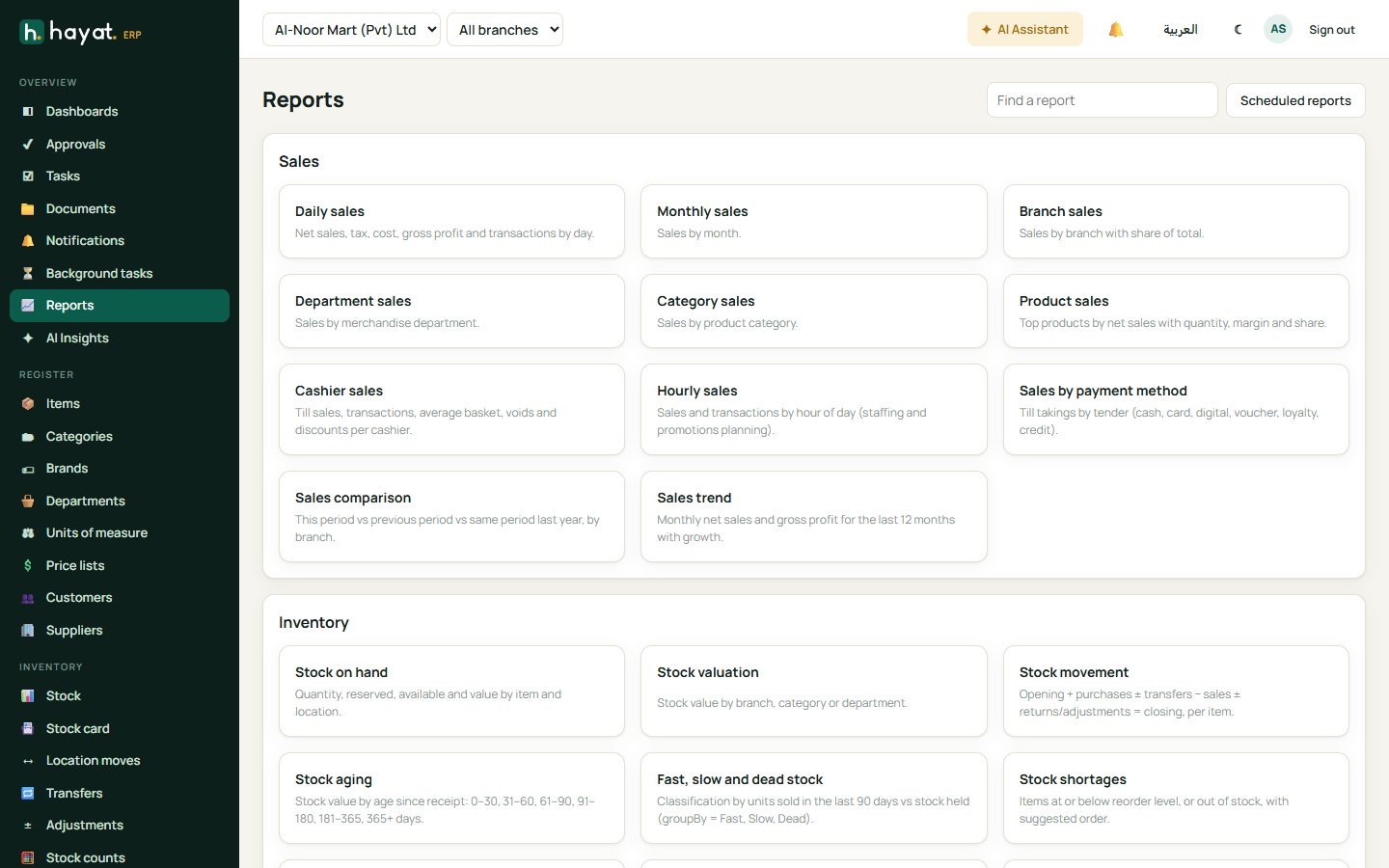
| Group | Reports |
|---|---|
| Sales | Daily sales · Monthly sales · Branch sales · Department sales · Category sales · Product sales (top products with quantity, margin and share) · Cashier sales (transactions, average basket, voids and discounts) · Hourly sales · Sales by payment method · Sales comparison (this period, previous period and same period last year, by branch) · Sales trend (last 12 months with growth) |
| Inventory | Stock on hand · Stock valuation · Stock movement (opening + purchases ± transfers − sales ± returns and adjustments = closing) · Stock aging (0–30 … 365+ days) · Fast, slow and dead stock · Stock shortages (with a suggested order) · Stock adjustments and write-offs · Stock transfers · Expiry report (expired or expiring within 90 days) |
| Purchasing | Purchase analysis (by supplier, item or month) · Outstanding purchase orders (received %, open value, days late) · Purchase returns |
| Financial | Profit and loss · Balance sheet · Cash flow · Trial balance · General ledger (one account with running balance) · Receivables aging · Payables aging · Branch profitability |
| HR | Headcount · Payroll summary · Employee turnover · Overtime · Leave taken · Attendance summary |
Run a report
- Click the report.
- Set the filters it offers: From and To (this month by default), Company, Branch (All branches), Group by (branch / category / supplier … where the report allows it), Consolidated (group) for the financial reports, Top (how many rows for a top-N report), Account id for the general ledger, and Search.
- Click Run.
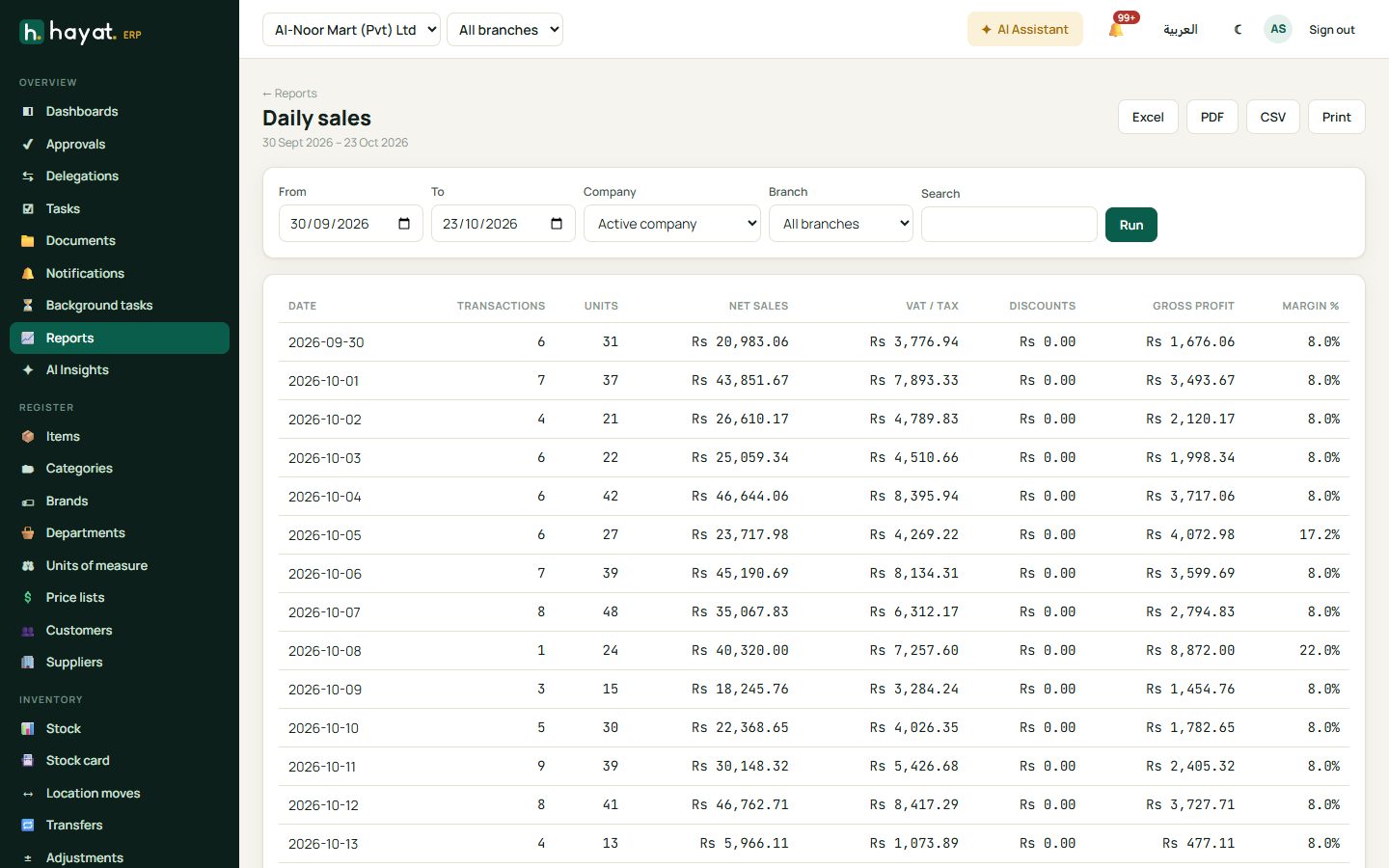
- Click a column heading to sort by it; click again to reverse (▲ / ▼).
- Type in Search and press Enter to keep only the rows that match.
- The total row at the bottom adds up the figures; the row count is under the table.
- When the report links to records (an item, a customer, a branch), click a row to open it.
Export and print
Excel, PDF and CSV download the report as it is on the screen — same filters, sort and search — with your company name and currency decimals. Print prints the page.
The financial statements (statement of financial position, profit or loss, cash flows, changes in equity and notes) have their own formatted Excel and PDF on the Financial statements screen. Lists elsewhere in Hayat have ⤓ Export to Excel; big exports and imports run in Background tasks (see Notifications and background tasks).
Scheduled reports
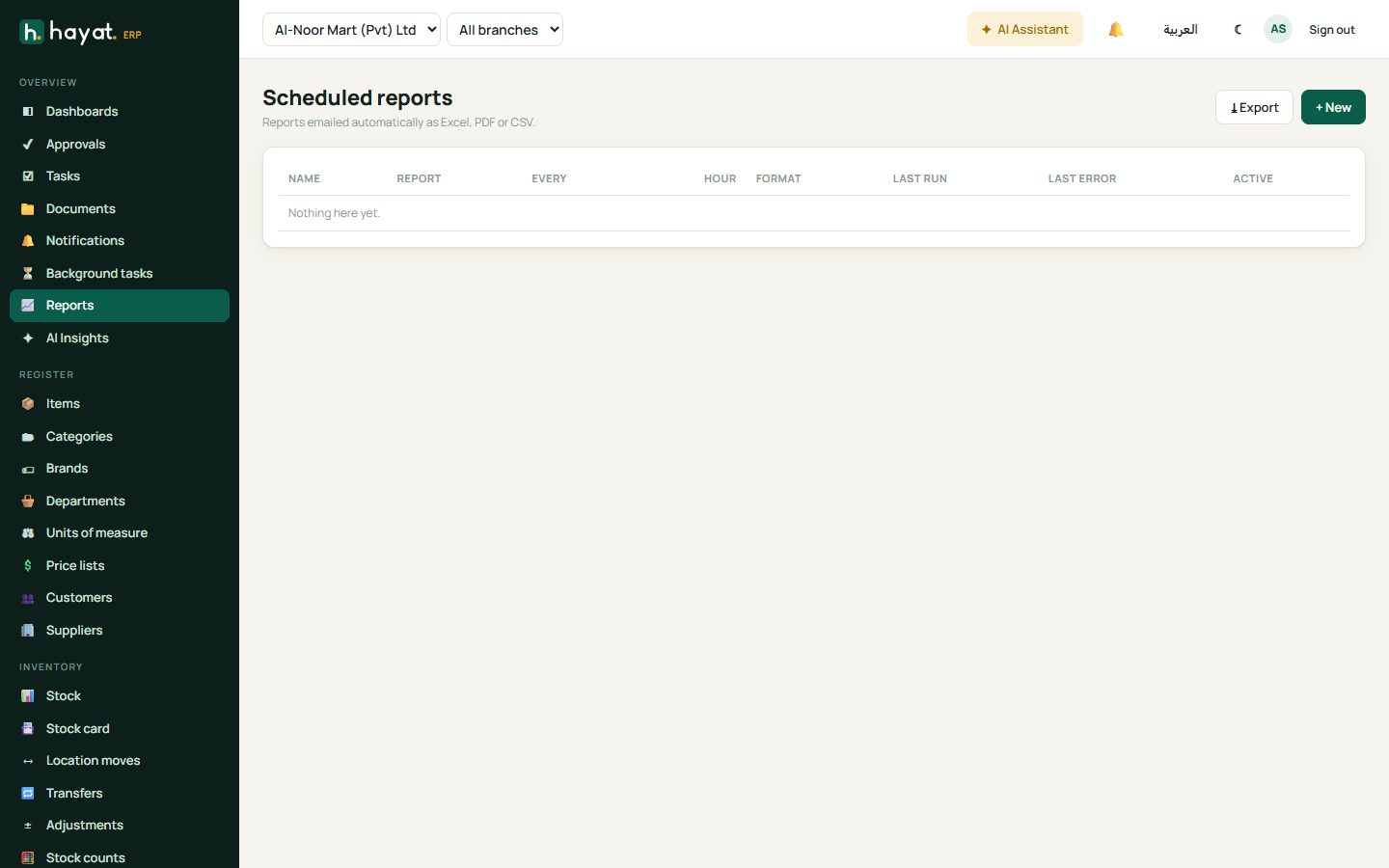
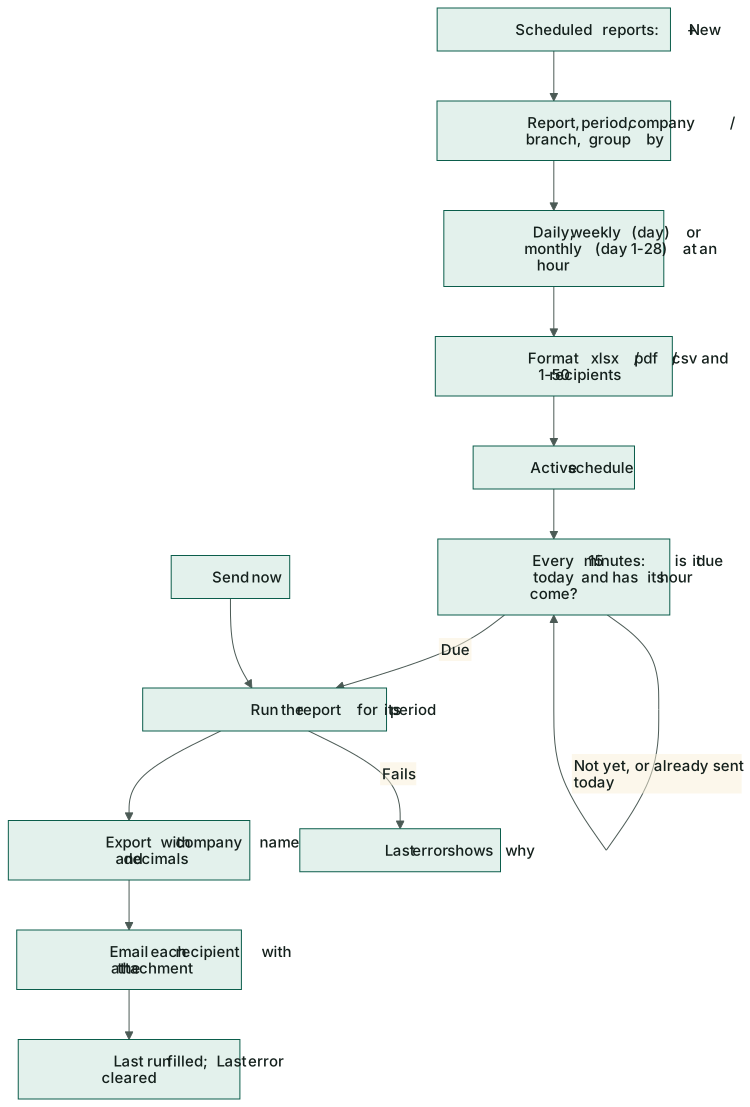
Reports → Scheduled reports emails reports by themselves. The list shows each schedule's report, how often, the hour, the format, Last run and Last error.
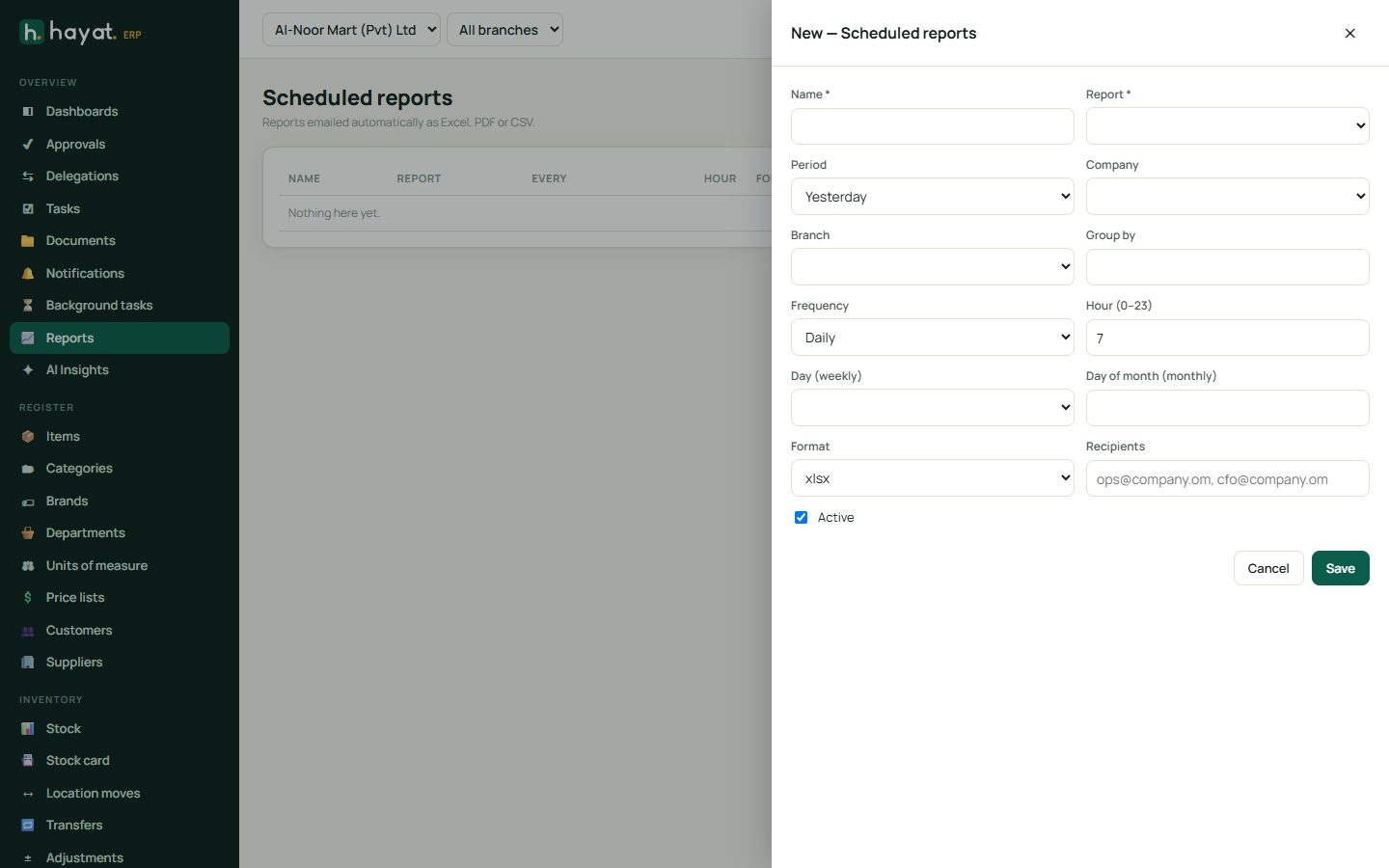
- Click + New.
- Type a Name (it becomes the email subject, with the date) and choose the Report.
- Choose the Period the report covers when it runs: Yesterday, Today, LastWeek (Monday to Sunday), MonthToDate, LastMonth or YearToDate.
- Optionally a Company, Branch and Group by.
- Choose the Frequency — Daily, Weekly (pick the Day (weekly)) or Monthly (a Day of month from 1 to 28) — and the Hour (0–23).
- Choose the Format (xlsx, pdf or csv) and type the Recipients — 1 to 50 email addresses.
- Keep Active ticked and save.
Hayat looks at the schedules every 15 minutes and sends each one once on its day, as soon as its hour has come. Each recipient gets an email with the report attached and a note that it was sent automatically. Open a schedule to change it, Send now to send it at once (it also fills Last run and Last error), or Delete it. Untick Active to pause it.
Other report screens
Each area also has its own reports screen, opened from its own menu:
| Area | Screen |
|---|---|
| Accounts | Financial statements (IAS 1 with comparatives and notes, trial balance, ledger, day book, budget vs actual) |
| Promotions | Discount report and log |
| Quality | Supplier quality and stock on hold |
| Data integrity | Reconciliations and exceptions |
| CRM, Helpdesk | CRM reports, Helpdesk reports |
| Online store | Running your online store |
| Hospital | Hospital reports |
| School, Hotel, Travel, Import & export, Shipping | School, Hotel, Travel, Trade, Shipping |
| Fuel station, Charity & NGO | Fuel reports and the DSR, Charity reports |
| Sustainability | ESG report and GHG summary |
| Self-service BI | Hayat Reports: your own reports on 25 datasets, dashboards from templates, sharing, email schedules and public links |
The four live dashboards are on Dashboards.
Workflow
Where the money goes
Reports only read: running, exporting or scheduling a report never posts anything. The financial reports read the general ledger, so they show whatever every module has posted — see How every module reaches the accounts.