
Fuel station workspace
fuel.hayaterp.com ↗For petrol pumps, CNG and fuel stations — tanks and dip charts, nozzles, prices and OGRA / OMC price changes, attendant shifts with meter readings and cash-up, fleet customers with fuel cards and statements, tanker receipts with short-receipt claims, dips, day close and the DSR.
The Fuel station workspace runs the forecourt of a dealer of PSO, Shell, TotalParco, Attock, Go, Hascol, Byco or any other OMC, and of Gulf stations (OQ, Al Maha, ADNOC, ENOC). A station is a branch: its tanks, pumps, attendants, prices and shifts belong to that branch. Fuels are set once for the whole company.
Lubricants, filters, the tuck shop and the car wash are ordinary items sold at a normal POS till — nothing special is needed for them.
Sign in
Station staff sign in at fuel.hayaterp.com with their Hayat email and password. It shows only the fuel screens, the Helpdesk and — for admins — users, roles and settings. The same screens are in the ERP under Fuel station.
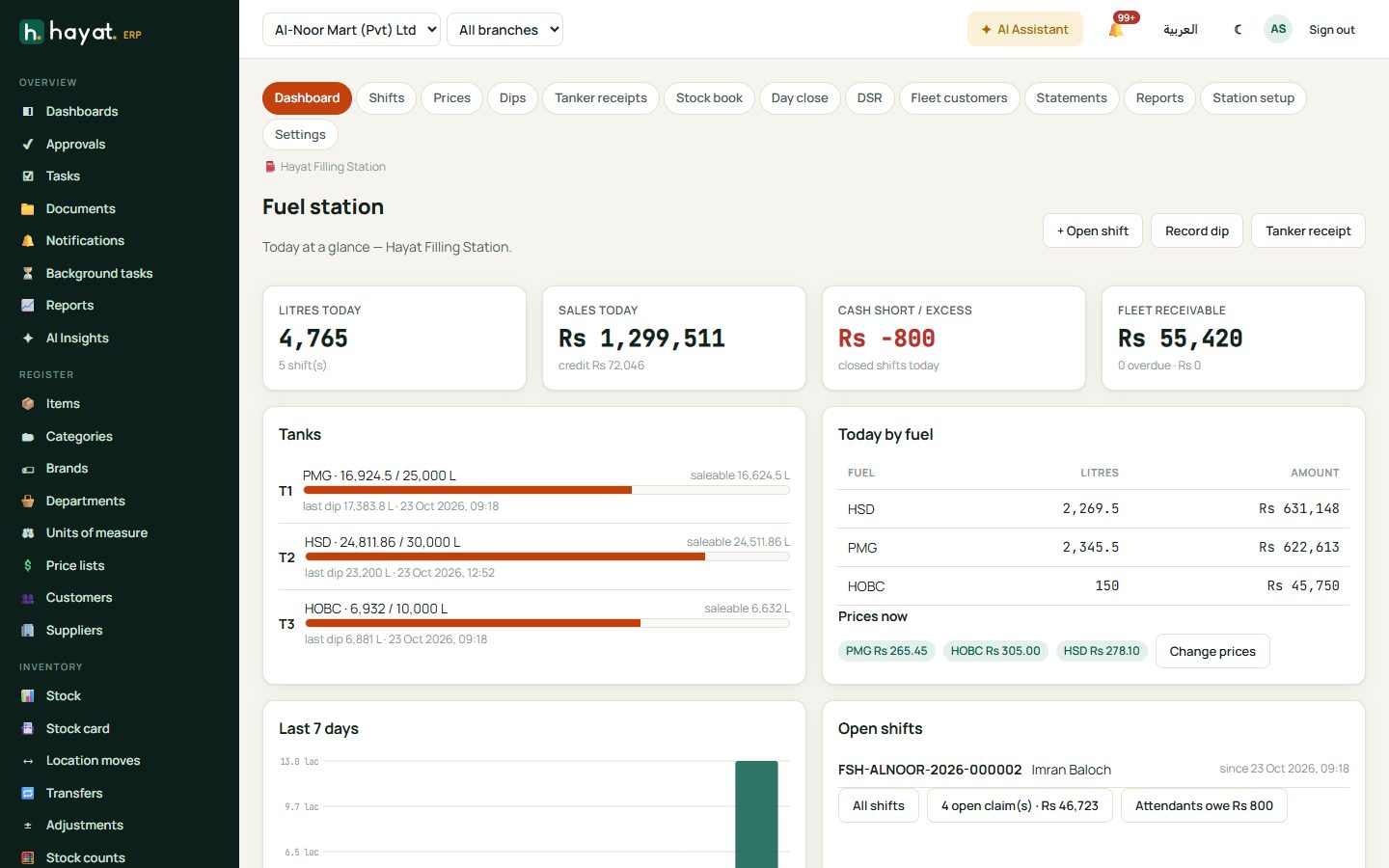
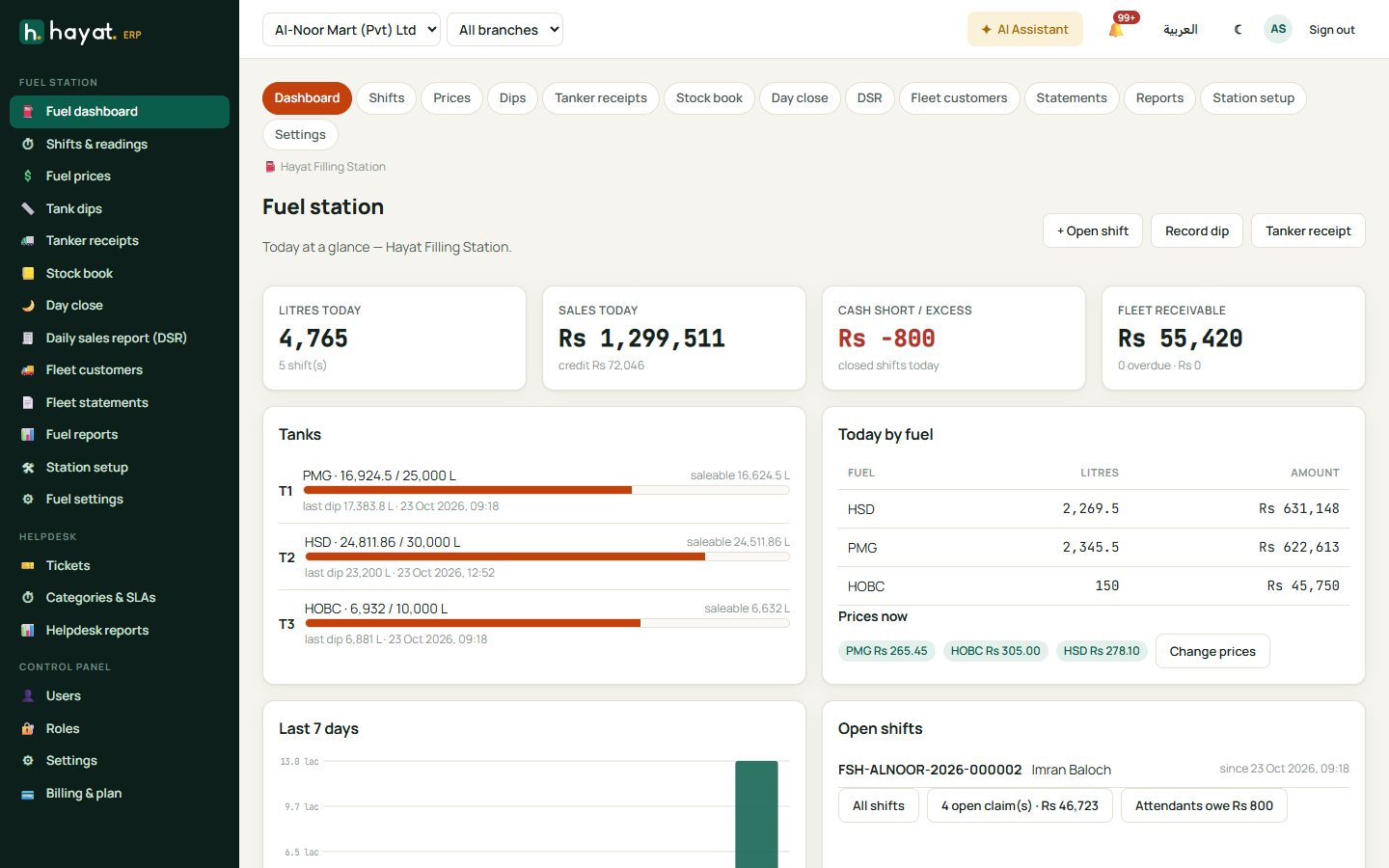
Every screen has the same pill bar at the top: Dashboard, Shifts, Prices, Dips, Tanker receipts, Stock book, Day close, DSR, Fleet customers, Statements, Reports, and for managers Station setup and Settings. With more than one station, pick it with Station on the right; when the top-bar branch is a station, that one is used.
Who does what
| Role | Permissions | Can do |
|---|---|---|
| Pump Attendant | See pumps, tanks, shifts and fuel sales (fuel.view); Open and close pump shifts, meter readings and cash-up (fuel.shift) | Open a shift, enter readings, collections and the cash count, write credit slips, close the shift. |
| Fuel Supervisor | also Tank dips, fuel receipts and stock variance (fuel.stock); Fleet / credit customers, vouchers and fuel cards (fuel.credit); reports | Dips, tanker receipts and claims, day close, fleet customers, cards, statements and payments. |
| Fuel Admin | everything above and Pumps, nozzles, tanks, fuel prices and station settings (fuel.manage), users and roles | Station setup, price changes, settings, attendant recoveries and write-offs. |
The Dealer margin report also needs reports.view.
The fuel dashboard
Litres today, Sales today (and credit), Cash short / excess of the shifts closed today, and the Fleet receivable with what is overdue. Below: each tank with a fill bar, the saleable litres, a low flag and the last dip; Today by fuel; Prices now with Change prices; the Last 7 days chart; Open shifts; open short-receipt claims; and what attendants owe.
+ Open shift, Record dip and Tanker receipt start the daily jobs. On an empty company, a Fuel Admin sees Load demo station (a PSO pump with tanks, nozzles, prices, a fleet customer and two shifts) to practise with.
Station setup
Station setup (fuel.manage) has five tabs.
- Stations → + Station: the Branch, Code, Name, Oil company (OMC), Dealer code, OMC as supplier (the OMC's supplier record; none if you pay tankers directly), phone, city, address, Licence no. (OGRA / explosives) and Licence expiry (you are warned 30 days before). Under Public price board, tick Show today's prices on a public page and set the Page name (slug) — see The public price board.
- Fuels → + Fuel: Code (PMG, HOBC, HSD, CNG, LPG…), Name, Kind, Unit (litre or kilogram), Tax % included in the pump price, Dealer margin per unit (official), the Evaporation and Short-receipt allowance % (blank = the settings), Expansion per °C and a colour. Untick Kept in tanks for pipeline CNG (no stock, revenue only). Create the inventory item FUEL-code makes the stock item for you.
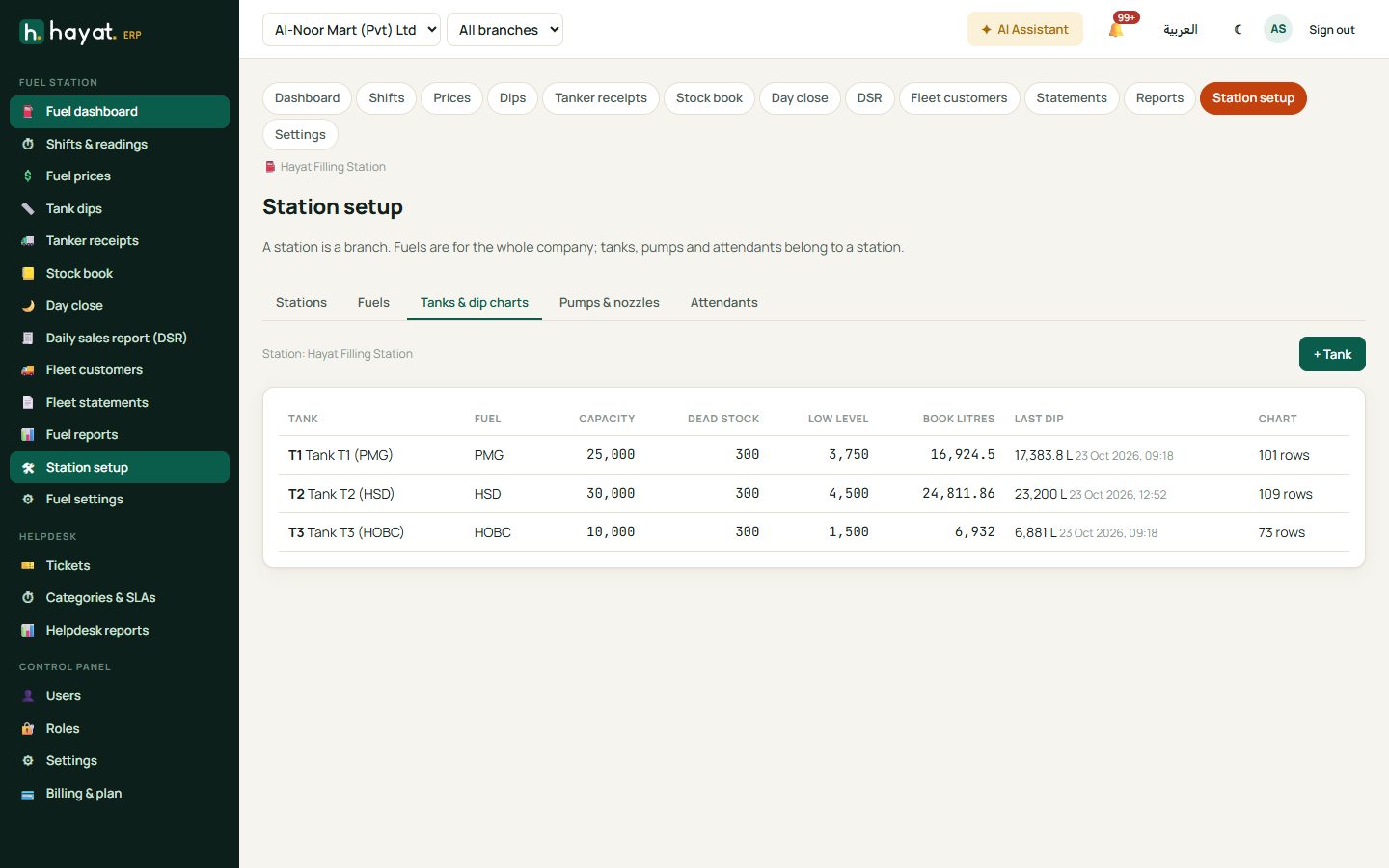
- Tanks & dip charts → + Tank: code, fuel, Capacity (L), Dead stock, Low level alert and, for a new tank, Litres in the tank now (book). Enter the Dip chart (calibration) — millimetres on the dip rod against litres from the tank maker's chart, at least two rows, litres never going down. Paste rows… takes a chart copied from a spreadsheet; Make a starting chart (horizontal cylinder) builds one from the diameter. Check a dip turns a dip and water reading into litres.
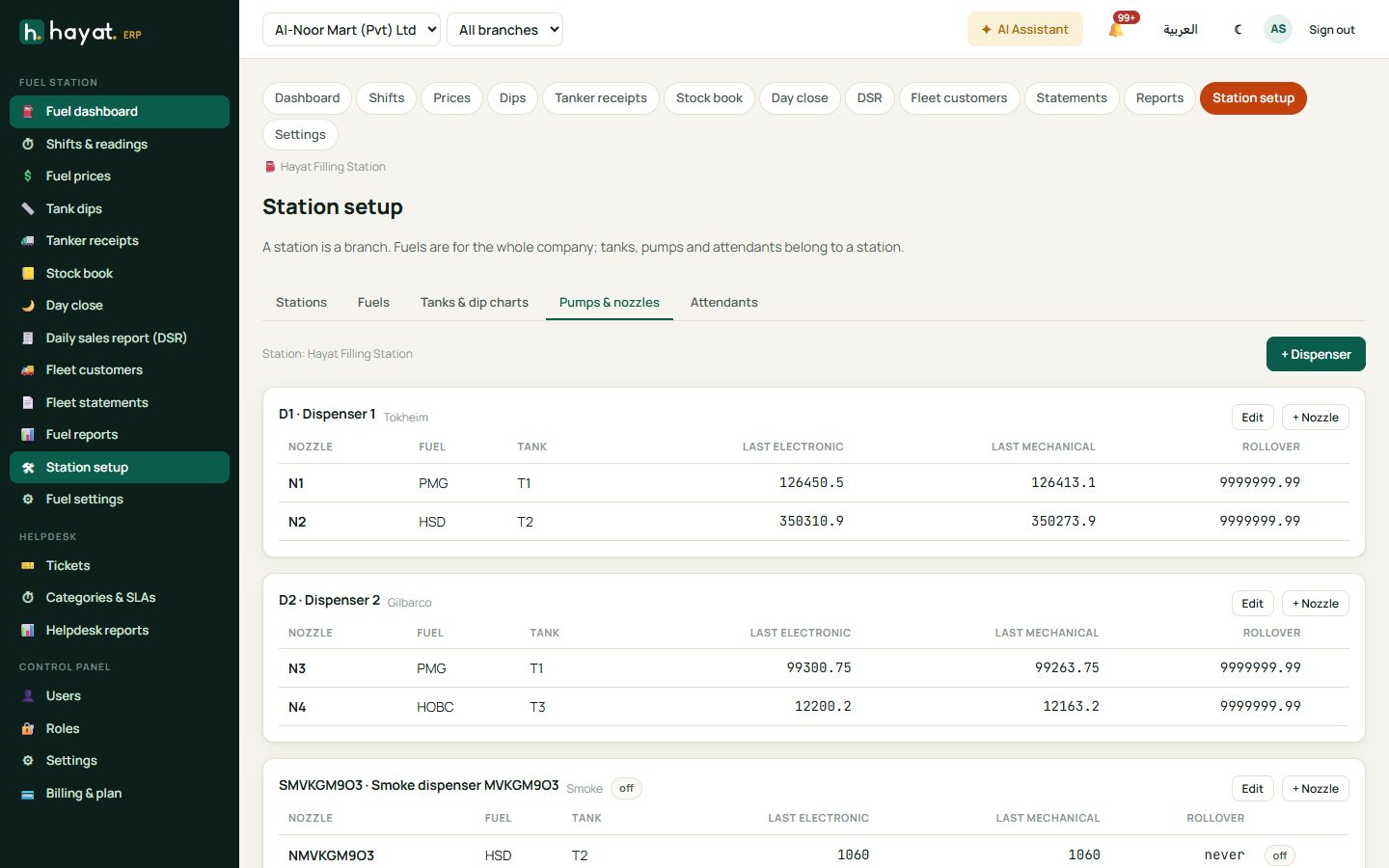
- Pumps & nozzles → + Dispenser (code, make — Tokheim, Gilbarco, Tatsuno… — serial no.), then + Nozzle on it: fuel, tank (none for CNG), Electronic totaliser now, Mechanical totaliser now (optional) and Meter rolls over at (0 = never). Readings, tank and fuel are locked while the nozzle is in an open shift.
- Attendants → + Attendant: code, name, phone, CNIC and the HR employee. Owes (shortage) shows what each one is short; Recover (cash or another method) and Write off clear it.
Prices and price changes
Prices shows each fuel's price now (per litre or kg), since when, and any scheduled price. Below are the Price changes and the History by fuel.
When OGRA or the OMC notifies new prices, a Fuel Admin clicks Change prices:
- 1 · New prices: Takes effect (blank = now; a future time is Scheduled), the Reference (OGRA / OMC notification) and the New price of each fuel that changes. The Change column shows the difference.
- Next: readings. 2 · Meter readings lists the nozzles of the open shifts: type each nozzle's Electronic (and Mechanical) totaliser at the change time, and any Test L pumped back in that part of the shift.
- Save price change. Each open shift is split at that moment, so its sales count at the old price before and the new price after. Shifts opened later sell at the new price.
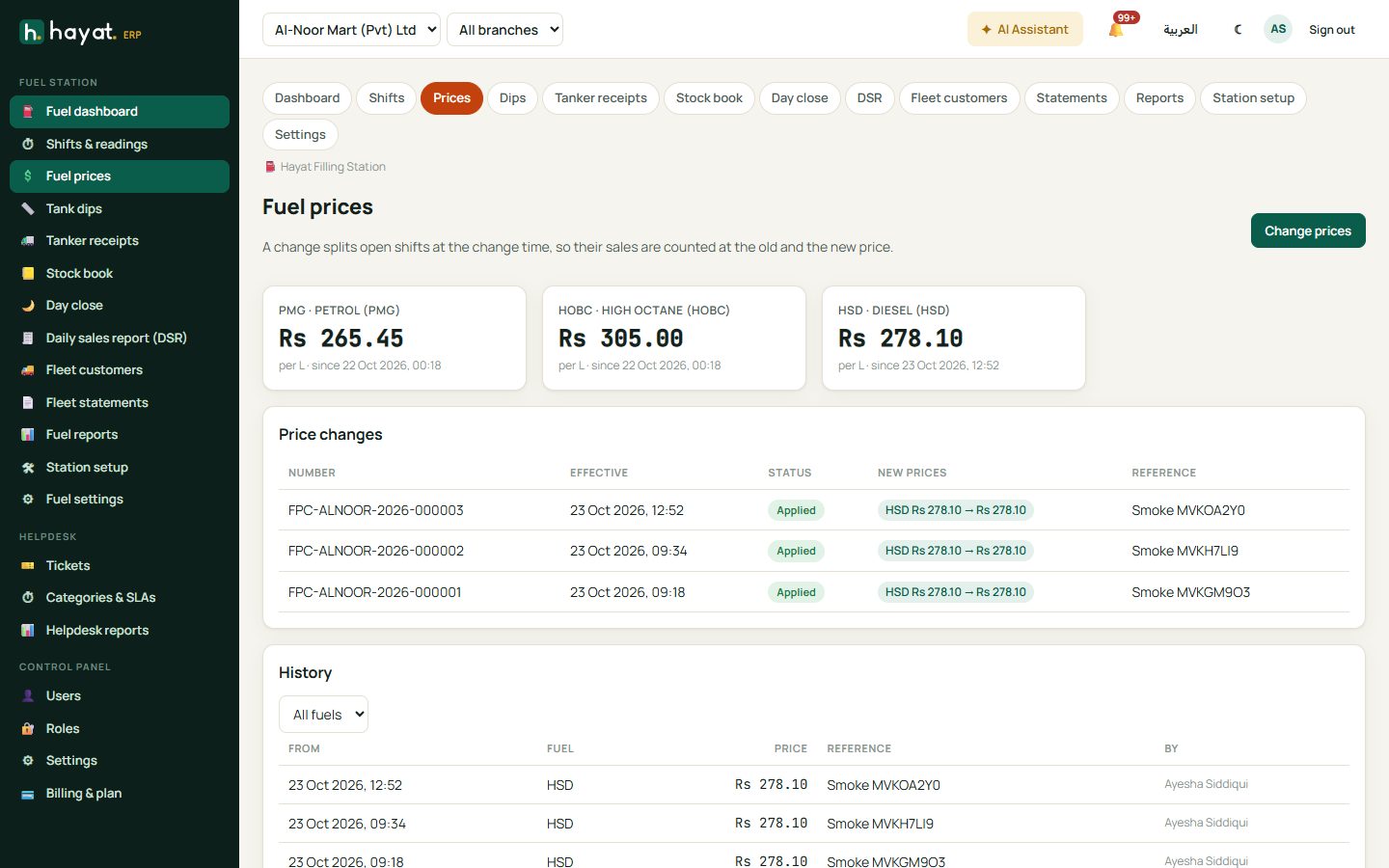
A Scheduled change has Enter readings in the list: when the time comes, type the readings of the open shifts. A shift that crossed a scheduled change cannot be closed until its readings are in.
Shifts and meter readings
A shift is one attendant on a set of nozzles.
- Shifts → + Open shift. Choose the Attendant, the Date and the Shift name (Morning, Evening, Night). Tick the nozzles; the Electronic and Mechanical openings default to each nozzle's last closing. Nozzles already in another open shift are not offered. Open shift.
- During the shift, write the credit slips of fleet customers.
- At the end, open the shift. In Meter readings type the Closing el., Closing mech. and Test L for each nozzle and click Save readings. Litres = closing − opening − test, at the price of each part of the shift (Prices column). A row turns yellow when the electronic and mechanical meters differ by more than the meter mismatch % in the settings.
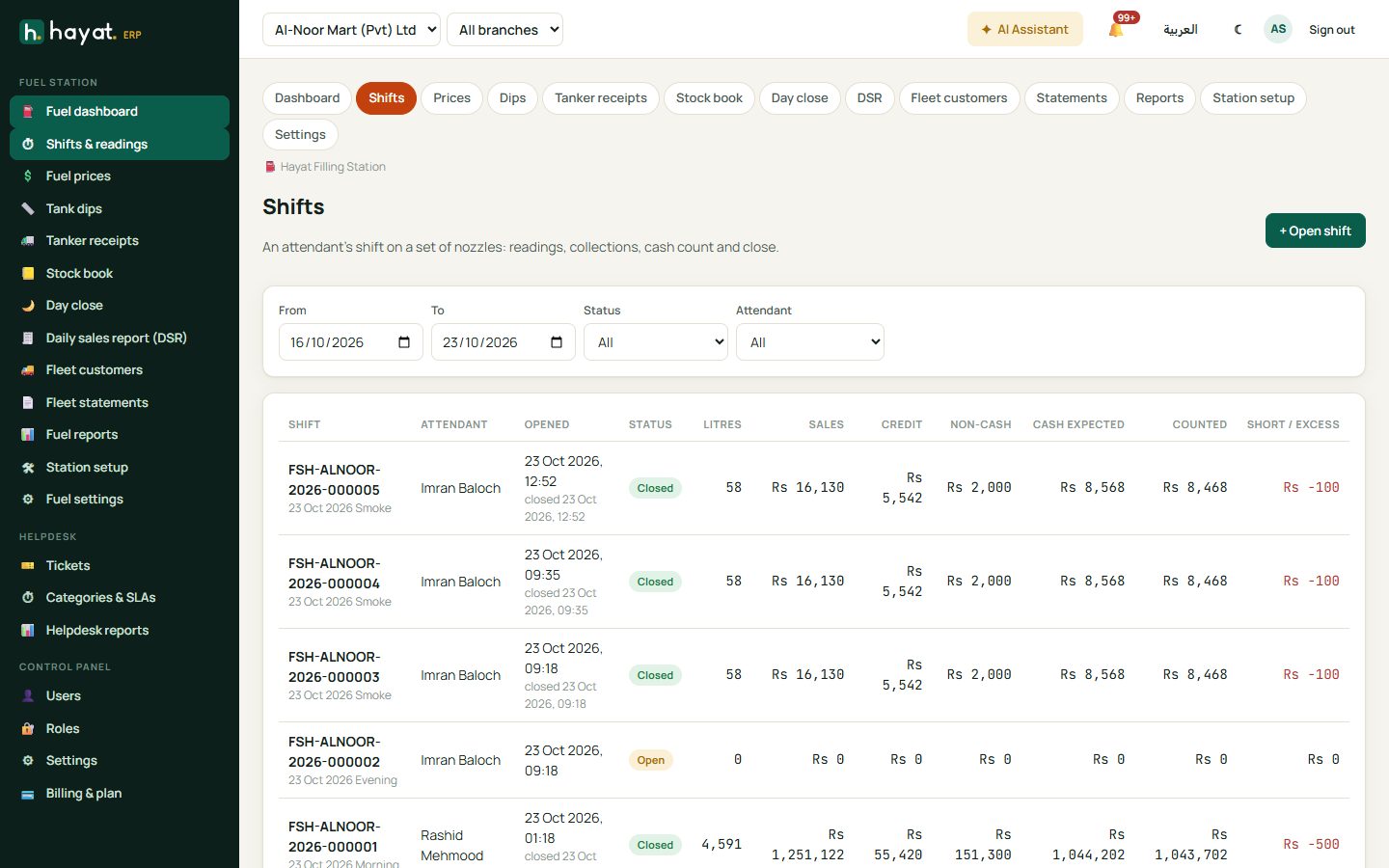
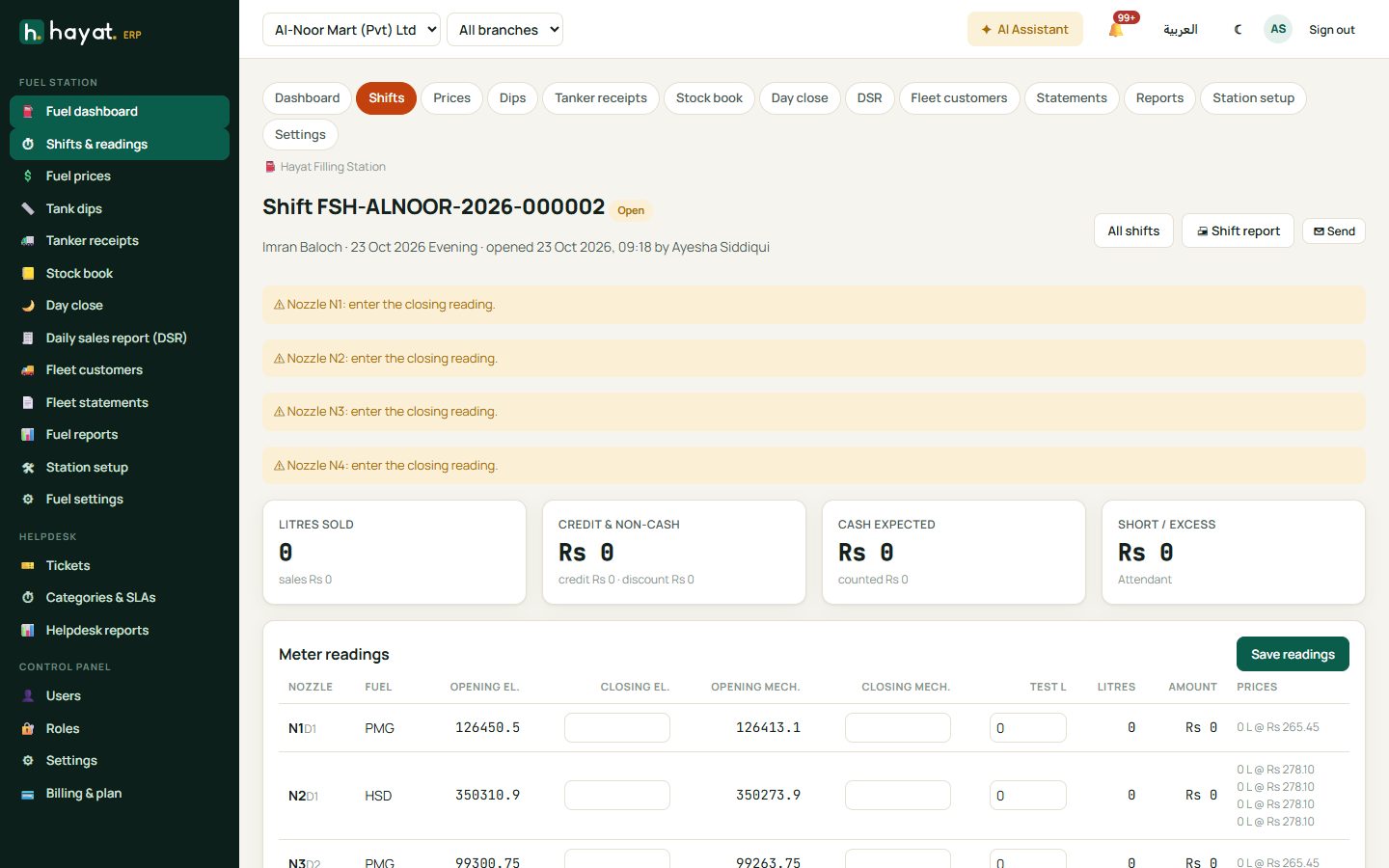
The tiles at the top show Litres sold, Credit & non-cash, Cash expected and Short / Excess. Warnings (for example a missing reading) are listed above them.
Collections and the cash count
- Collections (not cash): + Line for each method — Card, Wallet (Easypaisa / JazzCash / Raast), Bank transfer, OMC fuel card, Voucher, Company coupon — with a label (PSO Card), the amount, how many and a reference.
- Card machine: when a POS till with a linked card machine is at the pump, pick it, type the amount and press 📟 Send to card machine. An approved charge is added to the collections by itself; Cancel stops a pending one.
- Cash count: type the count of each note and coin, or just the Cash counted total. Save collections & cash.
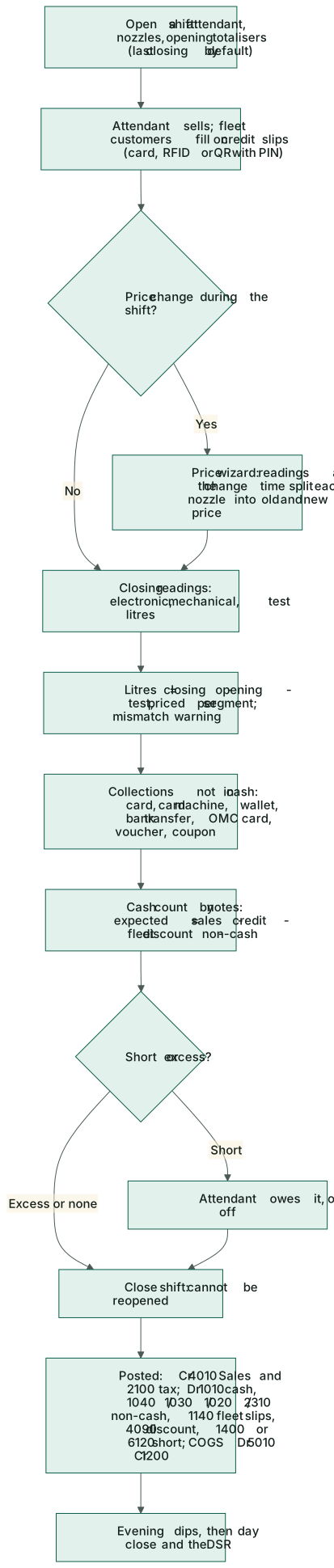
Cash expected = sales − credit slips − fleet discount − non-cash collections.
Close the shift
Save the readings and the cash first. Under Close the shift, if the cash is short choose Attendant owes it or Write it off, add notes and click Close shift. Closing posts the sales, cost, collections and the shortage to the ledger and cannot be undone — fix a mistake with a correcting slip, payment or journal.
🖨 Shift report prints the readings, collections, slips and cash; Send shares it by WhatsApp, SMS or email.
Credit slips and fuel cards
Fleet customers
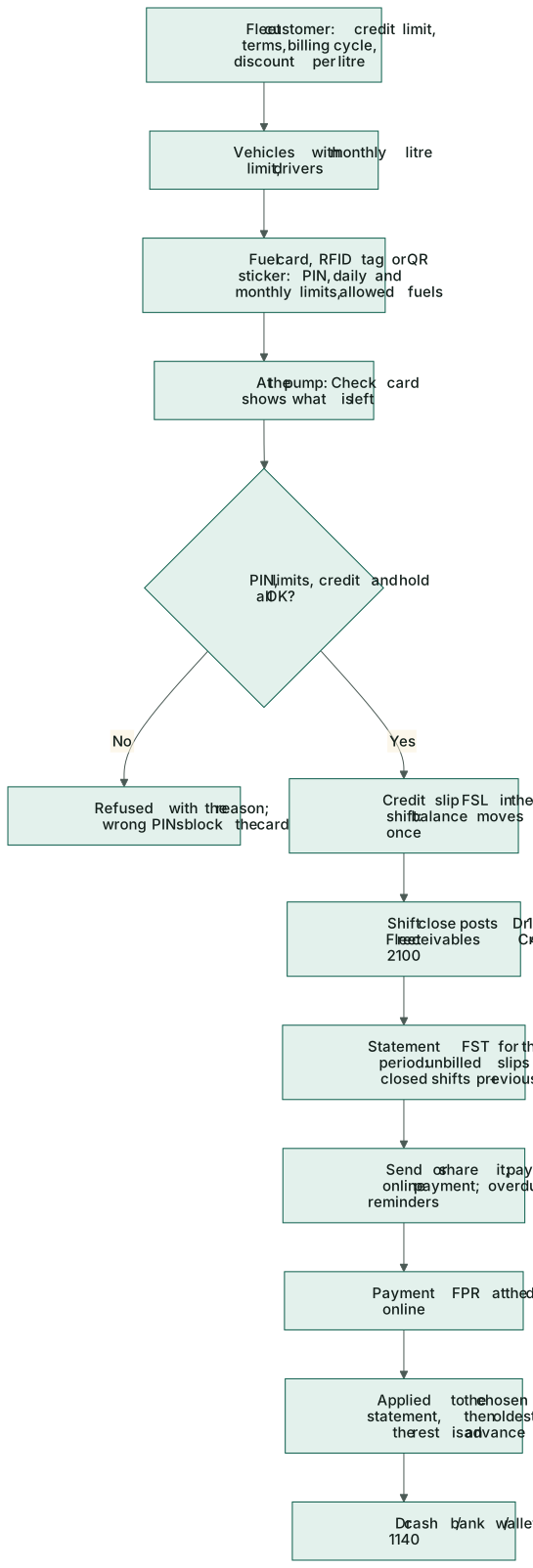
Fleet customers → + Customer (fuel.credit): code, name, contact, Phone (portal sign-in), email, city, NTN, STRN, Credit limit (0 = none), Payment terms (days), Billing cycle (Monthly, Fortnightly 1–15 / 16–end, Weekly) and Discount per litre. On hold stops new credit slips.
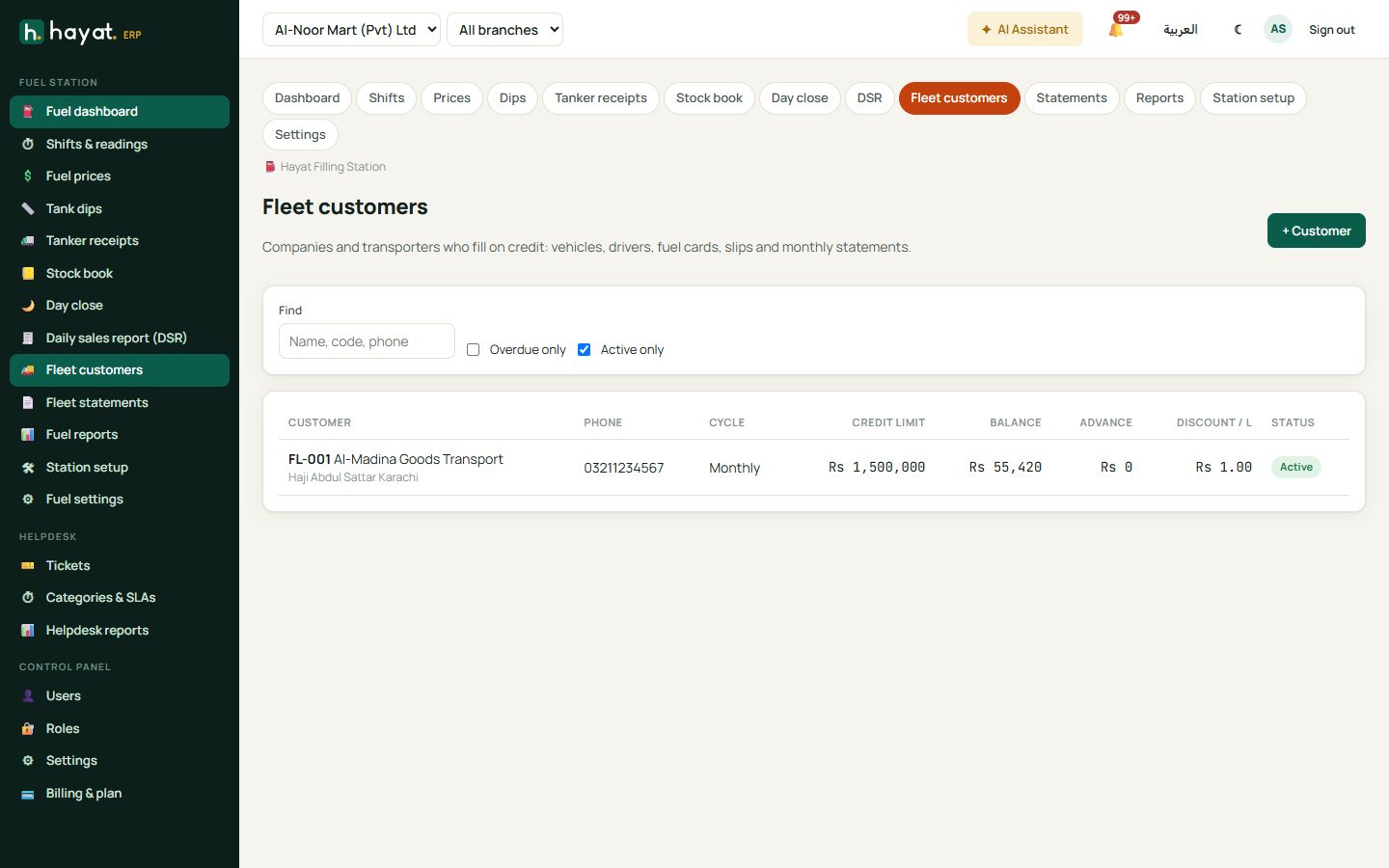
Open a customer for Balance, Not billed yet, Advance and This month, and the tabs:
- Vehicles & drivers: + Vehicle (registration, fuel, tank capacity, Monthly litre limit) and + Driver (name, phone, CNIC, licence).
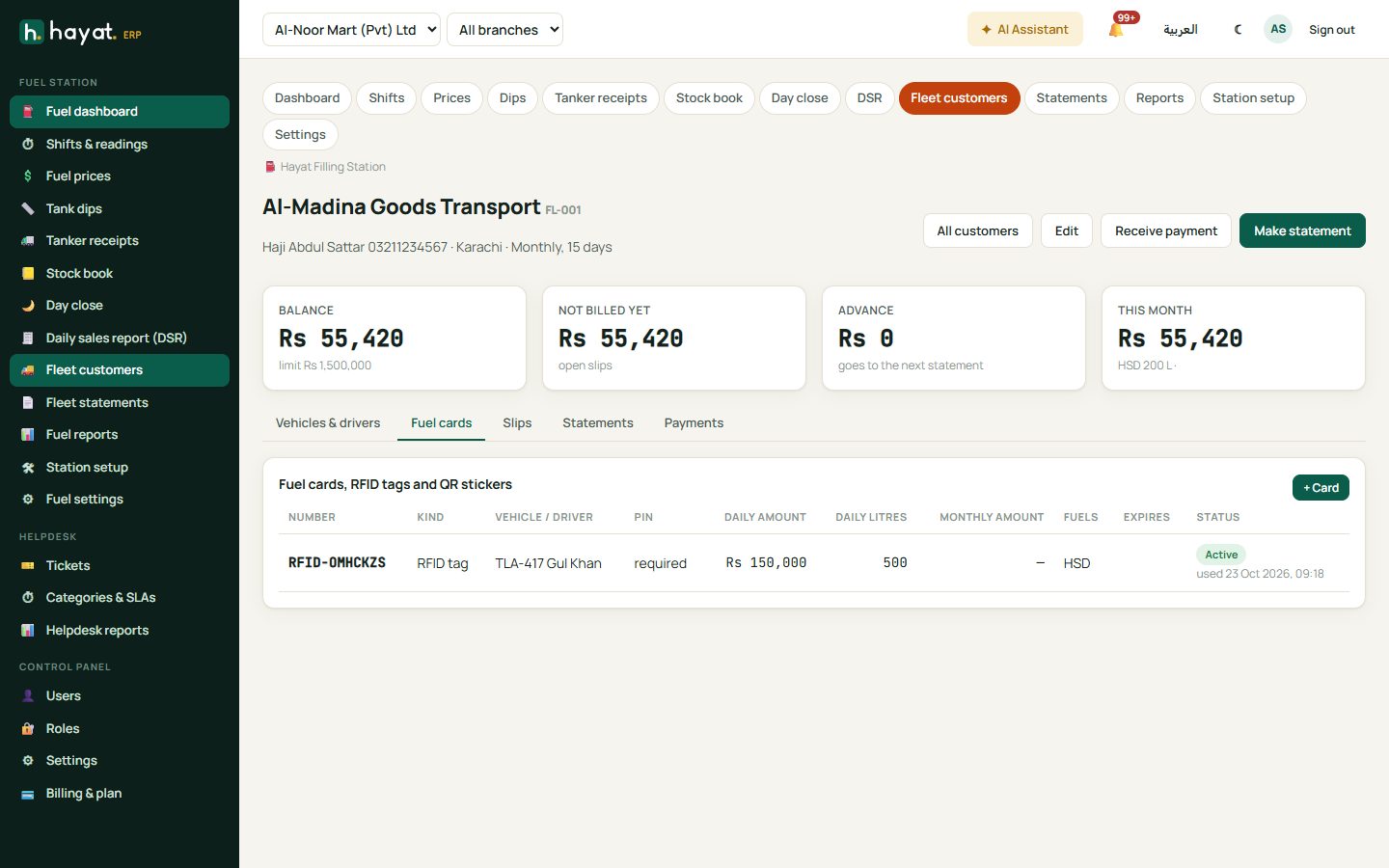
- Fuel cards: + Card — Card, RFID tag or QR sticker (blank number = a random QR code), vehicle, driver, PIN (4–6 digits), PIN needed at the pump, Daily amount, Daily litre and Monthly amount limit (0 = none), Allowed fuels, expiry and status (Active, Blocked, Lost). Five wrong PINs block the card; saving it as Active again resets the count. A blank PIN on edit keeps the old one; PINs are never shown.
- Slips, Statements and Payments.
Write a credit slip
In an open shift, + Credit slip:
- Fuel card / RFID / QR: type or scan the Card number, the PIN, and press Check card. A green line shows the customer, vehicle and driver and what is left today, this month and on credit; a red one says why it is refused.
- Or Customer by name: choose the customer, vehicle and driver (or type them).
- Choose the Nozzle, then the Litres or the Amount, the Odometer (km) and the Book slip no. of the paper slip. Save slip.
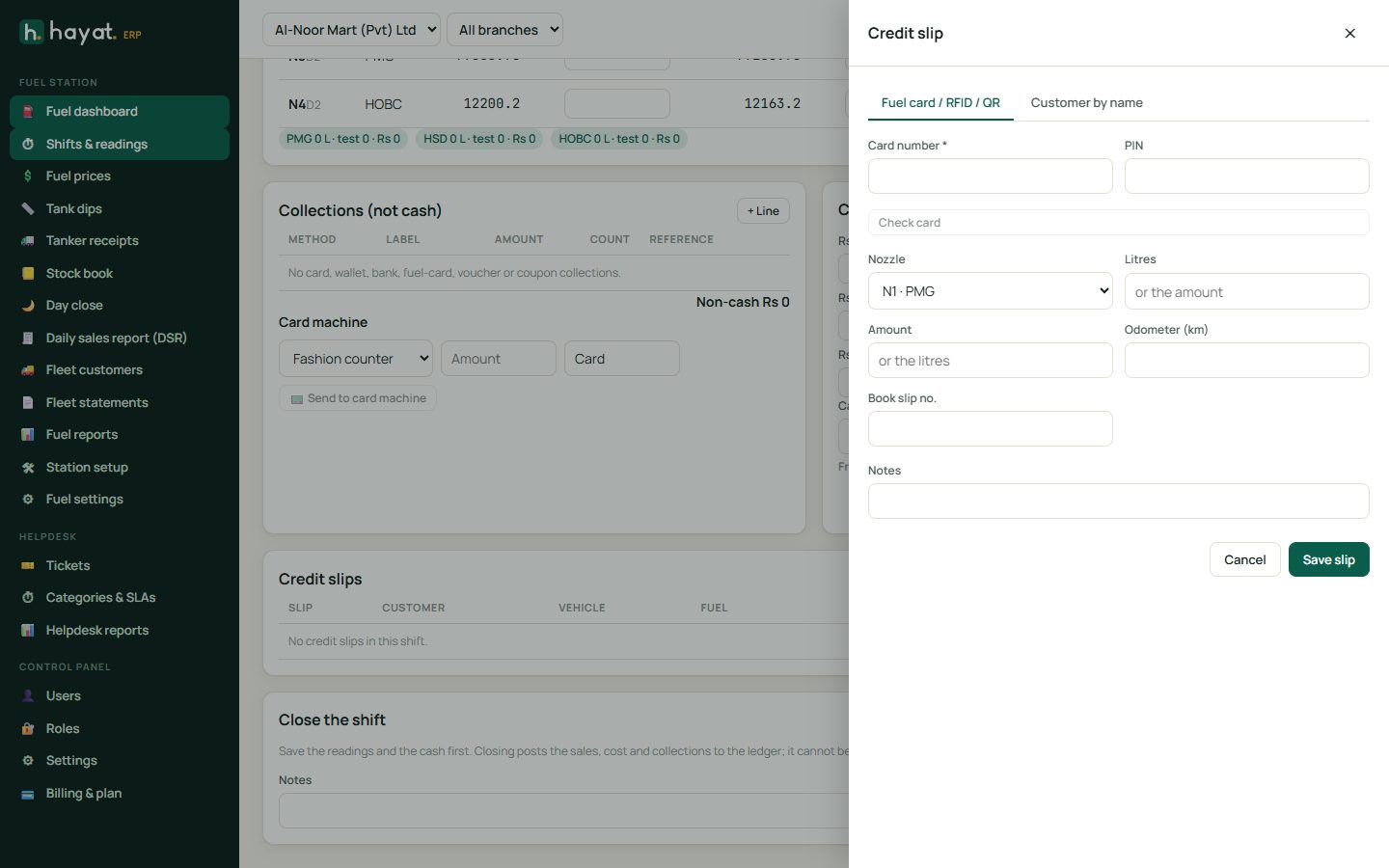
The slip is priced at the pump price less the customer's discount per litre. The customer's balance moves at once; the ledger moves when the shift closes. A slip can be cancelled only while its shift is open.
Statements and payments
- Make statement on a customer (or Statements → Make statements for a period for everyone) bills the unbilled slips of closed shifts in the period, with the previous balance. With Make fleet statements automatically in the settings, statements are made at the end of each billing period.
- Open a statement to 🖨 Print, Send it, make a 🔗 Fuel pay link for online payment, Receive payment or Cancel statement (only without payments).
- Receive payment applies the money to the statement you choose, else oldest first; anything left is an Advance used on the next statement.
- Overdue statements get reminders when Fleet statement overdue is on in Marketing → Reminders.
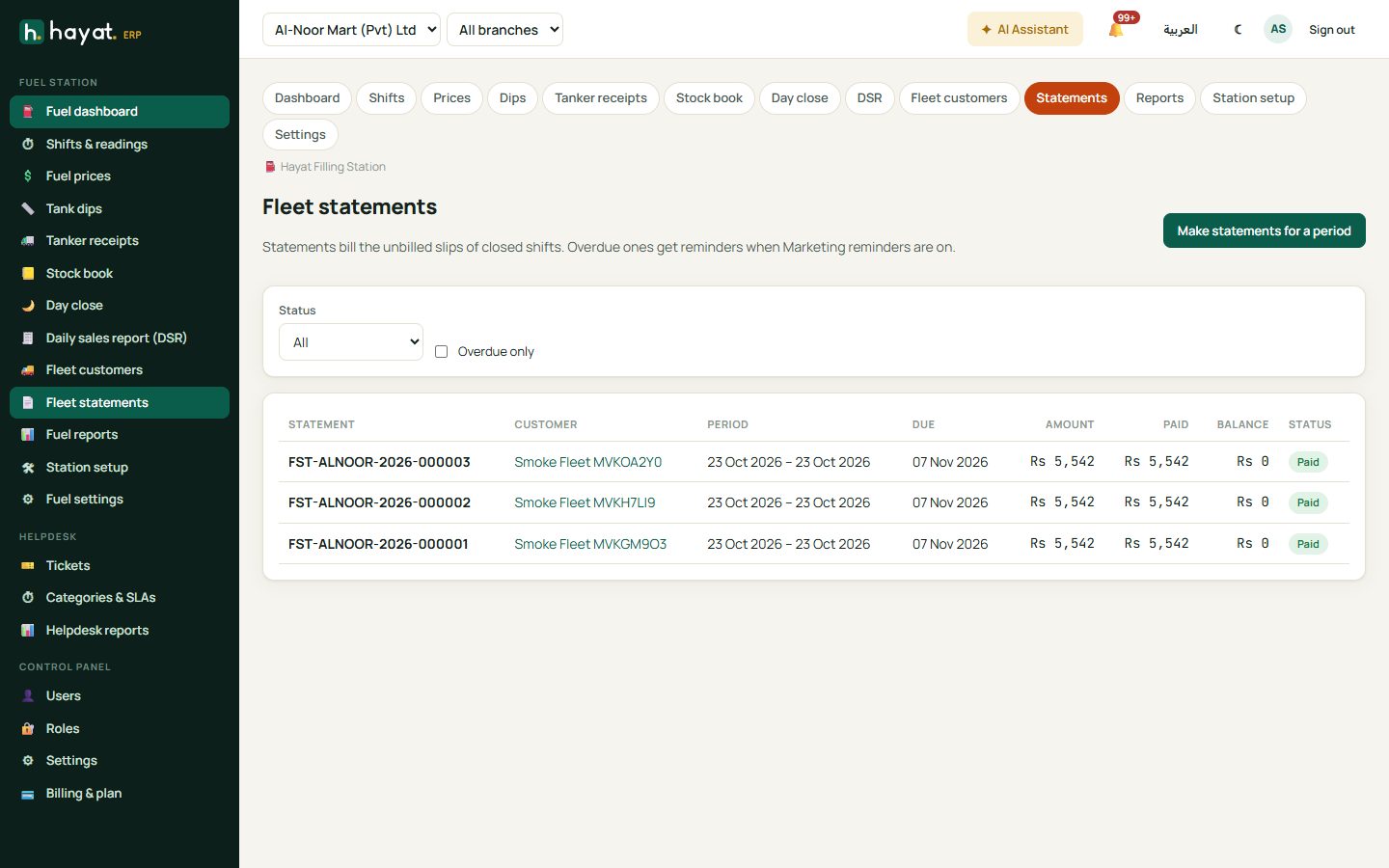
Fleet customers see their statements (View, Pay), vehicles with this month's litres against the limit, and every fill with its slip in the customer portal when the portal shows the fuel section — they sign in with the customer's phone number.
Dips, tanker receipts and the stock book
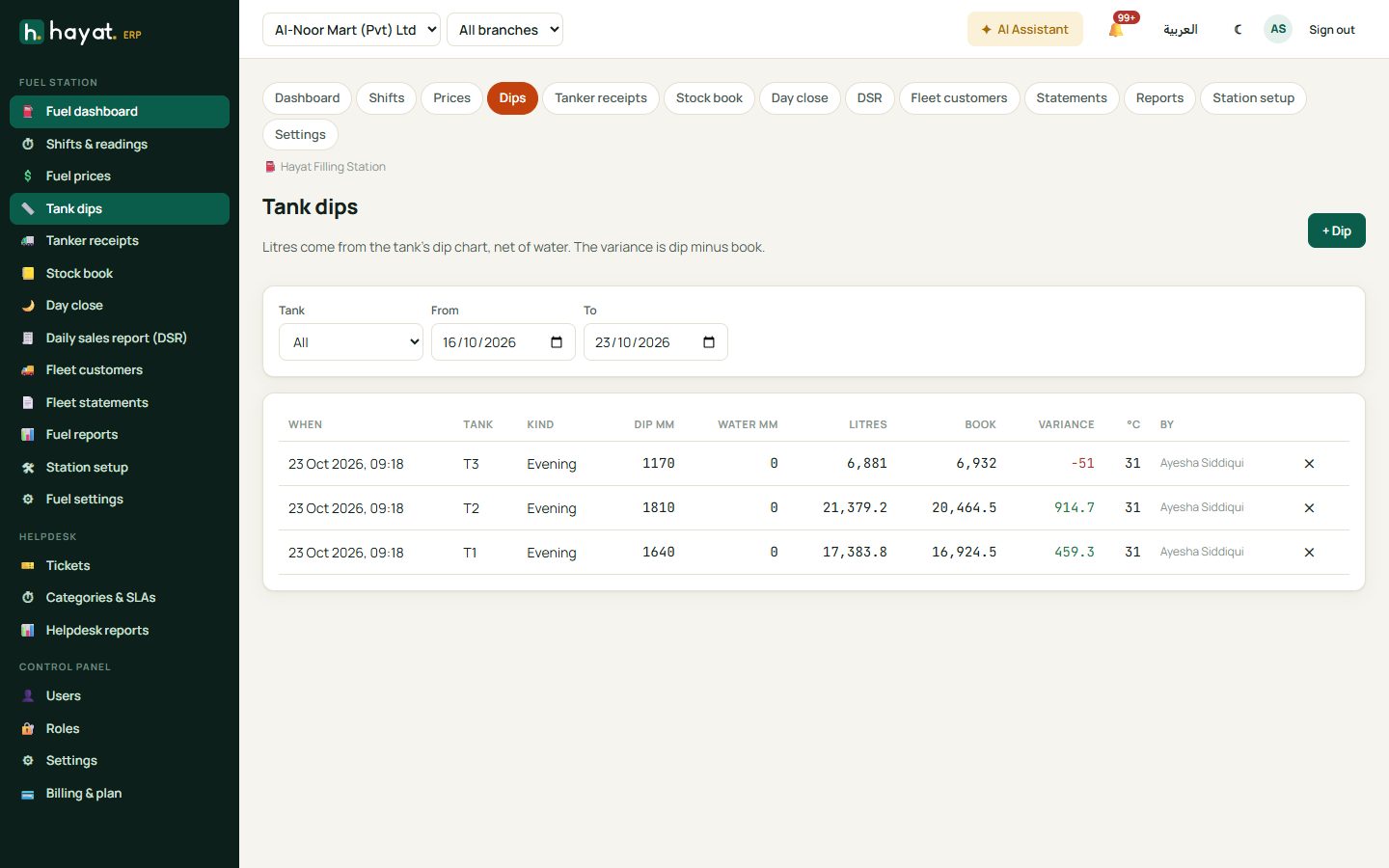
Tank dips
Dips → + Dip (fuel.stock): the Tank, Kind (Morning, Evening, Other), Dip (mm), Water (mm), temperature and time. The litres from the dip chart (net of water), the book litres and the variance show before you Save dip.
Tanker receipts and short-receipt claims
- Tanker receipts → + Tanker receipt. The Supplier (OMC) defaults to the station's OMC; with none, type the Supplier name and Paid by (Bank, Cash, Cheque). Add the Invoice no., date, Lorry no., driver, carrier and Seal nos.
- One line per compartment (+ Compartment): the Tank, Invoice L, Price / L, Tax %, Dip before mm, Dip after mm, Sold during L (sold from that tank while decanting), °C and the observed and invoice density.
- Save receipt. The detail shows, per line, the litres before → after, Received, Short, Allowance, Claim L, Claim and the litres At 15 °C, with warnings.
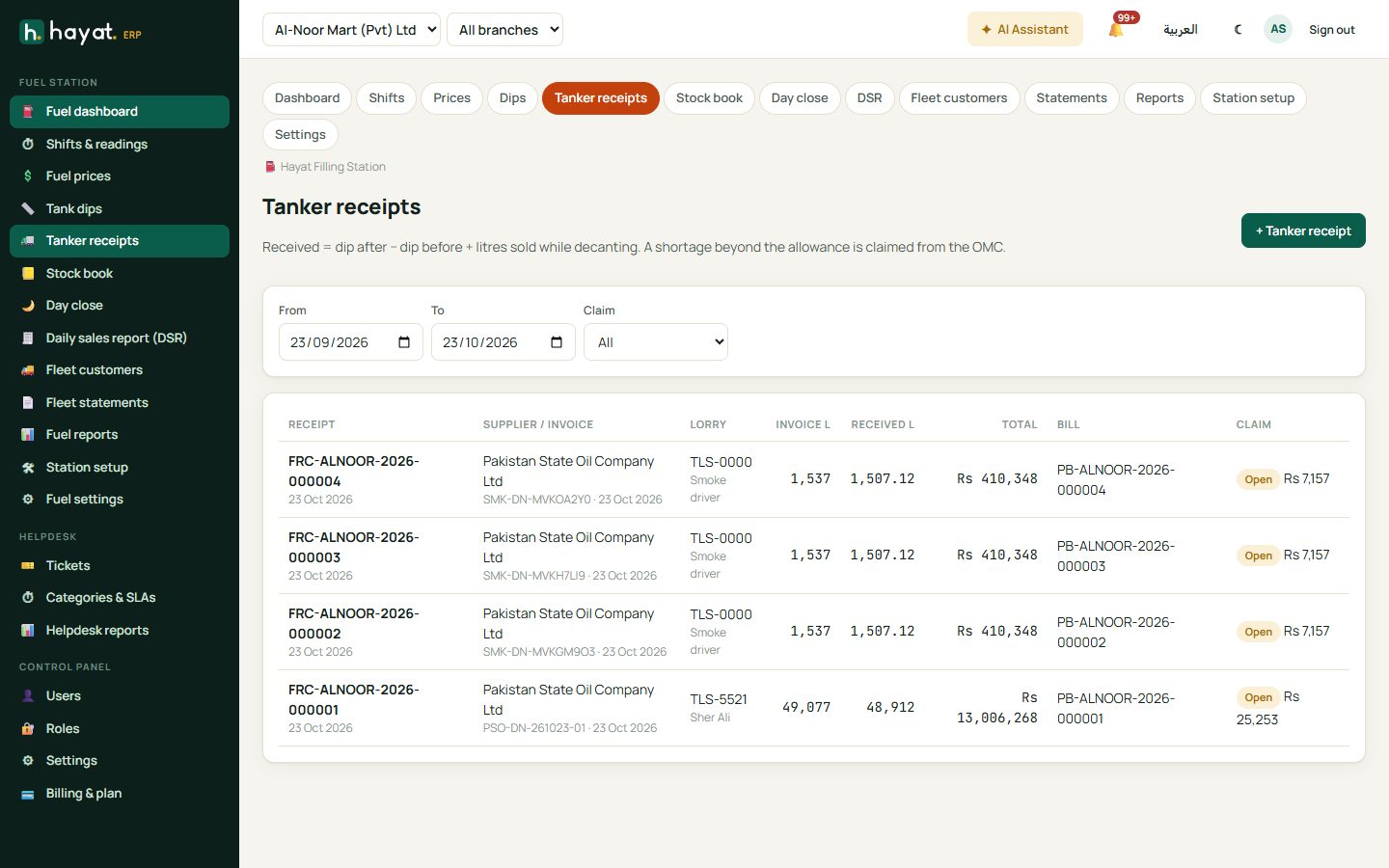
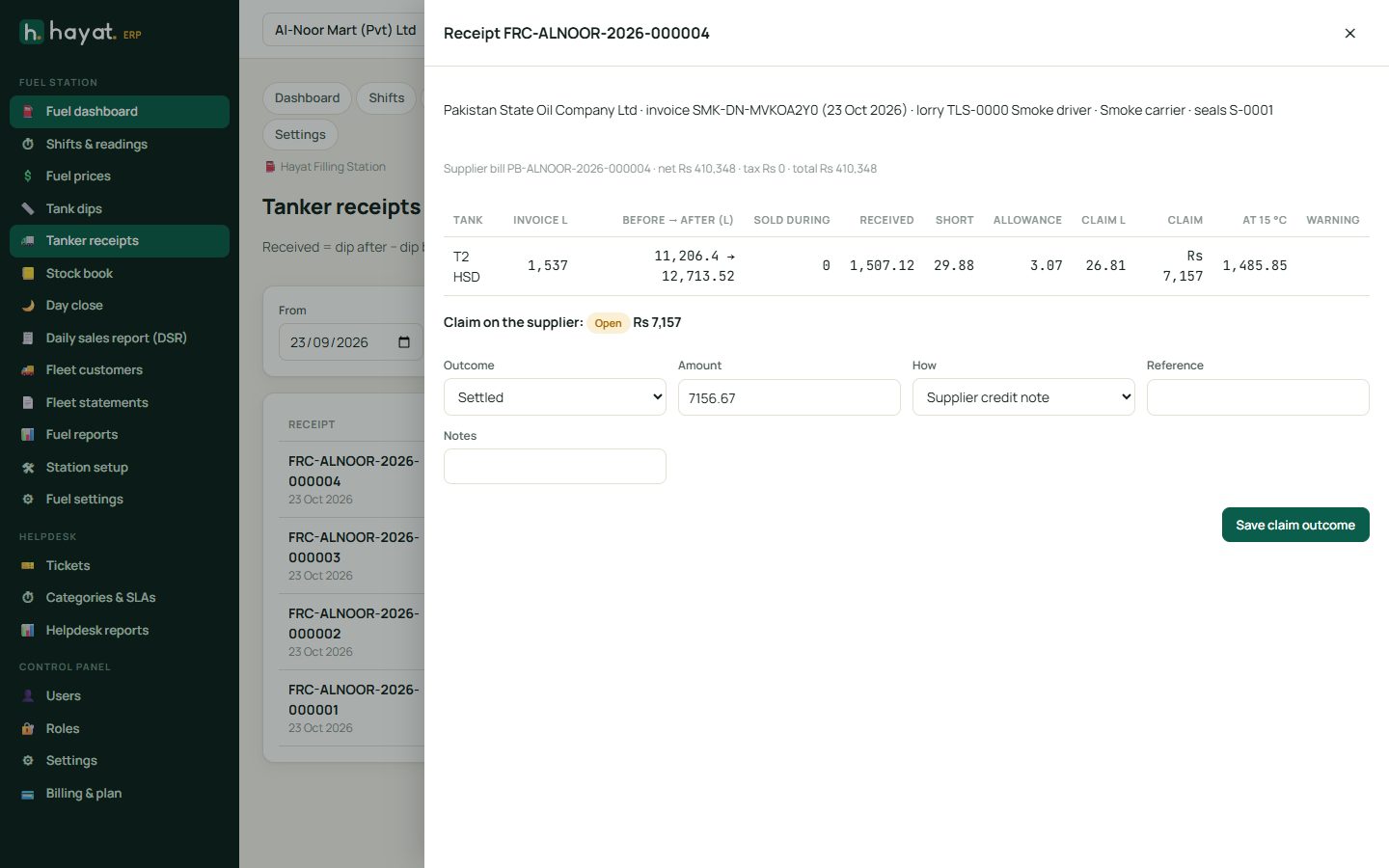
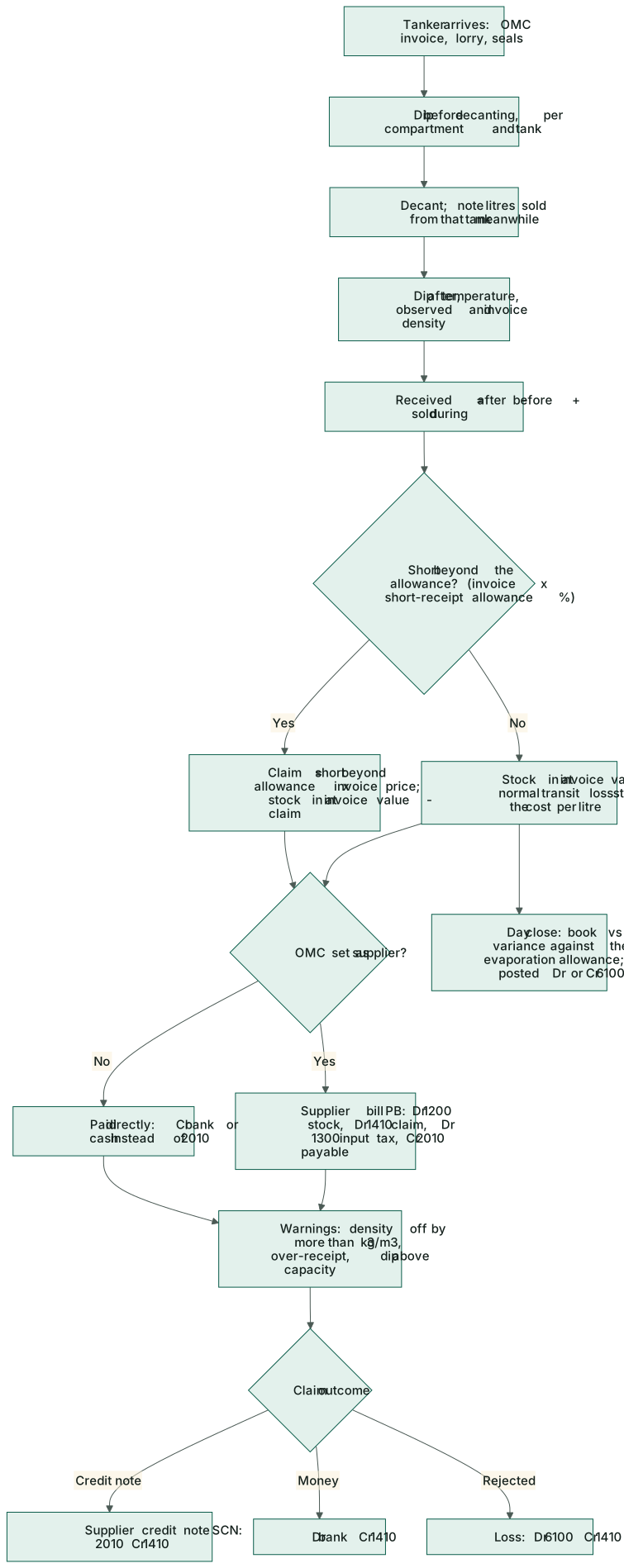
Received = dip after − dip before + sold during. A shortage up to the short-receipt allowance stays in the cost of the fuel; anything beyond it becomes a claim on the OMC at the invoice price. A density difference above 3 kg/m³, more litres than invoiced, or a dip above the tank capacity raises a warning and a notification.
With the OMC as a supplier, the receipt is booked as a supplier bill (PB-…) in Trading → Bills. When the OMC answers the claim, open the receipt and choose the Outcome: Settled by Supplier credit note, Bank or Cash with the amount, or Rejected (loss). Save claim outcome.
Stock book
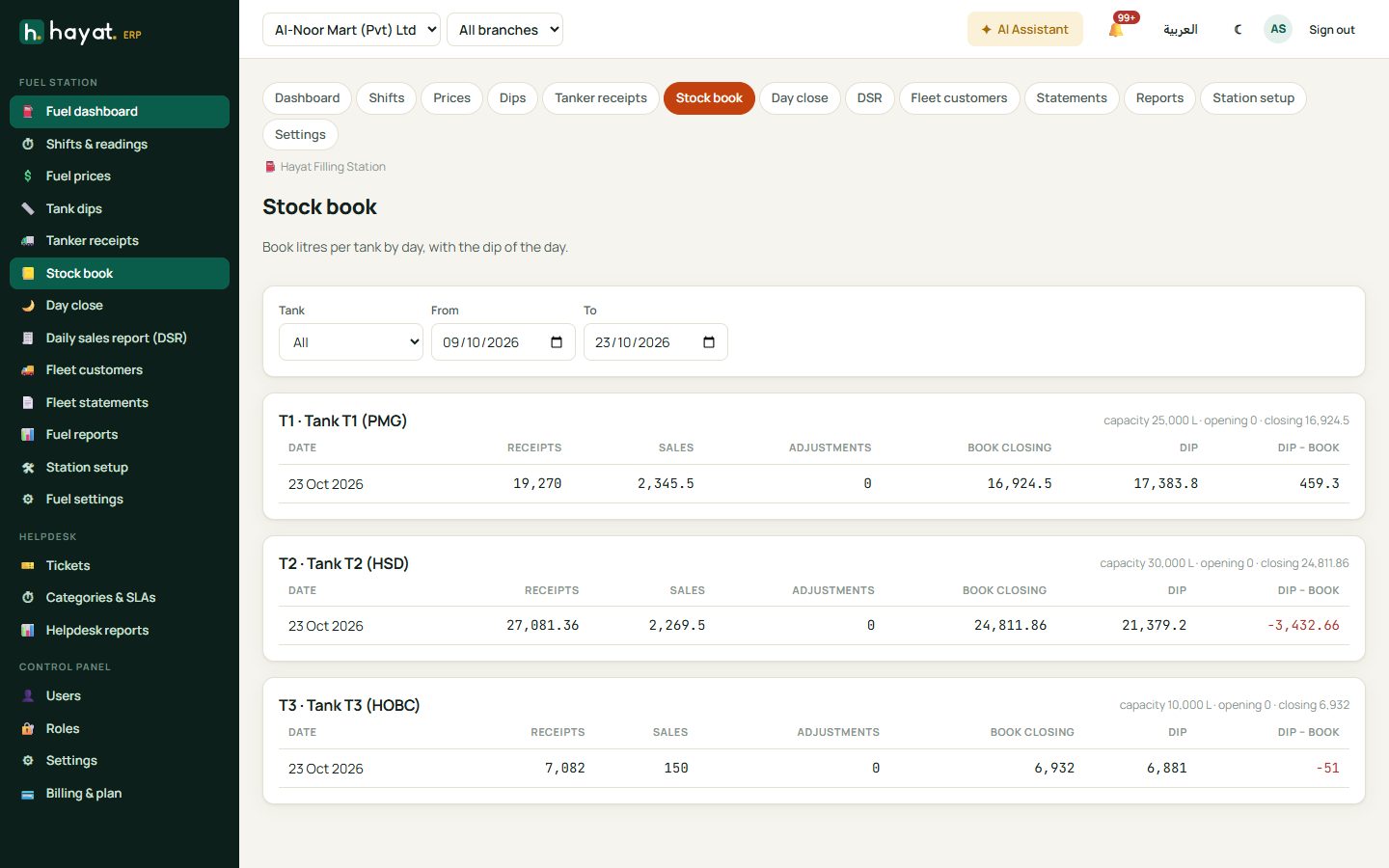
Stock book shows each tank by day: Receipts, Sales, Adjustments, Book closing, the Dip and Dip − book.
Day close and the DSR
- After the last shift and the evening dips, open Day close and pick the Date.
- Close any shift listed under Close these shifts first.
- Check each fuel: Opening, Receipts, Sales, Test, Book closing, Dip closing, Variance and %, the Allowance (evaporation) and what is Beyond it.
- Leave Post the dip variance (stock and ledger) ticked to make the book follow the dips (the default comes from the settings), add notes and click Close the day.
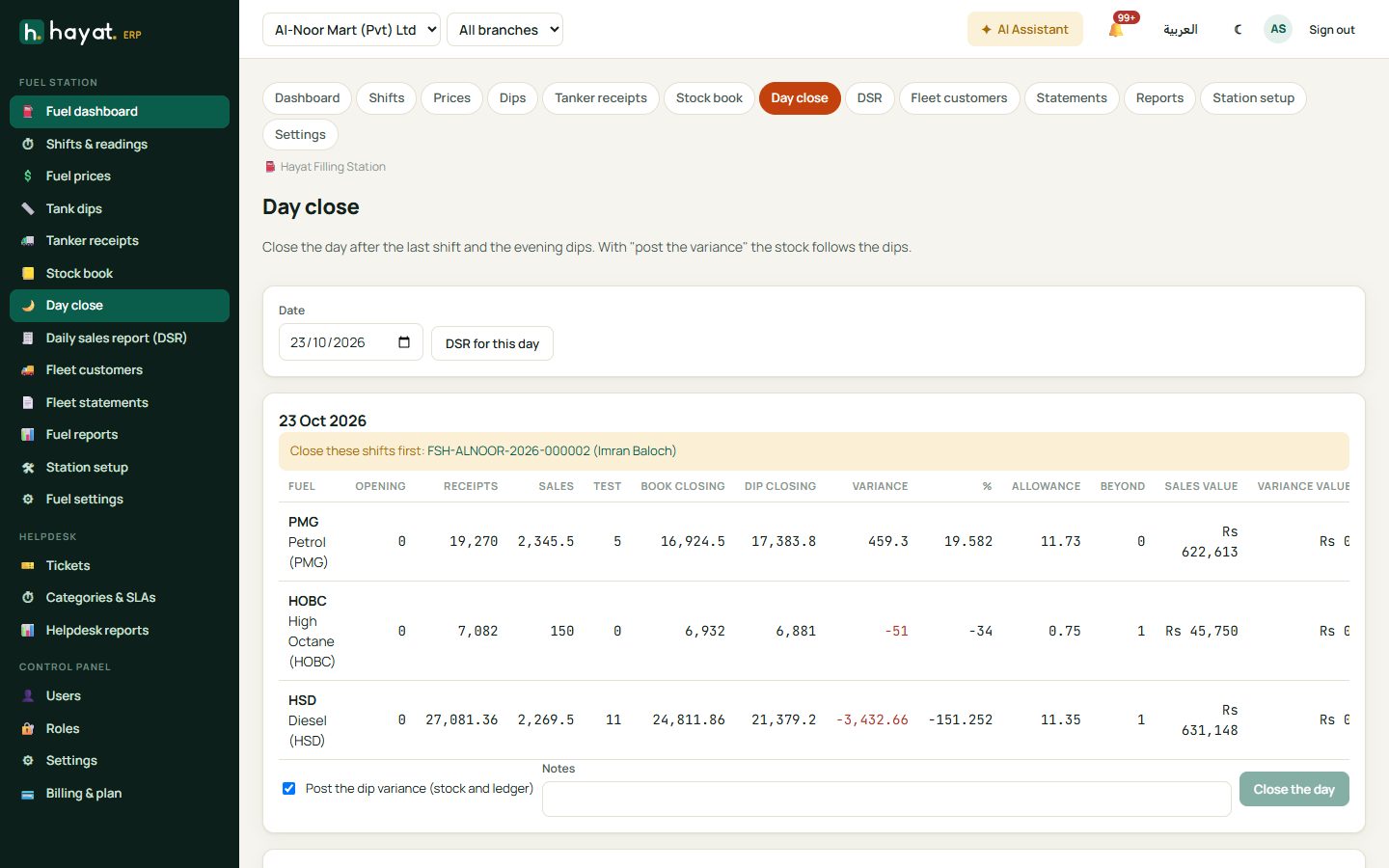
Losses beyond the allowance raise a notification. Closed days lists every day close (FDC-…).
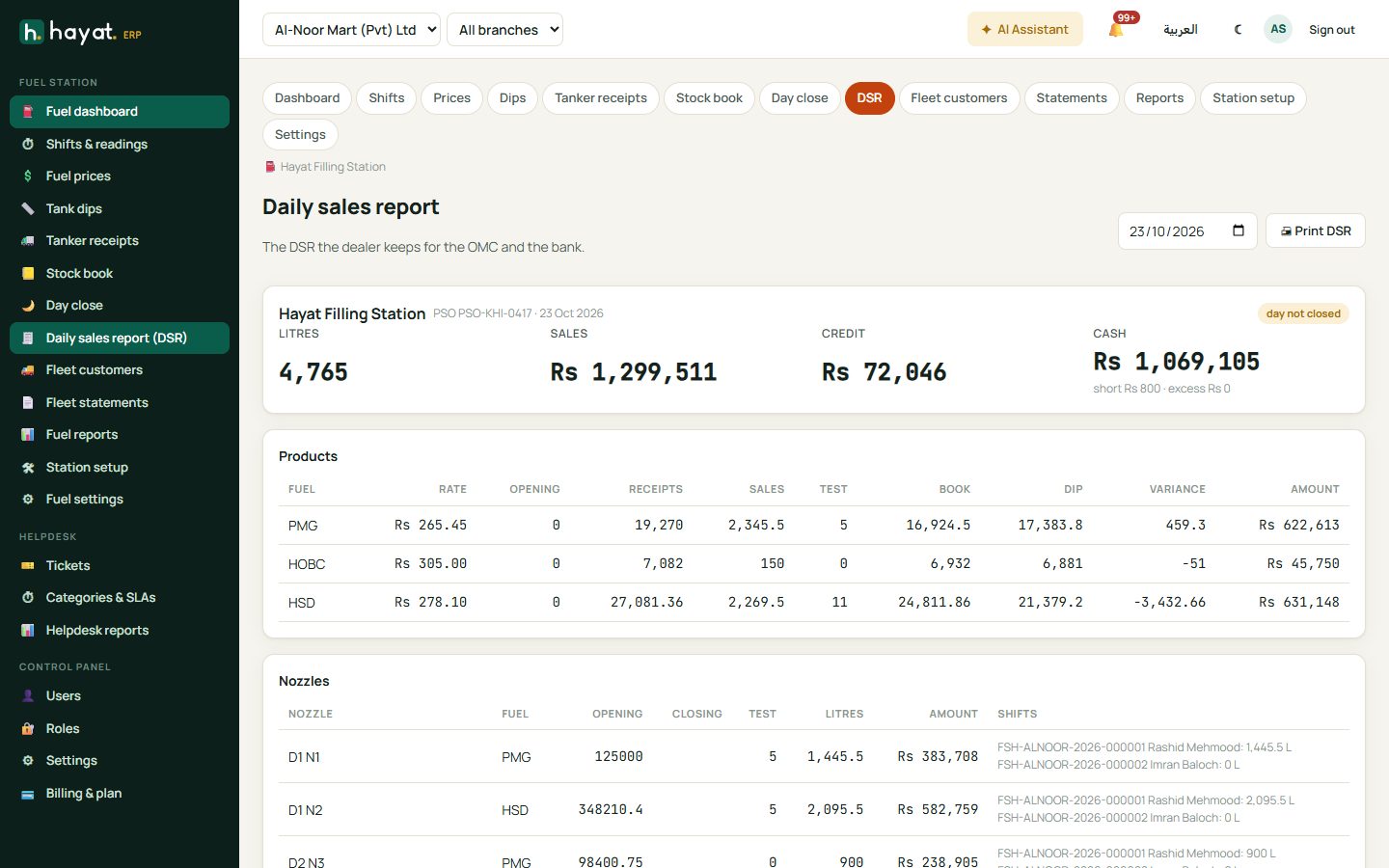
DSR (daily sales report) is the report the dealer keeps for the OMC and the bank: litres, sales, credit and cash with short and excess; products with rate, opening, receipts, sales, test, book, dip and variance; every nozzle's opening and closing by shift; collections by method; and credit by customer. 🖨 Print DSR opens the printable version.
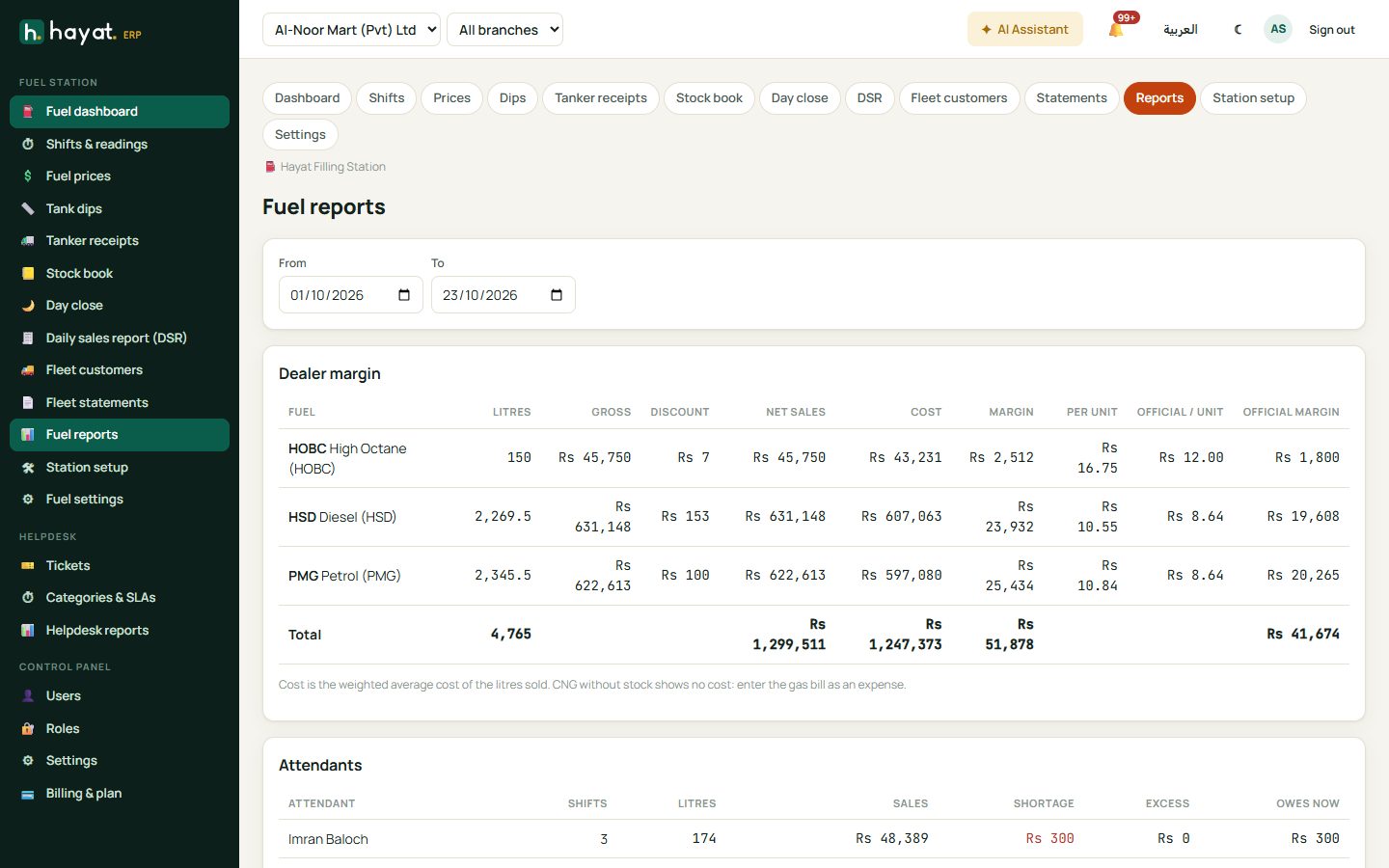
Reports has the Dealer margin by fuel (net sales, cost and margin against the official margin per litre) and Attendants (shifts, litres, sales, shortage, excess and what each one owes now).
The public price board
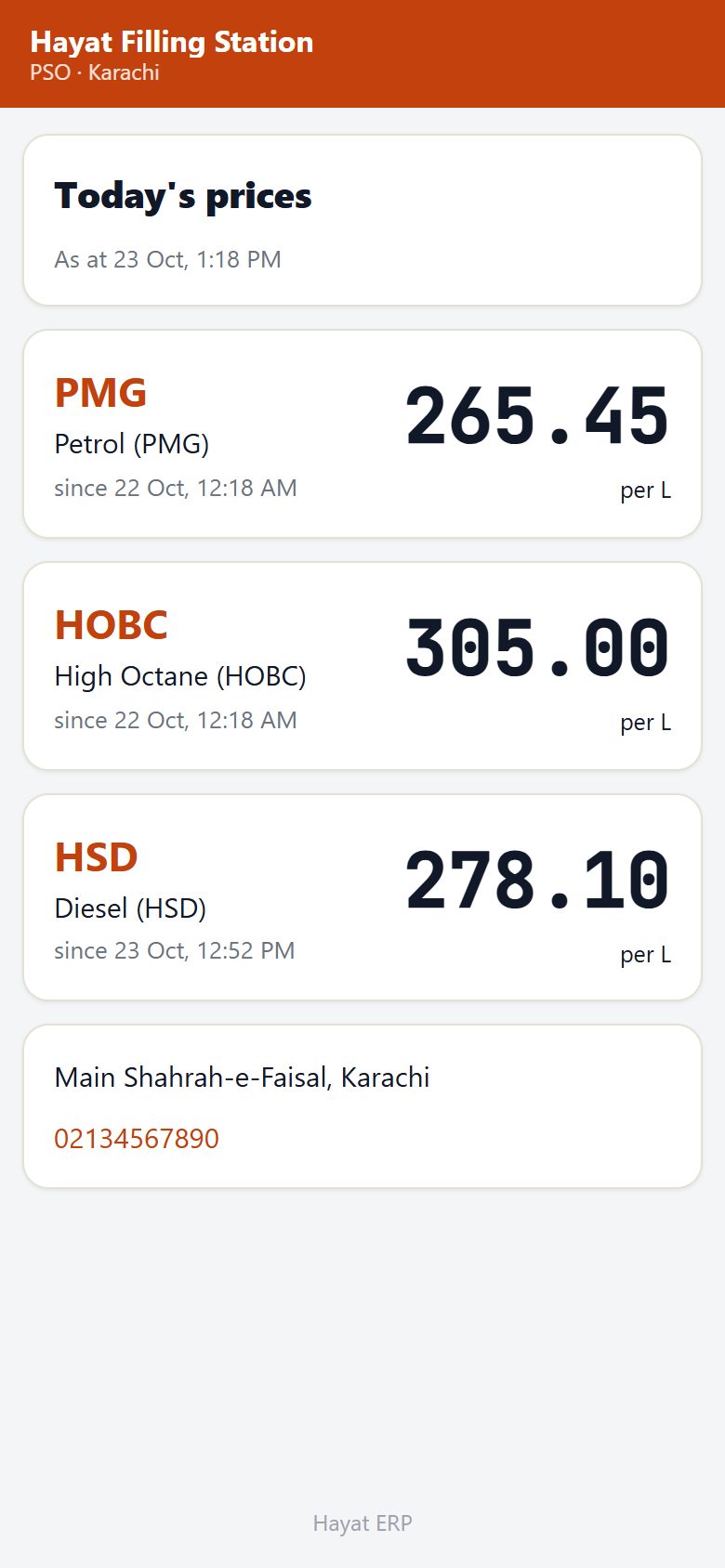
With Show today's prices on a public page ticked on the station, my.hayaterp.com/fuel/your-page shows the station's name and one large tile per fuel with the price and since when. It refreshes every 5 minutes, so it can run on a TV on the forecourt. Prices show as plain numbers, without a currency sign.
Hayat Fuel on the phone
Hayat Fuel is the forecourt app (permission fuel.view). It opens on the station of the active branch, or lists the stations to pick (Change station in the menu).
| Tab | Who | What |
|---|---|---|
| Today | Supervisors (fuel.stock or fuel.manage) | The dashboard and the DSR of any day. |
| My shift | Attendants (fuel.shift) | Their own open shift: cash to hand in, what is still to do, every nozzle, collections and slips; Send shift report. |
| Shifts | Supervisors with fuel.shift | Open and today's closed shifts, Open shift (attendant, Morning / Evening / Night, nozzles, openings on the keypad) and Close shift. |
| Stock | fuel.stock | Tanks with the book stock and the last dip, today's dips, the latest tanker receipts; Tank dip (litres shown as the dip is typed) and Tanker receipt (Work out the litres from the dips). |
| Prices | everyone | Prices now and the changes; New price change (fuel.manage) with the readings of open shifts. |
- Meter readings: each nozzle's closing, mechanical and test litres on a large keypad pinned at the bottom; Next walks from box to box and shows the litres sold.
- Collections & cash: the non-cash lines with quick labels (Easypaisa, JazzCash, Raast, PSO Card, Shell Card…) and the cash by notes; the expected cash updates as you type. Card-machine charges made on the web show locked.
- Fleet slip: scan the fuel card, RFID tag or QR sticker with the camera (or type it), the driver types the PIN on the hidden keypad, Check card; or search the customer and pick the vehicle and driver. Then the nozzle, litres or amount, odometer and the paper slip number. The saved slip has Print and Send; tap a slip in the shift to open, send or cancel it.
- Offline: readings and slips without a card wait on the phone and are sent when the connection returns. Card slips, collections, opening or closing a shift, dips, receipts and prices need the internet — the PIN is never stored on the phone.
Settings
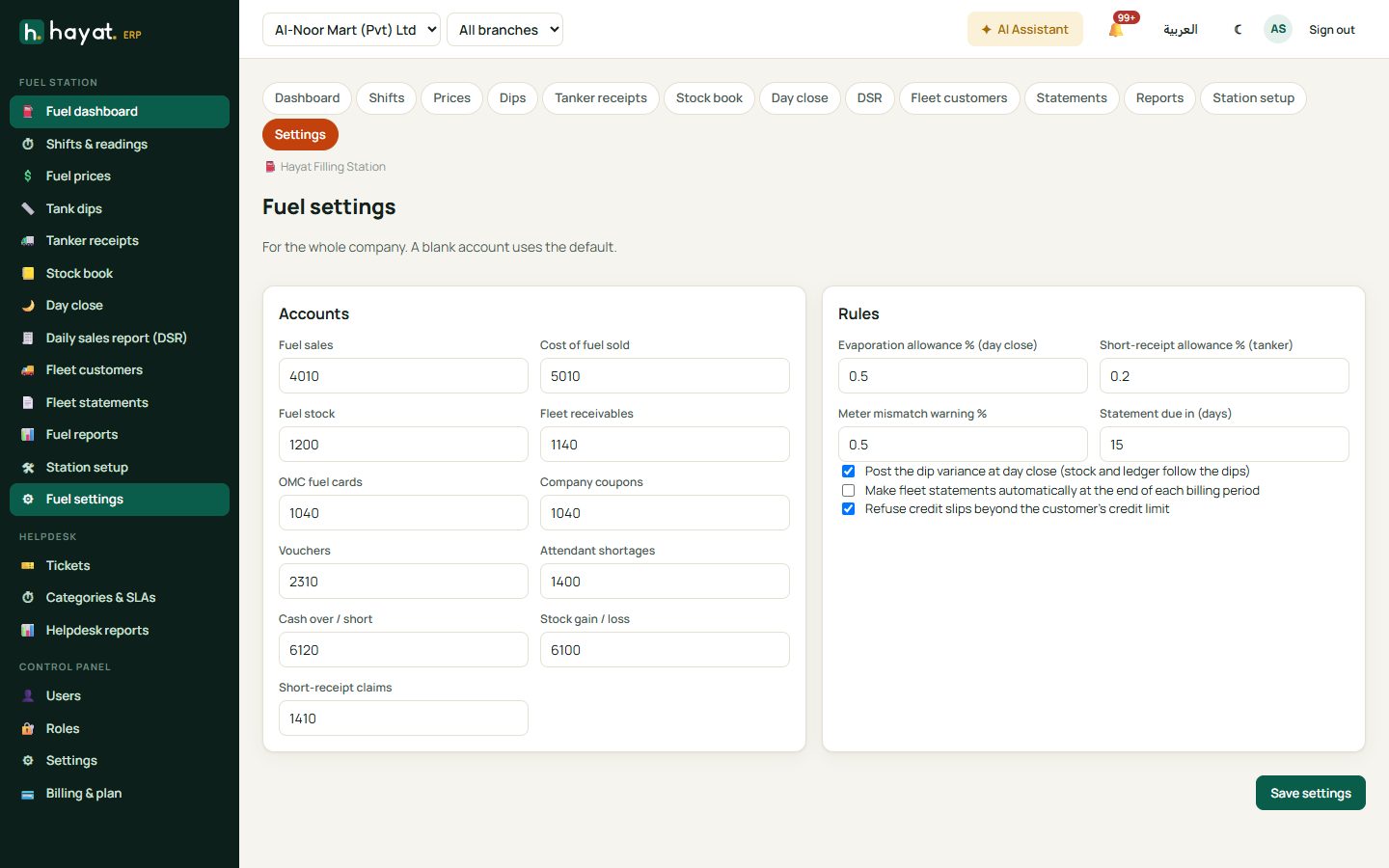
Settings (fuel.manage) holds, for the whole company:
- Accounts — fuel sales, cost of fuel sold, fuel stock, fleet receivables, OMC fuel cards, company coupons, vouchers, attendant shortages, cash over / short, stock gain / loss and short-receipt claims. Blank uses the default shown in grey.
- Rules — Evaporation allowance % (day close, default 0.5), Short-receipt allowance % (tanker, default 0.2), Meter mismatch warning % (0.5), Statement due in (days) (15), Post the dip variance at day close, Make fleet statements automatically and Refuse credit slips beyond the customer's credit limit.
Where the money goes
Every posting has the source Fuel; tanker bills and credit notes post through Trading. See How every module reaches the accounts.
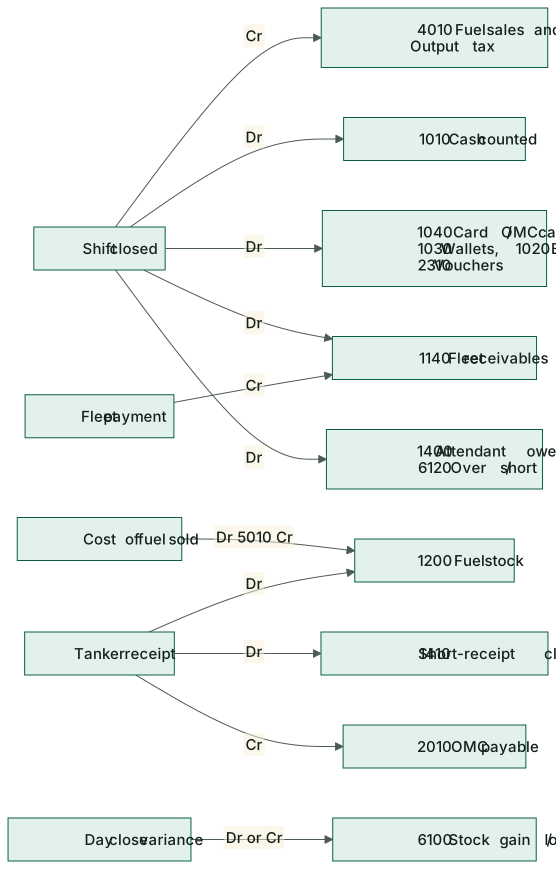
| Event | Debit | Credit |
|---|---|---|
| Shift closed: sales | 1010 Cash (counted); 1040 Card and OMC cards / coupons; 1030 Mobile wallets; 1020 Bank transfer; 2310 Vouchers; 1140 Client receivables (fleet slips); 4090 Sales discount (fleet discount) | 4010 Sales (net of the included tax); 2100 Output tax |
| Shift closed: short / excess | 1400 Employee advances (attendant owes it) or 6120 Cash over / short (written off) | 6120 (excess) |
| Shift closed: cost | 5010 Cost of goods sold | 1200 Inventory, at weighted average cost |
| Tanker receipt with the OMC as supplier (bill PB) | 1200 Inventory (litres received); 1410 Claims; 1300 Input tax | 2010 Accounts payable |
| Tanker receipt paid directly | 1200; 1410; 1300 | the bank or cash |
| Claim settled by credit note (SCN) / by money / rejected | 2010 / the bank / 6100 Stock gain / loss | 1410 Claims |
| Day close dip loss / gain | 6100 / 1200 | 1200 / 6100 |
| Fleet payment (desk or online) | cash, bank, wallet or card | 1140 Client receivables |
| Attendant recovery / write-off | cash / 6120 | 1400 Employee advances |
These are the defaults; Settings can point each one at your own accounts. Document numbers: FSH shift, FSL slip, FST statement, FPR fleet payment, FRC tanker receipt, FDC day close, FPC price change.