
Customer portal
my.hayaterp.com ↗One page at my.hayaterp.com/your-name where parents, guests, travellers, patients, merchants and customers sign in with their mobile number and a code, see their bills, bookings, results and parcels, and pay online.
The customer portal is your business's own page on my.hayaterp.com, for example my.hayaterp.com/city-school. Your customers sign in with their mobile number and a one-time code — no password — and see everything your business has for that number: a parent sees the children's fees, attendance and results; a guest their bookings and folios; a patient their appointments, bills and lab reports. Every bill has Pay and View.
The same portal is in the phone app Hayat My — see Hayat My app.
Who does what
| Who | Does |
|---|---|
| Business admin (permission Customer portal settings, portal.manage) | Switches the portal on, chooses the address, logo, colour, welcome text, sections and support contacts. |
| Staff | Nothing extra: what they record at the desk appears in the portal. Hotel requests, doctor appointments and parcel bookings made in the portal reach them as notifications. |
| Customers | Sign in with their mobile number, see their own records, pay, view and download documents, and make requests. |
Switch the portal on
- Marketing → Customer portal.
- Type the Portal name in the address — 3 to 40 letters, digits or dashes, e.g. city-school. The page shows Customers open my.hayaterp.com/city-school. The name must be unused by any other business.
- Add a Title (e.g. City School Parents), a Logo address, a Colour and a Welcome text for the sign-in and home pages.
- Under What customers see tick the sections to show. Nothing ticked = every section your business has.
- Fill Help: the Support phone and WhatsApp number customers can contact.
- Under Acts for choose the Company and Branch that new bookings and parcels from the portal are made for.
- Tick The portal is open to customers and click Save. Open portal ↗ shows it; Copy copies the address for bills, SMS and your website.
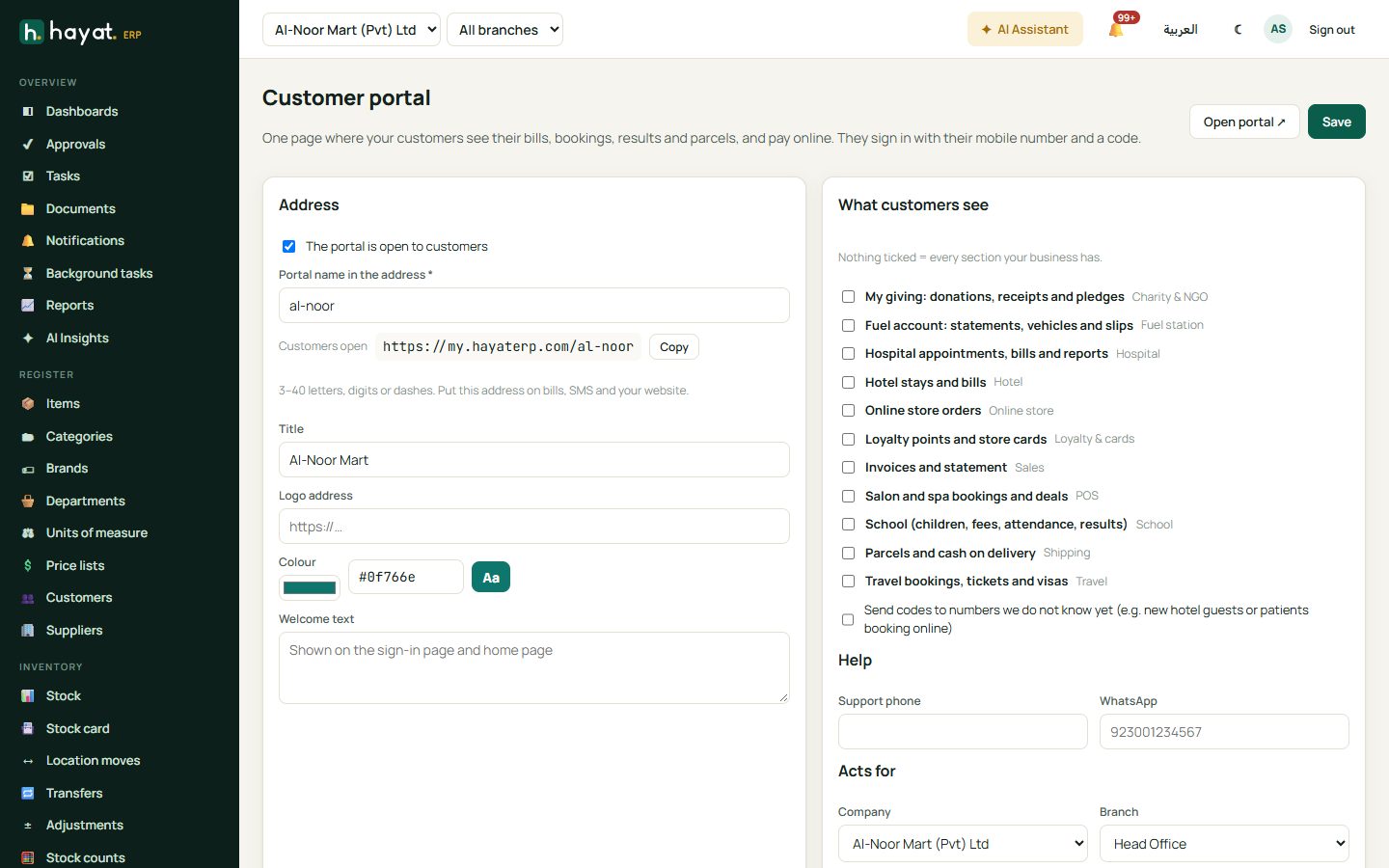
Send codes to numbers we do not know yet lets new people sign in — for example a new hotel guest who wants to request a room, or a new patient booking a doctor. Leave it off if only existing customers should get in.
Switching the portal off (or a module off) signs every customer out within a minute.
Sections
| Section | Module | For |
|---|---|---|
| School (children, fees, attendance, results) | School | Parents: the children whose guardian phone (or own phone) on the admission form is this number. |
| Hotel stays and bills | Hotel | Guests whose guest profile or booking has this number. |
| Travel bookings, tickets and visas | Travel | Customers and passengers of booking files, and bus-seat passengers with this number. |
| Hospital appointments, bills and reports | Hospital | Patients registered with this number — a family sharing one phone sees everyone. |
| Parcels and cash on delivery | Shipping | Courier merchants (customer accounts), senders and receivers of parcels. |
| Invoices and statement | Sales | Account customers whose phone or mobile is this number. |
| Loyalty points and store cards | Loyalty & cards | Loyalty members and store-card holders: points, rewards to take for points, the card QR, Google / Apple Wallet and the referral code; people who are not members can join. |
| Online store orders | Online store | Shoppers who ordered from your online shop with this number. |
| fuel (My fuel account) | Fuel station | Fleet customers whose phone is this number: balance, statements (View, Pay), vehicles and fills. See Fuel station. |
| charity (My giving) | Charity & NGO | Donors with this number: giving by tax year, monthly pledges, tax certificates, receipts and Qurbani slips. See Charity & NGO. |
| Salon and spa bookings and deals | POS | Clients with appointments on this number: upcoming and past appointments, book, pay the deposit, change or cancel, and current deals. See Salon online booking. |
A section only appears when its module is switched on for your business, and a card shows on the home page only when that section has something for the number.
Sign in (for customers)
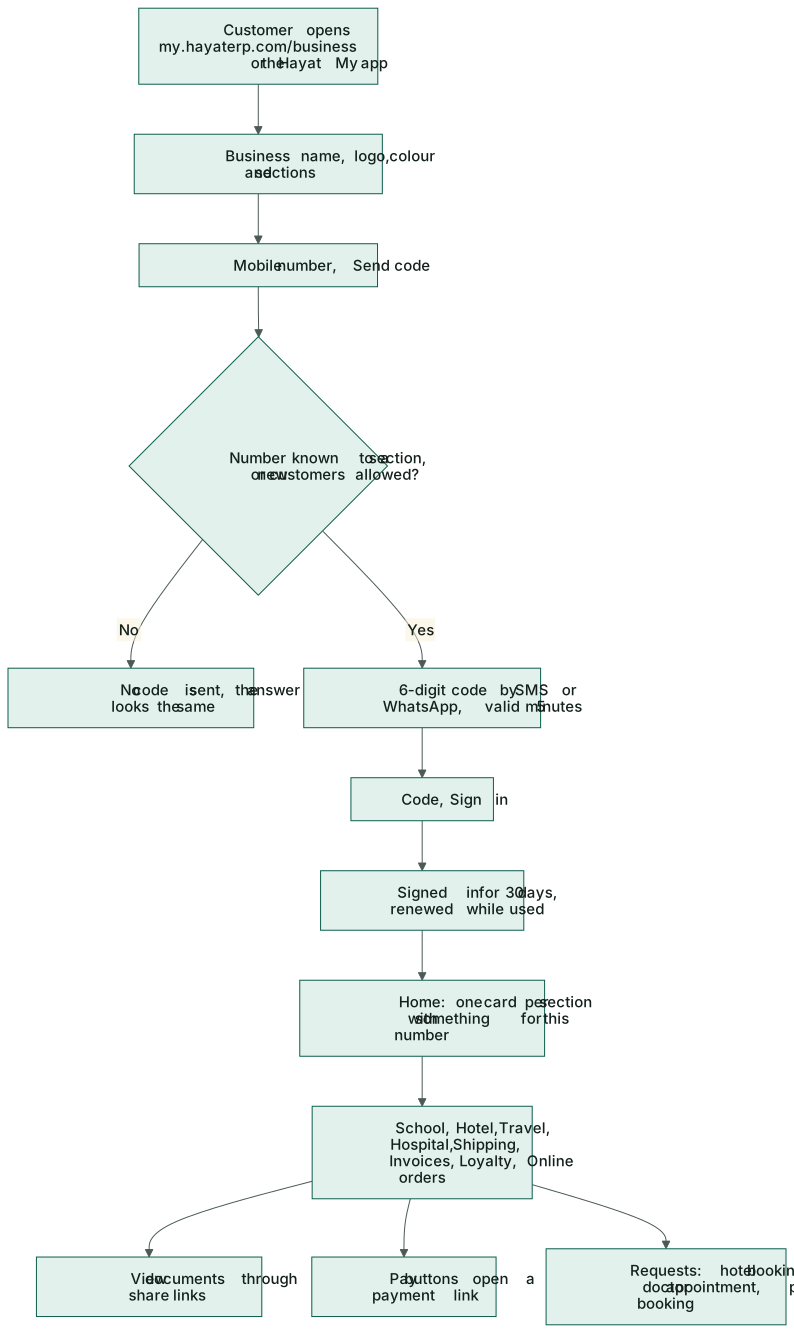
- Open the address the business gave you, e.g. my.hayaterp.com/city-school, or the Hayat My app.
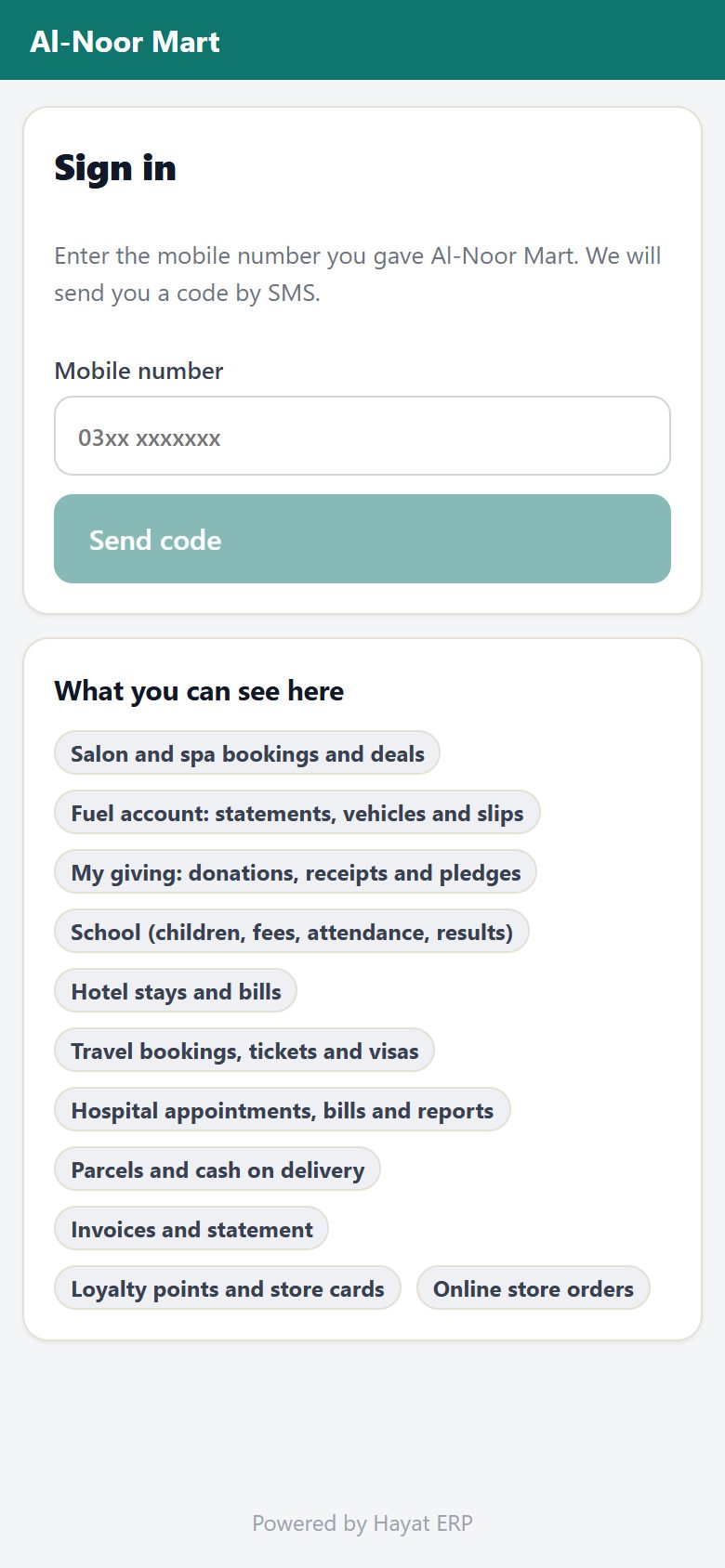
- Type your Mobile number — the one you gave the business — and tap Send code.
- A 6-digit code arrives by SMS (or WhatsApp). Type it in Code and tap Sign in. The code works for 5 minutes.
- You stay signed in on that phone for 30 days while you use it. Sign out at the top forgets you.
What each customer sees
| Customer | Sees and can do |
|---|---|
| Parent | Each child: fee vouchers with their heads, concessions and late fees (View, Pay), receipts, attendance by month, the last results, the timetable and breaks. |
| Hotel guest | Staying now, coming up and past stays; open bills with every charge and payment (View, Pay); request a booking: dates, room type, rooms, guests and meal plan — the front desk confirms it. |
| Traveller | Booking files with passengers, services and the balance (Pay), air tickets, bus seats, visas and their status, invoices (View). |
| Patient | Appointments (Cancel while booked and unpaid), book a doctor (when online booking is on), visits with prescription and advice, bills (View, Pay), lab reports when verified (View). |
| Courier merchant | Parcels sent with tracking history and COD status, the COD statement and remittances, invoices, and book a parcel with its charges (courier-account merchants only). |
| Parcel receiver | Parcels coming to them with their tracking history and COD to pay. |
| Account customer | Invoices (View, Pay), unpaid only or all, and the statement for a period. |
| Loyalty member | The loyalty card: tier, points, their value and recent activity; store and gift cards with masked numbers and balances. |
| Online shopper | Online-store orders with their lines, payment, courier and tracking, and the invoice. |
The home page shows the total due and one card per section; sections with nothing yet appear as chips so a new guest can still request a booking.
Pay online from the portal
Every Pay button opens a payment link for that bill — the same pay page with JazzCash, Easypaisa, card, Raast or buy now, pay later — and the payment is recorded on the bill. View opens the document as a share link to read, print or download.
Workflow
Where the money goes
The portal itself posts nothing. Payments go through Online payments and are recorded on each bill. A hotel request is a Tentative booking with no folio, a doctor appointment is an unbilled visit, and a merchant's parcel booking is billed later on their account — exactly as when staff make them.