
Customer display, kiosks and self-checkout
hayaterp.com/pos/devices ↗A customer-facing screen for each till, self-order kiosks with card, phone or counter payment, and scan & go self-checkout on the shopper's phone or a kiosk, with a staff check for some items and an exit check at the door.
Three kinds of screen work next to your tills. They are web pages on my.hayaterp.com — a TV, tablet or touch screen with a browser is enough — paired to your business with a code:
- the customer display shows the customer what the cashier scans, the total and the change, and a QR for the e-receipt;
- a kiosk takes restaurant or counter orders and payments by itself;
- self-checkout lets shoppers scan and pay on their own phone (or a self-checkout kiosk) and show an exit code at the door.
The staff screens are under POS: Displays & kiosks, Self-checkout and Exit check.
Who does what
| Permission | Typical person | Can do |
|---|---|---|
| Sell at a till (pos.sell) | Cashier, floor staff | See displays, kiosks and kiosk orders; watch baskets, approve items that need a staff check, cancel unpaid baskets; do the exit check. |
| Choose POS screens (business types), tables and kitchen (pos.setup) | Store or restaurant manager | Pair and unpair screens, display and kiosk settings, self-checkout settings. |
| Open/close shifts, cash declarations (pos.shift.manage) | Supervisor | Gets the alert when an exit check finds a problem. |
Pairing a screen
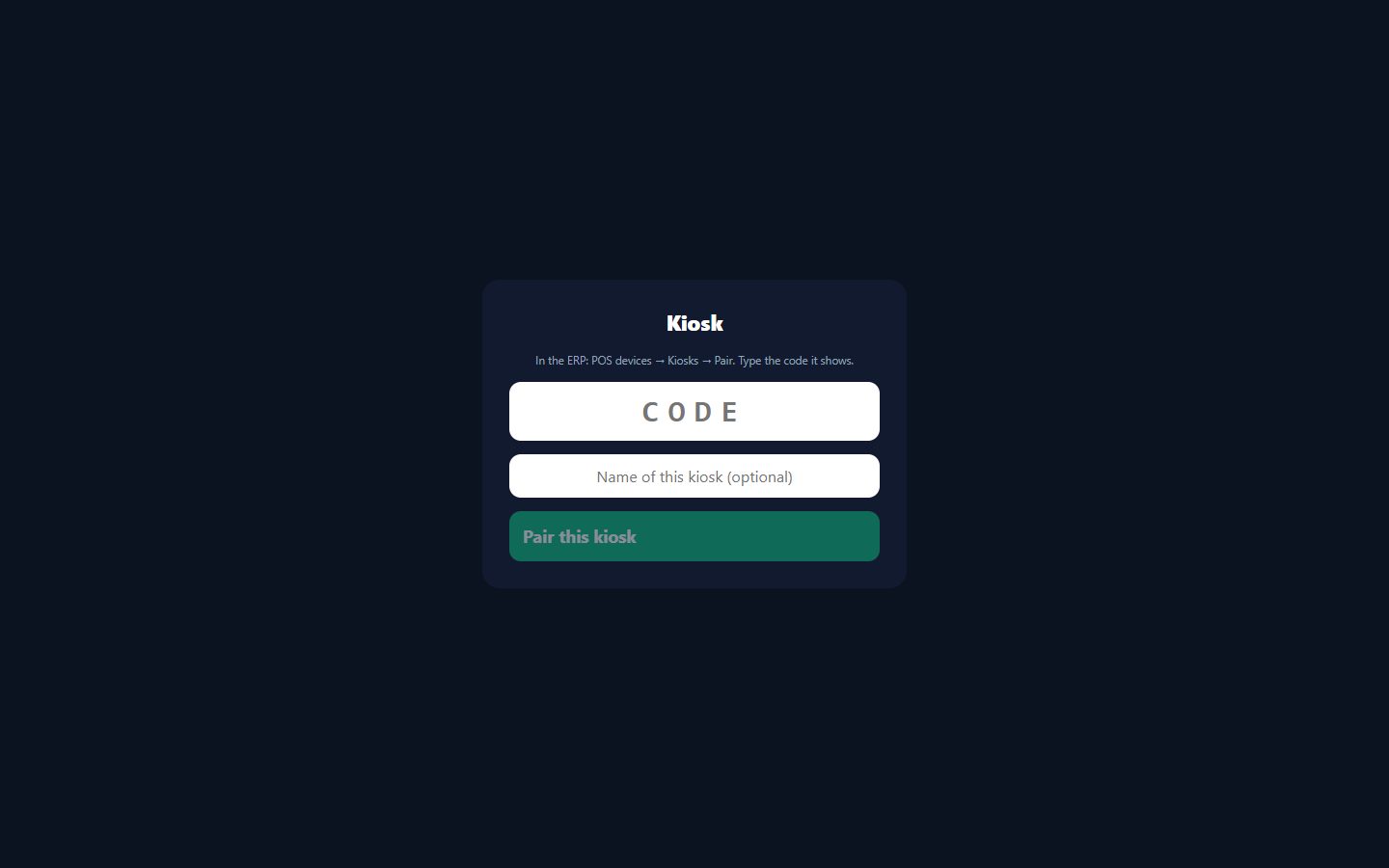
- On the screen, open my.hayaterp.com/display (customer display) or my.hayaterp.com/kiosk (kiosk).
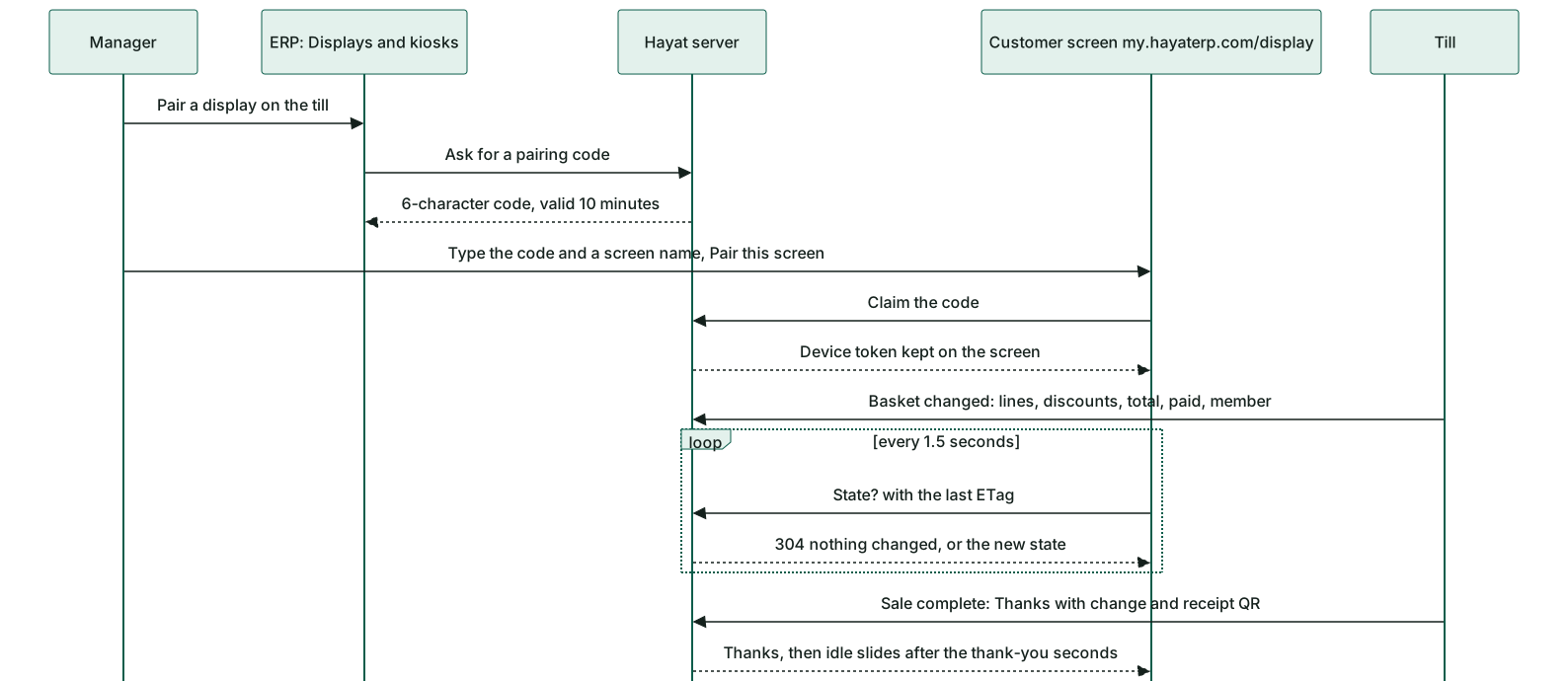
- In the ERP, POS → Displays & kiosks: Pair a display on the till, or Pair on the kiosk. A 6-character code appears in large type, valid for 10 minutes.
- On the screen type the CODE, optionally a name, and Pair this screen (or Pair this kiosk).
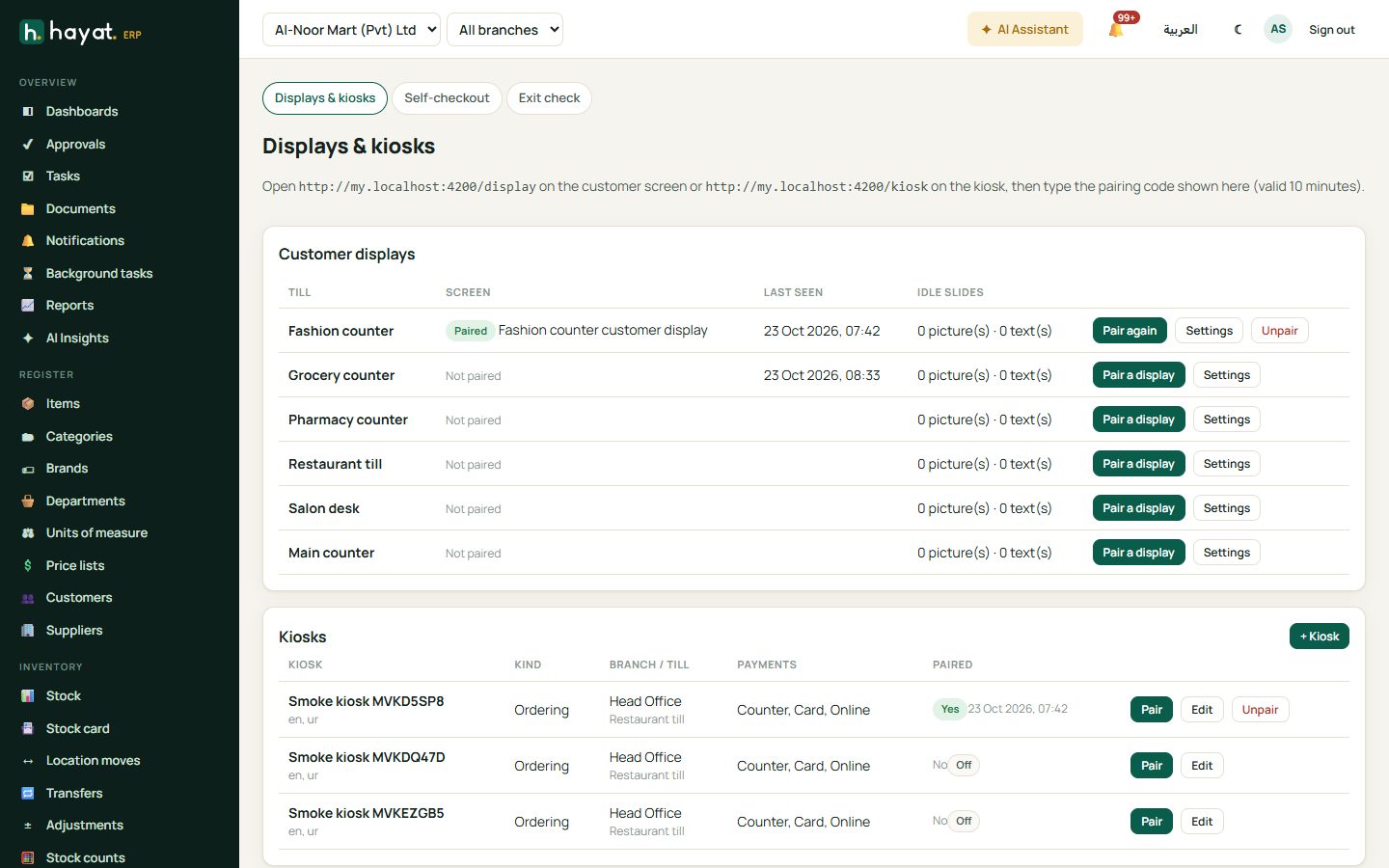
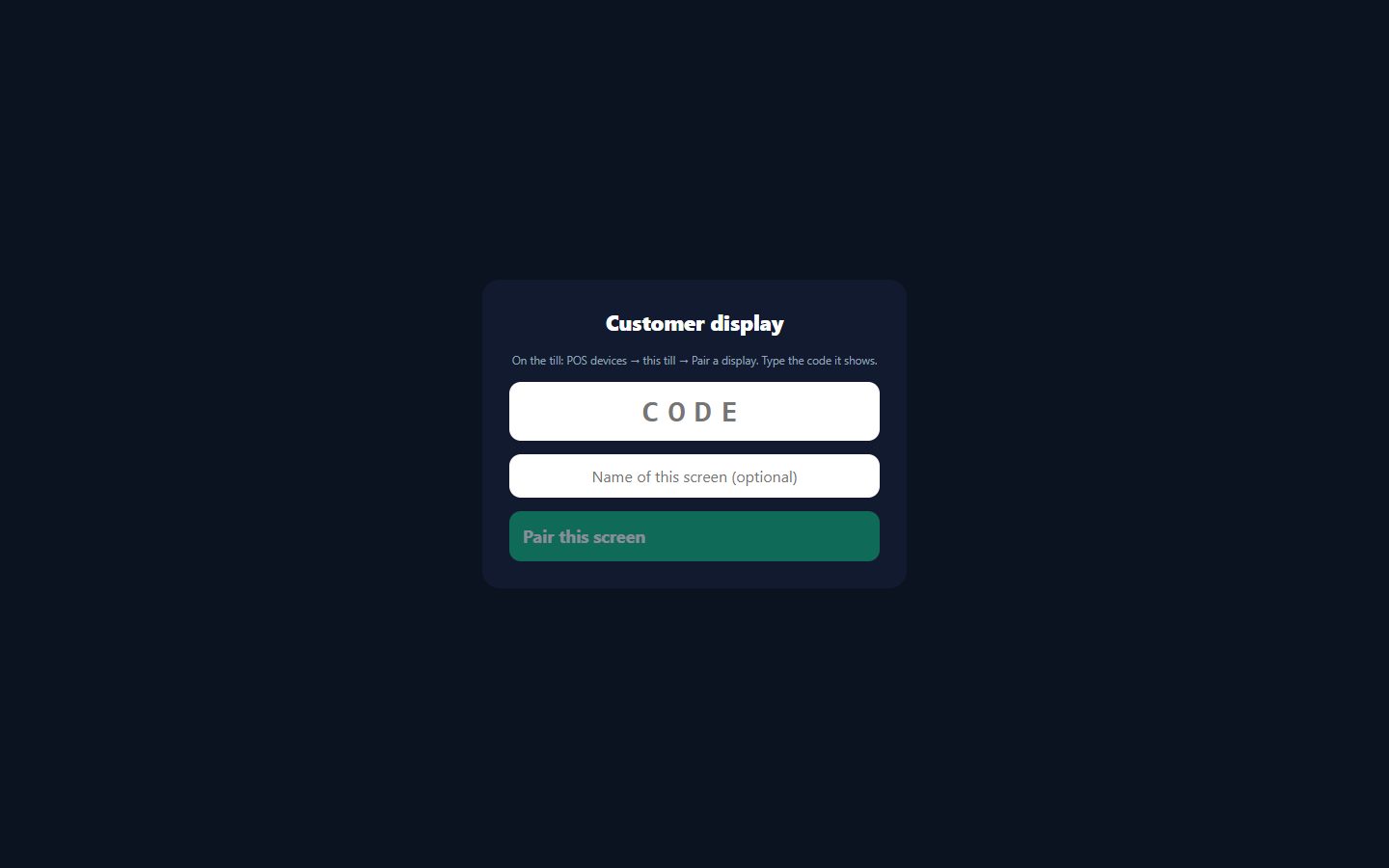
The screen remembers its pairing. Pair again cuts off the old screen; Unpair clears it. A screen that is unpaired goes back to the pairing page by itself.
Customer display
The table Customer displays shows each till, whether a screen is paired (and its name), when it was last seen and its idle pictures and texts. Settings sets the Screen name, Seconds per slide, Thank-you seconds, an Idle message (Welcome!), Idle texts (one per line, up to 20) and the pictures (+ Picture, PNG / JPEG / WebP up to 3 MB; ‹ to move, ✕ to remove).
What the customer sees, by itself, as the cashier works:
| When | The screen shows |
|---|---|
| No basket | The idle slideshow with your logo and texts. |
| Scanning | Each line with quantity and amount, the Promotions discount, the Total, the member's name and points. |
| Paying | Paid, To pay and Change. |
| Sale complete | Thank you!, the change and a QR Scan for your e-receipt; back to idle after the thank-you seconds. |
The till pushes the basket a moment after each change, only when a display is paired, and never waits for it: if the screen or the network is slow, the till keeps selling. Double-click the display for full screen.
Kiosks
+ Kiosk in Kiosks:
- Name, Kind (Self-order kiosk or Self-checkout kiosk), Branch and the Till (card machine, orders) that owns its orders and card machine.
- Back to start after (seconds) and the Languages (English, اردو, عربي).
- For a self-order kiosk: Take away, Eat in, Pay at the counter, Send to the kitchen before payment (counter / online), Ask the guest's name and the Menu categories (none = the restaurant menu). Retail counters should always choose categories.
- Pay by card machine (needs a till) and Pay on the phone (QR). Tick Active and Save, then Pair.
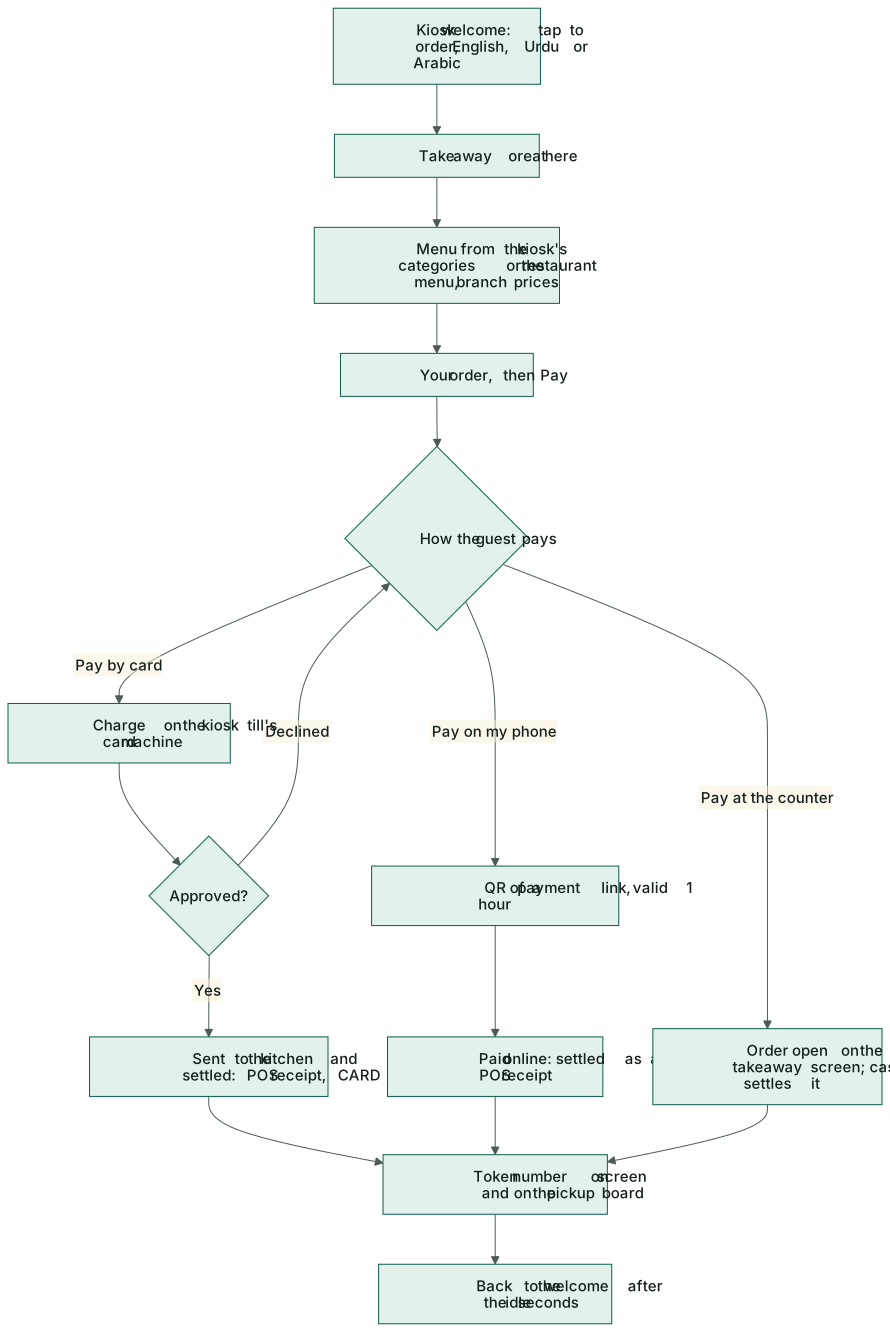
On the kiosk the guest taps Tap to order, chooses the language and Take away or Eat here, adds dishes from the menu (branch prices, item pictures), checks Your order and taps Pay:
- Pay by card charges the kiosk till's card machine. The order goes to the kitchen only when the card is approved; a declined card goes back to the choice.
- Pay on my phone shows a QR of a payment link (valid 1 hour); Pay at the counter switches it to the counter.
- Pay at the counter leaves the order open on the takeaway screen for the cashier to settle as usual.
Every kiosk order gets a takeaway token (Your number), shown on the pickup screen. The kiosk goes back to the start after the idle seconds (30 seconds on the token screen); an order that was neither paid nor sent to the kitchen is dropped then. Kiosk orders in the ERP lists the day's orders with token, payment, approval code, status and amount.
Self-checkout
POS → Self-checkout, per Branch (saving needs pos.setup):
- Tick Self-checkout on at this branch and choose the Self-checkout till.
- Most items, Most value (0 = no limit) and Basket expires after (min).
- Check baskets at the exit, Loyalty card and Coupons, and a Message for shoppers.
- Categories that need a staff check and Items that need a staff check (security tags, age checks, high value). Save.
- Shopper's page shows the address my.hayaterp.com/scan/your-name/branch-code and its QR — Print this QR at the entrance.
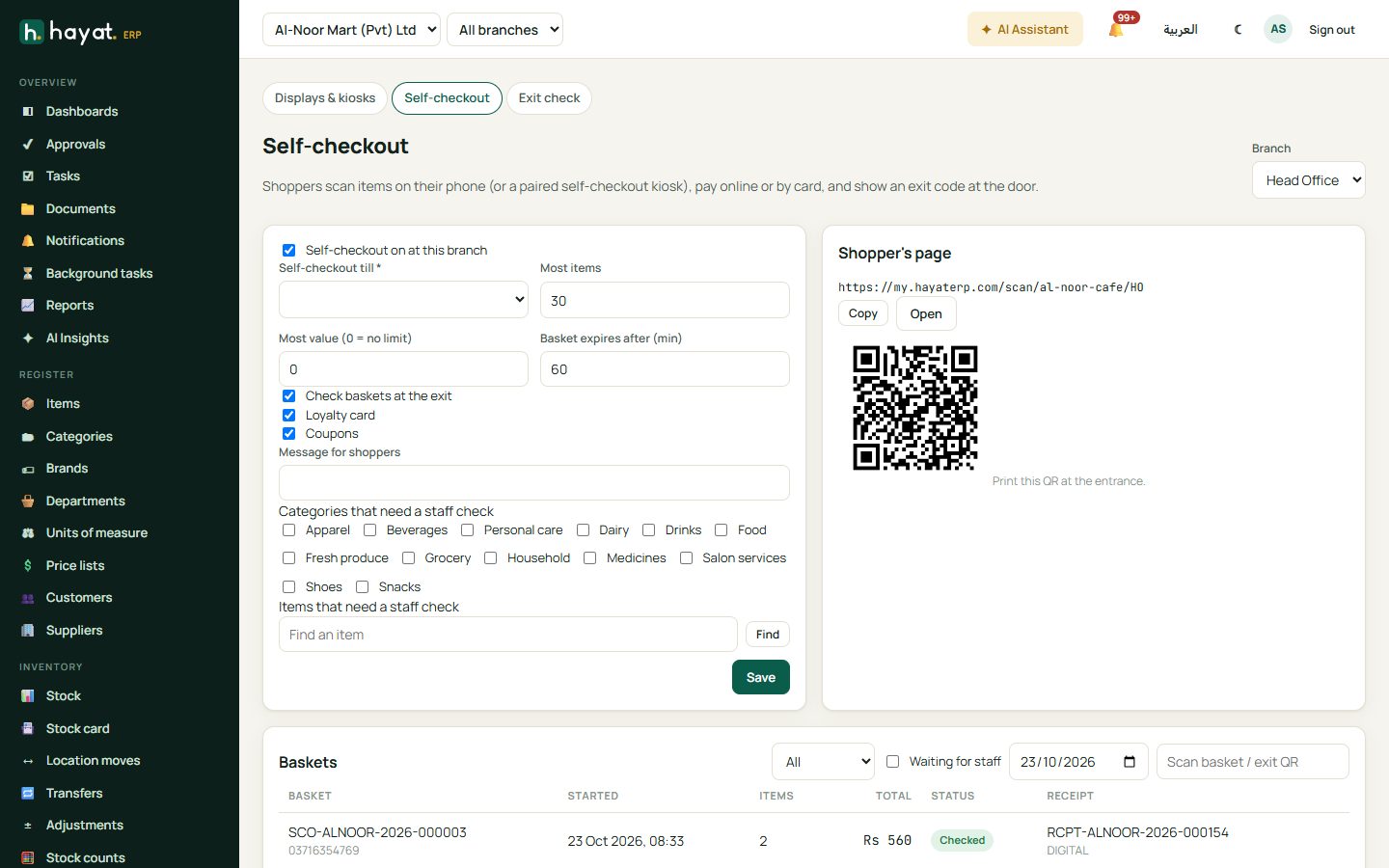
The page's address uses your restaurant, customer-portal or online-store address. If you have none, the screen says what to set up first.
Scan & go on the phone
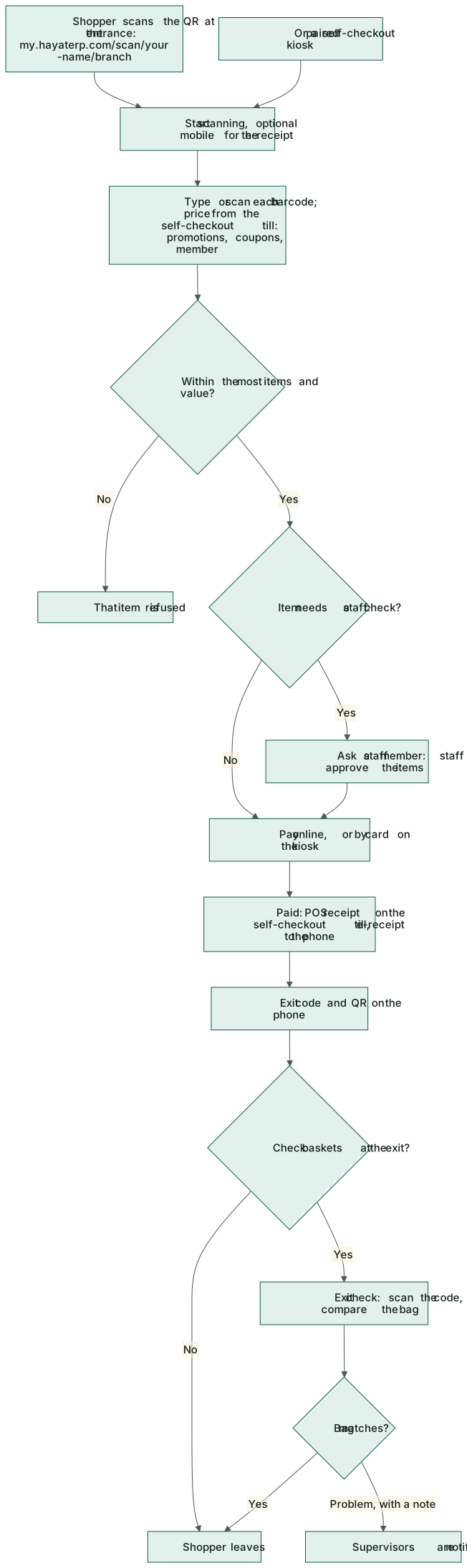
The shopper scans the QR, taps Start scanning (a mobile for the e-receipt is optional), then types or scans each barcode — 123 keyboard / ABC keyboard switches the keys. Every change is priced by the self-checkout till: branch prices, promotions, coupons and the loyalty member, so the receipt matches. They can change quantities, remove items, Add card and Apply a coupon.
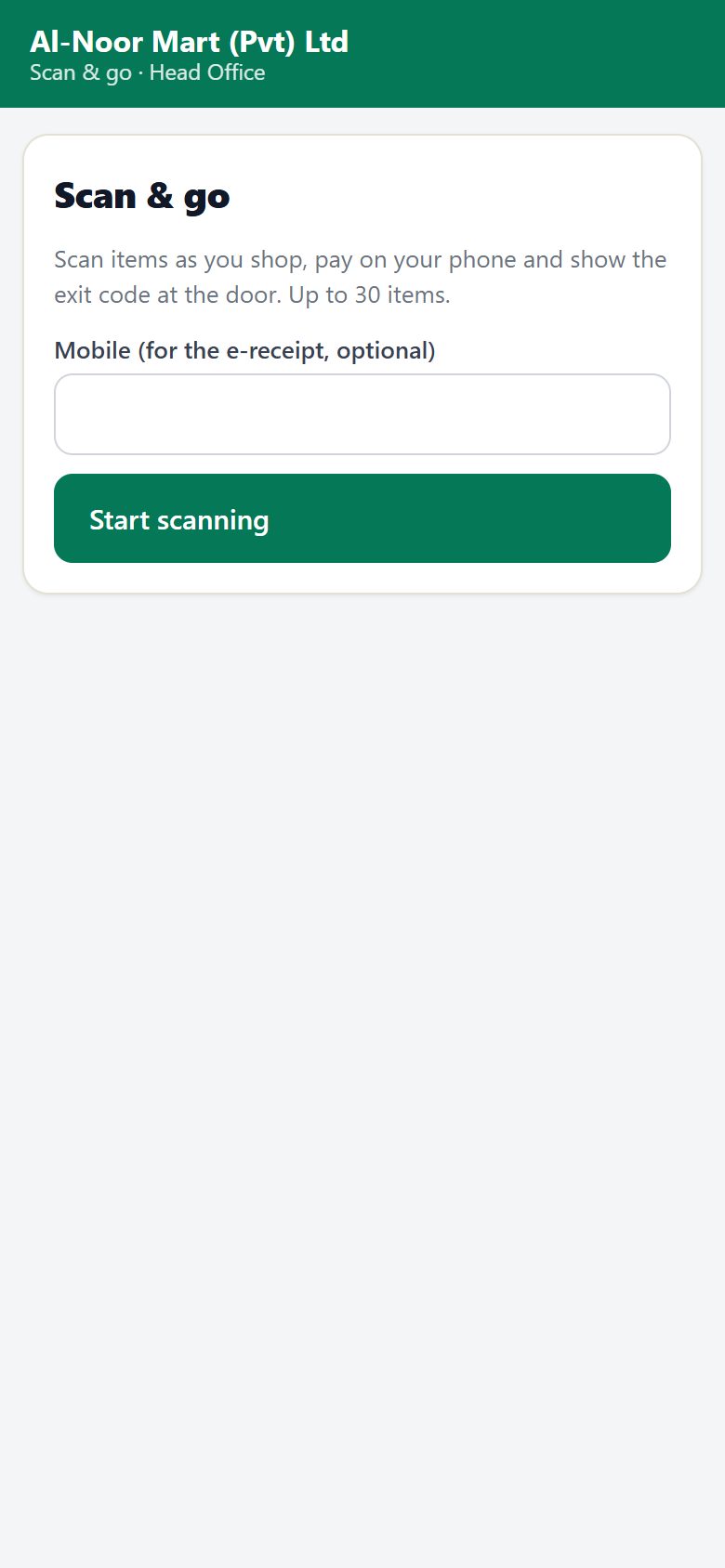
- A pack barcode counts its units; a weighed item needs its scale label (weighed items without one, and serial-number items, are refused — take it to the weighing counter).
- Going over Most items or Most value refuses that item.
- An item that needs a staff check shows staff check and an Ask a staff member QR; payment waits until staff approve it.
- Pay (amount) online opens the pay page; Change the basket reopens it. Coming back to the page resumes the same basket.
When the payment arrives, the sale is made on the self-checkout till and the phone shows Paid. Thank you!, the exit code and its QR, and the receipt link.
A self-checkout kiosk (paired like a kiosk) shows the same page, adds Pay by card on its till's card machine, and shows the receipt as a QR.
Watching baskets
Baskets (refreshed every 15 seconds) lists today's baskets: status (Open, Paying, Paid, Checked, Expired, Cancelled), items, total and receipt. Tick Waiting for staff, or scan a basket or exit QR into Scan basket / exit QR. Approve items clears the staff check; Cancel basket cancels an unpaid one. Money held on vouchers (a part payment, or a payment after the basket expired) is shown on the basket.
Exit check
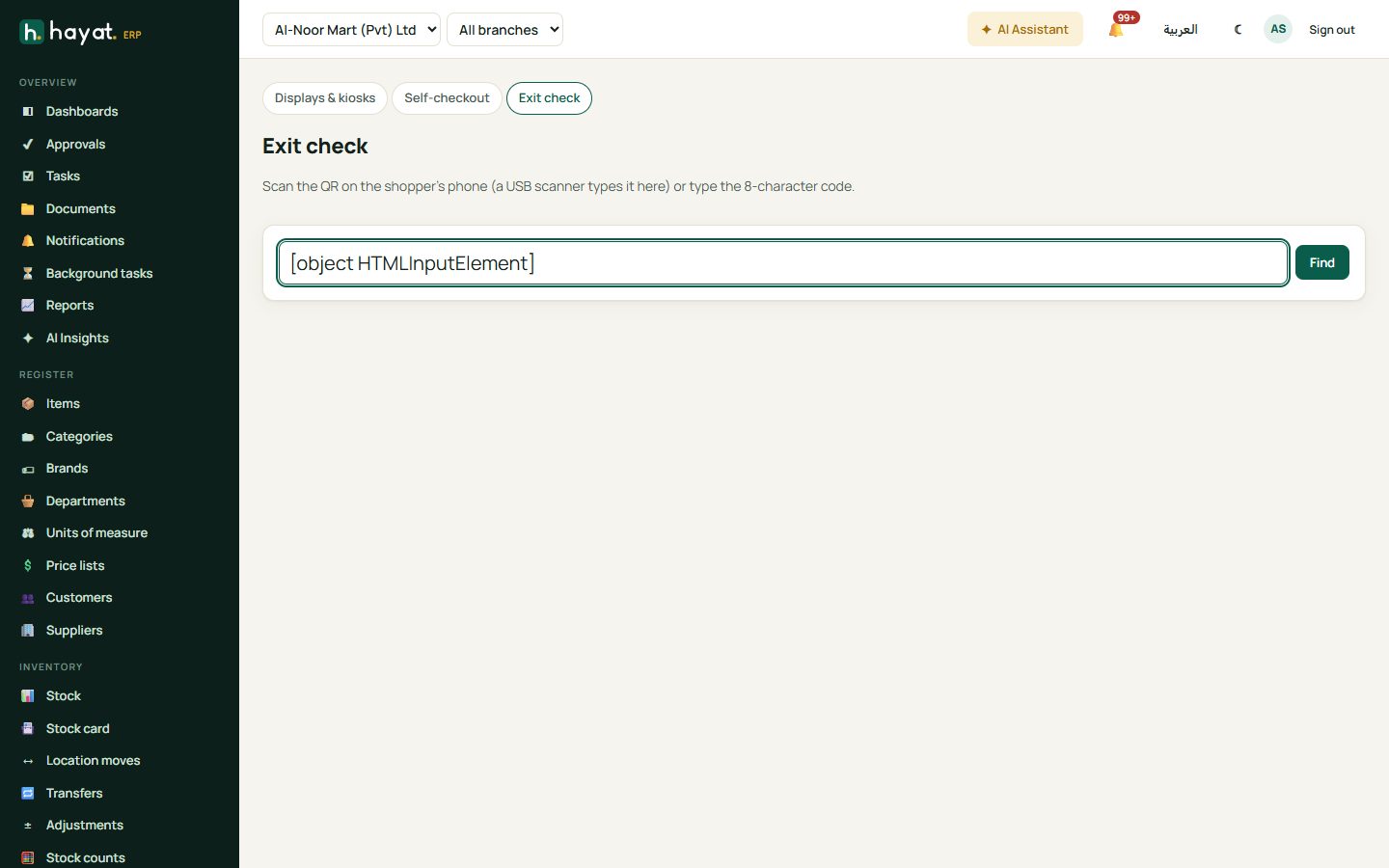
POS → Exit check: scan the QR on the shopper's phone (a USB scanner types it) or type the Exit code and Find. The basket, receipt and items show, with warnings when it was already checked, paid more than 2 hours ago, or had items needing a staff check. Compare the bag, then ✓ Bag matches or Problem (with a Note) — a problem alerts the supervisors.
Workflow
Where the money goes
Every kiosk or self-checkout payment that completes is a normal POS receipt on that till — stock, promotions, coupons, points, FBR and the sale journal, as in How every module reaches the accounts. Displays post nothing.
| Event | Debit | Credit |
|---|---|---|
| Kiosk or self-checkout card payment | 1040 Card settlements receivable (the receipt's CARD line) | 4010 Sales, 2100 Output tax |
| Paid online in full | 1030 / 1040 / 1045 by method (the receipt's tender) | 4010 Sales, 2100 Output tax |
| Part payment, payment after the basket expired or a sale that failed | 1030 / 1040 / 1045 by method | 2310 Gift vouchers & store cards (held on a voucher until used or refunded) |