
Marketing and messages
hayaterp.com/marketing ↗SMS, WhatsApp and email campaigns to your customers, automatic reminders for every workspace, digital receipts sent by themselves, share links with a QR code, opt-outs and the message log.
Marketing sends messages to your customers by SMS, WhatsApp and email:
- Campaigns — an offer or notice to a group: loyalty members, parents, patients, hotel guests, travel customers, courier merchants or an uploaded list.
- Reminders — sent by themselves once an hour: fees due, appointments and arrivals tomorrow, departures, lab reports ready, overdue invoices, parcels out for delivery.
- Documents — receipts, bills, folios and invoices sent to the customer as soon as they are made, with a link to view, print and pay.
Before you start: set up the channels
Hayat does not send SMS or WhatsApp by itself — it hands each message to your provider. You get the accounts; the Hayat team enters the connection details for your company (super admin → the subscriber → API integrations → Email · SMS · WhatsApp, see Subscriber integrations). In the ERP, Control panel → Email · SMS · WhatsApp shows whether each one is connected and lets you send a test.
| Channel | What you need |
|---|---|
| Your mail server (SMTP) details. | |
| SMS | An account with an SMS gateway (your telecom or a bulk-SMS company) and its sending address. |
| A WhatsApp Business (Cloud API) number, its phone number id and token, and approved templates from Meta. |
Documents & settings shows which channels are set up and not set up. A campaign on a channel that is not set up is refused. See also Why do SMS messages need a gateway?
Who does what
| Permission | Typical person | Can do |
|---|---|---|
| See campaigns, reminders and message history (marketing.view) | Manager | Every Marketing screen, read only. |
| Create and send SMS / WhatsApp / email campaigns (marketing.campaigns) | Marketing staff | Campaigns, audience counts, test messages, add opt-outs. |
| Templates, reminders and receipt auto-send settings (marketing.manage) | Owner, marketing manager | Templates, switch reminders on and off, run them now, auto-send per document, messaging settings, remove opt-outs. |
| Each document's own permission | Fee clerk, front desk, cashier… | ✉ Send and Copy link on that document. |
The overview
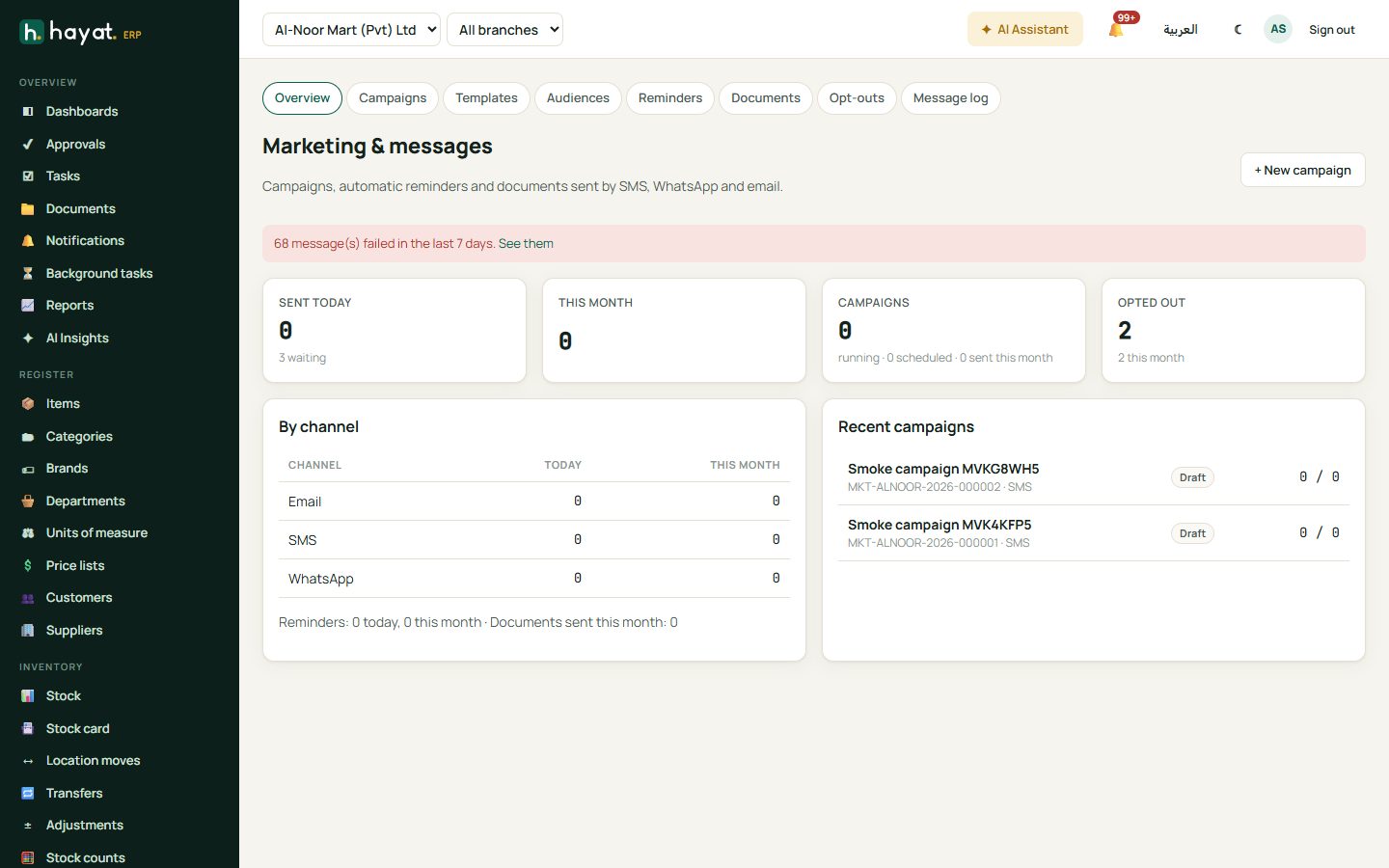
Marketing shows messages sent today and this month (all messages, not only campaigns), those waiting, campaigns running, scheduled and sent, opt-outs, sent by channel, reminders and documents this month, and the recent campaigns. A red bar warns when messages failed in the last 7 days.
Audiences
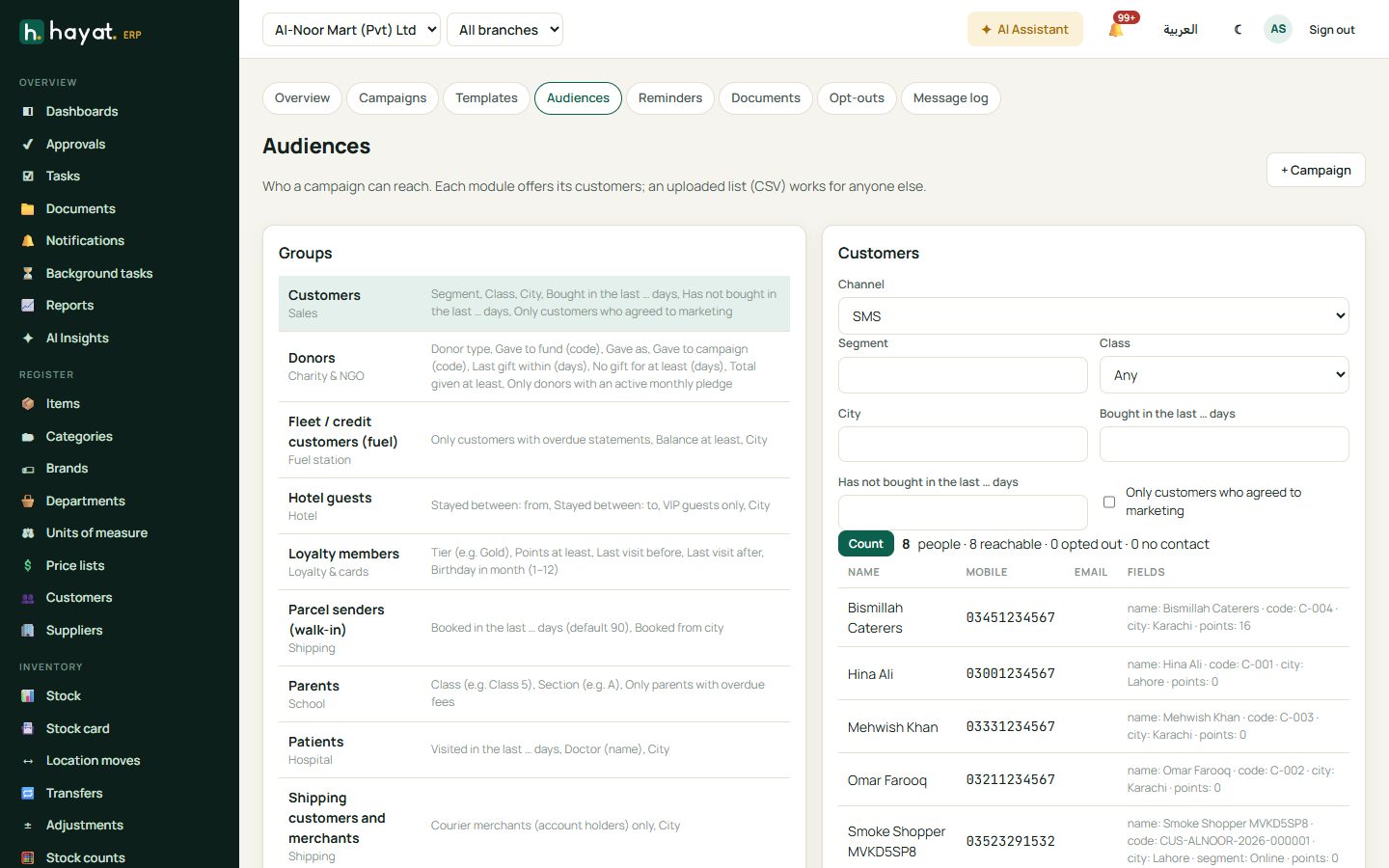
An audience is who a campaign can reach. Each workspace offers its own people, with filters; Audiences lets you try a filter and Count before you write anything.
| Audience | Module | Filters |
|---|---|---|
| Loyalty members | Loyalty & cards | tier, minimum points, last visit before / after, birthday month |
| Customers | Sales | segment, class, city, bought in the last … days, not bought in the last … days, only those who opted in |
| Parents | School | class, section, defaulters only |
| Patients | Hospital | visited in the last … days, doctor, city |
| Hotel guests | Hotel | stayed from / to, VIP only, city |
| Travel customers | Travel | travelled to, last booking after / before, city |
| Shipping customers and merchants | Shipping | courier accounts only, city |
| Parcel senders (walk-in) | Shipping | booked in the last … days, origin city |
| Upload | — | a CSV list: name, phone, email per line (up to 50,000) |
Audiences of switched-off modules do not appear. The count shows how many people match, how many are reachable, how many opted out and how many have no mobile (or no email).
Templates
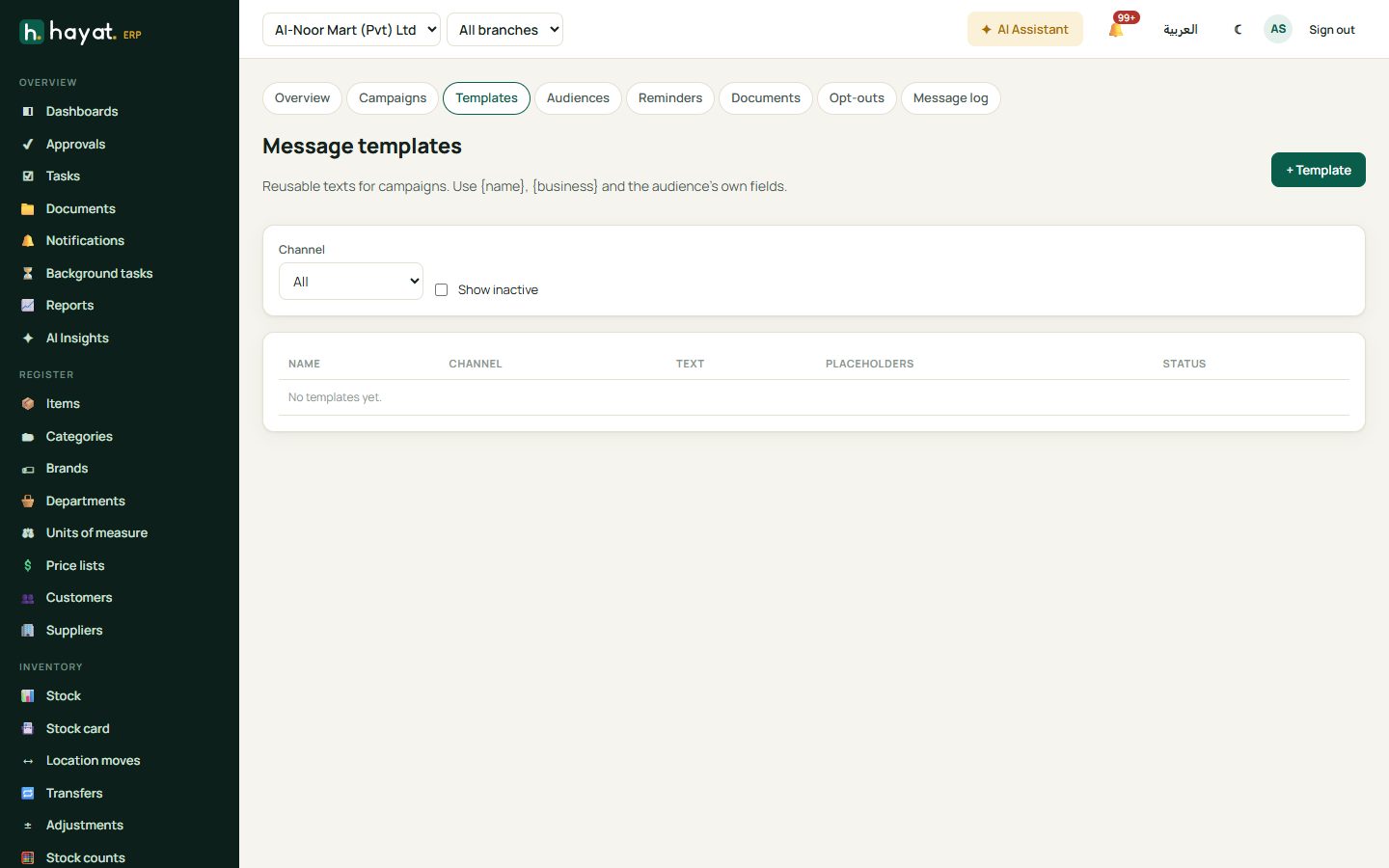
Templates keep texts you use again, per channel and language (English, Urdu or Arabic — Urdu and Arabic are typed right to left). Placeholders such as {name}, {business}, {balance}, {student}, {points}, {tier} and {city} are filled for each person from the audience's fields.
Send a campaign
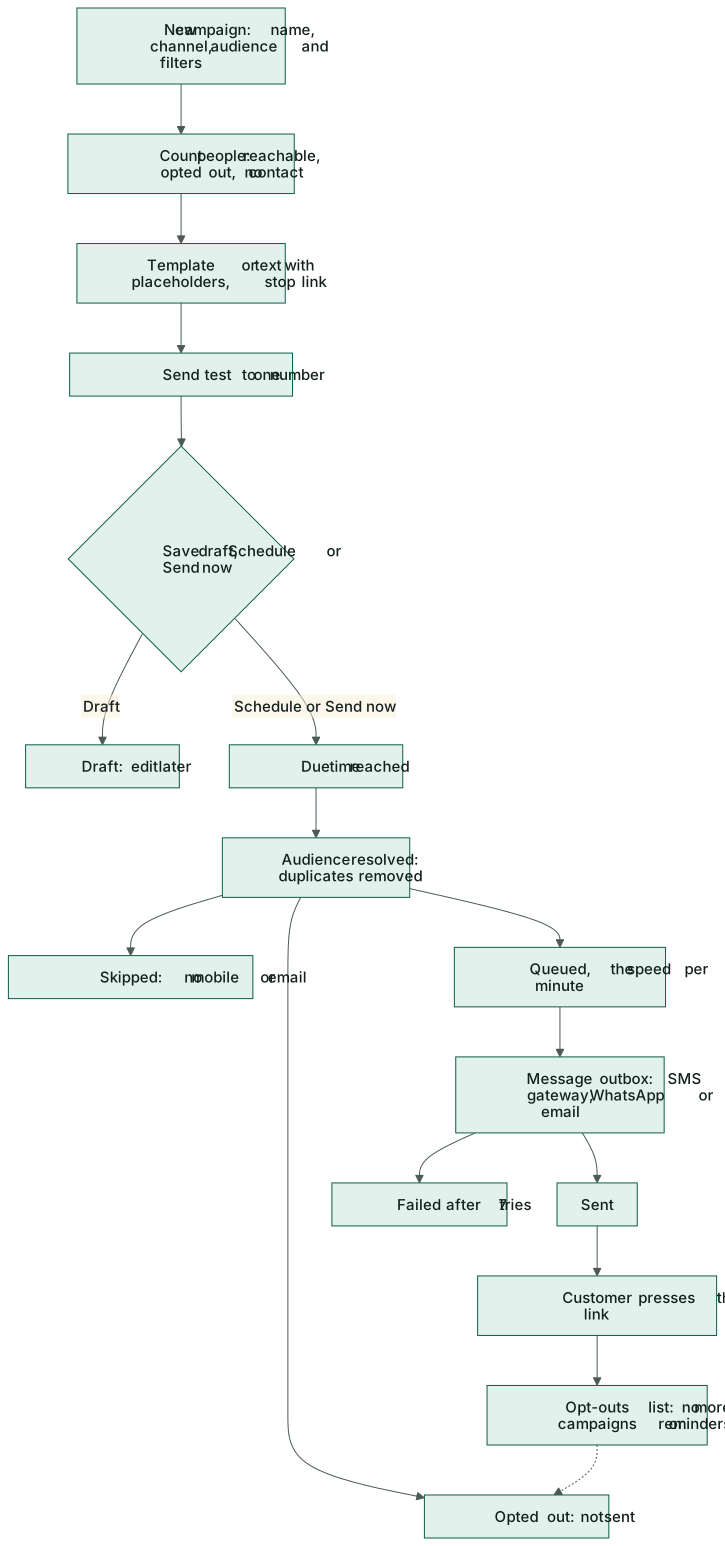
- Marketing → Campaigns → + New campaign.
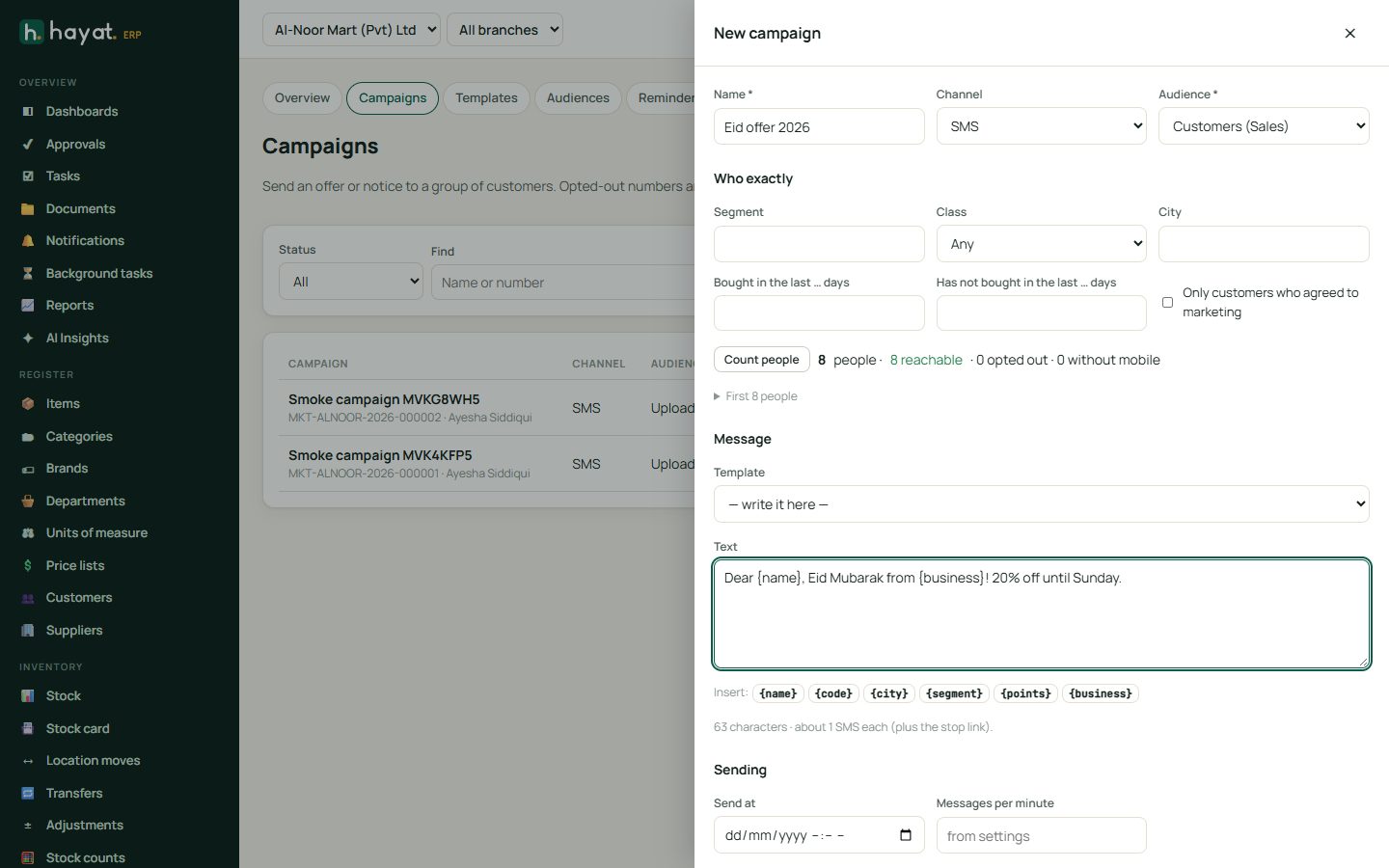
- Type a Name (e.g. Eid offer 2026), choose the Channel and the Audience, then fill Who exactly — the audience's filters. For Upload, paste the list or load a .csv file.
- Click Count people. Check the number reachable and open First 20 people to see who they are.
- Choose a Template or write the Text. The Insert buttons add placeholders. For SMS the page counts characters and SMS parts; for email add a Subject; for WhatsApp the approved template name.
- Under Sending choose Send at (blank = now) and Messages per minute. Keep Add a "stop these messages" link ticked.
- Save draft to finish later. Open the draft and use Send test to your own number first.
- When it is right, press Schedule (with a time) or Send now.
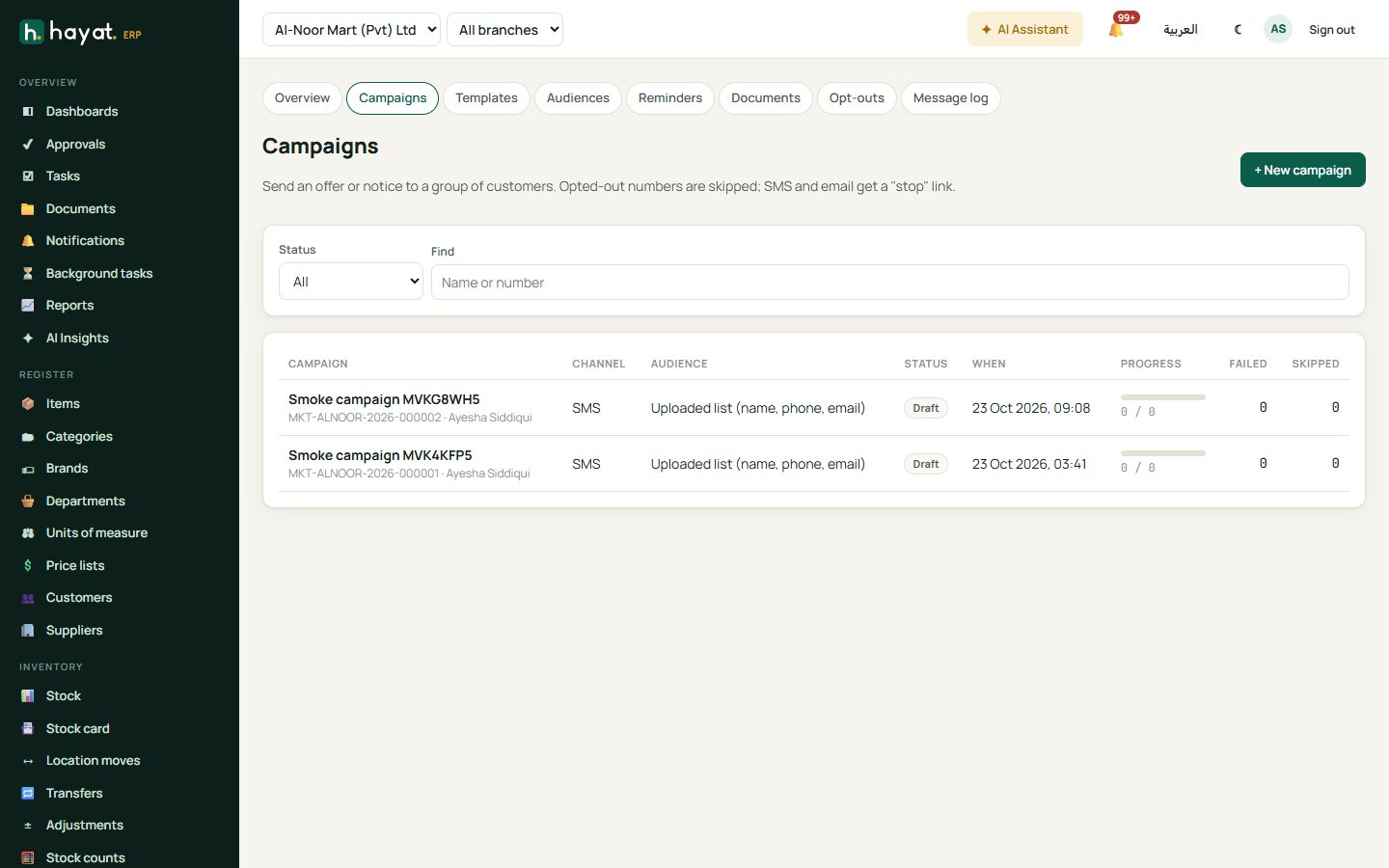
The campaign list shows a progress bar per campaign. Open one for the counts — people, sent, failed, skipped — and the list of recipients by status. A Draft or Scheduled campaign can be Edited or sent now; Cancel stops a campaign that is still sending (messages not yet sent are dropped); Copy makes a new draft from it.
Before sending, Hayat removes duplicate numbers, skips people without a mobile or email, and leaves out everyone who opted out. SMS messages end with Stop: link, emails with To stop these messages: link.
Opt-outs
Opt-outs lists numbers and emails that get no campaigns and no reminders. People are added when they press the stop link, or by staff (Mobile or email, channel, reason → Add) when a customer asks by phone. Removing one (marketing.manage) lets them get messages again.
Receipts and bills a customer asked for still go to them — opting out only stops marketing and reminders.
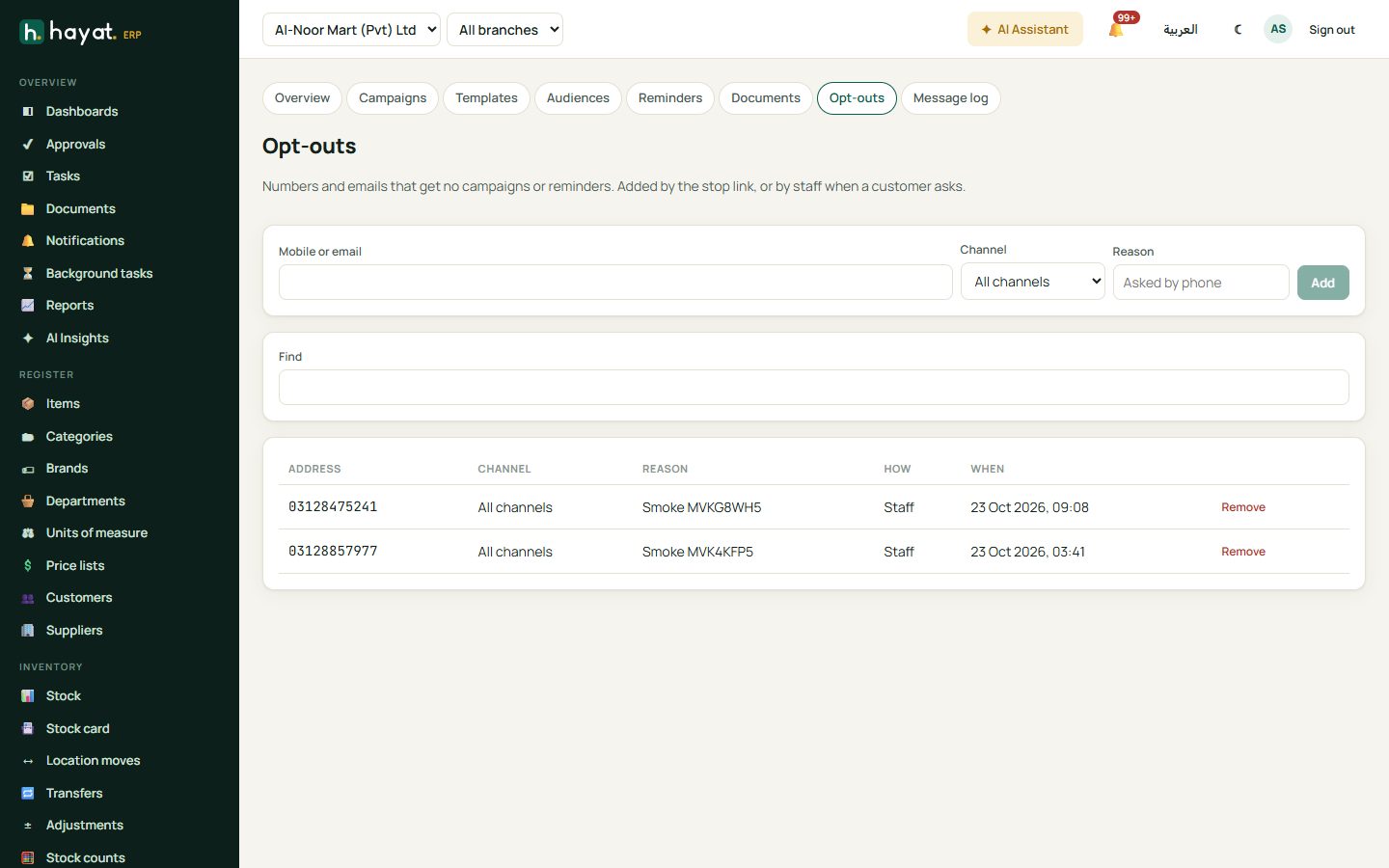
Reminders
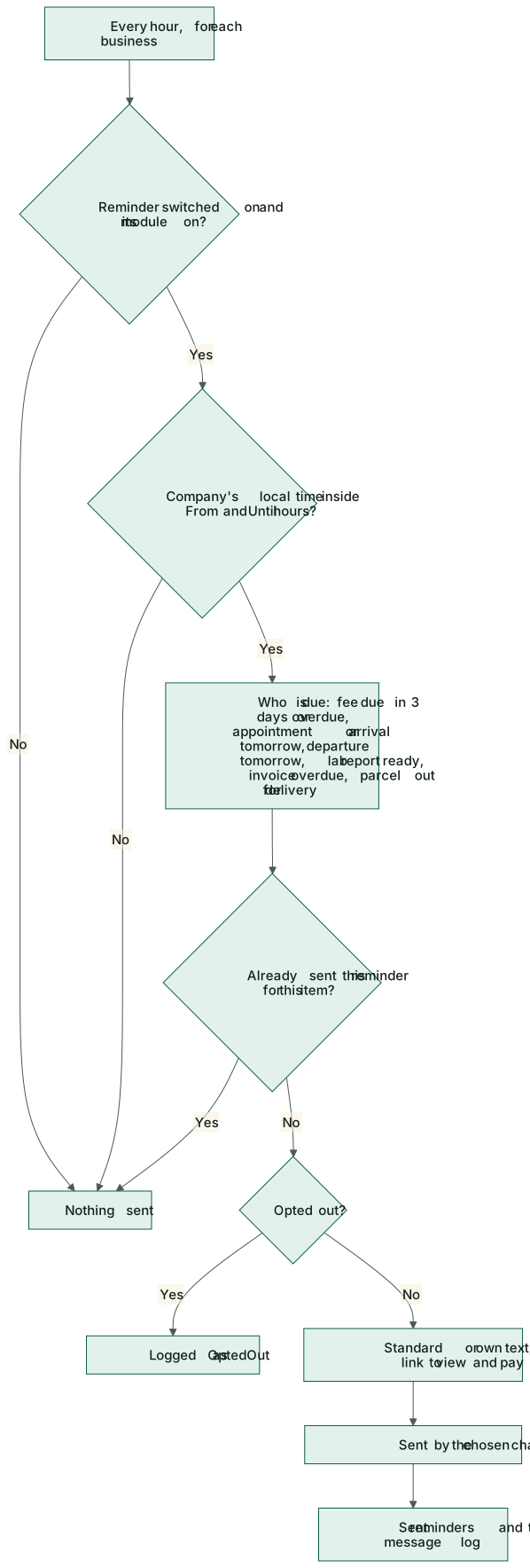
Reminders are switched off until you turn them on. Each one runs once an hour, only inside the hours you set (in the company's own time zone), and nobody gets the same reminder twice.
| Reminder | Workspace | Who gets it, and when |
|---|---|---|
| School fee due | School | Parents: 3 days before the due date, then once a week for up to 4 weeks while unpaid. With a link to view and pay the voucher. |
| Appointment tomorrow | Hospital | Patients with an OPD visit booked for tomorrow: doctor, time and token. |
| Lab report ready | Hospital | Patients whose report was verified in the last 3 days, with a link to the report. |
| Hotel arrival tomorrow | Hotel | Guests with a confirmed or tentative booking arriving tomorrow. |
| Travel departure tomorrow | Travel | Travellers flying tomorrow, and bus passengers on tomorrow's trips. |
| Invoice overdue | Sales | Customers with a posted invoice 1–56 days past due, once a week, with a link to the invoice. |
| Parcel out for delivery | Shipping | Receivers of parcels on today's runsheets, with the rider's name, the COD amount and the tracking link. |
- Marketing → Reminders, click Settings on a reminder.
- Tick Send this reminder, choose the Channel, From hour and Until hour.
- Leave Text empty for the standard text, or write your own with the Insert placeholders. Save.
- Preview shows who would get it now and the exact message. Run now sends it straight away, outside the hours too.
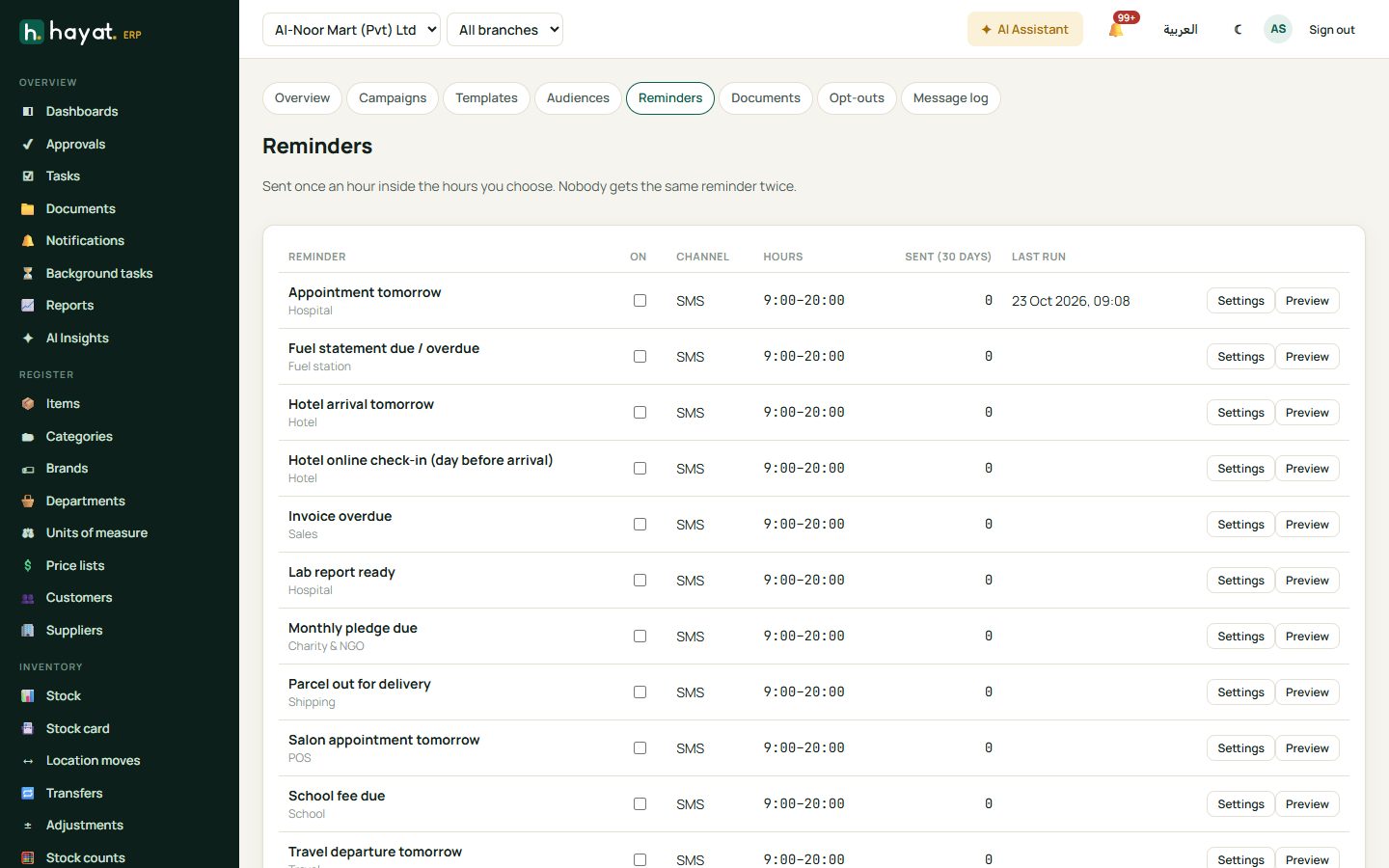
Sent reminders at the bottom lists every reminder sent, with its result (Sent, OptedOut or NoContact).
Digital receipts and documents
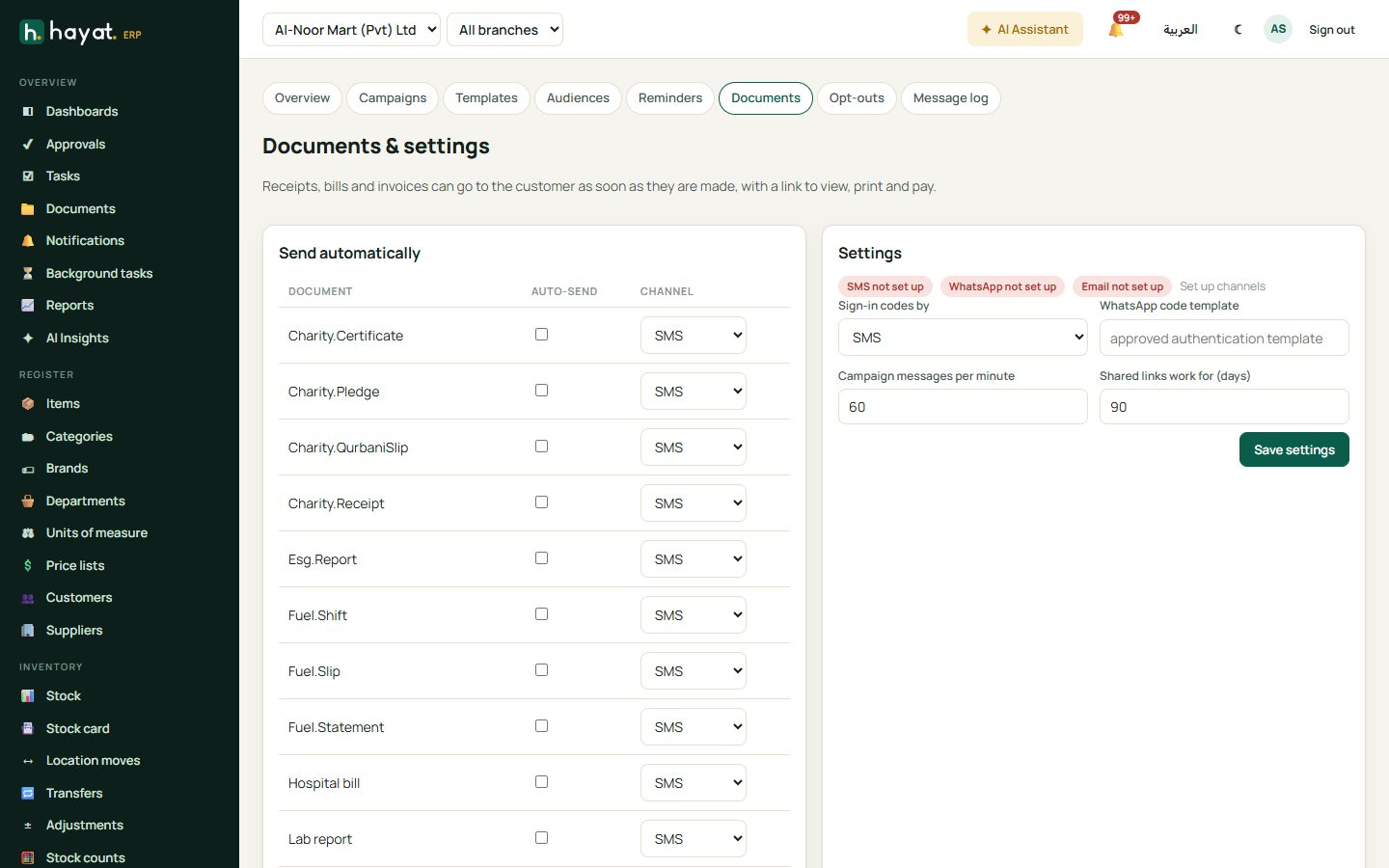
Every document below has a ✉ Send button on its screen (and in the phone apps). Marketing → Documents can also send it automatically the moment it is made:
| Document | Sent automatically when |
|---|---|
| School fee receipt | a fee is collected |
| Hotel folio / invoice | the guest checks out |
| Hospital bill | a bill is paid |
| Travel invoice | a booking is invoiced |
| Courier consignment | a parcel is booked |
| POS receipt, School fee voucher, Travel booking confirmation, Bus ticket, Lab report, Sales invoice, Export invoice | sent by staff with ✉ Send |
- Marketing → Documents. In Send automatically tick Auto-send for a document and choose its channel.
- In Settings choose how Sign-in codes go out (SMS or WhatsApp, used by the customer portal), the WhatsApp code template, the Campaign messages per minute and how many days Shared links work for (90 by default). Save settings.
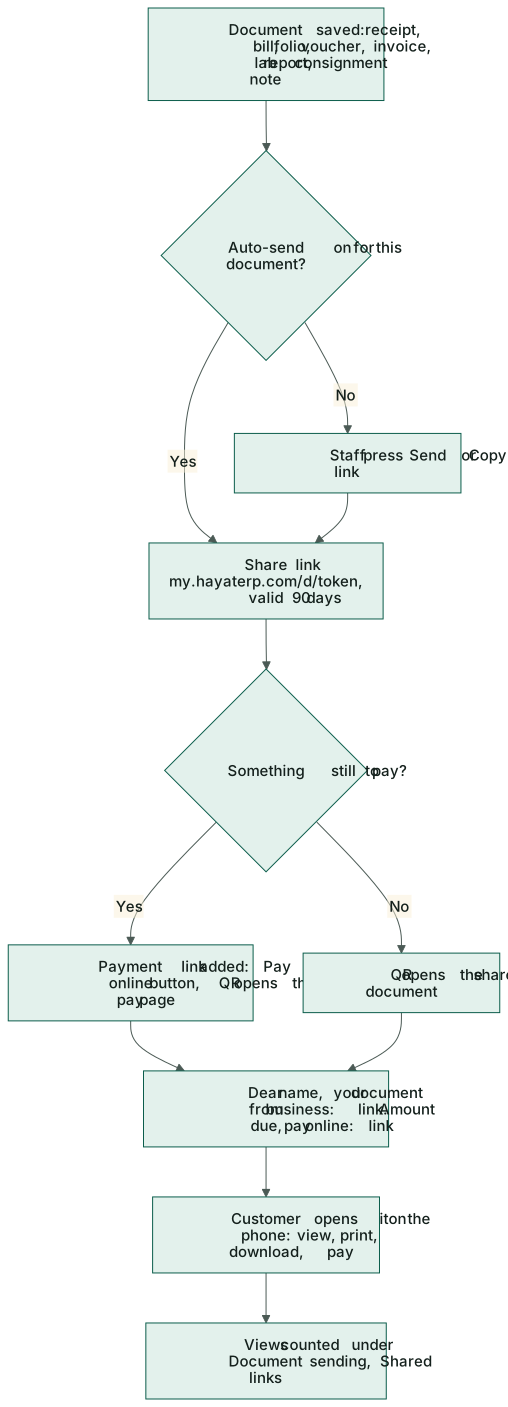
The message reads "Dear Bilal Ahmed, your fee receipt SFR-2026-0311 from City School: link" — and when something is still due, "Amount due Rs 4,500. Pay online: link" with a payment link. Sending a document never stops or slows the desk: if the message cannot go, the receipt is still saved.
Share links with a QR code
Copy link on a document (or the link in the message) opens my.hayaterp.com/d/…: a clean page of the document that works on any phone, with Print, Download and — when something is due — Pay online. The page carries a QR code: it opens the pay page while the document has a balance, otherwise the document itself, so a printed bill can be paid by scanning it.
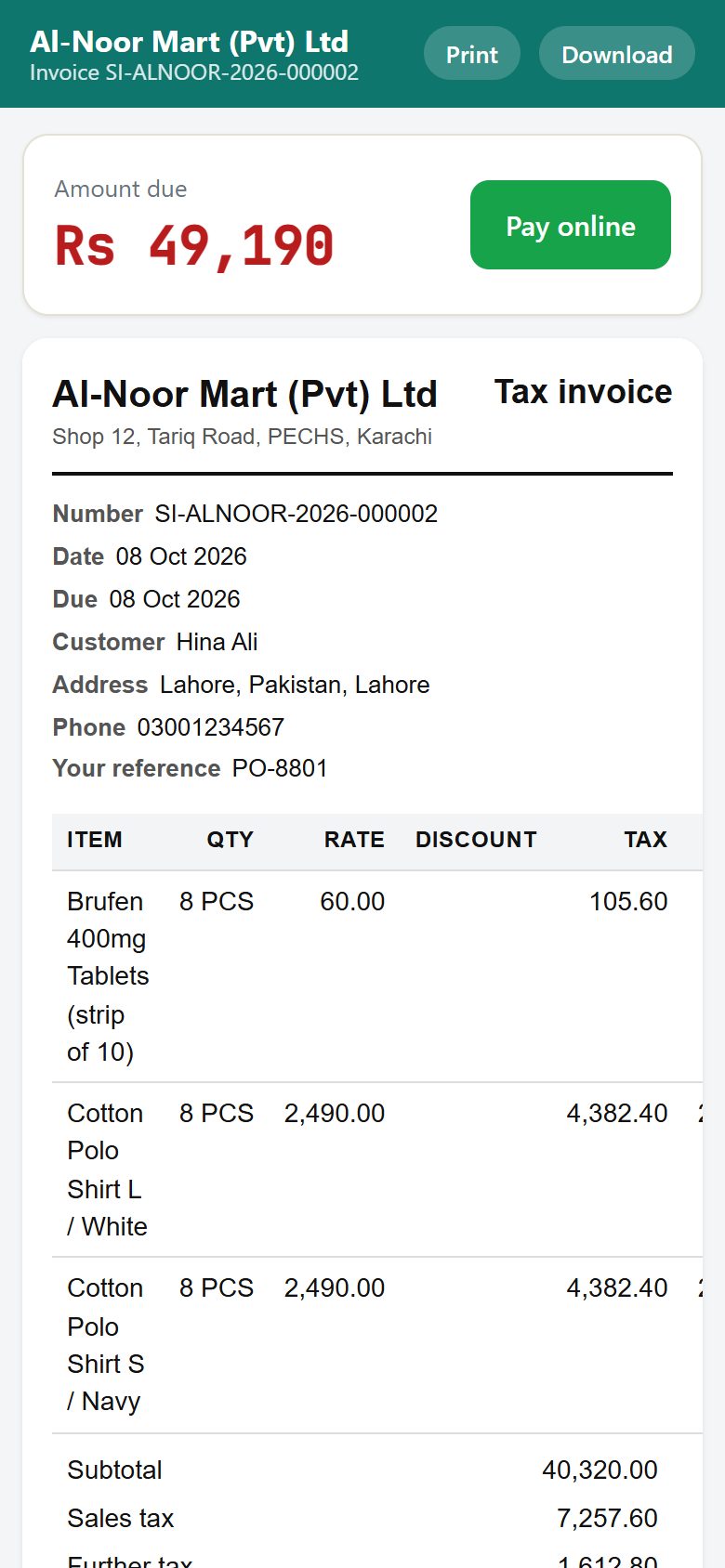
Documents → Shared links lists every shared document, how often it was viewed and when; Sent lists every document sent, by staff or automatically.
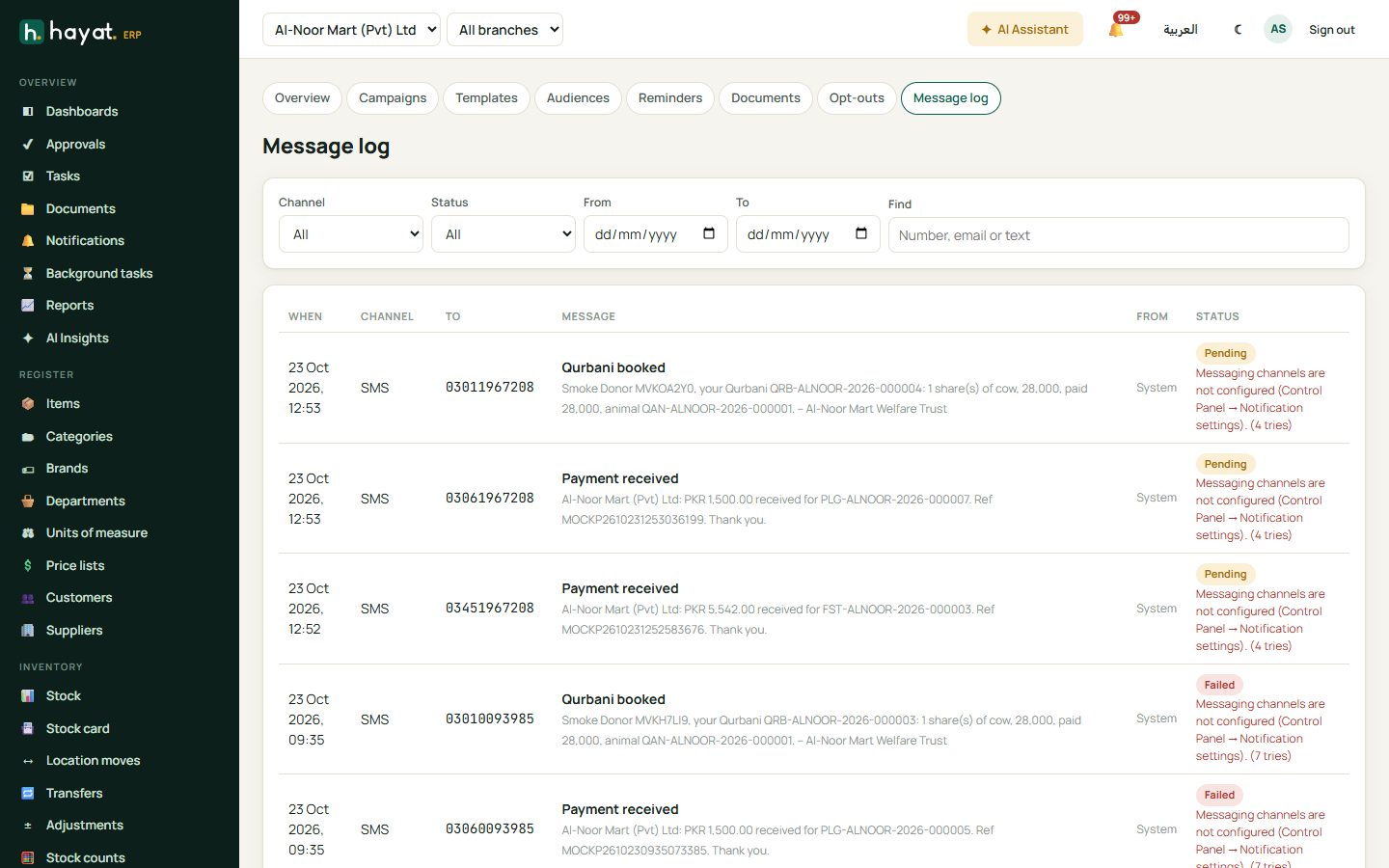
Message log
Message log shows every message the business sent — campaigns, reminders, documents, sign-in codes and system messages — with the channel, the number or email, the text, where it came from and its status: Pending, Sent or Failed with the error after the last of 7 tries. Filter by channel, status, dates or search a number.
Workflow
Where the money goes
Marketing itself posts nothing to the accounts: messages cost what your SMS, WhatsApp or email provider charges. Money only moves when a customer pays through a link in a message — that is recorded on the bill by Online payments.
On the phone
Hayat Manager → More → Messages & payments shows messages sent today and this month, waiting and failed, reminders, documents and campaigns. The workspace apps have Send on vouchers, receipts, folios, booking files, bills, invoices and consignment notes; Hayat Lite has Send receipt after a sale.