
Approvals, tasks and documents
hayaterp.com/approvals ↗The approvals inbox and approval workflows (rules by document, amount, company, branch, supplier and role, multi-step, delegation and escalation), tasks and projects with a board, checklists, comments, reminders and repeating tasks, and the document library with folders, folder access, versions, previews, links to records and expiry reminders.
Three screens at the top of the menu, under Overview, hold the team's everyday work: Approvals (what waits for your decision), Tasks (what you or your team must do) and Documents (the company's files). They work the same in every module.
Who does what
| Permission | Typical person | Can do |
|---|---|---|
| — (everyone who signs in) | All staff | Approvals: decide what is waiting for them and follow their own requests. Tasks: their own tasks, ones they raised or watch, and tasks of projects they belong to. |
| See every task, manage projects (tasks.manage) | Managers | See every task, create and edit projects. |
| Open the document library (documents.view) | Most office staff | Browse, preview and download the folders they may open. |
| Upload, update and archive documents (documents.edit) | Accounts, HR, purchasing | Upload, new versions, details, archive and restore. |
| Folders, folder access, confidential documents (documents.manage) | Admin, management | Folders and who may open them, every confidential document, expiry reminders. |
| Company, branch and system settings (admin.settings) | Business admin | Approval workflows (the rules). |
Branch Manager and Management have See every task. Accountant, Purchase, HR, Branch Manager and School Admin have Open and Upload documents, the Principal Open; Management has all three document permissions.
Approvals
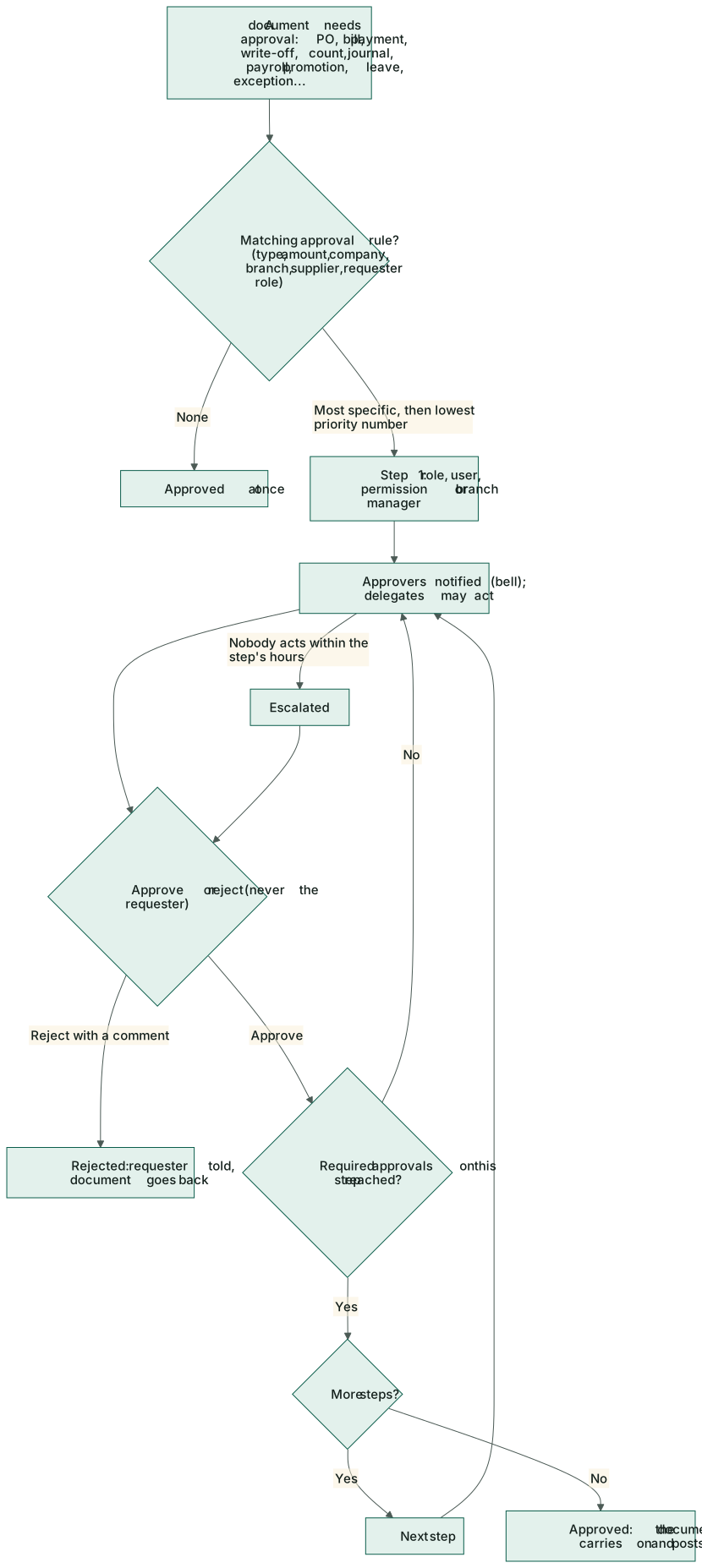
Documents that need someone's approval stop and wait: purchase orders above a limit, bills that do not match the order and receipt, large supplier payments, stock write-offs and count variances, manual journals, payroll, promotions, leave, data-integrity exception resolutions and the others below. The bell tells the approvers.
Approvals has two tabs: Waiting for me (with the count) and My requests. Each row shows the document type, number, summary, amount, the Step (2 / 3), how long it has waited and its status.
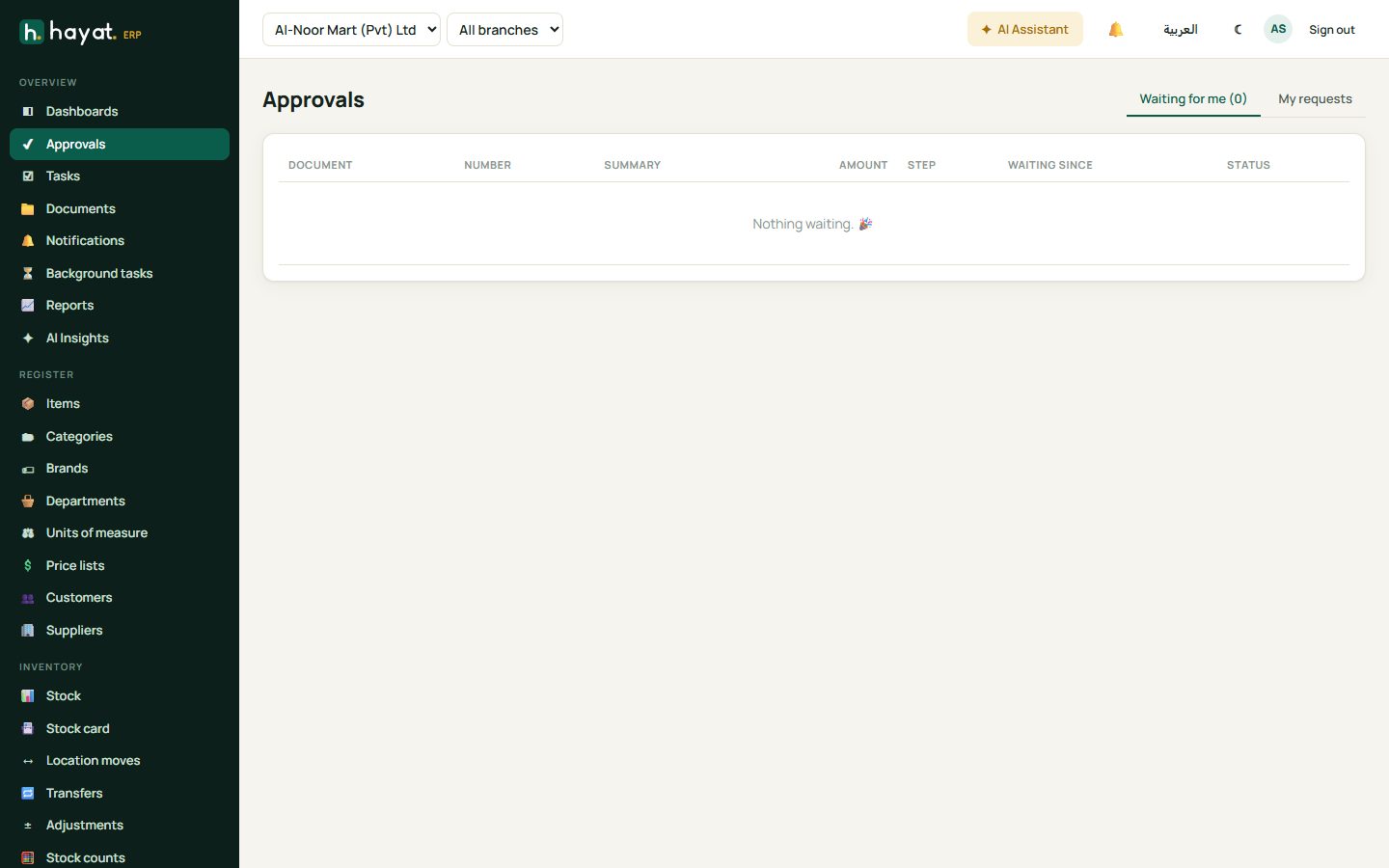
- Click a row. The panel shows the summary, the rule and step (Rule: Purchase orders – large · step 2 of 2 (Management approval)), the amount, Approvers at this step and the History of who did what.
- Open document → opens the purchase order, journal or other record to check it.
- Type a Comment (required to reject) and click Approve or Reject. Comment only adds a note without deciding.
When the last step approves, the document carries on by itself — the order is approved, the write-off posts, the leave is granted. The person who asked is told either way; a rejection reaches them with your comment. Nobody can approve their own request.
Approval workflows
Settings → Approval workflows (business admin) holds the rules. A new business starts with these, all editable — the amounts are placeholders to agree with management (shown for Pakistan; Gulf companies get 5,000 and 500):
| Rule | When | Who approves |
|---|---|---|
| Purchase orders – standard | up to 2,000,000 | Approve purchasing documents |
| Purchase orders – large | above 2,000,000 | Approve purchasing documents, then the Management role |
| Bills with price/quantity variance | any amount | Approve financial documents |
| Supplier payments | from 200,000 | Approve financial documents |
| Stock write-offs and adjustments | from 20,000 | Write off damaged or expired stock |
| Stock count variances | from 20,000 | Approve stock counts |
| Manual journals | from 200,000 | Approve financial documents |
| Payroll | any amount | Approve and post payroll |
| Promotions | any amount | Approve promotions |
| Leave requests | any | Approve leave |
| Reconciliation exception resolution | any | Approve exception resolutions |
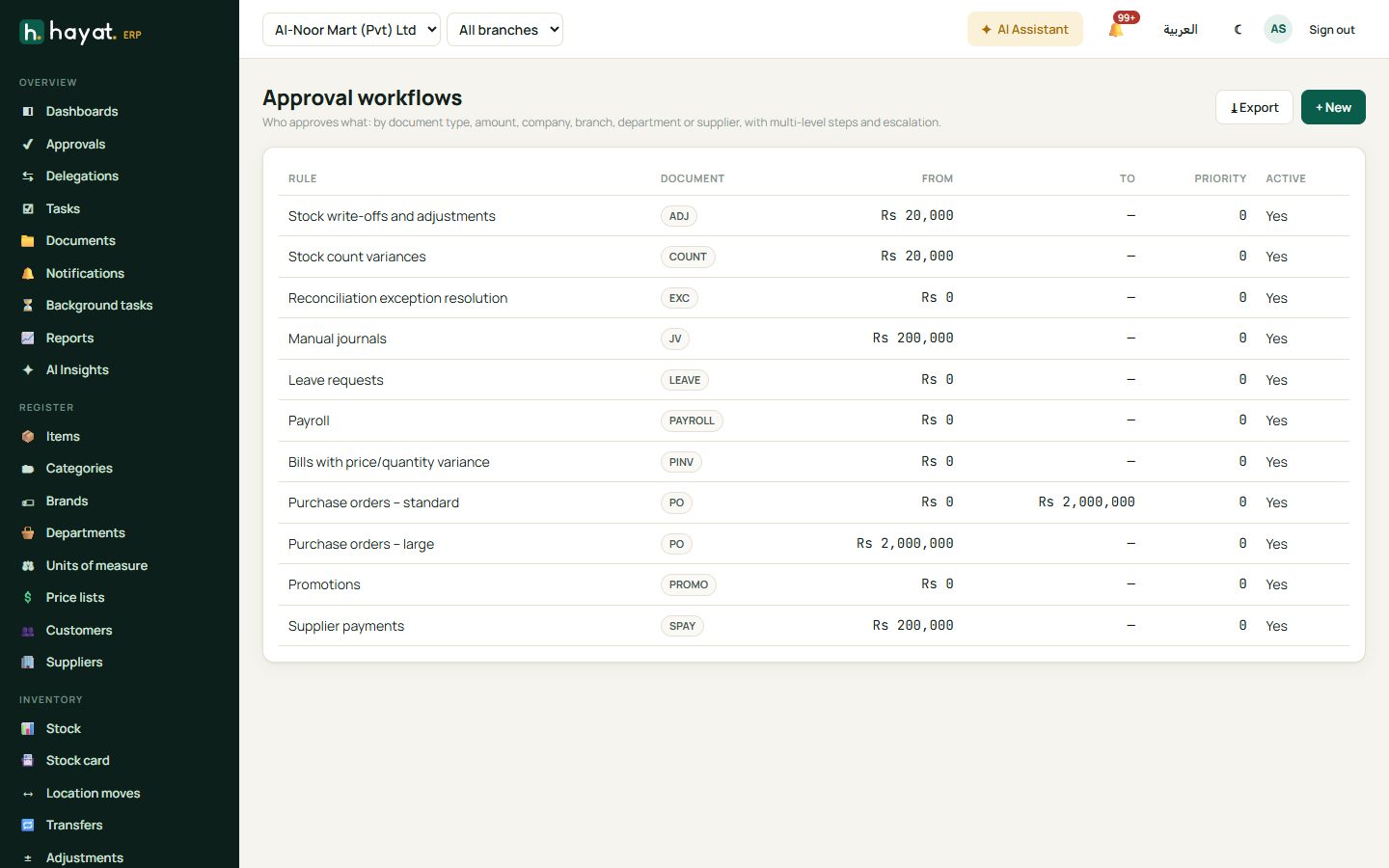
To add or change a rule, click + New or a row:
- Name and Document type: PR (requisition), PO, PINV (supplier bill), SPAY (supplier payment), PRET (purchase return), ADJ (stock adjustment), COUNT, TRF (transfer), PROMO, PRICE (price change), CREDIT (credit-limit override), SRET (sales return), PAYROLL, LEAVE, LOAN, JV (journal) or EXC (integrity exception).
- Amount from and Amount to, and optionally a Company, Branch, Supplier or Only when requested by role (for example stricter rules for cashiers).
- Priority (lower first) — when two rules match, the more specific one wins, then the lower priority number.
- Steps, in order. Each step names who approves — a Role, one User, everyone with a Permission, or the BranchManager of the document's branch — how many different people must approve (requiredApprovals, for example two directors) and escalateAfterHours: when nobody acts in that time, the step is escalated.
- Tick Active and save.
A document with no matching rule is approved at once. To stop a control, untick the rule rather than delete it.
Delegations (menu Delegations, under Approvals): while someone is on leave, their approvals go to a deputy. Choose From (blank = you), To, the Start and End dates and optionally Only document type. The deputy's decisions are recorded as made on that person's behalf.
Tasks
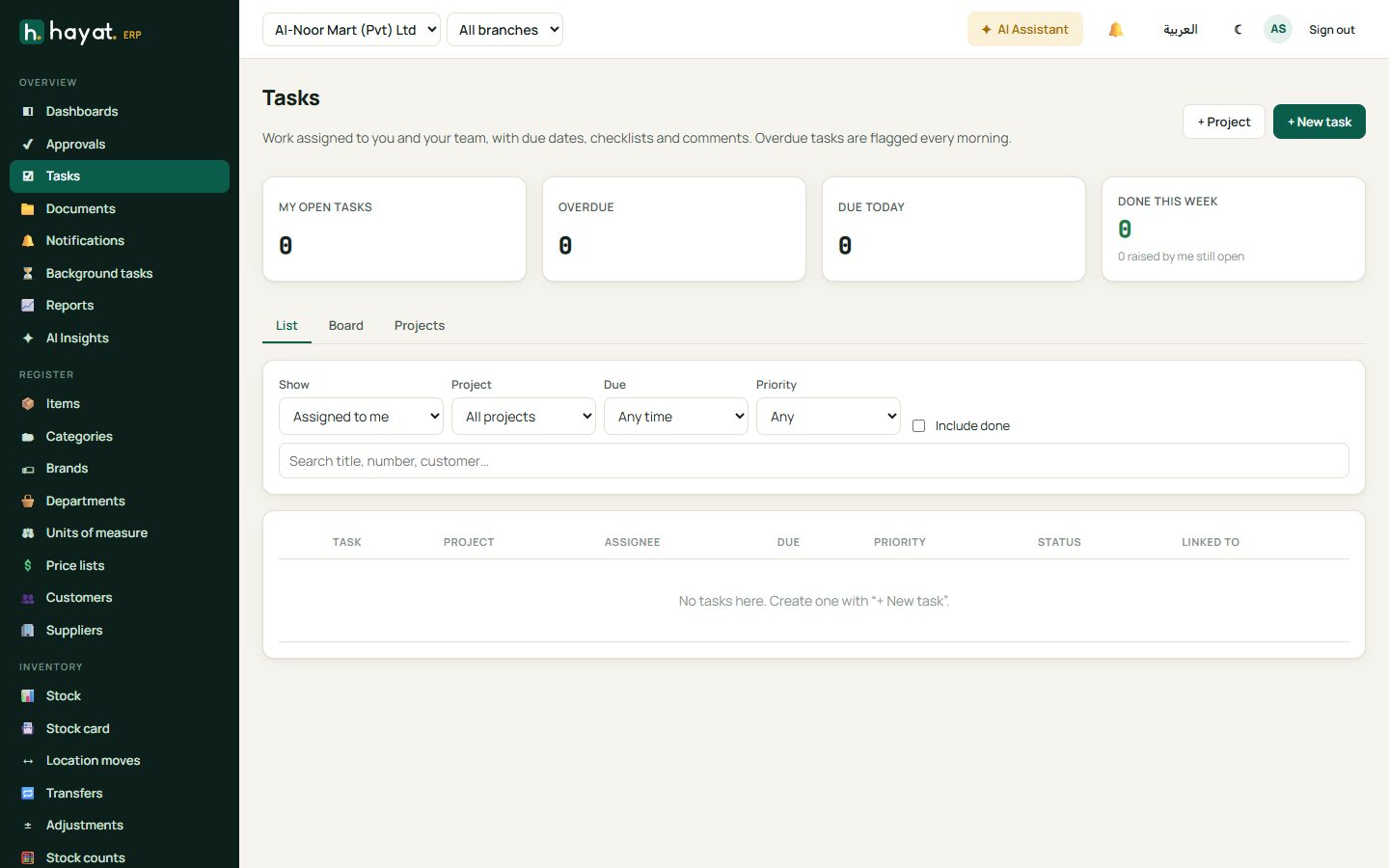
Tasks shows My open tasks, Overdue, Due today and Done this week (with how many you raised that are still open). Click a figure to filter. Every morning each assignee is told how many tasks are due today and overdue.
- + New task. Type a Title (Renew Gulberg store trade licence) and a Description.
- Choose the Status (To do, In progress, Review, Done), Priority (Low, Normal, High, Urgent), Assignee and Project.
- Set Start, Due, Estimate (hours) and Time spent (hours), and Labels.
- Repeats: Daily, Weekly or Monthly — when the task is marked done, the next one is created with the next due date, the same assignee, watchers and a fresh checklist.
- Linked to: the customer, supplier, employee, item, sales invoice, purchase order, supplier bill or another task it is about.
- Tick Watchers, add Checklist items (type and press Enter) and Attachments.
- Create task.
Open a task to add Comments (the assignee and watchers are notified), see its Sub-tasks, or Cancel task.
- List — filter by Show (Assigned to me, Raised by me, Watching, Everything I can see, Unassigned), Project, Due (Overdue, Today, Next 7 days, No due date), Priority and Include done; tick the box on a row to mark it done.
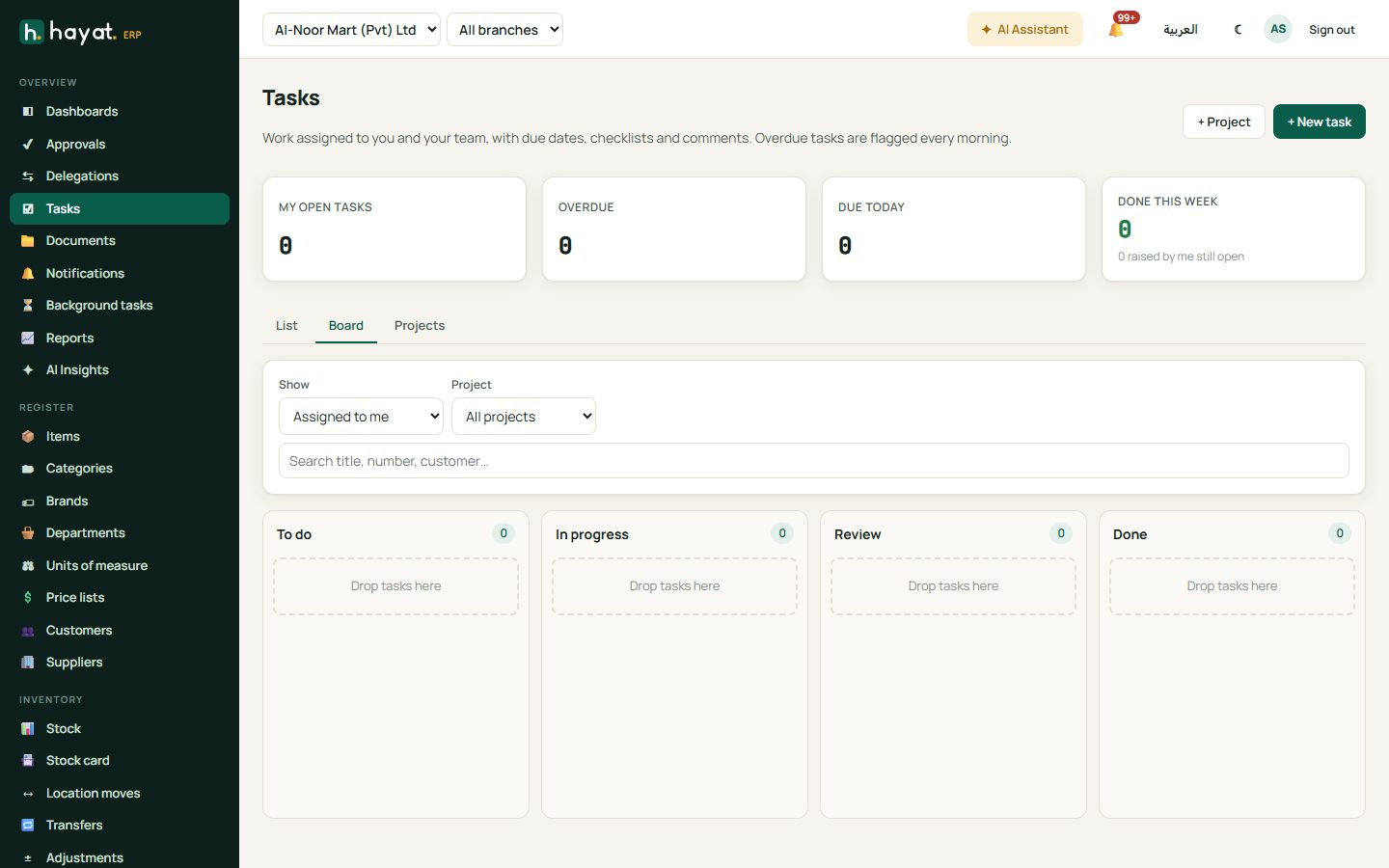
- Board — the columns To do, In progress, Review and Done; drag a card to change its status.
- Projects (managers: + Project) — a code, name, description, colour, owner, members, status, dates and private (only members see it). Each card shows progress, overdue tasks and Open board.
The phone apps Hayat Manager, People, Sales, Stock and Lite also have Tasks in their menu when the business has the Tasks module.
Documents
Documents is the company's file library — contracts, licences, tax certificates, employee files and supplier documents — with versions and expiry reminders. A new company starts with the folders Company & legal, Contracts & agreements, Tax & FBR and Finance & banking (Accountant and Management only), HR & employees (HR and Management only), Purchasing & suppliers, Sales & customers, Licences & certificates and Policies & SOPs.
The cards show Documents (and the space used), Expiring soon, Expired and Added this month. On the left: the folders (🔒 = restricted), Expiring soon, Expired, Archived and the tags. Search the title, number, file name, reference or linked record, filter by the kind of record, and switch between grid ▦ and list ≣.
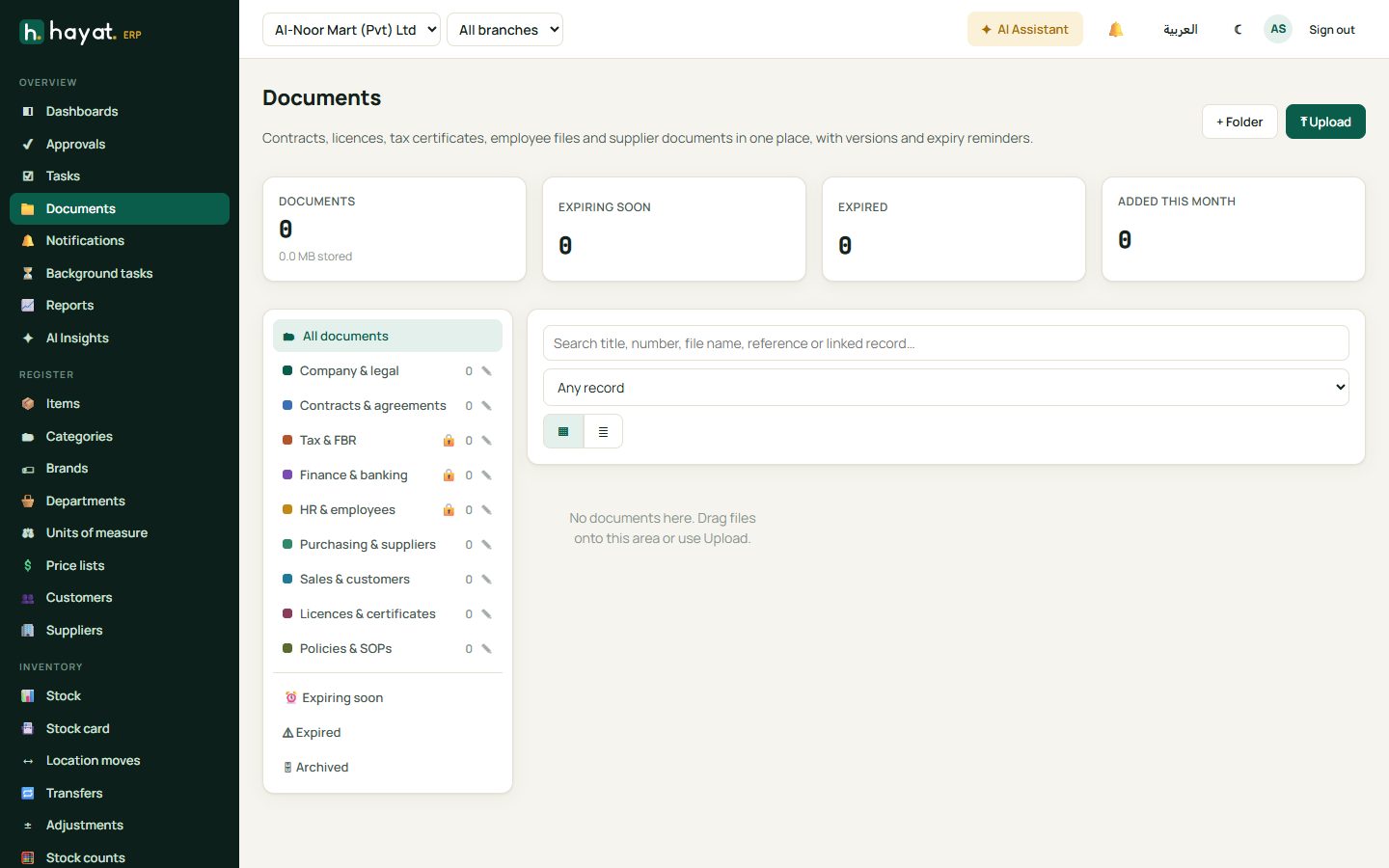
- ⤒ Upload, or drag files onto the page (they go into the folder you are in).
- Choose the file — PDF, image (PNG, JPEG, WebP, GIF), Word, Excel, PowerPoint, text, CSV or ZIP, up to 25 MB.
- Type the Title, choose the Folder, and add the Reference (contract no., licence no., NTN…), Tags, Document date, Expiry date and Remind days before expiry.
- Linked to: the customer, supplier, employee, item or document it belongs to.
- Tick Confidential if only you and documents managers may open it. Upload.
Open a document to preview it, ⤓ Download it (or an older version), ⤒ New version (the old one is kept under Versions), change its details, Archive or Restore it, and see its Activity.
Folders (documents managers): + Folder or ✎ on a folder — name, colour and Who can open it (roles; leave all unticked for everyone with document access). The starting folders cannot be deleted.
Expiry reminders. Every day the owner and the documents managers are told about documents within their reminder window and about expired ones, with a link to renew and upload the new version.
Workflow
Where the money goes
Approvals, tasks and documents post nothing themselves. An approval only releases the document waiting for it: when a write-off, journal, payroll or supplier payment is approved, that document posts as usual (see How every module reaches the accounts). A rejected document posts nothing.