
Printing and sharing from the phone
Print receipts, khata statements, payment receipts and invoices from Hayat Lite and Hayat Sales on a 58 or 80 mm Bluetooth printer, a network printer or the phone's print service, or share them as a PDF or picture on WhatsApp — printer settings, Urdu receipts, the logo, header and footer, iPhones, and what to do when it does not print.
Hayat Lite and Hayat Sales print and share their documents from the phone:
| App | Prints and shares |
|---|---|
| Hayat Lite | The receipt after every sale (also offline), any earlier receipt from Receipts, a khata customer's statement, and the payment receipt when a khata customer pays. |
| Hayat Sales | A customer's invoices (A4 / A5 or a roll) and the payment receipt after Record payment. |
Each document can be printed on the phone's printer, shared as a PDF or a picture to WhatsApp or any app, or sent as a link. Printer settings are kept on each phone, so every phone of the shop is set up once.
The customer apps (Hayat Shop, Hayat My) do not print: in Hayat My, View opens the bill's page, which the phone's browser can print or share. The Windows till prints on its own receipt printer — see Hayat POS for Windows.
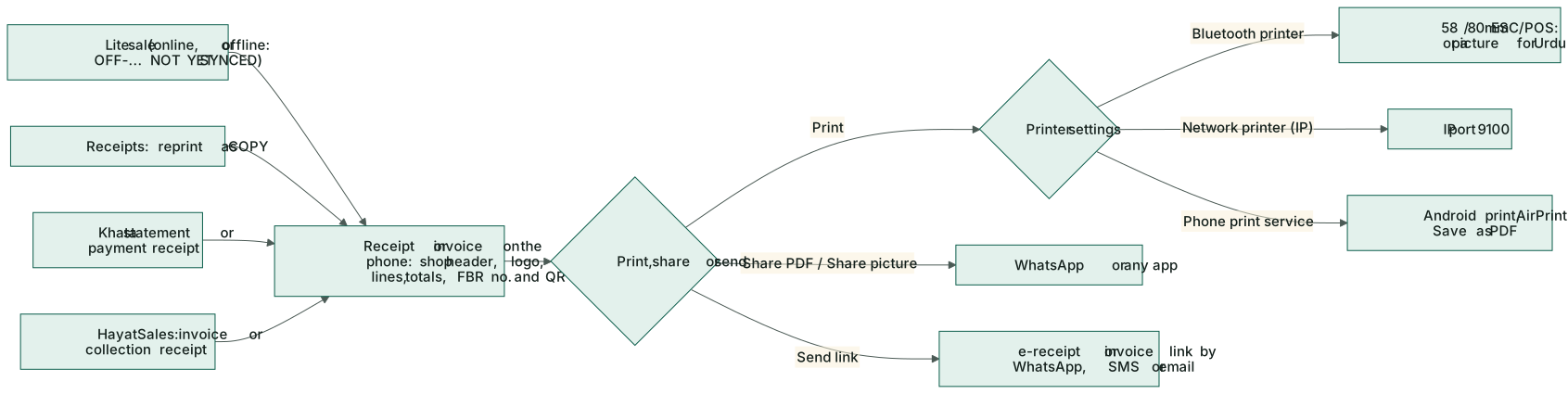
Print, share or send
Every document has the same buttons:
| Button | Does |
|---|---|
| Prints on the printer chosen in Printer settings. With no printer chosen it says "No printer is chosen. Choose one in Printer settings." and opens them. | |
| Share PDF | Makes a PDF on the chosen paper (58 or 80 mm roll, A4 or A5) and opens the phone's share sheet — WhatsApp, email, Drive… |
| Share picture | The same as a picture (PNG), which shows in a WhatsApp chat without opening a file. |
| Send link (WhatsApp / SMS) | Sends the e-receipt or invoice link from the server. Not for a sale still waiting on the phone. |
| … (More) | Also Phone print / save as PDF (the phone's own print dialog), Preview (the PDF on screen) and Printer settings. |
Printer settings
Hayat Lite: ☰ → Printer settings (also the printer icon on Receipts). Hayat Sales: ☰ → Printer settings.
| Setting | Choices |
|---|---|
| After every sale (Hayat Lite) | Ask (show the buttons), Print at once, Share PDF at once or Do nothing. Also on the receipt dialog. |
| Printer | Bluetooth printer, Phone print service, Network printer (IP) or No printer |
| Paper | 58 mm roll, 80 mm roll, A4, A5. Bluetooth and network printers print on rolls only. |
| Characters per line | Auto, 32, 42 or 48 — Bluetooth and network printers in text mode |
| Copies | 1 to 5, for Bluetooth and network printers; the phone's print dialog asks for copies itself |
| Print as a picture | Prints the whole receipt as a picture — needed for Urdu or Arabic names, and for the FBR QR on printers that cannot print QR codes |
| Receipt barcode and FBR QR | The receipt-number barcode and the FBR QR code |
| Cut paper after printing | Bluetooth and network printers with a cutter |
| Language of printed labels | English or اردو — the words on the receipt (TOTAL, CHANGE…), not the app's screens |
| Logo on receipts | See Logo, header and footer |
| Header lines, Footer lines | Blank = from the POS settings on the web |
Test print prints a short test receipt (an Urdu item name, the total, change, a barcode and an FBR QR) on the chosen printer; Preview shows it as a PDF on the chosen paper. Because of its Urdu name the test always prints as a picture; to check text mode, print a real receipt with English names and English labels.
Bluetooth printer (Android)
Most small 58 mm and 80 mm receipt printers are Bluetooth ESC/POS printers. Their names are often BlueTooth Printer, MTP-II, XP-P210 or RPP02N.
- Switch the printer on. On the phone open Settings → Bluetooth and pair it — the PIN is usually 0000 or 1234.
- In the app open Printer settings, choose Bluetooth printer and tap the printer row.
- On Android 12 and newer, allow Nearby devices when asked. No location permission is needed: the app lists only paired printers.
- Pick the printer from the list of paired devices.
- Choose 58 mm roll or 80 mm roll and keep Characters per line on Auto (32 on 58 mm). If lines wrap too early or are cut off, try 42 or 48 — some 58 mm printers use a smaller font.
- Tap Test print.
Text mode is fastest. Print as a picture, Urdu labels and any Urdu text — an Urdu shop name or header line too — send a picture, which takes a few seconds on cheap Bluetooth printers.
Phone print service, AirPrint and Save as PDF
Phone print service uses Android's print service or AirPrint on an iPhone. It works with Wi-Fi and USB printers that have a phone app or print plugin, and with Save as PDF. Choose the paper — A4 or A5 for an office printer — and the phone's print dialog opens on Print; choose copies there.
Network printer
For a receipt printer on the shop's Wi-Fi or network: choose Network printer (IP), type the Printer IP address (for example 192.168.1.50) and the Port (9100), choose 80 mm roll, and tap Test print. The phone must be on the same network.
iPhone
On an iPhone the app finds only Bluetooth Low Energy printers. Most cheap 58 mm printers use classic Bluetooth and do not show on iPhones. Use Phone print service (AirPrint) or Share PDF / Share picture instead; Bluetooth printing is meant for Android phones.
Logo, header and footer
The receipt starts with the company name (in Hayat Lite, the shop) and the branch when it differs, then the header lines, and ends with the footer lines.
- Header lines / Footer lines come from the receipt header and footer in the POS settings on the web. Lines typed in Printer settings replace them on this phone — put the shop's address, phone and NTN here, because the apps do not get them from the server.
- Logo on receipts: paste a Logo link (an https:// address, or a /api/files/… key on your Hayat server) and tap the download icon, or tap Use my business logo to take the logo from the Online payments or Customer portal settings (that needs a role that may see those settings). The logo is kept on the phone, so it prints offline too. Remove logo takes it off.
Urdu receipts
Set Language of printed labels to اردو: receipts then print right-to-left as a picture, with the items' Urdu names (the Name in Urdu of the item) where they have one. The app's own screens follow the app's English / Urdu switch.
In a PDF, Urdu and Arabic text is drawn as small pictures (it shapes correctly but cannot be selected). A4 and A5 invoices keep their left-to-right layout with Urdu labels.
Hayat Sales: invoices and collections
- Customers → a customer → Invoices: the print icon on an invoice (Print or share) opens Print or share for it. On A4 or A5 the invoice has a table of items (item, qty, price, discount, amount), the subtotal, discount, sales tax, further tax, total, paid and Balance due, the FBR invoice number and QR when there is one, and a signature line; on a roll it prints as a receipt. Send link sends the invoice with a pay link — see Online payments.
- Collect payment → Record payment: the Payment recorded dialog shows the amount with the print and share buttons for the payment receipt (with its number from the server). A payment saved offline is marked not yet synced.
Troubleshooting
| Message or problem | What to do |
|---|---|
| "No paired Bluetooth devices. Pair the printer first." | Pair it in the phone's Settings → Bluetooth, then choose it again. |
| "Allow "Nearby devices" for this app so it can use the Bluetooth printer." | Allow it when asked, or in the phone's Settings → Apps → the app → Permissions. |
| "Bluetooth is off. Turn it on and try again." | Switch Bluetooth on. |
| "Could not connect to the Bluetooth printer. Is it on, charged and near the phone?" | Switch the printer off and on, charge it, and check no other phone is connected to it. |
| "Bluetooth printers work on Android phones." | On an iPhone use Phone print service or Share. |
| The network printer does not answer | Check the IP address and port 9100, and that the phone is on the shop's network. |
| Lines wrap early or are cut off | Change Characters per line (32, 42, 48). |
| The FBR QR does not print | Turn on Print as a picture — the printer has no QR command. |
| The receipt prints slowly | Picture mode is slower on Bluetooth: use English labels and turn Print as a picture off when no Urdu is needed. |
| Nothing prints after a sale | After every sale is on Ask or Do nothing: tap Print on the receipt, or choose Print at once. |
| The receipt says NOT YET SYNCED | It was made on the phone while offline — see Hayat Lite → Offline receipts. |