
Hayat Lite for small shops
The Hayat Lite phone app for a small shop — open a shop for free, sell with cash, card, store cards or udhaar, today's figures, receipts printed on a Bluetooth printer or shared on WhatsApp, the khata (customer credit) with payments and statements, items and stock-in, and everyday expenses, in English or Urdu, offline too — and where all of it appears in the full ERP on the web.
Hayat Lite is the phone app for a small shop — a kiryana store, a pharmacy counter, a mobile shop. It is the whole of Hayat made simple: one counter that is ready to sell at once, today's numbers, the khata (customers who buy on credit), items and stock, and expenses. There are no tills, shifts or ledgers to set up. Everything posts through the normal POS, stock and accounts, so when the shop grows the owner switches on the full ERP and finds every sale, customer and expense already there.
Open your shop
On the sign-in screen tap Open my shop — free · اپنی دکان کھولیں:
- Type the Shop name, Your name, Email and a Password of at least 10 characters with a capital letter, a small letter and a number.
- Choose the Province and type the Shop address and, if you have one, the NTN (optional).
- Tap Create my shop. Hayat creates the business in Pakistan with the retail setup — chart of accounts, tax tables and a branch — and signs you in as its admin. It is the same free trial as Start a free trial on hayaterp.com.
Staff of an existing shop sign in with the email and password the owner gives them (Settings → Users on the web). Lite needs a role that may Sell at a till and a branch (the shop).
The first time anyone opens Lite in a shop, Hayat makes the shop's counter (Shop counter) and opens a shift for that person. One person sells at a time: if someone else has the counter open, Lite says "… has the counter open. Ask them to close the day first."
اردو / English at the top switches the language; Urdu turns the screens right-to-left.
Who does what
| Tab or button | Needs | In ready-made roles |
|---|---|---|
| Sell, Today, Receipts, Khata (list, Add customer, statement), Stock (list), Printer settings | Sell at a till (pos.sell) | Cashier and up |
| Add item | Create and change master data (register.edit) | Admin, Purchase |
| Stock in (purchase) | Receive goods (GRN) (trading.receive) | Admin, Branch Manager, Purchase, Inventory |
| Receive payment on a khata | Create invoices and receipts (sales.edit) | Admin, Branch Manager, Accountant, Sales |
| Expenses tab | Journals, payments, receipts (finance.edit) | Admin, Accountant |
The owner who opened the shop is Admin and has all of them. A helper who only sells gets Cashier.
Sell
- Search an item or scan its barcode; tap items to add them to the bill. Each tile shows the stock left (red at zero).
- Tap a line to change the quantity. The bill shows the FBR POS fee when the shop is on FBR POS, and the Total.
- Tap Pay. Hayat works out promotions and coupons first (Coupon / promo code, Apply); find the customer by phone or loyalty card to give or use points.
- Choose how the customer pays: Cash (type Cash given by customer or tap Exact; the Change to return shows), Card (with the slip number, Check bank offer, or Send to card machine when one is linked), Store / gift card, or Udhaar (credit) — then Choose khata customer.
- Tap Pay. Sale complete shows the receipt number, the change and the FBR invoice no. (or FBR: queued, will send automatically), with the print and share buttons. Tap New sale.
Payment details — points, bank card offers, store cards — work as at the web till: see Point of sale and Mobile apps.
No internet? Lite keeps selling. The sale is saved offline, will sync automatically; discounts are worked out when it syncs, and a sale uploaded twice is saved once. Store and gift cards need the internet — take cash or card while offline.
After the sale: print, share or send
The Sale complete dialog has:
- Print — on the shop's printer: a 58 or 80 mm Bluetooth printer, a network printer or the phone's print service, as set in ☰ → Printer settings.
- Share PDF and Share picture — the receipt to WhatsApp or any app, for a customer who wants it on the phone.
- … — also Phone print / save as PDF, Preview and Printer settings.
- Send receipt — the e-receipt link by WhatsApp, SMS or email (not for a sale saved offline).
- After every sale — Ask (show the buttons), Print at once, Share PDF at once or Do nothing. With Print at once the receipt prints by itself after Pay. The choice is kept on this phone.
Setting up the printer — pairing a Bluetooth printer, the paper, Urdu receipts, the logo, header and footer — is on Printing and sharing from the phone.
Offline receipts
A sale made without internet still prints. The dialog says "Saved on this phone. It will sync automatically when the internet is back.", and the receipt is made on the phone from the shelf prices with:
- a number OFF-… instead of the receipt number;
- NOT YET SYNCED at the top and the note "Saved offline on this phone. Prices and offers are confirmed when it reaches the server."
Promotions, coupons and tax are worked out when the sale syncs, and the synced receipt gets its real number. If the customer needs the final receipt, reprint it from Receipts once it has synced. Store-card sales need the internet, so they never print offline.
Receipts and reprints
☰ → Receipts, or Receipts at the top of Today, lists today's receipts of the shop's counter, newest first, with the time, number of items and total.
- Tap the date chip for another day, or All customers to pick a khata customer and see their receipts.
- Type a Receipt number, or tap the scanner and scan the barcode printed on the receipt.
- Sales still on the phone show at the top as Pending sync, or Refused by the server if the server would not take them. Offline, the list shows the receipts saved on this phone.
- Tap a receipt to Print it again (marked
* COPY *), Share PDF, Share picture, Send link or Preview.
Today
Sales today, Bills with the Average bill, Gross profit, Expenses, Cash in drawer (what the open counter should hold, including cash khata payments taken today), Udhaar outstanding (all khata balances), Low stock items (at or below their reorder level) and Returns.
Close the day
At closing time tap Close the day under the numbers (it needs internet).
- Lite shows the Cash expected in the drawer. Count the cash and type it in Cash counted (it starts with the expected amount); add Notes if you like. The Short or Excess updates as you type.
- Tap Confirm. The shift is closed exactly as POS → Shifts does on the web; a short or excess is posted to 6120 Cash over / short.
- The Z summary shows sales, bills, cash expected and counted, the difference and each payment method. Print, Share PDF or Share picture it for the owner.
- Tap Start next day (or just sell tomorrow — Lite opens the new day by itself on the first sale).
Khata: customers on credit
Khata lists the shop's customers with what each one owes, the biggest first; search by name or phone.
- Add customer: Name, Phone and Credit limit (50,000 unless you change it). The customer gets a code KH-….
- Tap a customer to see the Balance, the Credit limit and every entry — Given (udhaar sales) and Received (payments) — with the running balance.
- Receive payment: type the amount the customer paid in cash. The cash goes into the open drawer (it is counted at close of day), the balance goes down at once, and the till's credit-limit check uses the new balance straight away. The balance goes down at once and the Payment received dialog shows the amount and the Balance now, with Print, Share PDF and Share picture for the customer's payment receipt (balance before and now). A payment taken offline is marked not yet synced.
- Statement: the print icon on the customer's screen prints or shares the khata statement — the last 60 entries with the balance brought forward, the balance and the credit limit. Send it on WhatsApp with Share PDF or Share picture.
Stock
Stock lists the items with SKU, price and stock; All or Low stock items.
Add item: Name, Name in Urdu, Barcode (type it or tap the scanner), Sale price, Cost price and Opening stock. The item gets an SKU (ITM-…), the unit pieces, and a reorder level of 5.
Stock in (purchase) when goods arrive:
- Type the Supplier (leave it empty for Cash purchases).
- Add item for each item: choose it, then the Quantity and Cost price.
- Keep Paid in cash now on if you paid the supplier from the drawer; turn it off if you will pay later.
- Save. The stock goes up and the item's cost is updated.
Expenses
Expenses shows the last 30 days with the total. Add expense: the Category — Rent, Electricity & gas, Salaries, Transport & fuel, Marketing, Bank charges or Other — the Amount, a Note, and Paid from Cash or Bank.
On the web
Nothing in Lite is kept apart: sign in at hayaterp.com with the same email and password and the shop is there.
| In Lite | On the web |
|---|---|
| Sales | POS → Receipts (RCPT-…), FBR in POS → FBR POS, the sales reports and dashboards. |
| The counter and its shift | POS → Shifts — closed from Lite with Close the day, or on the web (Shifts and cash-up). |
| Khata customers | Register → Customers (segment Khata), with their receivables. |
| Khata payments, expenses | Finance → Journals (KHR-… and EXP-…, source Lite). |
| Items | Register → Items (Items and registers). |
| Stock in | Trading → Goods receipts (Hayat Lite stock-in) and its bill in Trading → Bills. |
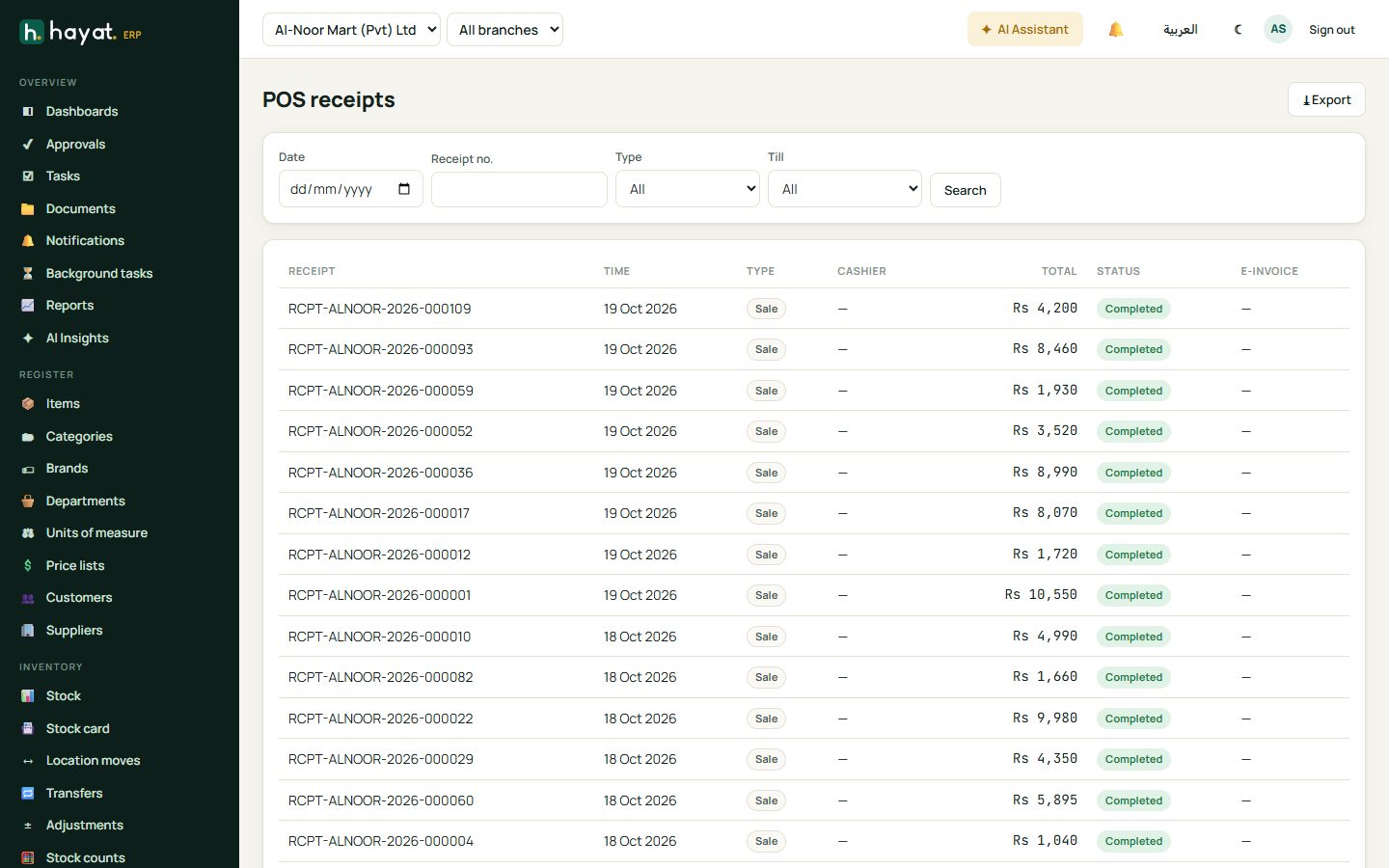
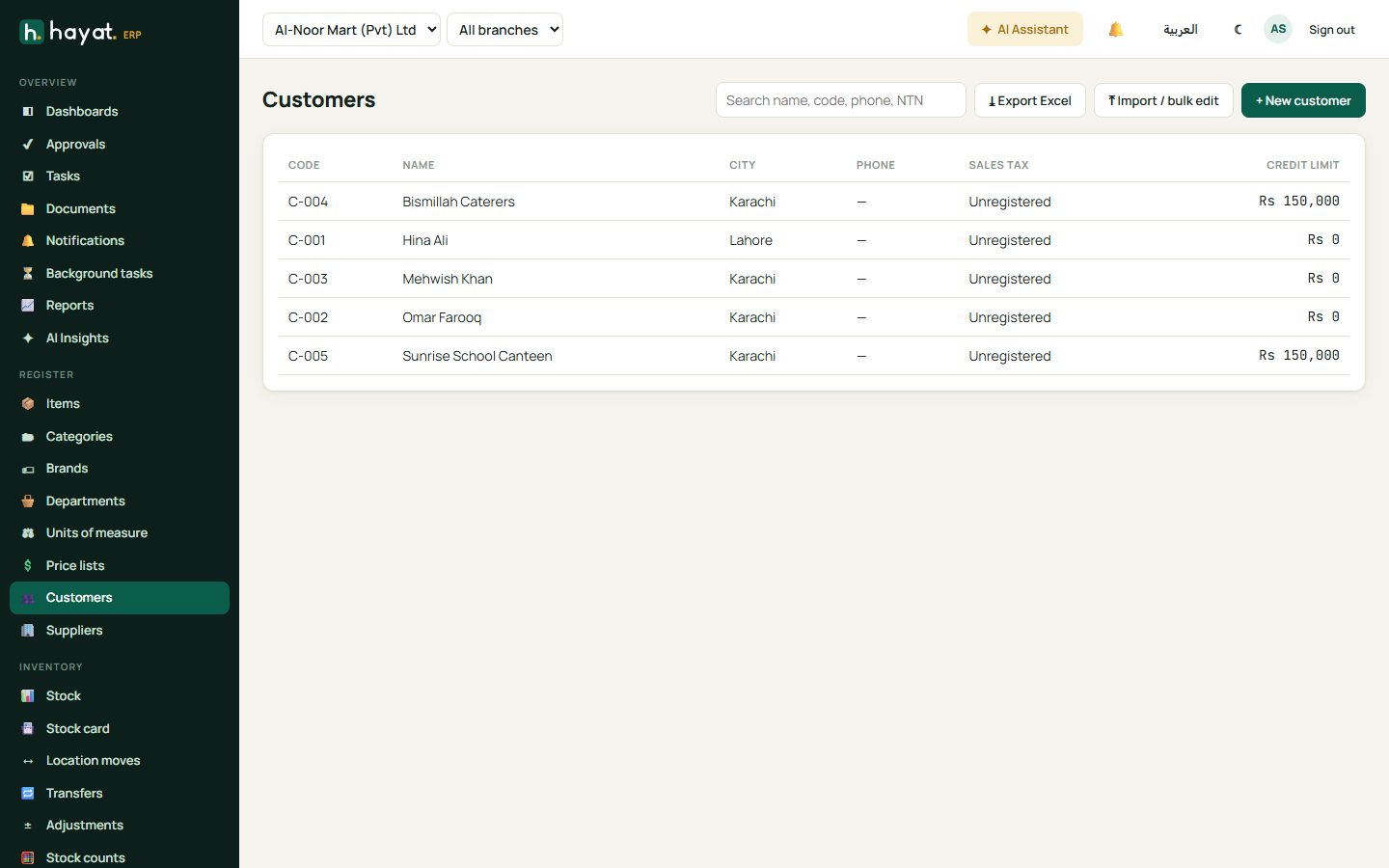
When the shop is ready for more — several tills, purchase orders, supplier bills, payroll — switch to the full screens; nothing has to be moved. See Point of sale and Buying from suppliers.
Workflow
- Open the shop (or sign in) — Lite makes the counter and opens the shift.
- Sell all day — print or share each receipt — on credit to khata customers where needed; receive their payments when they come and give them the payment receipt.
- Record stock coming in and the day's expenses.
- Check Today. The owner or manager closes the shift on the web when cash is counted.
Where the money goes
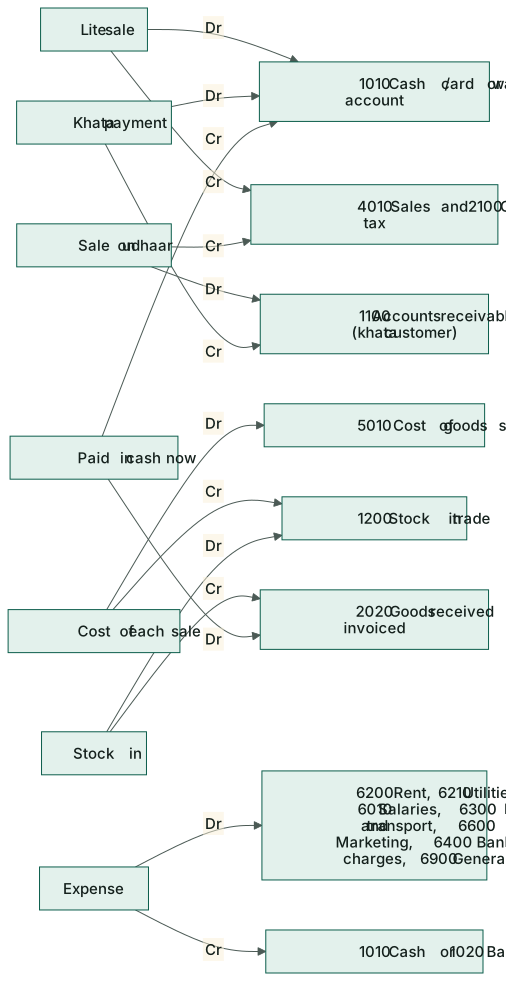
| Event | Debit | Credit |
|---|---|---|
| Sale (cash, card, wallet) | 1010 Cash / the card or wallet account | 4010 Sales; 2100 Output tax |
| Sale on udhaar | 1100 Accounts receivable (the khata customer) | 4010 Sales; 2100 Output tax |
| Cost of every sale | 5010 Cost of goods sold | 1200 Stock in trade |
| Khata payment received | 1010 Cash | 1100 Accounts receivable (the customer) |
| Opening stock on a new item | 1200 Stock in trade | 3010 Owner's capital |
| Stock in (a supplier bill is made and posted at once) | 1200 Stock in trade | 2010 Accounts payable (the supplier) |
| … paid in cash now | 2010 Accounts payable | 1010 Cash |
| Cash short / excess at close of day | 6120 Cash over / short (short) | 1010 Cash (short) — the other way round for excess |
| Expense | 6200 Rent · 6210 Utilities · 6010 Salaries · 6300 Fuel & transport · 6600 Marketing · 6400 Bank charges · 6900 General expenses | 1010 Cash or 1020 Bank |