
Hayat Reports: build your own reports
reports.hayaterp.com ↗Hayat Reports at reports.hayaterp.com — self-service BI on your live Hayat data without SQL: sign in, the home page, the 25 datasets and what each contains, and the report builder step by step (fields, rows, columns and values, aggregations, filters and relative dates, sort, top N, calculated values, period comparison, % of total, running total, every visual, formatting, show data, export, save and versions).
Hayat Reports is the self-service reporting site of Hayat at reports.hayaterp.com. You pick a business subject — sales invoice lines, till receipts, stock on hand, the general ledger, fee vouchers, hotel nights… — drag its fields onto the shelves and see a chart or table of your live figures at once, without writing SQL. Reports can be saved, put on dashboards, shared, exported and emailed on a schedule.
Everything you see stays inside your business, your company and the branches you may work in, exactly like the ERP screens. Hayat Reports only reads: it never changes or posts anything.
Who does what
| Permission (module BI reports) | Can do |
|---|---|
| Open BI reports and dashboards shared with them (bi.view) | Sign in to Hayat Reports, open the reports and dashboards shared with them, use their filters, export them, mark favourites. |
| Build their own BI reports and dashboards (bi.create) | Use the report builder and the dashboard designer, previews in the dataset explorer, templates, folders, duplicate, version restore. |
| Share BI reports and dashboards, email schedules and public links (bi.share) | Share, Schedule email…, Public link…, and the Schedules and Shared links pages. |
| All BI reports and dashboards of the company, templates and BI settings (bi.manage) | See and change every report and dashboard of the company, company folders, offer a dashboard as a company template, switch public links on or off. |
Data permissions still apply. Each dataset also needs the permission of its own area (for example See ledgers for the general ledger) and its module switched on for your business — see the table under The 25 datasets. Ready-made roles: Admin and Management have all four, the Accountant view and build, the Branch Manager and Auditor view. See Hayat Reports: access, settings and limits.
Sign in
- Open reports.hayaterp.com — or in the ERP click Overview → BI reports ↗ (it opens in a new tab).
- Sign in with your usual Hayat email and password (and the authenticator code if your company uses two-step sign-in). It is the same sign-in screen as the ERP; the site keeps its own session, so you sign in once on it.
- Pick the company and the branch at the top (All branches shows every branch you may see). Changing them reloads the page with that company's data.
If the page says Hayat Reports is not open for you, you need the BI reports permission (bi.view) and the module must be on for your business — ask your administrator. Back to Hayat ERP returns to the ERP.
| Part of the screen | What it does |
|---|---|
| Left rail | Home, Dashboards, Reports, Datasets, Templates — and Schedules and Shared links for people who may share. On a phone the rail is a bar at the bottom. |
| Company / branch | The same pickers as the ERP. |
| Search dashboards, reports, datasets | Finds dashboards and reports by name and datasets by name or category; Enter opens the first hit. |
| Hayat ERP ↗ | Back to hayaterp.com. |
| ☾ / ☀ | Dark or light theme, remembered on this device. |
| Your initials | Your name and email, Sign out. |
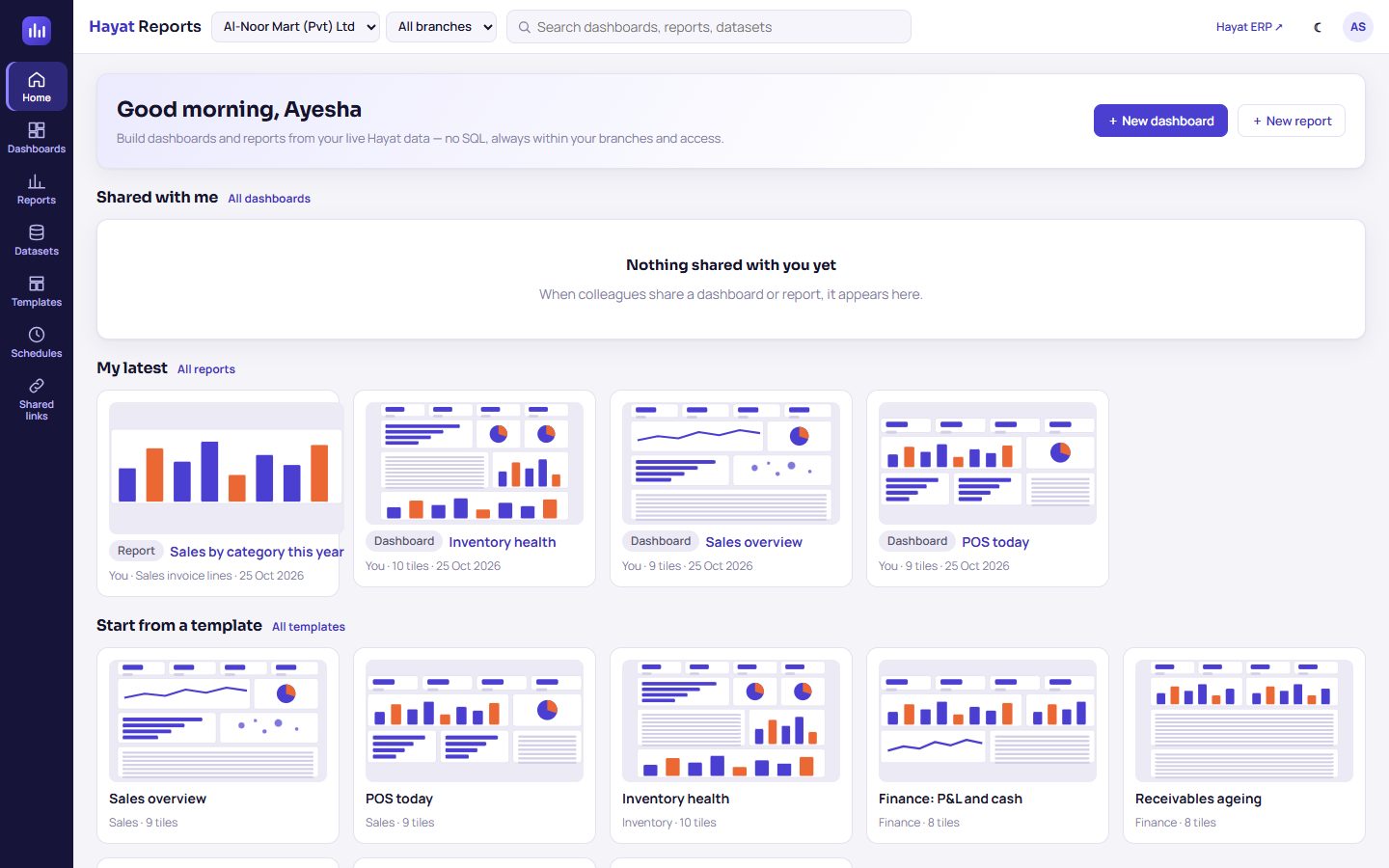
Home
- Good morning, name with + New dashboard and + New report (when you may build).
- ★ Favourites — the reports and dashboards you starred.
- Recent — what you opened lately on this device.
- Shared with me — what colleagues shared with you (All dashboards opens the full list).
- My latest — your own last four (All reports).
- Start from a template — starter dashboards for the modules you use; click one to make your own copy (see Templates).
Dashboards and Reports in the rail list everything you may open: folders on the left (📂 All, your 📁 folders, 🏢 company folders, + Folder, ✎ rename, ✕ delete — its contents move up one level), the tabs All, Mine, Shared with me and Favourites, a Search box and a card per item with ☆ to star it and ⋯ for Open, Edit (dashboards), Duplicate and Delete…. Deleting removes it for everyone it is shared with, with its schedules (and a dashboard's public links).
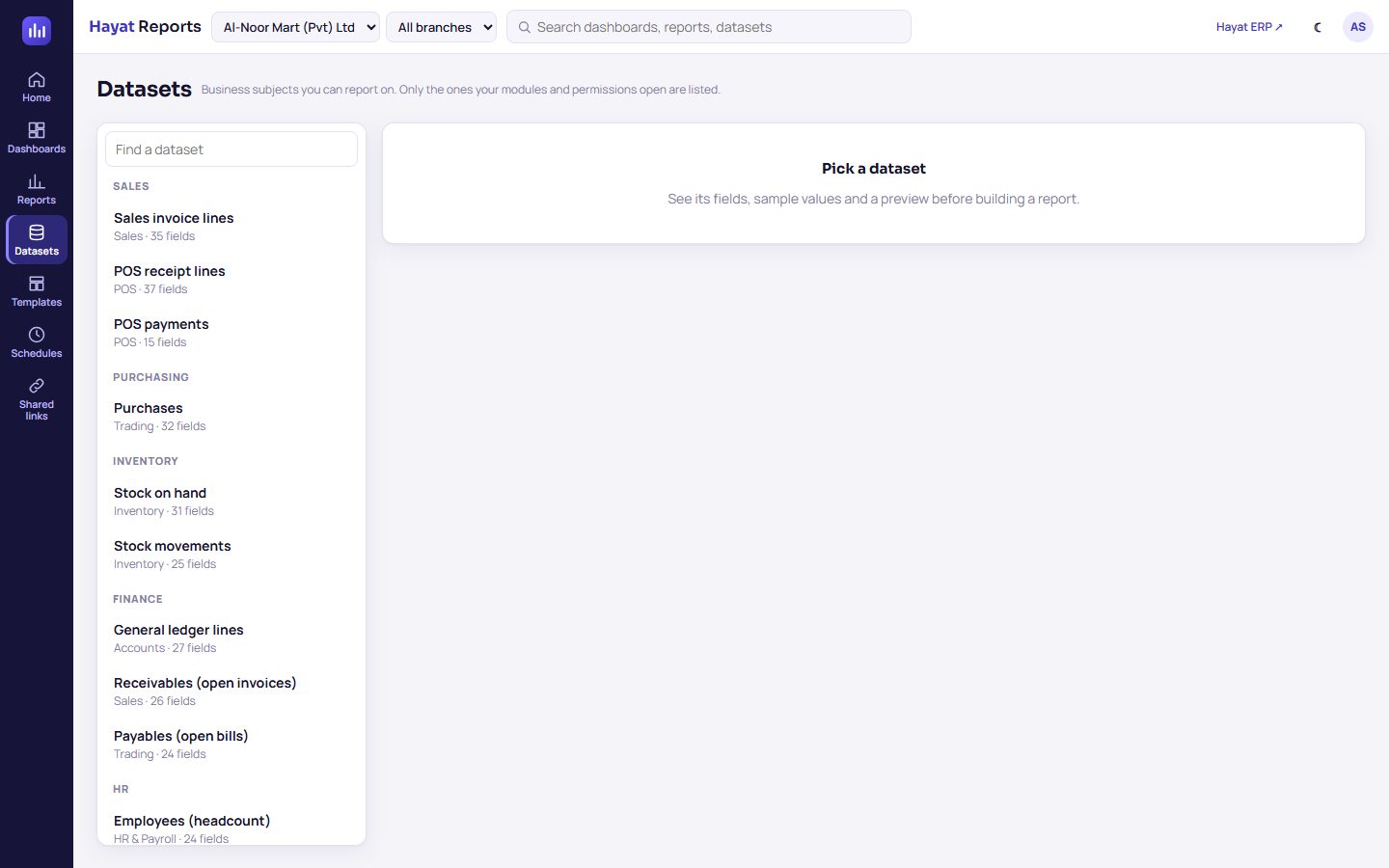
Datasets
Datasets lists the business subjects you can report on, grouped by category (Finance, HR, Sales, Inventory…), each with its module and number of fields. Only the datasets whose module is on and whose permission you hold are listed. Find a dataset filters the list.
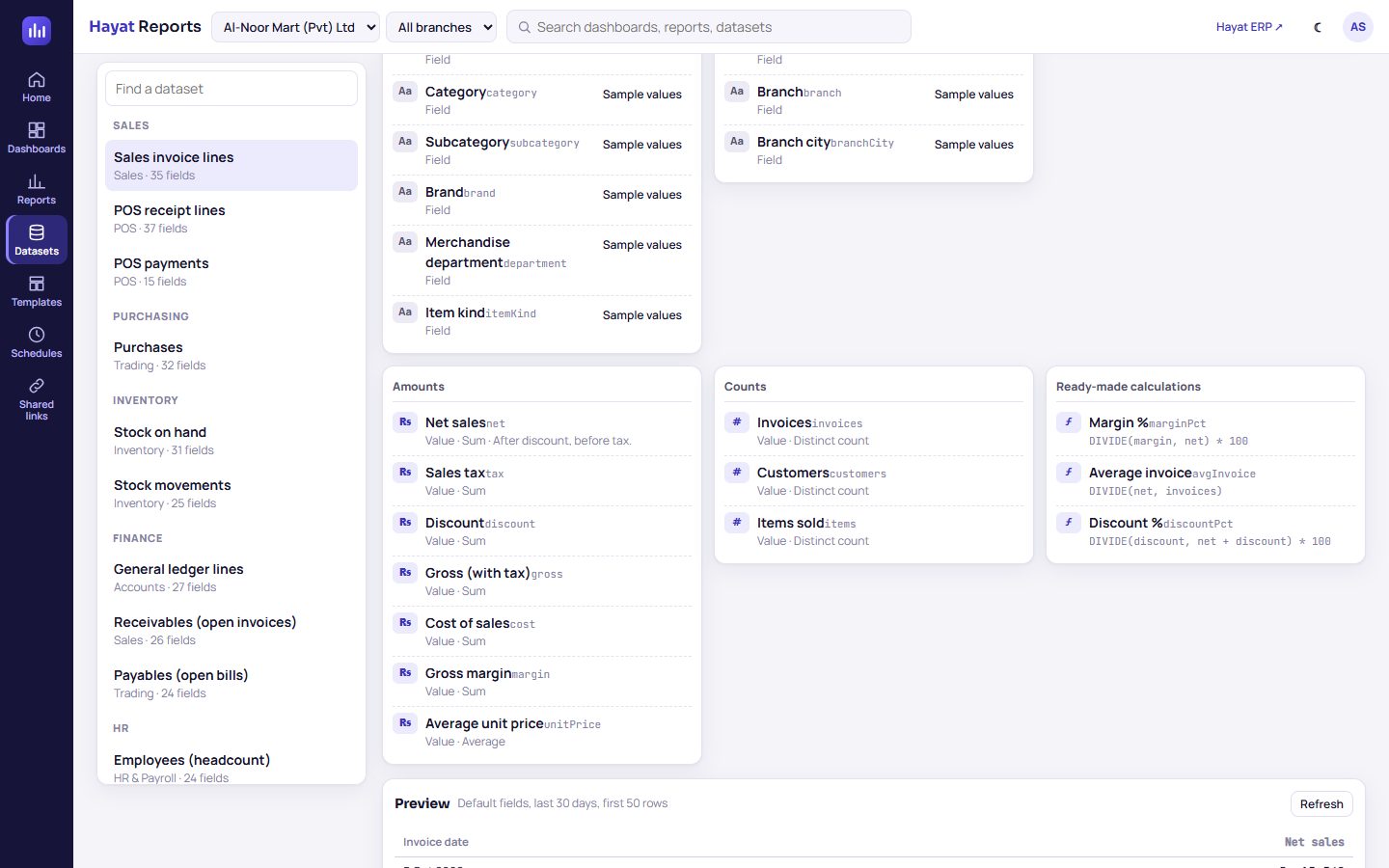
Click a dataset to see:
- its description, category, Module, its date (Date: …, or Snapshot (no date) for a "now" view such as stock on hand) and By branch when it can be split by branch;
- its fields in groups, each with a type badge — Aa text, # number, ₨ money, % percent, 📅 date, ✓ yes / no — and whether it is a Field (to group by; dates by day / week / month / quarter / year) or a Value (a number to add up, with its default aggregation, e.g. Value · Sum);
- Sample values for text fields (up to 12 of the real values);
- Ready-made calculations with their formula, e.g. Margin % =
DIVIDE(margin, net) * 100; - Preview — Show preview runs the default fields for the last 30 days (first 50 rows). Previews need bi.create.
+ New report from this opens the report builder on that dataset.
The 25 datasets
Every dataset is limited to your business, the active company and the branches you may see (HR datasets also to your departments). Needs is the module that must be on and the permission you need (any one of them).
| Dataset (category) | What is in it | Main fields | Main values and ready-made calculations | Needs |
|---|---|---|---|---|
| General ledger lines (Finance) | Posted journal lines with account, type, group and statement line — profit and loss and balance sheet views. For balances, filter the date on or before the reporting date. | Date, Account, Account code, Account type, Account group, Statement line, Statement, P&L section, Cash-flow category, Cost centre, Source module, Journal number | Debit, Credit, Net (debit − credit), Balance (natural sign), Profit contribution, Income, Expenses, Cash movement, Journals · Net margin %, Expenses % of income | Accounts · See ledgers (finance.view) |
| Receivables (open invoices) (Finance) | Posted customer invoices not fully paid, aged by due date against today. A snapshot: the date range filters the invoice date. | Invoice date, Due date, Invoice number, Customer, Customer class, Segment, Customer city, Ageing bucket, Overdue, Days overdue | Invoice total, Paid, Outstanding, Not due, 1-30 / 31-60 / 61-90 / Over 90 days, Overdue amount, Average days overdue, Invoices, Customers · Overdue % | Sales · See sales documents (sales.view) or See ledgers (finance.view) |
| Payables (open bills) (Finance) | Posted supplier bills not fully paid, aged by due date against today. | Bill date, Due date, Bill number, Supplier, Supplier category, Supplier city, Ageing bucket, Overdue, Days overdue | Bill total, Paid, Outstanding, Not due, the ageing buckets, Overdue amount, Bills, Suppliers | Trading · See purchasing documents (trading.view) or See ledgers (finance.view) |
| Employees (headcount) (HR) | The employee register: headcount by department, gender, status, type, designation, age and length of service. A snapshot — filter Current employee = yes for today's headcount. | Department, Gender, Status, Current employee, Employment type, Contract, Designation, Grade, Nationality, Province, Salary paid by, Age band, Length of service, Joining / Leaving date | Headcount, Current headcount, Basic salary, Average basic salary | HR & Payroll · See employees (hr.view) |
| Payroll by month (HR) | Payslips of approved, posted and paid payroll runs. | Payroll month, Payroll run, Run status, Employee, Department, Gender, Designation, Employment type, Paid by | Gross pay, Basic, Allowances, Overtime, Bonus, Commission, Income tax, EOBI (employee / employer), Social security, Provident fund (employee / employer), End-of-service accrual, Total deductions, Net pay, Employer cost, Overtime hours, Absent days, Late arrivals, Employees paid · Average net pay | HR & Payroll · Calculate payroll (payroll.process) or Approve and post payroll (payroll.approve) |
| School fee vouchers (School) | Fee vouchers (not cancelled) by month, campus, class and section. | Fee month, Issue date, Due date, Voucher number, Status, Class, Section, Student, Gender, City, Defaulter ageing, Defaulter (overdue balance), Campus | Gross fee, Concession, Late fee, Promotion discount, Billed, Collected, Balance due, Arrears brought forward, Vouchers, Students · Collection % | School · Fee vouchers… (school.fees) or School setup… (school.manage) |
| School fee collections (School) | Fee receipts (not cancelled) by date, method, class and who received them. | Date, Hour of day, Receipt kind, Method, Received by, Class, Section, Student, Campus | Amount, Advance received, Paid with rewards, Receipts, Students | School · school.fees or school.manage |
| Hotel stays (room folios) (Hotel) | Room folios by arrival date: room nights, room revenue (rate × nights), folio revenue, guests. | Arrival date, Departure date, Room type, Room, Booking source, Stay status, Folio status, Meal plan, Guest, Corporate account, Nationality, Guest city, VIP, Length of stay | Room nights, Stays, Guests, Room revenue, Folio revenue, Paid, Balance, Average nightly rate · ADR, Revenue per stay, Average length of stay | Hotel · Occupancy, ADR, RevPAR… reports (hotel.reports) or hotel.manage |
| Hotel occupancy (night audit) (Hotel) | One row per night audit: rooms sold and room revenue against the hotel's active rooms. | Night, Weekday | Rooms sold, Rooms available, Room revenue, Total posted, Nights audited · Occupancy %, ADR, RevPAR | Hotel · hotel.reports or hotel.manage |
| Hospital bills (Hospital) | Hospital bills (not cancelled) by type (OPD, IPD, lab, pharmacy, procedure), doctor, panel and patient. | Bill date, Bill number, Bill type, Status, Panel / insurer, Discount reason, Doctor (OPD), Specialty, Patient, Gender, Patient city, Age band | Gross, Discount, Billed, Paid, Balance, Bills, Patients · Average bill | Hospital · Hospital billing and payments (hms.billing) or hms.manage |
| Fuel sales by nozzle (Fuel station) | Litres and amount per nozzle line of closed pump shifts; dealer margin uses the product's margin per unit. | Shift date, Weekday, Shift, Shift number, Attendant, Product, Fuel kind, Unit, Dispenser, Nozzle, Station | Litres sold, Test litres, Sales amount, Dealer margin, Shifts · Average price per unit | Fuel station · See pumps, tanks, shifts and fuel sales (fuel.view) |
| Fuel shifts (cash-up) (Fuel station) | Closed pump shifts: litres, sales, credit, non-cash, expected and counted cash, short / excess. | Shift date, Shift, Attendant, Cash result, Station | Litres, Sales, Credit sales, Fleet discounts, Non-cash collections, Cash expected, Cash counted, Short (−) / excess (+), Cost of sales, Gross margin, Shifts | Fuel station · fuel.view |
| Donations (Charity) | Received and pending donations by type (Zakat, Sadaqah, Fitrana…), fund, campaign, method and donor. Anonymous donors stay anonymous. | Date, Donation type, Fund, Restriction, Campaign, Method, Channel, Status, Currency, Donor, Donor type, Donor city | Amount, Donations, Donors · Average gift | Charity & NGO · See donors, donations… (charity.view) |
| Online store orders (Online store) | Orders from the online store (web, app and Hayat Bazaar). | Order date, Hour of day, Weekday, Order number, Status, Payment method, Payment status, Channel, Store, City, Courier, Coupon | Subtotal, Discount, Shipping, Order total, Loyalty redeemed, Orders, Customers · Average order value | Online store · See online orders and store settings (store.view) |
| Hayat Bazaar orders (Online store) | This business's parts of Hayat Bazaar orders, as a vendor. By company only (no branch). | Order date, Hour of day, Store order number, Status, Payment method, Payment status, Coupon, Buyer city, Shop | Subtotal, Discount, Shipping, Total, Orders, Buyers · Average order value | Hayat Bazaar · See the Bazaar shop… (bazaar.view) |
| CRM leads (CRM) | Leads by created date, source, status, rating, owner and city. | Created, Next follow-up, Source, Status, Rating, Owner, City, Interest, Lost reason, Open | Leads, Estimated value, Converted, Lost · Conversion % | CRM · See everyone's pipeline… (crm.manage) |
| CRM opportunities (CRM) | The sales pipeline by stage, owner, source and expected close — use a funnel by stage. | Created, Expected close, Closed on, Stage, Stage order, Open, Owner, Source, Customer, Lost reason | Opportunities, Value, Weighted value, Won value, Won, Lost, Average probability · Win rate % | CRM · crm.manage |
| Helpdesk tickets (CRM) | Support tickets with first-response and resolution SLA results and times. | Created, Hour created, Status, Open, Priority, Channel, Category, Agent, First-response SLA, Resolution SLA | Tickets, Average first response (hours), Average resolution (hours), First-response breaches, Resolution breaches, Resolved within SLA, Average rating (1-5) · Resolved within SLA % | Helpdesk · Assign tickets, categories and SLAs… (tickets.manage) |
| Emissions (ESG activities) (Sustainability) | Activity data and emissions in kg CO2e by month, scope, category and factor. Reported leaves out gases reported separately (e.g. HCFC-22). | Month, Scope, Category, Emission factor, Factor source, Activity unit, Entered by, Reported separately | Tonnes CO2e (reported), kg CO2e (reported), kg CO2e (all gases), kg CO2, kg CH4, kg N2O, Activity quantity, Activities | Sustainability · See the carbon footprint and ESG reports (esg.view) |
| Sales invoice lines (Sales) | Every line of posted sales invoices and credit notes (credit notes negative). | Invoice date, Due date, Invoice number, Document type, Channel, Currency, Customer, Customer class, Segment, Customer city, Customer province, Salesperson, Item, SKU, Category, Subcategory, Brand, Merchandise department, Warehouse | Quantity, Net sales, Sales tax, Discount, Gross (with tax), Cost of sales, Gross margin, Average unit price, Invoices, Customers, Items sold · Margin %, Average invoice, Discount % | Sales · See sales documents (sales.view) |
| POS receipt lines (Sales) | Every line of completed till receipts (returns negative). | Date, Hour of day, Weekday, Receipt number, Receipt type, Till, Till mode, Cashier, Salesperson, Payment method, Customer, Customer city, Discount reason, Price overridden, Item, SKU, Category, Subcategory, Brand | Quantity, Net sales, Tax, Discount, Manual discount, Promotion discount, Gross (with tax), Cost of sales, Gross margin, Receipts, Customers, Items sold · Average basket, Items per basket, Margin % | POS · See sales documents (sales.view) |
| POS payments (Sales) | Till takings by tender (cash, card, JazzCash, Easypaisa, vouchers, loyalty…) for completed receipts. | Date, Hour of day, Weekday, Payment method, Ledger account, Receipt type, Till, Cashier | Amount, Tendered, Receipts, Payments | POS · sales.view |
| Purchases (Purchasing) | Lines of posted supplier bills in the base currency. | Bill date, Due date, Bill number, Supplier invoice no., Currency, 3-way match, Line kind, Expense account, Supplier, Supplier category, Supplier city, Local / import, Item, Category, Brand, Warehouse | Quantity, Amount (before tax), Input tax, Gross (with tax), Average unit cost, Bills, Suppliers, Items | Trading · See purchasing documents (trading.view) |
| Stock on hand (Inventory) | Current quantity, reserved, available and value of every item in every warehouse, with reorder status. A snapshot: no date range. | Warehouse, Warehouse kind, Item, SKU, Category, Subcategory, Brand, Barcode, Unit, Item status, Stock status, Below reorder level, Last sold, Last received on, Last sold on | Quantity on hand, Reserved, Available, Stock value (cost), Stock value (sale price), Average cost, Reorder level, Shortfall to reorder level, Items below reorder level, Items out of stock, Items | Inventory · See stock (inventory.view) |
| Stock movements (Inventory) | The stock ledger: every receipt, sale, transfer, adjustment and write-off (+ in, − out) with value at cost. | Date, Movement type, In / out, Reference, Reason, Batch, Warehouse, Item, SKU, Category, Brand | Quantity (+ in / − out), Quantity in, Quantity out, Value (+ in / − out), Value in, Value out, Movements, Items | Inventory · inventory.view |
Every dataset with a branch also has Company, Branch and Branch city fields. See also Known data notes.
Build a report
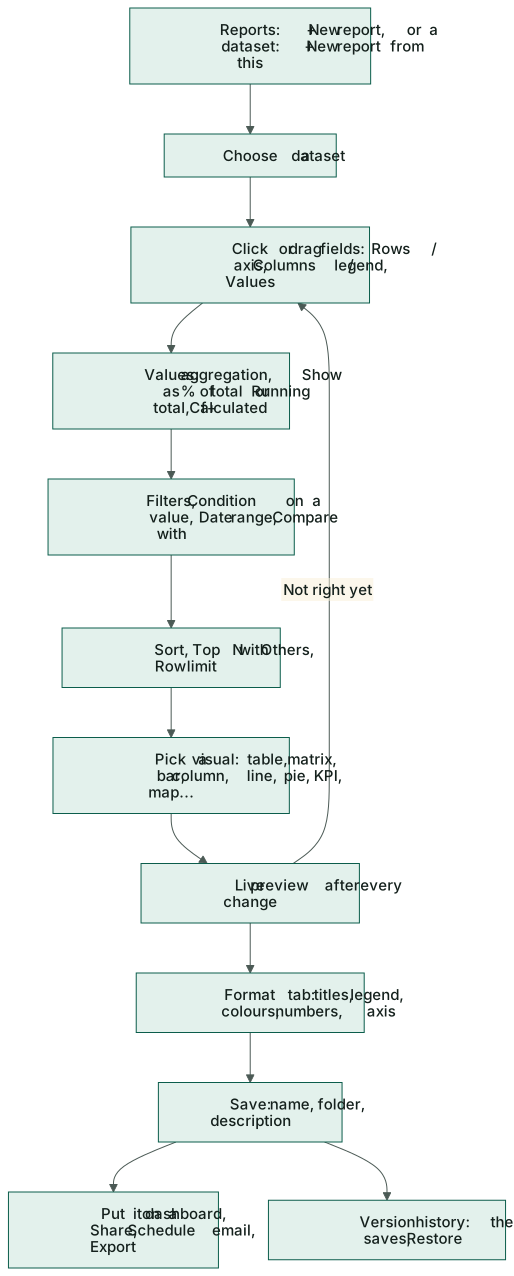
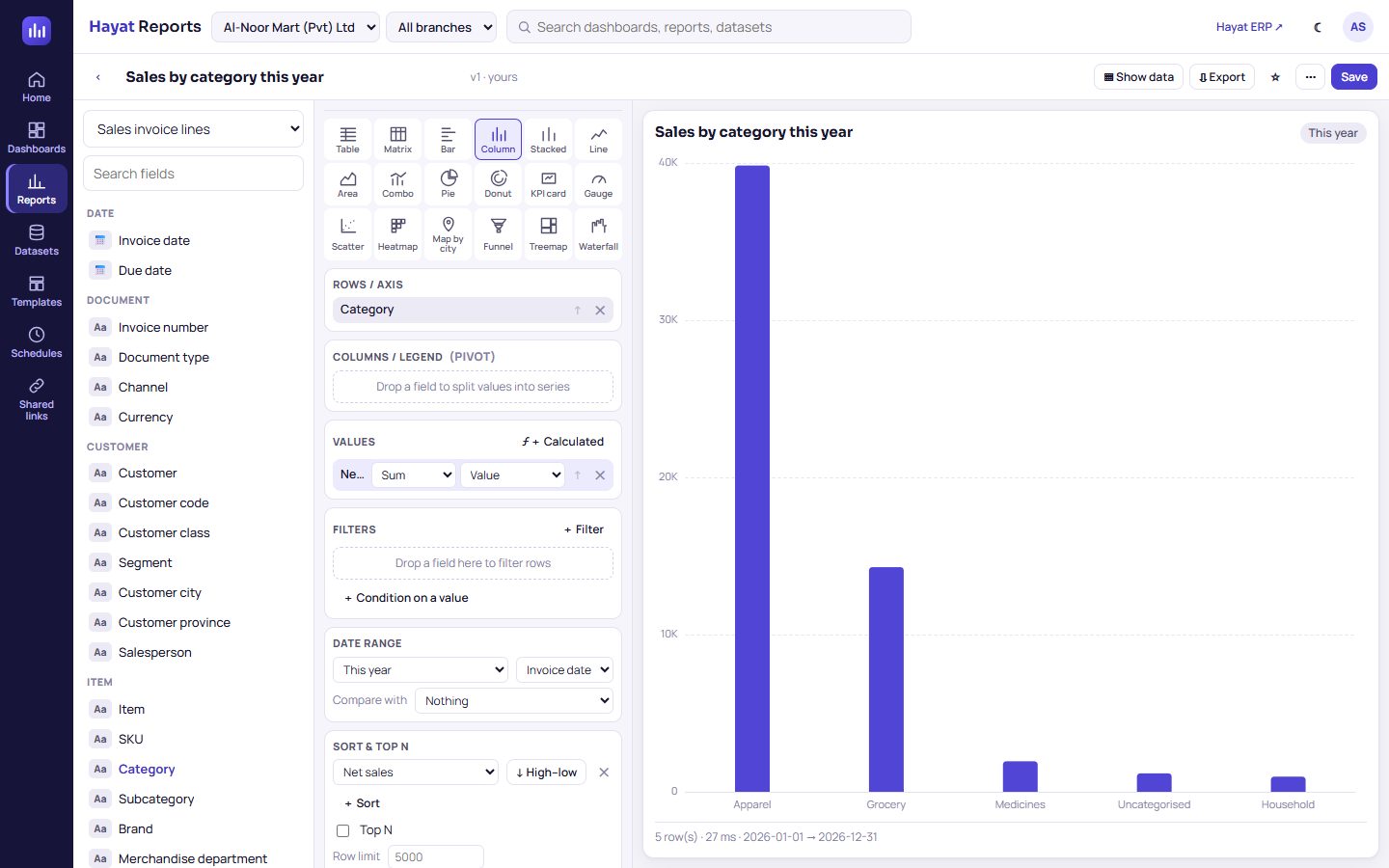
- Reports → + New report (or + New report from this on a dataset). In the field list pick the dataset under Choose a dataset…. The builder starts with its default field and value, the last 30 days, and a line chart for a date or a column chart otherwise. The name becomes dataset report — type your own at the top.
- Add fields: click a field in the list to put a field on Rows / axis and a value on Values, or drag it onto any shelf. Search fields finds one by name. A field already used is marked.
- Choose a visual in the gallery (see Every visual and when to use it). A note tells you when the visual needs another shape, e.g. Pie: use one field and one value.
- Narrow it down with Filters, the Date range and Sort & Top N.
- Polish it on the Format tab.
- Save.
The preview on the right runs again a moment after every change. Under it you see the row count, the time it took (cached when the same question was asked within the last minute), the dates used and any warning. Chips above the visual show the period, filters and top N in force.
| Message | Meaning |
|---|---|
| Choose a dataset to start. / Add fields and values on the left to see the report. | Nothing to run yet. |
| No data for these filters | The question is fine, but nothing matches — widen the dates or remove a filter. |
| n row(s) — more exist, raise the row limit or add filters | More rows than the row limit. |
| The query took too long. Add filters or a shorter date range. | Stopped after 15 seconds. |
| Too many queries at once — wait a moment. | The per-user limit was reached. |
Fields, rows, columns and values
| Shelf | What goes there |
|---|---|
| Rows / axis (Rows for a table or matrix, Categories for a pie, donut, funnel or treemap) | The fields to group by — one per bar, line point or table row. A date field has a grain picker: Day, Week (weeks start on Monday), Month, Quarter, Year, Weekday, Month of year, Day of month. ↑ moves a field up, ✕ removes it. |
| Columns / legend (pivot) | A field that splits each value into one series or column per value — e.g. Category across a monthly chart, or a matrix of branch × category. Up to 100 column values. |
| Values | The numbers. Each has an aggregation picker where the field allows more than one — Sum, Average, Minimum, Maximum, Count, Distinct count — and Value / % of total / Running total (below). A text field dropped on Values counts its distinct values (e.g. Customer → number of customers). ƒ+ Calculated adds your own formula. |
Up to 8 fields in rows and columns together and 30 values. Ready-made calculations at the bottom of the field list (e.g. Margin %, Average basket, Occupancy %) add as a value.
Filters and relative dates
+ Filter (or drop a field on Filters) adds a row filter; all filters must be true together. The operators depend on the field:
| Field type | Operators |
|---|---|
| Text | is any of and is none of (chips; type to find a value, Enter to add), is, is not, contains, does not contain, starts with, is blank, is not blank |
| Date | in period (a relative period from the list below), between, is, ≥, ≤, >, <, is blank, is not blank |
| Number, money, percent | >, ≥, <, ≤, is, is not, between (from / to), is blank, is not blank |
| Yes / no | is Yes or No, is blank, is not blank |
is not also keeps blank values. + Condition on a value filters the results after adding up — for example Net sales ≥ 1,000,000 keeps only the customers above Rs 10 lac; it works on calculated values too.
Date range sets the period on the dataset's date field (choose which date when the dataset has several, e.g. Due date). All dates means no limit; Custom range… asks for from and to. The relative periods follow your company's own date and time zone (Asia/Karachi, Asia/Muscat…):
| Period | Means |
|---|---|
| Today, Yesterday | That calendar day. |
| Last 7 days, Last 30 days, Last 90 days | That many days up to today. |
| Last 12 months | From the 1st of the month eleven months ago to today. |
| This week, Last week | Monday to Sunday. |
| This month, Last month, This quarter, Last quarter, This year, Last year | Calendar periods. |
| Month to date, Quarter to date, Year to date | From the start of the period to today. |
| This fiscal year, Last fiscal year, Fiscal year to date | Your company's financial year (July to June by default in Pakistan). |
| All time, Custom range… | No limit / your own dates. |
A snapshot dataset (Stock on hand, Employees) has no date range: This dataset is a snapshot (no date).
Sort and top N
- + Sort sorts by any field or value of the report; ↓ High–low / ↑ Low–high turns it round. Several sorts apply in order.
- Top N: tick it, type how many and pick the text field (in Rows or Columns) — e.g. Top 10 Customer. by ranks them by the first value or another one; Others adds one Others row with the rest, so totals still add up.
- Row limit: 5,000 rows unless you type another number, up to 50,000.
Calculated values
ƒ+ Calculated on the Values shelf opens Calculated value:
- Type a Name (e.g. Margin %); the Key fills itself (letters, digits and _ only, not starting with a digit).
- Pick the Format: Money, Number, Whole number or Percent.
- Type the Formula. Click a name under Values (click to insert) or a function or operator under Functions to insert it.
- Check & add. Hayat checks the brackets and names, then runs the report once with the formula and shows any problem in plain words.
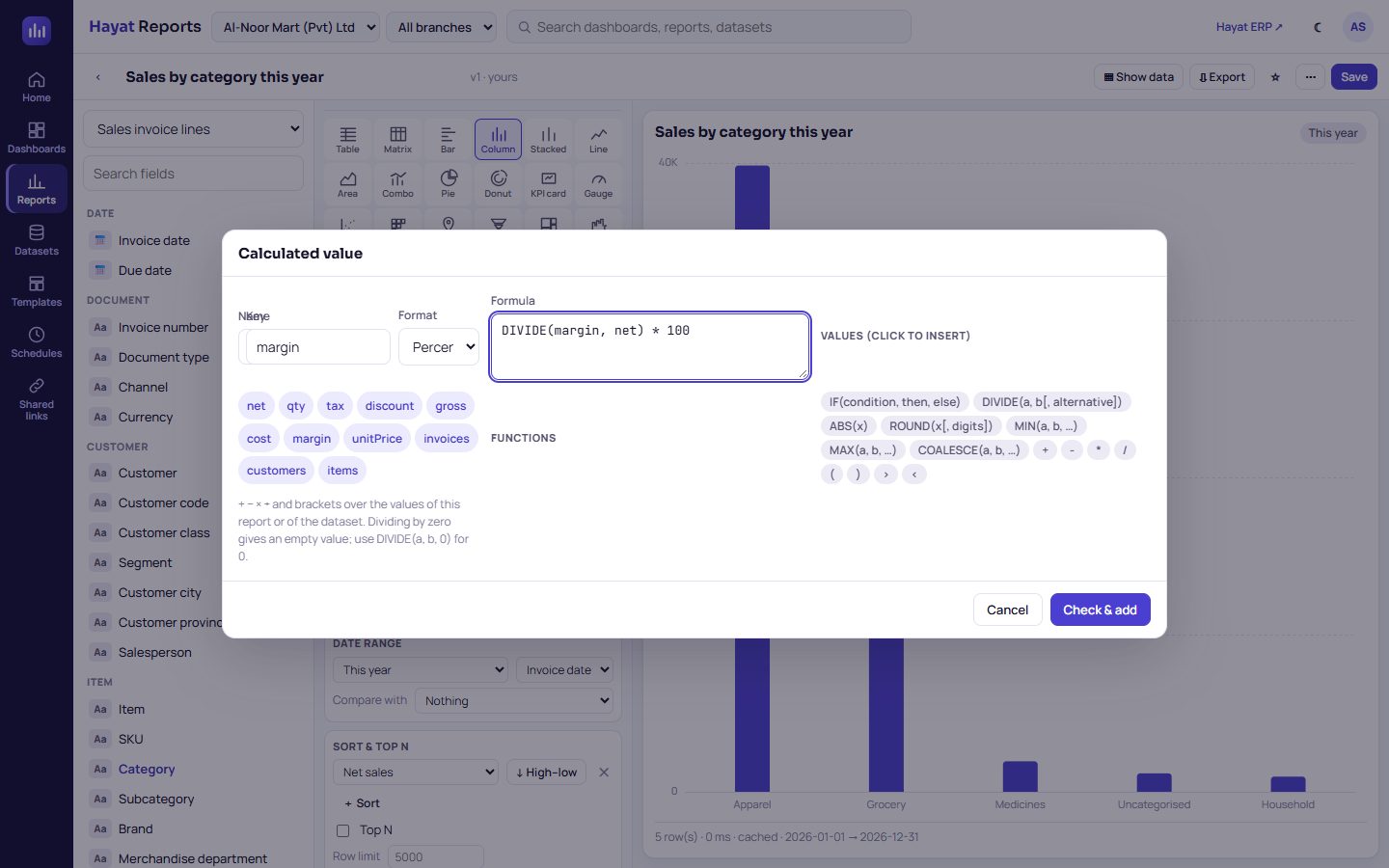
A formula uses the values of the report, or any value of the dataset (it is added to the query unseen), with + - * /, brackets, numbers, comparisons > < >= <= = !=, AND, OR, NOT and these functions:
| Function | Does |
|---|---|
DIVIDE(a, b[, alternative]) |
a ÷ b; when b is 0 the result is empty, or the alternative if you give one. |
IF(condition, then, else) |
One value or another. |
ROUND(x[, digits]), ABS(x) |
Round; drop the minus sign. |
MIN(a, b, …), MAX(a, b, …) |
The smallest / largest. |
COALESCE(a, b, …) |
The first that is not empty. |
| Example | Formula | Format |
|---|---|---|
| Margin % | DIVIDE(margin, net) * 100 |
Percent |
| Net per invoice | DIVIDE(net, invoices) |
Money |
| Discount % (till) | DIVIDE(discount, net + discount) * 100 |
Percent |
| Commission: 2 % above Rs 1 lac | IF(net > 100000, net * 0.02, 0) |
Money |
| ADR, 0 instead of empty | DIVIDE(roomRevenue, roomsSold, 0) |
Money |
| Collected or billed, rounded | ROUND(COALESCE(paid, billed), 0) |
Money |
Formulas work on the added-up values (per row of the report), never on single records, and are worked out by Hayat itself — they never reach the database. Percent values are 0–100. Up to 500 characters. Messages you may see: A "(" is not closed., "x" is not a value of this report or dataset., Only + − × ÷, brackets, numbers, value names and functions are allowed. Click ƒ on a calculated value to change it or Remove it.
Period comparison, % of total, running total
- Compare with (under Date range): Previous period — the same number of days just before (whole months → the same number of months) — or Same period last year. Each value gets a (last year) or previous column and a change % column; rows are lined up by date, so a monthly chart compares month with month. KPI cards show ▲ / ▼ and the %, line charts draw the comparison dashed, column charts can Show comparison bars. It needs a date range with a start and an end, and is not available while Columns / legend is used.
- Show as % of total on a value: each row's share of the grand total (e.g. each branch's share of sales).
- Show as Running total: adds the rows up in the order shown (sort by date first for a cumulative month-by-month line).
Every visual and when to use it
| Visual | Shape it needs | Use it for |
|---|---|---|
| Table | Any fields | Lists and exact figures: totals row, sort by clicking a heading, pages, data bars and colour rules (e.g. red when Margin % < 10). |
| Matrix | Rows × columns | A pivot such as branch × month with row and column totals and shading. Put a field under Columns. |
| Bar | 1 field × values | Ranking names — top customers, items, cashiers (long labels read well). |
| Column | 1 field × values | Few categories or periods side by side; comparison bars. |
| Stacked | Field + legend | Parts of a whole per period (e.g. stock movement value by type each week); 100 % stacked for shares. Use Columns / legend, or two or more values. |
| Line | Over time | Trends by day, week or month; the comparison as a dashed line. |
| Area | Over time | A trend where the volume matters; stacked areas. |
| Combo | Columns + line | Two related values, e.g. sales as columns and margin as a line. A second axis is possible but makes values hard to compare — use it only for different units. |
| Pie, Donut | Share of 1 value | Shares of a few slices — payment mix, category share (keep it to 6–8 slices: use Top N or Slices (rest = Others)). |
| KPI card | 1 value, no row fields | One headline number with ▲ / ▼ change, target and status colour. |
| Gauge | 1 value vs target | Progress to a target (min, max, target). |
| Scatter | 2–3 values | Two measures per item, e.g. quantity against margin per product, bubble size a third. |
| Heatmap | 2 fields × 1 value | Patterns such as weekday × hour of day. |
| Map by city | City × 1 value | Sales or customers by city: cities ranked by value and grouped by province or country (Pakistan, Oman, UAE, Saudi Arabia, Gulf). It is a ranked bubble list, not a drawn map; names it does not know are listed under Not placed. |
| Funnel | Stages × 1 value | The CRM pipeline by stage (order by Stage order or type the stages). |
| Treemap | 1–2 fields × 1 value | Where the value sits — stock value by brand, sales by category and subcategory. |
| Waterfall | Signed steps | How a total builds up — profit and loss by statement line, with a total bar. |
Format
The Format tab (next to Fields) holds the look of the visual:
- Title and Subtitle (the title defaults to the report name).
- Charts: Legend on / off and Top, Bottom, Left or Right; Data labels; Colours — Hayat (default), Warm, Cool or Single hue, and a colour per series (Reset colours).
- Numbers: As the field (PKR for money), Money, Number, Percent or Short (lac / crore), and Decimals. Rupees are shown as Rs with Pakistani grouping (Rs 12,34,567); short form Rs 1.25 cr, 12.5 lac. Other currencies use their own decimals (OMR 3).
- Axis charts: X axis title, Y axis title, Axis min, Axis max, Grid lines.
- Per visual: Order and Show at most (bar, column), 100 % stacked and Horizontal, Smooth, Markers, Comparison as dashed line, Stacked and Fill opacity (area), Columns / Line / Area and Main axis / 2nd axis per value (combo), Labels as %, Slices (rest = Others) and Hole size (pie, donut), Value, Good when (Going up / Going down), Target, Fixed colour, Prefix, Suffix, Comparison label (KPI), Min / Max / Target (gauge), X / Y / Bubble size (scatter), Low colour / High colour (heatmap), Region and Bubbles (map), Order and Stage order (funnel), Total bar, Total label and the up / down / total colours (waterfall), Totals row, Wrap text, Rows per page, Data bars, Colour rules (table), Row totals, Column totals, Shade cells by value (matrix).
- Text when there is no data, and the report's Description.
Show data, export, save and versions
- ▦ Show data swaps the visual for the table of figures behind it.
- ⇩ Export: Excel (.xlsx) or CSV of the report as it is now (same filters); PDF for a saved report without unsaved changes.
- Save saves your changes (the version number goes up). The first time — or when you may not change someone else's report — the Save report box asks for the Name, an optional Folder (+ Folder makes one) and a Description. Unsaved shows until you save, and the browser warns before you leave.
- ⋯ → Save as… (a copy, Copy of …), Version history (the last 20 saves with who and when; Restore brings an old version back as a new one), Share… and Schedule email… (see Share, Schedules). ☆ adds it to your favourites.
People who may only view (bi.view) see a saved report read-only and can export it.
Workflow

Where the money goes
Nowhere: Hayat Reports only reads the posted figures of the other modules — it never posts, changes or deletes a document. The finance datasets show whatever every module has posted, see How every module reaches the accounts.