
Online payments
hayaterp.com/payments ↗Payment links from any bill — customers pay by JazzCash, Easypaisa, card, Raast or buy now, pay later on my.hayaterp.com, and the payment is recorded on the bill and in the books by itself. Also the virtual terminal and card machines at the till.
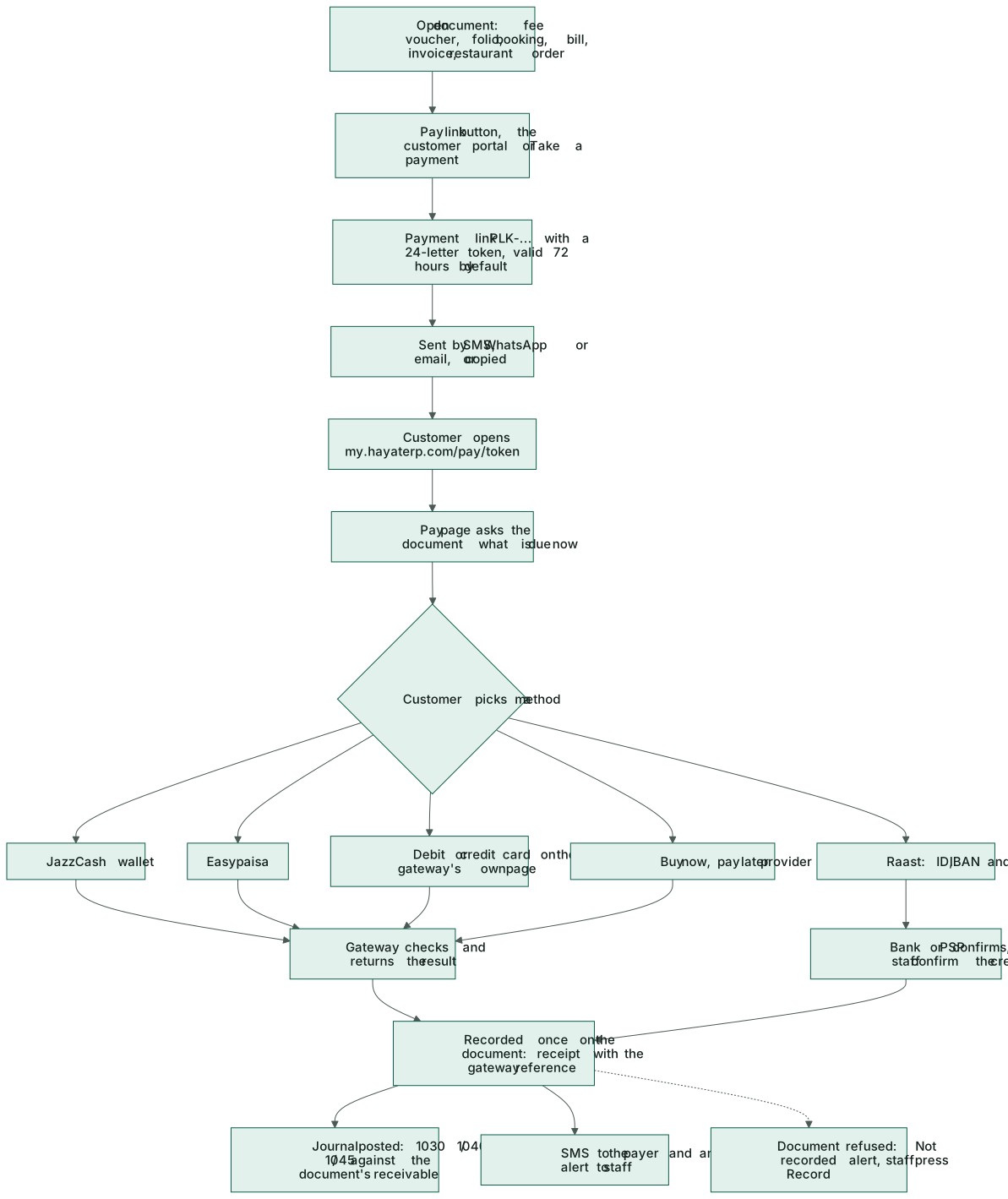
A payment link is a web address for one bill. You send it by SMS, WhatsApp or email; the customer opens it on their phone, picks how to pay, and the money is recorded on the bill automatically — the fee voucher, folio, booking, invoice or restaurant order shows it paid and the journal is posted. Nobody types the receipt.
Links work for school fee vouchers, hotel folios, travel bookings, hospital bills, sales invoices, shipping invoices and restaurant orders, and for amounts with no bill at all (the virtual terminal).
Who does what
| Permission | Typical person | Can do |
|---|---|---|
| See payment links and online payments (payments.view) | Accountant, manager | The overview, payment links, payments received, Raast to confirm, BNPL payouts and card machines (read only). |
| Create and send payment links (payments.links) | Fee clerk, front desk, travel agent, accounts | 🔗 Pay link on bills, + Link for a bill, + Take a payment, send and cancel links. The bill's own permission is needed too (e.g. collect school fees for a fee voucher). |
| Payment gateways, Raast, BNPL and card machines (payments.manage) | Owner, finance manager | Gateway settings, confirm Raast, record BNPL payouts, link card machines to tills, Record on the bill when a payment could not be recorded. |
The ready-made Accountant role can see links and make them; Admin has everything.
The overview
Online payments shows what was collected today and this month, open links, BNPL to be paid out, money by method, BNPL by provider and today's card-machine charges. Red and yellow bars at the top warn about payments that were taken but could not be recorded, links paid twice and Raast payments to confirm.
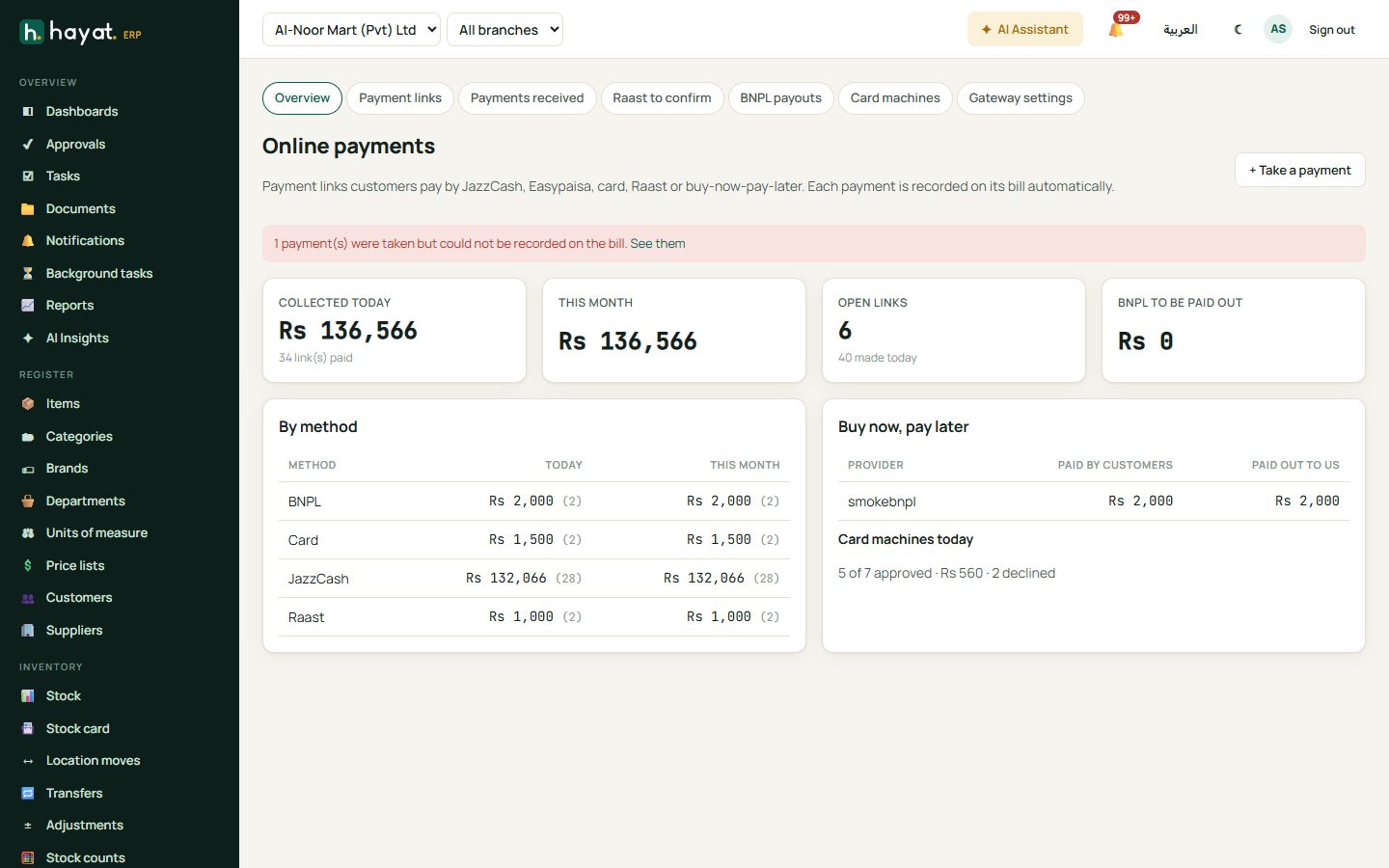
Send a payment link
The quickest way is the bill's own screen.
- Open the bill — a school fee voucher, a hotel folio, a travel booking file or invoice, a hospital bill, a posted sales invoice, a shipping customer invoice, or a restaurant order.
- Click 🔗 Pay link. If an open link already exists it is shown; otherwise type a part amount if you want one (blank = the full balance) and click Create link.
- Copy the link, or choose SMS, WhatsApp or email and click Send. The message reads "Al-Noor Mart: Rs 12,500 due for FV-2026-0142. Pay online: my.hayaterp.com/pay/…". Blank To uses the phone or email on the bill.
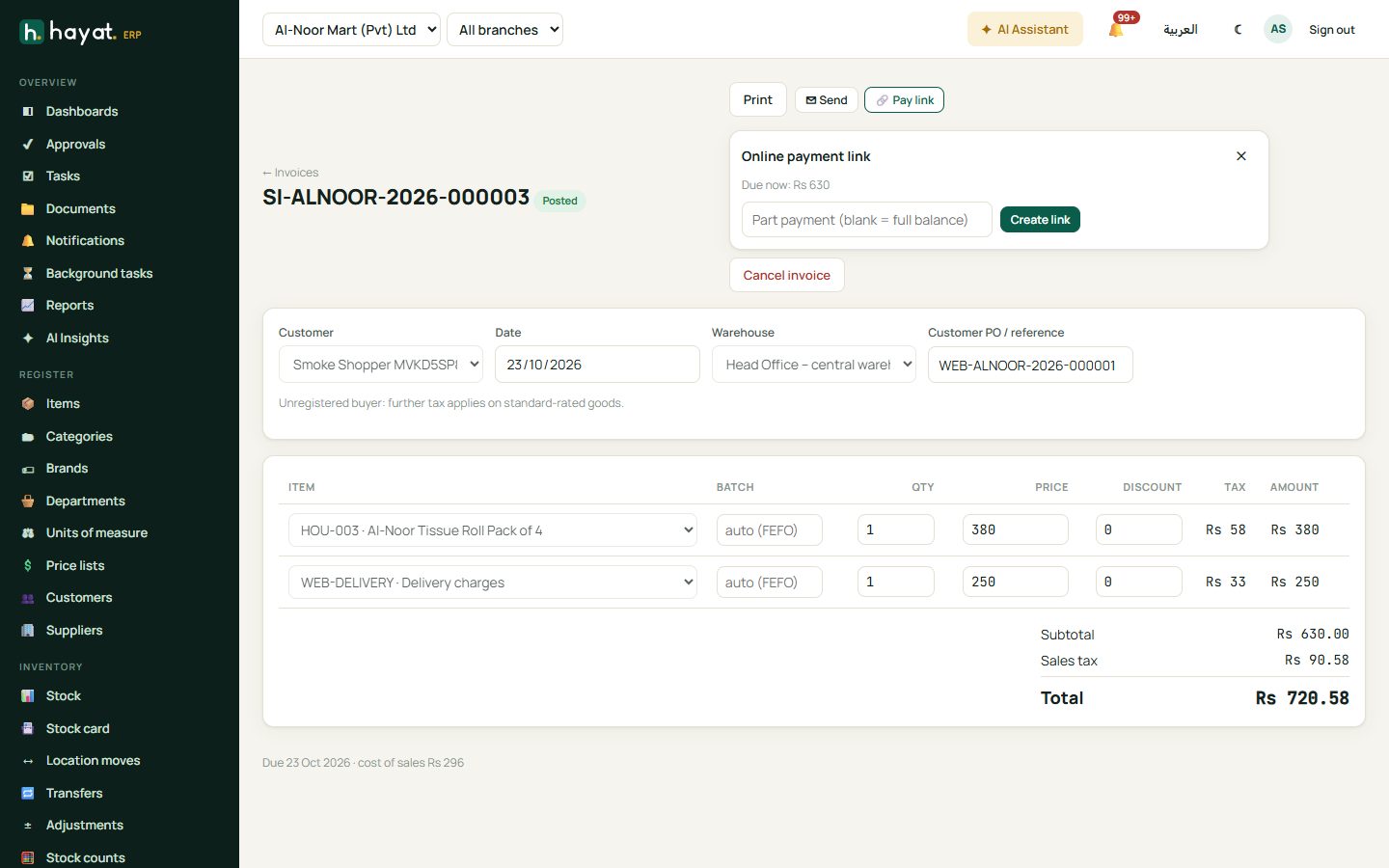
| Screen | Pay link for |
|---|---|
| School → voucher drawer | the voucher balance plus today's late fee |
| Hotel → folio | the open folio balance |
| Travel → booking file, Travel → invoices | the booking's balance (invoices are paid through their booking) |
| Hospital → billing | the bill balance |
| Sales → invoice (posted) | the invoice balance |
| Shipping → customer invoices | the invoice balance |
| POS → restaurant order | the order total |
A link without an amount always asks the bill what is due when the customer pays — if the parent paid part at the desk meanwhile, the link asks only for the rest. Links stay valid for 72 hours by default (Gateway settings → Links stay valid), anything from 1 hour to 90 days.
Payment links lists every link with filters by status (Open, Paid, Expired, Cancelled), kind, dates and a search. Click a link to see its address (Copy, Open), the amount, validity, each attempt the customer made, send it again or Cancel link. + Link for a bill makes a link from a bill type and id — normally you use the bill's own button instead.
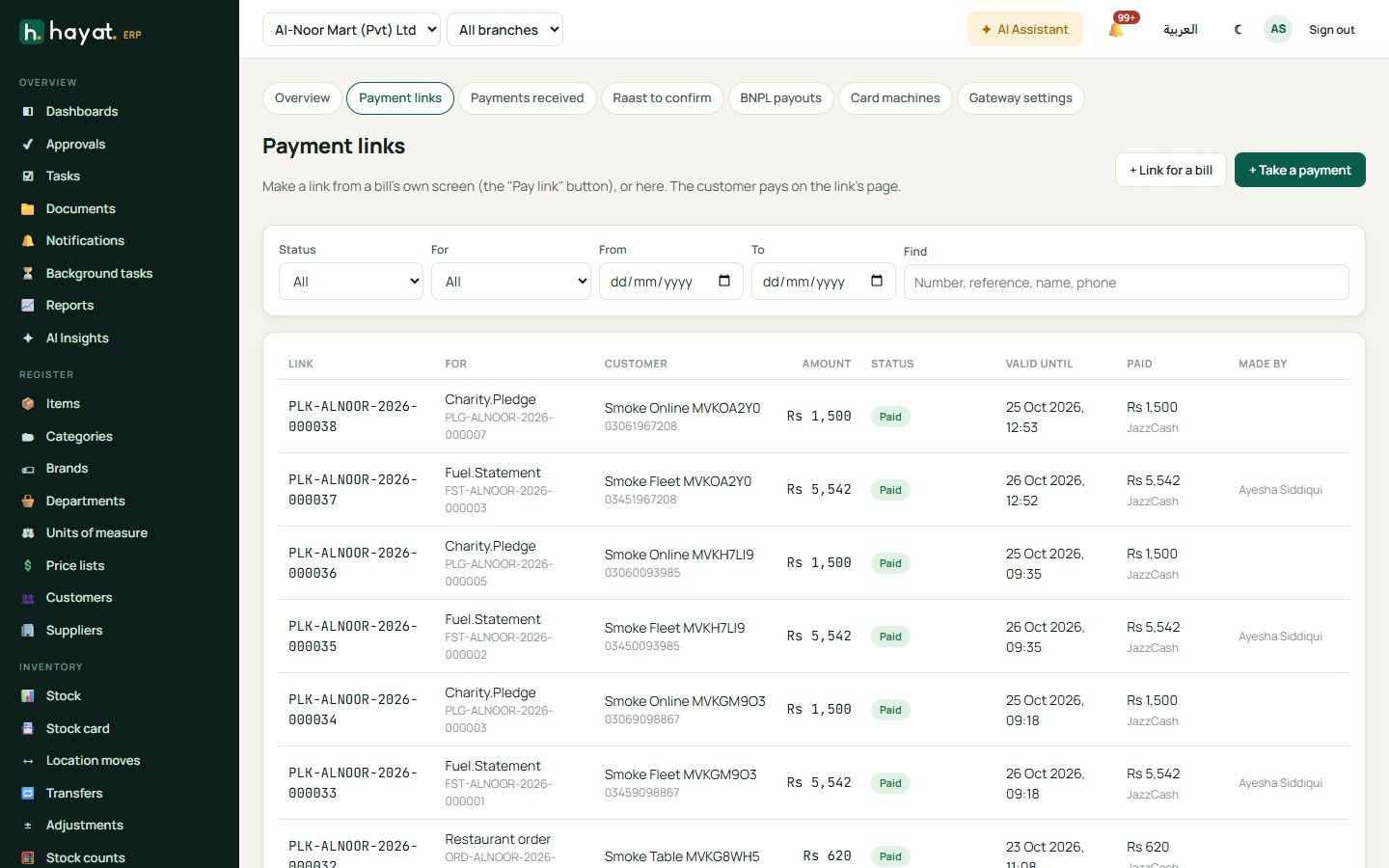
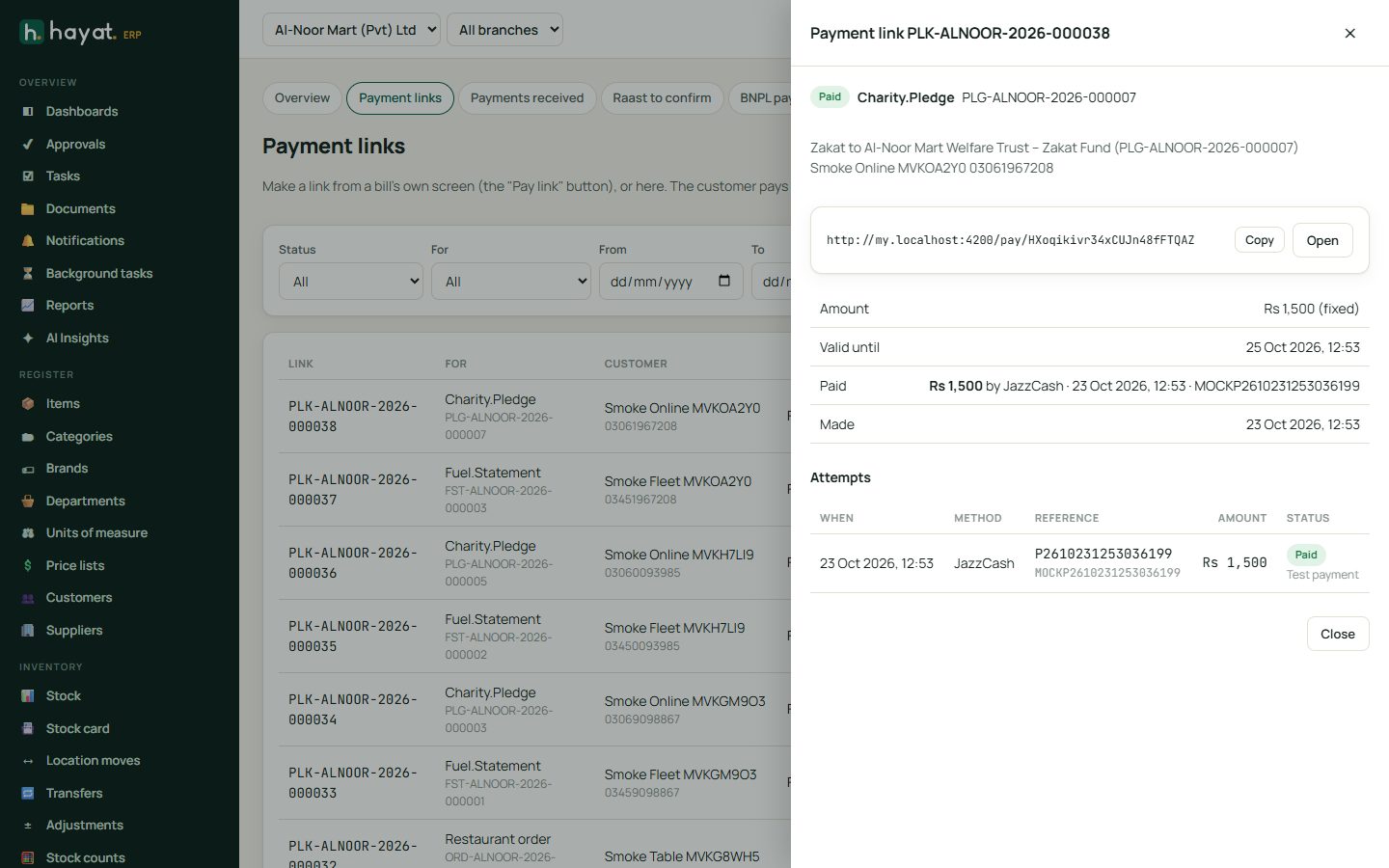
The pay page
The customer opens my.hayaterp.com/pay/… on any phone — no app, no sign-in. The page shows your business name and logo, what is being paid, the amount to pay and until when the link works, then How would you like to pay?:
| Method | What happens |
|---|---|
| JazzCash | Pay from the JazzCash wallet on JazzCash's own page. |
| Easypaisa | Pay from the Easypaisa account on Easypaisa's page. |
| Debit / credit card | Visa, Mastercard, UnionPay or PayPak on the gateway's own card page. Card numbers never reach Hayat. |
| Raast | Your Raast ID, IBAN, account title, bank, the exact amount, a reference and a QR code, each with Copy — see Raast. |
| Buy now, pay later | Each BNPL provider you switched on, e.g. QisstPay — Pay in 4 instalments, within its minimum and maximum amount. |
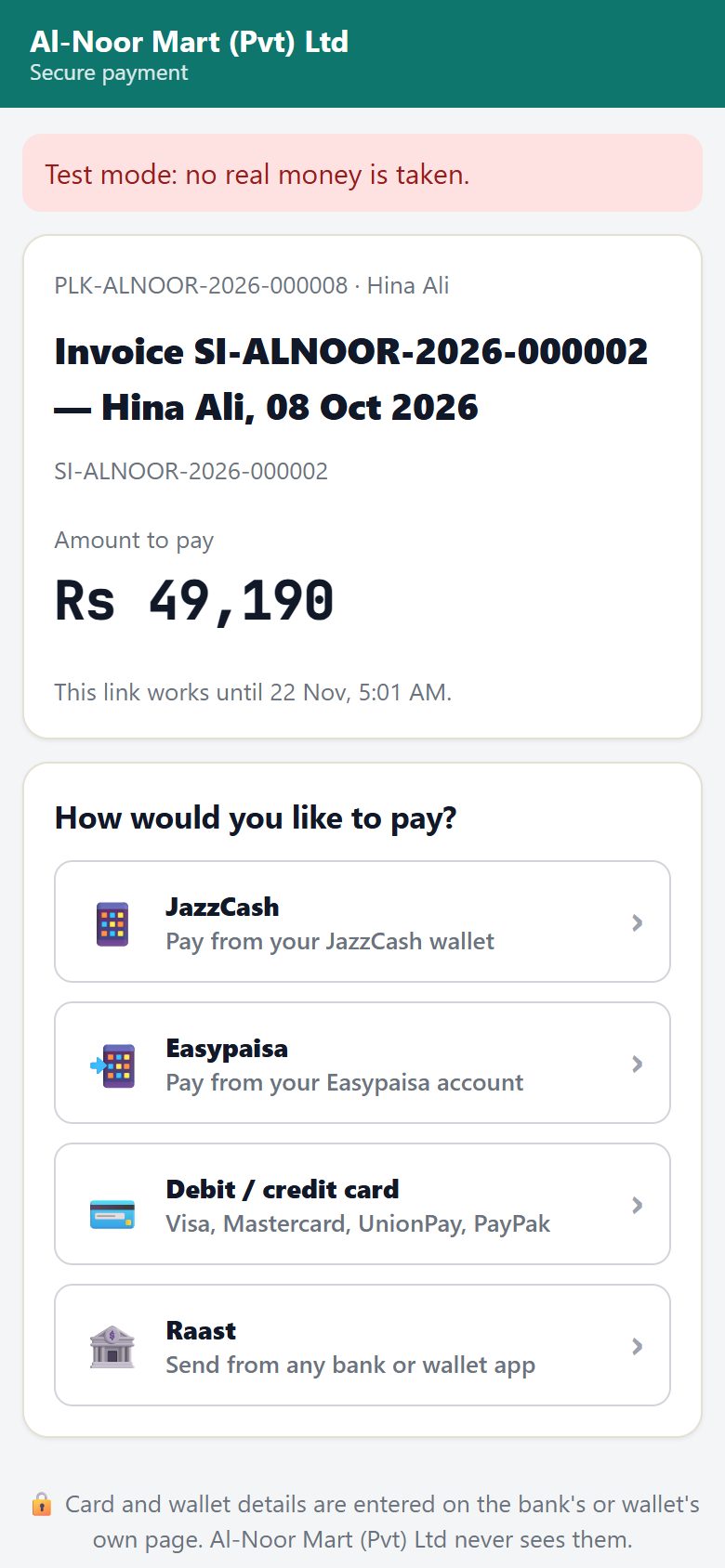
After paying the customer sees Checking your payment… and then Paid. Thank you! with the method and reference, and gets an SMS confirmation. A link that has expired or was cancelled says so and asks them to contact you. In Sandbox or test mode the page shows Test mode: no real money is taken.
Raast: manual or through a bank
Raast is the State Bank's instant payment system: any bank or wallet app can send to your Raast ID or IBAN. Hayat supports two ways (Gateway settings → Raast):
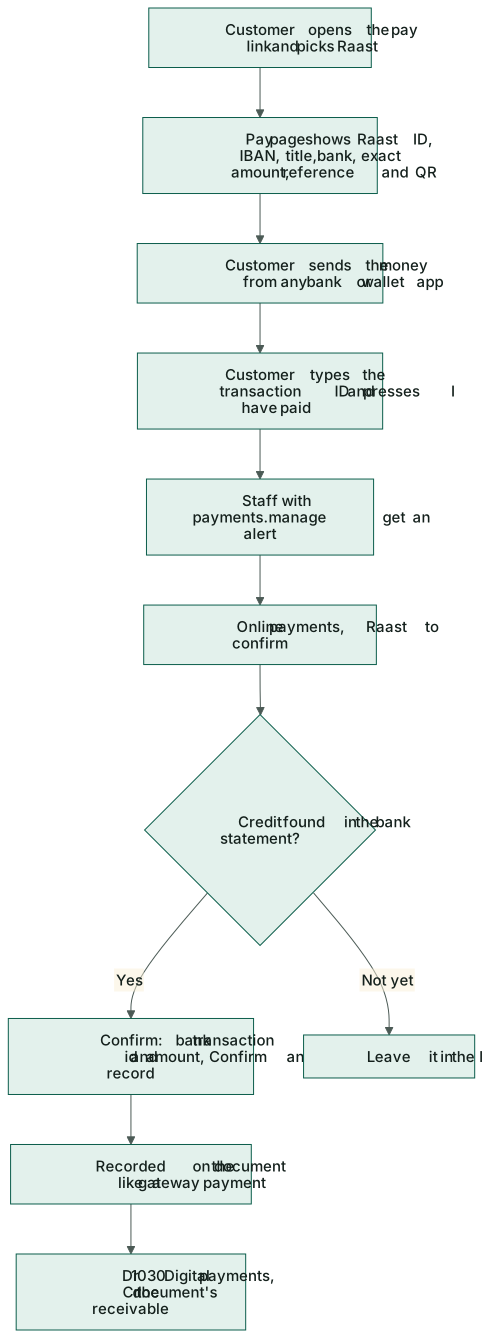
- Manual: show our Raast ID / IBAN, staff confirm the credit. The customer sends the money from their own app, types the transaction ID and presses I have paid. Staff with payments.manage get an alert.
- Through a bank / PSP that confirms it. The pay page waits for the bank's confirmation (it checks every few seconds) and records the payment by itself. This needs an agreement and API details from your bank or payment provider.
To confirm manual Raast payments:
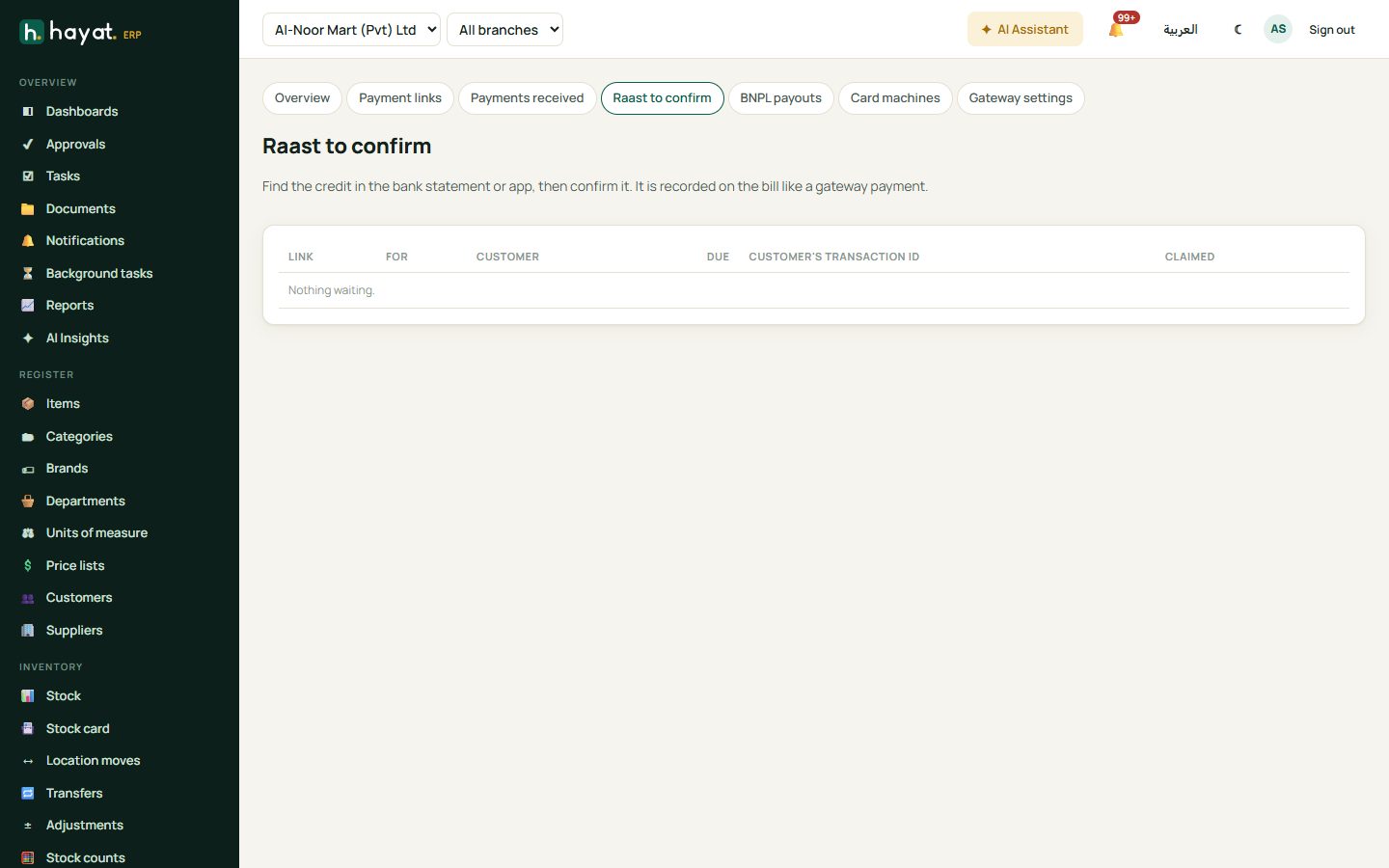
- Open Online payments → Raast to confirm. Each row shows the link, the bill, the customer, the amount due and the customer's transaction id.
- Find the credit in your bank statement or banking app.
- Click Confirm, check the Bank transaction id and the Amount received (blank = the amount due) and click Confirm and record. It is recorded on the bill like a gateway payment.
Buy now, pay later and payouts
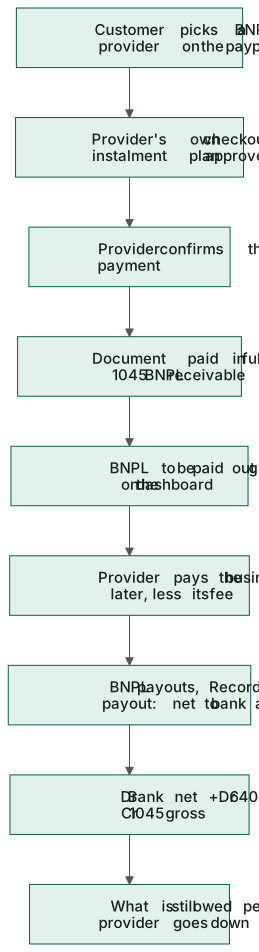
With BNPL the customer pays the provider in instalments and the provider pays you — the whole bill is paid at once on your side. Until the provider pays out, the money sits in 1045 BNPL receivable.
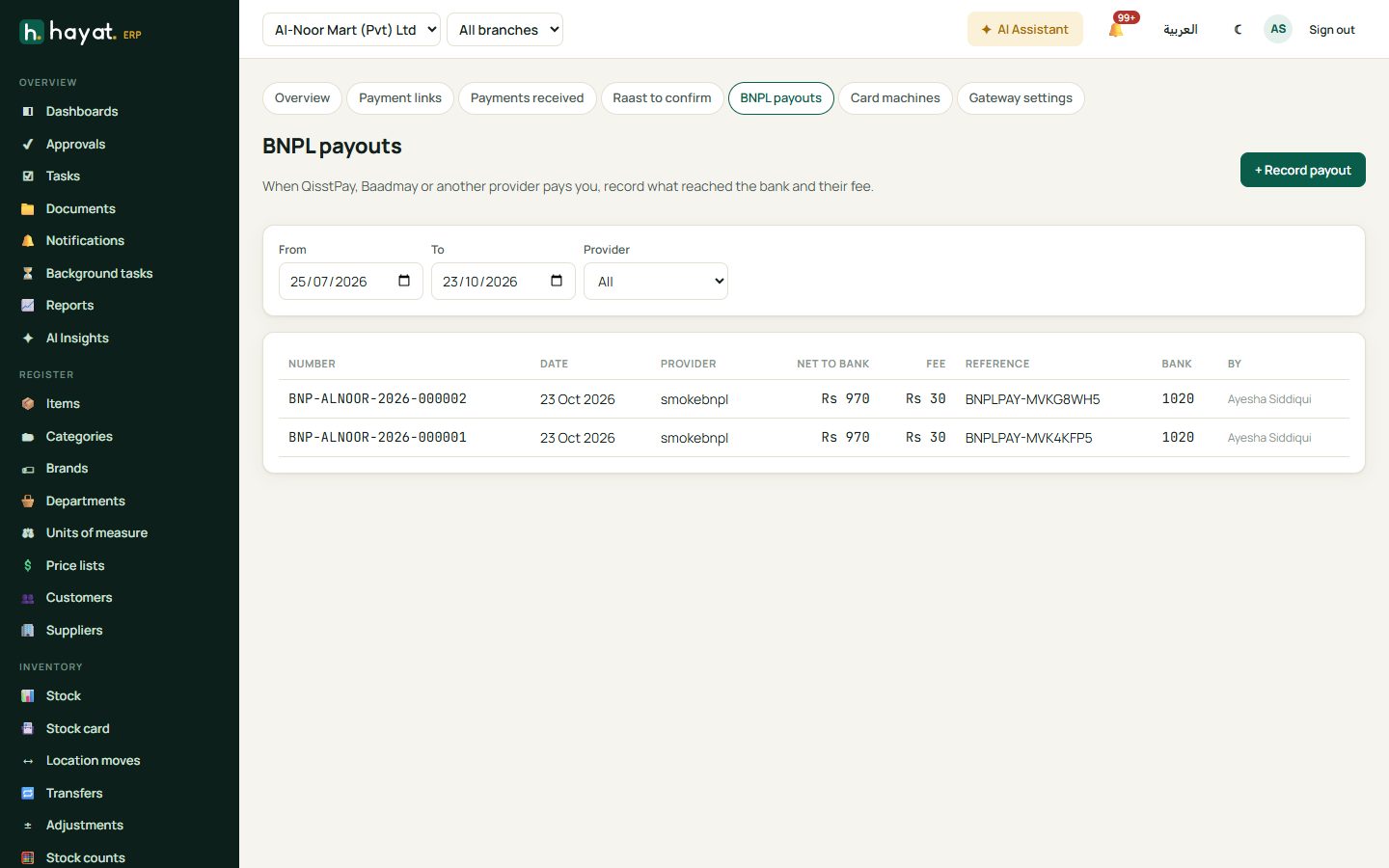
- When the provider sends a payout, open Online payments → BNPL payouts. The cards at the top show what each provider still owes.
- Click + Record payout. Choose the Provider, the Date, what Reached the bank and the Provider's fee, the Bank account and the payout Reference.
- The form shows the journal it will post. Click Post payout.
Take a payment (virtual terminal)
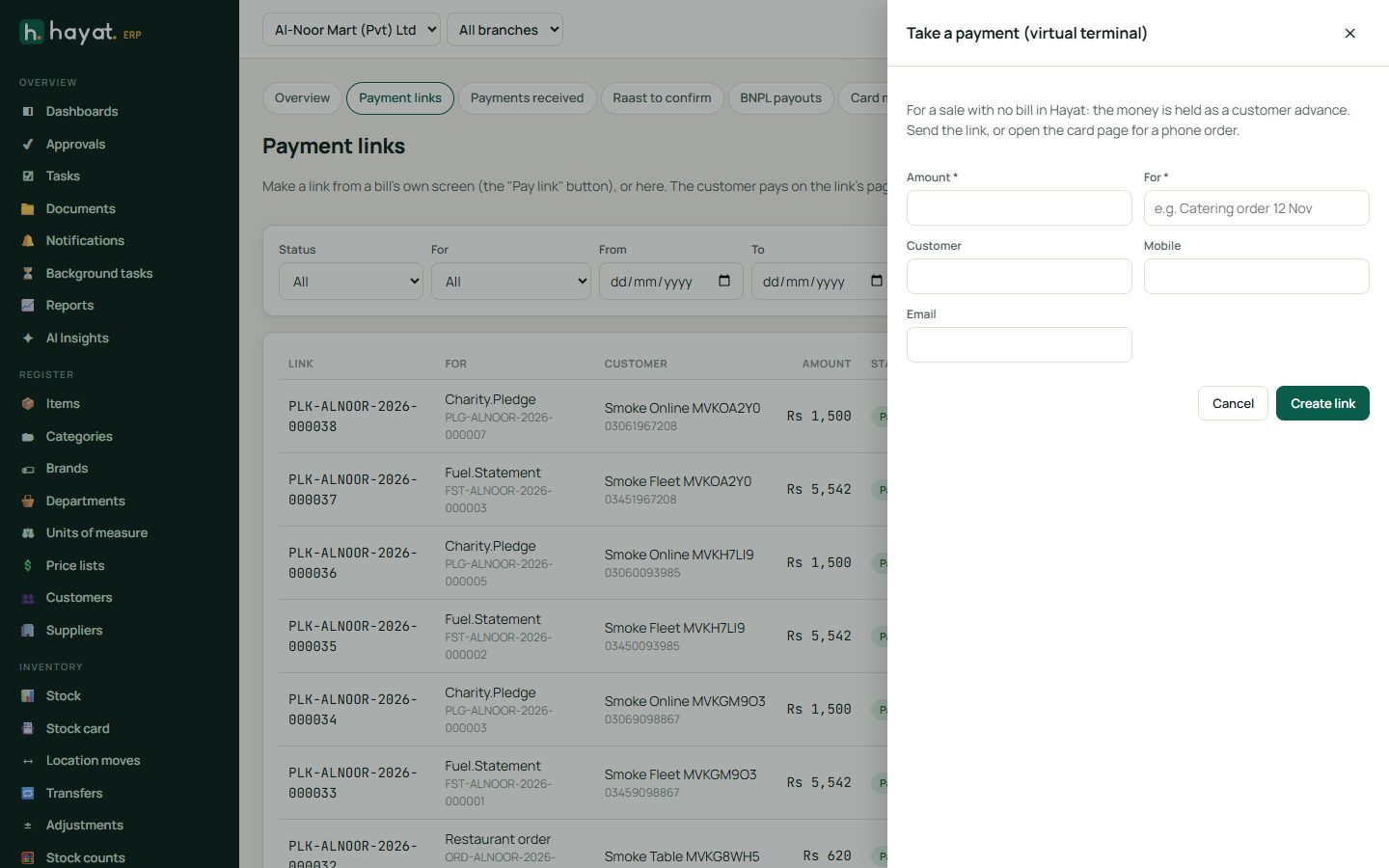
For an amount with no bill in Hayat — a catering order, a deposit taken by phone — click + Take a payment, type the Amount, what it is For, and the customer's name, mobile and email, then Create link. You get a 24-hour link to send. For a phone order by card, Open card page opens the gateway's own card page where you type the card details the customer reads out — they never touch Hayat. The money is held as a customer advance (2300).
Payments received and problems
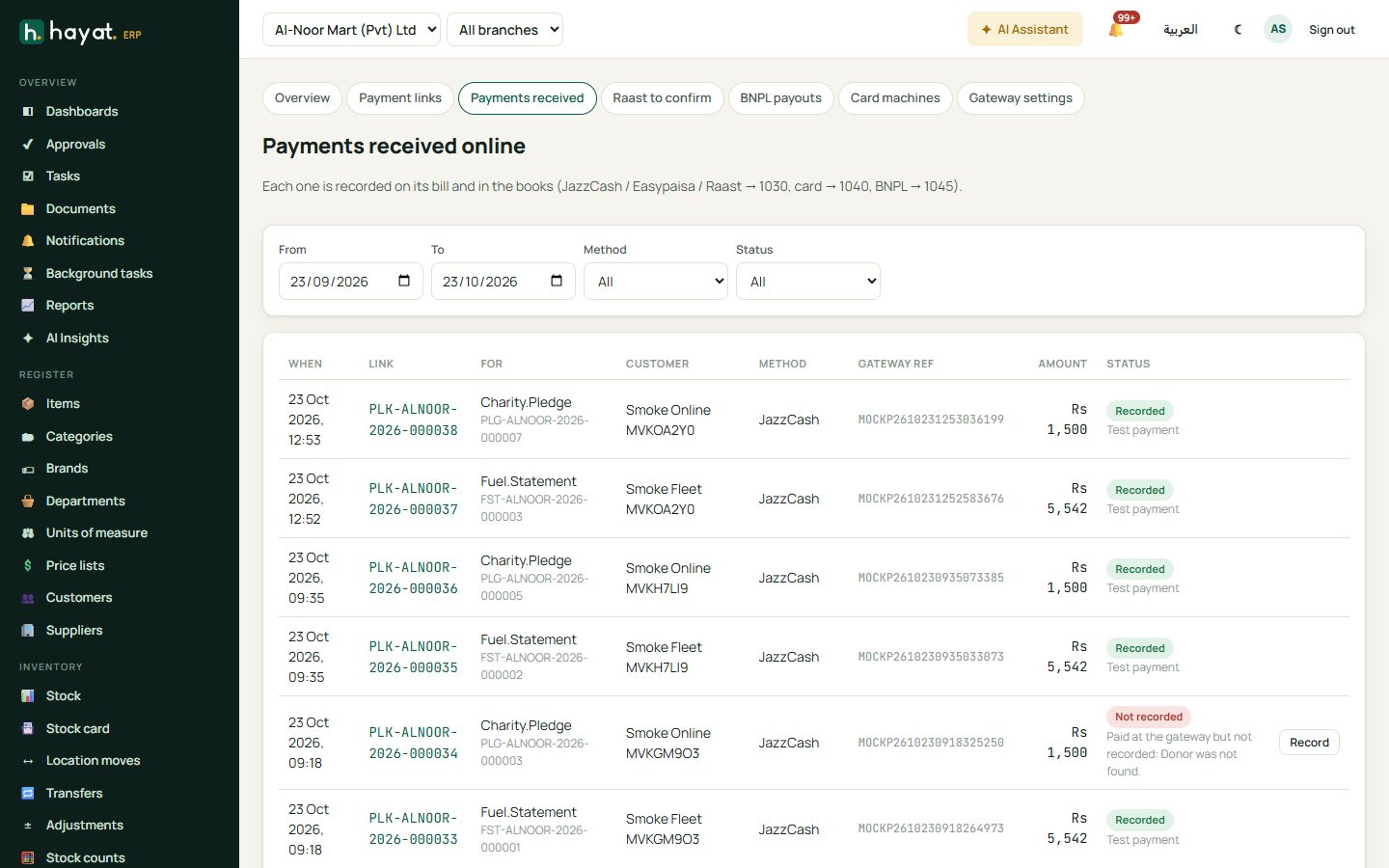
Payments received lists every online payment with its link, bill, customer, method and gateway reference, filtered by date, method and status:
- Recorded — on the bill and in the books.
- Not recorded — the money was taken but the bill refused it (for example the accounting period is closed or the module was switched off). The customer sees the link as paid so they do not pay again. Fix the reason, then click Record (or Record on the bill in the link's attempts).
- Paid twice — a second payment on a link that was already paid. Refund it from the gateway's merchant portal.
A payment is recorded exactly once, even when the gateway calls back twice. A payment that arrives after the link expired or was cancelled is still recorded, because the money was taken.
Card machines at the till
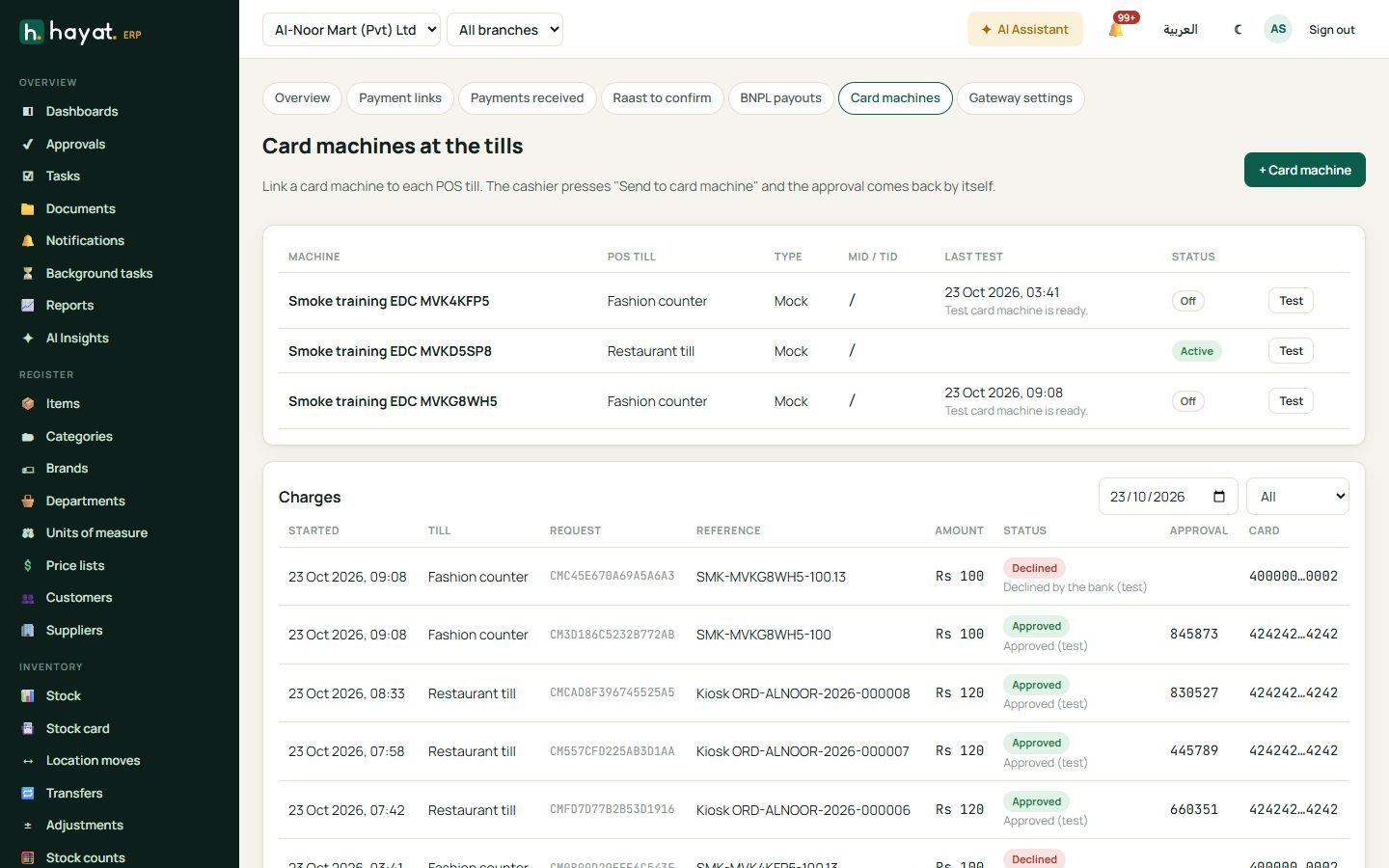
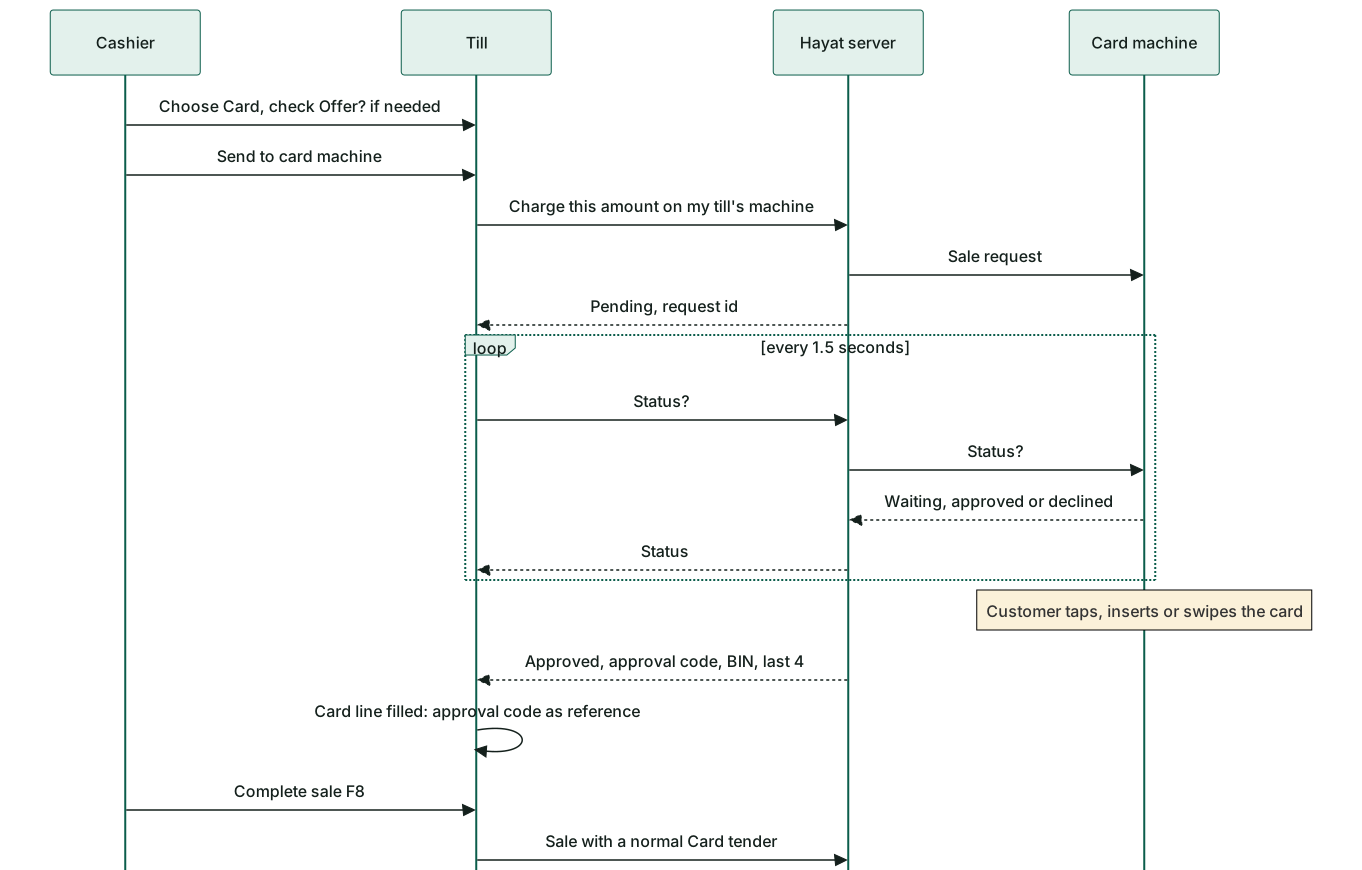
Link a card machine to a POS till and the cashier no longer types the amount into the machine: the till sends it and the approval comes back by itself.
- Online payments → Card machines → + Card machine.
- Give it a Name (e.g. Counter 1 Keenu), choose the POS till, the Type (Keenu, Other (REST bridge) or Test machine), the Bridge address, Merchant id, Terminal id, API key and how long to Wait for the card.
- Save, then Test. One active machine per till.
At the till the cashier chooses Card and presses 📟 Send to card machine — see Point of sale → Card machine. The Charges list shows every charge of a day with its status, approval code and card.
Gateway settings
Online payments → Gateway settings (payments.manage) decides how customers can pay:
| Card | Settings |
|---|---|
| Mode | Sandbox (the providers' test systems), Live (real money) — and Test page on a development server only. |
| JazzCash | Accept JazzCash wallet; merchant id, password, integrity salt. |
| Easypaisa | Accept Easypaisa; store id, hash key, and the Inquiry API username, Inquiry API password and Account number. Hayat confirms every Easypaisa payment with Easypay's inquiry service before recording it; without these three, payments stay waiting for Easypaisa to confirm. |
| Debit / credit cards | Accept cards on the gateway's own card page, through JazzCash or Easypaisa. |
| Raast | Off, Manual or through a bank / PSP; Raast ID, IBAN, account title, bank, the bank's QR text; provider address and request headers. |
| Buy now, pay later | Offer instalments; each provider's code, name, connection (hosted checkout), merchant id, API key, checkout and status addresses, min and max amount, fee % and the line shown to customers. |
| Links and the pay page | How long links stay valid, the business name and logo on the page, support phone, an email that gets a copy of each payment, and terms shown on the pay page. |
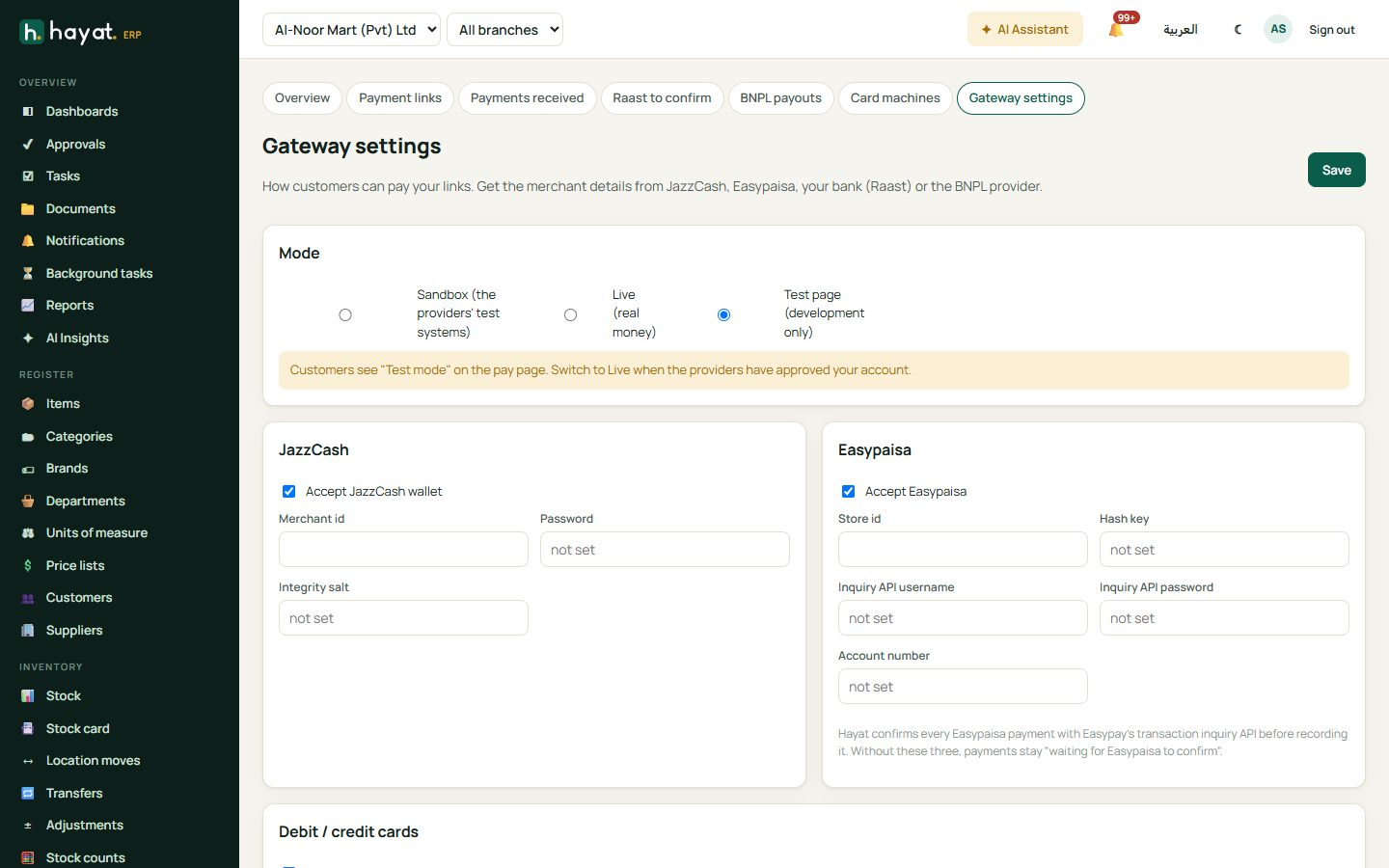
Passwords, salts and keys are write-only: the field says saved — type to replace, and leaving it blank keeps the saved value. Get the merchant details from JazzCash, Easypaisa, your bank (Raast) or the BNPL provider; test in Sandbox, then switch to Live.
Workflow
Where the money goes
The payment is recorded on the bill through the bill's own receipt — the same as taking it at the desk — so the journal credits that bill's receivable. Only the debit side is new:
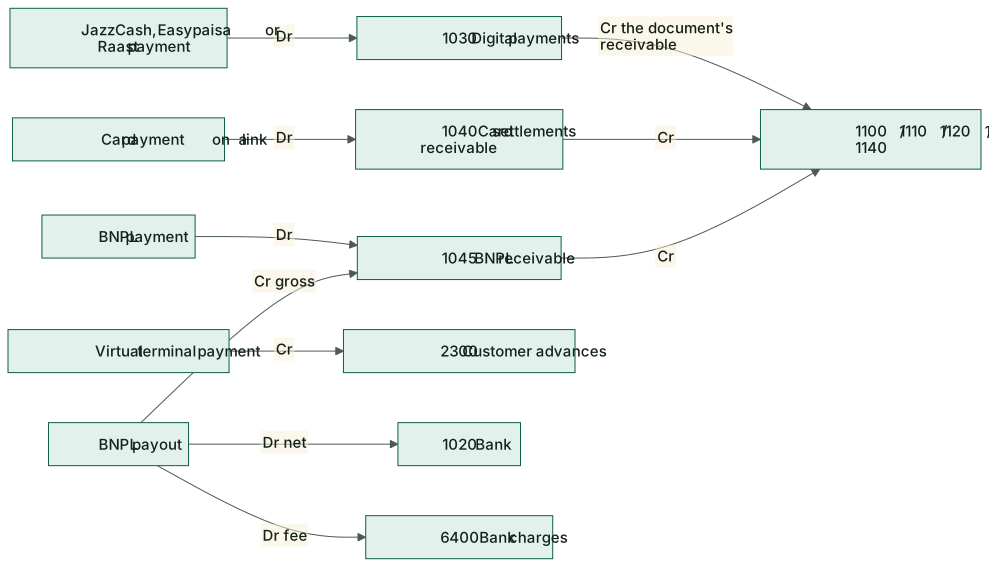
| Event | Debit | Credit |
|---|---|---|
| JazzCash or Easypaisa payment | 1030 Digital payments | the bill's receivable: 1120 Student fees, 1130 Guest, 1140 Client (travel, shipping), 1110 Patient or 1100 Accounts receivable (sales invoice) |
| Card payment on a link | 1040 Card settlements receivable | the bill's receivable |
| Raast (by the bank, or confirmed by staff) | 1030 Digital payments | the bill's receivable |
| Buy now, pay later | 1045 BNPL receivable | the bill's receivable |
| Virtual terminal | 1030 / 1040 / 1045 by method | 2300 Customer advances |
| BNPL payout | 1020 Bank (net) and 6400 Bank charges (fee) | 1045 BNPL receivable (net + fee) |
| Restaurant order paid online | posted as a normal POS sale with the online method as the tender | see Restaurant |
| Card machine charge | nothing by itself — the till's Card line posts the sale (1040) |
A school voucher paid online keeps any extra as an advance, like a payment at the desk. These postings happen even when the Accounts module is off — see How every module reaches the accounts.
On the phone
The School, Hotel, Travel, Hospital and Sales apps have a Send · pay link button on vouchers, folios, booking files, bills and invoices. Hayat Manager → More → Messages & payments shows collected today and this month, open links, Raast to confirm, BNPL to receive and the payments received today. Customers can also pay from the customer portal and the Hayat My app.