
Shopping on Hayat Bazaar
bazaar.hayaterp.com ↗Hayat Bazaar at bazaar.hayaterp.com and in the Hayat Bazaar app — the products of many local shops in one place: browse by category, search and filter, one cart split by shop, checkout with each shop's own payment, sign-in with a mobile code, tracking, cancelling and reviews.
Hayat Bazaar is one marketplace for many shops. Every business on Hayat that joins it puts its online-store products on bazaar.hayaterp.com and in the Hayat Bazaar app, under one shared category tree. You browse, search and fill one cart across shops, and check out once: Hayat splits the basket by shop, and each shop gets its own order, which it packs, ships and is paid for the way that shop allows — cash on delivery, JazzCash, Easypaisa, card or bank transfer. Prices are in rupees (Rs).
Who does what
| Who | Where | Does |
|---|---|---|
| Shopper | bazaar.hayaterp.com, the Hayat Bazaar app | Browses, orders, pays each shop, tracks, cancels and reviews. No account is needed to order. |
| The shop (a Hayat business) | hayaterp.com → Hayat Bazaar | Its products, prices, delivery and payment methods; confirms and ships its part of each order. See Selling on Hayat Bazaar. |
| Hayat team | admin.hayaterp.com → Hayat Bazaar | Approves shops, keeps the category tree, banners, flash deals and featured products. See Hayat Bazaar for the Hayat team. |
Browse
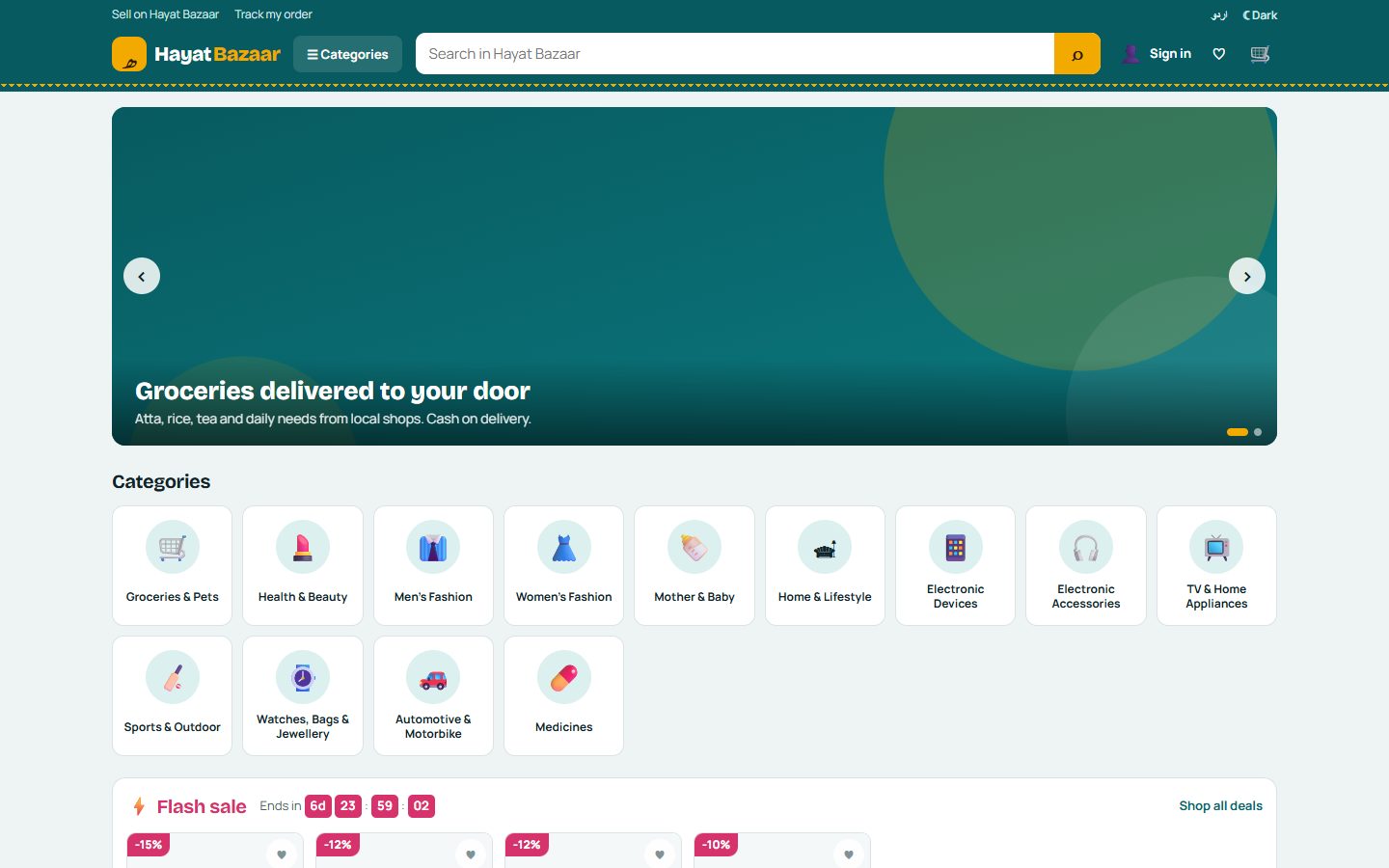
The home page has the banner carousel, category tiles, flash deals with a live countdown, featured products, top shops, new arrivals and Just for you.
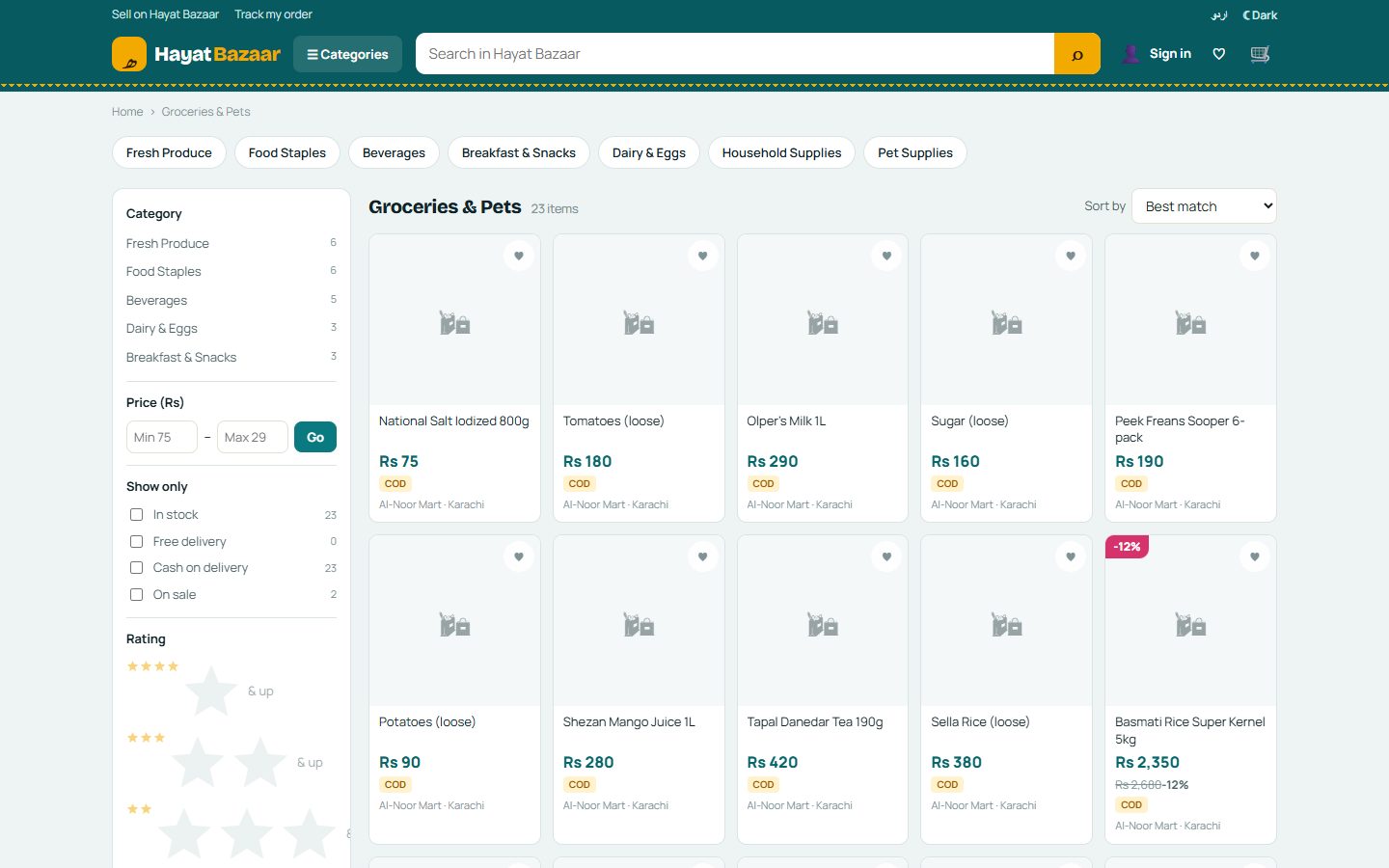
- Categories in the header opens the full tree (on a phone, ☰ opens it as a drawer). A category page shows its breadcrumb, a banner when there is one, the sub-categories as chips, the filters and the products.
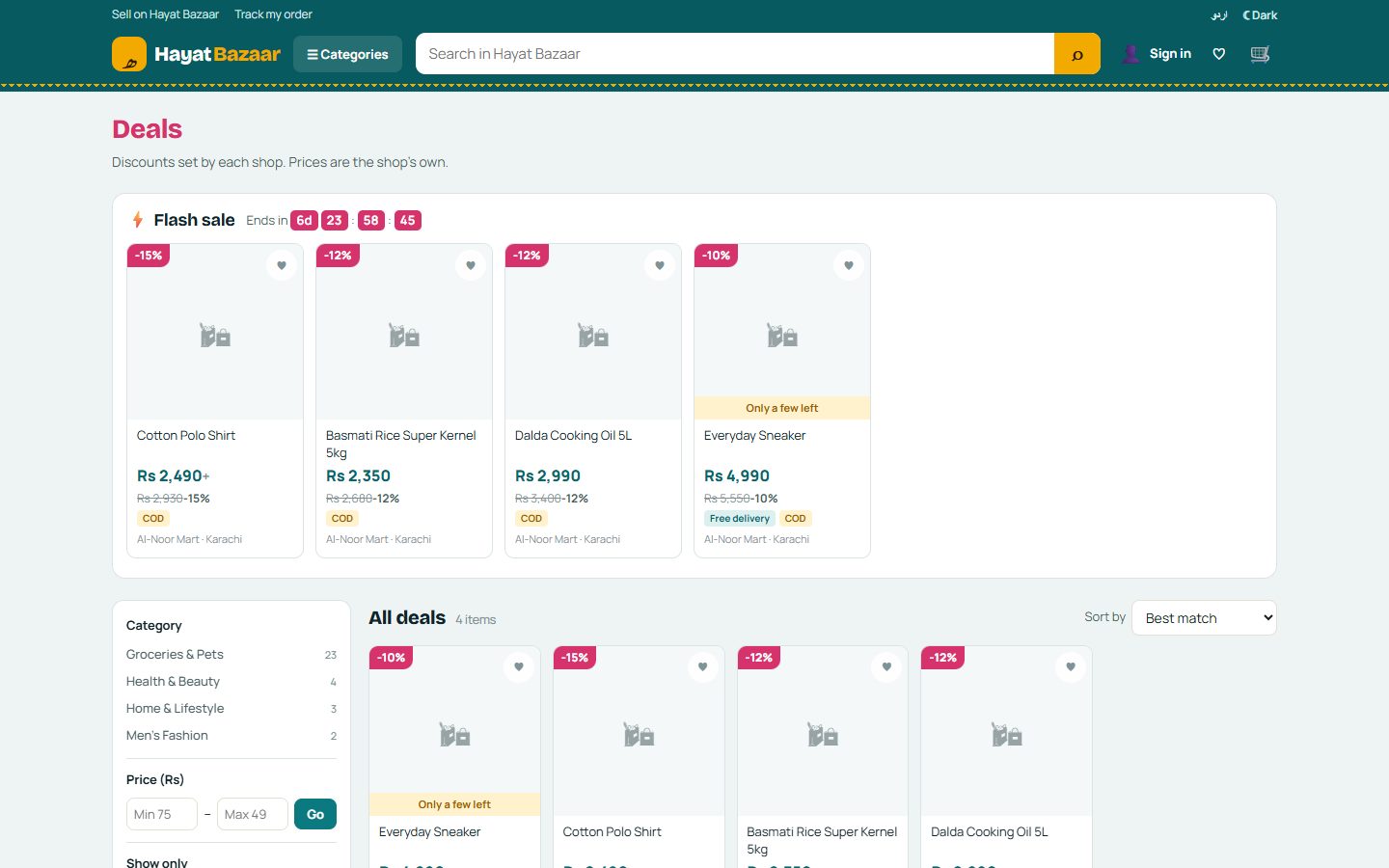
- Deals lists the flash-deal slots (live, or Starts … for one coming up) and then every discounted product.
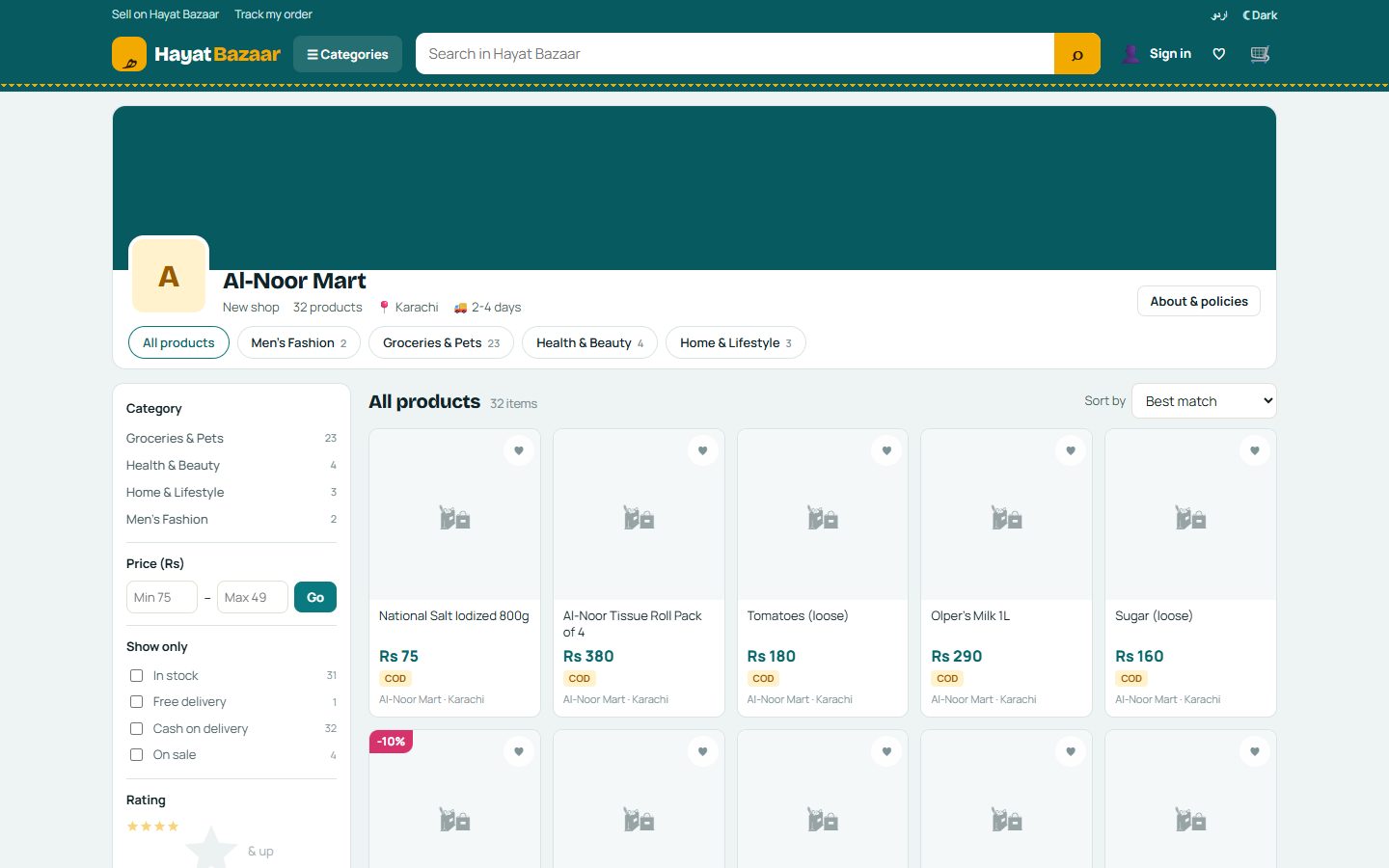
- A shop page (bazaar.hayaterp.com/shop/shop-name) shows the shop's logo, banner, rating, city and delivery time, its own categories and products, and About & policies: about the shop, returns, the delivery fee per city, the free-delivery amount, its payment methods and a link to its page on the Hayat Marketplace.
- اردو / English in the top strip switches the names to Urdu where the shop or Hayat gave one; the moon switches dark mode.
Search and filters
Type in the search box: from two letters it suggests words, categories, shops and products with their picture and price (arrow keys and Enter work; Esc closes it). Recent searches are remembered on this device.
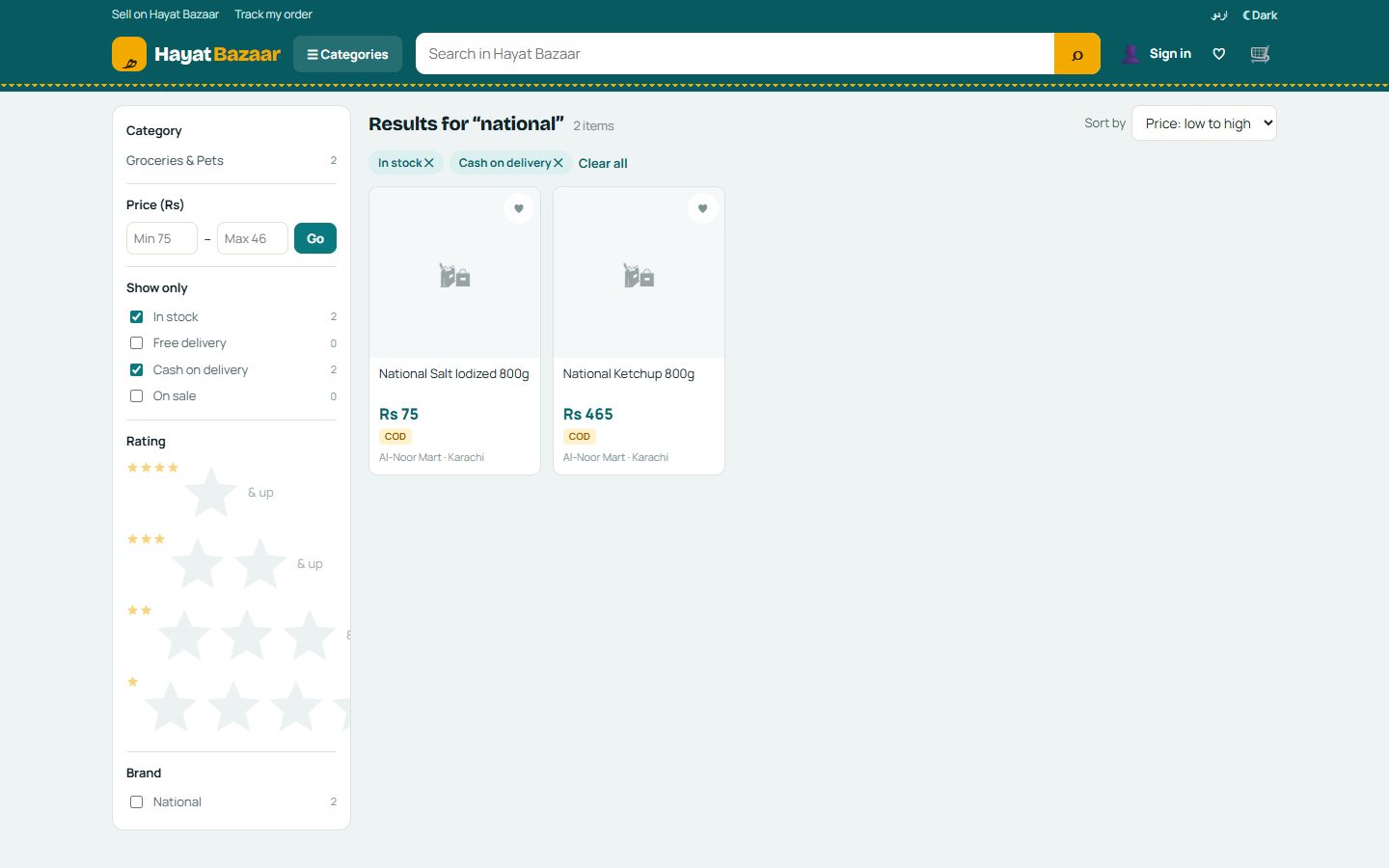
On a results, category, deals or shop page the filters are on the left (on a phone, ⚙ Filters opens them from the bottom; Show n results closes them):
| Filter | Shows |
|---|---|
| Category | The categories the results fall in, with counts. |
| Price | From and to, in rupees. |
| In stock, Free delivery, Cash on delivery, On sale | Only products that are. |
| Rating | 4, 3, 2 or 1 star and up. |
| Brand, Shop | One or more brands; one shop. |
| Size, colour and other options | The sizes and colours the shops sell, as chips. |
Sort by: best match, best selling, newest, price low to high or high to low, top rated. The chips above the results show the filters in use; ✕ removes one, Clear all removes them all. The filters are part of the page address, so a link you share opens the same results. More products load as you scroll (or press Show more).
The product page
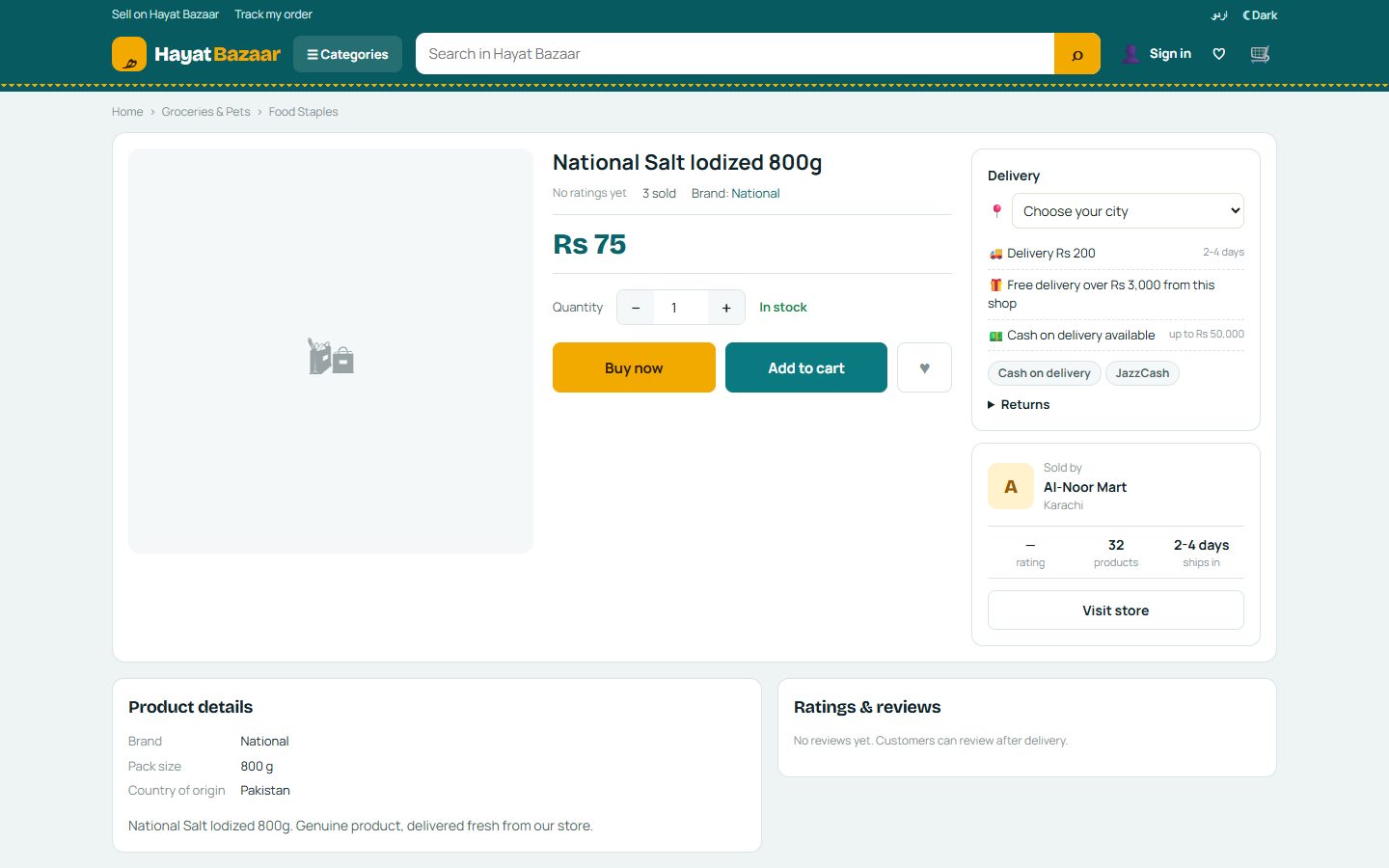
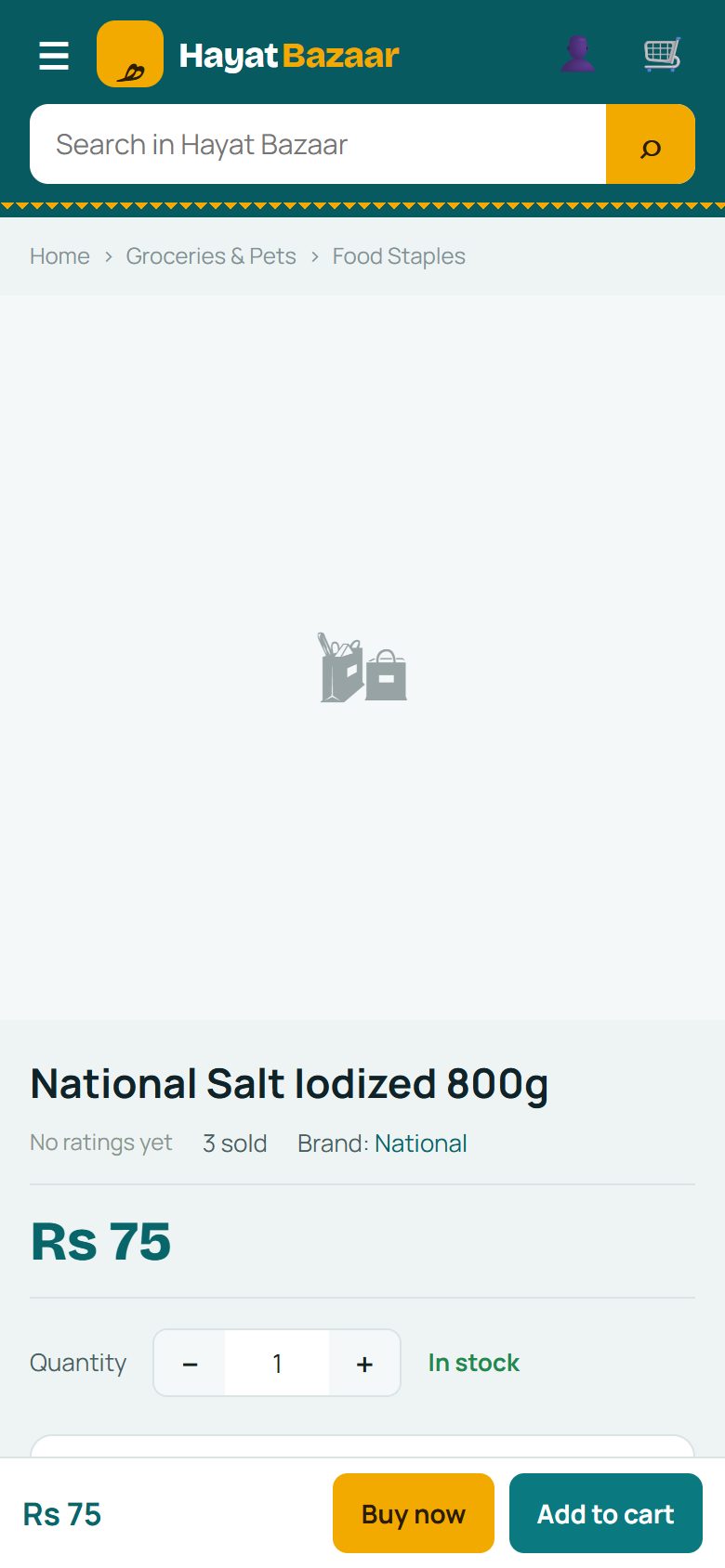
The product page shows the pictures (tap a thumbnail or a colour for its picture), the Urdu name under the title when there is one, rating, how many were sold, the brand, the price — a range with + when sizes cost different amounts, the old price struck through and the discount — and the stock (In stock, Only a few left, Out of stock).
- Size / colour: pick the options; a combination the shop cannot sell is struck through.
- Quantity: up to what the shop can sell in one order.
- Delivery to your city: the shop's fee and days, its free-delivery amount, whether cash on delivery is offered (and up to what amount), its payment methods — or why the shop does not deliver there.
- The shop card with Visit store, the return policy, the specifications and description, the reviews (stars breakdown, newest / highest / lowest), more from the same shop and similar products.
- Add to cart, or Buy now to go straight to checkout. ♥ saves the product to your wishlist (sign in first).
The cart: one box per shop
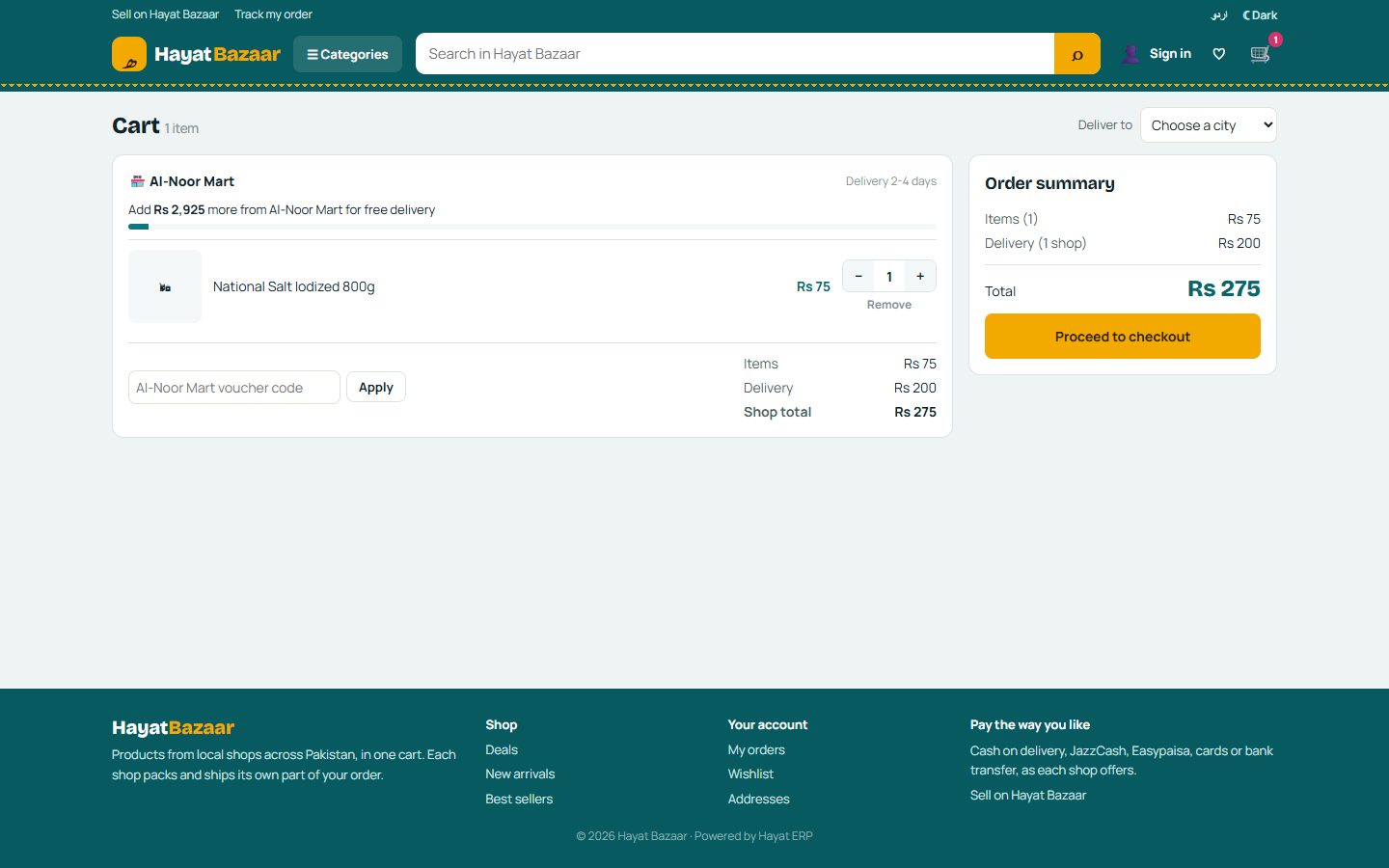
The cart groups your products by shop. Each box shows:
- the lines with the shop's price, any promotion it gives, and price changed from … when the shop changed it since you added it;
- Only n available — Use n or Out of stock when the shop has less;
- the shop's delivery fee and days for your city, and a bar showing how much more you need for free delivery from that shop;
- a voucher code box — a code works only at the shop that issued it;
- the shop's items, discount, delivery and total.
The summary at the bottom adds up every shop. Proceed to checkout takes the shops that can take an order now; a shop that cannot (closed, does not deliver to your city, below its minimum order) says why, and its lines stay in the cart.
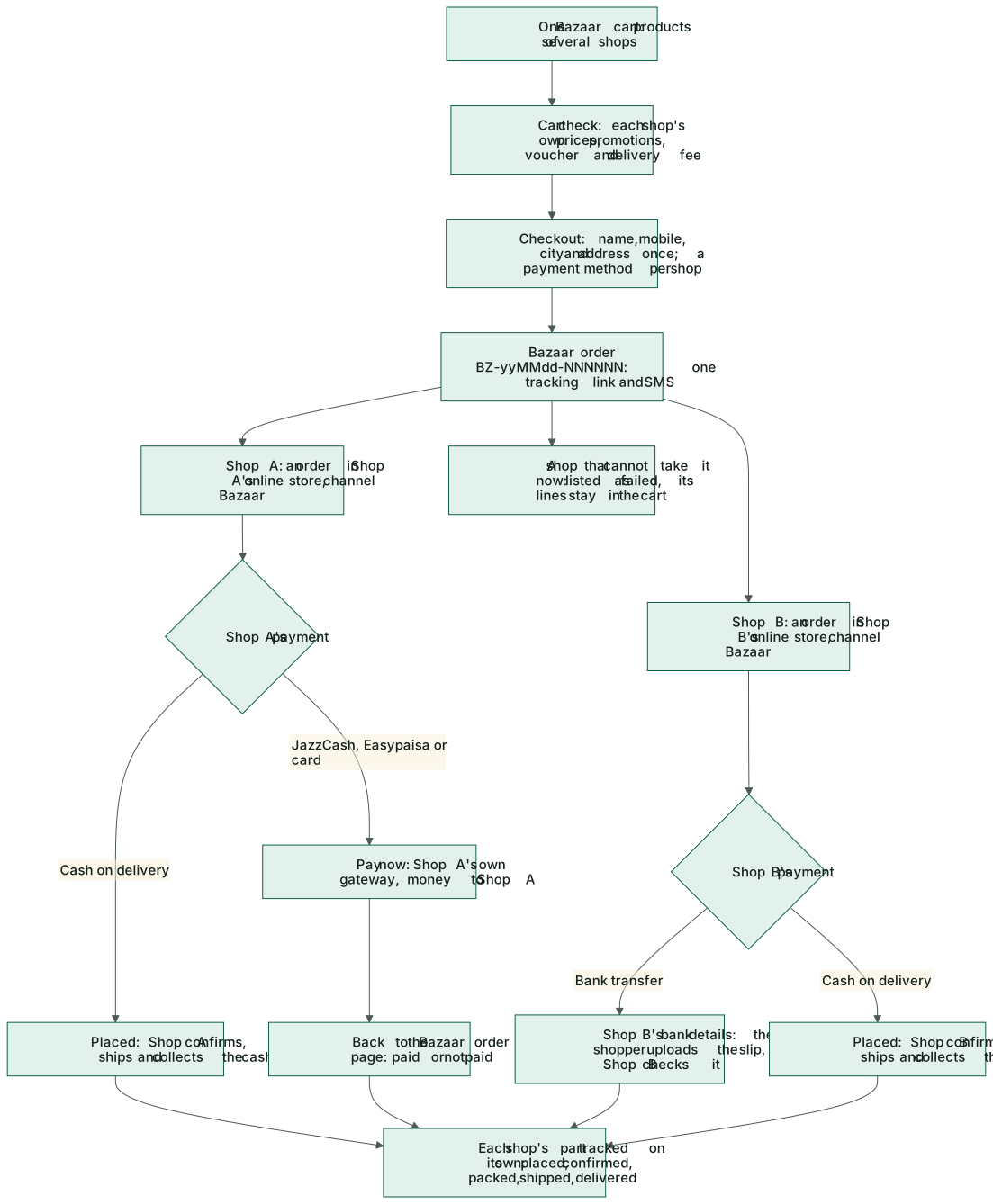
Checkout: each shop paid its own way
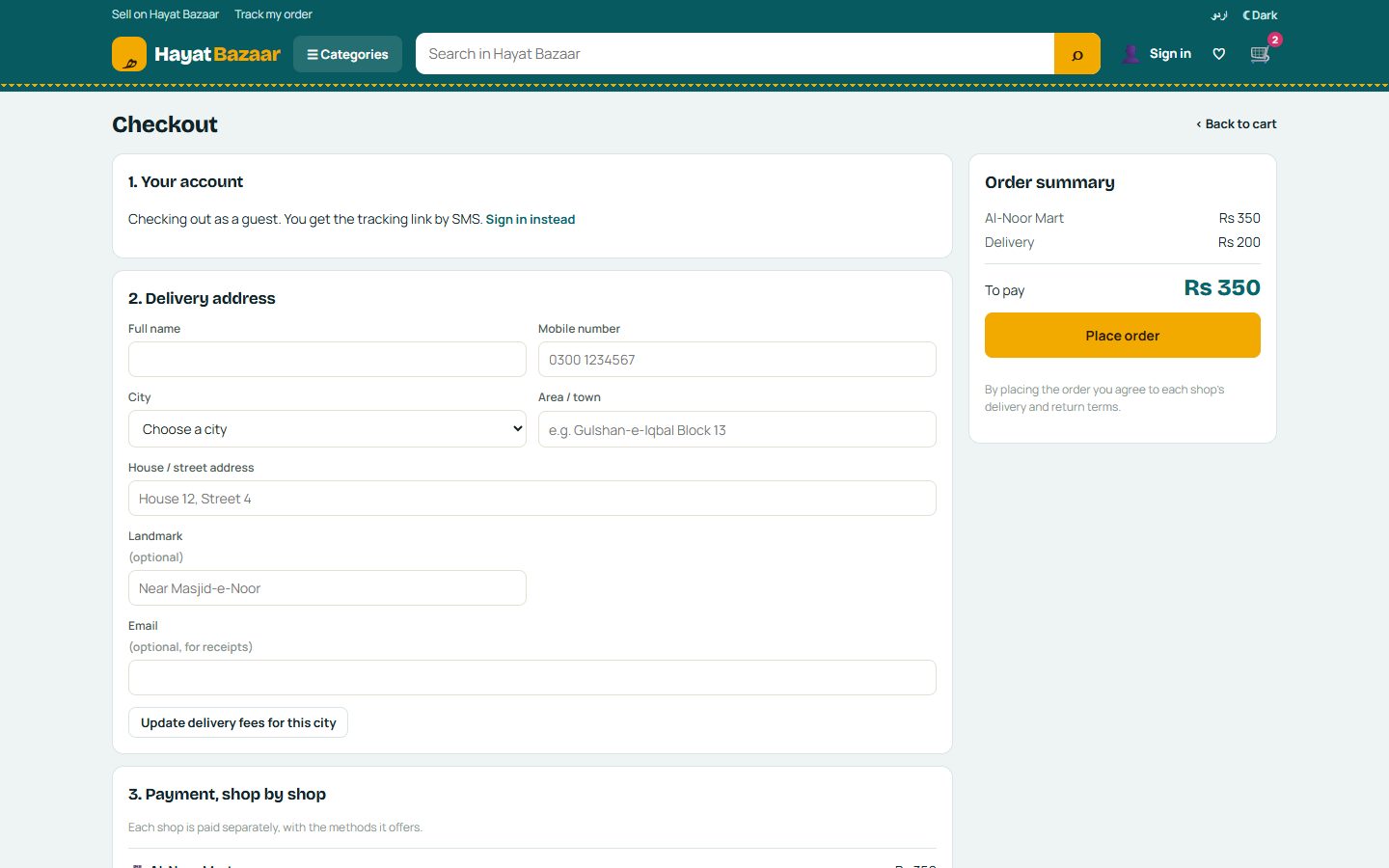
- Sign in with your mobile number and a code, or Continue as guest — a guest tracks the order with the link in the SMS.
- Address: pick a saved address (signed in) or type the name, mobile, city, area, house and street, and an optional landmark. Tick Save this address to keep it. Changing the city recalculates each shop's delivery.
- Payment per shop: each shop box lists only what that shop offers — Cash on delivery (picked by default when offered), JazzCash, Easypaisa, Card or Bank transfer (its bank details are shown). A method it cannot take for this order is greyed with the reason, for example cash on delivery above the shop's limit.
- Add a note for the shops if you need to (Call before delivery) and press Place order.
You get one Bazaar order number (BZ-…) and an SMS with each shop's order number, the total and the tracking link. The order page then shows each shop's part:
- Cash on delivery — nothing more to do; you pay the rider of that shop.
- JazzCash, Easypaisa or card — press Pay now on that shop's part: you pay on the shop's own payment page and come back to the order page, which says paid or not paid. With two shops paid online, pay one after the other.
- Bank transfer — transfer to the shop's account shown and upload the slip (a photo or screenshot); the shop checks it.
If a shop could not take its part at the last moment (it ran out, closed or changed its delivery), the order page lists it with the reason and its lines stay in your cart; the other shops' orders go ahead.
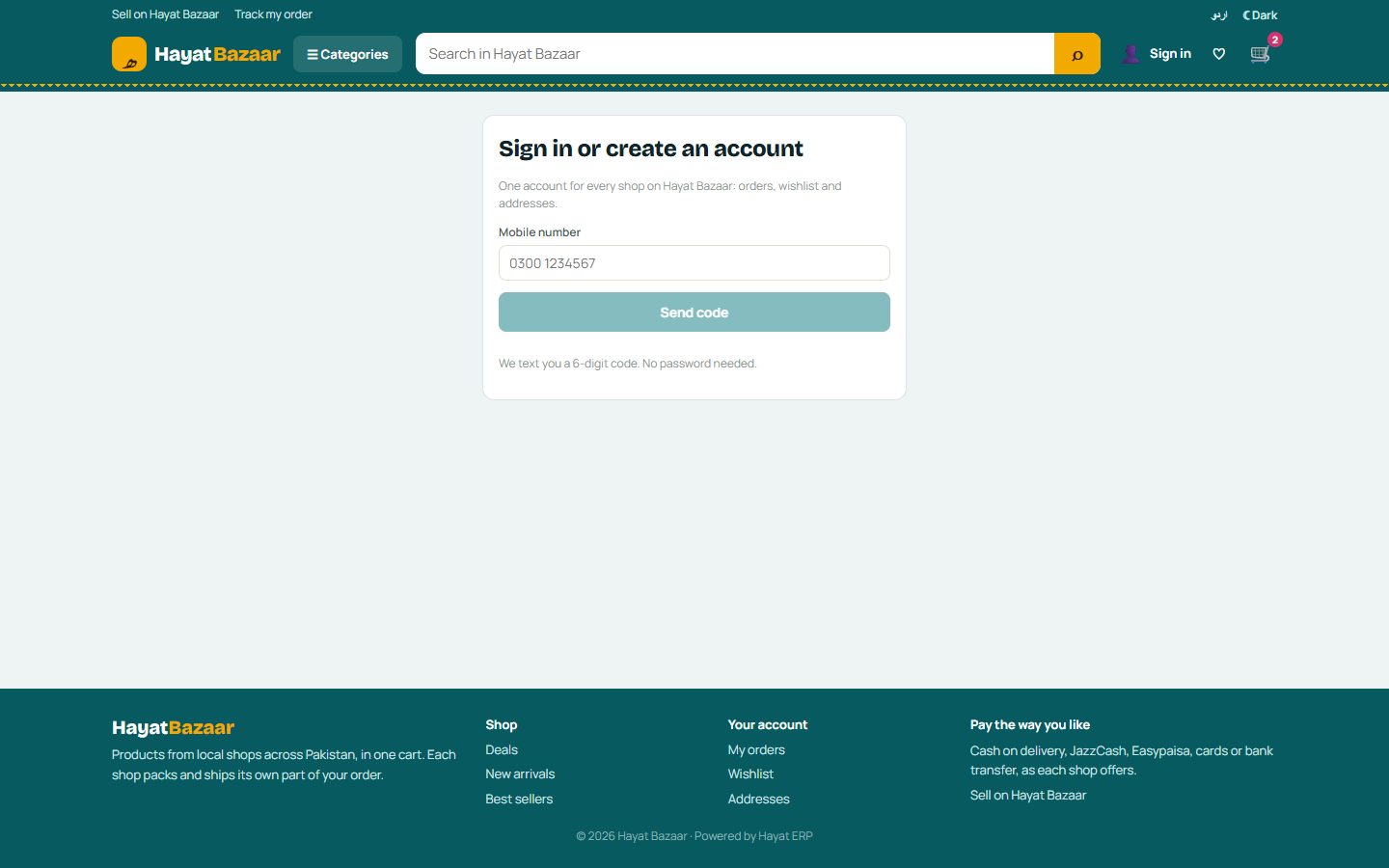
Your account: sign in with a code
There is no password. Open Account (or the sign-in step at checkout), type your mobile number, press Send code, then type the 6-digit code from the SMS (valid 5 minutes) and press Sign in. A new number gets an account at once; add your name the first time. No SMS? Send the code again after a minute, or Change number.
Signed in you have My orders, Addresses (up to 10, one default), the Wishlist and your profile (name and email). You stay signed in on this device for about two months; sign in again on another device.
My orders, tracking, cancelling and reviews
Account → My orders lists your Bazaar orders with each shop's part, its pictures and status. Open one (or the tracking link from the SMS) to see, per shop:
- the timeline: Placed → Confirmed → Packed → Shipped → Delivered (or Cancelled / Returned with the reason);
- the payment method and whether it is paid, Pay now while an online payment is due, the bank details and slip upload for a transfer;
- the courier and tracking number with the courier's events, once the shop books a courier;
- Cancel — while the shop has not confirmed it yet (placed, or waiting for payment). The shop's order is cancelled and its stock, voucher and promotion use are put back. After that, ask the shop.
- Write a review for each product once that shop's part is delivered: stars, a title and your words. It is marked verified purchase and shows after the shop approves it. One review per product per order.
An order placed as a guest stays reachable only through its link; signing in later does not move it into My orders.
The Hayat Bazaar app
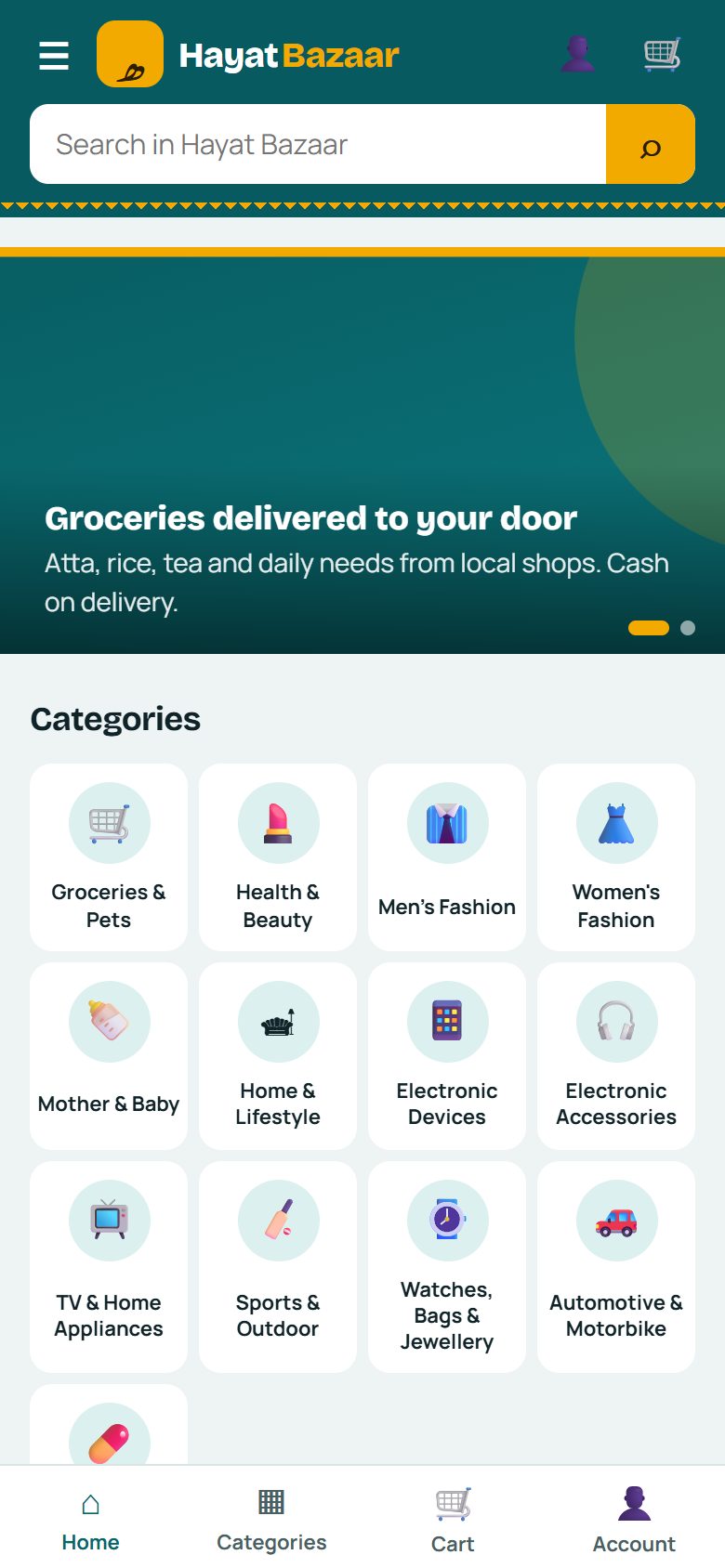
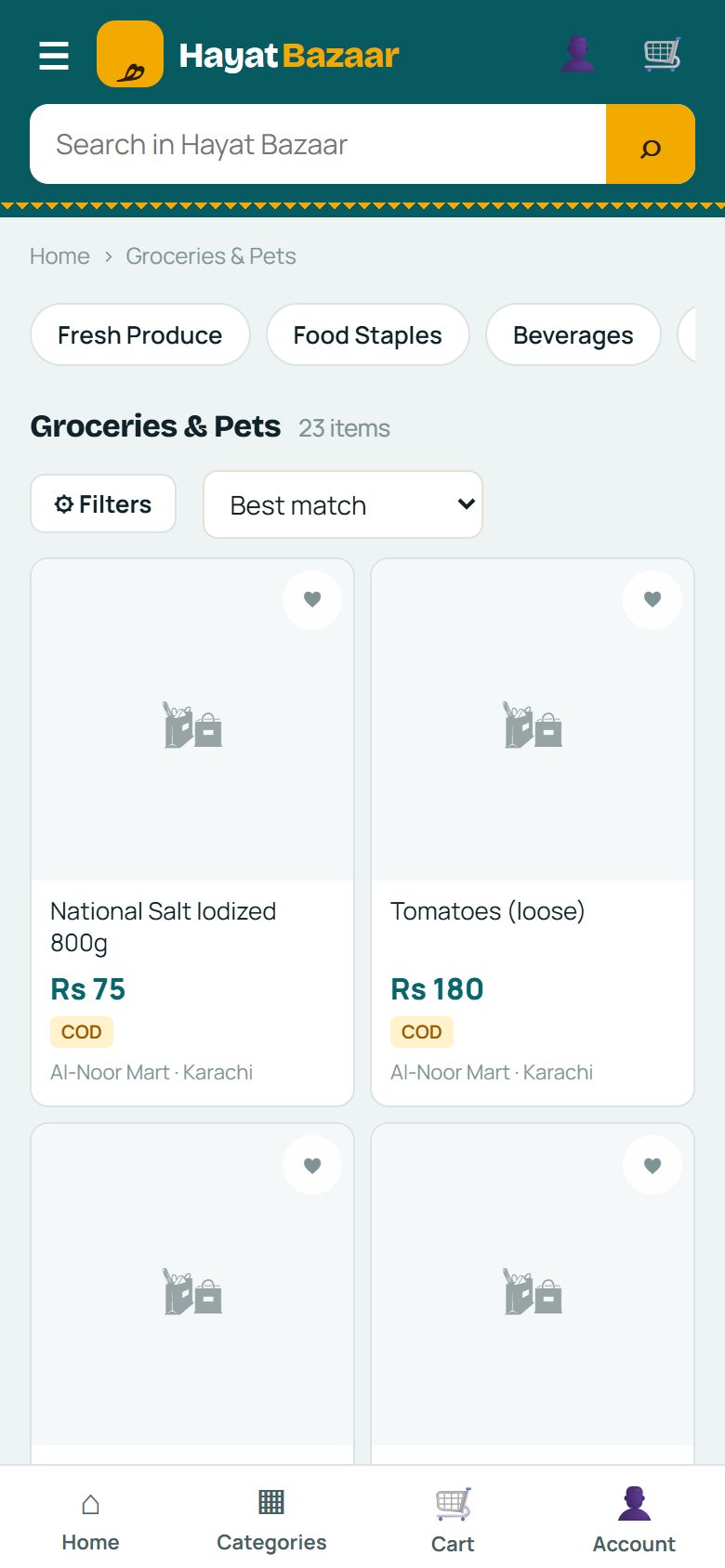
The Hayat Bazaar Android app is the same marketplace on the phone: Home, Categories (top levels on the left, the sub-categories on the right), Cart and Account at the bottom; search with suggestions, filters and sorting, the product page with picture zoom and share, the cart by shop, checkout and payment per shop, order tracking, cancel and reviews, wishlist and addresses, English or اردو.
- Pay now opens that shop's payment page in the phone's browser tab; when you come back, the app reads the order again.
- Offline, the pages you opened before and your cart stay on the phone (prices and delivery are checked again once you are online); sign-in, checkout and orders need the internet.
See Mobile apps.
Workflow
- Find products by category, search or deals; add them to one cart from any number of shops.
- Check out once: each shop's part becomes an order in that shop's online store.
- Pay each shop its own way; each shop confirms, packs and ships its part.
- Track each part, cancel early if you must, and review what was delivered.
Where the money goes
Hayat Bazaar takes no money from shoppers and pays nothing out: there is no Bazaar wallet. Each shop's part is an ordinary order of that shop's online store, paid into that shop's own cash, bank or payment gateway and posted in its own books exactly like a store order (see How every module reaches the accounts). Shops pay Hayat for being on Bazaar through their subscription, never per order.