
Selling on Hayat Food
hayaterp.com/food-merchant ↗For restaurants, home chefs, bakeries, marts and pharmacies on Hayat ERP — join Hayat Food from the ERP, approval, open / close / busy, the menu from the POS or the online store and its availability, the live orders board (accept, reject, preparing, ready), how orders reach the POS, kitchen and store orders, commission, payouts and statements, reviews, promos and stats.
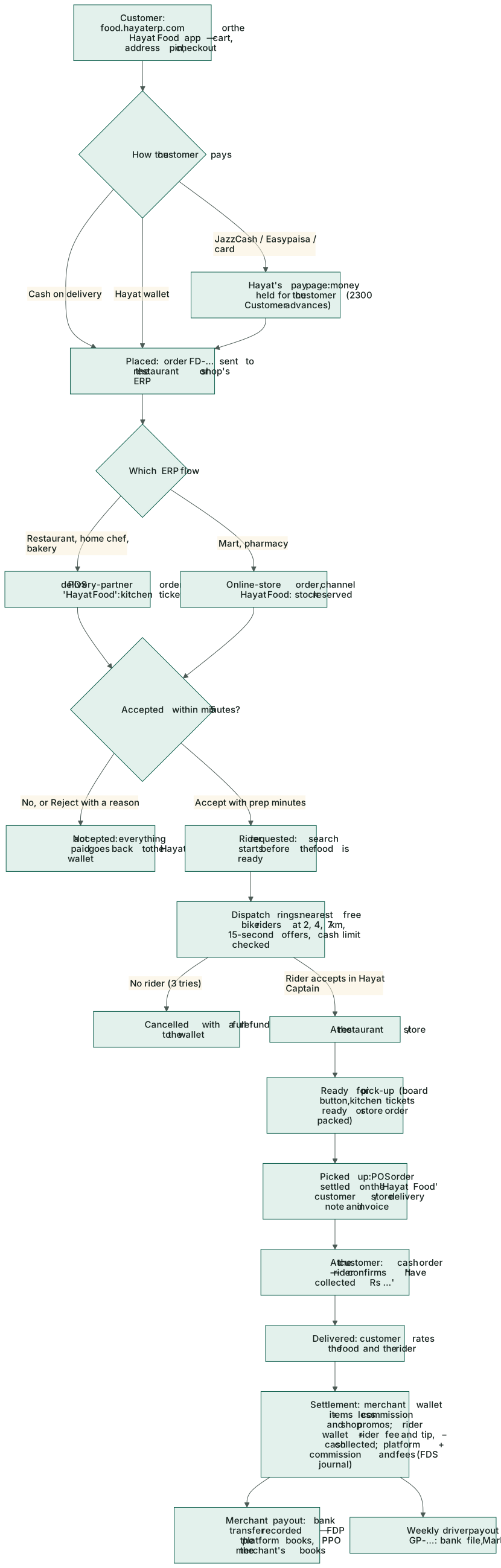
Hayat Food (food.hayaterp.com and the Hayat Food app) sells what your business already has in Hayat: a restaurant sells its POS restaurant menu, a mart or pharmacy its online-store products with live stock. Hayat's riders pick up and deliver, Hayat collects the money from the customer, and pays you your sales less commission. Orders arrive on the live orders board and in your POS or online store, so the kitchen, stock, tax and books work as usual.
Who does what
| Who | Permission | Does |
|---|---|---|
| Owner, manager | Join Hayat Food, shop settings, live orders, menu availability and payouts (food.merchant) — in the Admin, Company Admin and Management roles | Joins, edits the shop, opens and closes it, works the live orders board, menu, promos, reviews and payouts. |
| Counter or kitchen staff | Sell at a till (pos.sell) | Can also accept, reject and mark Hayat Food orders ready on POS → Delivery orders and the kitchen display. |
| Store order staff | Confirm, ship, deliver and cancel online orders (store.orders) | Pack shop orders on the online-store order screen. |
| Hayat team | admin.hayaterp.com | Approves or suspends the shop, sets the commission, records payouts. See Running Hayat Food and Hayat Ride. |
Without food.merchant the menu entry is hidden; someone who opens the page anyway sees it read only — Ask someone with the "Hayat Food" permission to change these.
Before you start
- The module. Hayat Food is switched on for your business by the Hayat team (it starts off, like the other opt-in workspaces). Then the menu has Hayat Food → My shop on Hayat Food.
- Restaurants, home chefs, bakeries — POS menu. The dishes come from your POS restaurant menu (the same categories and hidden items as the online restaurant menu) with their pictures and prices. The till payment method CREDIT (on account) must be available at the POS — Hayat Food orders are billed on account to a customer named Hayat Food.
- Marts, pharmacies (and bakeries that prefer it) — online store. The products are your published online-store products with the stock of the store's branch.
- Each branch is its own shop on Hayat Food. With several branches, pick the Branch at the top first.
Join from the ERP
- Open Hayat Food → My shop on Hayat Food. The Join Hayat Food box shows whether your POS (ready / not set up) and online store are ready, and the commission for your kind of shop.
- Shop profile: Kind (Restaurant, Home chef, Mart, Pharmacy, Bakery), Sells from (POS menu (restaurant) or Online store products), Shop name, Name in Urdu, Web address (made from the name), Phone, Tagline, About, Logo (square) and Cover photo (wide) (Upload, up to 3 MB), Cuisines / categories, Tags (halal, family, desi) and Price level (₨ budget to ₨₨₨₨ fine dining).
- Location & delivery: move the map so the pin is on your shop's door (or Use this device's location), City, Area, Pick-up address (for riders), Delivery radius (km) (0.5–30), Preparation time (min), Minimum order, Accept cash on delivery and Accept orders automatically (no tablet needed; prep time as above).
- Opening hours: per day, with + break for a second or third slot, Closed days and Same as Monday every day. Pakistan time. A closing time before the opening time runs past midnight (e.g. 6 pm – 2 am).
- Press Join Hayat Food. Thank you for joining. Hayat will review your shop.
Joining creates, in your own books, the customer Hayat Food and — for a restaurant — a delivery partner named Hayat Food for the branch (or, for a shop, a store shopper). Later changes are saved with Save changes.
Approval and your shop's status
The status box at the top of My shop shows:
| Status | Means |
|---|---|
| Pending | Waiting for Hayat to approve your shop. Not visible to customers yet. |
| Approved | Your shop is live on Hayat Food. Rating, orders and items listed are shown. |
| Suspended | Your shop is suspended. with Hayat's reason. Customers no longer see it. |
| Left | You left Hayat Food. — Rejoin puts it back. |
When an approved shop is still not selling, Not selling right now: gives the reason — for example Set the shop's location pin., The POS module is switched off for your account. or Hayat Food is switched off for your account. Contact Hayat support. View on Hayat Food ↗ opens your page; Leave Hayat Food takes the shop off.
Open, close and busy
While approved, the box shows Open now, Open · busy or Closed (with when it opens by your hours):
- Close the shop now / Open the shop — closed, you can leave a Note for customers (e.g. back at 7 pm) and Save note.
- Busy for 15 / 30 / 60 / 120 min, which adds extra minutes (15 by default) to every delivery time; Not busy any more ends it.
The same quick buttons are on the live orders board.
Menu and availability
Hayat Food → Menu (Menu on Hayat Food) lists every dish or product with its ERP price, the Hayat Food price and its Status (Available, Low stock, Sold out with "until", Hidden, Not listed with the reason). The menu follows the ERP by itself every few minutes; Refresh from the ERP (or Refresh menu now on My shop) reads it at once.
| You want | Do |
|---|---|
| A dish has run out | Sold out on its row, or tick several and choose Sold out 1 hour, Sold out 4 hours or Sold out until I switch it back. Back on / Available again brings it back. |
| Keep an item off Hayat Food | Hide (Kept off Hayat Food by you.). |
| Another price on Hayat Food | Type the Hayat Food price and Save; empty = the ERP price. |
| Show it under Popular | Tick Popular. |
Filter with Find (Item or SKU), Section and Show (Everything, Sold out, Hidden, Not listed). An item is not listed when It has no price, or (shops) when it is Out of stock at the store's branch. Options of a dish (sizes, add-ons, drinks) come from the POS menu or the store product.
The live orders board
Hayat Food → Live orders (Hayat Food orders): Keep this screen open at the counter. New orders ring until you accept or reject them.
| Column | Holds |
|---|---|
| New | Orders waiting for you, each with ⏱ Accept within m:ss. |
| Preparing | Accepted orders, with Ready by the time. |
| Ready — waiting for rider | Packed orders. |
| On the way | Orders the rider has picked up. |
| Scheduled (next 24 h) | Orders for later; they move to New in time to prepare. |
Each card shows the order number, the customer's first name and area, how it is paid, the lines with choices and notes, Items, − shop promo, the commission % and You get, the rider (on the way to you, at your counter, picked up) or 🛵 Finding a rider…, and the ERP order number.
- A new order rings (a three-note bell every few seconds; the first time press Click here once to allow the new-order bell on this computer).
- Accept — change the preparation minutes if needed. Hayat starts looking for a rider so they arrive when the food is ready.
- Or Reject — pick a reason (An item is out of stock, Kitchen is too busy, We are closing, Address is too far, Cannot make this order) or write one; The customer sees the reason: … → Reject the order. The customer is refunded in full.
- Start preparing when cooking starts, then Ready for pick-up when it is packed.
- Hand the order to the rider with the order number. The rider confirms the pick-up in their app; you press nothing more.
Details opens the order with its history. Hayat Food → Order history lists past orders by dates and status with commission and net, and the total sales.
How orders reach the POS, kitchen and store
| Restaurants (POS menu) | Marts and pharmacies (online store) | |
|---|---|---|
| When the order is placed | A delivery-partner order of the partner Hayat Food at the branch, shown on POS → Delivery orders — see Delivery partners. | An online-store order with channel Hayat Food, booked to the customer Hayat Food; the stock is reserved. See Hayat Food orders. |
| Accept | Sends the kitchen ticket (kitchen display). Accepting or rejecting on POS → Delivery orders works too. | Confirms the store order. |
| Ready | Ready for pick-up on the board, Ready on POS → Delivery orders, or every kitchen ticket ready. | Ready for pick-up on the board, or packing the store order. |
| Rider picks up | The POS order is settled on account to Hayat Food — a normal POS sale with stock, recipes, tax and FBR. Rider took it is not needed. | The store order is shipped: delivery note and sales invoice on Hayat Food. |
| Delivered | — | Delivered on account (no cash receipt). |
The board and the ERP stay in step both ways within about 15 seconds. If a step fails in your ERP (for example CREDIT was switched off at the till) the card shows the merchant issue; Hayat retries it.
Commission
Hayat keeps a commission on the items total of each delivered order (after your shop's own promo). The rate is set by Hayat per kind of shop — at the start Restaurant 20%, Home chef 15%, Bakery 15%, Mart 8%, Pharmacy 6% — or for your shop alone; it is shown on My shop and on every order card. Delivery, service and small-order fees and the rider's tip are not yours and carry no commission.
You get = items total − your promo discount − commission.
Payouts and statements
Hayat Food → Payouts: Delivered orders less commission and your promos, paid to your bank by Hayat (usually weekly). Each payout is also posted in your books. Pick From / To:
| Part | Shows |
|---|---|
| Due to you now | Delivered orders not paid out yet, and since when. |
| Sales in period, Commission, Net in period | Totals for the dates, with promos and refunds. |
| Payouts | Number, Date, Orders, Sales, Commission, Promos, Refunds, Paid, Reference, In your books (Posted / Pending). |
| Delivered orders | Each order with Your promo, Commission, You get, Payment, the ERP order and Paid out (Yes / Due). |
| Refunds charged to your shop | Refunds Hayat gave a customer at your cost (for example a missing item), taken from the next payout. |
When Hayat records a payout, your books get a PPO-… journal by themselves (see below). A payout Pending in your books shows the issue and is retried.
Promos
Hayat Food → Promos (Your promos) are offers paid by your shop: Leave the code empty for an automatic offer that every customer gets; with a code, customers type it at checkout. + New promo: Code, Title, Kind (Percent off, Rupees off, Free delivery), Max discount, Minimum order, Starts / Ends, Total uses (0 = no limit), Uses per customer, Description, First order only, Active. The discount is taken off what you get; Hayat's own promos cost you nothing.
Reviews and stats
Reviews — What customers say on Hayat Food. Your reply is shown under the review. Type Your reply and Post reply (or Edit reply). Hayat may hide abusive or fake reviews.
Stats (Hayat Food stats, 7 / 30 / 90 days): orders, delivered, sales, Accepted %, rejected and cancelled, Rating, Time to accept and Preparation (accept → ready). Customers see shops that accept quickly and rarely reject higher in the list.
Workflow
Where the money goes
| Event | In your books | In Hayat's books |
|---|---|---|
| Restaurant order picked up | POS sale on account: Dr 1100 Accounts receivable (Hayat Food), Cr 4010 Sales, 2100 Output tax; stock and recipes | — |
| Shop order picked up | Delivery note and sales invoice on Hayat Food: Dr 1100, Cr 4010 Sales, 2100 Output tax; stock out | — |
| Delivered | — | Your net due to you (merchant payable), commission income (journal FDS-…) |
| Payout (restaurant) | PPO-…: Dr 1020 Bank (received), Dr 6410 commission, Dr 4090 your promos, Dr 6900 other deductions (or Cr 4010 price difference), Cr 1100 (Hayat Food) | FDP-…: Dr merchant payable, Cr bank |
| Payout (shop) | A customer receipt for the invoices (Dr Bank, Cr 1100), then PPO-…: Dr 6410 commission, Dr 6900 other deductions (or Cr 4900 other income), Cr Bank | FDP-… |
Your receivable from Hayat Food is what the payout clears, so the customer ledger of Hayat Food is your Hayat Food statement. See How every module reaches the accounts.