
Ask Hayat and the AI tools
hayaterp.com/ai/assistant ↗The AI tools you find on every screen — Ask Hayat (the ✦ AI Assistant) and the drafts it prepares with Open, its Help tab and Read a document, voice in Urdu and English, smart search from the top bar, ✦ Explain, Urdu ⇄ English translation, the document readers and what each one reads, the help chatbot on this site, and the setup assistant for new businesses.
These tools are the same in every module. What each module adds on its own screens is in AI features by module; how AI behaves in general (drafts, credits, privacy) is in Hayat AI.
Ask Hayat
Click ✦ AI Assistant on the top bar. A side panel opens on the right of any staff site (ERP and the workspace sites); on the ERP, ⤢ opens it as a full page (hayaterp.com/ai/assistant). The panel and the page share one conversation; New chat clears it and ✕ closes the panel (or press Escape).
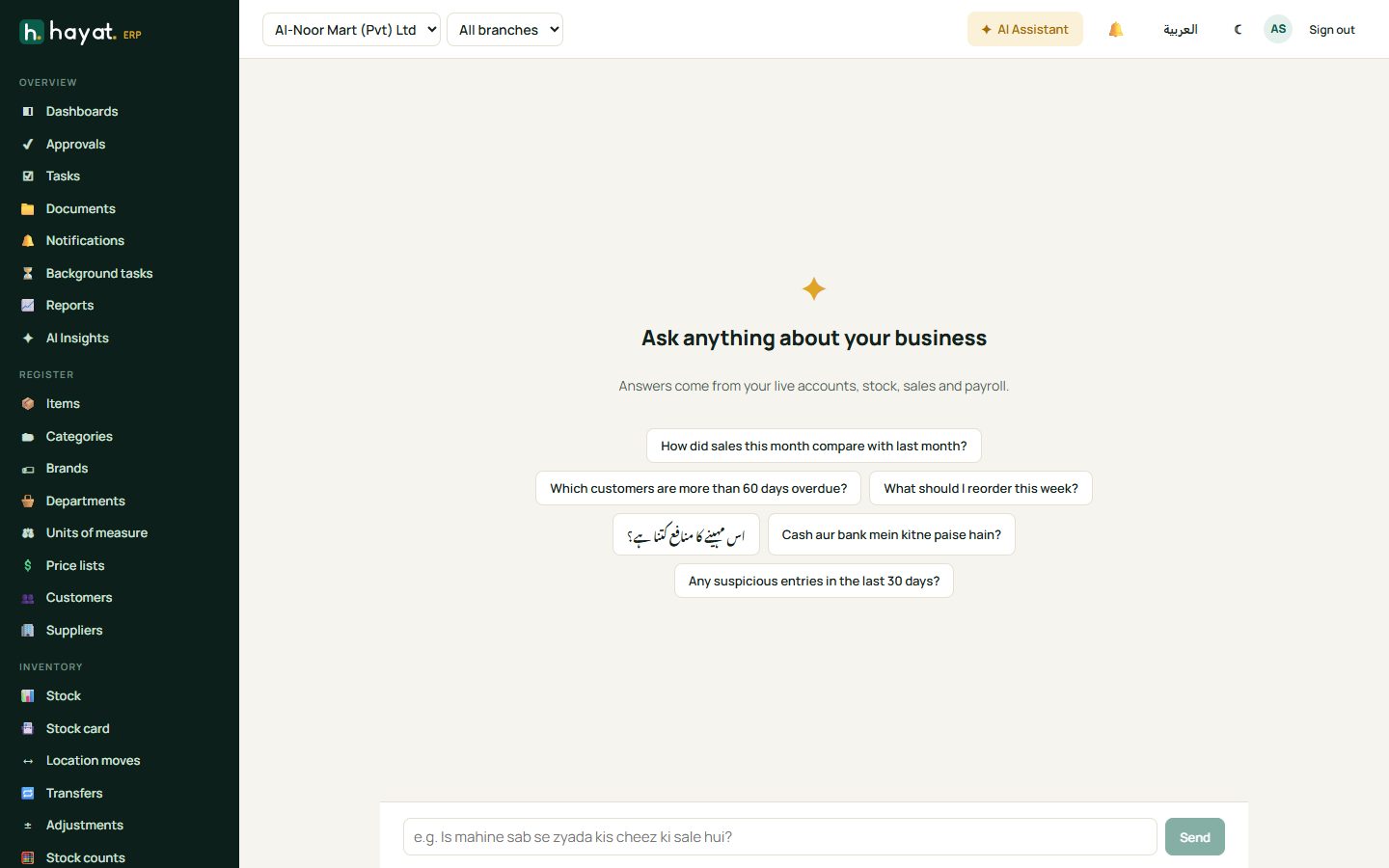
Type a question in English, Urdu or Roman Urdu and press Send. While it works the panel says Checking your books…. Under each answer, Looked at: lists what it read — sales, P&L, cash & bank, stock alerts, products, receivables, payroll, forecast, audit flags and so on. Answers use only data your role may see, in the active company and your branches, and the AI is told never to invent figures.
The starter questions on an empty chat are a good start:
- How did sales this month compare with last month?
- Which customers are more than 60 days overdue?
- Make a quotation for 10 cartons of cooking oil for Ali Traders
- اس مہینے کا منافع کتنا ہے؟
- Cash aur bank mein kitne paise hain?
- Draft a journal: office rent 50,000 paid from the bank
| Feature in Settings → AI | What it allows | Needs |
|---|---|---|
| Ask your business | Questions answered from your live books (read-only). | Sign in and see own dashboard (app.view) |
| Assistant can prepare drafts | The panel shows the Agent badge: it may also prepare drafts (below). Without it the assistant only answers questions. | app.view, plus the permission of each draft |
| Voice entry | The mic in the composer. | app.view, a browser with speech recognition |
Help tab
When Help chatbot is on, the panel has two tabs under its title: ✦ Ask Hayat (your books, above) and ? Help. Ask Help how do I… questions — How do I make a credit note for a returned item?, Opening stock kaise enter karun? — and it answers from these help pages, with the pages it used under Read more: (they open in a new tab). It does not look at your books. While it works it says Looking in the help…. Each tab keeps its own conversation; New chat clears the one you are on. The questions use your company's AI credits.
Read a document
On the ✦ Ask Hayat tab, ✦ Read a document above the message box takes a photo or PDF of an invoice, receipt, quotation, letter or statement. A card ✦ Read from the document shows what AI found — the type and number, Date, Due, Party, Subtotal, Tax, Total, Notes, the first lines — and anything to check. Nothing is saved. Ask Hayat about it → puts a short summary of the document in the message box: add your question (is this supplier in my books? have we paid this?) and press Send. ✕ removes the card. Feature: Read documents (app.view).
Drafts and Open
When Agent shows, ask for a document in plain words — "Invoice Ahmed Traders 50 bags of cement and 10 steel bars" — and the assistant answers with a draft card: its kind, a title such as Invoice for Ahmed Traders — 50 Cement bag, 10 Steel bar — PKR 72,500 before tax, the points to check, and Draft only. Nothing is saved until you press Save on the form.
- Read the card's warnings (Check before saving:): guessed customers or items, prices taken from the price list, a credit limit, a missing cost centre…
- Press Open →. The module's normal form opens with everything filled in, an amber box Prepared by AI. Check before saving: on top, and ✦ AI next to the fields AI filled.
- Correct what is wrong and press the form's own Save (or Post). Close the form instead and nothing is kept.
You can name customers, suppliers and items the way you would say them — name, code, barcode or phone number. A close but uncertain match is used with a guessed … check it warning; a line it cannot match is left out with a warning; a missing quantity becomes 1 and a missing price comes from the customer's price list or the item. A draft can be opened only by the person who asked for it, for 7 days; after that the form says This AI draft has expired or is not yours….
| Ask for | Open goes to | You need |
|---|---|---|
| A sales invoice | Sales → Invoices, a new invoice with its lines | Create invoices and receipts (sales.edit) |
| A quotation | A new quotation (validity, terms, salesperson) | sales.edit |
| A sales order | A new sales order (requested date, customer PO, ship to) | sales.edit |
| A new customer | Customers, the new-customer drawer (a code is suggested; duplicate phones and similar names are warned) | Create and change master data (register.edit) |
| A customer receipt | That customer's drawer with the receive-payment fields (amount, tax withheld, method, bank, invoices) | sales.edit |
| A journal voucher | Journals, the journal dialog with its lines (unbalanced or guessed accounts are warned) | Journals, payments, receipts (finance.edit) |
| An expense | Journals, the quick-expense dialog; the expense account is suggested from your past entries | finance.edit |
| A purchase order | Purchase orders, a new PO; with no lines it takes the smart-reorder quantities for that supplier | Raise requisitions, quotations, orders, invoices (trading.edit) |
| A new item | Items, the new-item drawer (suggested SKU, matched category, brand and unit) | register.edit |
| A stock adjustment | Adjustments, the new adjustment — kept as a draft, never submitted by AI | Post stock adjustments (inventory.adjust) |
| A promotion | Promotions, a new promotion; it saves as Draft and still needs approval | Create promotions (promotions.edit) |
| A prescription from notes | The OPD consult of that visit | Consultations, prescriptions, doctor's notes and orders (hms.doctor) |
| A travel quote from a customer's request | New booking, priced from your own past bookings; saves in Quote status | Create bookings and quotes… (travel.bookings) |
| An emission line from a utility bill | Activity data, the New activity drawer | Enter activity data… (esg.edit) |
Only the drafts your role and modules allow are offered to the assistant. On the phone, Hayat Sales and Hayat Lite open some drafts in their own screens; others show a summary and Finish on the web.
Voice in Urdu and English
- In the assistant, press the mic. The first time, allow the microphone for the site.
- Pick اردو (Urdu, ur-PK) or EN (English, en-PK). The choice stays for the session.
- Speak. Your words appear in the box as you talk; when you stop, the question is sent and marked 🎙.
- Spoken questions get at most two short sentences, read aloud when the browser can.
The mic shows only where the browser can recognise speech (Chrome and Edge; not Firefox) and Voice entry is available. Speech needs an internet connection. Messages you may see: Microphone permission was refused. Allow the microphone for this site and try again., No speech heard. Tap the mic and speak again., This browser cannot recognise that language. Try the other language.
Smart search
The Ask or search… box on the top bar (Ctrl/⌘+K) does two things:
- As you type it lists up to six matching menu items — this part works offline and with AI switched off. Use ↑/↓ and Enter, or Esc to close.
- The first row, ✦ Ask: your words — Opens the right screen with filters · Enter — sends the sentence to AI, which opens the right list with its filters set and explains what it did in a note under the top bar.
Examples: posted invoices of Ahmed Traders last month, urgent open tickets, leads due today, payroll October 2026, expiring stock.
If you ask for something in a module your business does not have, the note says so (admins get a Billing & plan link). Without AI (switched off, no credits, offline) the closest menu item opens with a note. Screens you may search, with what can be filtered:
| Screen | Filters |
|---|---|
| Sales invoices, quotations, orders, delivery notes | words, status, from / to date |
| Customers, suppliers, items, employees, patients, students, documents, promotions, loyalty members | words (items also category, brand, goods or service, active) |
| Supplier bills, supplier payments, purchase orders, goods received | words, status, from / to |
| Stock on hand · transfers, adjustments, counts | words, location, all / low / expiring · words, dates |
| Journal vouchers · chart of accounts · financial reports | words, source, status, dates · words · the report tab and account codes |
| Leads · CRM activities · support tickets | words, status, source, due · dates · words, status, priority, mine / unassigned / open / all |
| Attendance · payroll | daily or monthly · the month |
| POS shifts, fuel shifts, sustainability activities | from / to |
| Online payments, payment links, message log, integrity exceptions | status |
| Online store orders, travel bookings, donations, hotel reservations | words, dates (hotel also status) |
| Import / export shipments, shipping jobs, courier bookings, Hayat Bazaar orders | words |
| Receivables ageing, campaigns, tasks | opens the screen (tasks: board or projects) |
Explain this screen
✦ Explain sits on the ERP dashboard, on each of the four dashboards, and on the Profit or loss and Financial position tabs of financial statements. It sends the figures on screen (not the underlying records) and shows a short plain explanation under the button, with AI explanation of the figures on this screen. Check before you act on it. Close hides it. Feature: Explain this screen (app.view).
Translate Urdu ⇄ English
Urdu ⇄ English (feature general.translate) translates item names, messages and notes between English, Urdu (اردو) and Roman Urdu. It opens as a dialog — Translate to, the text, Translation (you can edit it), ⇅ to swap, Use translation or Cancel — with the note Translated by AI. Check names, amounts and dates before you use it. Nothing changes on the form until you press Use translation, and nothing is saved until you press the form's Save.
| Where | Button | What it does |
|---|---|---|
| Items, the item drawer | ✦ Translate next to Name (Urdu) | Writes the item's name in Urdu for shelf labels and invoices (brands, sizes and units kept). |
| Customers, the customer drawer | ✦ Translate next to Name (Urdu) | Writes the customer's name in Urdu. |
| Marketing → Campaigns, a new or draft campaign | ✦ Translate under Text | English ⇄ Urdu or Roman Urdu for SMS / WhatsApp; {name} and the other placeholders are kept. A template's text becomes the campaign's own text. |
| Sales → Invoices, an invoice not yet posted | ✦ Translate notes under Notes | Translates the invoice notes in a formal business tone. |
The button is hidden when Urdu ⇄ English is off or AI is not available. Texts up to 1,000 characters at a time.
Document readers
Each reader takes a photo or file — JPG, PNG, WEBP or PDF, up to 10 MB (8 MB where noted) — and fills a form for you to check. On a phone the button opens the back camera (not for bank statements, which are usually PDFs). Readers never save anything and never keep the document.
| Reader (Settings → AI name) | Button and screen | What it reads | You need |
|---|---|---|---|
| Read supplier bills | ✦ Capture bill from photo on Supplier bills | Supplier (by NTN or name), NTN / STRN, bill no., date, sales tax, total and the lines matched to your items | Raise requisitions, quotations, orders, invoices (trading.edit) |
| Bank statement reader | ✦ Read PDF or photo of the statement on a bank account's reconciliation | Bank, account's last digits (and which of your banks it is), period, opening and closing balance, every line; gaps in the running balance are warned | Reconcile bank accounts (finance.bank.reconcile) |
| Read delivery challan / Read receiving sheet | ✦ Read delivery challan / ✦ Read receiving sheet on a new goods receipt; the Hayat Stock app | Supplier, PO, challan no., vehicle, lines with batches, expiry and rejections, matched to the PO lines | Receive goods (GRN) (trading.receive) |
| Passport reader | Read passport on a travel booking's passengers and in the customer drawer; the Hayat Travel app | Name, father / husband, gender, date of birth, CNIC, passport no., issue and expiry, nationality; the MRZ check digits are verified | travel.bookings |
| Utility bill reader | Read utility bill on Sustainability → Activity data | Utility, provider, consumer no., month, units, amount, the emission factor and ≈ kg CO2e | esg.edit |
| Read documents — CNIC | ✦ Read CNIC on HR → Employees (fills full name, father's name, CNIC, date of birth, gender and address) and in the Customers drawer (fills the CNIC, and the name, Urdu name and address when they are empty); fields it filled show ✦ AI | Name, father's name, CNIC no., dates of birth, issue and expiry, gender, address, Urdu names | app.view |
| Read documents — any document | ✦ Read a document in the assistant panel (above) | Type, number, dates, party (name, NTN, STRN, phone), currency, totals and up to 100 lines | app.view |
Other features read photos too: Item from photo (new items), Recognise product photo (the Hayat POS till), CV screening (PDF or picture CVs, 8 MB), Document check (import / export documents), Defect from photo (quality, 8 MB) and Number plate reader (gate, 8 MB) — see AI features by module.
Help chatbot
Every page of this help site has a ✦ Ask the help button at the bottom right. It answers how do I… questions in English, Urdu or Roman Urdu from these help pages, and lists the pages it used under Read more:. You do not need to sign in, and nothing about your business is sent — the note under it says AI answers can be wrong: check the linked page. Do not type passwords or customer data.
Try How do I close a POS shift?, Invoice FBR ko kaise bhejein? or How do I add a new user with limited access? If it is busy or has reached its daily limit it says so — use the search box at the top of the page instead. The limits are in Public chats and their limits.
Signed in to Hayat, the same answers are in the assistant's Help tab (charged to your company's credits instead of the public limits).
Setup assistant
For a new business: Control panel → AI settings → ✦ Setup assistant, or ✦ Setup assistant on the ✦ AI card in Settings. After signing up on hayaterp.com the ERP opens it by itself with a welcome banner (Skip for now goes to the dashboard). It needs Company, branch and system settings (admin.settings).
- Press Start and answer a few questions in Your answer…: your industry, branches, sales-tax registration, what you sell.
- Your setup plan appears: industry and summary, Chart of accounts, Sales tax and FBR POS integration, Branches, Modules and Industry packs, Item categories, what is Suggested but not in your plan: (with Billing & plan), and the Steps.
- Tick each step as you go; Open takes you to its screen. The plan is kept on this computer for the company; Start again clears it. AI switched nothing on. Follow the steps and save each screen yourself.
Items and opening stock from Excel (works even without AI): Choose file (.xlsx or .csv) — or Or paste the header row — and press Match columns. Each of Your column gets a Hayat field (same name, similar name, ✦ AI or chosen by you); change any match, or Skip a column. Required fields without a column: lists what is missing. Then download the Items file (CSV) for Open Import / export → Items, and Opening stock (CSV) to enter as a count or adjustment after the items are in. Old .xls files must be saved as .xlsx or CSV first; format expiry dates as text (yyyy-MM-dd).